
Paramount Plus has solidified its position as a premier streaming service, offering a vast library of content ranging from live sports and breaking news to original series, blockbuster movies, and beloved classics from the expansive ViacomCBS catalog. Gaining access to this entertainment hub is straightforward, provided you have an active subscription and the correct credentials. This guide delves into the technical intricacies of signing in, covering various devices and platforms to ensure a seamless entry into your personalized viewing experience.
Understanding Paramount Plus: Your Gateway to Entertainment
Before delving into the sign-in process, it’s beneficial to understand what Paramount Plus is and the ecosystem it operates within. At its core, Paramount Plus is a subscription-based video-on-demand and live streaming service. It aggregates content from CBS, Paramount Pictures, Nickelodeon, MTV, Comedy Central, BET, and the Smithsonian Channel, among others. Subscribers gain access to live streams of local CBS stations, CBSN for 24/7 news, CBS Sports HQ, and ET Live, alongside an extensive on-demand library.
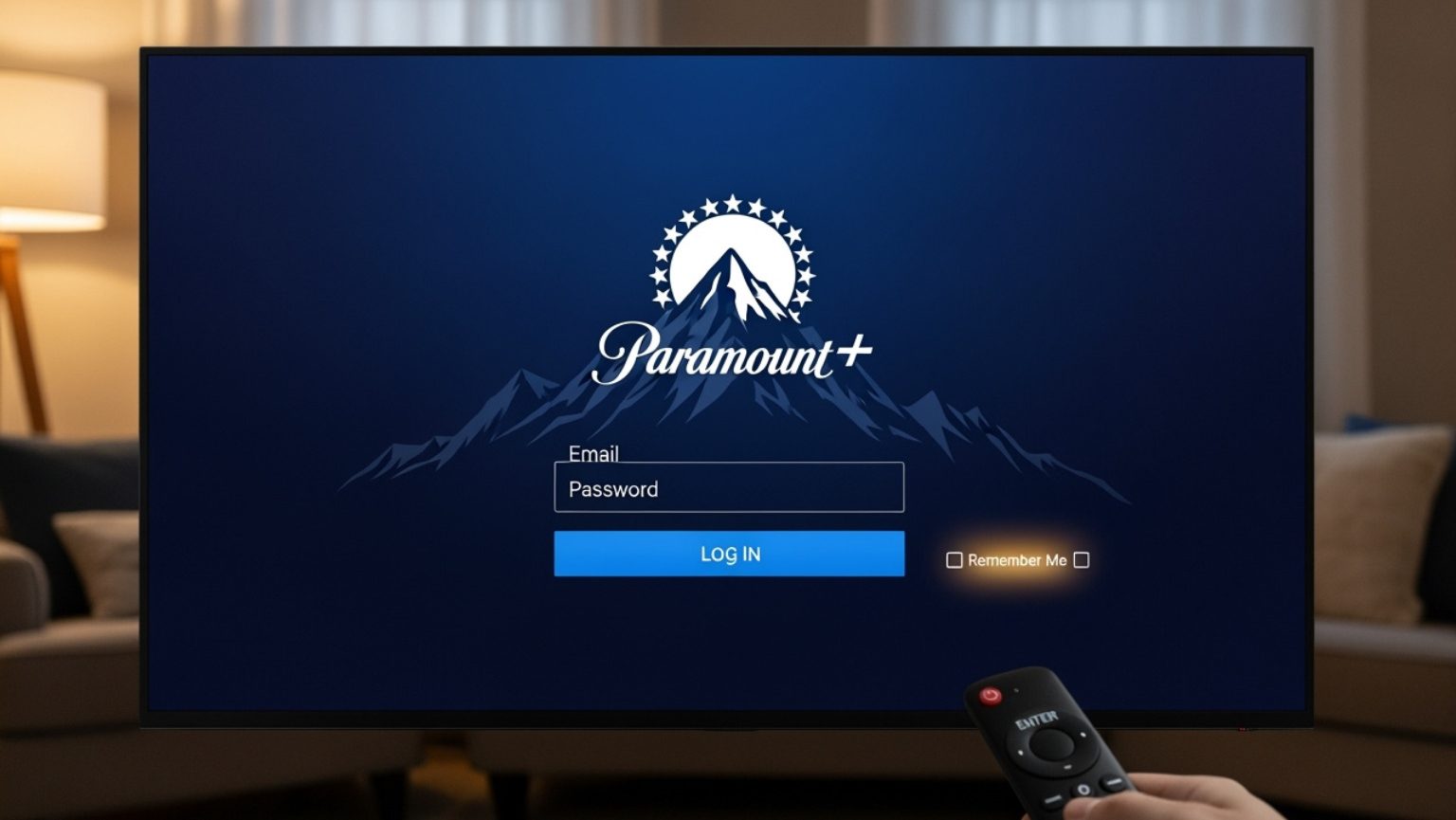
The service is accessible across a wide array of devices, ensuring flexibility in how and where you consume content. These include web browsers on desktop and laptop computers, mobile devices (iOS and Android smartphones and tablets), smart TVs (Samsung, LG, Vizio, etc.), streaming media players (Roku, Amazon Fire TV, Apple TV, Chromecast), gaming consoles (PlayStation, Xbox), and even certain cable set-top boxes. The ubiquity of its presence means that once you understand the core sign-in mechanisms, you can apply them to almost any device.
The Essential Pre-Login Checklist
A smooth sign-in experience begins with proper preparation. Before you even open the Paramount Plus app or website, ensure you have these critical elements in place. Skipping these preliminary checks can lead to frustration and unnecessary troubleshooting.
Active Subscription
This is non-negotiable. To sign into Paramount Plus, you must have an active subscription. If you’ve never subscribed, you’ll need to create an account and choose a plan. This typically involves visiting the official Paramount Plus website (paramountplus.com) or subscribing directly through the app on your preferred device. Trials are often available, allowing you to create an account and access content for a limited period before a paid subscription begins. Verify your subscription status if you’re unsure, as an expired or canceled plan will prevent you from logging in.
Account Credentials
Your username and password are your keys to access. For Paramount Plus, your username is almost always the email address you used when you created your account. The password is the unique combination of characters you set up during registration. It’s highly recommended to use a strong, unique password to protect your account. If you’ve forgotten your password, most login screens will offer a “Forgot Password” or “Reset Password” link, which will guide you through a recovery process, typically involving email verification. Ensure you have access to the email inbox associated with your account.
Compatible Device & Stable Internet Connection
Paramount Plus requires a compatible device running a relatively recent operating system version. Older devices or outdated software may not support the latest version of the app, leading to performance issues or complete inability to sign in. Furthermore, a stable and sufficiently fast internet connection is crucial. Streaming high-definition video consumes significant bandwidth. A weak or intermittent connection can cause buffering, sign-in failures, or a degraded viewing experience. Test your internet speed and connectivity before attempting to log in, especially if you’re experiencing issues.
Step-by-Step Login Guide Across Platforms
The sign-in process can vary slightly depending on the device you are using. While the core principle of entering your email and password remains consistent, the interface and activation methods differ.
Via Web Browser (Desktop/Laptop)
This is often the most straightforward method and serves as the primary way many users manage their accounts.
- Open your web browser: Launch Chrome, Firefox, Edge, Safari, or your preferred browser.
- Navigate to the official website: Type
paramountplus.cominto the address bar and press Enter. - Locate the “Sign In” button: This is typically found in the top right corner of the homepage. Click on it.
- Enter your credentials: You will be prompted to enter the email address associated with your Paramount Plus account and your password.
- Click “Log In” or “Sign In”: After entering your details, click the respective button to complete the process.
If successful, you will be redirected to the Paramount Plus homepage, now logged into your account, and can begin browsing content.
Via Mobile App (iOS/Android)
Accessing Paramount Plus on your smartphone or tablet is convenient for on-the-go viewing.
- Download the app: If you haven’t already, download the “Paramount Plus” app from the Apple App Store (for iOS) or Google Play Store (for Android).
- Open the app: Tap the Paramount Plus icon on your device’s home screen or app drawer.
- Find the “Sign In” option: Upon opening, the app usually presents options to “Sign In” or “Start a Free Trial.” Select “Sign In.”
- Enter your credentials: Input your email address and password into the designated fields.
- Tap “Sign In”: Confirm your details to log into your account.
You should now be able to navigate the app and stream content.
Via Smart TV/Streaming Device (Roku, Fire TV, Apple TV, etc.)
Logging in on a larger screen typically involves one of two methods: direct sign-in or device activation using a web browser.
Method 1: On-Screen Code Activation
This is a common and often preferred method for devices with challenging text input (e.g., using a TV remote).
- Open the Paramount Plus app on your TV/device: Ensure the app is installed and up to date.
- Select “Sign In”: This option is usually prominent on the app’s initial screen.
- Note the activation code: The app will display a unique alphanumeric code on your TV screen, along with a web address (e.g.,
paramountplus.com/activate). - On a separate device (computer/phone): Open a web browser and go to the URL provided on your TV screen.
- Enter the activation code: On the website, you will find a field to enter the code displayed on your TV. Enter it precisely.
- Log in on the web: After entering the code, you’ll be prompted to log into your Paramount Plus account using your email and password on the web browser.
- Confirm activation: Once you log in successfully on the web, your TV screen should automatically refresh and log you into the Paramount Plus app.

Method 2: Direct Sign-In
Some smart TV apps or streaming devices allow you to enter your credentials directly.
- Open the Paramount Plus app on your TV/device.
- Select “Sign In.”
- Choose “Sign In with Email & Password” (or a similar option if available).
- Use your device’s remote/keyboard: Input your email address and password using the on-screen keyboard or a connected physical keyboard. This can sometimes be cumbersome with a standard TV remote.
- Select “Sign In”: Confirm your details.
Your device should now be logged in, ready for streaming.
Through a Third-Party Provider (e.g., Amazon Prime Video Channels, Apple TV Channels)
If you subscribed to Paramount Plus as a “channel” through another service like Amazon Prime Video Channels or Apple TV Channels, your sign-in process is different. You do not sign into the standalone Paramount Plus app directly.
- Open the app of the third-party provider: For example, open the Amazon Prime Video app or Apple TV app.
- Navigate to your channels/subscriptions: Locate the section within that app where your subscribed channels are listed.
- Select Paramount Plus: The content will be integrated directly into the third-party app’s interface. You are already “signed in” through your subscription with that provider.
You will access all Paramount Plus content within the Amazon Prime Video or Apple TV app, not through the dedicated Paramount Plus app.
Troubleshooting Common Login Issues
Encountering a hitch during the login process can be frustrating, but many common issues have simple solutions.
Incorrect Credentials
The most frequent issue.
- Double-check spelling: Ensure your email address is typed correctly.
- Case sensitivity: Passwords are case-sensitive. Verify Caps Lock is off unless intended.
- Password reset: If uncertain, use the “Forgot Password” link on the login page to set a new password. Ensure you check your spam/junk folder for the reset email.
Internet Connectivity Problems
A poor connection will prevent successful login.
- Check Wi-Fi/Ethernet: Ensure your device is connected to a stable internet network.
- Restart router: Unplug your internet router/modem for 30 seconds, then plug it back in. Wait for it to fully restart.
- Test other apps: See if other internet-dependent apps or websites work on the same device.
App/Browser Glitches
Software can occasionally misbehave.
- Clear cache/cookies: For web browsers, clear your browser’s cache and cookies. For apps, go to your device’s app settings and clear the app’s cache and data.
- Restart app/browser: Close the Paramount Plus app or your web browser completely and reopen it.
- Reinstall app: If issues persist, delete the Paramount Plus app and download/install it again from your device’s app store. This ensures you have the latest, uncorrupted version.
- Update app/OS: Ensure the Paramount Plus app and your device’s operating system (e.g., iOS, Android, Roku OS) are updated to their latest versions. Outdated software can cause compatibility problems.
Device Compatibility
Not all devices are supported, or older models may struggle.
- Check compatibility list: Refer to the official Paramount Plus support pages to verify your device model and OS version are supported.
- Try another device: If possible, attempt to log in on a different, known compatible device (e.g., a phone or computer) to rule out device-specific issues.
Subscription Status
An inactive subscription will block access.
- Verify active subscription: Log into your Paramount Plus account on a web browser (paramountplus.com) and navigate to your account settings to confirm your subscription is active and not expired.
Geo-Restrictions
Paramount Plus content and service availability vary by region.
- VPN interference: If you are using a VPN, it might be routing your connection through an unsupported region. Try disabling the VPN or selecting a server in your actual location.
Enhancing Your Paramount Plus Experience Post-Login
Once you’ve successfully logged into Paramount Plus, several features and practices can help you make the most of your subscription.
Profile Management
Paramount Plus allows for multiple user profiles within a single account. This is ideal for families, enabling personalized recommendations and separate watch histories for each user. Navigate to the profile icon (often a person silhouette) usually found at the top right of the screen on web or within the app’s settings, to create and manage profiles.
Content Discovery
With an ever-growing library, finding something to watch is part of the experience. Utilize the platform’s robust search functionality, browse by genre, channel, or collections. Make use of the “Watchlist” feature to save shows and movies you intend to watch later, ensuring you never forget a title that caught your eye.
Parental Controls
For households with children, setting up parental controls is essential. These settings, typically found in the main account management section, allow you to restrict content based on ratings, ensuring younger viewers only access appropriate material. Password protection for these settings prevents unauthorized changes.
Device Management
Paramount Plus keeps track of the devices you’re logged into. In your account settings on the website, you can often view a list of active devices. This is useful for security, allowing you to log out of specific devices remotely if you suspect unauthorized access or if you’ve signed in on a public device.

Keeping Your Software Updated
Regularly updating the Paramount Plus app and your device’s operating system is crucial. Updates often include bug fixes, performance improvements, and security patches, ensuring a smooth, secure, and feature-rich streaming experience. Enable automatic updates where possible to stay current effortlessly.
aViewFromTheCave is a participant in the Amazon Services LLC Associates Program, an affiliate advertising program designed to provide a means for sites to earn advertising fees by advertising and linking to Amazon.com. Amazon, the Amazon logo, AmazonSupply, and the AmazonSupply logo are trademarks of Amazon.com, Inc. or its affiliates. As an Amazon Associate we earn affiliate commissions from qualifying purchases.