
For any business owner, the transition from manual spreadsheets or disorganized receipts to a robust accounting system is a pivotal moment. QuickBooks remains the industry standard for small to medium-sized businesses because it bridges the gap between basic bookkeeping and high-level financial strategy. Properly setting up QuickBooks is not merely a technical requirement; it is the foundation upon which you will build your company’s financial health, tax compliance, and long-term scalability.
A rushed setup often leads to “messy books,” which can result in missed tax deductions, inaccurate profit reporting, and significant headaches during audit season. By following a structured approach to your initial configuration, you ensure that every dollar moving through your business is tracked, categorized, and leveraged for growth.
Choosing the Right QuickBooks Version for Your Financial Goals
Before the first transaction is ever recorded, you must select the ecosystem that best fits your business model. QuickBooks offers several tiers, primarily categorized into QuickBooks Online (QBO) and QuickBooks Desktop. For most modern businesses, QuickBooks Online is the preferred choice due to its cloud-based accessibility, real-time bank feeds, and seamless integration with third-party financial apps.
Evaluating Online Tiers
QuickBooks Online is divided into four main categories: Simple Start, Essentials, Plus, and Advanced.
-
Simple Start: Ideal for freelancers and sole proprietors. It allows for basic income and expense tracking, invoicing, and tax categorization.
-
Essentials: Best for service-based businesses that need to manage accounts payable (bills) and track time across multiple users.
-
Plus: The most popular choice for product-based businesses. It includes inventory tracking and project profitability reporting, which are essential for understanding the true cost of goods sold.
-
Advanced: Designed for growing mid-sized companies requiring deep data analytics, automated workflows, and expanded user permissions.
Determining Your Accounting Method
During the initial setup, you will be asked to choose between Cash and Accrual accounting. This is a fundamental financial decision. Cash accounting records income when the money hits your bank and expenses when they leave. Accrual accounting records income when you send an invoice and expenses when you receive a bill, regardless of when the cash actually moves. Most businesses use the Accrual method for a more accurate picture of long-term financial health, but you should consult with a tax professional to ensure your choice aligns with your tax filing strategy.
Initial Configuration: Building a Solid Financial Foundation
Once you have secured your subscription, the initial configuration begins. This phase is about defining the identity of your business within the software so that your reports reflect your actual operations.
Company Information and Tax Settings
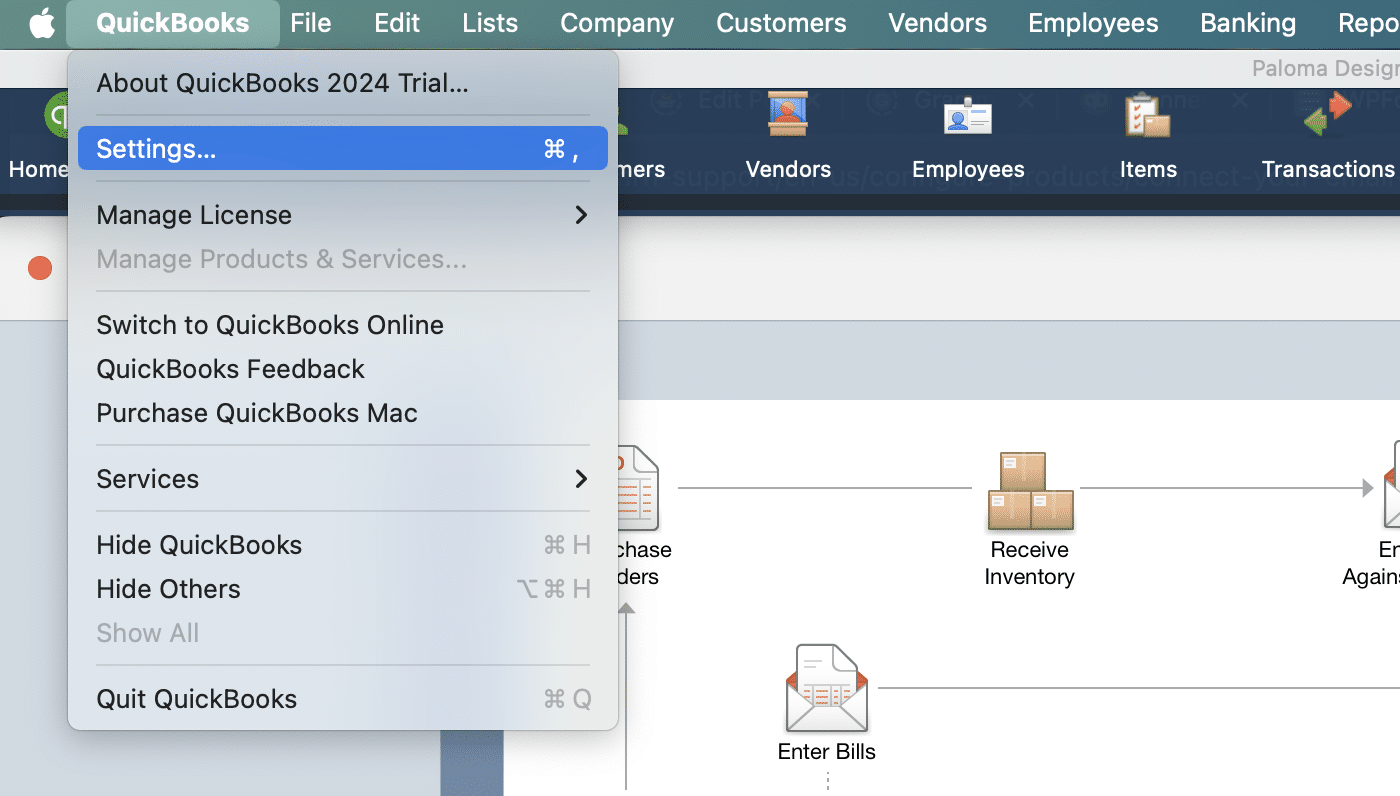
Navigate to the “Account and Settings” section to input your legal business name, address, and Employer Identification Number (EIN). This information will appear on all your invoices and official documents. Crucially, set your fiscal year—most businesses follow the calendar year (January to December), but some industries may have different cycles. Correctly setting your tax entity type (S-Corp, LLC, Sole Proprietorship) ensures that QuickBooks maps your data to the correct tax forms.
The Chart of Accounts: Your Financial Blueprint
The Chart of Accounts (COA) is a listing of every “bucket” your money can fall into. It is categorized into Assets, Liabilities, Equity, Income, and Expenses. While QuickBooks provides a default COA based on your industry, customizing it is vital for granular financial oversight.
-
Assets: Include your bank accounts, accounts receivable, and fixed assets like equipment.
-
Liabilities: This tracks what you owe, such as credit card balances, loans, and sales tax payable.
-
Equity: This represents the owner’s stake, including owner’s draws and retained earnings.
-
Income/Expenses: These should be detailed enough to tell a story. Instead of a single “Marketing” expense, you might create sub-accounts for “Social Media Ads” and “Print Materials” to see exactly where your capital is most effective.
Connecting Bank and Credit Card Feeds
One of the most powerful features of QuickBooks is its ability to sync directly with your financial institutions. By connecting your business bank accounts and credit cards, transactions flow automatically into the “Banking” tab. This minimizes manual data entry and reduces the risk of human error. However, simply connecting the feeds is not enough; you must establish “Bank Rules” to automate the categorization of recurring transactions, such as monthly software subscriptions or utility bills.
Managing Revenue and Expenses for Maximum Efficiency

With the framework in place, the next step in your setup is defining how you will handle the daily flow of capital. This involves setting up your products, services, and vendor lists.
Setting Up Products and Services
To generate professional invoices and track what is driving your revenue, you must populate your “Products and Services” list. Each item should be linked to a specific Income account in your COA. If you sell physical goods, you must enable inventory tracking to monitor stock levels and automatically calculate the Cost of Goods Sold (COGS). For service providers, setting up “Service” items with standardized rates ensures consistency in billing across your client base.
Establishing Vendor and Customer Profiles
Instead of entering names on the fly, take the time to import your existing customer and vendor lists. For customers, you can store payment terms (e.g., Net 30) and preferred delivery methods. For vendors, it is vital to record their tax information and whether they require a 1099 at year-end. Setting these up during the initial phase prevents a frantic scramble during tax season.
Accounts Payable and Receivable Workflows
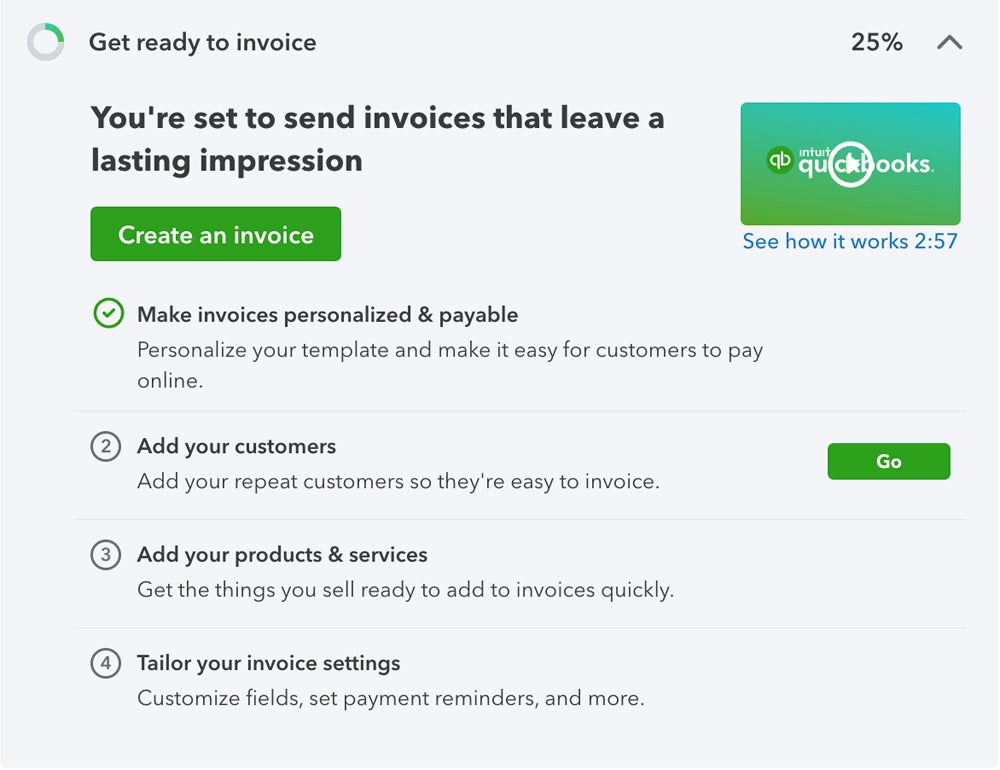
Decide how you will manage your bills. Will you use the “Bill Pay” feature to schedule payments directly from QuickBooks, or will you record payments manually? On the revenue side, setting up “QuickBooks Payments” allows clients to pay invoices via ACH or credit card directly from the email they receive. While there are processing fees involved, the acceleration of cash flow and the automatic reconciliation of these payments often outweigh the costs.
Integrating Payroll and Scaling Operations
As your business grows, your financial needs will extend beyond basic bookkeeping. Integrating payroll and managing sophisticated project costs are the next levels of a professional QuickBooks setup.
Payroll Configuration
If you have employees or paid contractors, setting up the Payroll module is a critical step. You must enter employee W-4 information, pay rates, and benefit deductions. QuickBooks Payroll can automate the filing of payroll taxes and the issuance of W-2s, which is a significant safeguard against IRS penalties. Ensure that your payroll expenses are mapped to the correct accounts in your COA so you can see the true “burdened” cost of your labor.
Project Tracking and Job Costing
For businesses in construction, consulting, or creative agencies, “Project Tracking” is an essential feature found in the Plus and Advanced tiers. This allows you to assign specific income and expenses to a particular project. By doing so, you can run a Project Profitability report to see if a specific client or job is actually making money after all expenses and labor hours are accounted for. This data is invaluable when it comes time to adjust your pricing strategy.
Financial Reporting and Review: Driving Growth with Data
The ultimate goal of setting up QuickBooks is not just to record history, but to gain the insights necessary to make informed business decisions. Once your setup is complete and your data is flowing, you must understand the “Big Three” reports.
The Profit and Loss Statement (P&L)
The P&L is the scoreboard for your business over a specific period. It shows your total income minus your COGS and operating expenses, resulting in your net income. During your setup, ensure you understand how to filter this report by “Class” or “Location” if your business operates multiple departments or storefronts. This allows you to identify which areas of your business are high-performing and which are draining resources.
The Balance Sheet
While the P&L shows performance over time, the Balance Sheet is a snapshot of your financial position at a single moment. It lists what you own (Assets), what you owe (Liabilities), and what is left for the owners (Equity). A properly setup Balance Sheet is what lenders and investors will look at first. It must be reconciled monthly—meaning your QuickBooks balances must perfectly match your actual bank statements—to ensure the data is trustworthy.
The Statement of Cash Flows
Many profitable businesses fail because they run out of cash. The Statement of Cash Flows tracks the actual movement of currency in and out of your business, stripping away non-cash accounting entries. By reviewing this regularly, you can predict “cash crunches” before they happen and ensure you have the liquidity to meet your obligations.
Establishing a Monthly Review Routine
A successful QuickBooks setup requires ongoing maintenance. Establish a month-end “Close” process where you reconcile all accounts, review for uncategorized transactions, and lock the books to prevent accidental changes to past data. This discipline ensures that your financial data remains an asset rather than a liability, providing a clear roadmap for your business’s financial future. By mastering the setup and the subsequent data management, you transform your accounting from a chore into a powerful strategic tool for wealth creation and business sustainability.
aViewFromTheCave is a participant in the Amazon Services LLC Associates Program, an affiliate advertising program designed to provide a means for sites to earn advertising fees by advertising and linking to Amazon.com. Amazon, the Amazon logo, AmazonSupply, and the AmazonSupply logo are trademarks of Amazon.com, Inc. or its affiliates. As an Amazon Associate we earn affiliate commissions from qualifying purchases.