
In an increasingly digitized world, the evolution of payment systems stands as a testament to technological innovation. Google Pay emerges as a pivotal application in this landscape, transforming how individuals manage transactions, secure their financial data, and interact with the retail and online economy. Far more than just a virtual wallet, it is a robust digital platform designed to streamline financial interactions through a seamless, secure, and intuitive interface. This comprehensive tutorial will guide you through the intricate yet user-friendly process of setting up Google Pay, ensuring you harness its full potential as a modern digital payment solution. We’ll delve into the technical prerequisites, the step-by-step activation process, and the advanced security features that underpin its operation, all within the framework of cutting-edge technology.

The Digital Revolution of Payments: Understanding Google Pay
The transition from physical wallets brimming with cards and cash to a singular, secure digital repository on a smartphone represents a significant leap in consumer technology. Google Pay embodies this paradigm shift, offering a sophisticated ecosystem for managing various financial activities directly from your device. It leverages NFC (Near Field Communication) technology for in-store payments, integrates seamlessly with online shopping platforms, and facilitates peer-to-peer transactions, all while prioritizing user convenience and data protection.
What is Google Pay? Beyond a Wallet App
At its core, Google Pay is a digital wallet and online payment system developed by Google to power in-app, online, and contactless purchases on mobile devices, enabling users to make payments with Android phones, tablets, or smartwatches. It unifies several Google payment services into a single brand, designed to simplify and secure the purchasing process across multiple touchpoints. But its capabilities extend beyond merely holding payment information. Google Pay integrates loyalty cards, gift cards, public transport passes, and event tickets, consolidating a plethora of physical items into a digital format. This convergence of services transforms the smartphone into an indispensable financial tool, reducing clutter and enhancing accessibility. Its underlying architecture is built upon advanced encryption and tokenization, ensuring that sensitive card details are never directly shared with merchants during transactions, a critical aspect of its technological design.
Why Embrace Digital Payments? Convenience and Innovation
The allure of digital payments, and Google Pay in particular, lies in its unparalleled convenience and the innovative features it brings to the user experience. Imagine leaving your physical wallet at home yet still being able to purchase groceries, pay for public transport, or order takeout, all with a simple tap of your phone. This level of accessibility is a direct outcome of technological advancement, making transactions faster, more efficient, and less prone to human error. Beyond speed, digital payment systems like Google Pay offer detailed transaction histories, simplifying budgeting and financial tracking. Furthermore, the integration with Google’s broader ecosystem means a consistent and familiar user experience, leveraging your existing Google account for seamless authentication and personalization. The continuous evolution of these platforms, driven by user feedback and security enhancements, underscores their role as frontrunners in financial technology.
Essential Prerequisites for a Seamless Setup
Before embarking on the setup process for Google Pay, it’s crucial to ensure your device and digital environment meet the necessary technical requirements. Addressing these prerequisites upfront will prevent potential roadblocks and ensure a smooth, secure activation of your digital wallet. The foundation of a successful Google Pay setup lies in having the right hardware, the latest software, and a robust internet connection.
Device Compatibility and Software Requirements
Google Pay is primarily designed for Android devices, including smartphones and tablets, running Android Lollipop (5.0) or higher. While a broader range of devices supports Google Pay for online and in-app purchases, contactless payments in physical stores specifically require NFC (Near Field Communication) technology on your device. NFC allows your phone to communicate with card readers wirelessly over short distances, enabling the “tap and pay” functionality. To verify NFC capability, typically, you can check your device’s settings under “Connected devices” or “Wireless & networks.” Additionally, for optimal performance and security, it’s highly recommended to keep your device’s operating system updated to the latest version. Software updates often include critical security patches and performance enhancements that are vital for protecting your financial data. An unrooted or untampered device is also a prerequisite, as rooted devices can compromise the security framework Google Pay relies upon, often preventing its functionality.
The Google Account Foundation
At the heart of Google Pay’s operation is your Google Account. This account serves as your digital identity, linking your payment methods, transaction history, and personalization settings across all Google services. If you don’t already have one, creating a Google Account is a straightforward process, requiring a valid email address and some personal details. Your Google Account is instrumental for signing into the Google Pay app, managing your payment methods, and accessing customer support. Ensuring its security is paramount; enabling two-factor authentication (2FA) on your Google Account is a highly recommended digital security measure. This adds an extra layer of protection, requiring a second form of verification (like a code from your phone) in addition to your password, significantly reducing the risk of unauthorized access to your financial information stored within Google Pay.
Step-by-Step Guide to Activating Your Google Pay Account
With the prerequisites in place, the activation of your Google Pay account is a streamlined process designed for user simplicity. This section breaks down each critical step, from obtaining the application to securing your first payment method, ensuring you can confidently begin your journey into digital payments.
Downloading and Installing the Google Pay Application
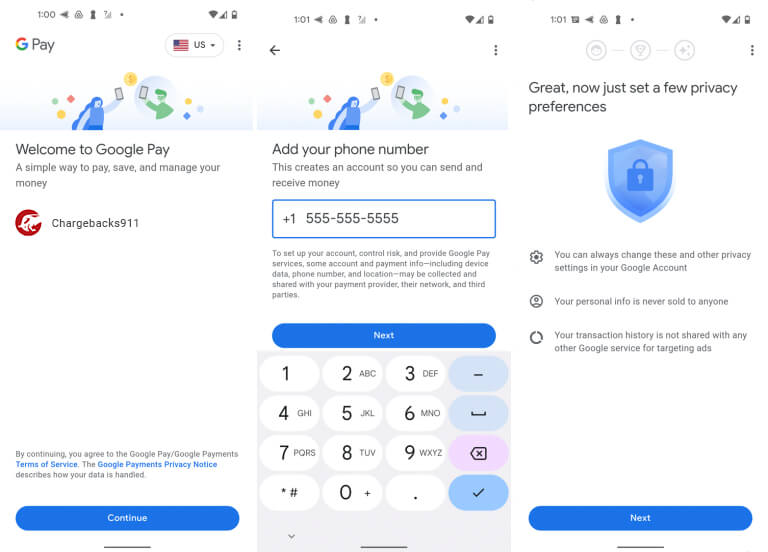
The first technical step is to acquire the Google Pay application. For Android users, this involves navigating to the Google Play Store. Search for “Google Pay” and select the official app developed by Google LLC. Once found, tap the “Install” button. The app will download and install automatically, provided you have sufficient storage space and a stable internet connection (Wi-Fi is recommended to save mobile data). After installation, you can open the app directly from the Play Store or locate its icon on your device’s home screen or app drawer. Upon opening, you will be prompted to sign in with your Google Account. This links the app to your existing Google profile, allowing for seamless integration with other Google services and personalized settings.
Adding Your First Payment Method: Cards and Bank Accounts
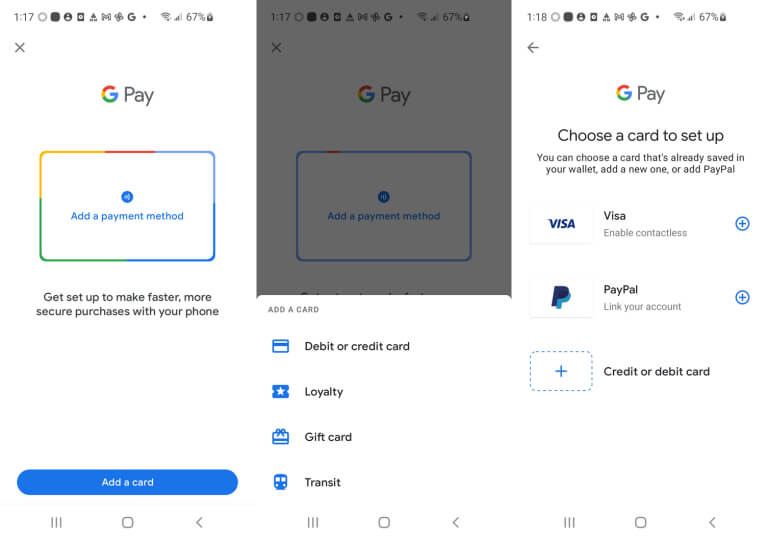
Once signed in, the core functionality of Google Pay comes alive when you add a payment method. This is typically a credit or debit card, but in some regions, direct bank account linking is also available.
- Open Google Pay: Launch the app and look for an option like “Add a card” or a plus (+) icon.
- Select Payment Type: Choose “Credit or debit card.”
- Scan or Manually Enter Card Details: You can either use your phone’s camera to scan your card, which auto-fills most of the details, or manually input the card number, expiration date, and CVV.
- Enter Billing Address: Provide your billing address associated with the card.
- Read and Accept Terms: Review the issuer’s terms and conditions and accept them.
For adding bank accounts (where supported), the process usually involves linking to your bank’s online portal for verification, ensuring a secure connection between your bank and Google Pay. It’s important to add multiple payment methods if desired, providing redundancy and flexibility in your payment options.
The Verification Process: Ensuring Security and Authenticity
After adding a card, a critical security step is the verification process. This step confirms that you are the legitimate owner of the card being added, preventing fraudulent use. Your bank or card issuer will typically initiate this verification. Common methods include:
- Sending a code via SMS: A one-time passcode (OTP) is sent to the phone number associated with your bank account. You’ll enter this code into the Google Pay app.
- Sending a code via email: Similar to SMS, a code is sent to your registered email address.
- A small temporary charge: A minuscule amount might be charged to your card (which is later refunded) with a unique code in the transaction description.
- Calling your bank: In some cases, you might be instructed to call your bank to verify your identity.
Completing this verification is non-negotiable for using your card with Google Pay for secure, contactless, and online payments. It reinforces the robust digital security framework that protects your financial data.
Configuring Default Payment Options and Settings
Once your payment methods are verified, you can further customize your Google Pay experience. Within the app’s settings, you have the option to:
- Set a default card: This card will be automatically selected for transactions unless you choose otherwise. This can save time during quick payments.
- Enable/Disable NFC payments: For in-store contactless payments, ensure NFC is enabled in your device settings and Google Pay is set as the default payment app for NFC.
- Manage notifications: Customize alerts for transactions, offers, and updates.
- Review privacy settings: Control how your data is used and shared within Google Pay, aligning with your personal preferences for digital privacy.
These configurations allow you to tailor Google Pay to your specific needs, optimizing convenience while maintaining control over your financial interactions and digital footprint.
Leveraging Google Pay’s Advanced Features and Security
Beyond its primary function as a payment facilitator, Google Pay integrates a suite of advanced features and robust security protocols designed to enhance the user experience and protect sensitive financial information. Understanding these elements is key to fully utilizing the platform within the tech ecosystem.
Making Transactions: Tap, Pay, and Online Purchases
The versatility of Google Pay truly shines in its ability to support various transaction types.
- In-Store Contactless Payments: For brick-and-mortar stores, Google Pay uses NFC technology. Once set up, simply unlock your phone (or sometimes just wake it up), hold it near the compatible payment terminal, and a checkmark will appear on your screen, indicating a successful transaction. This “tap and pay” method is not only fast but also more secure than swiping a physical card, as it uses tokenization.
- Online Purchases: When shopping online or within apps, look for the “Buy with Google Pay” button. Clicking this button automatically populates your payment and shipping information from your Google Account, eliminating the need to manually enter details, which is a significant time-saver and reduces potential typing errors. This integration streamlines the e-commerce checkout process, making it frictionless.
- Peer-to-Peer Payments: In some regions, Google Pay also allows users to send and receive money from friends and family, functioning similarly to other peer-to-peer payment apps. This feature transforms Google Pay into a comprehensive financial communication tool.
Each transaction type leverages Google’s secure infrastructure, ensuring data integrity and user authentication at every step.
Digital Security Architecture: Protecting Your Financial Data
The bedrock of Google Pay’s trustworthiness lies in its sophisticated digital security architecture. Unlike traditional card payments where your actual card number is transmitted, Google Pay employs a process called tokenization. When you add a card, Google Pay generates a unique encrypted number (a “token”) that represents your card information. This token is what’s shared with the merchant during a transaction, not your actual card number. This means even if a merchant’s system is compromised, your real card details remain secure.
Furthermore, Google Pay incorporates several layers of protection:
- Screen Lock Requirement: Your phone must be unlocked to make payments (for higher value transactions, a PIN, pattern, or biometric authentication might be required). This prevents unauthorized use if your phone is lost or stolen.
- Advanced Encryption: All data transmitted between your device, Google’s servers, and payment terminals is encrypted using industry-leading standards.
- Fraud Monitoring: Google’s robust fraud detection systems continuously monitor transactions for suspicious activity, providing an additional layer of defense against unauthorized use.
- Remote Device Management: If your device is lost or stolen, you can use Google’s “Find My Device” service to locate, lock, or even wipe your phone, including your Google Pay data, remotely.
These combined security measures provide a formidable defense, making Google Pay a highly secure method for conducting digital transactions.
Troubleshooting Common Setup and Usage Issues
While Google Pay is designed for ease of use, occasional issues may arise. Understanding common troubleshooting steps can quickly resolve most problems.
- “Card not added” or “Verification failed”: Double-check card details for accuracy. Ensure your internet connection is stable. Contact your bank to confirm there are no restrictions on your card for digital wallet use.
- NFC Payment Issues: Confirm NFC is enabled in your phone’s settings. Ensure Google Pay is set as your default payment app for NFC. Check if your phone case is interfering with NFC signals. Make sure the payment terminal supports contactless payments.
- App Crashes/Freezes: Try force-closing and restarting the Google Pay app. Clear the app’s cache and data from your phone’s settings (this may require re-adding cards). Ensure your phone’s OS and Google Pay app are updated to the latest versions.
- Transactions Not Going Through: Verify sufficient funds or credit limit on your chosen card. Check if the merchant’s terminal is functioning correctly. Your bank might have flagged the transaction for security reasons; contact them if necessary.
For persistent issues, Google Pay’s comprehensive online help center and customer support channels are available to provide further assistance, ensuring a smooth digital payment experience.
The Future of Transactions: Integrating Google Pay into Your Digital Lifestyle
As technology continues to advance, so too does the utility of platforms like Google Pay. Its evolution is not just about facilitating payments, but about seamlessly integrating into a broader digital lifestyle, offering convenience that extends far beyond a simple transaction. The platform is continuously refined, reflecting emerging tech trends and user demands, positioning itself as a central hub for various digital interactions.
Expanding Beyond Payments: Loyalty Programs and Tickets
Google Pay’s vision extends beyond mere financial transactions. It’s designed to be a holistic digital repository, reducing the need for a cluttered physical wallet. One significant expansion is its ability to store and manage loyalty cards from various retailers. Instead of fumbling for a plastic card, customers can simply select their loyalty program within the Google Pay app at checkout, ensuring they never miss out on rewards or points. Similarly, Google Pay supports the storage of event tickets, boarding passes, and even public transportation cards in select cities. This functionality leverages the smartphone’s inherent capabilities to replace multiple physical items, simplifying travel and event attendance. This integration exemplifies the power of a centralized digital platform, consolidating information and access points for the user. As more businesses adopt digital solutions, the scope of what Google Pay can store and manage is only set to grow, making it an indispensable tool for the digitally-savvy individual.
Staying Ahead: Updates and New Features
The technological landscape is ever-changing, and Google Pay continually adapts to these shifts through regular updates and the introduction of new features. These enhancements often focus on improving security, expanding functionality, and enhancing user experience. Users can expect periodic app updates that might bring:
- Enhanced Security Protocols: As cyber threats evolve, Google consistently updates its encryption and fraud detection mechanisms to stay ahead.
- Integration with New Services: Google Pay frequently expands its compatibility with new banks, online merchants, and third-party apps, broadening its utility.
- Innovative Payment Options: This could include support for cryptocurrencies (if regulations permit), advanced budgeting tools, or more sophisticated peer-to-peer functionalities.
- User Interface Refinements: Updates often include tweaks to the app’s design for better navigability and a more intuitive user experience, incorporating feedback and best practices in UI/UX design.
To ensure you benefit from the latest features and security enhancements, it’s crucial to keep your Google Pay app updated. Enabling automatic app updates on your device is the simplest way to ensure you’re always running the most current version, allowing you to seamlessly integrate the newest technological advancements into your daily financial interactions. Google Pay, therefore, is not just a static application but a dynamic platform, continually evolving to meet the demands of a rapidly digitizing world, solidifying its role as a cornerstone of modern digital living.
aViewFromTheCave is a participant in the Amazon Services LLC Associates Program, an affiliate advertising program designed to provide a means for sites to earn advertising fees by advertising and linking to Amazon.com. Amazon, the Amazon logo, AmazonSupply, and the AmazonSupply logo are trademarks of Amazon.com, Inc. or its affiliates. As an Amazon Associate we earn affiliate commissions from qualifying purchases.