
In an increasingly digital world, the ability to transfer funds quickly, securely, and conveniently has become a cornerstone of personal finance and daily life. Google Wallet stands out as a powerful application that streamlines this process, allowing users to send and receive money with remarkable ease. More than just a digital payment system, Google Wallet integrates various financial functionalities into a single, intuitive platform, making it an indispensable tool for managing monetary exchanges in the modern era.
This comprehensive guide delves into the specifics of using Google Wallet for money transfers, offering a detailed walkthrough from setup to completion, while also addressing critical aspects of security, troubleshooting, and the broader technological landscape it inhabits. Whether you’re splitting a bill with friends, sending emergency funds to family, or simply managing your digital transactions, understanding the nuances of Google Wallet is key to harnessing its full potential.
Understanding Google Wallet: More Than Just a Digital Wallet
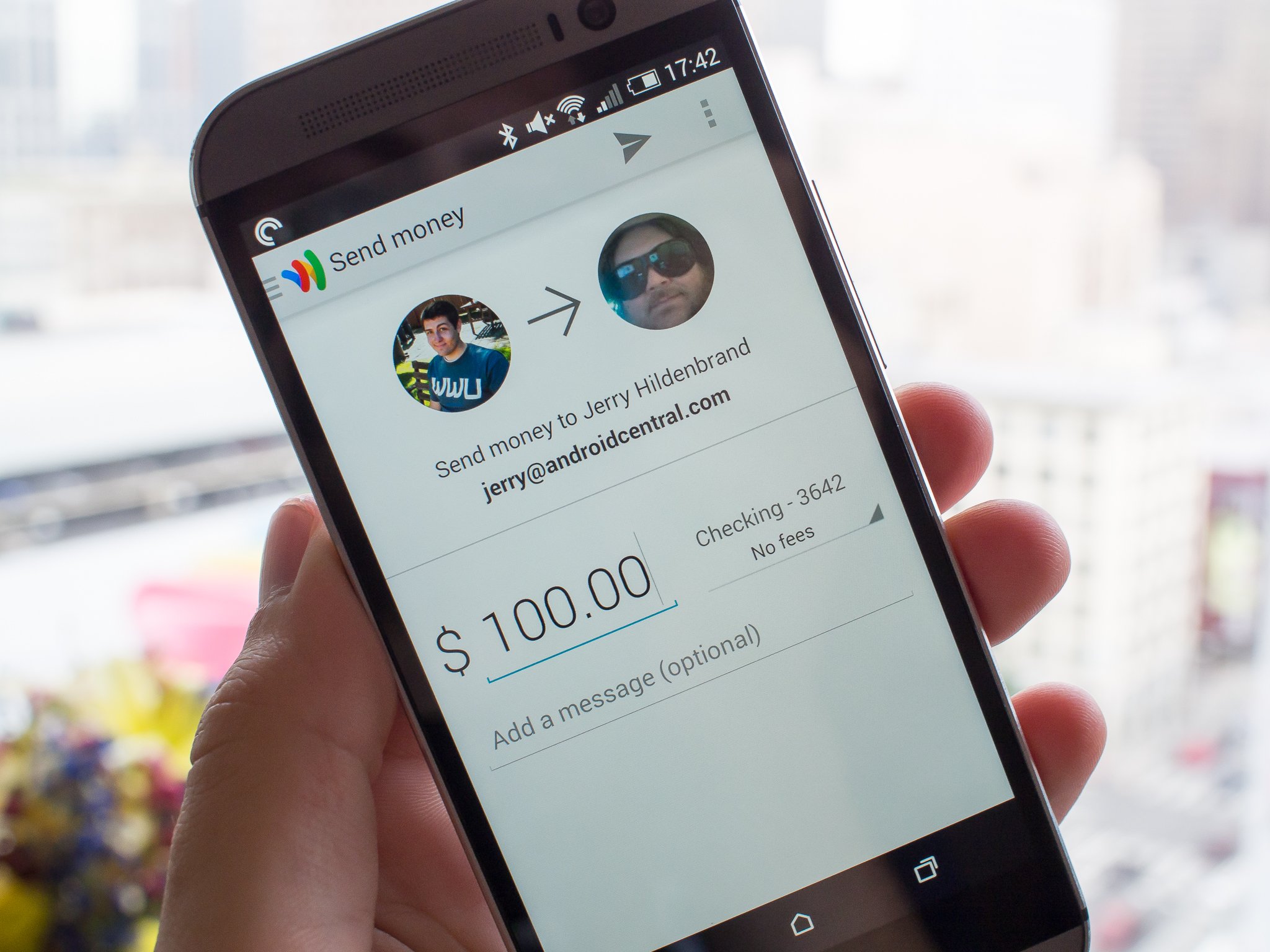
Google Wallet represents Google’s robust entry into the digital payments and personal finance space. It’s designed to be a comprehensive digital repository for your cards, tickets, passes, and, crucially, a conduit for peer-to-peer (P2P) money transfers. Far from being a niche app, Google Wallet has evolved to become a central hub for various digital assets, reflecting Google’s broader strategy to simplify and secure digital interactions.
Evolution of Google Pay and Google Wallet
The journey of Google Wallet is intertwined with Google Pay. Initially, “Google Wallet” was the name for Google’s mobile payment system and digital wallet service. Over time, Google introduced “Google Pay” as a unified brand for all its payment products, encompassing mobile payments, online transactions, and P2P transfers. However, in a strategic rebranding, Google Wallet was reintroduced as a distinct app, focusing specifically on holding digital items like payment cards, loyalty cards, boarding passes, and more, while Google Pay continues to handle the underlying payment processing technology and P2P transfers in some regions or contexts. For the purpose of sending money, the Google Wallet app serves as the primary interface for initiating these peer-to-peer transactions, often leveraging the Google Pay backend infrastructure. This distinction is crucial for users to navigate the ecosystem effectively. The core idea is to provide a seamless, secure, and integrated experience for managing all your digital financial instruments.
Core Functionality: Payments and Beyond
At its heart, Google Wallet facilitates swift digital payments. Beyond just tapping to pay in stores, its P2P money transfer capability allows users to send money directly to friends and family using only their email address or phone number. This eliminates the need for physical cash or traditional bank transfers, which can often be slower and more cumbersome. The integration with your bank accounts and credit/debit cards means that funds can be drawn from and deposited into your preferred financial institutions with minimal effort.
But Google Wallet’s utility extends further. It acts as a digital vault for a myriad of items:
-
Credit and Debit Cards: Store multiple cards securely for easy access.
-
Loyalty Cards: Keep all your rewards programs in one place, never missing out on points.
-
Boarding Passes: Simplify travel with digital airline tickets.
-
Event Tickets: Securely store concert or movie tickets.
-
Digital Car Keys: (Emerging feature) A glimpse into future integrations.
This multifaceted approach positions Google Wallet not just as a financial tool but as a central component of your digital identity and daily transactions, ensuring convenience and accessibility at your fingertips.
Preparing Your Google Wallet for Money Transfers
Before you can initiate your first money transfer, a few preparatory steps are essential. These steps ensure that your account is secure, your payment methods are correctly linked, and you comply with necessary verification protocols, laying the groundwork for a smooth and reliable experience.
Setting Up Your Google Wallet Account
If you haven’t already, the first step is to download the Google Wallet app from the Google Play Store (for Android) or the Apple App Store (for iOS). Once installed, open the app and sign in with your Google account. This links your Wallet to your existing Google identity, simplifying the setup process. Follow the on-screen prompts to set up basic security measures, such as a screen lock, PIN, fingerprint, or facial recognition, which are crucial for protecting your financial information. It’s imperative to use a strong, unique Google account password and enable two-factor authentication for an added layer of security.
Linking Payment Methods
To send money, Google Wallet needs a source of funds. You can link various payment methods to your account:
-
Debit Cards: This is typically the most common and recommended method for sending money as it usually involves no fees for transfers directly from your bank account via the debit card.
-
Bank Accounts: You can link your checking or savings account directly. This might involve a small verification process, such as Google making two small deposits into your account which you then confirm within the Wallet app.
-
Credit Cards: While you can link credit cards, be aware that Google Wallet (and most other P2P services) often charges a fee (e.g., 2.9%) for sending money using a credit card, as these transactions are typically processed as cash advances by the card issuer. It’s generally advised to use debit cards or linked bank accounts to avoid these fees.
To link a method, tap the ‘+’ or ‘Add a card’ button within the Wallet app, select the type of card/account, and enter the required details (card number, expiry date, CVV, billing address for cards; bank login credentials or account/routing numbers for bank accounts). Google uses encryption and secure protocols to protect this sensitive information.
Verifying Your Identity for Transactions
For compliance with financial regulations and to enhance security, Google Wallet may require identity verification, especially for larger transactions or if you’re sending money for the first time. This might involve providing your full legal name, address, date of birth, and potentially the last four digits of your Social Security Number (SSN) or other government-issued ID. This verification process helps Google comply with Know Your Customer (KYC) and Anti-Money Laundering (AML) regulations, ensuring a safe environment for all users and preventing fraudulent activities. While it might seem like an extra step, it’s a standard practice for financial technology platforms and is essential for maintaining the integrity and security of your funds.
Step-by-Step Guide to Sending Money
With your Google Wallet account set up and funded, sending money is a straightforward process. The app’s intuitive interface guides you through each stage, ensuring clarity and ease of use.
Initiating a New Transfer
-
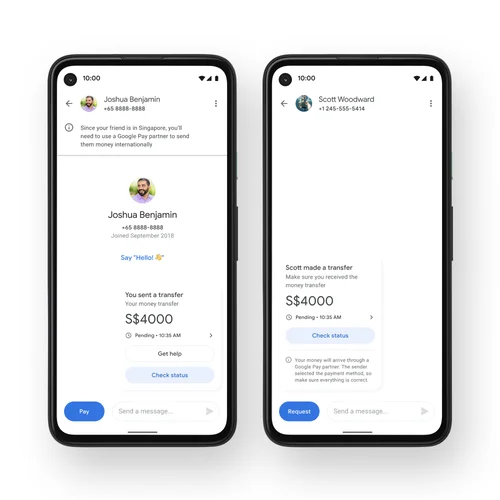
Open Google Wallet: Launch the Google Wallet app on your smartphone.
-
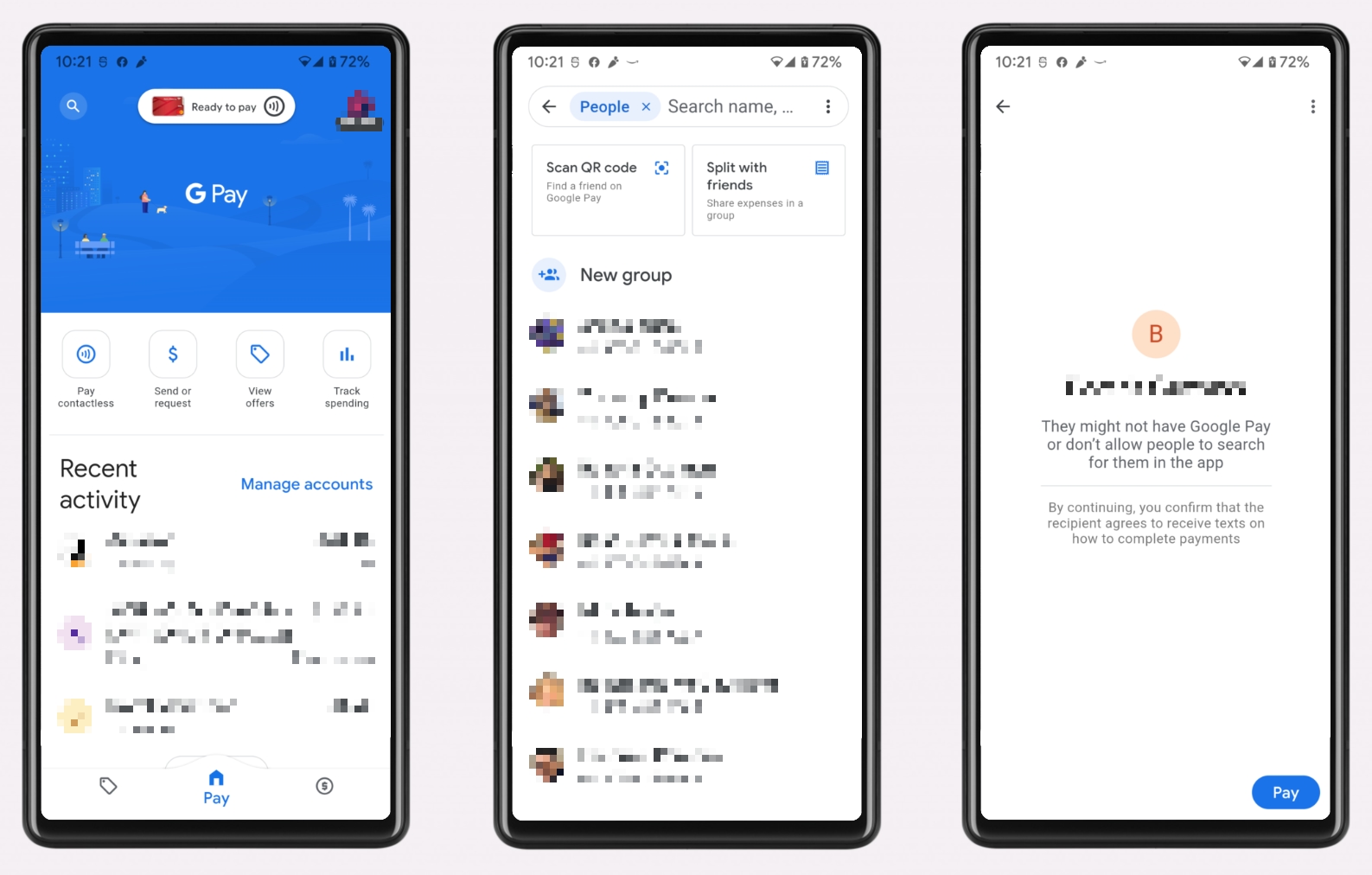
Locate “Send” or “Request”: Within the app, you’ll typically find an option to “Send” or “Request” money, often represented by an icon or prominently displayed button. Tap on “Send.”
-
Choose Recipient: You can send money to someone by typing their email address or phone number. If they are in your contacts and associated with a Google account, their name might auto-populate. If they don’t have a Google Wallet/Pay account, they will receive an email or SMS notification with instructions on how to set one up to claim the money.
Selecting a Recipient and Amount
Once you’ve initiated a transfer:
-
Confirm Recipient: Double-check the recipient’s email address or phone number to ensure accuracy. Sending money to the wrong person can be difficult to reverse.
-
Enter Amount: Type in the exact amount of money you wish to send. The app will usually display the currency automatically based on your location.
-
Add a Note (Optional): It’s good practice to add a brief note explaining the purpose of the payment (e.g., “Dinner,” “Rent contribution,” “Birthday gift”). This provides clarity for both you and the recipient and can be helpful for record-keeping.
-
Select Funding Source: Choose which linked payment method you want to use. As mentioned, debit cards or linked bank accounts are usually free for sending money, while credit cards typically incur a fee. The app will clearly display any applicable fees before you proceed.
Confirming and Sending Your Payment
-
Review Details: Before the final send, Google Wallet will present a summary screen. Carefully review all the details: recipient, amount, funding source, and any potential fees.
-
Authorize Transaction: Confirm the transfer by tapping the “Send” button. You might be asked to authenticate the transaction using your chosen security method (PIN, fingerprint, face ID, or screen lock). This step is a critical security measure to ensure only you can authorize transfers from your device.
-
Confirmation: Once sent, you’ll receive a confirmation message within the app, and often an email, indicating that the money has been sent. The recipient will also receive a notification. The transfer speed can vary; often, it’s instant, but occasionally, especially for larger sums or first-time recipients, it might take a few business days for funds to settle in their bank account.
Ensuring Secure and Seamless Transactions
Security is paramount when dealing with financial transactions. Google Wallet integrates a suite of robust security features designed to protect your funds and personal information. Understanding these features, along with transaction limits and potential troubleshooting steps, ensures a secure and seamless experience.
Leveraging Google Wallet’s Security Features
Google Wallet employs industry-leading security protocols to safeguard your data and transactions:
-
Encryption: All your payment information is encrypted and stored on secure servers. When you make a purchase or send money, your actual card number is not shared with the merchant or recipient; instead, a unique encrypted number (token) is used.
-
Authentication: Every transaction requires your authentication – typically your device’s screen lock, PIN, fingerprint, or facial recognition. This prevents unauthorized access even if your phone is lost or stolen.
-
Fraud Monitoring: Google’s sophisticated fraud detection systems continuously monitor transactions for suspicious activity, flagging and blocking potentially fraudulent payments.
-
Privacy Controls: You have control over your privacy settings within your Google account, managing how your data is used and shared.
-
Remote Locking/Wiping: If your device is lost or stolen, you can use Google’s “Find My Device” service to remotely lock your phone or wipe its data, protecting your Google Wallet information.
Always keep your Google Wallet app updated to the latest version, as updates often include enhanced security patches and features.
Understanding Transaction Limits and Fees
To mitigate risk and comply with regulations, Google Wallet imposes certain transaction limits. These limits can vary based on your verification status, location, and the type of transaction. For example, there might be daily, weekly, or monthly limits on how much money you can send. These limits are usually higher for fully verified accounts. It’s advisable to check Google’s official support pages for the most current information regarding limits relevant to your region and account status.
Regarding fees, as previously mentioned:
-
Debit Cards/Bank Accounts: Typically, there are no fees for sending money from a linked debit card or bank account.
-
Credit Cards: A fee (e.g., 2.9%) is generally charged for sending money using a credit card, as these are processed as cash advances. The exact percentage might vary.
-
Receiving Money: There are usually no fees for receiving money via Google Wallet.
Always review the transaction summary screen carefully before confirming a payment, as any applicable fees will be clearly displayed there.
Troubleshooting Common Issues
Even with a user-friendly app, occasional issues can arise. Here are some common problems and their solutions:
-
“Payment Failed” or “Transaction Declined”:
-
Check your linked payment method: Ensure your debit card or bank account has sufficient funds.
-
Verify card details: Make sure the card number, expiry date, and CVV are entered correctly.
-
Contact your bank: Sometimes, banks flag transactions for security reasons. A quick call to your bank can resolve this.
-
Check transaction limits: You might have exceeded your daily or weekly sending limit.
-
-
Recipient Didn’t Receive Money:
-
Confirm email/phone: Double-check that you sent it to the correct email address or phone number.
-
Recipient setup: If the recipient is new to Google Wallet, they might need to set up their account and link a bank account to claim the funds.
-
Processing time: While often instant, some transfers can take longer. Allow for a few business days.
-
Check spam folder: Sometimes, notification emails can land in the recipient’s spam folder.
-
-
App Glitches:
-
Restart the app: Close and reopen Google Wallet.
-
Clear cache: Go to your phone’s app settings and clear the cache for Google Wallet.
-
Update app: Ensure you’re running the latest version of the app.
-
Restart phone: A simple phone restart can often resolve minor software conflicts.
-
For persistent issues, Google’s extensive support documentation and customer service are available to provide further assistance.
The Future of Digital Money Transfers with Google Wallet
Google Wallet is not a static product; it’s an evolving platform continuously adapting to technological advancements and user needs. Its trajectory suggests an increasingly integrated and globally accessible future for digital money transfers.
Integration with the Google Ecosystem
Google Wallet’s strength lies in its deep integration with the broader Google ecosystem. From Google Search and Gmail to Android devices and Wear OS, the Wallet is designed to be seamlessly accessible wherever you interact with Google services. This means easier ways to pay for services, manage subscriptions, and send money directly from contexts like Gmail or Google Contacts. Future developments are likely to see even tighter integration, potentially enabling more intuitive voice commands via Google Assistant for transfers or automated payment options linked to specific events or reminders within your Google Calendar. This ecosystem approach aims to make financial management an effortless part of your digital life.
Expanding Global Reach and Features
While primarily focused on specific regions, Google’s ambition for Google Wallet includes expanding its global reach. This means enabling cross-border money transfers, supporting more currencies, and making the service accessible in new markets. As financial regulations and digital payment infrastructures mature worldwide, Google Wallet is poised to leverage these changes to offer a truly global solution for P2P payments and digital asset management. Furthermore, expect new features that enhance convenience, such as advanced budgeting tools, improved analytics for spending, and even more diverse digital assets (like digital IDs or health cards) potentially integrated into the Wallet. The goal is to solidify Google Wallet’s position as a universal, secure, and smart platform for managing all your digital valuables, with money transfers remaining a core, indispensable feature.
aViewFromTheCave is a participant in the Amazon Services LLC Associates Program, an affiliate advertising program designed to provide a means for sites to earn advertising fees by advertising and linking to Amazon.com. Amazon, the Amazon logo, AmazonSupply, and the AmazonSupply logo are trademarks of Amazon.com, Inc. or its affiliates. As an Amazon Associate we earn affiliate commissions from qualifying purchases.