
In our increasingly digital world, cloud storage has become an indispensable tool for managing our data, from precious memories to critical work documents. For Apple users, iCloud stands as the central hub for syncing, backing up, and sharing information across devices. Yet, for many, the vastness of iCloud can feel like a mysterious vault, making it difficult to pinpoint exactly what resides within its digital confines. Understanding “how to see what’s stored in iCloud” isn’t just about curiosity; it’s a fundamental step towards effective digital security, storage optimization, and enhanced personal productivity.

This comprehensive guide will demystify iCloud, providing you with the tools and knowledge to take full control of your digital life. We’ll navigate through the various ways to access and manage your iCloud content, explore best practices for storage management, delve into its security features, and even touch upon how a clear understanding of your iCloud data can contribute to your digital identity and professional efficiency.
Decoding iCloud: What Apple’s Cloud Service Holds for You
Before diving into the “how-to,” it’s essential to grasp the fundamental nature of iCloud. It’s not merely an external hard drive in the sky; it’s a sophisticated ecosystem designed by Apple to seamlessly integrate your digital life across your iPhone, iPad, Mac, Apple Watch, and even Windows PCs. iCloud’s primary role is to ensure your data is always accessible, up-to-date, and secure, no matter which device you’re using.
iCloud houses a diverse range of data types, each playing a crucial role in your overall digital experience. Understanding these categories is the first step toward effective management. You’ll find:
- iCloud Photos: This isn’t just a backup; it’s a synchronization service that keeps your entire photo and video library up-to-date across all your devices, and makes them accessible on iCloud.com.
- iCloud Drive: Think of this as your personal cloud-based file system. It stores documents, presentations, PDFs, and any other files you choose to save there, making them available across your Apple devices and through the web.
- Device Backups: For your iPhone, iPad, and iPod Touch, iCloud can automatically back up essential data like app data, device settings, home screen layout, iMessage, text messages, photos, videos, purchase history from Apple services, and ringtones.
- App Data: Many third-party apps also use iCloud to sync their data, ensuring your progress or preferences are consistent across devices. This includes popular productivity apps, games, and utilities.
- Apple Services Data: This encompasses data from Apple’s native apps and services, such as Mail (if you use an @icloud.com address), Contacts, Calendars, Reminders, Notes, Safari bookmarks and reading list, News, Health data, Home data, Wallet data, and even Messages in iCloud.
- iCloud Mail: If you have an @icloud.com email address, your emails are stored and synced via iCloud.
- Find My: While not storage in the traditional sense, Find My relies on iCloud to track your devices and share your location with family, providing a critical security layer.
This robust range of services highlights iCloud’s importance. Visibility into this data is paramount for ensuring digital hygiene, maintaining security, and optimizing your device’s performance, all contributing to your overall productivity and peace of mind.
Your Digital Command Center: How to View iCloud Content Across Devices
Accessing and viewing your iCloud data is designed to be intuitive across Apple’s ecosystem, with options available whether you’re on your iPhone, Mac, the web, or even a Windows PC. Each platform offers a slightly different perspective and set of controls, providing flexibility based on your current device and needs.
On Your iPhone, iPad, or iPod Touch
For most users, their iOS or iPadOS device is the primary interface for interacting with iCloud.
- Access iCloud Settings: Open the
Settingsapp, tap on yourApple ID(your name) at the very top. - Navigate to iCloud: Tap on
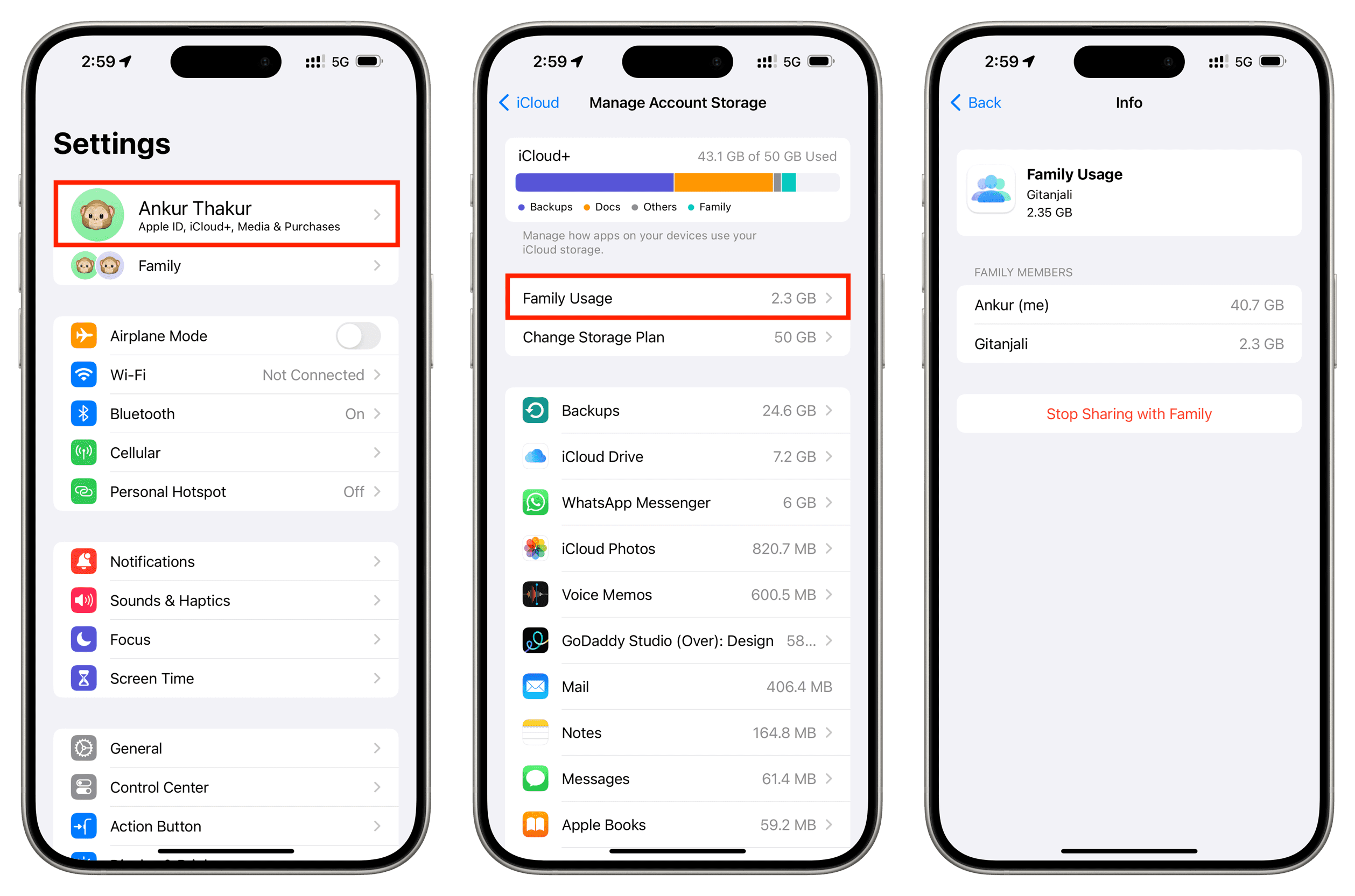
iCloud. Here, you’ll see a visual breakdown of your iCloud storage usage, categorized by data type (Photos, Backups, Documents, Mail, etc.). - Manage Storage: Tap
Manage Account Storage(orManage Storageon older iOS versions). This screen provides a more detailed view, listing apps and services that consume storage, often allowing you to tap into specific categories to delete data (e.g., old device backups, large app data). - App Sync Toggles: Back on the main
iCloudscreen, you’ll find a list of apps that use iCloud. You can toggle these on or off to control which apps store and sync data to iCloud. ForiCloud Photos, you can tap on it to choose betweenDownload and Keep OriginalsorOptimize iPhone Storage. ForiCloud Drive, you can tap into it to manage files directly within the Files app.
This mobile-first approach offers a convenient way to get an overview and perform quick clean-ups on the go, making it a critical aspect of personal productivity and digital asset management.
On Your Mac
Your Mac provides a comprehensive desktop experience for managing iCloud, seamlessly integrating cloud content into your local file system and applications.
- Access System Settings: Click the
Apple menu() in the top-left corner, then chooseSystem Settings(orSystem Preferenceson macOS Monterey and earlier). - Navigate to iCloud: Click on
your nameat the top of the sidebar (orApple IDin System Preferences), then selectiCloud. - Storage Overview: Similar to iOS, you’ll see a storage bar illustrating your iCloud usage. Click
Manageto view a detailed breakdown of what’s consuming space, allowing you to delete unwanted items like old backups or large files from apps. - iCloud Drive in Finder: Your iCloud Drive files are directly accessible via
Finder. OpenFinder, and selectiCloud Drivefrom the sidebar. Here you can browse, open, move, and delete files just as you would with local files. - Dedicated Apps: Photos, Mail, Contacts, Calendars, Notes, and Reminders apps on your Mac directly display content synced via iCloud. Any changes you make in these apps are automatically reflected across iCloud and your other devices. This deep integration is a cornerstone of Apple’s unified user experience, boosting productivity for users managing digital assets.
Via iCloud.com (Web Browser)
iCloud.com offers universal access to much of your iCloud data, regardless of the operating system you’re using. This is particularly useful if you’re on a non-Apple device or simply prefer a web interface.
- Login: Go to
iCloud.comin any web browser and sign in with your Apple ID and password. You’ll likely need to complete two-factor authentication for security. - Dashboard Access: Once logged in, you’ll see a dashboard with icons for various iCloud services: Photos, iCloud Drive, Mail, Contacts, Calendar, Notes, Reminders, Pages, Numbers, Keynote, Find My, and Settings.
- Browse Content: Click on any of these icons to view and manage your data. For example, clicking
Photoslets you browse your entire iCloud Photo Library, download individual photos/videos, or create shared albums.iCloud Driveallows you to upload, download, move, and delete files. - Storage Settings: Click on
Account Settings(bottom left) to see your storage usage and even manage your storage plan.
iCloud.com is a powerful tool for checking your iCloud content from anywhere, providing flexibility and control over your digital footprint, which is crucial for managing your personal brand and online presence.
On a Windows PC (iCloud for Windows)
Apple provides an application called iCloud for Windows, which brings a subset of iCloud’s features to your PC.
- Download and Install: Download
iCloud for Windowsfrom the Microsoft Store. - Sign In: Open the app and sign in with your Apple ID.
- Choose Features: You can select which iCloud features you want to sync, including iCloud Photos, iCloud Drive, Mail, Contacts, and Calendars (which sync with Outlook).
- Access Data:
- iCloud Photos: Photos and videos will be downloaded to a dedicated iCloud Photos folder in File Explorer, and you can upload new ones from your PC.
- iCloud Drive: A dedicated
iCloud Drivefolder will appear in File Explorer, allowing you to browse, upload, and download files. - Mail, Contacts, Calendars: These will sync with Microsoft Outlook.
While not as comprehensive as the Mac experience, iCloud for Windows ensures that your essential data remains accessible and synchronized across different platforms, vital for professionals who work across mixed environments.
Mastering Your iCloud Storage: Optimization, Security, and Cost-Effectiveness
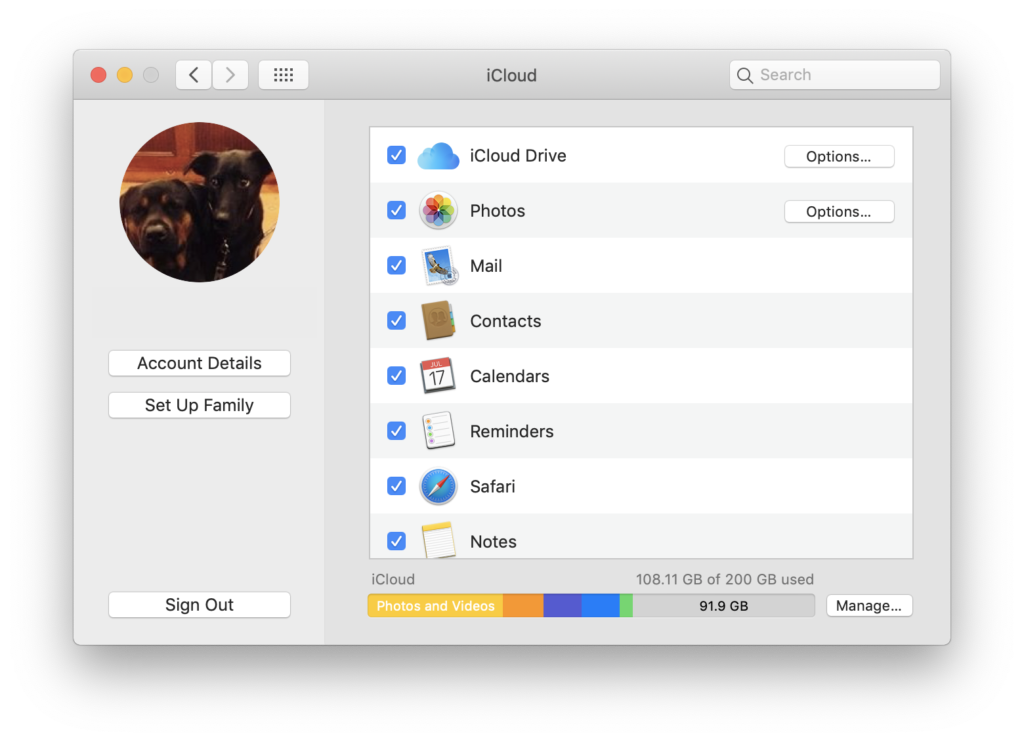
Knowing what’s stored in iCloud is only half the battle; the other half is actively managing it. Effective iCloud storage management is crucial for several reasons: it keeps your devices running smoothly, protects your digital assets, and can even save you money. This involves proactive optimization, robust security practices, and a clear understanding of your storage plan.
Identifying and Deleting Unnecessary Data
The primary goal of storage optimization is to free up space by removing data you no longer need. This keeps your costs down and ensures there’s room for new, important information.
- Old Device Backups: These are often the biggest culprits. If you’ve upgraded devices multiple times, you might have several old backups consuming gigabytes. Access
Manage Storageon any Apple device or iCloud.com, findDevice Backups, and delete those for devices you no longer own or use. - Large Files in iCloud Drive: Browse your iCloud Drive (via Finder on Mac, Files app on iOS/iPadOS, or iCloud.com) and sort by size to identify large documents, videos, or archives that are no longer needed.
- Duplicate Photos and Videos: Over time, your photo library can accumulate duplicates. While Apple’s Photos app has some built-in features to find duplicates, third-party apps can offer more robust solutions. Regularly reviewing your library for redundant media can free up significant space.
- Mail Attachments: If you use iCloud Mail, large attachments can add up. Deleting emails with large attachments (especially older ones) can help.
- App Data: Some apps store large amounts of data in iCloud. Review the
Manage Storagesection to see which apps are the biggest consumers. If an app is no longer used or its data isn’t critical, you can often delete its iCloud data.
Regularly auditing your iCloud storage is a simple yet powerful practice that enhances both your digital security and productivity, preventing data clutter and ensuring that important files are easy to find.
Understanding Storage Plans and Upgrades
Every Apple ID comes with 5GB of free iCloud storage, which for many, quickly becomes insufficient. When you run out of space, iCloud services can stop working correctly (e.g., photos won’t sync, devices won’t back up).
- Free 5GB Limit: This is a good starting point but rarely enough for active users with multiple devices and a growing photo library.
- Paid Tiers: Apple offers various paid iCloud+ plans with significantly more storage (e.g., 50GB, 200GB, 2TB, 6TB, 12TB) at competitive monthly rates. These plans also include premium features like Private Relay, Hide My Email, and HomeKit Secure Video support.
- Family Sharing Implications: If you’re part of an Apple Family Sharing group, the organizer can share their iCloud+ storage plan with up to five other family members, making it a cost-effective solution for households.
- Cost-Benefit Analysis: Consider your actual storage needs. If you primarily use iCloud for backups and a few documents, a 50GB or 200GB plan might suffice. If you have a massive photo library, large video files, or use iCloud heavily for work, a 2TB plan or higher might be more appropriate. Think of it as an investment in your digital assets and peace of mind.
Managing your storage plan effectively is a direct intersection of technology and personal finance, ensuring you only pay for what you need while maintaining robust digital infrastructure.
Enhancing Digital Security with iCloud
While convenient, storing your data in the cloud necessitates a strong focus on security. iCloud employs robust security measures, but user vigilance is equally important.
- Two-Factor Authentication (2FA): This is the single most important security feature for your Apple ID and iCloud. It requires a second verification step (usually a code sent to a trusted device) in addition to your password, making it extremely difficult for unauthorized users to access your account even if they know your password. Ensure 2FA is always enabled.
- Strong, Unique Passwords: Use a complex password for your Apple ID that isn’t reused on other services. A password manager can help you generate and store these securely.
- Regularly Review Connected Devices: In
Settings > Apple ID > iCloud, scroll down toDevices. Here you can see all devices currently signed in with your Apple ID. If you see an unfamiliar device, remove it immediately. - Understanding Data Encryption: Apple encrypts your iCloud data both in transit and at rest. However, certain data categories (like iCloud Backups) use a key that Apple holds, while others (like data synced with Messages in iCloud, Health, and Wallet) are end-to-end encrypted, meaning only you can access them with your devices. Be aware of these distinctions, especially for highly sensitive information.
- Importance of Backups Beyond iCloud: While iCloud backups are incredibly useful, for truly critical data, consider having a redundant backup strategy (e.g., local external drives, another cloud service). This adheres to the “3-2-1 backup rule” for maximum data resilience.
Prioritizing digital security safeguards your personal information, protects your creative works, and maintains the integrity of your professional data, which is foundational to your personal and corporate brand reputation.
iCloud Beyond Storage: Boosting Productivity and Protecting Your Digital Identity
iCloud’s capabilities extend far beyond mere storage; it’s a powerful platform for enhancing productivity, fostering collaboration, and, by extension, helping you manage your digital identity and professional presence. Understanding its full potential can transform your workflow.
Collaborative Features and File Sharing
iCloud makes working with others and sharing information remarkably easy, streamlining both personal and professional projects.
- iCloud Drive Sharing: You can easily share files and folders directly from iCloud Drive with specific individuals or by generating a public link. This is perfect for team projects, sharing creative assets, or collaborating on documents. You can set permissions for viewing only or allow editing, offering granular control over access.
- Pages, Numbers, and Keynote Collaboration: Apple’s suite of productivity apps allows real-time collaboration on documents, spreadsheets, and presentations stored in iCloud. Multiple users can work on the same file simultaneously, seeing each other’s edits live, which is invaluable for creative teams and business presentations.
- Shared Photo Albums: Beyond simple file sharing, iCloud Photos allows you to create shared albums where invited participants can add, view, and comment on photos and videos. This is fantastic for family events, travel memories, or even curating visual assets for a specific project or client.
These collaborative features underscore iCloud’s role as a productivity powerhouse, making it easier to manage projects, share knowledge, and work together efficiently, whether for personal endeavors or professional undertakings.
Organizing Digital Assets for Personal and Professional Branding
In today’s interconnected world, your digital footprint significantly impacts your personal and professional brand. iCloud, when managed proactively, becomes an integral tool for curating and protecting this identity.
- Consistent Access to Brand Assets: For freelancers, entrepreneurs, or anyone managing a personal brand, iCloud ensures that critical digital assets like logos, brand guidelines, headshots, presentation templates, and marketing materials are always at your fingertips, across all your devices. This consistency is key to maintaining a professional image.
- Maintaining a Unified Digital Presence: By syncing calendars, contacts, and notes, iCloud helps you present a unified and organized front. Your appointments, client information, and project notes are always up-to-date, minimizing missed opportunities and enhancing reliability – core tenets of a strong professional reputation.
- Secure Storage of Sensitive Documents: Contracts, intellectual property, financial records, and other sensitive documents can be stored securely in iCloud Drive, protected by Apple’s encryption and your strong authentication. Knowing these are safeguarded contributes to peace of mind and mitigates risks to your brand’s integrity.
- Streamlining Content Creation: For content creators, iCloud facilitates a seamless workflow. Photos and videos taken on your iPhone instantly appear on your Mac, ready for editing. Documents drafted on an iPad are accessible for final tweaks on a desktop. This fluidity supports creative output and helps maintain a consistent publishing schedule, a crucial element for many personal brands and online income strategies.
By consciously organizing what’s stored in iCloud, you’re not just managing files; you’re actively shaping and protecting your digital identity, ensuring that your online presence aligns with your personal and professional aspirations. It becomes a tool not just for tech management, but for strategic brand building.
Conclusion
Understanding “how to see what’s stored in iCloud” is a foundational skill for anyone deeply integrated into the Apple ecosystem. It empowers you to move beyond passive reliance on cloud services to become an active manager of your digital life. From the practicalities of freeing up storage and saving money to the critical importance of digital security and enhancing productivity, gaining visibility into your iCloud content unlocks a wealth of benefits.
By following the steps outlined across your iPhone, Mac, iCloud.com, and even Windows PCs, you can comprehensively assess your data, identify areas for optimization, and bolster your digital defenses. Moreover, by leveraging iCloud’s collaborative and organizational features, you can streamline your workflows, protect sensitive information, and consistently cultivate a strong personal and professional brand. Take charge of your iCloud today – your digital peace of mind and productivity will thank you.
aViewFromTheCave is a participant in the Amazon Services LLC Associates Program, an affiliate advertising program designed to provide a means for sites to earn advertising fees by advertising and linking to Amazon.com. Amazon, the Amazon logo, AmazonSupply, and the AmazonSupply logo are trademarks of Amazon.com, Inc. or its affiliates. As an Amazon Associate we earn affiliate commissions from qualifying purchases.