
In the modern digital landscape, the proliferation of subscription-based models has transformed how consumers interact with software, media, and logistics services. Amazon Prime stands as a cornerstone of this “subscription economy,” evolving from a simple shipping benefit into a complex ecosystem comprising streaming services, cloud storage, and exclusive digital perks. However, as users manage multiple digital identities and payment methods across various platforms, it is remarkably common to lose track of one’s active subscription status. Identifying whether you have an active Amazon Prime membership requires a systematic navigation of the platform’s user interface (UI) and an understanding of its backend account management settings.
Determining your Prime status is more than a matter of curiosity; it is a fundamental aspect of digital hygiene. Unused subscriptions represent “leaking” data and finances within your personal tech stack. Whether you are auditing your accounts for security purposes or optimizing your digital service usage, knowing exactly where to look within the Amazon infrastructure is essential.
Navigating the Amazon Interface: Desktop vs. Mobile App
The technical path to verifying your Prime status differs slightly depending on the hardware and operating system you are utilizing. Amazon’s User Experience (UX) designers have optimized different interfaces for different use cases, meaning the location of subscription data can shift between the web-based portal and the mobile application.
Identifying Membership Status on Web Browsers
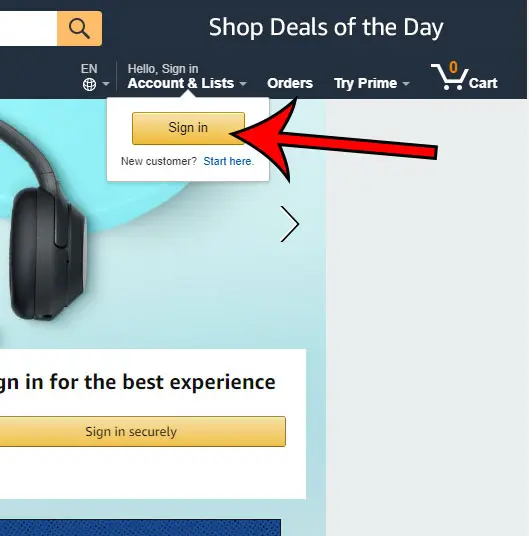
For users on a desktop or laptop, the verification process is most direct through the standard web browser interface. Once logged into the Amazon homepage, the primary navigation bar serves as the gateway to your account’s metadata.
-
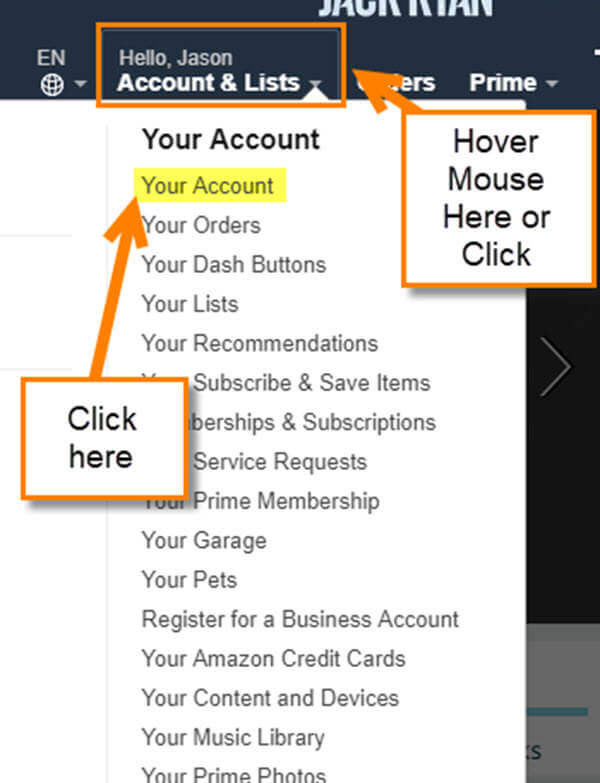
The Hover Navigation: On the top right of the screen, locate the “Account & Lists” dropdown. This element is a central hub for the platform’s relational database concerning your user profile.
-
The Prime Dashboard: Within the dropdown, selecting “Your Prime Membership” will redirect you to a dedicated management URL. This page is the definitive source of truth for your account status.
-
Visual Indicators: If you are an active member, the header will prominently display “Prime” along with your specific plan type (e.g., Monthly, Annual, or Student). If the membership is inactive, the interface will typically present a “Try Prime” call-to-action or a prompt to “Rejoin.”
One technical nuance to consider is the “cache” effect. Occasionally, if you have recently canceled or renewed a service, your browser’s cached data might display outdated UI elements. If the status seems incorrect, a hard refresh (Ctrl + F5 on Windows or Cmd + Shift + R on Mac) can force the browser to pull the most recent account state from Amazon’s servers.
The Mobile Experience: Accessing Data via the Amazon Shopping App
On iOS and Android devices, the Amazon Shopping app utilizes a streamlined interface that prioritizes mobile-friendly navigation. Because the app often stays logged in for long periods, it is easy to forget the specific status of the underlying account.
To check your status on the app:
-
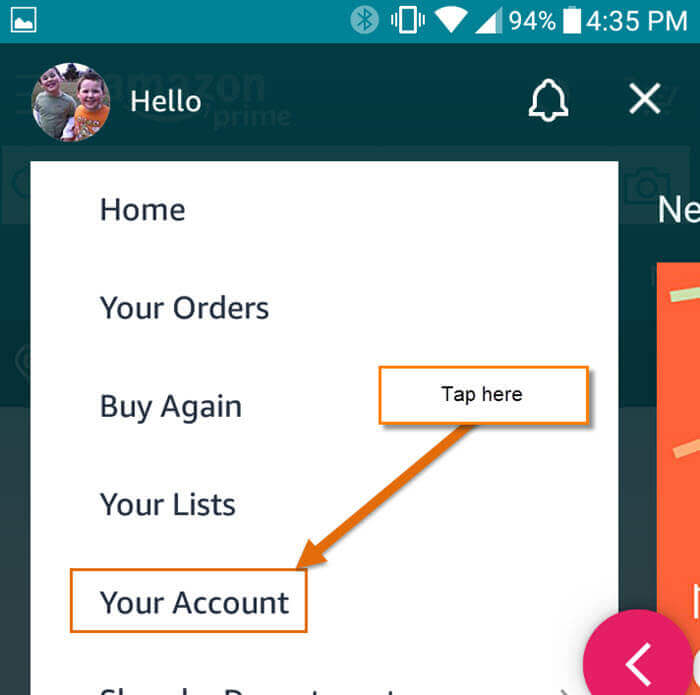
The Profile Icon: Tap the person-shaped icon (usually the second icon from the left on the bottom navigation bar).
-
Your Account Menu: Select the “Your Account” button to view a categorized list of settings.
-
Account Settings Block: Scroll down to the “Account Settings” section and tap “Manage Prime Membership.”
In this mobile view, the app communicates with Amazon’s API to retrieve your current subscription tier. If the app displays a “Prime” badge next to your name in the main menu, that is a high-level UI indicator of an active status, though the “Manage Prime Membership” screen remains the only place to see the exact expiration or renewal date.
Technical Indicators of an Active Prime Account
Beyond the formal “Membership” page, several technical cues throughout the Amazon ecosystem signal whether a Prime subscription is active. These are integrated into the UI to provide a seamless “Prime-first” experience, often altering the look and feel of the shopping and media interfaces.
Visual Cues and Checkout UI
One of the most immediate ways to recognize an active Prime status is by observing the branding across the site. Amazon utilizes “Prime” as a dynamic UI element. If you see the Prime checkmark logo next to product prices while browsing, the system has identified your account as having an active subscription.
During the checkout process, the backend logic of the site shifts based on your membership status. For Prime members, the “Shipping” step of the checkout sequence will default to “Free Prime Delivery” or “Two-Day Delivery” at no extra cost. If the system prompts you to pay for standard shipping on Prime-eligible items, it serves as a functional red flag that your membership has either expired, been paused, or is associated with a different email address.
Digital Service Access as Verification
Amazon Prime is not merely a logistics service; it is a gateway to a suite of digital tools. If you are unsure of your status on the main shopping site, attempting to access peripheral apps can provide technical confirmation:
-
Prime Video: Attempt to stream a “Prime” labeled title. If the video player initializes without a rental or purchase prompt, your Prime credentials are active and authenticated.
-
Amazon Music: Check for the “Prime” badge within the Music app. Prime members have access to a specific tier of the music catalog that is distinct from the “Free” or “Unlimited” tiers.
-
Prime Photos: Log into the Amazon Photos app. If you have unlimited full-resolution photo storage active, it is a direct byproduct of a Prime subscription.
Managing Your Digital Footprint: Subscription Settings and Security
Understanding how to see if you have Prime is often the first step in a broader audit of your digital security and subscription management. In an era of automated billing, it is easy for “ghost” subscriptions to persist.
Accessing Prime Central and Membership Data
The “Prime Central” dashboard is the technical nerve center for your membership. This page provides a granular look at your billing history, which is essential for verifying how long a subscription has been active. Within this dashboard, you can see the “Payment Method” linked to the account. If you are sharing a household account, this section will also detail which individuals are linked to the “Amazon Household” via the “Family Sharing” protocols.
From a security perspective, checking your Prime status also involves verifying the email address associated with the account. If you suspect you have Prime but the current account shows as inactive, you may be experiencing an “Account Fragmentation” issue—where you have multiple Amazon accounts tied to different email addresses (e.g., a personal Gmail and a work Outlook).
Payment Methods and Automated Billing Cycles
The technical architecture of Amazon’s billing system is designed for continuity. If your Prime membership shows as active, but you do not recall renewing it, it is likely due to the “Auto-Renew” toggle being enabled by default.
In the “Manage Membership” section, the “Update your payment method” tool allows you to see which specific credit card or digital wallet is being pinged for the subscription fee. For those utilizing virtual cards or digital-only banking tools, this is where you can troubleshoot “Payment Failure” notifications that might lead to a silent suspension of Prime services.
Troubleshooting Access and Account Sync Issues
Sometimes, the UI might suggest you don’t have Prime even when you are certain you’ve paid for it. This usually stems from a technical desynchronization between the local client (your phone or computer) and the server-side database.
Multiple Accounts and Cross-Platform Discrepancies
The most common technical hurdle is the presence of multiple accounts. With the rise of “Single Sign-On” (SSO) and saved passwords in browsers like Chrome or Safari, a user might inadvertently log into an secondary account that lacks Prime benefits.
To resolve this, perform an account audit:
-
Log Out/Log In: Sign out of all Amazon-related apps and websites.
-
Verify Identity: Re-enter your credentials carefully. If you use a password manager, ensure the entry for “Amazon” matches the email address where you receive Prime renewal receipts.
-
Check Household Settings: If you are a member of an Amazon Household, your Prime status is “inherited” from the primary account holder. If the primary holder changes their settings or removes you from the “Household,” your Prime access will terminate instantly, despite no changes on your end.
Dealing with Trials and Expired Subscriptions
Amazon frequently offers 30-day trials or discounted “Student” and “Qualified Access” (EBT/Medicaid) tiers. These have specific technical expiration triggers. When a trial ends, the system automatically transitions the user to a paid tier. If you are checking your status to avoid a charge, the “End Membership” button on the Prime management page will show you the exact date the trial expires. Technically, you can “cancel” the trial immediately after signing up; the backend will allow you to retain access until the 30-day mark while ensuring no future API calls are made to your bank for renewal.
Beyond the Basics: Auditing Your Tech Stack for Redundant Services
Once you have confirmed your Amazon Prime status, the final step in professional digital management is assessing the value of the service within your overall tech stack. In a saturated market of digital tools, Prime often overlaps with other subscriptions.
For instance, if you have an active Prime membership, you may be paying for a separate cloud storage service that is redundant given the “Amazon Photos” benefits. Similarly, your Prime Video access might influence whether you need to maintain other premium streaming software. By mastering the ability to navigate your Prime membership settings, you gain the data necessary to make informed decisions about your digital consumption, ensuring that your software ecosystem remains efficient, secure, and fully under your control.
Regularly auditing these settings through the methods described—checking the desktop dashboard, the mobile app UI, and the checkout indicators—is a hallmark of a tech-savvy user in the modern age. It prevents the “subscription fatigue” that characterizes much of today’s digital experience and ensures that you are only paying for the tools you actually utilize.
aViewFromTheCave is a participant in the Amazon Services LLC Associates Program, an affiliate advertising program designed to provide a means for sites to earn advertising fees by advertising and linking to Amazon.com. Amazon, the Amazon logo, AmazonSupply, and the AmazonSupply logo are trademarks of Amazon.com, Inc. or its affiliates. As an Amazon Associate we earn affiliate commissions from qualifying purchases.