
In the modern ecosystem of financial technology (FinTech), PayPal stands as a pioneer that bridged the gap between traditional banking and the digital age. For many users, the platform is more than just a payment processor; it is a sophisticated piece of software that manages complex data streams, cross-border currency conversions, and encrypted transactions. Navigating this interface to perform a task as fundamental as checking your balance requires an understanding of the platform’s multi-device architecture. This guide provides an in-depth technical walkthrough of how to access and interpret your PayPal balance across various software environments, ensuring you maintain both financial clarity and digital security.
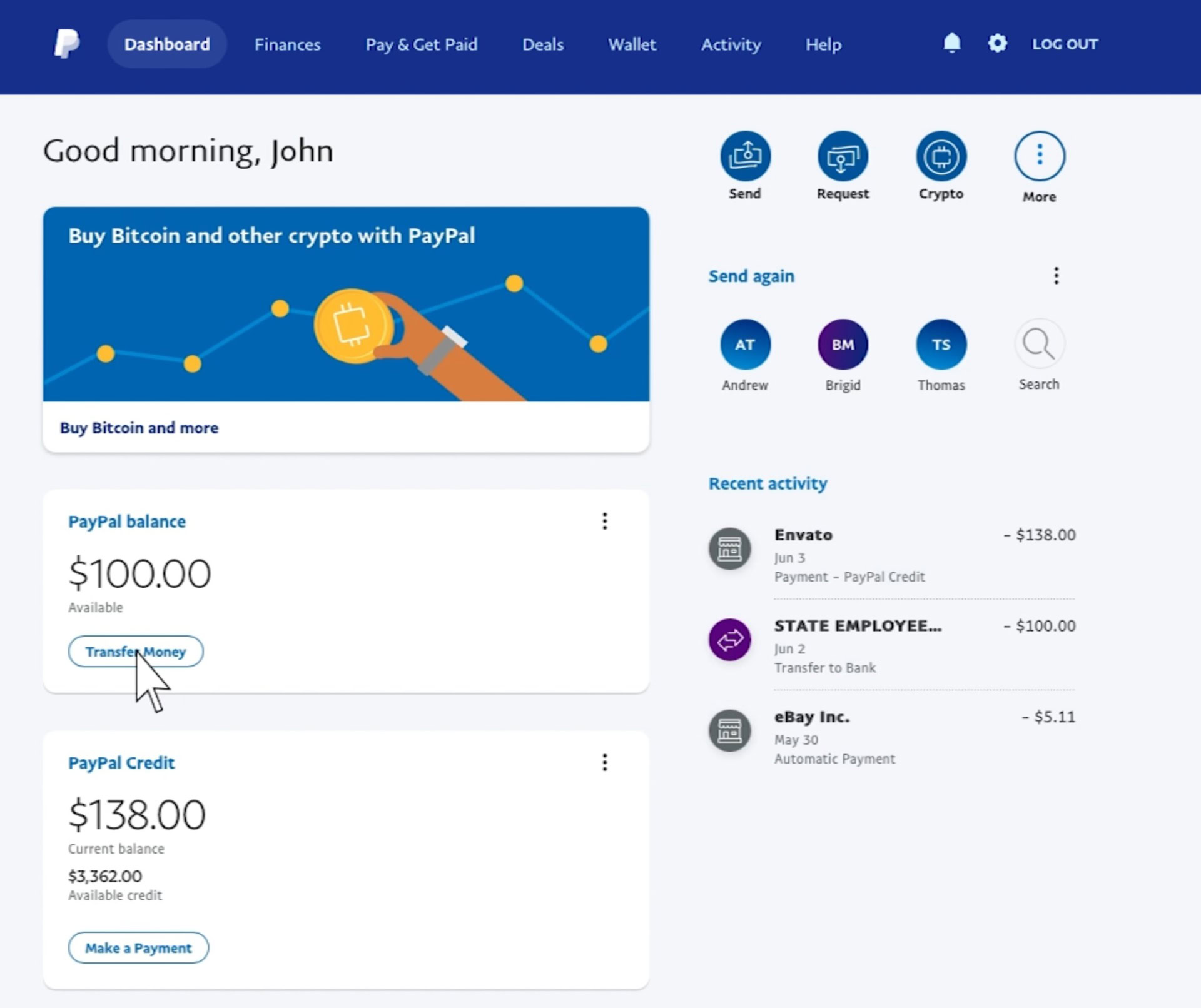
Navigating the PayPal Dashboard Across Devices
The user interface (UI) of PayPal is designed to be responsive, meaning it adapts its layout based on the hardware and software environment of the user. Whether you are accessing the platform via a desktop browser or a dedicated mobile application, the “Balance” is the central data point of the user experience.
Accessing Your Balance on the Web Browser Interface
For power users and those managing business accounts, the web browser remains the most robust way to interact with PayPal’s software. To see your balance, you must first navigate to the official PayPal URL. Once authenticated through the login portal, the software directs you to the “Summary” page.
Technically, the Summary page acts as the primary dashboard. On a standard desktop resolution, your PayPal balance is prominently displayed in a card-style module on the left-hand side of the screen or at the top of the “Wallet” section. This figure represents your “Available” funds—the liquid capital that the software has cleared for immediate use. If you have a Business account, the interface may offer a more granular view, showing “Total Money In” and “Total Money Out” over a 24-hour or 7-day period, utilizing data visualization tools to help you track the velocity of your funds.
Using the PayPal Mobile App (iOS and Android)
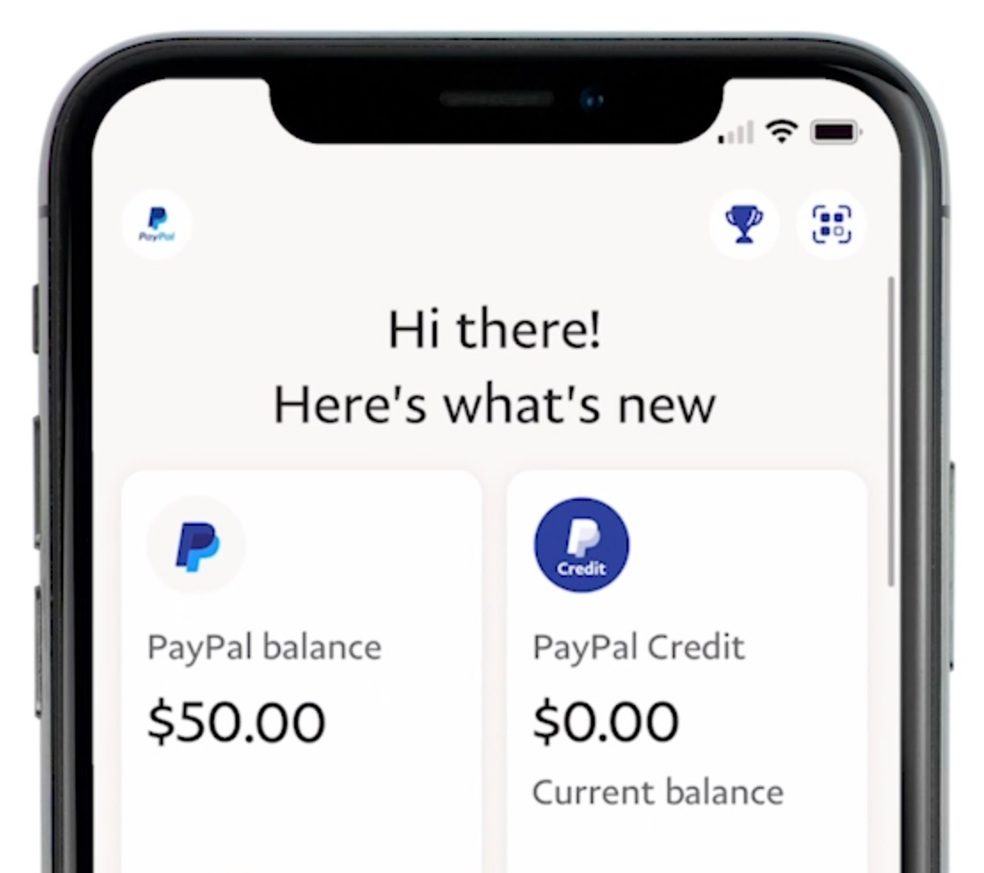
The PayPal mobile app is built using a combination of native and web-view technologies to ensure high performance and security. Checking your balance on the app is often faster due to the integration of biometric authentication features like FaceID, TouchID, or Android Fingerprint sensors.
Upon opening the app and completing the biometric handshake, the “Home” screen serves as your primary interface. The PayPal balance is usually featured at the top of the screen in a large, legible font. A key technical feature of the app is its “pull-to-refresh” gesture. Because digital balances can change in milliseconds due to automated subscriptions or incoming transfers, performing this gesture forces the app to ping PayPal’s servers for the most recent JSON data packet, ensuring the figure you see is accurate to the second.
Troubleshooting Synchronization and Display Issues
Occasionally, a user might encounter a technical glitch where the balance does not appear or shows an “error loading” message. This is often a client-side issue rather than a server-side failure. In the world of software troubleshooting, the first step is to clear the browser cache or the app’s data storage.
If the balance is missing, it may be due to a “Limited Account” status, where PayPal’s risk-management algorithms temporarily restrict access to the UI elements related to funds for security reasons. Additionally, ensure that your internet protocol (IP) address is not being masked by a low-quality VPN, as PayPal’s security software may flag the session as suspicious and hide sensitive financial data to protect the account owner.
Understanding Different Balance Types and Digital Wallets
One of the most common points of confusion for users is why the “Total Balance” might not match the amount available for withdrawal. This is due to the complex backend logic PayPal uses to manage risk and transaction processing.
Available Balance vs. Pending Funds
From a technical standpoint, PayPal’s ledger differentiates between “Available” and “Pending” states. When you view your balance, the number shown is typically the sum of your cleared funds. However, if you click into the “Activity” or “Wallet” tab, you may see “Pending” transactions.
Pending funds are often the result of the “Temporary Hold” feature. This is a software-driven security measure applied to new sellers or high-risk transactions. The funds are physically within the PayPal ecosystem, but the software’s logic gate prevents them from being added to the “Available” balance until certain conditions—such as a delivery confirmation via a tracking number—are met. Understanding this distinction is vital for accurate financial software management.
Multi-Currency Management within the App
PayPal is a global platform, and its software includes a powerful currency conversion engine. If you receive payments in different currencies (e.g., USD, EUR, GBP), your balance might be split across multiple “buckets.”
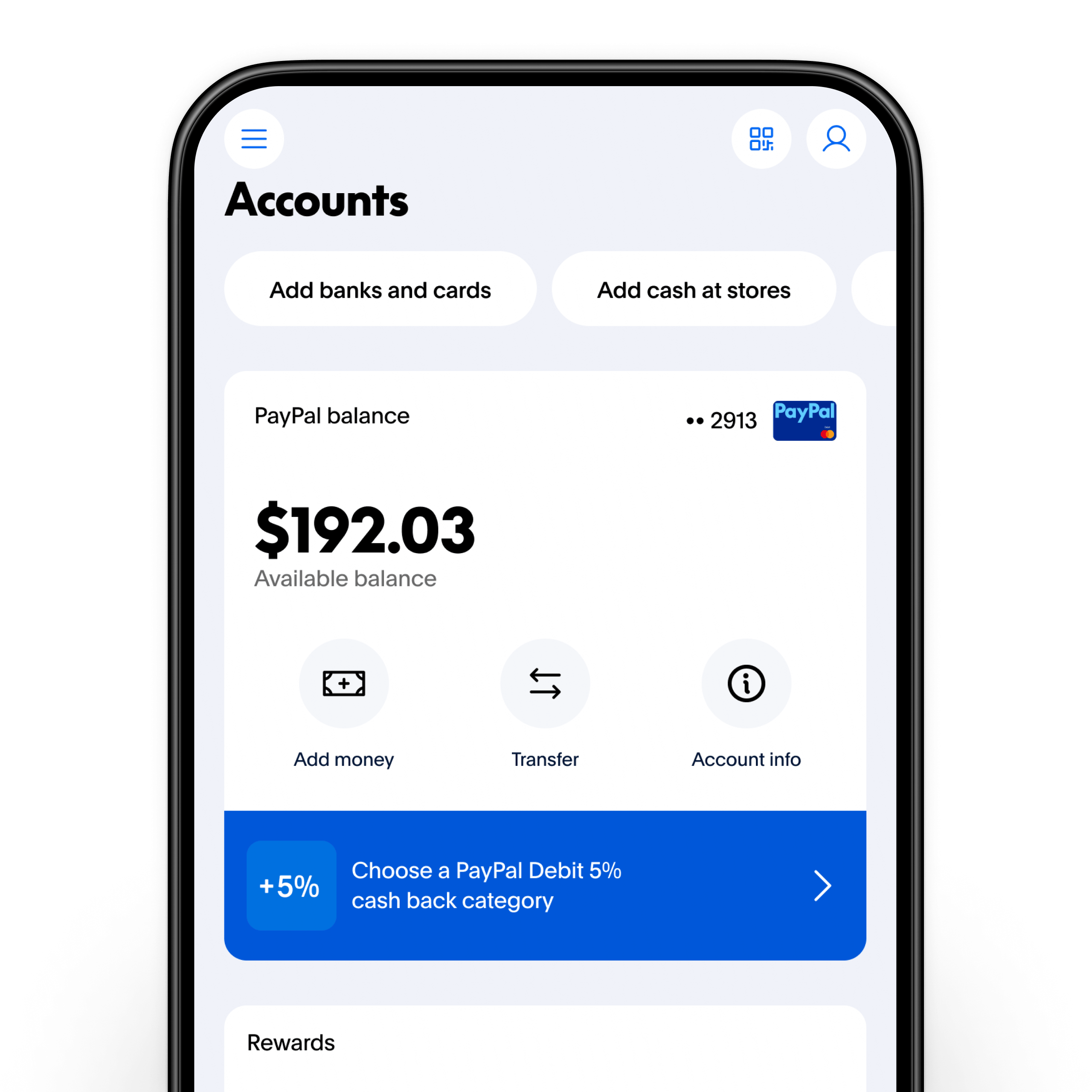
To see your balance in all currencies, you must navigate to the “Wallet” section. Here, the software displays a breakdown of each currency held. You can set a “Primary Currency,” which instructs the software to provide an estimated total balance by converting all secondary holdings based on the real-time exchange rate provided by PayPal’s internal API. It is important to note that this “Total” is an estimate, as the actual conversion would involve a spread or fee managed by the software’s transaction logic.
Cryptocurrency Holdings and Digital Assets
In recent years, PayPal has integrated a digital asset layer into its software architecture. Users in supported regions can now see a “Crypto” balance alongside their fiat balance. This is handled by a separate module within the app.
When you navigate to the Crypto section, the software fetches real-time price data for assets like Bitcoin or Ethereum. This balance is distinct from your cash balance; you cannot directly spend crypto via the “Balance” check unless the software first executes a “sell” order to convert the digital asset into fiat currency. This modular design allows PayPal to keep traditional financial data and volatile asset data siloed for better performance and clarity.
Security Protocols When Accessing Financial Data
Since seeing your balance involves accessing sensitive financial information, the technical security protocols surrounding this action are rigorous. PayPal employs industry-standard encryption and multi-layered authentication to ensure that balance data is only visible to the authorized user.
Implementing Two-Factor Authentication (2FA)
The most effective technical hurdle against unauthorized access to your balance is Two-Factor Authentication. PayPal supports several 2FA methods, including SMS-based codes and Time-based One-Time Passwords (TOTP) through apps like Google Authenticator or Authy.
When 2FA is enabled, the software’s login sequence requires a secondary token after the password is verified. This ensures that even if a password is compromised via a data breach, the balance remains hidden behind an additional layer of encryption. For users who frequently check their balance on public Wi-Fi, 2FA is a non-negotiable technical requirement.
Recognizing Phishing Attempts and Fake Login Screens
A significant threat to digital security is “spoofing,” where malicious actors create fake versions of the PayPal interface to steal login credentials. Users must be technically vigilant about the Uniform Resource Locator (URL) in their browser.
The real PayPal site will always use “https://” indicating a secure, encrypted connection, and the domain will always be “paypal.com.” Many phishing sites use “look-alike” domains (e.g., “paypa1.com”). If the UI looks slightly “off”—such as distorted logos or unusual fonts—it may be a sign that the software you are interacting with is a fraudulent overlay designed to intercept your balance data.
Managing Authorized Devices and Active Sessions
PayPal’s software allows you to view and manage which devices have access to your account. In the “Security” settings, you can see a list of “Active Sessions.” This technical log shows the device type (e.g., “iPhone 13”), the browser used (e.g., “Chrome”), and the geographic location of the login.
If you see an unrecognized device in this list, it means someone else may have viewed your balance. The software allows you to “Revoke Access” or “Log Out” of all other sessions with a single click. This serves as a powerful administrative tool for users to audit their digital footprint and maintain control over their financial information.
Advanced Technical Features for Power Users
For developers and business owners, checking a balance manually via the UI is often inefficient. PayPal offers advanced technical solutions to monitor funds automatically.
API Integrations for Real-Time Balance Monitoring
PayPal provides a robust set of Application Programming Interfaces (APIs) that allow developers to integrate balance checking into their own custom software or internal dashboards. By using the “Balances API,” a business can programmatically fetch their account balance in real-time.
This involves generating an “OAuth 2.0” access token and sending a “GET” request to PayPal’s servers. The server then returns a JSON object containing the balance details. This technical approach allows for the creation of custom alerts, automated bookkeeping, and real-time financial reporting without ever opening the PayPal app.
Automating Reports and Financial Exports
For those who need to see their balance for tax or accounting purposes, PayPal’s “Activity Download” tool is a vital software feature. Users can generate CSV, TAB, PDF, or Quicken/QuickBooks files.
The software allows you to filter data by date range, transaction type, and currency. This is particularly useful for analyzing “Balance Affecting” transactions. By exporting this data, you can use external software like Microsoft Excel or dedicated accounting suites to perform deep-data analysis on your financial history, providing insights that the standard dashboard cannot offer.
Setting Up Push Notifications for Balance Changes
To avoid the need to constantly check the app, users can utilize the software’s notification engine. By navigating to “Settings” and then “Notifications,” you can toggle on alerts for “Payments Received” and “Payments Sent.”
Technically, these are delivered via “Push” technology for mobile apps and “Webhooks” for developers. When a transaction occurs, the server pushes a message to your device, updating you on your new balance status instantly. This ensures that you are always aware of your financial standing through proactive software communication rather than reactive manual checking.
aViewFromTheCave is a participant in the Amazon Services LLC Associates Program, an affiliate advertising program designed to provide a means for sites to earn advertising fees by advertising and linking to Amazon.com. Amazon, the Amazon logo, AmazonSupply, and the AmazonSupply logo are trademarks of Amazon.com, Inc. or its affiliates. As an Amazon Associate we earn affiliate commissions from qualifying purchases.