
Navigating the complexities of tax preparation software like TurboTax can sometimes feel like solving a digital puzzle, especially when your personal circumstances change. One common query that arises is how to “remove a person” from your TurboTax account or a specific tax return. Whether spurred by life events such as divorce or separation, a child no longer qualifying as a dependent, or simply correcting an entry error, the process requires careful attention to detail within the software interface. This guide will provide a thorough, step-by-step tutorial, framing the task as a critical aspect of digital data management within a sophisticated financial application. Understanding the technical nuances of modifying your tax data ensures not only compliance but also accuracy, safeguarding your financial future.

Understanding the Different Scenarios for Data Removal
Before diving into the mechanics, it’s crucial to understand why you might need to remove a person from your TurboTax return. Each scenario has slightly different implications and may require you to review various sections of the software. From a tech perspective, these are specific data fields that need to be located, edited, or deleted.
Removing a Spouse or Partner
Life changes, and so do tax filing statuses. If you’ve gone through a divorce or legal separation, or if you simply decide to file separately after being married, you’ll need to adjust your TurboTax profile to reflect these changes. This isn’t just about deleting a name; it involves recalibrating your entire filing status, which in turn affects your tax bracket, deductions, and credits. The software is designed to adapt to various marital statuses (e.g., Single, Married Filing Separately, Head of Household), and modifying your spouse’s information is the gateway to changing this core data point. This process ensures that your digital tax record accurately reflects your current legal status, preventing discrepancies with federal and state tax authorities.
Removing a Dependent
Children grow up, and their dependent status changes. Or perhaps you mistakenly added a relative who doesn’t meet the IRS criteria for a qualifying child or relative. Removing a dependent from your TurboTax return is a frequent requirement. This could be because a child aged out, started earning too much income, no longer lived with you for the required period, or moved out permanently. From a software perspective, dependents are associated with specific eligibility questions and data fields that contribute to deductions like the Child Tax Credit or Credit for Other Dependents. Deleting a dependent’s profile involves navigating to the “Dependents” or “My Info” section and making the necessary edits or deletions. This action directly impacts your eligible credits and deductions, so precision is paramount.
Correcting an Accidental Addition
Sometimes, the simplest reason is the most common: human error. You might have accidentally added an extra person, duplicated an entry, or made a typo during the initial data entry phase. In such cases, the goal is purely corrective, aimed at maintaining data integrity within the software. This scenario typically involves identifying the erroneous entry and simply deleting it, ensuring that only valid and accurate information populates your tax return. While seemingly minor, even small errors can lead to processing delays or audit triggers, underscoring the importance of meticulous review within the digital environment.
Step-by-Step Guide to Removing a Person from TurboTax
The process of removing a person from TurboTax is largely intuitive once you understand the software’s architecture. This section provides a generic, tech-focused walkthrough that applies to most TurboTax versions (online and desktop) with minor variations.
Accessing Your TurboTax Account and Tax Return
The first step in any interaction with TurboTax is secure access.
- Log In: Go to the TurboTax website or open your desktop application. Enter your User ID and Password. If you’re using two-factor authentication, complete that step.
- Locate Your Return: Once logged in, you’ll typically land on your “Tax Timeline” or “My TurboTax” dashboard. Find the specific tax year’s return you wish to modify. For in-progress returns, you’ll see an option like “Continue where I left off” or “Take me to my return.” For completed returns, you might need to select “Amend a return” or similar if the return has already been filed, which presents a more complex scenario we’ll touch on later. For the purpose of removing a person before filing, simply open the return you are currently working on.
Navigating to the Personal Info Section
Most changes related to individuals on your tax return are managed in the initial setup or “Personal Info” sections.
- Find “My Info” or “Personal Info”: On the left-hand navigation menu (for online versions) or at the top of the screen (for desktop), look for a section labeled “My Info,” “Personal Info,” or “Federal Taxes” > “Personal Info.” Click on this to access the core data regarding your household.
- Review Household Members: This section will typically display an overview of all individuals associated with your tax return: yourself, your spouse (if applicable), and any listed dependents. It’s essentially a digital roster of your tax-filing unit.
Identifying and Deleting the Person’s Information
Once in the “Personal Info” section, you can pinpoint the individual you need to remove.
For a Spouse:
- Edit Marital Status: In the “My Info” section, look for questions related to your marital status. You may see an option like “Edit” next to your marital status or a direct question asking “What’s your marital status?”
- Change Status: Select “Married Filing Separately,” “Divorced,” or “Legally Separated,” as appropriate. Depending on your selection, TurboTax will then prompt you to remove your spouse’s information.
- Confirm Removal: The software will usually ask if you want to remove the spouse’s details. Confirm this action. This typically clears the associated data fields and recalculates your return based on the new filing status.
For a Dependent:
- Locate Dependents Section: Within “My Info” or “Personal Info,” scroll down to the “Dependents” section. You’ll see a list of all entered dependents.
- Edit/Delete Dependent: Next to each dependent’s name, there should be an “Edit” or “Delete” button/link. Click “Delete” for the person you wish to remove.
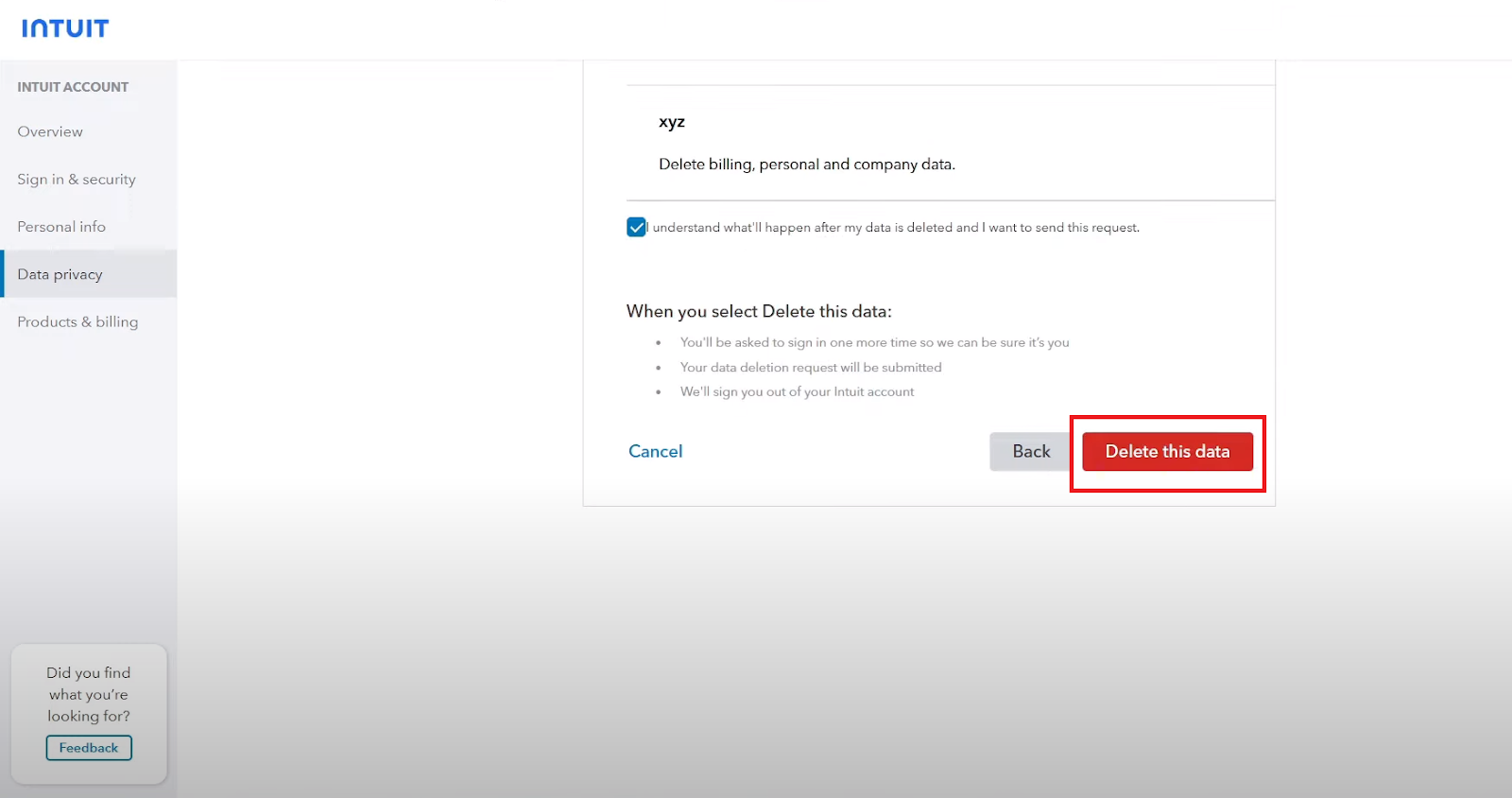
- Confirm Deletion: TurboTax will prompt you to confirm the deletion. Once confirmed, the dependent’s profile and all associated data will be removed from your return.
For Accidental Additions:
- Direct Deletion: If it’s a simple duplicate or accidental entry, navigate to the relevant section (e.g., “Dependents” or the “My Info” section where the person was incorrectly added).
- Click Delete: Directly select the “Delete” option next to the erroneous entry.
- Confirm: Confirm the deletion when prompted by the software.
Reviewing Changes and Ensuring Accuracy
After removing a person, it’s paramount to review your entire return. TurboTax automatically recalculates your tax liability, but you should perform a manual verification.
- Run a Review: Most TurboTax versions have a “Review” or “Error Check” feature. Utilize this to catch any inconsistencies or missing information that might have arisen from the data modification.
- Examine Key Forms: Check your Form 1040 (or equivalent) to ensure your filing status, total income, deductions, and credits are correct. Specifically, verify that the removed person’s Social Security Number is no longer present on any part of your return.
- State Returns: If you’re filing a state return, ensure the changes have propagated correctly or make separate adjustments if necessary, as some state tax software modules may require independent verification.
Important Considerations and Potential Pitfalls
While the technical removal process is straightforward, the implications can be significant. Understanding these considerations within the digital ecosystem is crucial for responsible tax preparation.
Impact on Tax Liability and Credits
Removing a person, especially a spouse or dependent, will almost certainly alter your tax outcome. Your filing status, eligibility for various credits (like the Child Tax Credit, EIC, or education credits), and standard or itemized deductions are all intertwined with the number and relationships of individuals on your return. Post-removal, TurboTax will recalculate your return, and you should anticipate a different refund or tax due amount. This is a technical consequence of modifying foundational data points within the tax calculation algorithm. The software is merely reflecting the updated financial picture based on your data input.
State vs. Federal Returns
TurboTax is designed to streamline both federal and state tax filings. Often, changes made to your federal personal information will automatically update your state return. However, it’s not always a seamless process, and some state-specific rules or forms might require additional review. Always verify that the removal of a person has been correctly reflected in your state tax module. If in doubt, specifically navigate to the state section of TurboTax and review the personal information or dependent summaries there. This ensures data consistency across all your tax obligations.
Amending Previously Filed Returns
If you realize you need to remove a person after you’ve already filed your tax return, the process is different and more complex. You cannot simply go back and delete the person from your previously submitted return. Instead, you’ll need to amend your tax return by filing Form 1040-X (Amended U.S. Individual Income Tax Return). TurboTax provides tools to help with amendments, but it’s a separate procedure. This involves identifying the original numbers, explaining the changes, and submitting the amended form. It’s critical to understand that amending is a process of correction, not deletion from an already processed government record. The original data persists, but the amendment supersedes it.
Data Security and Privacy Implications
Whenever you modify sensitive personal data within a digital financial tool, data security and privacy are paramount. Ensure you are always using a secure, private internet connection and not public Wi-Fi. Verify that you are logged into your legitimate TurboTax account and not a phishing site. After making significant changes, especially involving personal identification information, it’s good practice to log out securely. When you remove a person’s data, you are essentially reducing the sensitive information stored within that specific tax return instance. While TurboTax’s robust security measures protect your data, user vigilance remains a crucial layer of defense in digital security.
When to Seek Professional Assistance (and When Not To)
While TurboTax makes many aspects of tax preparation accessible, some situations warrant external expertise.
Complex Situations Requiring Tax Professional Advice
If the reason for removing a person is complex—such as navigating community property laws after a divorce, understanding specific dependency tests for non-traditional households, or dealing with international residency issues—it might be prudent to consult a qualified tax professional (e.g., a CPA or Enrolled Agent). While TurboTax excels at the “how-to” of software operation, it doesn’t replace personalized legal or financial advice. A professional can help interpret the intricacies of tax law that directly impact your specific circumstances, ensuring optimal and compliant outcomes beyond just technical data entry. They can advise on the implications of the removal, not just the act of removing.

Technical Support for Software Issues
If you encounter a bug, an error message you don’t understand, or a persistent technical glitch while trying to remove a person from TurboTax, your first recourse should be TurboTax’s official customer support. This falls squarely within the realm of software troubleshooting. They can guide you through specific interface issues, help resolve account access problems, or address any software malfunctions that prevent you from correctly modifying your tax data. Distinguish between needing help using the software and needing help interpreting tax law; the former is for technical support, the latter for a tax professional.
Removing a person from your TurboTax return is a common but crucial task that merges digital account management with significant financial implications. By understanding the specific scenarios, following the step-by-step technical process, and being aware of the potential downstream effects, you can confidently navigate this feature within the software. Diligence in data entry, verification, and an understanding of when to seek specialized help ensures that your tax filings remain accurate, compliant, and reflective of your true financial picture, all managed effectively within the powerful framework of TurboTax.
aViewFromTheCave is a participant in the Amazon Services LLC Associates Program, an affiliate advertising program designed to provide a means for sites to earn advertising fees by advertising and linking to Amazon.com. Amazon, the Amazon logo, AmazonSupply, and the AmazonSupply logo are trademarks of Amazon.com, Inc. or its affiliates. As an Amazon Associate we earn affiliate commissions from qualifying purchases.