
The landscape of television consumption has undergone a seismic shift over the last decade. As traditional cable subscriptions dwindle, Over-The-Top (OTT) streaming services have stepped in to fill the void, offering flexibility, lower costs, and innovative features. Among these, YouTube TV has emerged as a frontrunner, largely due to its sophisticated integration of Google’s cloud infrastructure. For the modern viewer, the most transformative feature of this service is its recording capability. Unlike the physical digital video recorders (DVRs) of the past, YouTube TV utilizes a “Cloud DVR” system that fundamentally changes how we archive and consume media.
In this guide, we will explore the technical nuances of recording on YouTube TV, providing a deep dive into the software’s functionality, storage logic, and the user experience optimizations that make it a premier choice for cord-cutters.
Understanding YouTube TV’s Cloud DVR Infrastructure
To truly master recording on YouTube TV, one must first understand the technology powering it. Traditional DVRs relied on local hard drives—physical spinning disks inside a set-top box that had limited storage capacity. When the drive was full, users had to choose which precious recordings to delete. YouTube TV removes this physical constraint through cloud virtualization.
How Cloud DVR Differs from Traditional Hardware
In a Cloud DVR setup, your “recordings” are not stored on your device. Instead, they are stored on Google’s massive server arrays. When you “record” a show, you are essentially flagging a specific broadcast stream within Google’s data centers to be indexed and made available to your account profile. This architecture allows for simultaneous recordings; you can record twenty different shows airing at the exact same time without any hardware conflicts or “tuner” limitations.
Storage Capacity and the Nine-Month Expiration Policy
One of YouTube TV’s most significant selling points is its “unlimited” storage. While traditional cable providers might charge extra for increased DVR space, YouTube TV offers infinite capacity to all subscribers. However, “unlimited” does not mean “eternal.”
Technically, the service retains each individual recording for exactly nine months from the date of the broadcast. After nine months, the recording is automatically purged unless the show airs again, at which point the system replaces the old file with the new broadcast, effectively resetting the nine-month clock. Understanding this cycle is vital for those who wish to maintain a permanent archive of specific events.
The Power of Multi-User Profiles
YouTube TV allows for up to six individual profiles per household. From a technical standpoint, this is crucial because each profile maintains its own separate Cloud DVR library. If one family member records a series, it does not clutter the library of another. This segmentation ensures that the recommendation algorithms remain personalized, and the “New for You” notifications are relevant to the specific user logged into the app.
Step-by-Step Guide: How to Record Your Favorite Content
The user interface (UI) of YouTube TV is designed with a “search-first” philosophy. Recording isn’t a matter of hitting a red button on a remote while watching live TV; instead, it revolves around the concept of the “Library.”
Adding Programs to Your Library
The primary mechanism for recording is the “Add to Library” function, represented by a plus (+) icon.
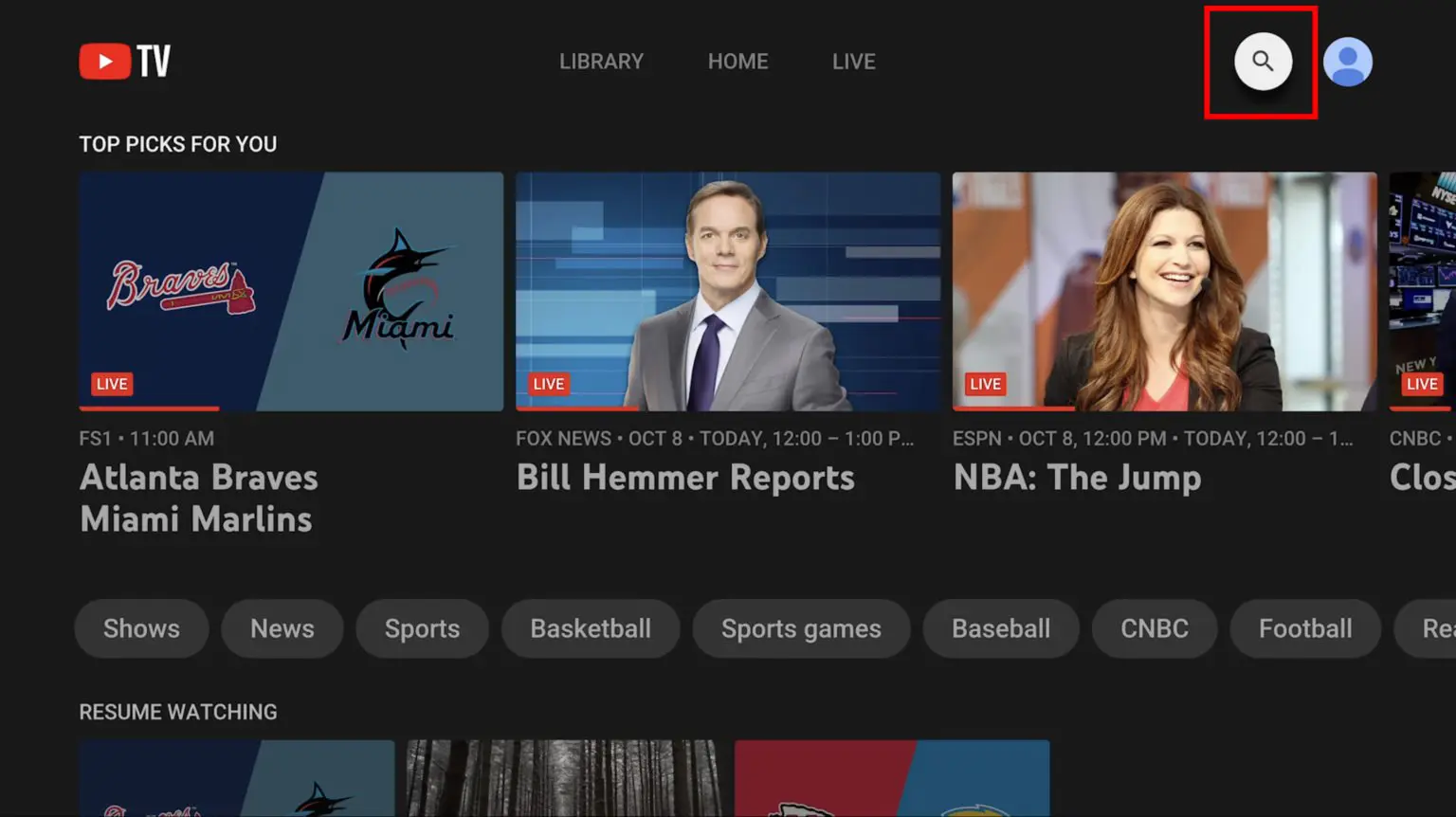
- Search: Use the magnifying glass icon to type the name of the show, movie, or sports team you wish to record.
- Select: Click on the program’s thumbnail to open its dedicated landing page.
- Add: Click the plus icon. Once it turns into a checkmark, the program is scheduled for recording.
From this moment on, every future airing of that program—regardless of the channel or time—will be automatically recorded and stored in your library.
Recording Individual Events vs. Entire Series
One nuance that new users often encounter is the “all-or-nothing” approach to series. When you add a TV show like The Voice or Grey’s Anatomy to your library, YouTube TV records every episode that airs, including reruns on secondary networks.
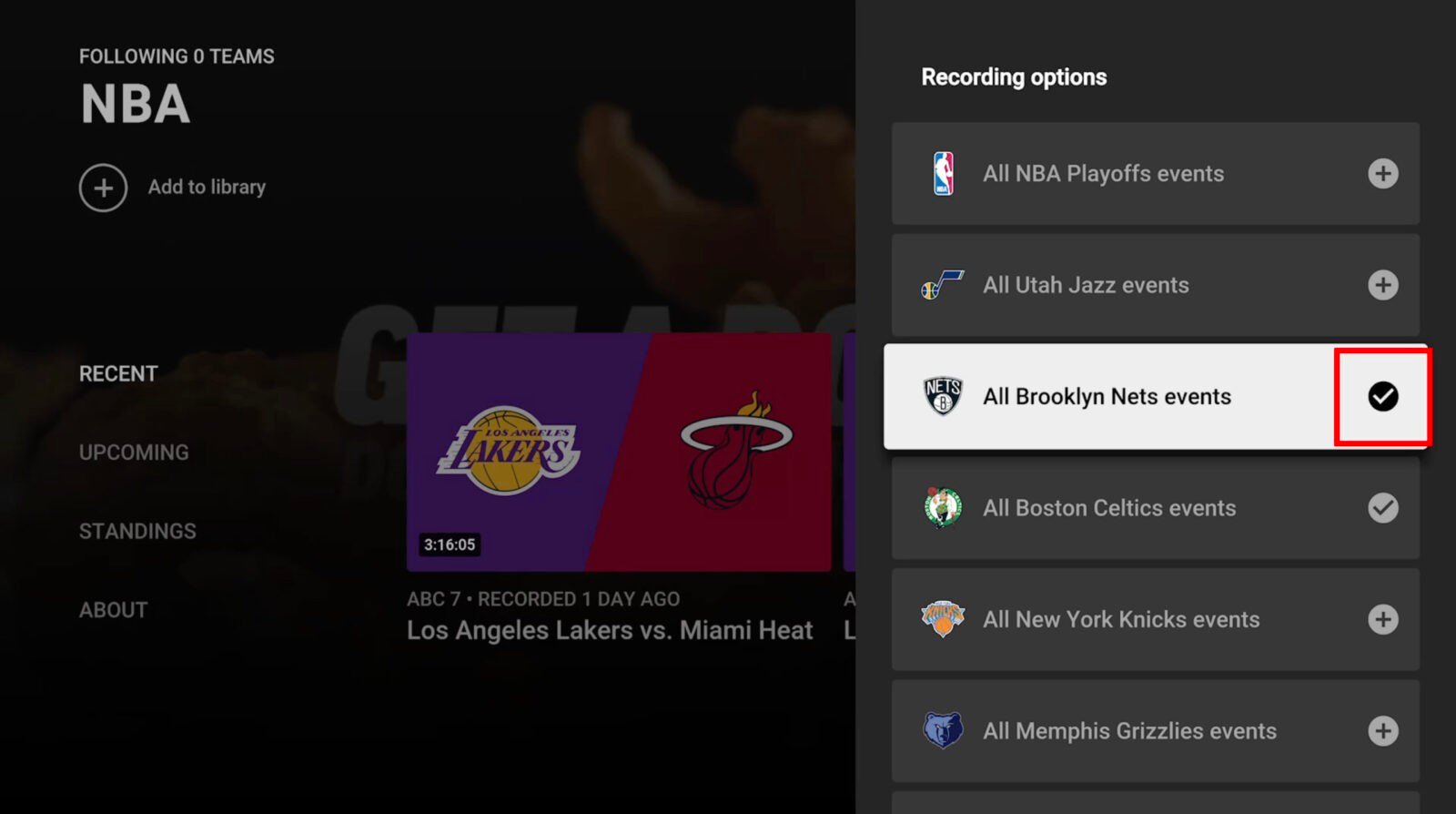
For sports, the system is even more intelligent. You can choose to record an individual game, or you can “Follow” a specific team (e.g., the Los Angeles Lakers) or an entire league (e.g., the NBA). If you follow a team, the Cloud DVR will automatically track down and record every televised game featuring that team, regardless of the network it airs on, including local affiliates and national broadcasts.
Managing Your Library and Deleting Content
Because storage is unlimited, there is technically no “need” to delete recordings. Consequently, YouTube TV does not have a traditional “Delete” button. Instead, you “Remove” a program from your library by clicking the checkmark icon. This stops future recordings from being added. Existing recordings will remain in your library until their nine-month expiration date passes, but they will be moved to the bottom of your lists to make room for active content.
Advanced Features and Optimization for Power Users
Beyond the basics of the “Plus” button, YouTube TV offers several technical tools that allow users to optimize their viewing experience and manage their data consumption effectively.
Using Search and Filter Tools
As your library grows, finding a specific episode can become a challenge. The “Library” tab is divided into several sections: “New in your library,” “Most watched,” “Scheduled,” and “Shows/Movies/Sports.”
For power users, the “Scheduled” tab is the most useful. It provides a chronological look at what the Cloud DVR is set to record in the next 24 hours. This is the best place to verify that a high-stakes series finale or a sporting event is properly queued in the system.
Understanding Ad-Skipping and VOD vs. DVR
A common point of confusion in the tech world of streaming is the difference between Video On Demand (VOD) and DVR recordings.
- DVR Recordings: These are copies of the live broadcast. When watching a DVR recording, you have the technical capability to fast-forward through commercials.
- VOD: These are provided by the networks themselves and often contain unskippable ads.
YouTube TV’s interface will sometimes group these together. When you go to watch a show, look for the “Choose a version” button. If both are available, choosing the “DVR” version usually provides the superior experience, as it allows for full control over playback and ad-skipping.
Recording on Different Devices
The recording logic remains consistent whether you are using a mobile app (iOS/Android), a web browser, or a smart TV interface (Roku, Apple TV, Fire Stick). However, the mobile app offers a unique feature: the ability to “Download” certain VOD content for offline viewing if you have the “4K Plus” add-on. While the Cloud DVR itself requires an internet connection to stream, this offline capability bridges the gap for users who need to record content to watch during flights or in areas with poor connectivity.
Troubleshooting Common Recording and Playback Issues
Even the most robust software can encounter glitches. Understanding the technical requirements for a smooth recording experience can help prevent missed shows.
Regional Restrictions and Sports Blackouts
Recording functionality is heavily tied to your “Home Area” and “Current Playback Area.” If you travel to a different city, you will see the local channels for that city, but your Cloud DVR will still record the programs from your home market.
However, professional sports are subject to “blackout” rules. If a game is blackoted in your current location, you may be unable to watch the recording until the live event has concluded. This is not a software bug but a legal restriction embedded in the broadcast metadata.
Playback Errors and Buffering
Since your recordings are streamed from the cloud, playback quality is dependent on your internet bandwidth. For 1080p recording playback, a minimum of 7 Mbps is recommended. If you experience buffering while watching a recording, the issue is rarely with the recording itself and usually with the local network’s DNS settings or Wi-Fi congestion. Switching the “Quality” setting from “Auto” to a specific resolution (like 720p) can often stabilize the stream.
Library Syncing and Account Access
Occasionally, users may find that a show they recorded on their phone doesn’t appear on their TV. This is usually a synchronization error. The first step in troubleshooting this is to ensure that both devices are logged into the exact same Google account. Because YouTube TV relies on account-level indexing, even a minor discrepancy in the login (such as using a different family member’s sub-account) will result in a different library view.
The Future of Cloud-Based Media Management
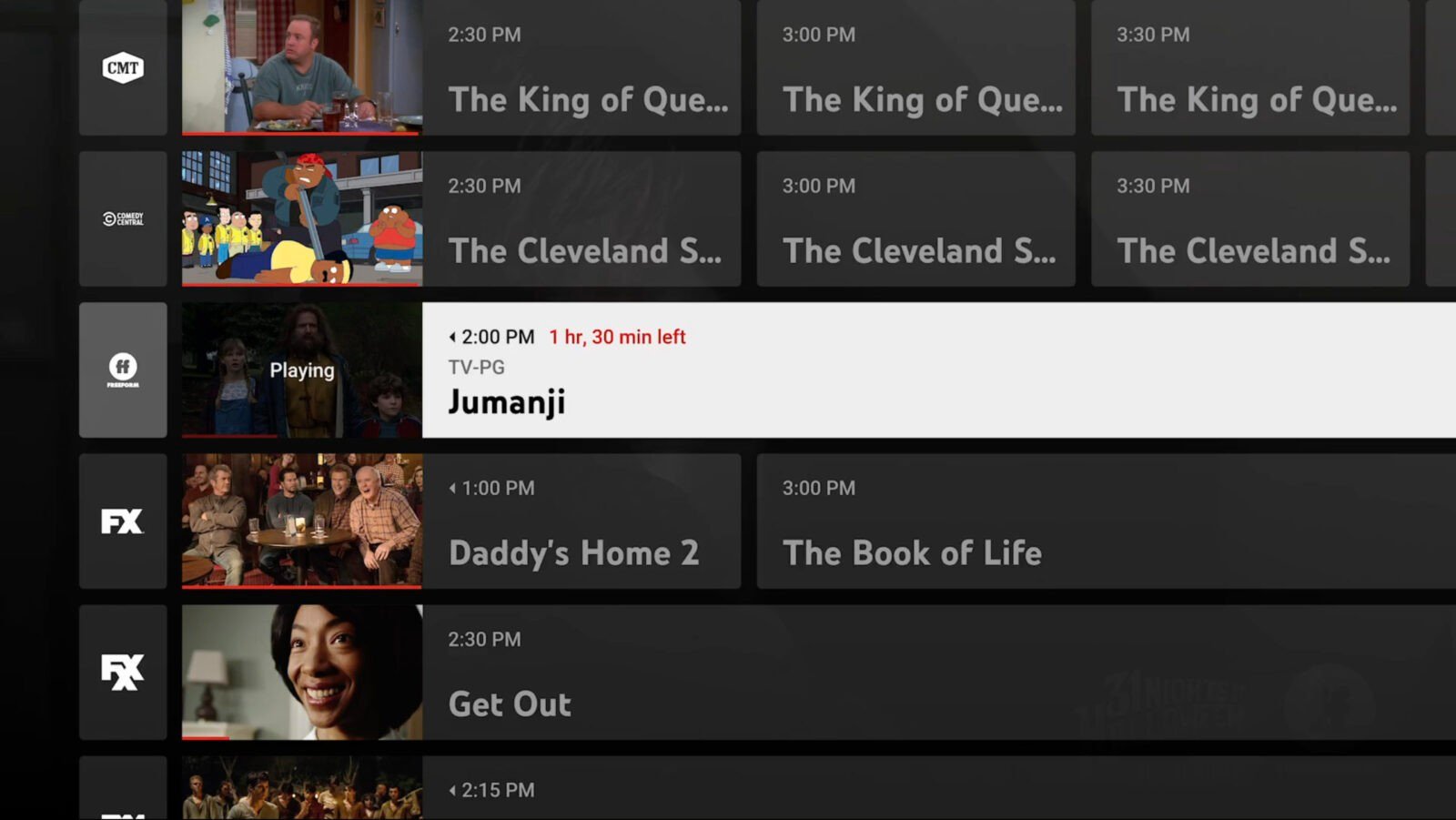
Recording on YouTube TV represents a significant leap forward in media technology. By moving the “brain” of the recorder from a box under the television to a global network of servers, Google has eliminated the hardware failures and storage limits that plagued the previous generation of TV viewers.
As AI and machine learning continue to integrate with streaming services, we can expect the recording process to become even more automated. We are already seeing “Key Plays” features, where the software uses visual recognition to identify the most important moments of a recorded sports game, allowing users to catch up in minutes.
Mastering these tools isn’t just about “saving a show” for later; it’s about taking control of the broadcast schedule and tailoring the vast world of live television to fit your specific digital lifestyle. Whether you are a casual viewer or a tech enthusiast, the Cloud DVR is the ultimate tool for navigating the modern era of entertainment.
aViewFromTheCave is a participant in the Amazon Services LLC Associates Program, an affiliate advertising program designed to provide a means for sites to earn advertising fees by advertising and linking to Amazon.com. Amazon, the Amazon logo, AmazonSupply, and the AmazonSupply logo are trademarks of Amazon.com, Inc. or its affiliates. As an Amazon Associate we earn affiliate commissions from qualifying purchases.