
The landscape of television consumption has undergone a radical transformation over the last decade. Gone are the days of bulky hardware set-top boxes, physical hard drives clicking away in the living room, and the constant anxiety of running out of storage space. In the era of cord-cutting, YouTube TV has emerged as a frontrunner, largely due to its sophisticated Cloud DVR (Digital Video Recorder) technology. Unlike traditional cable providers that charge monthly fees for hardware or limit your recording capacity, YouTube TV offers a seamless, software-driven experience that redefines how we archive and access media.
Understanding how to record shows on YouTube TV is more than just clicking a button; it involves understanding the underlying tech ecosystem that allows for unlimited storage, multi-device synchronization, and intelligent content discovery. This guide explores the technical nuances of the YouTube TV Library and provides a roadmap for mastering its recording features.
Understanding YouTube TV’s Cloud DVR Infrastructure
At the heart of the YouTube TV experience is the “Library.” While we often use the term “recording,” in the cloud-based world of Google’s infrastructure, what you are actually doing is flagging specific metadata to be saved to your personal profile. Because the data is stored on Google’s massive server farms rather than a local hard drive, the limitations of traditional DVRs have effectively been eliminated.
Unlimited Storage: The Game Changer
The most significant technological advantage of YouTube TV is its unlimited storage capacity. Traditional DVRs are capped by gigabytes or hours—if you record too many high-definition movies, you eventually have to delete old content to make room for the new. YouTube TV circumvents this by offering infinite space. You can record every single episode of a long-running sitcom, every game of the NFL season, and hundreds of movies without ever seeing a “storage full” notification.
This shift from local storage to cloud storage means that the recording happens on the server side. Even if your internet goes out or your device is turned off at the time of the broadcast, the recording will still be processed and added to your library because the command is handled within the YouTube TV cloud.
The Library Tab vs. Traditional Recording
In the legacy TV model, a “recording” was a discrete file. In YouTube TV, the “Library” acts as a personalized curated portal. When you add a show to your library, the system tracks all upcoming airings across all channels included in your subscription. It doesn’t just record the next episode; it records every episode, including reruns, specials, and new premieres. This automation ensures that users don’t have to manually schedule recurring recordings or worry about season finales being missed due to schedule changes.
Step-by-Step: How to Record Your Favorite Content
The interface of YouTube TV is designed with a “search-first” philosophy, leveraging Google’s expertise in data retrieval. Recording content is standardized across devices, whether you are using a Roku, Apple TV, Android smartphone, or a web browser.
Recording Individual Shows and Movies
To record a show, you simply need to “Add to Library.”
-
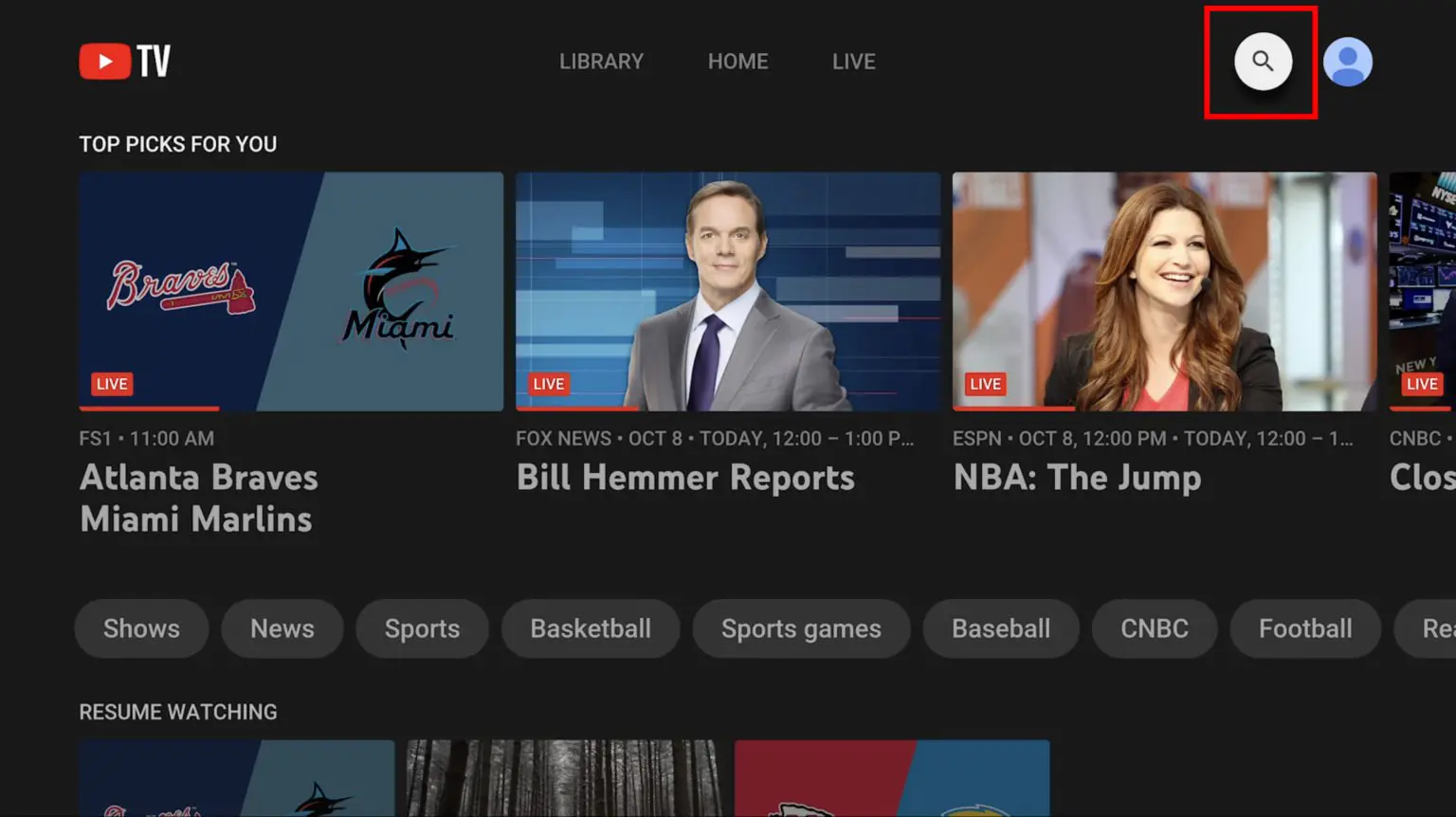
Search or Navigate: Use the magnifying glass icon to search for a specific title, or navigate through the “Live” guide.
-
Select the Program: Click on the title of the show or movie to open its dedicated information page.
-
The Plus Icon: You will see a “+” (plus) icon labeled “Add to Library.” Clicking this button initiates the recording process.
-
Verification: Once clicked, the plus icon turns into a checkmark. This signifies that every upcoming airing of that program will now be recorded and saved to your Library.
For movies, the system works similarly. If a movie is scheduled to air on a linear channel three weeks from now, adding it to your library ensures that the moment it broadcasts, a digital copy is reserved for your account.
Adding Entire Sports Teams or Leagues
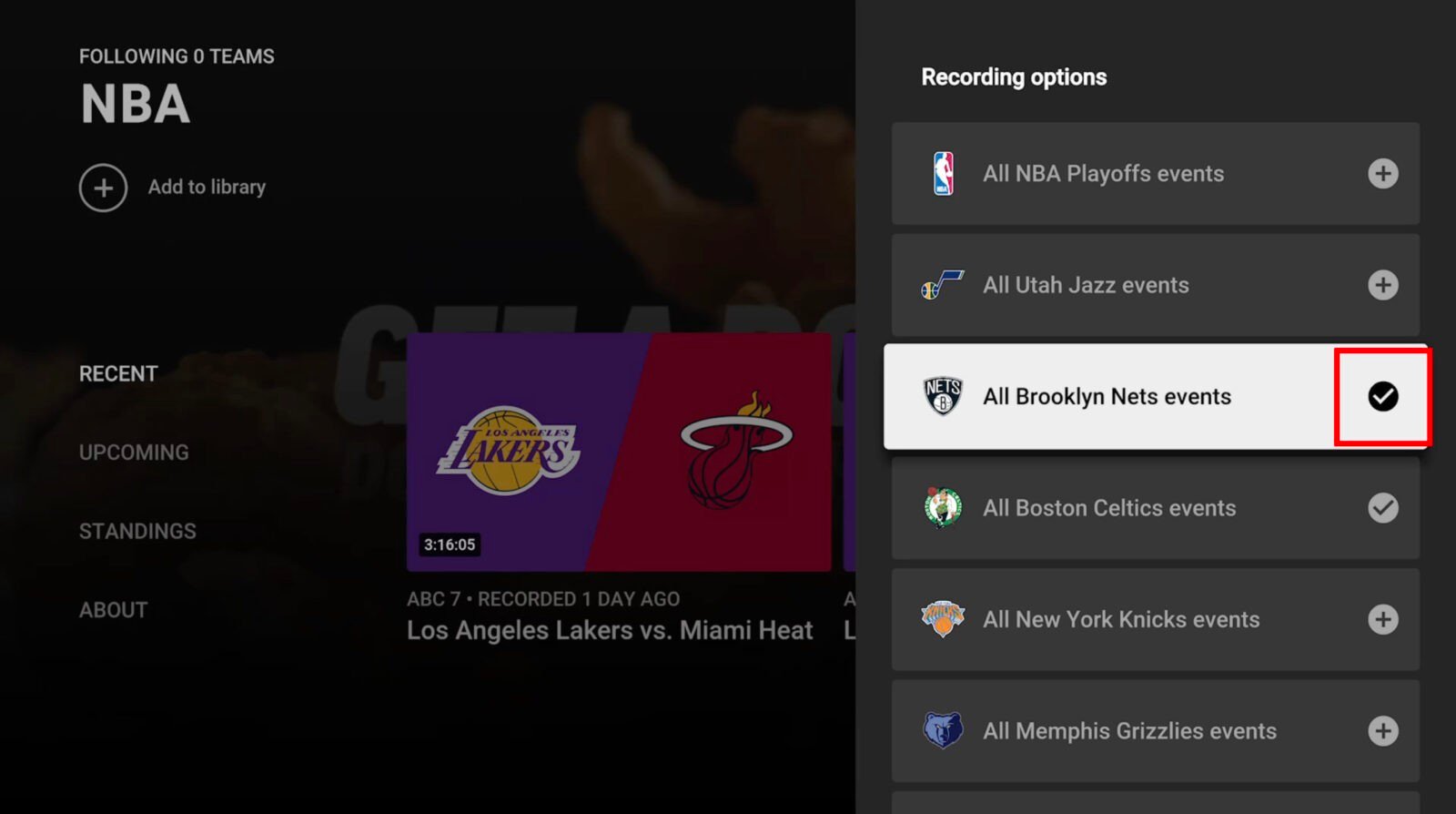
One of the most powerful features for sports enthusiasts is the ability to record entire leagues or teams. Rather than hunting through the schedule for every game of the season, you can search for “NBA” or “Golden State Warriors” and add the entire entity to your library.
The tech behind this is particularly impressive. The system identifies the team’s presence across various networks—such as ESPN, TNT, and local sports networks—and automatically triggers a recording whenever that team appears. This eliminates the need to manage multiple recording schedules for a single sports season.
Managing Your Library via Mobile and Web
Because your Library is tied to your Google account, there is a deep level of cross-platform synchronization. You can be on the subway using the YouTube TV app on your iPhone and add a show to your library. By the time you get home, that show will be sitting in the Library of your smart TV app. This ubiquity is a hallmark of modern cloud-native applications, ensuring that your media profile follows you regardless of the hardware you are using.
Advanced Features and DVR Optimization

Beyond simple recording, YouTube TV utilizes several advanced software features to enhance the viewing experience. These tools provide a level of interactivity that traditional DVRs simply cannot match.
The “Resume Watching” Feature and Progress Tracking
The software maintains a precise record of your “watch history.” If you start watching a recorded show on your living room TV and have to leave, you can pick up exactly where you left off on your tablet later that evening. The “Resume Watching” shelf in the Home tab is dynamically updated using real-time sync, ensuring that the transition between devices is frictionless.
Key Plays and Stats (Sports Focus)
For sports fans, the “Key Plays” feature is a standout technological integration. Using AI and machine learning to identify pivotal moments in a game (such as a touchdown or a buzzer-beater), YouTube TV allows viewers to jump directly to these highlights within a recorded or live game. This is particularly useful if you start a game late; you can choose to “Catch up with Key Plays” before diving into the live action.
Dealing with Commercials and VOD Versions
It is important to understand the technical distinction between a DVR recording and “Video on Demand” (VOD). When you record a show, you are generally allowed to fast-forward through commercials, just as you would with a physical DVR. However, some networks provide VOD versions of shows that may be added to your library automatically. VOD versions often have “forced” advertisements that cannot be skipped. YouTube TV’s interface usually allows you to choose between different versions of a show if multiple airings have been captured, giving you the choice between the DVR version (skippable ads) and the VOD version (often higher resolution but unskippable ads).
Troubleshooting and Limitations of the Cloud DVR
While the Cloud DVR is robust, there are specific technical parameters and limitations that users should be aware of to ensure they don’t lose access to their content.
The 9-Month Expiration Rule
While storage is unlimited in terms of volume, it is not infinite in terms of duration. YouTube TV retains recordings for 9 months from the date of the broadcast. After 9 months, the recording is deleted. However, if the show airs again within that window, the timer resets for that specific episode. For popular shows that are frequently in syndication, this effectively means they can stay in your library indefinitely.
Location-Based Restrictions (Home Area)
YouTube TV’s recording functionality is tied to your “Home Area.” Because local affiliate channels (ABC, NBC, CBS, FOX) vary by zip code, your DVR recordings of local news or local sports are based on your home location. If you travel to a different city, you can still watch your recordings, but you may not be able to record the local channels of the city you are visiting. Furthermore, to keep your library active, the software requires you to log in from your Home Area at least once every three months (or more frequently for certain sports packages).
Internet Connectivity and Playback Quality
Since the DVR is in the cloud, playback quality is entirely dependent on your internet connection. Unlike a hardware DVR which plays back via an HDMI cable from a local drive, a Cloud DVR streams the content. Users should ensure they have at least 25 Mbps for 4K streaming or 13 Mbps for HD streaming to ensure that their “recorded” content plays back without buffering or bitrate drops.
Future-Proofing Your Digital Media Strategy
The integration of YouTube TV into the broader Google ecosystem provides several avenues for “future-proofing” your entertainment setup. By leveraging voice assistants and family sharing, the recording experience becomes a shared household utility.
Integrating Voice Assistants
For users with Google Home or Nest devices, recording can be handled via voice commands. Saying “Hey Google, record The Voice on YouTube TV” will trigger the same metadata flag in the cloud as clicking the plus icon. This integration of IoT (Internet of Things) tech with streaming media represents the next step in the evolution of the smart home, where the barrier between the user and their content is further reduced.
Sharing the DVR Experience with Family Members
A single YouTube TV subscription allows for up to six individual accounts under a “Family Group.” Each family member gets their own unique Library and DVR storage. This is a critical technical distinction: your recordings will not clutter your spouse’s library, and their watch history will not affect your recommendations. Each account operates as a siloed profile within the cloud, providing a personalized experience for everyone in the household while sharing the cost of a single subscription.
By mastering the Cloud DVR features of YouTube TV, viewers move away from the passive consumption of the past and toward a highly curated, personalized digital archive. The technology rewards users who take a proactive approach to “Adding to Library,” turning a standard TV subscription into a massive, on-demand library of their favorite tech, news, and entertainment content.
aViewFromTheCave is a participant in the Amazon Services LLC Associates Program, an affiliate advertising program designed to provide a means for sites to earn advertising fees by advertising and linking to Amazon.com. Amazon, the Amazon logo, AmazonSupply, and the AmazonSupply logo are trademarks of Amazon.com, Inc. or its affiliates. As an Amazon Associate we earn affiliate commissions from qualifying purchases.