
The evolution of home media consumption has transitioned from the physical constraints of magnetic tape to the digital limitations of local hard drives, finally arriving at the era of ubiquitous cloud storage. YouTube TV has been at the forefront of this shift, offering a Cloud DVR (Digital Video Recorder) system that fundamentally changes how users interact with live television. Unlike traditional cable boxes that are limited by a specific number of gigabytes, YouTube TV leverages Google’s massive data center infrastructure to provide a recording experience that is virtually limitless. Understanding how to record in YouTube TV is not just about clicking a button; it is about mastering a sophisticated ecosystem of cloud-based media management.
The Architecture of YouTube TV’s Cloud DVR
To appreciate how recording works on this platform, one must first understand the technical infrastructure supporting it. Traditional DVRs record a stream directly to a local hard drive in your living room. If the power goes out or your storage fills up, the recording fails. YouTube TV operates on a server-side model. When you “record” a show, you are not actually downloading a file to your device; instead, you are flagging a specific broadcast on Google’s servers to be associated with your account’s library.
Unlimited Storage: The Shift from Hardware to the Cloud
The most significant technological advantage of YouTube TV is its “Unlimited DVR” promise. In the tech world, “unlimited” is often a marketing term with hidden caveats, but here it refers to the volume of content. You can record a thousand movies or every single game of the NFL season without ever seeing a “storage full” notification. This is made possible by Google’s distributed file systems, which allow for massive scaling. From a user perspective, this removes the cognitive load of “managing” space, allowing for a “record everything” mentality that was impossible a decade ago.
Retention Policies and the 9-Month Rule
While the volume of storage is unlimited, the duration is not. Tech-savvy users must note that YouTube TV employs a specific data retention policy: recordings are kept for exactly nine months. After this period, the older files are purged from your library. This reflects a shift from “ownership” of media to “access” to media. In the cloud-computing paradigm, keeping petabytes of data indefinitely for millions of users is a logistical challenge, so the nine-month window serves as a balanced timeout for both the provider and the consumer.
Profile-Based Libraries
YouTube TV allows for up to six individual profiles per household. This is a critical architectural feature because it segregates the “Library” metadata for each user. When you record a program, it appears only in your specific library, and the platform’s recommendation algorithms use those recordings to refine your personal content feed. This ensures that a parent’s news recordings don’t clutter a child’s cartoon collection, showcasing a sophisticated implementation of multi-tenant cloud architecture.
Mastering the Recording Workflow Across Devices
The process of recording—referred to in the interface as “Adding to Library”—is designed to be frictionless, yet it varies slightly depending on the hardware ecosystem you are using. Whether you are on a mobile device, a web browser, or a smart TV interface, the underlying logic remains consistent.
Adding Content to Your Library on Smart TVs and Streaming Sticks
For most users, the primary interaction occurs on a television via a remote control. To record a program that is currently airing or a future broadcast:
-
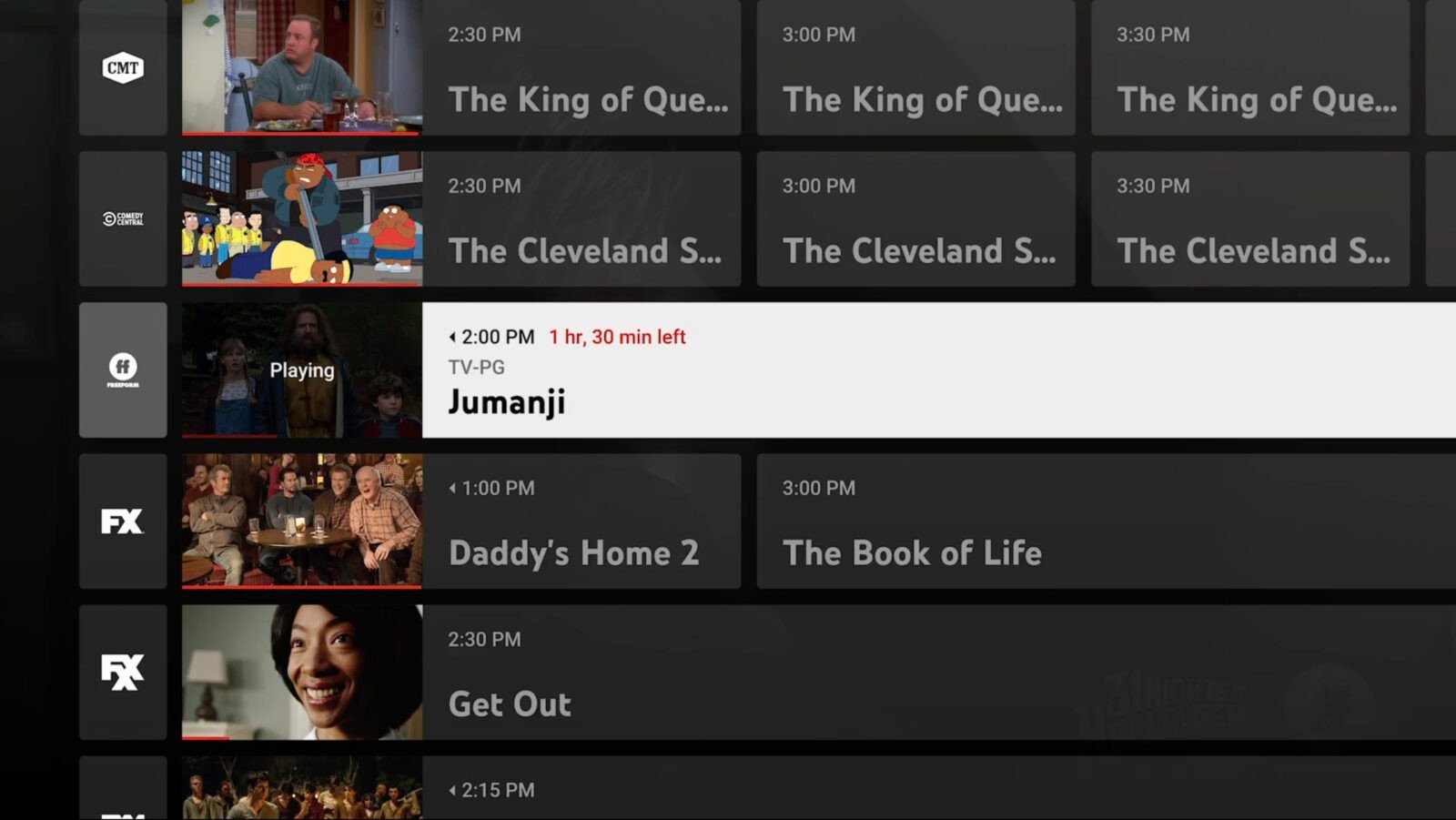
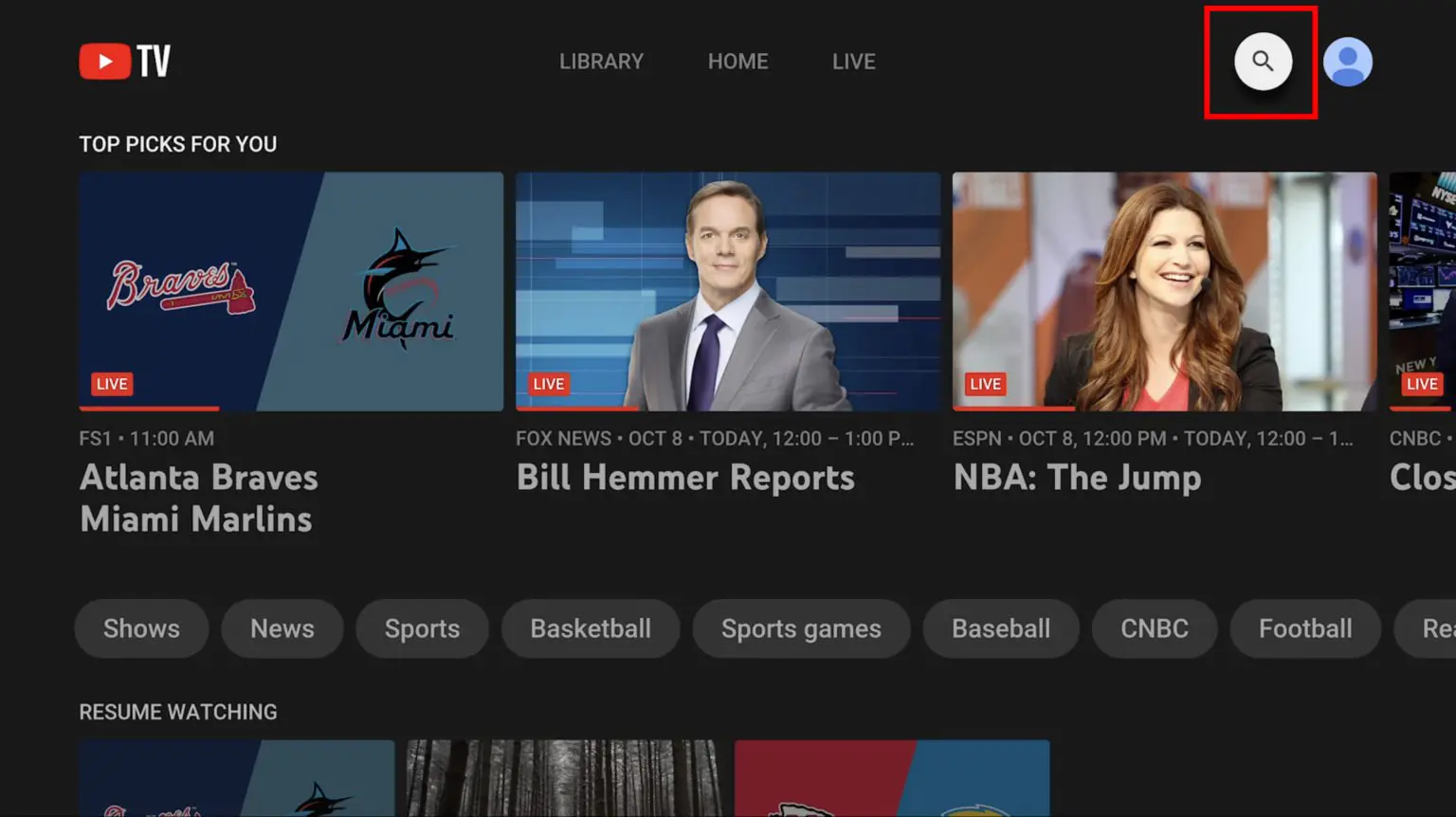
Navigate to the Home, Live, or Search tab.
-
Select the program you wish to record to open its information page.
-
Locate the “Add to Library” button (symbolized by a plus sign “+”).
-
Once clicked, the icon transforms into a checkmark, indicating that the series or movie is now scheduled for recording.
The technical brilliance here is that YouTube TV records all airings of a show. If you add a sitcom, the system will automatically record every episode, including reruns and new premieres, across all available channels. This “set it and forget it” logic is a hallmark of modern software automation.
Managing Recordings on Mobile and Web Interfaces
On a smartphone or a computer, the interface is optimized for rapid browsing. The search function is particularly powerful, utilizing Google’s core search algorithms to find content across hundreds of channels. When you find a show, tapping the “+” icon instantly syncs that preference across all devices linked to your account. Because the system is cloud-based, there is zero latency between adding a show on your phone and seeing it reflected on your living room TV.
The Role of “Add to Library” vs. Traditional Recording
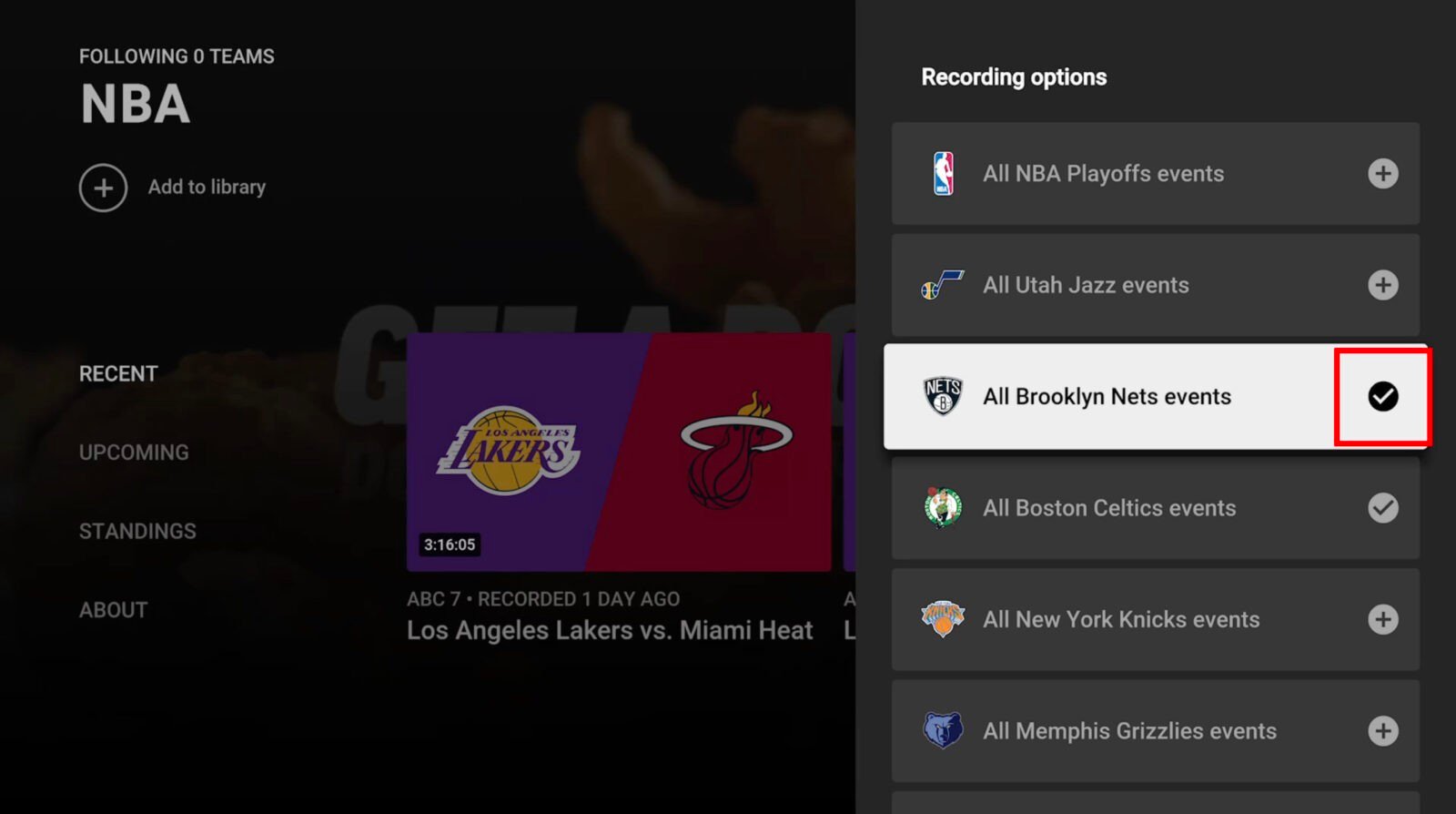
It is important to distinguish between “recording a single episode” and “adding a series.” In YouTube TV’s software logic, there is no option to record just one episode of a show if it is part of a series. When you click that plus button, you are subscribing to the entire series metadata. This ensures that if a show moves from one network to another, or if a special episode airs unexpectedly, the system captures it. This approach prioritizes comprehensiveness over granular control, which aligns with the needs of the modern “binge-watcher.”
Advanced Features for Power Users
Beyond basic scheduling, YouTube TV offers several high-tech features that leverage real-time data and machine learning to enhance the viewing experience.
Sports Recording and Automatic Overtime Detection
Recording sports has historically been a nightmare for DVR users due to games running over their allotted time slots. YouTube TV addresses this with “extension logic.” By integrating real-time sports data feeds into their recording engine, the platform can detect if a game has gone into overtime or a rain delay. The cloud DVR automatically extends the recording window to ensure the end of the game is captured. Users can also choose to record entire leagues (e.g., “All NFL Games”) with a single click, a feature that demonstrates the power of structured data in media.
Key Plays and Stats Integration
For recorded sports, YouTube TV utilizes computer vision and metadata tagging to offer a “Key Plays” feature. If you start watching a recorded game late, the UI allows you to jump through the most important moments before joining the live broadcast. This is a significant technological leap over the “fast-forward” button, as it uses algorithmic indexing to identify scoring plays and turnovers.
Precise Thumbnails and Scrubbing
When navigating through a recording to skip commercials, the “scrubbing” experience is vital. YouTube TV generates high-resolution preview thumbnails for every second of a recording. Unlike cable boxes that often lag during fast-forwarding, YouTube TV’s cloud infrastructure streams these thumbnails with minimal buffering, providing a smooth visual guide that makes finding a specific scene or the end of a commercial break highly efficient.
Troubleshooting and Optimizing Your Recording Experience
Despite the robustness of the platform, there are technical nuances that users must navigate to ensure they get the most out of their virtual DVR.
VOD vs. DVR Versions: Understanding the Difference
One of the most common points of confusion is the distinction between a DVR recording and a Video on Demand (VOD) version.
-
DVR Version: This is the actual broadcast that was recorded. It allows you to fast-forward through commercials.
-
VOD Version: This is provided by the network (like CBS or FX) after the show has aired. These versions often have “forced” commercials that cannot be skipped.
YouTube TV’s interface usually defaults to the DVR version if it is available, but sometimes a VOD version will replace it if the recording has expired or if there are licensing restrictions. Understanding this distinction is key to a frustration-free experience.
Handling Regional Restrictions and Blackouts
Because YouTube TV relies on your IP address and GPS data to provide local channels, recording “local” content follows strict geofencing rules. If you record a local news program in New York and then travel to Los Angeles, you can still watch your New York recordings. However, you cannot record Los Angeles local channels unless you update your “current playback area” in the settings. For sports, “blackout” rules still apply; if a game is not allowed to be broadcast in your area, the cloud DVR will not be able to record it.
Network Connectivity and Playback Quality
Since the recording happens on the server, your home internet speed does not affect the quality of the recording itself. Even if your internet is out, the recording will still be saved to your library. However, your bandwidth does affect the playback. To stream recorded content in 1080p or 4K (if you have the 4K Plus add-on), a stable connection of at least 25 Mbps is recommended. The platform uses adaptive bitrate streaming to ensure that even if your connection fluctuates, the recording continues to play without stopping, albeit at a lower resolution.
The Future of Cloud-Based Media Storage
The technology behind recording in YouTube TV represents a broader trend in the tech industry: the decoupling of software services from specialized hardware. We are moving away from a world where we need a “box” to perform a specific task. By moving the DVR to the cloud, YouTube TV has turned a hardware limitation into a software feature.
As AI and machine learning continue to evolve, we can expect the recording experience to become even more proactive. Imagine a system that doesn’t just record what you tell it to, but intelligently archives content it predicts you will want to watch based on your viewing habits across other Google platforms. For now, mastering the current Cloud DVR system—with its unlimited storage, nine-month retention, and cross-device synchronization—remains the gold standard for anyone looking to bridge the gap between traditional linear television and the on-demand digital future. By understanding these technical layers, users can move beyond simple viewing and begin to curate a truly personalized media library.
aViewFromTheCave is a participant in the Amazon Services LLC Associates Program, an affiliate advertising program designed to provide a means for sites to earn advertising fees by advertising and linking to Amazon.com. Amazon, the Amazon logo, AmazonSupply, and the AmazonSupply logo are trademarks of Amazon.com, Inc. or its affiliates. As an Amazon Associate we earn affiliate commissions from qualifying purchases.