
The landscape of television consumption has undergone a radical transformation over the last decade. We have moved from the era of bulky physical tapes and limited hard-drive space on local DVR boxes to the seamless, ephemeral world of cloud-based streaming. YouTube TV has emerged as a frontrunner in this digital revolution, largely due to its sophisticated approach to content management. Unlike its competitors, YouTube TV offers a “Cloud DVR” with unlimited storage—a technical feat that has redefined what it means to “record” a show.
Understanding how to record a show on YouTube TV requires more than just knowing which button to click; it involves understanding the underlying ecosystem of the platform’s Library feature. In this guide, we will explore the technical nuances of YouTube TV’s recording capabilities, providing a comprehensive walkthrough for users looking to optimize their digital media consumption.
Understanding YouTube TV’s Cloud DVR Infrastructure
Before diving into the “how-to,” it is essential to understand the “what.” YouTube TV does not use a physical hard drive located in your home. Instead, it utilizes Google’s massive data center infrastructure to store copies of broadcasts. This shift from hardware to software-defined storage is what allows the platform to offer features that were previously impossible.
Unlimited Storage: A Game Changer for Cord-Cutters
One of the most significant technical advantages of YouTube TV is its unlimited Cloud DVR storage. In the days of TiVo or cable-provided DVRs, users were constantly managing megabytes and gigabytes, deleting old episodes of sitcoms to make room for a high-definition football game.
YouTube TV’s architecture eliminates this friction. When you “record” a show, you aren’t actually downloading a file to your device; you are essentially bookmarking a stream within Google’s cloud. Because the storage is unlimited, you can record every single airing of every show on every channel without ever hitting a ceiling. This allows for a “set it and forget it” mentality that is central to the modern user experience.
How the Library Function Differs from Traditional Recording
On YouTube TV, the term “record” is often replaced by the term “Add to Library.” This distinction is important. In a traditional sense, recording a show meant capturing a specific time slot on a specific channel. On YouTube TV, adding a show to your library instructs the algorithm to monitor all airings of that program across all available networks.
When you add a show, the system automatically archives every episode—new or old—that airs from that moment forward. Furthermore, if a show is available as “Video on Demand” (VOD) from the network, YouTube TV often integrates those versions into your library as well, providing a hybrid experience between a live recording and a streaming catalog.
Step-by-Step Guide to Recording Content
The interface of YouTube TV is designed for cross-platform consistency, meaning the process for recording is relatively uniform whether you are using a smartphone, a web browser, or a smart TV. However, there are subtle technical differences in how you navigate these menus.
Adding Shows to Your Library via Mobile and Web
For many users, the mobile app or a desktop browser is the most efficient way to manage their content queue. The process is intuitive but relies on the platform’s robust search algorithm.
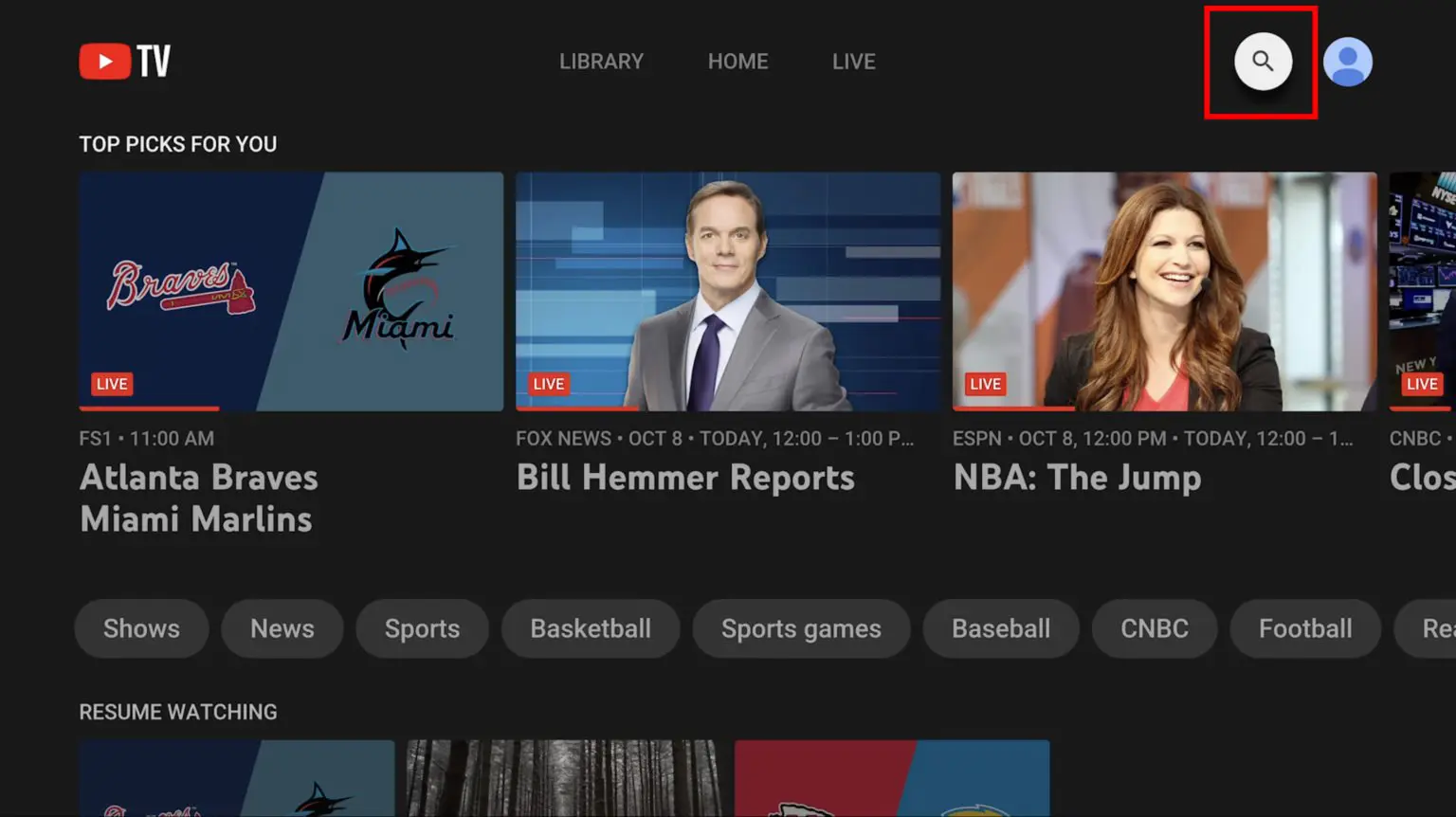
- Search and Discover: Use the magnifying glass icon to search for a specific show, movie, or sports team. YouTube TV’s search functionality is powered by the same technology as Google Search, making it incredibly responsive to even partial titles.
- The “Plus” Icon: Once you navigate to the show’s main page, you will see a “+” (plus) icon. Clicking this icon adds the program to your library.
- Confirmation: The icon will change to a checkmark, indicating that the system is now tracking this content. From this point forward, every upcoming airing will be recorded automatically.
Scheduling Recordings on Smart TVs and Streaming Sticks
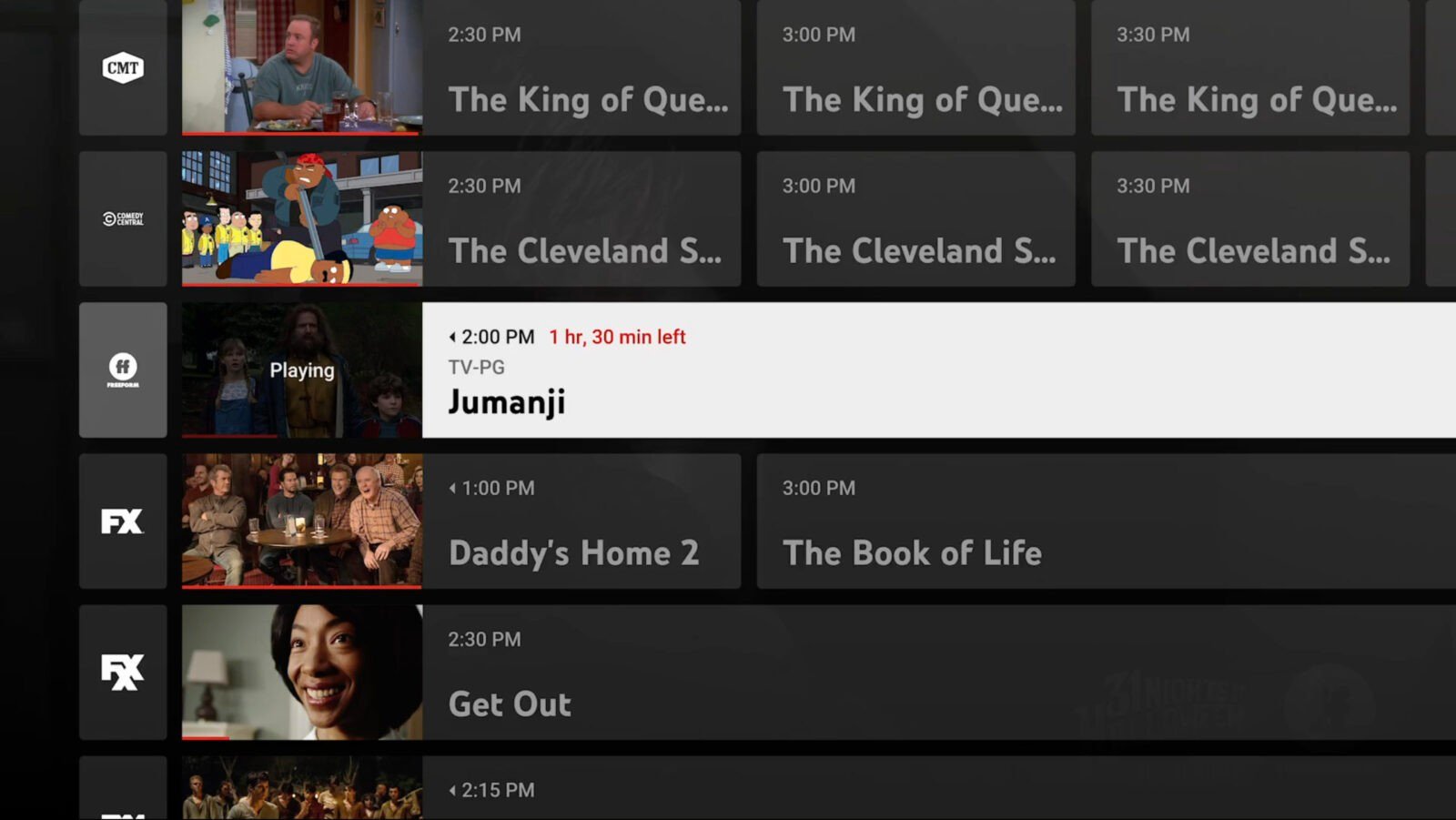
Recording directly from a living room device—such as a Roku, Apple TV, or a built-in Smart TV interface—is slightly different. This is typically done through the “Live” guide.
- Navigate the Live Guide: Scroll through the grid-style electronic program guide (EPG) to find a show currently airing or scheduled for later.
- Select the Program: Click on the title to open the program details.
- Add to Library: Select the “Add to Library” button. A technical benefit of this method is that if you join a show halfway through and then click “record,” YouTube TV will often provide the full episode from the beginning, provided it has the data in its cloud cache.
Managing Your “Live” vs. “On-Demand” Content
In your library, you will notice labels on your recorded content. It is vital to distinguish between “DVR” and “VOD.”
- DVR: These are the recordings of the live broadcast. They allow you to fast-forward through commercials (with some exceptions depending on the network).
- VOD: These are provided by the network directly. They typically have unskippable commercials but may offer higher bitrates or better visual fidelity than a standard broadcast stream.
YouTube TV’s software logic attempts to prioritize the DVR version if available, but understanding this distinction helps when troubleshooting playback issues.
Advanced Features and Customization
Recording a single episode of a late-night talk show is simple, but YouTube TV’s tech stack allows for much more complex recording logic, particularly for sports fans and movie buffs.
Sports Recording: Tracking Teams and Leagues
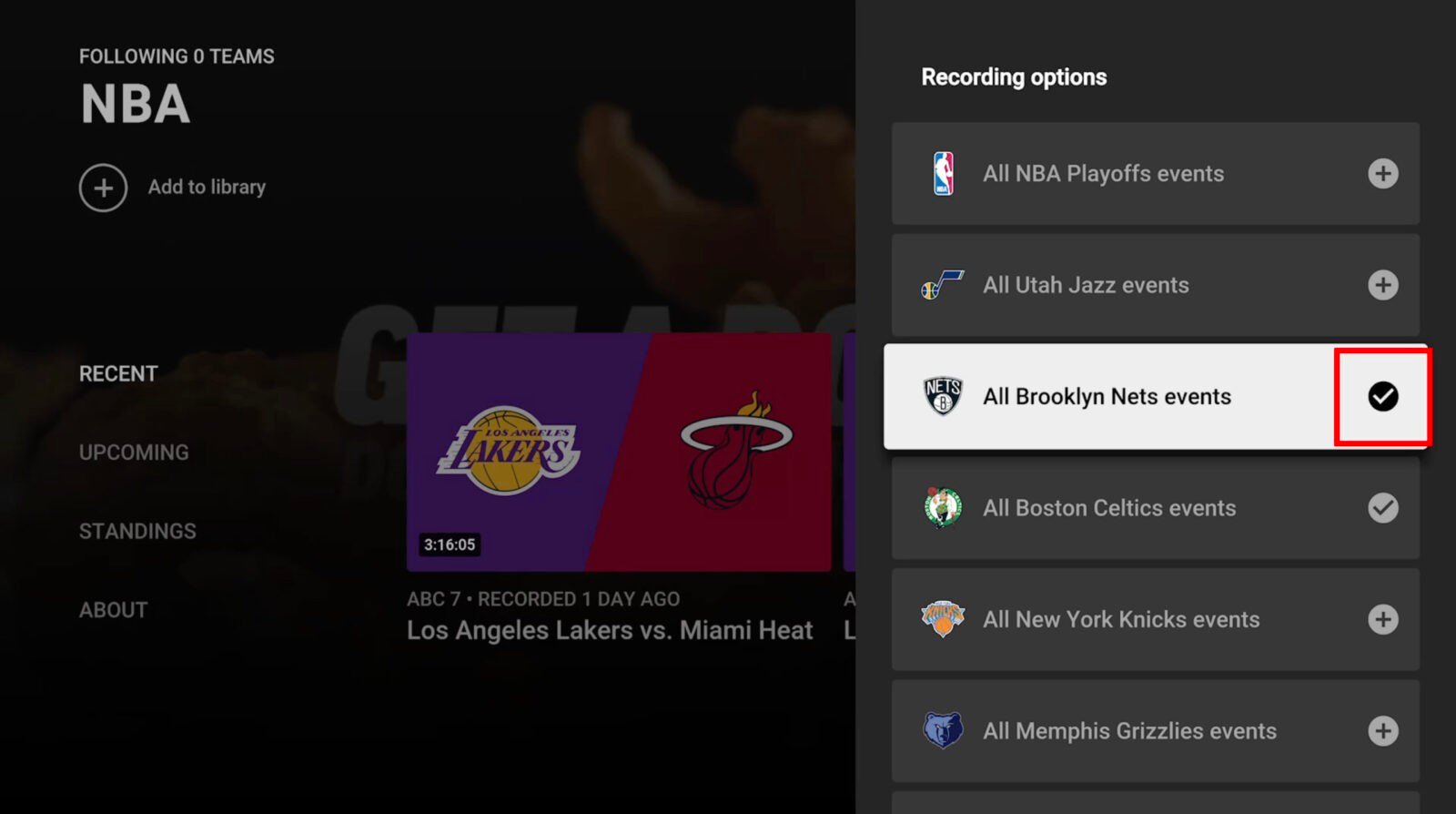
One of the most powerful features of YouTube TV’s DVR is its ability to track entire sports leagues or specific teams. Instead of manually recording every “Golden State Warriors” game, you can simply search for the team and add the entire team to your library.
Technically, this creates a dynamic filter. The system identifies any broadcast categorized with that team’s metadata across local affiliates, national sports networks (like ESPN), and league-specific channels (like NBA TV). This ensures that even if a game’s schedule changes or it moves to a different network, the recording remains secured.
Recording Individual Events vs. Full Series
YouTube TV’s default behavior is to record “everything” related to a title. If you add The Simpsons, it will record every episode on every channel. However, for certain events—like a specific award show or a one-time news special—the system recognizes the “event” status and records only that specific instance.
If you wish to stop recording a show, you simply click the checkmark (Remove from Library). It is important to note that removing a show does not immediately delete the existing recordings; they will remain in your library until the nine-month expiration period passes, but no new episodes will be added.
Using Family Sharing to Manage Multiple Libraries
From a software management perspective, a cluttered DVR is a common pain point. YouTube TV addresses this through its Family Sharing feature. You can share your subscription with up to five other family members, and each person gets their own unique Google-linked profile.
Each profile has its own completely separate “Library.” This means a parent’s recordings of news programs won’t clutter a child’s library of cartoons. Technically, these are distinct data silos within the same billing account, ensuring a personalized recommendation engine for every user based on their specific recording habits.
Optimizing Playback and Troubleshooting
While the Cloud DVR is robust, the intersection of live broadcast technology and internet streaming can occasionally lead to technical hurdles. Knowing how to navigate these ensures a smoother viewing experience.
Navigating Commercials and Fast-Forwarding Rules
The ability to fast-forward through commercials is the primary reason many users prefer DVR recordings over VOD. When watching a “DVR” version of a show, you can use the scrub bar to skip advertisements.
However, there is a technical caveat: some networks require YouTube TV to “swap” the DVR version for a VOD version shortly after the air date. If you see “VOD” instead of “DVR” in your library, the fast-forward functionality may be restricted by the network’s licensing agreement. Understanding this helps users manage their expectations regarding ad-skipping.
Dealing with Recording Delays and Sports Overruns
A common issue with traditional DVRs was the “cutoff”—a football game goes into overtime, and the recording ends before the final play. YouTube TV utilizes real-time data feeds to combat this.
The platform’s algorithms monitor the actual status of live sports events. If a game runs long, YouTube TV automatically extends the recording window in the cloud. This technical “padding” is handled on the server side, meaning the user doesn’t have to manually add extra time to the recording. If a recording is ever cut off, the “Report Recording Issue” button allows users to alert YouTube’s engineers, who can often fix the timestamp for all users globally.
Syncing Recordings Across Devices
Since your recordings live in the cloud, the “sync” is instantaneous. You can start watching a recorded show on your living room TV, pause it, and resume at the exact same second on your smartphone during your commute. This is managed via Google’s synchronized state-tracking technology. For the best experience, ensure that you are signed into the same Google account across all devices and that your “Watch History” is not paused in your Google Privacy settings, as this can interfere with the platform’s ability to save your place in a recording.
The Future of Cloud-Based Television
The transition to Cloud DVR technology represented by YouTube TV is more than just a convenience; it is a fundamental shift in how media is indexed and stored. By removing the physical limitations of local storage and the manual labor of scheduling, YouTube TV has turned the act of “recording” into a background process that happens at the scale of the internet.
As AI and machine learning continue to integrate with streaming platforms, we can expect even more granular control—such as the ability to record specific segments of news programs or automatically generated “highlight reels” of recorded sports matches. For now, mastering the “Add to Library” function is the most effective way to ensure you never miss a moment of your favorite content in the digital age.
aViewFromTheCave is a participant in the Amazon Services LLC Associates Program, an affiliate advertising program designed to provide a means for sites to earn advertising fees by advertising and linking to Amazon.com. Amazon, the Amazon logo, AmazonSupply, and the AmazonSupply logo are trademarks of Amazon.com, Inc. or its affiliates. As an Amazon Associate we earn affiliate commissions from qualifying purchases.