
The ability to seamlessly transition content from a small screen to a large one has revolutionized home entertainment. For YouTube users, pairing their mobile device or computer with a television unlocks a superior viewing experience, transforming casual browsing into an immersive event. This integration leverages the visual fidelity of modern TVs and the audio capabilities of home theater systems, all while maintaining the intuitive control offered by a smartphone or tablet. Understanding the various methods to achieve this pairing, along with their respective advantages and troubleshooting tips, is crucial for anyone looking to optimize their YouTube consumption.
Understanding the Benefits of Pairing YouTube
Pairing your YouTube account or session with a television goes beyond merely displaying content on a larger screen. It introduces a suite of conveniences and enhancements that significantly improve the user experience.
Enhanced Viewing Experience
The most obvious advantage is the sheer scale. Watching videos on a television screen, often 40 inches or more, provides a more cinematic and engaging experience compared to a phone or tablet. Details become clearer, and the visual impact of high-definition content is fully realized. Coupled with a TV’s built-in speakers or a connected sound system, the audio quality is vastly superior, delivering richer soundscapes, clearer dialogue, and more impactful music. This transformation is particularly noticeable for music videos, documentaries, movies, or high-production-value content.
Seamless Control
When you pair YouTube, your mobile device effectively becomes an advanced remote control. This allows you to browse, search, queue videos, and manage playback (play, pause, skip, rewind, fast-forward) directly from your phone or tablet. This is often far more convenient than navigating a TV’s on-screen keyboard with a traditional remote control, especially for typing search queries or comments. Furthermore, you can continue to use your mobile device for other tasks, such as texting or browsing the web, without interrupting the video playback on the TV.
Multi-User Convenience
Pairing also facilitates a collaborative viewing experience. Multiple users in the same household can link their devices to the same TV, allowing them to take turns adding videos to a shared queue. This is ideal for family gatherings, parties, or just a shared viewing session where everyone wants to contribute to the playlist without constantly handing over a single remote. The flexibility of managing the queue from individual devices streamlines the process and ensures everyone has a voice in what plays next.
Accessibility Features
For individuals who may find small text or intricate touch controls on a mobile device challenging, pairing to a TV can offer improved accessibility. The larger display makes subtitles and on-screen text easier to read, while the familiar interface of a smartphone or tablet (as the remote) can be more manageable than a complex TV remote for some users.
Common Pairing Methods
There are several distinct methods to pair YouTube to a TV, each suited to different devices and scenarios. The primary goal is to establish a connection that allows content from your mobile device or computer to be displayed and controlled on the television.
Smart TV App (Direct App Login)
Many modern smart TVs come with a pre-installed YouTube app. This is often the most straightforward method as it doesn’t always require a separate pairing process from another device.
- Process: Simply open the YouTube app on your smart TV. If it’s your first time, you’ll likely be prompted to sign in with your Google account. Once signed in, your subscriptions, watch history, and personalized recommendations will be accessible directly through the TV interface, controlled by your TV remote.
- Advantages: Full access to YouTube features directly on the TV, no reliance on a mobile device for playback initiation, high-quality stream directly from the TV’s internet connection.
Casting (Chromecast, Built-in Casting)
Casting is a popular wireless streaming technology that allows you to send content from your phone, tablet, or computer to a compatible TV or streaming device. Google’s Chromecast is the most widely recognized example, but many smart TVs, streaming sticks (like Roku, Amazon Fire TV), and game consoles now have built-in casting capabilities.
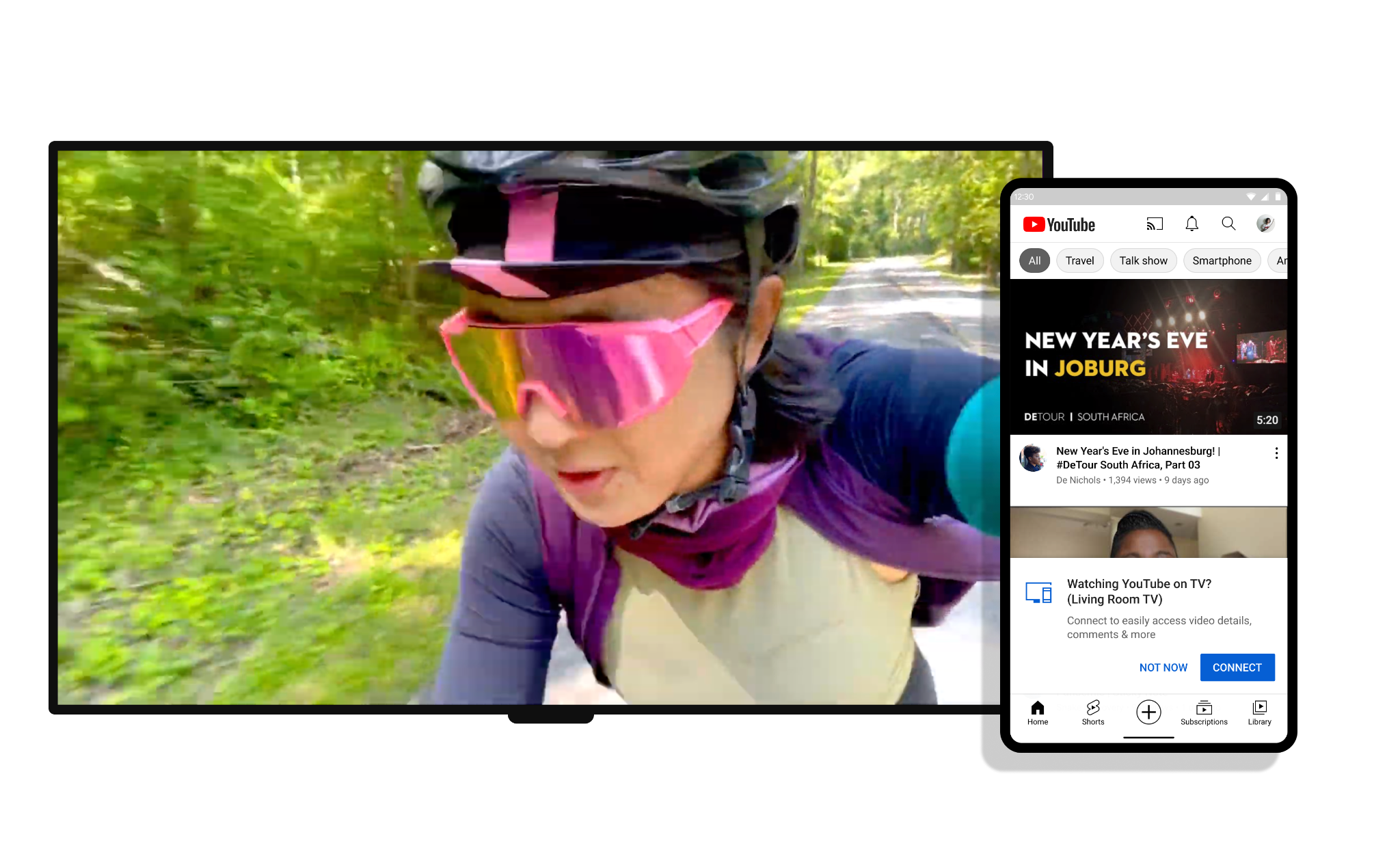
- Process: Ensure your mobile device and the casting receiver (TV, Chromecast) are connected to the same Wi-Fi network. Open the YouTube app on your phone or tablet. Play any video. Look for the “Cast” icon (a rectangle with a Wi-Fi symbol in the bottom-left corner, or a TV screen with a Wi-Fi signal). Tap this icon, and a list of available casting devices on your network will appear. Select your TV or Chromecast. The video will then begin playing on your TV, and your mobile device will act as the remote control.
- Advantages: Simple to initiate, uses your mobile device as a full-featured remote, allows you to continue using your mobile device for other tasks, widely supported across various devices.
Link with TV Code
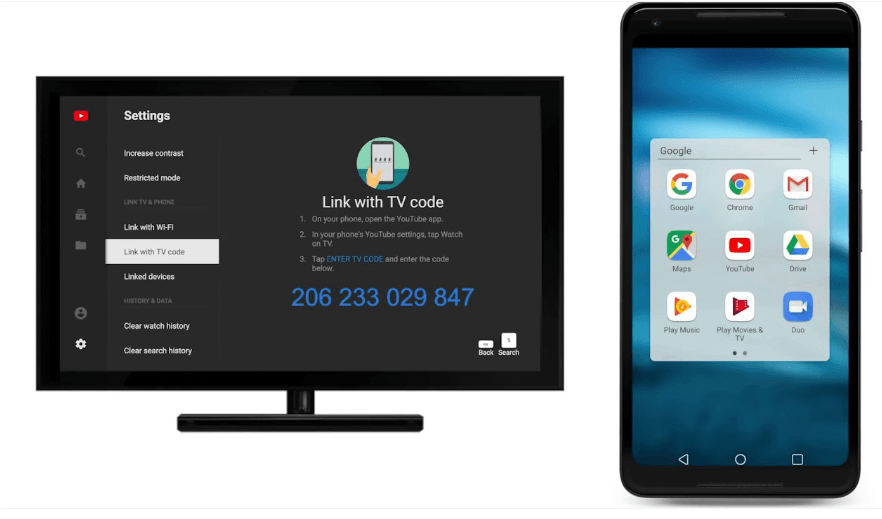
This method is particularly useful when your mobile device and TV are not connected to the same Wi-Fi network, or if you’re having trouble with casting. It allows you to manually link your phone or computer to the YouTube app on your TV using a unique code.
- Process: On your TV, open the YouTube app and navigate to its settings. Look for an option like “Link with TV Code,” “Pair Device,” or “Watch on TV.” The TV will display a 12-digit alphanumeric code. On your mobile device or computer, open a web browser and go to
youtube.com/pairor, within the YouTube mobile app, go to Settings -> Watch on TV -> Link with TV code. Enter the 12-digit code displayed on your TV. Once confirmed, your device will be linked, and you can cast videos to the TV. - Advantages: Does not require devices to be on the same Wi-Fi network, useful for guest access or when network configurations are complex, provides a fallback if casting fails.
Step-by-Step Guide: Casting YouTube
Casting is arguably the most common and convenient method for many users. Here’s a detailed breakdown.
Prerequisites for Casting
Before you begin, ensure the following:
- Same Wi-Fi Network: Your mobile device (phone/tablet) and your casting device (Smart TV, Chromecast, Roku, Fire TV Stick) must be connected to the exact same Wi-Fi network. If your router broadcasts both 2.4GHz and 5GHz bands, ensure both devices are on the same band (e.g., both on the 5GHz network).
- Latest YouTube App: Update your YouTube app on your mobile device to the latest version. Outdated apps can cause connectivity issues.
- Compatible Casting Device: Confirm your TV or streaming device supports casting. Most modern smart TVs (Samsung, LG, Sony, Vizio, etc.) have built-in Chromecast or similar capabilities.

The Casting Process
- Open YouTube on Mobile: Launch the YouTube app on your smartphone or tablet.
- Select a Video: Find and start playing the video you wish to watch on your TV.
- Tap the Cast Icon: While the video is playing, or even from the video thumbnail, look for the “Cast” icon. It typically looks like a TV screen with a Wi-Fi symbol or three curved lines emanating from its bottom-left corner. This icon is usually located in the top-right corner of the video player or the app interface.
- Choose Your Device: A list of available casting devices on your network will appear. Select the name of your TV or casting device (e.g., “Living Room TV,” “Chromecast”).
- Start Watching: The video will immediately begin playing on your television. Your mobile device will now display a remote control interface, allowing you to pause, play, adjust volume, skip forward/backward, and add videos to a queue.
Ending a Cast Session
To stop casting, simply tap the Cast icon on your mobile device again and select “Disconnect” or choose to cast to “This device” (your mobile device) to resume playback locally. Alternatively, closing the YouTube app on your mobile device may also end the session, though this isn’t always immediate.
Step-by-Step Guide: Linking with TV Code
The TV code method provides a reliable alternative when direct casting is not feasible or desired.
Generating the TV Code
- Open YouTube on TV: Turn on your Smart TV, streaming device (Roku, Fire TV), or game console (PlayStation, Xbox) and open the YouTube app.
- Access Settings: Navigate through the YouTube app’s main menu to find “Settings.” The exact location might vary slightly depending on your TV’s interface, but it’s usually represented by a gear icon.
- Find “Link with TV Code”: Within the settings menu, look for an option such as “Link with TV code,” “Pair device,” “Watch on TV,” or “Link mobile device.” Select this option.
- Display Code: Your TV screen will now display a unique, 12-digit alphanumeric code. Make a note of this code, as you’ll need to enter it on your mobile device or computer. Be aware that these codes often have a limited lifespan (e.g., 5-10 minutes) before they expire.
Entering the Code on Mobile/Desktop
You have two main options for entering the code:
Option 1: Using the YouTube Mobile App
- Open YouTube App: Launch the YouTube app on your smartphone or tablet.
- Go to Settings: Tap your profile picture (usually top-right) to open the account menu, then select “Settings.”
- Navigate to “Watch on TV”: Within Settings, find and select “Watch on TV.”
- Choose “Link with TV Code”: Select “Link with TV Code” from the options.
- Enter Code: Input the 12-digit code you saw on your TV screen into the provided field and tap “Link.”
Option 2: Using a Web Browser (Desktop or Mobile)
- Open Web Browser: On your computer or mobile device, open a web browser (Chrome, Firefox, Safari, Edge).
- Go to youtube.com/pair: Type
youtube.com/pairinto the address bar and press Enter. - Enter Code: You will be prompted to enter the 12-digit TV code. Type it in and click “Add TV” or “Link.”
Confirmation and Control
Once the code is successfully entered, your mobile device or computer will confirm the link. You can now use your device to browse YouTube, select videos, and send them to your linked TV for playback. Your device will function as a remote, allowing you to control playback, queue videos, and manage the viewing experience.
Managing Linked Devices
The YouTube app on your TV (in the “Link with TV Code” settings) or on youtube.com/pair allows you to view and manage all devices currently linked to your TV. You can disconnect specific devices if you no longer wish them to have control, enhancing privacy and security.
Troubleshooting Common Pairing Issues
Even with clear instructions, connectivity issues can arise. Here are some common problems and their solutions.
Devices Not Showing Up
- Check Wi-Fi Connection: The most frequent cause. Ensure both your mobile device and your TV/casting device are connected to the same Wi-Fi network. Verify that the Wi-Fi is active and has internet access.
- Restart Devices: A classic IT solution that often works. Restart your mobile device, your TV, and your Wi-Fi router. This can clear temporary network glitches and refresh connections.
- App and Firmware Updates: Ensure your YouTube app on your mobile device is updated to the latest version. Similarly, check for any available firmware updates for your Smart TV or casting device and install them.
- Disable VPN/Proxy: If you’re using a VPN or proxy on your mobile device, it might interfere with local network discovery. Try disabling it temporarily.
- Router Settings: Some router settings, like AP isolation or client isolation, can prevent devices on the same network from seeing each other. Check your router’s settings if you’re comfortable doing so, or consult your ISP.
Playback Stuttering or Disconnecting
- Network Congestion: Too many devices using the Wi-Fi network simultaneously, or heavy internet usage, can slow down your connection. Try reducing network activity.
- Signal Strength: Ensure your TV/casting device is within a good range of your Wi-Fi router. Walls and other obstructions can degrade the signal.
- Router Bandwidth: Older routers might struggle with high-bandwidth streaming. Consider upgrading your router if issues persist across all streaming services.
- Device Performance: An older or overloaded mobile device might struggle to maintain a stable cast connection. Close other apps on your phone.
TV Code Not Working
- Correct Code Entry: Double-check that you are entering the 12-digit code exactly as displayed on the TV, paying attention to any uppercase or lowercase letters and numbers.
- Code Expiration: TV codes are often time-sensitive. If you take too long, the code might expire. Regenerate a new code on your TV and try again.
- Internet Connection: Both your TV and your mobile device/computer need an active internet connection for the linking process to work.
- Time Synchronization: Ensure the date and time settings on your TV are correct, as incorrect time synchronization can sometimes interfere with secure connections.
General Connectivity Tips
- Clear Cache: On your mobile device, try clearing the cache for the YouTube app. On some smart TVs, you might also have the option to clear the app cache within its settings.
- Reinstall App: If persistent issues arise, try uninstalling and then reinstalling the YouTube app on your mobile device. For TV apps, you might need to factory reset the TV or specific app data if your TV supports it.
- Test with Another Device: If you have another phone or tablet, try pairing from that device to isolate if the issue is with your primary device.
By following these guidelines and troubleshooting steps, you can ensure a smooth and enjoyable YouTube experience on the big screen, leveraging the full power of modern technology to enhance your digital entertainment.
aViewFromTheCave is a participant in the Amazon Services LLC Associates Program, an affiliate advertising program designed to provide a means for sites to earn advertising fees by advertising and linking to Amazon.com. Amazon, the Amazon logo, AmazonSupply, and the AmazonSupply logo are trademarks of Amazon.com, Inc. or its affiliates. As an Amazon Associate we earn affiliate commissions from qualifying purchases.