
A scientific calculator is an indispensable technological tool for students, engineers, scientists, and anyone regularly tackling complex mathematical computations. Far beyond the capabilities of a standard arithmetic calculator, these devices integrate a vast array of functions designed to streamline everything from basic trigonometry to advanced statistical analysis. Mastering its operation transforms it from a simple gadget into a powerful personal computing assistant, unlocking efficiency and precision in academic and professional tasks.
Understanding the Scientific Calculator Ecosystem
Before diving into specific functions, it’s crucial to understand the fundamental architecture and design principles that govern most scientific calculators. While brands like Texas Instruments, Casio, HP, and Sharp offer unique layouts and advanced features, core operational concepts remain largely consistent across the board.

Anatomy of a Modern Scientific Calculator
Most scientific calculators feature a similar physical layout, meticulously designed for efficiency.
-
The Display: Typically an LCD screen, capable of showing multiple lines of input and output, often including exponents, fractions, and symbols in a natural textbook format (Natural Display or MathPrint). The clarity and size of the display directly impact user experience.
-
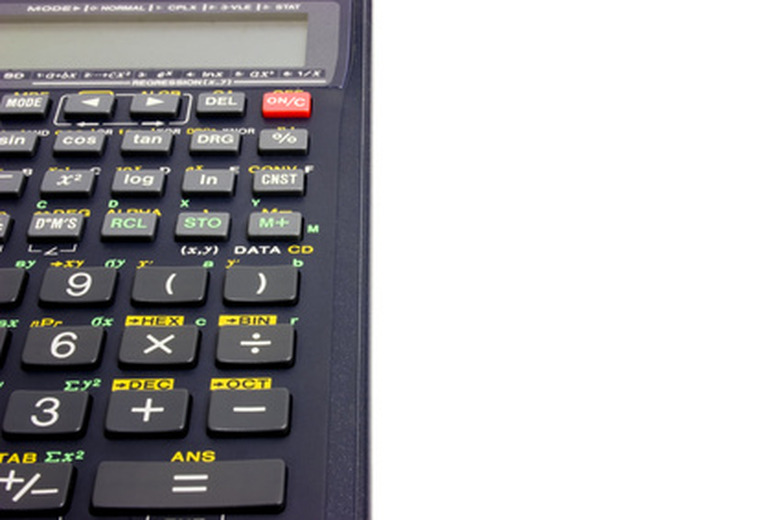
The Keypad: This is the primary interface. Keys are generally color-coded or grouped by function:
-
Numeric Keys (0-9, ., EXP/EE): For inputting numbers.
-
Arithmetic Operators (+, -, ×, ÷, =): For basic calculations.
-
Function Keys (sin, cos, tan, log, ln, x², √, etc.): Dedicated keys for common scientific functions.
-
Shift/2nd Function Key: Crucial for accessing the secondary (often printed above the primary) function of most keys. This doubles the calculator’s utility without increasing its physical size.
-
Alpha Key: Used to access alphabetic characters, essential for variable input in equation solvers or memory recall.
-
Mode Key: Allows switching between different operational modes (e.g., degrees/radians, normal/scientific notation, complex number mode, statistics mode).
-
Arrow Keys/Replay: Used to navigate through previous calculations, edit expressions, or move cursors within complex inputs.
-
-
Power and Reset: A dedicated ON/OFF key and often a small reset button (sometimes requiring a pen tip) to clear memory or resolve issues.
Key Differentiators: Basic vs. Scientific vs. Graphing
Understanding where a scientific calculator sits in the hierarchy of mathematical tools highlights its unique value proposition.
-
Basic Calculators: Handle only elementary arithmetic operations (+, -, ×, ÷, %). Limited display, no scientific functions.
-
Scientific Calculators: The focus of this guide, these devices introduce trigonometric, logarithmic, exponential, statistical, and memory functions. They are indispensable for high school and university-level STEM courses, providing the necessary computational power without the complexity of visual representation.
-
Graphing Calculators: Represent the pinnacle of handheld calculators, building upon scientific functions with advanced capabilities to plot graphs, solve systems of equations graphically, perform symbolic manipulation, and often run programs. While more powerful, their complexity and cost are often overkill for tasks suitable for a scientific calculator.
Power Sources and Maintenance
Most scientific calculators are powered by a combination of coin-cell batteries (e.g., CR2032) and/or solar cells. Solar power extends battery life and acts as a primary power source in good lighting, while batteries ensure operation in darker conditions. Proper maintenance includes keeping the calculator clean, protecting it from drops and extreme temperatures, and replacing batteries promptly to avoid data loss or corrosion.
Essential Functions and Modes
Mastering the core functions and understanding how to switch between operational modes is the first step toward proficient calculator use. This section covers the fundamental building blocks of scientific computation.
Basic Arithmetic and Order of Operations
Inputting basic operations is straightforward: number operator number =. However, adherence to the order of operations (PEMDAS/BODMAS – Parentheses/Brackets, Exponents/Orders, Multiplication and Division, Addition and Subtraction) is crucial. Scientific calculators inherently follow this rule. For example, 2 + 3 × 4 will correctly yield 14, not 20, because multiplication is performed before addition. Use parentheses () to override this order when necessary, e.g., (2 + 3) × 4 yields 20.
Scientific Notation and Engineering Mode
For very large or very small numbers, scientific notation (e.g., 6.022 × 10^23) is essential.
-
Inputting Scientific Notation: Use the
EXPorEEkey. To enter 3 × 10^5, you would type3EXP5. The calculator displays this as3E05or similar. -
Outputting Scientific Notation: Your calculator might automatically switch to scientific notation for large/small results. You can also manually set the display mode using the
MODEkey. Look forSCI(Scientific) orENG(Engineering) options. Engineering mode often displays exponents as multiples of 3 (e.g., 10^3, 10^6).
Angles: Degrees, Radians, Gradians
Trigonometric functions (sin, cos, tan) operate on angles, and the unit of these angles must match your problem’s context.
-
Degrees (DEG): The most common unit, where a full circle is 360°.
-
Radians (RAD): Used extensively in higher mathematics and physics, where a full circle is 2π radians.
-
Gradians (GRA): Less common, where a full circle is 400 grads.
-
Setting the Mode: Use the
MODEkey, or a dedicatedDRGbutton (often aSHIFTfunction) to toggle between these. A small indicator (D, R, G or DEG, RAD, GRA) on the display shows the current setting. Always verify this setting before performing trigonometric calculations. For example,sin(30)in DEG mode is0.5, but in RAD mode, it’s approximately-0.988.
Logarithms and Exponents
These functions are fundamental across many scientific disciplines.
-
Common Logarithm (log): Base-10 logarithm.
log(100)equals2. -
Natural Logarithm (ln): Base-e logarithm (where e ≈ 2.71828).
ln(e)equals1. -
Exponential Function (e^x): The inverse of
ln. Often accessed viaSHIFT ln. -
Power of 10 (10^x): The inverse of
log. Often accessed viaSHIFT log. -
General Power (y^x or x^y): To calculate
2^3, input2y^x3=.
Advanced Features for Complex Calculations
Beyond the essentials, scientific calculators pack powerful features that automate complex mathematical operations, saving time and reducing error.
Memory Functions
Memory functions are vital for storing intermediate results and constants, allowing for multi-step calculations without re-entering values.
-
Store (STO):
STOfollowed by an alphabet key (e.g.,A,B,X) stores the current display value into that memory register. -
Recall (RCL):
RCLfollowed by an alphabet key retrieves the stored value. -
M+, M-, MR, MC: Some calculators have dedicated memory buttons:
M+adds the current display value to memory,M-subtracts it,MR(Memory Recall) displays the value in the main memory, andMC(Memory Clear) clears it.
Statistics Mode
For data analysis, the statistics mode transforms your calculator into a rudimentary statistical processor.
-
Entering Statistics Mode: Use the
MODEkey and selectSTAT. You’ll typically choose a regression type (e.g.,Linfor linear,Expfor exponential) or simply1-VARfor single-variable statistics. -
Inputting Data: Access a data entry screen (often
SHIFT STATorDATAkey) to input your list of numbers (x-values) and corresponding frequencies (if applicable). -
Calculating Statistics: Once data is entered, exit the data editor and use
SHIFT STAT(or a dedicatedSTATkey) to access options for calculating mean (x̄), standard deviation (σx, sx), sum of x (Σx), sum of x squared (Σx²), number of data points (n), and for two-variable stats, correlation coefficient (r), slope (a), and y-intercept (b).
Fractions and Mixed Numbers
Scientific calculators can handle fractions, displaying results as fractions or converting them to decimals.
-
Inputting Fractions: Use the fraction key (often
a b/cord/c). To enter 3/4, type3a b/c4. For a mixed number like 2 and 1/2, type2a b/c1a b/c2. -
Simplifying and Converting: The calculator usually simplifies fractions automatically. To convert between fractional and decimal form, use the
F<->DorS<=>Dkey.
Solving Equations
Some advanced scientific calculators offer basic equation-solving capabilities, often through an iterative numerical method.
- CALC/SOLVE Function: Typically, you enter an equation with a variable (e.g.,
X+5=10), then pressSHIFT CALC(orSOLVE). The calculator will prompt for an initial guess forXand then attempt to find a solution. This is particularly useful for finding roots or intersections where algebraic manipulation is tedious.
Complex Numbers
Calculators capable of complex number operations allow you to perform arithmetic with numbers involving ‘i’ (the imaginary unit, where i² = -1).
-
Complex Mode: Switch to
CMPLXmode via theMODEkey. -
Inputting ‘i’: There’s usually a dedicated
ikey orSHIFT ENG. -
Operations: You can then perform addition, subtraction, multiplication, and division of complex numbers directly. For example,
(2+3i) * (1-i).
Optimizing Your Workflow and Troubleshooting
Maximizing the utility of your scientific calculator involves not just knowing the functions but also understanding how to use them efficiently and troubleshoot common issues.
Utilizing Parentheses Effectively
The judicious use of parentheses () is arguably one of the most important skills for accurate calculations. They force the calculator to evaluate enclosed expressions first, ensuring adherence to your intended order of operations, especially in nested or complex formulas. Always use them liberally to disambiguate expressions and prevent common Syntax Error messages.
Error Messages and Their Meanings
Encountering an error message is common, but understanding them helps in quick resolution.
-
Syntax Error: You’ve entered an expression in an invalid format (e.g., missing a parenthesis, using an operator incorrectly). Review your input carefully.
-
Math Error: The calculation itself is mathematically impossible (e.g., division by zero, taking the square root of a negative number in Real mode, log of zero or a negative number).
-
Stack Error: Occurs when you’ve entered too many nested operations or functions, exceeding the calculator’s internal processing capacity. Simplify the expression or break it into smaller parts.
-
Range Error: A result exceeds the calculator’s displayable range (e.g., a number too large or too small to represent).
Resetting Your Calculator
If your calculator behaves erratically, displays unexpected results, or gets stuck in an odd mode, a reset can often resolve the issue.
-
Soft Reset: Clearing all memory and settings (but not programs or statistical data). Often found under
SHIFT CLRorMODE CLR. ChooseAllorMemory. -
Hard Reset (Factory Reset): Returns the calculator to its out-of-the-box state, erasing all memory, settings, and sometimes user-defined programs. This is usually done by pressing a small recessed
RESETbutton on the back with a pen tip or through a specific key combination (consult your manual).
Customization and Settings
Many calculators allow for customization to suit user preferences:
-
Display Contrast: Adjust the screen’s brightness for better readability.
-
Auto-Off Time: Set how long the calculator remains idle before automatically powering down to save battery.
-
Number of Decimal Places/Significant Figures: Control the precision of displayed results (FIX, SCI, NORM modes).
FIXsets a fixed number of decimal places,SCIsets a fixed number of significant figures, andNORMautomatically adjusts.

Leveraging the User Manual
Despite the wealth of online resources, your calculator’s physical or digital user manual remains the definitive guide. It provides specific instructions for your model, details all functions, explains advanced features, and offers troubleshooting tips unique to your device. Consulting it frequently, especially for less common functions or obscure error messages, is key to truly mastering your scientific calculator.
aViewFromTheCave is a participant in the Amazon Services LLC Associates Program, an affiliate advertising program designed to provide a means for sites to earn advertising fees by advertising and linking to Amazon.com. Amazon, the Amazon logo, AmazonSupply, and the AmazonSupply logo are trademarks of Amazon.com, Inc. or its affiliates. As an Amazon Associate we earn affiliate commissions from qualifying purchases.