
QuickBooks stands as an undisputed leader in small to medium-sized business accounting software, offering a robust suite of tools designed to streamline financial operations. From invoicing and expense tracking to payroll and comprehensive reporting, its functionalities are vast. However, the true power of QuickBooks is unlocked only through a clear understanding of its operation and best practices. This guide delves into the technical aspects of leveraging QuickBooks effectively, providing insights into its features, workflows, and strategic use within a technological framework, firmly establishing its place in the realm of essential software tutorials and digital tool mastery.
I. Getting Started: Setting Up Your QuickBooks Environment
The foundation of effective QuickBooks operation lies in its initial setup. A well-configured system ensures data accuracy, simplifies workflows, and maximizes the software’s inherent efficiency. This initial phase is crucial for aligning the software with your specific business needs.
A. Choosing the Right QuickBooks Version and Edition
The first technical decision involves selecting the appropriate QuickBooks platform. Intuit offers several versions, each tailored to different business sizes and operational complexities:
- QuickBooks Online (QBO): A cloud-based solution accessible from any device with internet access. It offers different subscription levels (Simple Start, Essentials, Plus, Advanced) with varying feature sets, ideal for businesses requiring remote access, multi-user collaboration, and easy integration with numerous third-party apps. Its automatic updates and backups are significant technical advantages.
- QuickBooks Desktop: A locally installed software solution (Pro, Premier, Enterprise). Desktop versions offer robust features, often preferred by businesses with highly customized workflows, complex inventory needs, or those operating in environments with inconsistent internet access. Enterprise, in particular, caters to larger businesses with advanced reporting and user permission requirements.
- QuickBooks Self-Employed: Specifically designed for freelancers and independent contractors, focusing on income/expense tracking, mileage, and tax estimations.
Understanding the technical nuances and feature limitations of each version is paramount to choosing the solution that best fits your operational requirements and existing tech infrastructure.
B. Initial Company File Setup and Data Configuration
Once the version is selected, setting up the company file is the next critical step. This involves a series of technical configurations that dictate how QuickBooks processes and stores your financial data:
- Company Information: Entering basic business details (name, address, tax ID) is straightforward but essential for accurate reporting and invoicing.
- Chart of Accounts: This is the backbone of your accounting system. QuickBooks provides a default chart of accounts based on your industry, but customizing it to reflect your specific revenue streams and expense categories is vital. A well-structured chart of accounts simplifies data entry and financial analysis. This involves understanding account types (asset, liability, equity, income, expense) and their impact on financial statements.
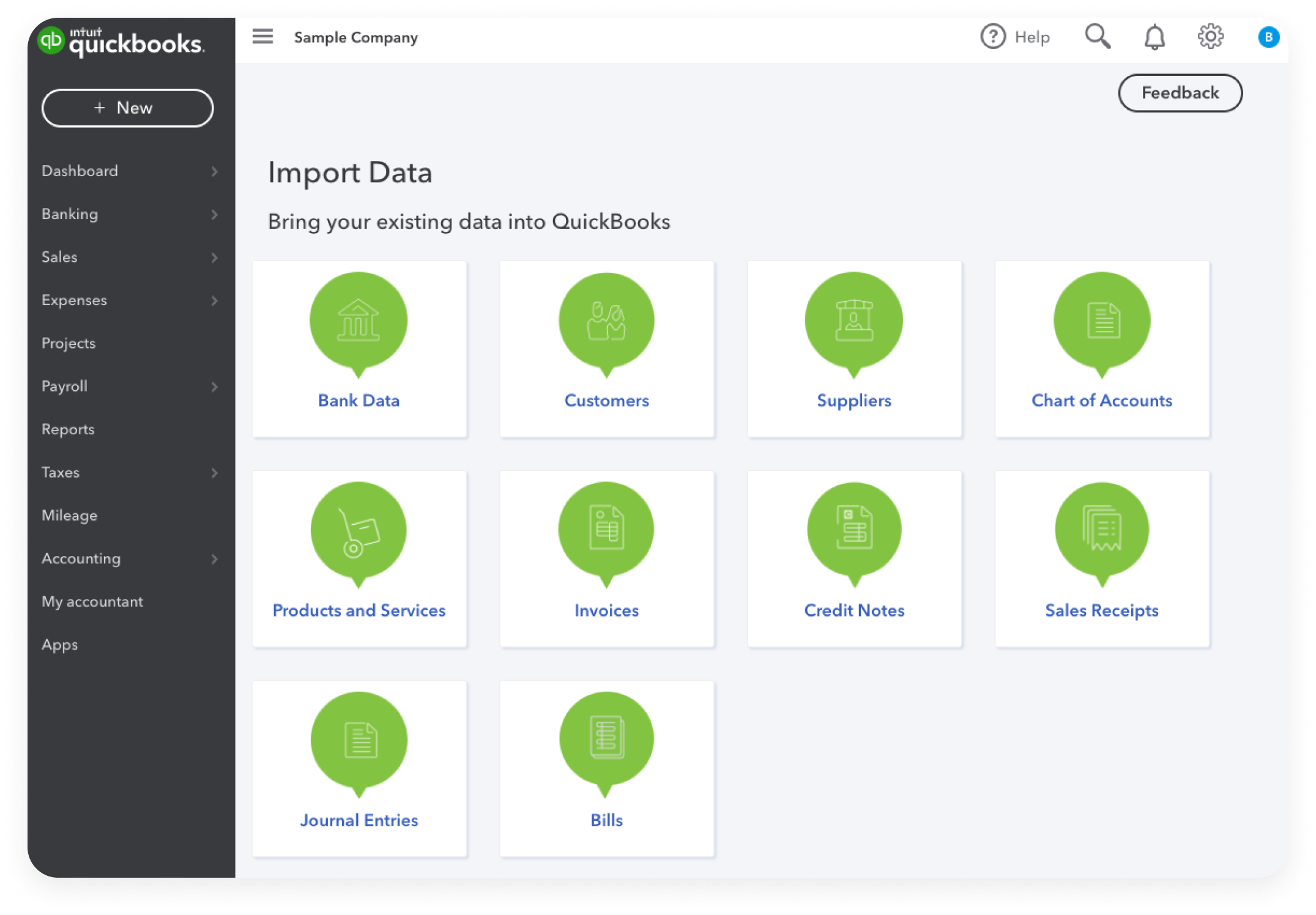
- Importing Existing Data: For businesses transitioning to QuickBooks, importing historical data (customers, vendors, items, opening balances) is a key technical challenge. QuickBooks offers tools for importing data via CSV files, which requires careful formatting to ensure data integrity and avoid errors.
- User Permissions (for multi-user environments): For QBO Plus/Advanced or QuickBooks Desktop Premier/Enterprise, setting up user roles and permissions is critical for data security and operational control. This involves defining who can access what features, view sensitive data, and perform specific actions, ensuring compliance and preventing unauthorized modifications.
C. Navigating the User Interface and Customizing Preferences
A significant aspect of operating any software is understanding its interface. QuickBooks’ dashboard provides a snapshot of your financial health, while its menu structures offer access to various functions:
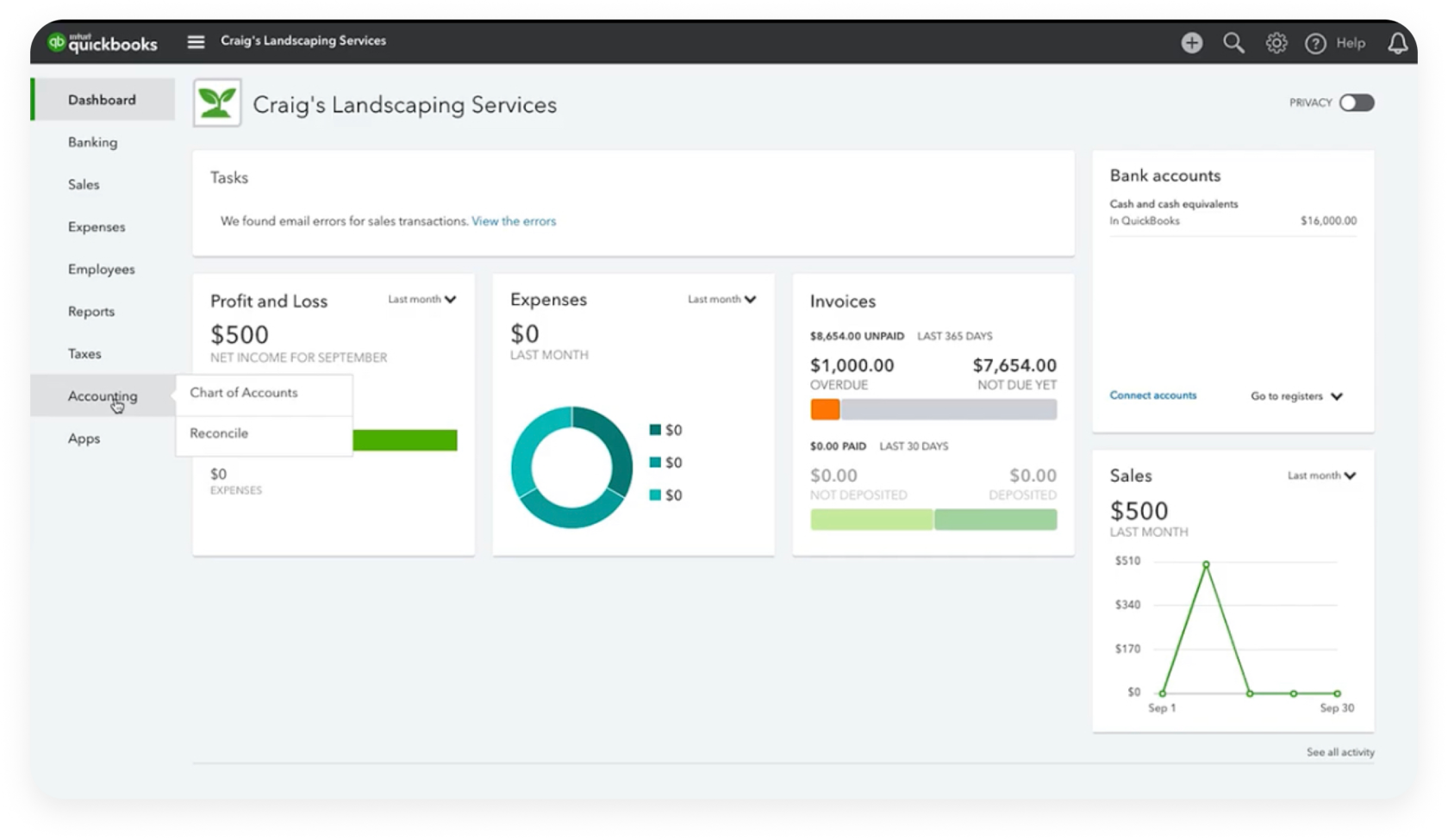
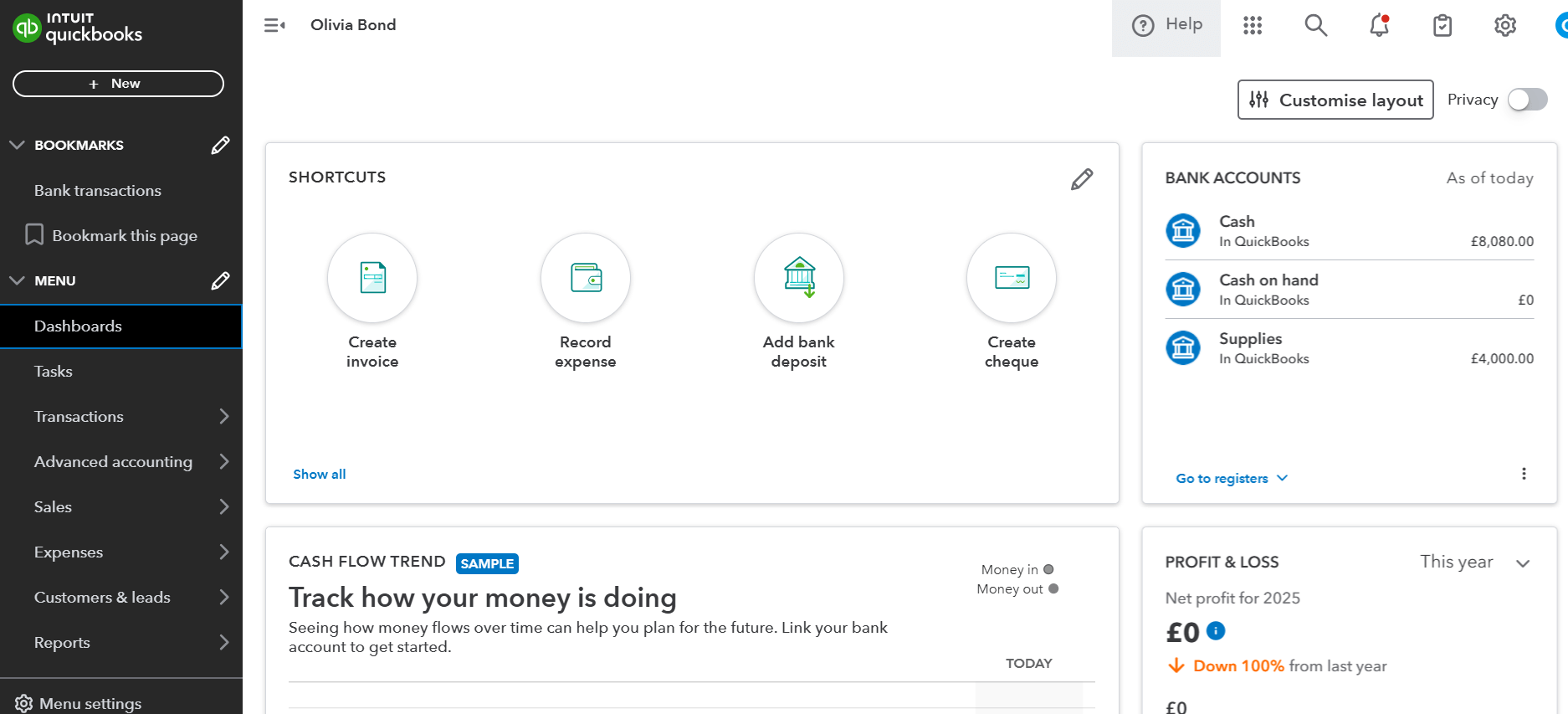
- Dashboard Overview: Both QBO and QBD offer dashboards that present key financial metrics (e.g., outstanding invoices, bank balances, profit & loss summary). Customizing these widgets to display the most relevant information for your role enhances efficiency.
- Menu Structures and Navigation: Familiarize yourself with the main navigation menus (e.g., “Customers,” “Vendors,” “Banking,” “Reports”). QBO often uses left-hand navigation, while QBD uses top-menu bars and icon bars. Efficient navigation minimizes time spent searching for functions.
- Preferences and Settings Customization: QuickBooks allows extensive customization through its preferences/settings menu. This includes tailoring invoice templates, setting default payment terms, enabling specific features (e.g., inventory, sales tax), and configuring report defaults. Customizing these settings enhances the software’s adaptability to your unique business processes.
II. Core Transaction Management and Data Entry
At the heart of QuickBooks’ operation is the accurate and systematic management of financial transactions. This section focuses on the technical workflows for recording income, expenses, and managing banking activities.
A. Managing Sales and Customers: From Estimates to Payments
The sales cycle in QuickBooks involves several interconnected steps, each requiring precise data entry:
- Creating Estimates and Invoices: Estimates are proposals, which can be converted into invoices upon acceptance. Invoices are official requests for payment. Understanding how to customize invoice templates, add service/product items, apply sales tax, and specify payment terms is crucial for professional presentation and accurate revenue tracking.
- Recording Sales Receipts: For immediate sales where payment is received at the time of service or product delivery, sales receipts are used. This process directly records income and updates inventory if applicable.
- Receiving Payments: Applying customer payments to outstanding invoices is a critical step. QuickBooks provides functionalities to record payments, handle partial payments, apply discounts, and manage undeposited funds before batch depositing them into the bank.
- Managing Customer Records: Maintaining accurate customer profiles, including contact information, payment terms, and transaction history, is vital for customer relationship management and efficient billing.
B. Handling Expenses and Vendors: Tracking Purchases and Payments
Expense management is equally vital for accurate financial reporting and cash flow control:
- Entering Bills and Tracking Expenses: Recording vendor bills accurately is essential for accounts payable. This involves entering vendor details, itemizing expenses, assigning them to appropriate accounts, and tracking due dates. For immediate payments (e.g., petty cash, credit card swipes), direct expense entries are used.
- Paying Bills: QuickBooks allows you to select which bills to pay, either individually or in batches, and track the payment method. This process reduces manual reconciliation and provides a clear audit trail.
- Creating Purchase Orders: For businesses managing inventory or requiring pre-approval for purchases, generating purchase orders helps track commitments to vendors before bills are received, improving inventory management and budgeting.
- Managing Vendor Records: Just like customer records, maintaining up-to-date vendor information is important for efficient purchasing and managing payables.
C. Bank Feed Integration and Reconciliation: Streamlining Financial Data
Bank feed integration is a powerful technological feature that significantly automates and streamlines financial data entry:
- Connecting Bank and Credit Card Accounts: QuickBooks allows secure, direct connections to your bank and credit card accounts. This automatically downloads transaction data, reducing manual entry and improving accuracy.
- Categorizing and Matching Transactions: Once downloaded, transactions appear in a review queue. The technical process involves categorizing these transactions to the correct accounts in your chart of accounts. QuickBooks uses machine learning to suggest categories based on past entries, and you can create rules to automate this process further. It also helps match downloaded transactions to existing entries (e.g., payments received, bills paid) that you’ve already recorded.
- Performing Bank Reconciliations: This critical process involves comparing your QuickBooks cash account balance with your bank statement. It identifies discrepancies, ensures all transactions have been recorded, and verifies the accuracy of your cash balances, providing an essential internal control mechanism.
III. Advanced Features for Enhanced Operational Efficiency
Beyond core accounting, QuickBooks offers advanced features that cater to more complex business operations, enhancing overall efficiency and providing deeper insights.
A. Payroll Setup and Management (If Applicable)
For businesses with employees, integrated payroll functionality simplifies a complex and compliance-heavy task:
- Setting Up Payroll Service: QuickBooks offers various payroll services (Basic, Enhanced, Full Service) that integrate directly with your accounting data. Setting this up involves entering employee details, tax information, and pay schedules.
- Running Payroll: This involves calculating wages, deductions, and employer contributions. The software automates tax calculations and withholdings, significantly reducing manual effort and potential errors.
- Tax Filings and Compliance: Integrated payroll systems help generate necessary tax forms (e.g., W-2s, 941s) and often allow for electronic filing and payment of payroll taxes, ensuring compliance with federal and state regulations.
B. Inventory Management: Tracking Stock and Costs
For product-based businesses, accurate inventory management is crucial:
- Setting Up Inventory Items: This involves creating detailed records for each product, including cost, selling price, preferred vendor, and reorder points. QuickBooks tracks quantities on hand and average cost.
- Tracking Stock Levels: As items are sold or purchased, QuickBooks automatically updates inventory quantities. It can alert you when stock levels fall below a specified reorder point, preventing stockouts.
- Cost of Goods Sold (COGS): When inventory items are sold, QuickBooks automatically calculates and posts the Cost of Goods Sold, providing an accurate measure of profitability for each sale.
C. Project Costing and Job Tracking: Analyzing Profitability
Service-based and project-oriented businesses can leverage job costing to monitor profitability:
- Assigning Costs to Projects/Jobs: All income and expenses (labor, materials, overhead) can be assigned to specific projects or jobs within QuickBooks. This requires careful coding of transactions during data entry.
- Tracking Project Progress and Profitability: By linking all relevant transactions to a job, you can generate reports that show real-time profitability for individual projects, allowing for better bidding and resource allocation.
- Progress Invoicing: For long-term projects, QuickBooks supports progress invoicing, where you bill clients based on the percentage of work completed, aligning invoicing with project milestones.
IV. Reporting, Analysis, and Data Security
QuickBooks is not just a data entry system; it’s a powerful analytical tool. Understanding its reporting capabilities and ensuring data security are paramount to deriving value from the software.
A. Generating Financial Reports for Strategic Insight
Reports are where raw data transforms into actionable insights. QuickBooks offers a comprehensive array of standard and customizable reports:
- Core Financial Statements:
- Profit & Loss (Income Statement): Shows revenues, expenses, and net income over a period, indicating profitability.
- Balance Sheet: A snapshot of assets, liabilities, and equity at a specific point in time, reflecting financial health.
- Statement of Cash Flows: Details cash inflows and outflows, revealing liquidity and operational efficiency.
- Operational Reports: Sales reports by customer or item, vendor reports, accounts receivable/payable aging reports, inventory valuation summaries.
- Customizing Reports: QuickBooks allows users to customize reports by applying filters, changing date ranges, adding/removing columns, and grouping data differently, enabling deeper dives into specific areas of the business. Understanding how to leverage these customization options is key to gaining relevant insights.
B. Data Backup and Security Protocols
Given the sensitive nature of financial data, data security is non-negotiable:
- Regular Backups (QuickBooks Desktop): For Desktop users, regular backups are critical. QuickBooks provides built-in tools for creating local backups and can schedule automatic backups. These backups protect against data corruption, hardware failure, or accidental deletion.
- Cloud Security (QuickBooks Online): QBO benefits from Intuit’s robust cloud infrastructure, which includes enterprise-grade security measures, encryption, and regular data backups. However, users are still responsible for strong password practices and managing user access effectively.
- User Access Controls: Implementing strong user permissions, as discussed earlier, is a fundamental security protocol. Limiting access to sensitive data and functions based on an employee’s role reduces the risk of errors or malicious activity.
- Password Management: Utilizing strong, unique passwords and multi-factor authentication (MFA) whenever available significantly enhances account security across all QuickBooks platforms.
C. Integrating with Other Software and Ecosystems
QuickBooks is designed to integrate with a vast ecosystem of third-party applications, expanding its capabilities:
- API and App Marketplaces: Both QBO and QBD offer application programming interfaces (APIs) that allow seamless data exchange with other software. Intuit’s App Store/Marketplace features hundreds of integrations (e.g., CRM systems like Salesforce, e-commerce platforms like Shopify, payment processors, time tracking apps).
- Streamlined Data Flow: Integrating complementary software eliminates redundant data entry, improves data consistency, and creates a more cohesive technological stack for your business operations. Understanding which integrations are beneficial and how to configure them is a technical skill that enhances overall business efficiency.
V. Best Practices for Optimal QuickBooks Performance
Operating QuickBooks effectively extends beyond knowing its features; it involves adopting practices that ensure long-term data integrity, efficiency, and continued learning.
A. Regular Maintenance and Review
Just like any complex software system, QuickBooks benefits from routine maintenance:
- Period-End Close Procedures: Performing monthly or quarterly closing procedures (e.g., reviewing accounts, reconciling all bank accounts, making adjusting entries) ensures financial statements are accurate before moving to the next period.
- Reviewing and Cleaning Chart of Accounts: Periodically reviewing your chart of accounts for inactive or unused accounts helps maintain clarity and prevent clutter.
- Cleaning Up Inactive Items/Names: Deactivating customers, vendors, or items that are no longer in use keeps your lists streamlined and improves software performance.
B. Training and Support Resources
The QuickBooks ecosystem offers extensive resources for continuous learning and problem-solving:
- QuickBooks Help Documentation: Intuit provides comprehensive online help articles and tutorials for all its products.
- Online Communities and Forums: Engage with other QuickBooks users and experts in online forums to share tips, troubleshoot issues, and learn new techniques.
- Certified ProAdvisors: For complex issues or advanced setup, hiring a QuickBooks Certified ProAdvisor (an accountant or consultant specifically trained and certified in QuickBooks) can provide invaluable expert support and guidance.
- Continuous Learning: QuickBooks regularly updates its software, especially QBO. Staying informed about new features and best practices through webinars, blogs, and product announcements ensures you leverage the latest technological advancements.
C. Leveraging Automation Features for Efficiency
QuickBooks is increasingly incorporating automation to reduce manual effort:
- Rule-Based Categorization: Setting up bank feed rules to automatically categorize common transactions significantly speeds up data entry and reconciliation.
- Recurring Transactions: Scheduling recurring invoices or expenses (e.g., rent, subscriptions) automates predictable entries, saving time and ensuring consistency.
- Automated Report Scheduling: Scheduling key financial reports to be automatically generated and emailed to stakeholders ensures timely access to critical insights without manual intervention.
By effectively operating QuickBooks, businesses can transform their financial management from a cumbersome task into a streamlined, insightful process. This involves a blend of understanding the software’s architecture, mastering its core functionalities, leveraging advanced features, and committing to ongoing learning and best practices. As a technological tool, QuickBooks offers immense potential for businesses ready to harness its full power.
aViewFromTheCave is a participant in the Amazon Services LLC Associates Program, an affiliate advertising program designed to provide a means for sites to earn advertising fees by advertising and linking to Amazon.com. Amazon, the Amazon logo, AmazonSupply, and the AmazonSupply logo are trademarks of Amazon.com, Inc. or its affiliates. As an Amazon Associate we earn affiliate commissions from qualifying purchases.