
In the digital landscape of personal computing, file extensions serve as the primary roadmap for operating systems to understand how to process, display, and protect data. Among the myriad of proprietary formats, the .tax file extension—specifically associated with Intuit’s TurboTax software—represents one of the most critical yet misunderstood file types for users. Whether you are conducting a multi-year financial audit, transitioning to a new device, or simply archiving historical records, understanding the technical infrastructure of a .tax file is essential.
Opening a .tax file is not as simple as double-clicking a standard PDF or Word document. Because these files contain highly sensitive financial data encrypted within a proprietary framework, they require specific software environments and version-matching protocols to function correctly. This guide provides a deep dive into the technical requirements, troubleshooting steps, and security considerations involved in accessing and managing .tax files.
Understanding the .tax File Architecture and Extension Logic
Before attempting to open a .tax file, it is important to understand what the file actually is. Unlike a flat image or text file, a .tax file is a structured data container that holds your tax return information, including forms, worksheets, and calculations generated within the TurboTax ecosystem.
The Evolution of the Extension Format
Intuit utilizes a year-specific naming convention for its data files. For example, a return created for the 2023 tax year will typically carry the extension .tax2023. This distinguishes it from previous years like .tax2022 or .tax2021. The technical reason for this differentiation is that tax laws, forms, and calculation algorithms change annually. Each year’s software is a unique build designed to interpret data according to that specific year’s IRS and state revenue codes.
Proprietary vs. Portable Formats
It is a common technical misconception that a .tax file is the same as a PDF of a tax return. A PDF is a “portable document format” intended for viewing and printing; it is a static snapshot. Conversely, a .tax file is a “live” data file. It contains the raw data points that the TurboTax engine uses to populate forms. You cannot open a .tax file in a standard text editor like Notepad or a spreadsheet tool like Excel and expect to see legible information. If opened in a text editor, you will likely see a stream of encrypted or garbled XML code, as the data is protected to ensure privacy and integrity.
Software Requirements and System Compatibility
The primary barrier to opening a .tax file is the requirement for the specific version of the TurboTax desktop software that corresponds to the file’s year. Because of the proprietary nature of the data, third-party software applications are generally unable to parse these files.
Matching the Software Year to the File
To open a .tax2022 file, you must have the TurboTax 2022 desktop application installed on your computer. The 2023 version of the software cannot natively “open” a 2022 file for editing in the same way; instead, it can only “import” or “transfer” the data from the previous year to start a new return. If your goal is to view or print the original 2022 return exactly as it was filed, you must use the 2022 installation media or digital download.
Cross-Platform Technical Limitations
Another technical hurdle involves the operating system (OS). TurboTax develops separate versions for Windows and macOS. While the data files themselves are often cross-compatible, the software required to run them is not. If you created a .tax file on a Windows machine in 2020, you will need the Mac version of TurboTax 2020 to open that file on a MacBook. Furthermore, as operating systems evolve (e.g., moving from Windows 10 to Windows 11 or macOS Intel to Apple Silicon), older versions of TurboTax may lose compatibility, requiring users to run the software in “Compatibility Mode” or via a virtual machine.
Step-by-Step Technical Guide to Opening the File
Once the correct software version is identified and installed, the process of accessing the data follows a specific technical workflow.

Locating the File on Your Local Storage
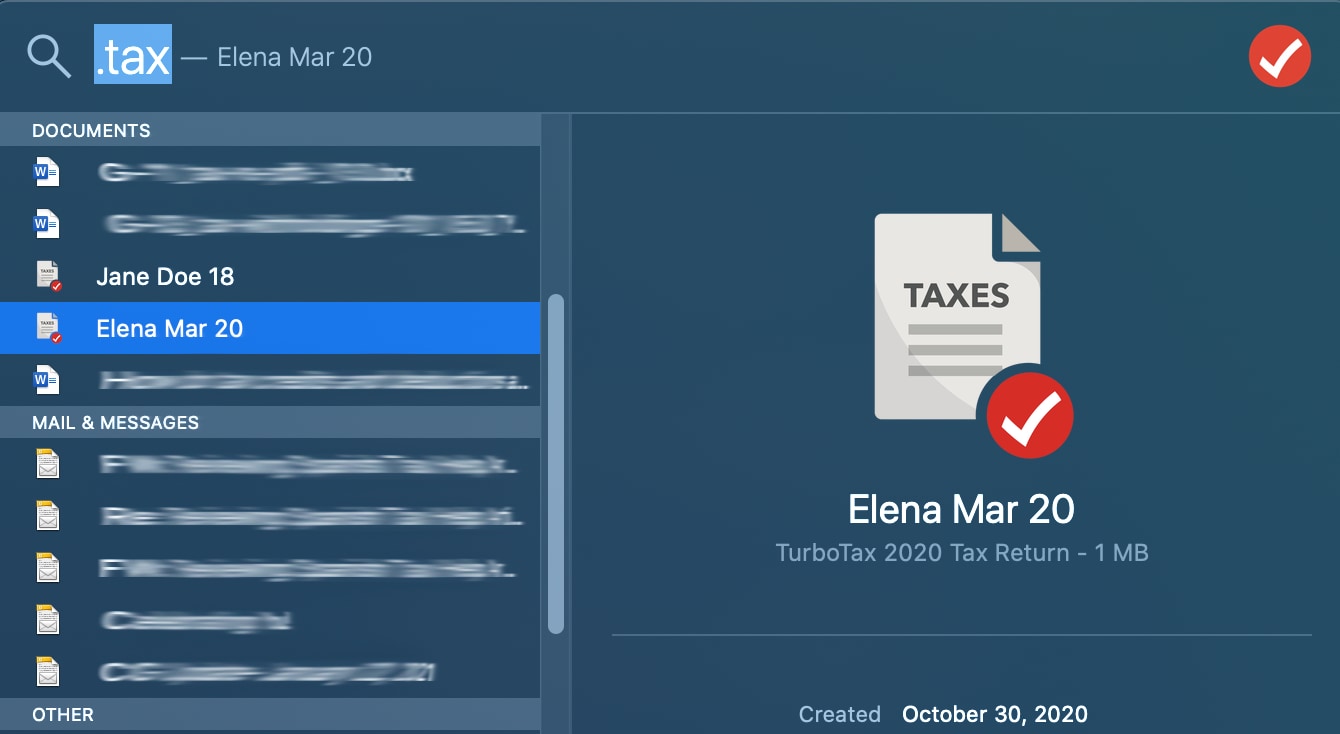
By default, TurboTax stores .tax files in the Documents/TurboTax folder on both Windows and Mac. However, if the file was moved or saved to an external drive, you may need to use the system’s search function. Search for the wildcard string *.tax* to find all versions of tax files stored on your hardware.
The Execution Process
- Launch the Software: Open the version of TurboTax that matches the year of your file.
- Initialize the “Open” Command: Navigate to the File menu in the top header and select Open Tax Return.
- Path Selection: Browse to the directory where your
.taxfile is stored. - Decryption (If Applicable): If you applied a password to the file during the original save process, the software will prompt you for the encryption key. Without this password, the technical headers of the file will remain locked, and the data will be inaccessible.
- Verification: Once the file is loaded, the software reconstructs the return from the data points in the file.
Transferring vs. Opening
It is vital to distinguish between opening a file for archival review and transferring data for a new year. If you are starting your current year’s taxes, do not try to “open” last year’s .tax file directly. Instead, open the new year’s software and use the “Continue” or “Transfer Data” feature. This allows the software to pull relevant information (like your Social Security number and employer ID) into the new tax engine without altering the original archival file.
Technical Troubleshooting and Common Errors
Even with the correct software, users often encounter technical friction when dealing with legacy .tax files. Understanding these common errors can save hours of frustration.
Resolving File Corruption and Header Errors
If you receive an error message stating “This is not a valid TurboTax file” or “The file is corrupted,” it usually indicates a break in the file’s metadata. This can happen if a file transfer was interrupted or if the storage medium (like an old USB drive) has failing sectors. To resolve this, try to locate a backup of the file. TurboTax often creates an “autosave” or backup version with a slightly different naming convention.
Software Update Discrepancies
Sometimes, a .tax file will refuse to open because the software version on your computer is “out of sync” with the version that created the file. Even within the same tax year, Intuit releases dozens of updates to reflect late-breaking tax law changes. If you are having trouble, ensure your software is fully updated by navigating to Online > Check for Updates. A file saved with “Version 1.0.5” may occasionally trigger errors when opened with “Version 1.0.1.”
Missing Runtime Libraries
On Windows systems, older versions of TurboTax rely on specific versions of the Microsoft .NET Framework or C++ Redistributables. If you are trying to open a .tax file from ten years ago on a modern PC, the software may crash upon launch. The technical fix involves downloading the “Legacy Runtime” packages from Microsoft or running the TurboTax executable file in “Windows 7 Compatibility Mode.”
Digital Security and Data Privacy Protocols
Because .tax files contain the “Crown Jewels” of your personal identity—including Social Security numbers, bank account details, and income history—managing them requires a high level of digital hygiene.
Encryption Standards
TurboTax employs encryption to protect the data within the .tax file. However, this encryption is only as strong as the user’s local security. When you save a .tax file, you have the option to password-protect it. Technically, this adds an extra layer of AES-standard encryption to the file container. If you are storing these files on a cloud service like Dropbox or Google Drive, ensure that two-factor authentication (2FA) is enabled on those accounts, as the file itself is a high-value target for identity thieves.
Secure Archiving and Redundancy
From a technical standpoint, relying solely on a .tax file for your records is risky due to software obsolescence. A best practice for digital archiving is the “3-2-1 Rule”: Keep three copies of your data (the .tax file, a PDF version, and a physical printout), on two different media types, with one copy off-site.
While the .tax file is necessary if you ever need to file an amended return (Form 1040-X), a PDF copy is far more accessible for long-term storage because it does not require proprietary software to open. Every time you finish a tax season, you should immediately “Print to PDF” all forms and worksheets and store them alongside the .tax file in an encrypted vault.
Conclusion
Opening a .tax file is a process defined by software specificity and version control. By matching the file to its corresponding software year, maintaining a secure environment, and understanding the distinction between data files and document formats, you can ensure that your financial records remain accessible and secure. As technology continues to evolve, staying diligent about software updates and archival redundancy remains the best defense against data loss in the digital age.