
In the rapidly evolving digital landscape, establishing an online presence is no longer a luxury but a necessity for businesses aiming for growth and sustainability. Among the myriad platforms available, Shopify has emerged as a titan in the e-commerce space, renowned for its user-friendliness, comprehensive features, and scalability. This guide will meticulously walk you through the technical process of building a Shopify website, transforming your entrepreneurial vision into a functional, revenue-generating digital storefront. From initial setup to advanced customizations and essential technical considerations, we’ll delve into the foundational aspects that empower you to launch and manage a robust online store.
I. Understanding Shopify: Your E-commerce Foundation
Before embarking on the technical build, it’s crucial to grasp what Shopify is and why it stands out as a preferred platform for millions of merchants worldwide. Its architecture is designed to simplify the complexities of online retail, allowing users to focus on their products and customers rather than intricate coding or server management.
What is Shopify and Why Choose It?
Shopify is a complete e-commerce platform that allows individuals and businesses to create an online store to sell products and services. It handles everything from hosting and security to payment processing and inventory management, offering an all-in-one solution. From a technical perspective, its appeal lies in several key areas:
- Managed Hosting: Shopify is a fully hosted solution. This means you don’t need to worry about server maintenance, uptime, bandwidth, or security patches. Shopify takes care of the underlying infrastructure, providing a reliable and secure environment for your store.
- Scalability: The platform is built to scale. Whether you’re a small startup or a large enterprise, Shopify’s infrastructure can handle varying levels of traffic and transaction volumes without compromising performance. This scalability extends to its plan structures, allowing you to upgrade as your business grows.
- Robust Security: E-commerce security is paramount. Shopify provides SSL certificates as standard, ensuring secure connections for all transactions. It is also PCI DSS compliant, meeting the rigorous standards for processing credit card information, thus protecting both merchants and customers from data breaches.
- API and App Ecosystem: Shopify offers a powerful API that allows developers to extend the platform’s functionality. Its extensive App Store boasts thousands of integrations for nearly any business need, from marketing automation and accounting to shipping and customer support, allowing for highly customized technical solutions without custom coding.
Key Components of a Shopify Store
At its core, a Shopify store comprises several technical elements that work in concert to deliver a seamless shopping experience:
- Admin Panel: This is your central control hub, a web-based interface where you manage products, orders, customers, themes, apps, and all store settings. Its intuitive design belies the powerful backend operations it orchestrates.
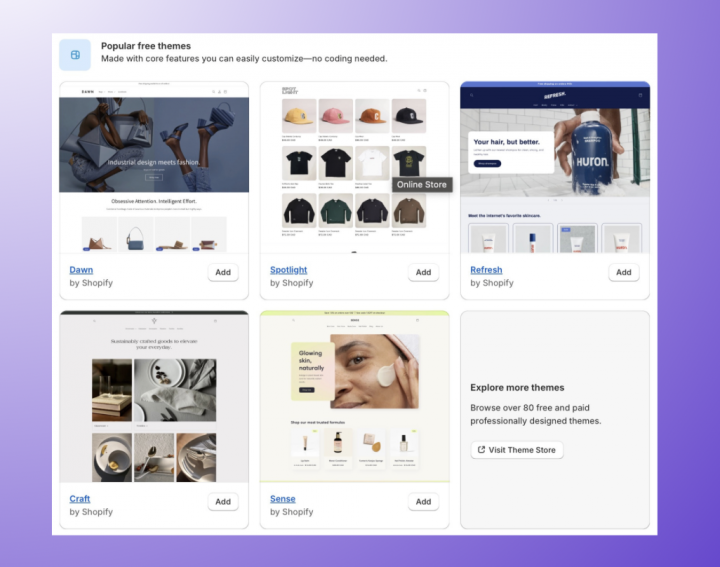
- Themes: These are pre-designed templates that dictate the visual layout and user interface of your storefront. Shopify offers a wide range of free and paid themes, all built using HTML, CSS, JavaScript, and Shopify’s templating language, Liquid. They are designed to be responsive, adapting to various screen sizes.
- Apps (Integrations): Functionality beyond the core platform is provided by apps, which are essentially third-party software extensions. These integrate seamlessly with your Shopify store, expanding capabilities without requiring manual coding or server-side installations.
- Payment Gateways: These are the technical conduits that facilitate online transactions, securely processing credit card and other payment information. Shopify Payments is the native solution, but integration with numerous third-party gateways is also supported.
- CDN (Content Delivery Network): Shopify utilizes a global CDN to deliver your store’s static assets (images, CSS, JavaScript files) from servers geographically closer to your visitors. This significantly reduces loading times, enhancing user experience and contributing to better SEO.
II. Setting Up Your Shopify Store: The Initial Steps
The journey to building your Shopify website begins with foundational setup procedures, establishing the technical backbone upon which your online business will operate.
Creating Your Account and Choosing a Plan
The first step is to sign up for a Shopify account. You can start with a free trial, which typically lasts for a few days, allowing you to build and experiment with your store before committing financially. When choosing a plan, consider your business needs in terms of staff accounts, reporting, international capabilities, and transaction fees. Each plan offers a different set of technical features and pricing tiers, scaling up in functionality and cost. For instance, advanced plans offer reduced transaction fees if you’re not using Shopify Payments, more sophisticated reporting, and international domain management.
Navigating the Shopify Admin Dashboard
Upon logging in, you’ll be greeted by the Shopify admin dashboard. Familiarizing yourself with its structure is key to efficient store management. The left-hand navigation menu is your primary tool, providing access to:
- Home: A customizable overview of your store’s performance and recent activity.
- Orders: Manage all incoming orders, fulfillment status, and customer communication.
- Products: Add, organize, and manage your inventory, including product details, variants, and stock levels.
- Customers: Access customer profiles, purchase history, and contact information.
- Analytics: Detailed reports on sales, visitor behavior, marketing performance, and financial data.
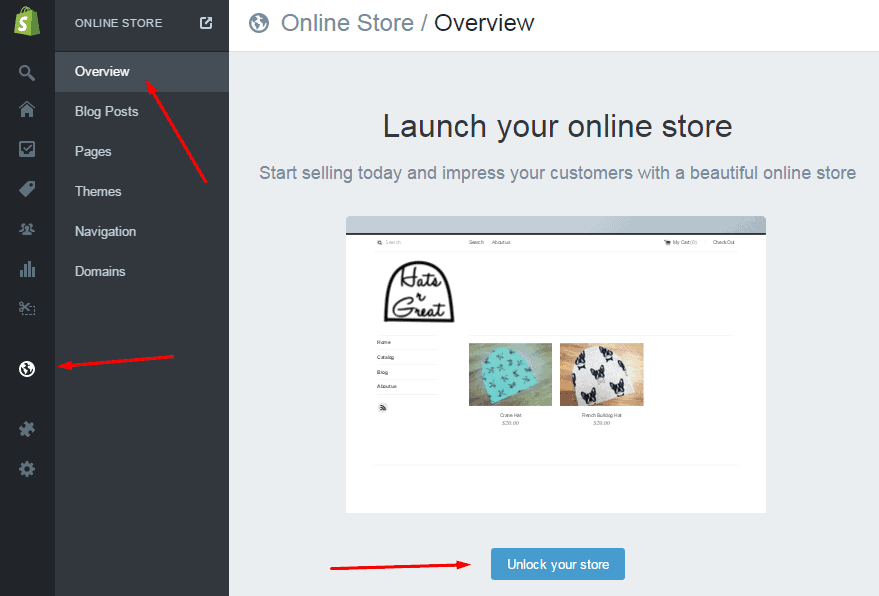
- Online Store: Control your storefront’s appearance (themes), blog posts, pages, navigation menus, and domain settings.
- Apps: Discover, install, and manage third-party applications.
- Settings: Configure all critical technical aspects of your store, from general store details to payments, shipping, taxes, and legal policies.
Configuring Basic Store Settings
Within the ‘Settings’ section, several crucial configurations need your attention to ensure your store operates correctly from a technical and legal standpoint:
- Store Details: Set your store name, contact email, and address. This information is used for billing, customer communication, and often displayed on your storefront.
- Currency and Time Zone: Define your store’s operating currency and time zone, which impacts how prices are displayed and how order timestamps are recorded.
- Shipping: Establish shipping zones, rates (flat rate, calculated, free shipping), and shipping profiles for different product types. This involves configuring integrations with carriers and defining package dimensions if using calculated rates.
- Taxes: Configure tax settings based on your location and the regions you sell to. Shopify can automatically calculate sales tax for many jurisdictions, requiring minimal manual setup.
- Legal Policies: Generate and customize essential legal pages such as Refund Policy, Privacy Policy, Terms of Service, and Shipping Policy. These are critical for legal compliance and building customer trust.
III. Designing Your Storefront: Themes and Customization
The visual appeal and user experience of your Shopify website are largely determined by your chosen theme and the extent of its customization. This section focuses on the technical aspects of making your store aesthetically pleasing and functionally intuitive.
Selecting and Installing a Theme
Shopify themes are built with a combination of Liquid (Shopify’s templating language), HTML, CSS, and JavaScript. When selecting a theme, consider its:
- Responsiveness: Ensure it automatically adjusts to look good on desktops, tablets, and mobile devices. All modern Shopify themes are responsive by default.
- Feature Set: Look for themes that inherently support the functionalities you need (e.g., quick view, mega menus, product filtering) to minimize reliance on apps.
- Industry Fit: While flexible, some themes are designed with specific industries in mind, offering layouts and features that cater to particular product types.
- Performance: A well-coded theme contributes to faster loading times, which is crucial for SEO and user retention. Test theme demos for speed if possible.
You can browse themes in the Shopify Theme Store (free and paid options) or third-party marketplaces. Once selected, installing a theme is a straightforward process, adding it to your ‘Online Store > Themes’ section in the admin.
Customizing Your Theme with the Theme Editor
The Theme Editor is a powerful, visual drag-and-drop tool that allows you to customize your chosen theme without writing a single line of code. Located under ‘Online Store > Themes > Customize’, it enables you to:
- Manage Sections and Blocks: Themes are composed of various sections (e.g., header, slideshow, product grid, footer). Within these sections, blocks represent individual content elements. You can add, remove, reorder, and configure these to build your page layouts.
- Adjust Global Styles: Modify colors, typography (fonts), button styles, and other elements that apply consistently across your entire store, ensuring brand consistency.
- Add Content: Upload images, videos, text, and configure navigation menus, all through intuitive interfaces.
- Preview Changes: See your edits in real-time and switch between desktop, mobile, and tablet views to ensure responsiveness across devices.

For advanced users, the ‘Edit code’ option (accessible from the Actions menu for your theme) allows direct modification of the Liquid, HTML, CSS, and JavaScript files, offering limitless customization possibilities. However, this requires coding knowledge and should be done cautiously, preferably on a duplicate theme.
Enhancing Functionality with Shopify Apps
The Shopify App Store is an ecosystem of powerful integrations that extend your store’s capabilities beyond its core features. Apps can address virtually any business need, from marketing automation and SEO to inventory management and customer support.
- Installation: Apps are typically installed directly from the App Store with a few clicks, integrating seamlessly into your Shopify admin.
- Types of Apps:
- Marketing Apps: Email marketing, social media integration, SEO tools, referral programs.
- Shipping Apps: Advanced shipping calculators, label printing, order tracking.
- Inventory Apps: Stock management, multi-location inventory, dropshipping integrations.
- Customer Service Apps: Live chat, help desks, returns management.
- Productivity Apps: Accounting, reporting, task automation.
- Performance Considerations: While apps are invaluable, installing too many or poorly coded apps can impact your store’s loading speed. Always review app reviews, support, and test their impact on your site’s performance during integration. Uninstall unused apps to keep your store lean.
IV. Populating Your Store: Products and Collections
The heart of any e-commerce website is its product catalog. This section details the technical processes involved in adding and organizing your products within Shopify.
Adding Products: The Essentials
Each product entry in Shopify is a repository of crucial data that powers your storefront and backend operations. To add a product, navigate to ‘Products > Add product’ in your admin. Key technical fields include:
- Title and Description: Clear, keyword-rich text that informs customers and aids search engine visibility.
- Media: High-quality images and videos are critical for showcasing products. Shopify optimizes images for web delivery, but ensure original files are appropriately sized for fast loading.
- Pricing: Set your price and compare-at price (for sales).
- Inventory:
- SKU (Stock Keeping Unit): Unique identifier for each product/variant. Essential for inventory tracking and warehouse management.
- Barcode (ISBN, UPC, GTIN): Standard product identifier, useful for retail POS systems and inventory scanners.
- Track quantity: Enable Shopify to automatically manage stock levels.
- Continue selling when out of stock: Control whether customers can purchase items currently unavailable.
- Shipping: Mark products as physical or digital. For physical products, specify weight (crucial for calculated shipping rates) and custom information for customs declarations if shipping internationally.
- Variants: If a product comes in different sizes, colors, or materials, use variants to manage these options. Each variant can have its own SKU, barcode, price, and inventory level.
- SEO Listing: Customize the product’s title tag and meta description for search engine results pages, directly impacting organic visibility.
Organizing Products into Collections
Collections are a fundamental organizational tool in Shopify, allowing you to group related products. This not only enhances customer navigation but also aids in marketing and inventory management.
- Manual Collections: You manually select which products belong to a collection. Best for small, curated collections.
- Automated Collections: You set conditions (e.g., product tag is “summer”, price is greater than $50, product type is “t-shirt”), and Shopify automatically adds products that meet those conditions. This is highly efficient for large inventories or dynamic product ranges. Automated collections update in real-time as product data changes, reducing manual oversight.
Managing Inventory and Shipping
Effective inventory and shipping management are crucial for customer satisfaction and operational efficiency.
- Inventory Levels: Monitor stock levels directly from the ‘Products > Inventory’ section. Set up low stock alerts to proactively reorder.
- Shipping Profiles: Create different shipping rules for various product groups or destinations. For example, heavy items might have different rates than lightweight accessories. This allows for granular control over shipping costs and options presented to customers.
- Calculated vs. Flat Rates: Implement carrier-calculated shipping rates (real-time rates from FedEx, UPS, USPS, etc.) or define your own flat rates. The former requires accurate product weights and dimensions for precise cost calculations.
- Fulfillment: Decide between manual fulfillment, using a third-party logistics (3PL) provider, or integrating with dropshipping apps. Shopify’s order management system streamlines the fulfillment process regardless of your chosen method.
V. Going Live and Beyond: Technical Readiness
With your store built and products loaded, the final technical steps involve making your site live and ensuring its long-term stability and performance.
Setting Up Payment Gateways
This is a critical technical configuration. Payment gateways securely process credit card and other payment information between your customers and your bank.
- Shopify Payments: Shopify’s native payment gateway. It integrates seamlessly and often offers lower transaction fees and simpler setup. It also supports accelerated checkouts like Shop Pay.
- Third-Party Providers: Integrate with popular options like PayPal, Stripe, Apple Pay, and Google Pay. You will need to create accounts with these providers and configure their API keys within your Shopify admin.
- PCI Compliance: Shopify handles PCI compliance for its platform, meaning your store environment meets industry standards for handling sensitive payment data. This is a significant technical burden lifted from the merchant.
Configuring Your Domain
Your domain name (e.g., yourstore.com) is your store’s unique address on the internet.
- Buying a New Domain: You can purchase a domain directly through Shopify, which automatically configures it for your store, simplifying the technical process.
- Connecting an Existing Domain: If you own a domain from another provider (e.g., GoDaddy, Namecheap), you’ll need to update its DNS (Domain Name System) records. This typically involves changing the A record to Shopify’s IP address and the CNAME record to
shops.myshopify.com. Shopify provides detailed instructions for this process. - Primary Domain: Once configured, set your custom domain as the primary domain for your store.
Pre-Launch Checklist and Testing
Before making your store live, rigorous technical testing is paramount to catch any errors that could impact sales or customer experience.
- Order Flow Testing: Place several test orders using different payment methods (including failed payments) to ensure the checkout process, payment gateway, order confirmation emails, and inventory updates are functioning correctly.
- Mobile Responsiveness: Test your store on various devices (smartphones, tablets) and browsers to confirm that the layout, images, and functionality render perfectly across all screen sizes.
- Broken Links: Use a link checker tool or manually navigate through your entire site to identify and fix any broken internal or external links.
- App Functionality: Verify that all installed apps are working as intended and not causing conflicts or performance issues.
- Shipping and Tax Calculations: Double-check that shipping rates and taxes are accurately calculated for different locations and product types.
- SEO Basics: Ensure product titles, descriptions, and page content are indexed correctly by search engines, and that your robots.txt file isn’t blocking essential pages.
Post-Launch Technical Maintenance and Optimization
Launching your store isn’t the end of your technical journey; it’s the beginning of ongoing maintenance and optimization.
- Monitoring Performance: Regularly use Shopify’s analytics, Google Analytics, and Google Search Console to monitor traffic, sales, page load times, and error rates. Identify bottlenecks and areas for improvement.
- App Updates: Keep your Shopify apps updated to their latest versions to ensure compatibility, security, and access to new features.
- Security Patches: While Shopify handles core platform security, be vigilant about any security notifications for third-party apps you use.
- Backups: While Shopify maintains backups of your entire store, consider using third-party backup apps for additional peace of mind, especially for critical data like theme customizations and app configurations.
- Speed Optimization: Continuously optimize image sizes, minimize app usage, and consider caching techniques to ensure your store remains fast and responsive. A fast loading site is critical for SEO and conversion rates.
- A/B Testing: Technologically implement A/B tests for product pages, checkout flows, and other elements to iteratively improve conversion rates based on data-driven insights.
By meticulously following these technical guidelines, you can not only build a robust and secure Shopify website but also equip yourself with the knowledge to maintain, optimize, and scale your online business effectively in the ever-evolving digital marketplace.
aViewFromTheCave is a participant in the Amazon Services LLC Associates Program, an affiliate advertising program designed to provide a means for sites to earn advertising fees by advertising and linking to Amazon.com. Amazon, the Amazon logo, AmazonSupply, and the AmazonSupply logo are trademarks of Amazon.com, Inc. or its affiliates. As an Amazon Associate we earn affiliate commissions from qualifying purchases.