
As the landscape of digital entertainment shifts from traditional cable to over-the-top (OTT) streaming services, YouTube TV has emerged as a premier leader in the cord-cutting revolution. With its robust lineup of live channels, cloud DVR features, and seamless integration into the Google ecosystem, it offers an unparalleled viewing experience. However, with this convenience comes the critical need for effective session management. Whether you are using a shared device in a hotel, visiting a friend, or simply performing routine digital hygiene on your home hardware, knowing how to properly log out of YouTube TV is a fundamental technical skill.
Managing your active sessions is not merely about clearing a screen; it is a vital component of protecting your personal data, viewing history, and Google Account security. Because YouTube TV is intrinsically linked to your primary Google identity, an open session on an untrusted device can grant unauthorized access to your emails, files, and payment methods. This guide provides a deep dive into the technical procedures for logging out across all platforms, remote device management, and the underlying security protocols that govern your streaming experience.
Mastering the Manual Logout: A Platform-Specific Breakdown
The user interface (UI) of YouTube TV is designed for cross-platform consistency, yet the specific steps to terminate a session vary depending on the operating system and hardware architecture. Understanding these nuances ensures that you can quickly secure your account regardless of the device you are using.
Web Browsers (Chrome, Safari, Firefox, and Edge)
On desktop environments, YouTube TV operates as a sophisticated web application. Logging out here is relatively straightforward, but it requires navigating the Google-centric interface.
To log out on a computer, click on your profile avatar located in the top-right corner of the screen. This will trigger a dropdown menu. While many users expect to see a prominent “Sign Out” button immediately, YouTube TV often presents “Sign Out” or “Switch Account” options. Selecting “Sign Out” will terminate the session for that specific browser window. However, it is important to note that if you are signed into Chrome with your Google profile, the browser may attempt to re-authenticate you automatically. For a complete logout, you must ensure that the session is ended at the account level, especially if you are using a public or shared computer.
Mobile Infrastructure (iOS and Android)
The mobile experience on smartphones and tablets is optimized for touch interaction. Because mobile devices are personal hardware, the logout option is often tucked away to prevent accidental sign-outs.
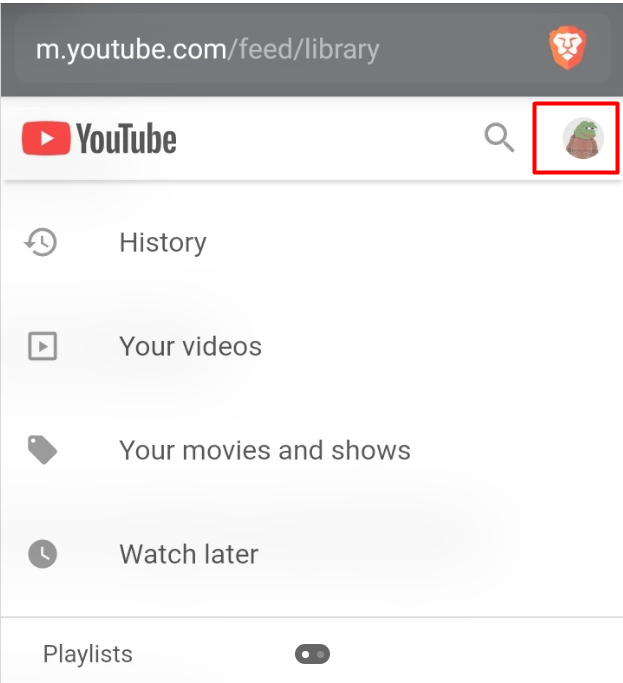
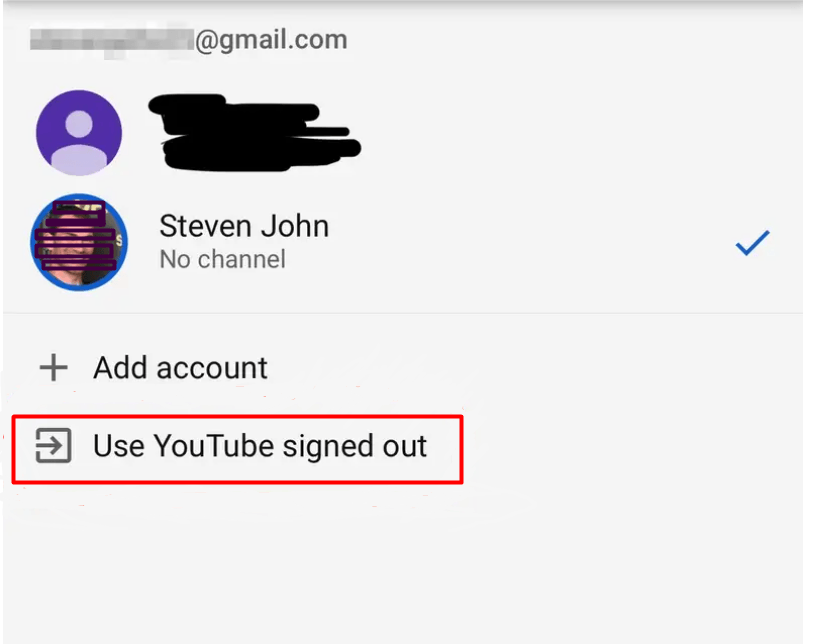
To log out of the YouTube TV app on Android or iOS, tap your profile picture in the upper right corner. From the menu that appears, select the “Switch Account” option. Here, you will see a list of accounts currently active on the device. To fully remove your presence, select “Sign out” or “Use YouTube TV signed out.” On iOS specifically, you may need to manage the Google Accounts linked to the device’s system settings to ensure that the app does not automatically pick up your credentials upon a restart. This is a technical safeguard designed to streamline the user experience, but it requires manual intervention for those seeking a hard logout.
Living Room Hardware (Smart TVs, Roku, and Fire Stick)
The most common scenario for requiring a logout occurs on Smart TVs and streaming sticks (such as Roku, Amazon Fire TV, or Apple TV). These devices often reside in shared spaces like living rooms, Airbnbs, or hotel suites.
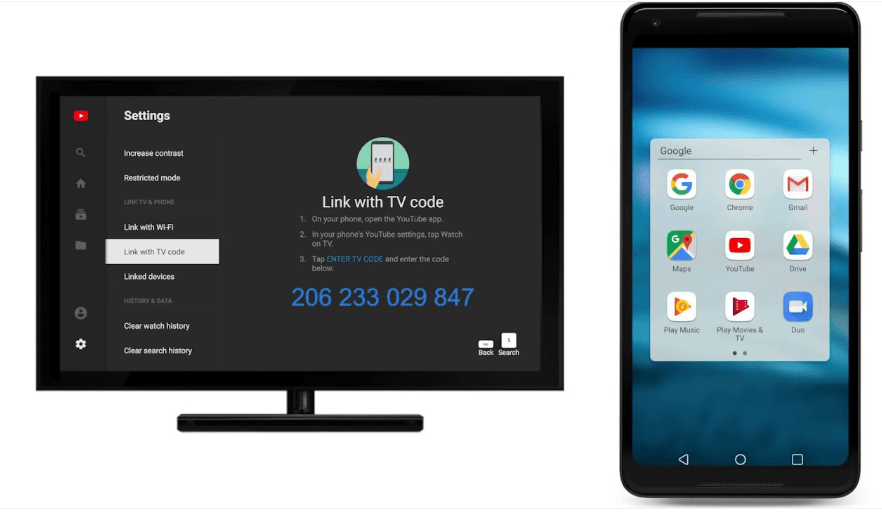
To log out on a TV-connected device, use your remote to navigate to the far-left sidebar menu. Scroll down to the bottom and select your profile picture. Within the account management screen, you will find the “Sign Out” button. On many modern Smart TVs, YouTube TV also offers a “Guest Mode” or the ability to “Clear Login Info.” Choosing “Sign Out” on these devices typically clears the OAuth tokens stored in the app’s local cache, requiring a fresh login the next time the app is launched. If you are in a temporary residence, always ensure you select the option to “Remove Account” from the device entirely, rather than just signing out of the active session.
Remote Session Termination: Managing Security from Afar
One of the most powerful features of the Google-integrated ecosystem is the ability to manage your active sessions remotely. If you have returned home from a trip only to realize you left your YouTube TV account logged in on a hotel’s Smart TV, you do not need to physically return to the location to secure your account.
The technical solution lies within the Google Account Security portal. By navigating to the “Your Devices” section of your Google Account settings, you can view every hardware instance currently authenticated to your profile. This includes smartphones, computers, and specialized streaming hardware like Chromecast or integrated Smart TVs.
Each device entry provides technical metadata, including the last active time, the geographic location of the IP address, and the specific browser or app used. To terminate a session remotely, simply select the suspicious or unwanted device and click “Sign Out.” This action revokes the security token associated with that device. The next time the YouTube TV app is opened on that hardware, it will be met with a login prompt, effectively locking out any subsequent users from your DVR, custom channel lineups, and sensitive account data.
The Technical Architecture of YouTube TV Authentication
To understand why logging out is necessary, one must look at the underlying tech. YouTube TV utilizes a standard known as OAuth 2.0 for its authentication framework. When you log in, the service does not store your password on the local device; instead, it issues a “Token.”
This token acts as a digital key that tells the YouTube TV servers that the device is authorized to access your content. These tokens are often designed to be “persistent,” meaning they do not expire for long periods, which is why you aren’t asked to log in every time you turn on your TV. While this is great for user retention and convenience, it poses a security risk if the hardware falls into the wrong hands.
Logging out essentially “invalidates” or deletes this token from the local storage (such as the app’s data cache) and notifies the central server to stop accepting requests from that specific token. This is distinct from simply closing the app or turning off the television. Without a formal logout, the session remains active in the cloud, waiting for the device to reconnect.
Troubleshooting Logout Failures and Persistent Sessions
Occasionally, users may encounter technical glitches where they appear to be logged out, but their data remains visible, or the “Sign Out” button fails to respond. This is often a result of a corrupted local cache or a synchronization error between the device and Google’s authentication servers.
If a standard logout fails, the next technical step is to “Clear Data” or “Clear Cache” within the device’s system settings. On Android TV or Fire OS, navigating to the “Applications” or “Manage Installed Apps” menu allows you to force-stop the YouTube TV app and wipe its local storage. This hard reset clears all stored tokens and configuration files, forcing the app to re-initialize in a clean state.
Another common issue involves “Linked Accounts.” If your YouTube TV is linked to a family group, the primary account holder might see other profiles. To ensure privacy within a household, it is better to use the “Switch Profile” feature combined with a “Profile Secret Code” (if enabled) rather than a full logout, which can be cumbersome for daily users.
Security Best Practices for the Modern Streaming Ecosystem
In the age of digital transformation, your streaming account is more than just a gateway to television; it is a data-rich profile that reflects your habits, location, and financial links. To maintain a secure tech environment, consider the following best practices:
-
Enable Two-Factor Authentication (2FA): Since YouTube TV is part of your Google Account, 2FA adds an essential layer of security. Even if a token is hijacked or a logout is forgotten, unauthorized users cannot make significant changes to your account without a secondary verification code.
-
Regularly Review Active Sessions: Make it a habit to visit the Google Security Checkup tool once a month. This allows you to audit which devices are accessing your YouTube TV account and prune any that are no longer in use.
-
Use Guest Mode for Temporary Devices: When possible, avoid signing into your primary account on devices you do not own. Use the “Cast” feature from your mobile device to a TV instead; this often keeps the authentication on your phone rather than transferring the persistent login to the TV hardware.
-
Understand the Difference Between “Exit” and “Log Out”: Simply hitting the “Home” button on your remote does not end your session. It merely puts the app in the background. Always navigate to the profile menu to formally sign out when using shared hardware.
By mastering these technical procedures and understanding the mechanics of digital identity management, you can enjoy the vast capabilities of YouTube TV while maintaining a rigorous security posture. Whether you are navigating the UI of a 4K Smart TV or managing your cloud-based security settings from a laptop, the power to control your digital footprint is at your fingertips.
aViewFromTheCave is a participant in the Amazon Services LLC Associates Program, an affiliate advertising program designed to provide a means for sites to earn advertising fees by advertising and linking to Amazon.com. Amazon, the Amazon logo, AmazonSupply, and the AmazonSupply logo are trademarks of Amazon.com, Inc. or its affiliates. As an Amazon Associate we earn affiliate commissions from qualifying purchases.