
In the modern enterprise landscape, Workday has established itself as the gold standard for Human Capital Management (HCM) and Financial Management software. As a cloud-native platform, it centralizes critical business operations, ranging from payroll and benefits to talent management and expense reporting. However, because Workday is a highly secure, tenant-based SaaS (Software as a Service) application, the login process is more sophisticated than simply entering a username and password on a generic homepage.
For the end-user, the login experience is the gateway to their professional digital identity. For the IT professional, it is a critical touchpoint where security protocols, identity management, and user experience intersect. This guide provides an in-depth technical walkthrough of how to access Workday across various devices, the security frameworks that protect your data, and how to resolve the most common technical hurdles encountered during the authentication process.
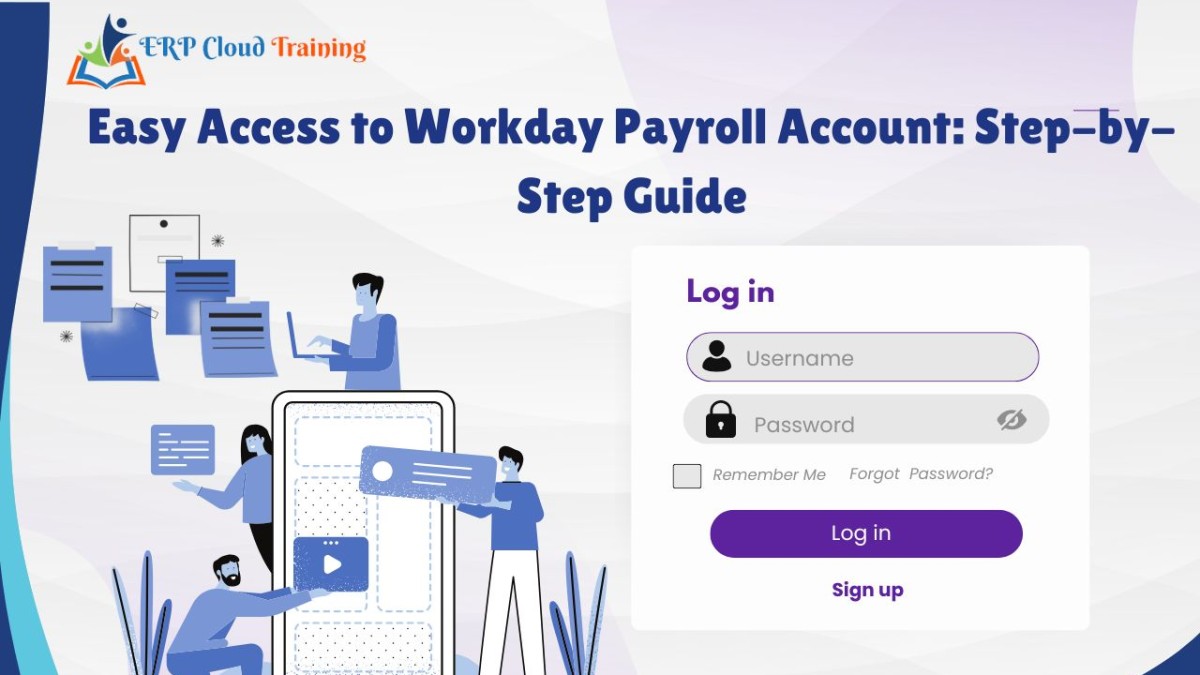
Understanding the Workday Architecture and Authentication Framework
Before attempting to log in, it is essential to understand that Workday does not use a single, universal login page for all users worldwide. Instead, the platform utilizes a “multi-tenant” architecture. This means that while many companies use the same underlying software, each company has its own isolated “tenant”—a secure, private instance of the application.
The Role of Tenant URLs
Every organization is assigned a unique Tenant URL. Usually, this URL follows a structure such as https://wd5.myworkday.com/companyname/login.htmld. The “wd5” represents the specific data center or environment where your organization’s data resides. Because of this structure, you cannot simply go to Workday.com and find a “Sign In” button that works for everyone. You must use the specific link provided by your employer’s IT or HR department.
Identity Providers (IdP) and Single Sign-On (SSO)
Most modern enterprises do not require users to maintain a separate “Workday password.” Instead, they integrate Workday with an Identity Provider (IdP) such as Okta, Microsoft Azure Active Directory (Azure AD), or Ping Identity. This is known as Single Sign-On (SSO).
When you navigate to your Workday login page, the system often redirects you to your company’s internal authentication portal. Once you verify your identity there, the IdP sends a secure “token” back to Workday, granting you access. This architecture enhances security by ensuring that employee access is managed centrally and protected by the organization’s broader security policies, such as Multi-Factor Authentication (MFA).
Accessing Workday on Desktop and Mobile Platforms
Whether you are a power user managing financial reports on a desktop or an employee checking a paystub on a smartphone, the technical steps for logging in are designed for both security and ease of use.
Logging In via Web Browser
The web browser remains the most common way to interact with Workday’s full suite of features. To ensure a smooth experience, follow these steps:
-
Verify Browser Compatibility: Workday is optimized for modern HTML5-compliant browsers. For the best performance, use the latest versions of Google Chrome, Mozilla Firefox, Microsoft Edge, or Apple Safari. Avoid using outdated browsers like Internet Explorer, as they may lack the necessary security patches and rendering engines required for Workday’s interface.
-
Navigate to Your Tenant URL: Enter your organization’s specific Workday web address into the browser’s address bar. It is highly recommended to bookmark this URL to avoid phishing attempts or landing on the wrong login portal.
-
Enter Credentials: If your company uses SSO, you will be redirected to your corporate login page. Enter your company email or username and your corporate password.
-
Complete Multi-Factor Authentication (MFA): If prompted, verify your identity using a secondary method, such as a push notification to your phone, a hardware security key (like a YubiKey), or a time-based one-time password (TOTP).
The Workday Mobile App Experience
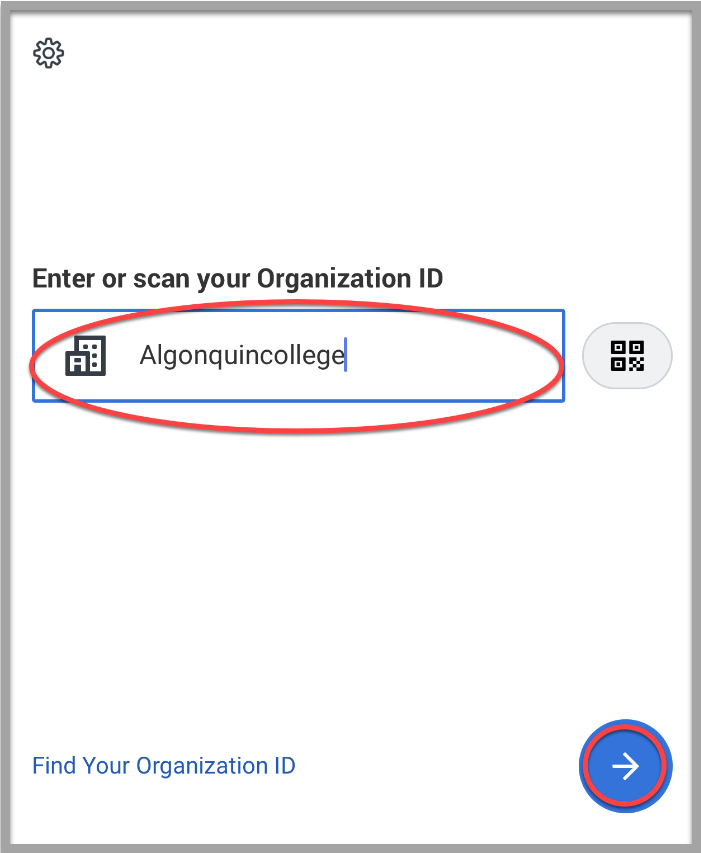
The Workday mobile app, available on iOS and Android, offers a streamlined version of the platform. However, the initial configuration requires a specific technical step: the Organization ID.
-
Download the Official App: Only download the Workday app from the Apple App Store or Google Play Store. Verify the developer is “Workday, Inc.” to ensure the app’s integrity.
-
Locate Your Organization ID: Upon opening the app for the first time, you will be asked for an Organization ID. This is a unique alphanumeric string that points the app to your company’s specific tenant. If you do not know it, you can usually find it in the “Help” or “About” section of the Workday desktop site after you have logged in there. Alternatively, many organizations allow you to log in by scanning a QR code generated within the desktop version of Workday.
-
Biometric Authentication: One of the key advantages of the mobile app is the support for biometrics. Once your initial login is successful, you can typically enable FaceID, TouchID, or Android Fingerprint authentication. This stores a secure token on your device’s hardware-backed keystore, allowing for faster subsequent logins without compromising security.
Navigating Security Protocols: MFA and Session Management

As a repository for sensitive personal and financial data, Workday employs rigorous security measures. Understanding these protocols helps users navigate the login process safely.
Multi-Factor Authentication (MFA) Requirements
MFA is no longer optional in most enterprise environments. When logging in to Workday, you may be challenged for a second factor if:
-
You are logging in from a new device or unrecognized IP address.
-
You are attempting to access “High Assurance” items, such as changing your direct deposit information or viewing tax documents.
-
Your organization’s policy requires MFA for every session.
From a technical standpoint, Workday supports various MFA standards, including SAML-based authentication via your IdP. If you find yourself stuck in an MFA loop, it is often due to a time-sync issue on your mobile device (if using a TOTP app) or a network latency issue preventing the push notification from reaching your phone.
Session Timeouts and Security
To prevent unauthorized access if a computer is left unattended, Workday implements automatic session timeouts. These are configured by your organization’s administrators. From a technical perspective, these timeouts are managed via session cookies. If your browser is configured to block all third-party cookies, or if you are using an aggressive “Incognito” mode, you may experience frequent, unexpected logouts. Ensuring that *.workday.com is added to your browser’s “Allow” list for cookies can mitigate these interruptions while maintaining a high security posture.
Troubleshooting Common Login Issues
Even with a robust system like Workday, technical glitches can occur. Most login failures can be traced back to a few specific areas.
Forgotten Organization ID or Tenant URL
This is the most common hurdle for new users. If you are searching for your organization ID, look at your company’s internal intranet or onboarding documentation. On the desktop site, click your profile icon in the top right corner, go to “My Account,” and look for “Organization Settings.” If you cannot log in at all, your IT help desk is the only entity capable of providing the correct URL, as Workday Support does not provide this information to individual end-users for security reasons.
Browser Cache and Cookie Conflicts
If the login page fails to load or results in a “Redirect Loop,” the culprit is often corrupted cached data. Browsers store fragments of previous sessions to speed up loading, but these can conflict with new security tokens.
- The Fix: Clear your browser’s cache and cookies specifically for Workday-related domains. Alternatively, try logging in using a private or incognito window to see if the issue persists.
SSO Synchronization Errors
Occasionally, a user might see an error message stating “Invalid Username or Password” even when they are certain the credentials are correct. In an SSO environment, this usually indicates a synchronization issue between the company’s Active Directory and Workday.
- The Technical Cause: This can happen if an employee’s account was recently created, updated, or if there is a mismatch in the “SAML NameID” (the unique identifier that links the IdP to Workday). In these cases, the issue must be resolved by a system administrator who can re-sync the user profile.
VPN and Network Restrictions
Many organizations restrict Workday access to specific IP ranges or require a Virtual Private Network (VPN) connection. If you are trying to log in from a home network or public Wi-Fi and the page simply times out, check if your VPN is active. Some advanced security configurations also use “Conditional Access” policies, which might block logins from specific geographic regions or devices that do not meet certain security compliance standards (such as having an active firewall or up-to-date OS).
Optimizing Your Post-Login Experience
Once you have successfully authenticated, the Workday interface provides several tools to customize your experience and improve efficiency.
Using the Search Bar for Rapid Navigation
The “Search” function in Workday is a powerful, AI-driven tool. Instead of clicking through menus to find “Change Emergency Contact” or “Request Time Off,” you can simply type these keywords into the search bar. The system uses natural language processing to identify the “Task” or “Report” you need, significantly reducing the time spent navigating the UI.
Customizing the Home Dashboard
Workday allows users to configure their homepage via “Applications” (the circular icons). By clicking the “Configure Applications” gear icon, you can add, remove, or reorder these icons based on the tasks you perform most frequently. From a technical standpoint, this customization is saved to your user profile in the cloud, ensuring that your layout remains consistent whether you log in from a laptop in the office or a tablet at home.
Conclusion: A Secure Gateway to Productivity
Logging in to Workday is more than a routine task; it is an interaction with a sophisticated, secure cloud infrastructure. By understanding the underlying technology—from tenant-specific URLs and SSO integration to MFA and mobile biometric tokens—users can navigate the platform with confidence. While technical hurdles like cache conflicts or SSO mismatches can occasionally arise, a systematic approach to troubleshooting ensures that access to this vital enterprise tool remains seamless and secure. Regardless of the device used, the priority remains the same: protecting sensitive data while providing a centralized hub for professional growth and business management.
aViewFromTheCave is a participant in the Amazon Services LLC Associates Program, an affiliate advertising program designed to provide a means for sites to earn advertising fees by advertising and linking to Amazon.com. Amazon, the Amazon logo, AmazonSupply, and the AmazonSupply logo are trademarks of Amazon.com, Inc. or its affiliates. As an Amazon Associate we earn affiliate commissions from qualifying purchases.