
The advent of smart TVs and a plethora of streaming devices has revolutionized the way we consume digital content. While once confined to the smaller screens of computers and mobile phones, platforms like YouTube are now seamlessly integrated into the living room experience, offering unparalleled convenience and a cinematic scale to your favorite creators, music videos, documentaries, and live streams. Linking YouTube to your television is no longer a complex endeavor reserved for tech enthusiasts; it’s an accessible process that significantly enhances your viewing pleasure. This guide will meticulously break down the various methods, technologies, and best practices to ensure you can effortlessly cast, mirror, or directly access YouTube on your big screen, transforming your TV into a dynamic portal for endless digital content.
Understanding the Core Technologies for Seamless Connectivity
Before diving into the step-by-step instructions, it’s crucial to grasp the underlying technologies that enable your devices to communicate and display YouTube content on your television. Most modern methods rely on a combination of Wi-Fi networking and specific hardware or software protocols designed for media casting and streaming.
Smart TVs with Built-in YouTube Integration
The simplest and often most direct method involves a smart TV that comes with the YouTube app pre-installed or readily available for download from its app store. Modern smart TVs from manufacturers like Samsung, LG, Sony, Vizio, and others, powered by operating systems such as Tizen, webOS, Android TV, or Roku TV, are designed for direct internet connectivity.
- Direct Access: For smart TVs, the process is usually as straightforward as navigating to the TV’s home screen or app launcher, locating the YouTube app, and opening it. If it’s your first time, you might need to sign in with your Google account to access your personalized subscriptions, watch history, and recommendations.
- Advantages: This method eliminates the need for additional hardware, relying solely on your TV’s capabilities and your home Wi-Fi network. It provides a native, optimized interface designed for the TV remote.
- Considerations: Ensure your smart TV’s software is updated regularly to benefit from the latest features and security patches. An older smart TV might have a less intuitive interface or slower performance compared to dedicated streaming devices.
Dedicated Streaming Devices: Your Gateway to Content
For TVs that aren’t “smart” or whose built-in apps are outdated, streaming devices serve as powerful upgrades. These compact gadgets plug into your TV’s HDMI port and connect to your Wi-Fi, providing access to a vast ecosystem of apps, including YouTube.
- Google Chromecast: Chromecast devices are designed for casting content from your phone, tablet, or computer directly to your TV. They act as a receiver, pulling the content stream from the internet based on commands from your mobile device. The YouTube app on your phone or browser often features a “Cast” icon that initiates this process.
- Roku Devices (Roku Streaming Stick, Roku Express, Roku Ultra): Roku offers a proprietary operating system with a vast channel store. The YouTube channel is readily available, allowing for direct navigation and playback using the Roku remote. Many Roku devices also support screen mirroring and casting from compatible apps.
- Amazon Fire TV Stick: Similar to Roku, Fire TV devices run Amazon’s Fire OS, providing access to an extensive app library, including YouTube. They often feature Alexa voice integration for easy content search and control.
- Apple TV: For users within the Apple ecosystem, Apple TV offers a premium streaming experience with a dedicated YouTube app. It supports AirPlay, allowing iPhone, iPad, or Mac users to effortlessly mirror or cast content.
- Gaming Consoles (PlayStation, Xbox): Modern gaming consoles are multimedia powerhouses. Both PlayStation (PS4, PS5) and Xbox (Xbox One, Xbox Series X/S) have robust app stores where the YouTube app can be downloaded, offering a full-featured viewing experience controlled by the game controller.
HDMI Cables and Laptop Connection: The Direct Approach
While less common for day-to-day YouTube consumption due to the rise of wireless methods, connecting a laptop to your TV via an HDMI cable remains a reliable, low-tech solution.
- Method: Simply connect one end of an HDMI cable to your laptop and the other to an available HDMI port on your TV. Use your TV’s input/source button on the remote to select the correct HDMI input. Your laptop screen should then appear on your TV. You can then navigate to YouTube in your web browser.
- Advantages: No Wi-Fi required for the connection (though Wi-Fi is still needed for YouTube content itself), high-quality video and audio transmission.
- Considerations: Requires a laptop and the physical cable, can be less convenient than wireless casting for casual viewing.
Step-by-Step Methods for Casting and Mirroring YouTube
With an understanding of the available technologies, let’s delve into the practical steps for linking YouTube to your television. The most common methods involve “casting” or direct app usage.
Casting from Mobile Devices (Smartphones/Tablets)
This is arguably the most popular and convenient method for many users. It leverages your mobile device as a remote control, sending content to a compatible TV or streaming device on the same Wi-Fi network.
The “Cast” Icon: Your Universal Connection Button
- Ensure Connectivity: Make sure your smartphone/tablet and your smart TV/streaming device are connected to the same Wi-Fi network. This is paramount for casting to work.
- Open YouTube App: Launch the YouTube app on your mobile device.
- Locate the Cast Icon: While playing a video or even browsing, look for the “Cast” icon. It typically looks like a rectangle with a Wi-Fi signal emanating from its bottom-left corner. This icon is usually located in the top-right corner of the video player or the app interface.
- Select Your Device: Tap the Cast icon. A list of available casting devices (your smart TV, Chromecast, Roku, Fire TV, etc.) on your network will appear.
- Start Casting: Select your desired TV or streaming device from the list. The video from your phone will then begin playing on your TV, and your phone effectively becomes a remote for playback controls (play, pause, skip, volume).
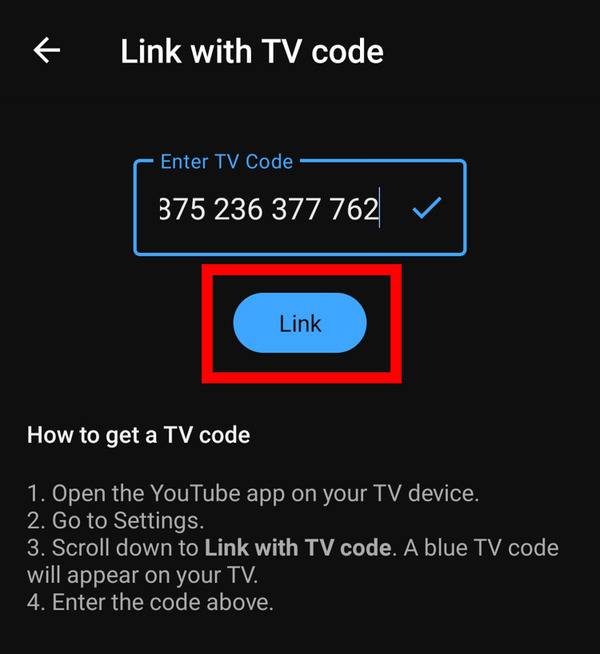
Pairing with a TV Code (youtube.com/pair)
If your device isn’t showing up or you prefer a more direct link without network discovery, you can use a TV code.
- Open YouTube on TV: On your smart TV, streaming device, or console, open the YouTube app.
- Access Link with TV Code: Navigate to the “Settings” or “Link with TV Code” option within the YouTube app on your TV. A 12-digit code will be displayed.
- On Mobile Device/Computer: Open a web browser (on your phone or computer) and go to
youtube.com/pair. - Enter Code: Enter the 12-digit code displayed on your TV into the field provided on the
youtube.com/pairpage and click “Link TV.” - Confirmation: Your mobile device or computer will now be linked to the YouTube app on your TV, allowing you to cast videos from the YouTube app or website.
Casting from Web Browsers (Desktop/Laptop)
For those using a computer, casting from the Chrome browser offers a straightforward way to send YouTube videos to your TV.
Google Chrome’s Built-in Cast Feature
- Open Chrome: Launch the Google Chrome browser on your computer.
- Go to YouTube: Navigate to
youtube.comand start playing the video you wish to watch. - Initiate Cast: Right-click anywhere on the web page and select “Cast…” from the context menu, or click the three-dot menu in the top-right corner of Chrome, then select “Cast…”.
- Choose Device: A small pop-up window will appear, listing available casting devices on your network. Select your TV or streaming device.
- Enjoy: The video will begin playing on your TV. Your computer acts as the control interface.
Screen Mirroring: A Universal but Less Optimized Option
Screen mirroring duplicates your entire device’s screen onto your TV. While it works for YouTube, it’s generally less optimized than direct casting because it streams the entire screen rather than just the video content.
AirPlay (Apple Devices)

- Enable AirPlay: Ensure your Apple TV or AirPlay 2-compatible smart TV is on and connected to the same Wi-Fi network as your iPhone, iPad, or Mac.
- Open Control Center (iOS/iPadOS): Swipe down from the top-right corner (Face ID devices) or up from the bottom (Touch ID devices) to open Control Center.
- Tap Screen Mirroring: Tap the “Screen Mirroring” icon (two overlapping rectangles).
- Select TV: Choose your Apple TV or AirPlay-compatible smart TV from the list. Your device’s screen will then appear on the TV. Open YouTube and play your video.
- Mac Mirroring: On a Mac, click the Control Center icon in the menu bar, then click “Screen Mirroring” and select your TV.
Miracast (Android/Windows)
Many Android devices and Windows PCs support Miracast, allowing wireless display mirroring to compatible TVs or Miracast dongles. The specific steps vary by device but generally involve finding a “Cast,” “Screen Cast,” “Smart View,” or “Wireless Display” option in your device’s settings or quick panel.
Optimizing Your YouTube Viewing Experience on TV
Linking YouTube to your TV is just the first step. To truly enjoy the experience, consider these optimization tips and learn to troubleshoot common issues.
Ensuring a Stable Wi-Fi Connection
A strong and stable Wi-Fi connection is critical for smooth, high-definition streaming.
- Bandwidth: Ensure your internet plan offers sufficient bandwidth for streaming, especially if multiple devices are active on your network.
- Router Placement: Position your Wi-Fi router centrally and away from obstructions to maximize signal strength to your TV and streaming devices.
- Interference: Minimize interference from other electronics (cordless phones, microwaves) or neighboring Wi-Fi networks by using a less congested Wi-Fi channel if possible.
- Ethernet: For the most reliable connection, consider connecting your smart TV or streaming device directly to your router via an Ethernet cable, if ports are available.
Troubleshooting Common Connection Issues
Sometimes, connections don’t go as smoothly as planned. Here’s a quick troubleshooting guide:
- “Device Not Found”:
- Check Wi-Fi: Verify that both your casting device (phone/computer) and your receiving device (TV/streamer) are on the same Wi-Fi network. This is the most common culprit.
- Restart Devices: Try restarting your phone/computer, TV/streaming device, and even your Wi-Fi router. A simple reboot can resolve many temporary glitches.
- App Updates: Ensure the YouTube app on your mobile device and the software on your TV/streaming device are up to date.
- Buffering/Lag:
- Internet Speed: Test your internet speed to ensure it meets the requirements for HD streaming (typically 5-8 Mbps for HD, 25+ Mbps for 4K).
- Network Congestion: If other devices are heavily using your network, it can impact streaming quality.
- Router Distance: Move your router closer or consider a Wi-Fi extender.
- No Audio/Video Sync Issues:
- Restart: Often resolved by restarting the app or device.
- TV Settings: Check your TV’s audio settings, especially if you’re using external sound systems.
Exploring YouTube TV Interface Features
When using the native YouTube app on a smart TV or streaming device, you’ll encounter an interface specifically designed for large screens and remote control navigation.
- Remote Control Optimization: The interface is built for easy navigation with directional pads, dedicated buttons for play/pause, fast forward/rewind, and often voice control integration.
- Search and Discovery: Optimized search functions, including on-screen keyboards and voice search, make finding content simple.
- Account Integration: Once logged in with your Google account, you get access to your personalized homepage, subscriptions, watch history, playlists, and recommendations, just like on other devices.
- Picture-in-Picture/Multi-view: Some advanced smart TVs offer features like picture-in-picture or multi-view, allowing you to watch YouTube alongside other content.
Advanced Tips and Best Practices for Enhanced Viewing
Beyond the basics, there are several ways to further refine your YouTube on TV experience.
Voice Control Integration
Many modern smart TVs and streaming devices integrate voice assistants like Google Assistant, Amazon Alexa, or Apple’s Siri.
- Search by Voice: Use your remote’s microphone button (if available) or a connected smart speaker to say “Hey Google, play on YouTube,” or “Alexa, open YouTube.”
- Control Playback: Commands like “Pause,” “Play next episode,” or “Skip 30 seconds” can offer hands-free control.
Multi-User Profiles and Parental Controls
If multiple people use your TV for YouTube, or if you have children, managing profiles and controls is essential.
- Google Account Profiles: Within the YouTube app on your TV, you can often switch between different Google accounts, each with its own subscriptions and watch history.
- YouTube Kids: For families, the YouTube Kids app (available on most smart TVs and streamers) offers a curated, safer environment with age-appropriate content and robust parental controls, including screen time limits and content filtering.
- Device-Level Parental Controls: Your smart TV or streaming device might also have its own parental controls to restrict access to certain apps or content ratings.
Managing Multiple Devices and Smart Home Integration
For power users, integrating YouTube viewing into a broader smart home ecosystem can offer seamless control.
- Google Home/Amazon Echo: Link your smart TV or streaming device to your Google Home or Amazon Echo ecosystem to control YouTube playback with voice commands from anywhere in the room.
- Universal Remotes: Consider a universal remote (physical or app-based) that can control your TV, streaming device, and sound system, simplifying your control setup.
Future Trends in TV Connectivity
The landscape of TV connectivity is ever-evolving. Expect to see:
- Further Integration: Deeper integration of streaming services directly into TV operating systems, making the distinction between a smart TV and a streaming device blur even further.
- Enhanced Interactivity: More interactive content and features that bridge the gap between your mobile device and the TV screen.
- 5G Home Internet: The rollout of 5G home internet could provide even faster and more reliable wireless streaming, reducing buffering woes.

Conclusion
Linking YouTube to your TV unlocks a world of content on the grandest screen in your home. Whether you opt for the simplicity of a smart TV’s native app, the versatility of a streaming stick, or the directness of casting from your phone, the process is designed to be intuitive and rewarding. By understanding the underlying technologies, mastering the casting methods, and applying a few optimization and troubleshooting tips, you can ensure a professional, high-quality, and engaging YouTube viewing experience every time. Embrace the bigger picture and dive into your favorite content with unprecedented ease and clarity.
aViewFromTheCave is a participant in the Amazon Services LLC Associates Program, an affiliate advertising program designed to provide a means for sites to earn advertising fees by advertising and linking to Amazon.com. Amazon, the Amazon logo, AmazonSupply, and the AmazonSupply logo are trademarks of Amazon.com, Inc. or its affiliates. As an Amazon Associate we earn affiliate commissions from qualifying purchases.