
In the ever-evolving landscape of personal computing, operating systems serve as the foundational software that dictates how we interact with our devices. Among the most prevalent operating systems globally is Microsoft Windows. With a history stretching back decades, Windows has undergone numerous iterations, each introducing new features, functionalities, and security enhancements. For many users, particularly those who aren’t deeply immersed in the technical intricacies of their machines, the specific version of Windows they are running might not be top of mind. However, knowing your Windows version is more than just a trivia point; it’s crucial for a multitude of practical reasons, ranging from software compatibility and troubleshooting to understanding system requirements and security updates. This guide will demystify the process of identifying your Windows version, empowering you with the knowledge to manage your system effectively.
The Importance of Knowing Your Windows Version
Understanding which version of Windows graces your machine is not merely an academic exercise; it has direct implications for your daily digital life. Different Windows versions are built upon distinct architectures, support different hardware, and receive varying levels of support and security updates from Microsoft. This knowledge becomes particularly vital when you’re looking to install new software, engage in gaming, or even when seeking technical assistance.
Software and Hardware Compatibility
The digital ecosystem is a complex web of interdependencies. Software applications, particularly those with demanding graphical requirements or specialized functions, are often developed with specific Windows versions in mind. An application designed for Windows 11, for instance, might not function correctly or at all on Windows 7 due to differences in application programming interfaces (APIs), system libraries, or underlying framework requirements. Similarly, hardware drivers, essential for your graphics card, printer, or webcam to communicate with the operating system, are often version-specific. Installing a driver intended for Windows 10 on a Windows 11 machine, or vice-versa, can lead to instability, performance issues, or complete hardware malfunction. Knowing your Windows version ensures you download and install compatible software and drivers, preventing frustrating compatibility headaches.
Accessing Support and Updates
Microsoft, like most software providers, has a lifecycle for its operating system versions. Older versions eventually reach their end-of-support date, meaning they no longer receive critical security patches, bug fixes, or technical assistance from Microsoft. Continuing to use an unsupported version of Windows leaves your system vulnerable to security threats, malware, and exploits that are actively being discovered and patched in newer versions. This is akin to driving a car without regular maintenance – eventually, crucial components will fail, leaving you exposed. When you encounter issues with your computer, whether it’s a software glitch or a hardware problem, the first question a support technician will likely ask is, “What version of Windows are you running?” This information is vital for them to diagnose the problem accurately and provide relevant solutions.
Understanding System Requirements and Features
Each new major release of Windows brings with it a host of new features, enhancements, and, often, increased system requirements. For example, Windows 11 introduced features like TPM 2.0 support, enhanced security protocols, and a redesigned user interface, which necessitate more robust hardware than older versions. If you’re considering upgrading your hardware or purchasing a new computer, knowing the requirements of the latest Windows versions will help you make informed purchasing decisions. Conversely, if you’re working with older hardware, understanding your current Windows version and its capabilities will help you set realistic expectations about what your system can handle. It also allows you to explore the unique features and functionalities of your specific Windows version, which you might not be aware of, potentially enhancing your productivity and user experience.
Methods for Identifying Your Windows Version
Fortunately, Microsoft has made it relatively straightforward to ascertain your Windows version. There are several methods you can employ, each varying slightly in the level of detail provided. Whether you prefer a quick glance or a more comprehensive system overview, there’s a method suitable for you.
Using the “About your PC” Settings Menu
This is arguably the most user-friendly and comprehensive method for most users. It provides a clear overview of your Windows version, edition, and build number, along with other system information.
Steps to Access “About your PC”
- Open the Start Menu: Click on the Windows icon in the taskbar, usually located at the bottom-left corner of your screen.
- Access Settings: Click on the “Settings” gear icon, which is typically found in the left-hand pane of the Start Menu.
- Navigate to System: In the Settings window, click on “System.”
- Scroll to “About”: In the System settings, scroll down the left-hand menu until you find “About” and click on it.
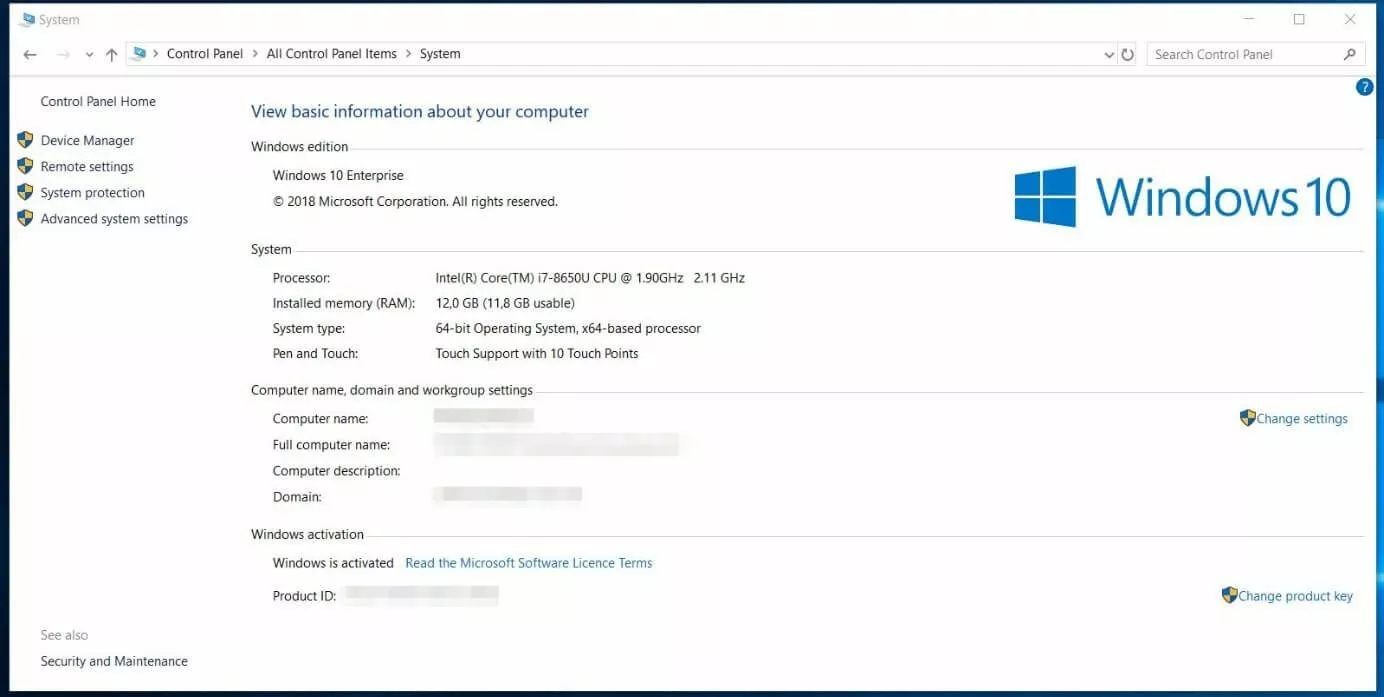
- Locate “Windows specifications”: On the “About” page, you will see a section titled “Windows specifications.” Here, you will find crucial information such as:
- Edition: This tells you if you have Windows 11 Home, Windows 11 Pro, Windows 10 Home, Windows 10 Pro, etc.
- Version: This indicates the major release, such as 22H2, 21H2, etc.
- OS build: This is a more granular number that identifies the specific update or patch level of your Windows installation.
- Installation date: This can be useful for troubleshooting or understanding when significant system changes were made.
This section often displays your computer’s name and device specifications as well, providing a holistic view of your system’s software and hardware.
Leveraging the “Run” Command for System Information
For users who prefer a more direct, command-line-like approach, the “Run” command offers a quick way to access the System Information utility. This method can be faster if you’re familiar with keyboard shortcuts.
Using winver for a Quick Version Check
The winver command is a fantastic shortcut to get an immediate overview of your Windows version and build.
- Open the Run Dialog: Press the
Windows key + Ron your keyboard simultaneously. This will open the “Run” dialog box. - Type
winver: In the “Open” field of the Run dialog box, typewinverand press Enter or click “OK.” - Interpret the Window: A small window titled “About Windows” will pop up. This window will clearly display the edition of Windows you are running (e.g., Microsoft Windows [Version Name]) and the specific version number. It also provides information about registered owner and organization, if applicable.
While winver is quick, it doesn’t offer as much detail as the “About your PC” settings. For more in-depth technical details about your system, including the Windows version, you can use another Run command.
Using msinfo32 for Detailed System Information
The msinfo32 command launches the comprehensive System Information utility, which provides a wealth of data about your hardware, software environment, and system components.
- Open the Run Dialog: Press
Windows key + R. - Type
msinfo32: In the “Open” field, typemsinfo32and press Enter or click “OK.” - Navigate to System Summary: The System Information window will open. On the left-hand pane, ensure “System Summary” is selected.
- Find “OS Name” and “Version”: In the right-hand pane, look for the following entries:
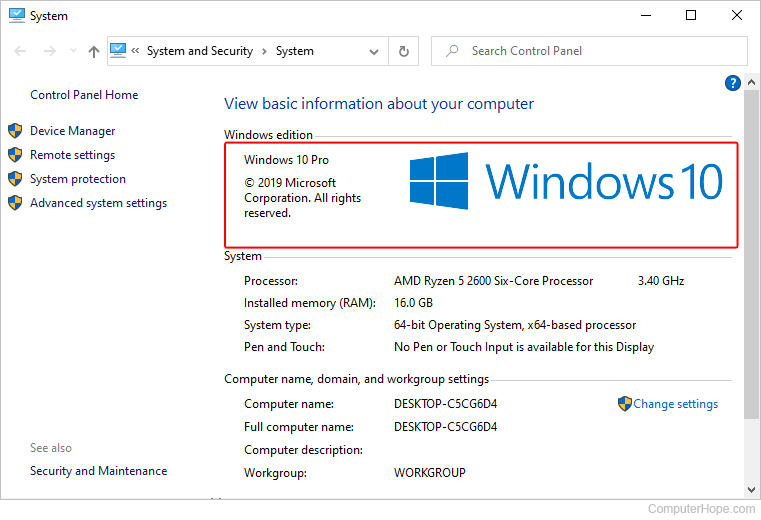
- OS Name: This will tell you the name of your operating system, e.g., “Microsoft Windows 10 Pro.”
- Version: This provides the version number of your Windows installation.
The msinfo32 utility is incredibly powerful for troubleshooting, as it details everything from your BIOS version and installed RAM to running services and system drivers. While it may seem overwhelming initially, locating the “OS Name” and “Version” fields is straightforward and directly answers your question about your Windows version.
Using the Command Prompt or PowerShell
For advanced users or those who prefer working in a command-line environment, the Command Prompt or PowerShell can be used to retrieve Windows version information. This method is efficient for scripting or for quickly gathering information without navigating through graphical interfaces.
Using Command Prompt
- Open Command Prompt:
- Click the Start Menu.
- Type
cmdin the search bar. - Click on “Command Prompt” from the search results.
- Execute the command: In the Command Prompt window, type the following command and press Enter:
systeminfo | findstr /B /C:"OS Name" /C:"OS Version"
- Review the output: The command will output two lines showing your “OS Name” and “OS Version.” For example:
OS Name:                   Microsoft Windows 10 Pro

OS Version:                10.0.19045 Build 19045
This command filters the extensive systeminfo output to display only the relevant operating system name and version details.
Using PowerShell
- Open PowerShell:
- Click the Start Menu.
- Type
powershellin the search bar. - Click on “Windows PowerShell” from the search results.
- Execute the command: In the PowerShell window, type the following command and press Enter:
powershell

Get-ComputerInfo | Select-Object OsName, OsVersion
- Review the output: Similar to the Command Prompt method, PowerShell will display the OS Name and OS Version in a structured format.
Both command-line methods provide clear and concise information about your Windows version, making them excellent choices for technical users.
Understanding Windows Version Terminology
Once you’ve identified your Windows version, it’s helpful to understand the different components of the versioning information you see. This terminology can seem a bit technical, but it’s essential for comprehending update cycles and compatibility.
Editions vs. Versions vs. Builds
The information you see typically includes an “Edition,” a “Version,” and sometimes a “Build number.” Understanding the distinction between these is key.
-
Edition: This refers to the specific tier or set of features offered within a particular Windows release. Common editions include:
- Home: Designed for typical home users, offering core functionality.
- Pro (Professional): Includes additional features for power users and small businesses, such as BitLocker encryption, Remote Desktop host, and Hyper-V.
- Enterprise: Aimed at larger organizations, offering advanced deployment, security, and management features.
- Education: Similar to Enterprise but tailored for academic institutions.
- S Mode: A more secure, streamlined version that only allows apps from the Microsoft Store.
-
Version: This refers to the major release of Windows. Microsoft uses a naming convention that often includes a year and a half (e.g., “22H2” for the second half of 2022) or simply a version number (e.g., “Version 1909”). These major versions introduce significant new features, interface changes, and underlying architectural updates. They are also tied to specific support lifecycles. For instance, Windows 10 has had numerous versions like 1507, 1607, 1703, 1803, 1903, 2004, 21H1, 21H2, and so on. Windows 11 also has its own versioning, such as 21H2, 22H2, etc.
-
Build Number: This is a more granular identifier for a specific update or patch applied to a particular Windows version. It indicates the exact iteration of the operating system you are running. For example, “10.0.19045 Build 19045” means you are running Windows 10 (version 10.0), and the specific build is 19045. Windows updates often increment the build number, bringing minor fixes, security patches, and feature refinements.
Understanding Support Lifecycles
Microsoft provides official support for its Windows operating systems for a defined period. Knowing your version is critical for understanding when your system will stop receiving crucial security updates.
- End of Mainstream Support: This phase typically includes free updates and support.
- End of Extended Support: After mainstream support ends, extended support may be available, often for a fee, and usually includes only security updates and paid incident support. Once extended support ends, the operating system is considered unsupported.
Staying informed about your Windows version and its support lifecycle helps you plan for potential upgrades and ensures your system remains secure and functional. For instance, Windows 7 and Windows 8.1 have reached their end of support. Windows 10 will reach its end of support on October 14, 2025. Windows 11 has a different support lifecycle that generally extends further.
Why Knowing Your Version Matters for the Future
As technology continues its relentless march forward, understanding your operating system’s version is not just about current functionality but also about future preparedness. The digital landscape is dynamic, and staying informed about your Windows version is a proactive step towards maintaining a secure, efficient, and compatible computing experience.
Preparing for Future Software and Hardware
The introduction of new technologies and software often hinges on the capabilities of the operating system. As new applications are developed, they will increasingly target newer Windows versions with advanced features and security frameworks. By knowing your current version, you can assess whether you meet the prerequisites for upcoming software releases or if an upgrade is necessary to leverage new innovations. Similarly, as hardware evolves, manufacturers design drivers and firmware to work seamlessly with the latest operating systems. If you’re planning hardware upgrades or looking to purchase new peripherals, understanding your Windows version will inform you about compatibility and potential performance bottlenecks.
Maintaining System Security and Stability
In an era where cyber threats are ever-present, a robust security posture is paramount. Microsoft continuously releases security patches and updates to address newly discovered vulnerabilities. If you are running an older, unsupported version of Windows, you are essentially leaving your system exposed to a wide array of potential attacks. Knowing your version allows you to verify if you are receiving the latest security updates and to make informed decisions about upgrading to a version that is actively supported. This proactive approach to security not only protects your personal data but also ensures the overall stability and reliability of your computing environment, preventing costly downtime and data loss.

Optimizing Your Computing Experience
Each Windows version is designed with a specific set of user experiences and performance characteristics in mind. Understanding your current version can help you unlock its full potential. You might be missing out on features or optimizations that could significantly enhance your productivity or enjoyment. Furthermore, if your current version is struggling to keep up with modern demands, knowing this can guide you towards informed decisions about system optimization, hardware upgrades, or a complete operating system upgrade. This ensures your computer remains a powerful tool that meets your needs, rather than a source of frustration.
In conclusion, identifying your Windows version is a fundamental yet often overlooked aspect of computer ownership. Whether for software compatibility, security, or future planning, this knowledge empowers you to manage your digital environment more effectively. By utilizing the straightforward methods outlined in this guide, you can confidently determine your Windows version and take the necessary steps to ensure a smooth and secure computing journey.
aViewFromTheCave is a participant in the Amazon Services LLC Associates Program, an affiliate advertising program designed to provide a means for sites to earn advertising fees by advertising and linking to Amazon.com. Amazon, the Amazon logo, AmazonSupply, and the AmazonSupply logo are trademarks of Amazon.com, Inc. or its affiliates. As an Amazon Associate we earn affiliate commissions from qualifying purchases.