
In today’s interconnected world, effective communication is paramount, whether you’re a student attending online classes, a professional collaborating with remote teams, or simply staying in touch with loved ones across distances. Among the plethora of video conferencing tools available, Zoom has emerged as a dominant force, celebrated for its user-friendliness, robust features, and reliable performance. This comprehensive guide will walk you through the process of installing Zoom on various devices, ensuring you’re equipped to join or host meetings with confidence. We’ll also touch upon how Zoom fits into the broader landscape of technological trends and its impact on personal and professional branding.
Getting Started with Zoom: The Initial Steps
Before diving into the installation process, it’s beneficial to understand why Zoom has become such an integral part of our digital lives. Its rapid adoption, especially during periods of increased remote work and online learning, speaks volumes about its intuitive design and accessibility. The platform offers a free tier that’s perfectly adequate for many individual users, making it a low barrier to entry for anyone seeking to connect virtually.
The core functionality of Zoom revolves around video and audio conferencing. However, its utility extends far beyond just talking face-to-face. Features like screen sharing, virtual backgrounds, chat functionalities, and breakout rooms enhance the collaborative experience, transforming a simple video call into a dynamic meeting environment. This adaptability makes Zoom a versatile tool for a wide range of applications, from educational lectures and business presentations to casual catch-ups and large-scale webinars.
Downloading the Zoom Application: Your Gateway to Connection
The installation process for Zoom is straightforward and differs slightly depending on the operating system you’re using. The general principle remains the same: download the client application from the official Zoom website or your device’s app store.
Installing Zoom on Desktop (Windows and macOS)
For desktop users on Windows or macOS, the primary method of installation involves downloading the Zoom Client for Meetings from the official Zoom website. This is the most comprehensive version, offering all the features necessary for hosting and joining meetings.
- Navigate to the Zoom Download Center: Open your preferred web browser and go to the official Zoom download page. You can usually find this by searching for “Zoom download” on your preferred search engine, or by directly visiting the Zoom website (zoom.us) and looking for the “Download” or “Resources” section.
- Select the Correct Download: On the download page, you’ll typically find various download options. For most users, you’ll want to select “Zoom Desktop Client.” Ensure you choose the correct version for your operating system (Windows or macOS). The website is usually smart enough to detect your OS, but it’s always good to double-check.
- Download the Installer: Click the “Download” button. This will initiate the download of an executable file (e.g.,
ZoomInstaller.exefor Windows,Zoom.pkgfor macOS). - Run the Installer: Once the download is complete, locate the downloaded file in your downloads folder and double-click it to run the installer.
- Follow On-Screen Prompts: The installation wizard will guide you through the process. This usually involves accepting the license agreement and choosing an installation location. For most users, the default settings are perfectly fine.
- Launch Zoom: After the installation is finished, you can find the Zoom application in your applications folder (macOS) or on your desktop/start menu (Windows). Launch it to begin.
You will then be presented with the Zoom client interface, where you can either “Join a Meeting” (if you have a meeting ID and passcode) or “Sign In” to your Zoom account. Creating a Zoom account is free and allows you to schedule meetings, manage your settings, and access more personalized features.
Installing Zoom on Mobile Devices (iOS and Android)
For users on the go, installing Zoom on their smartphones or tablets is equally simple, utilizing the respective app stores.
For iOS Devices (iPhone and iPad):
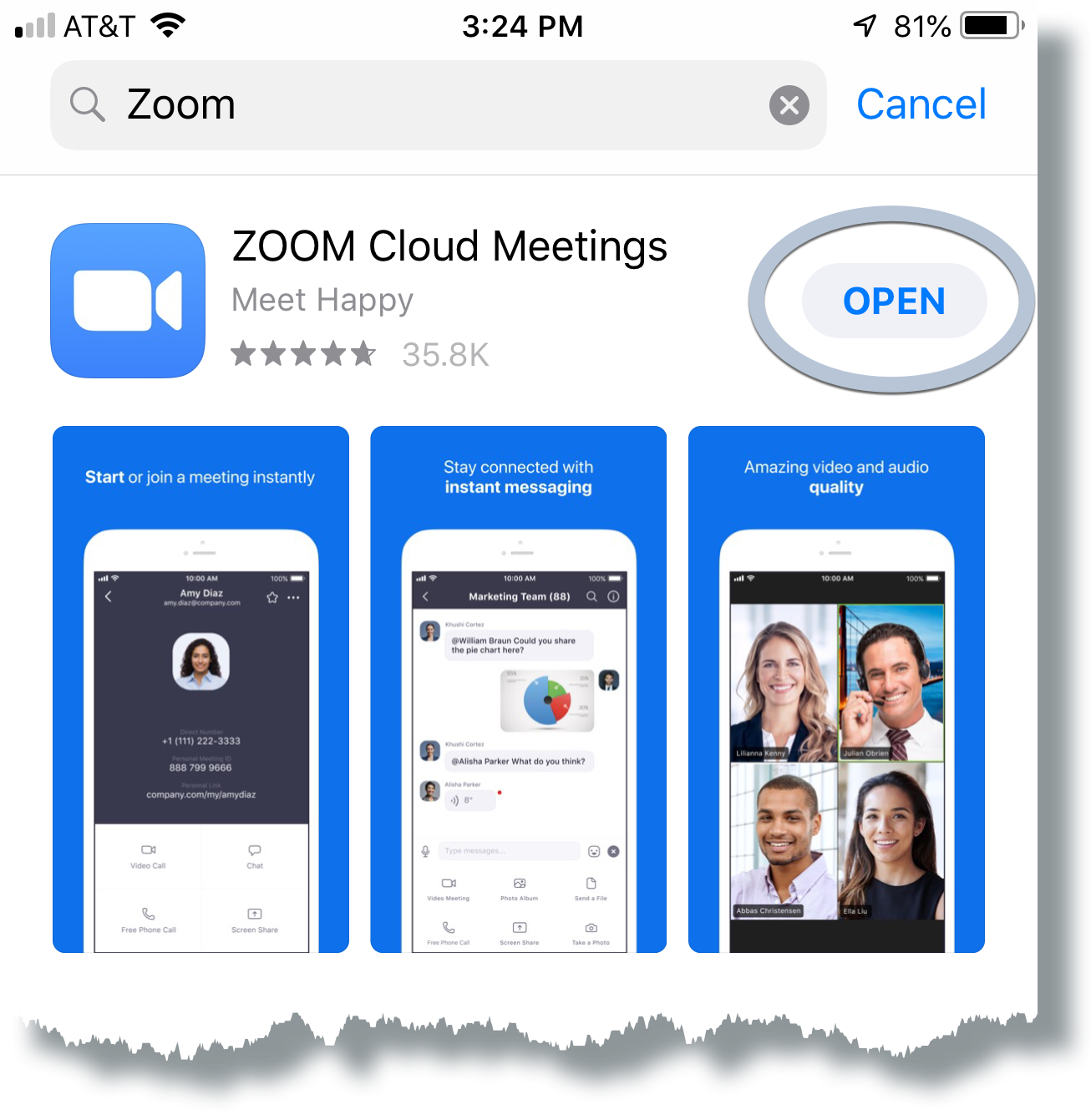
- Open the App Store: Locate and tap on the “App Store” icon on your home screen.
- Search for Zoom: Tap on the “Search” tab at the bottom of the screen and type “Zoom Cloud Meetings” into the search bar.
- Download and Install: Find the official Zoom Cloud Meetings app (usually by Zoom Video Communications, Inc.) and tap the “Get” button. You may need to authenticate with your Apple ID password, Face ID, or Touch ID.
- Launch the App: Once installed, the Zoom icon will appear on your home screen. Tap it to open the application.
For Android Devices:
- Open the Google Play Store: Locate and tap on the “Play Store” icon on your device.
- Search for Zoom: Tap on the search bar at the top and type “Zoom Cloud Meetings.”
- Download and Install: Find the official Zoom Cloud Meetings app and tap the “Install” button.
- Launch the App: After installation, the Zoom icon will be added to your app drawer or home screen. Tap it to open.
On mobile, you’ll also have options to “Join a Meeting” or “Sign In.” The mobile app provides a streamlined experience for joining meetings quickly and efficiently.
Beyond Installation: Leveraging Zoom for Enhanced Communication
Once Zoom is installed, its true power lies in its versatile features that cater to a wide spectrum of needs. This extends beyond simple video calls and touches upon aspects of technology trends, digital security, and even personal branding.
Maximizing Your Zoom Experience: Features and Settings
While joining a meeting is the primary goal for many, understanding Zoom’s capabilities can significantly enhance your experience.
Preparing for Your First Meeting
- Test Your Audio and Video: Before joining an important meeting, it’s wise to test your microphone and camera. Within the Zoom client, navigate to your settings and find the “Audio” and “Video” sections. You can perform test calls to ensure everything is working correctly. This is crucial for avoiding embarrassing technical glitches during critical moments.
- Familiarize Yourself with Controls: During a meeting, you’ll see a toolbar at the bottom of the screen (or accessible by hovering your mouse). This toolbar includes controls for muting/unmuting your microphone, starting/stopping your video, sharing your screen, inviting others, and accessing the chat. Knowing these controls will make you a more confident participant.
- Explore Virtual Backgrounds: For a touch of professionalism or fun, Zoom offers virtual backgrounds. This feature allows you to replace your actual background with an image or video. Ensure your device meets the minimum requirements for this feature, and experiment with different backgrounds before your meeting. This can be a subtle yet effective way to enhance your personal brand during online interactions.
- Understand Screen Sharing Options: Screen sharing is a powerful tool for presentations and collaborations. You can choose to share your entire desktop, a specific application window, or even a whiteboard. Practice this feature to ensure you can share the correct content smoothly.
Understanding Zoom Account Types and Security
Zoom offers different account types, from the free Basic plan to paid Professional, Business, and Enterprise plans. The free plan has limitations on meeting duration for group meetings (40 minutes) and the number of participants. Paid plans unlock longer meeting durations, more participants, cloud recording, and advanced administrative features.
Digital Security on Zoom: In the age of increasing digital threats, understanding Zoom’s security features is vital. Zoom has significantly invested in enhancing its security protocols.
- Encryption: Zoom offers end-to-end encryption for meetings, which encrypts meeting data and can only be decrypted by the participants. However, this feature is not enabled by default and requires specific settings to be activated. It’s important to understand the implications of different encryption methods offered by Zoom.
- Meeting Passwords: Always enable meeting passwords to prevent unauthorized access. When you schedule a meeting, Zoom automatically generates a password. Ensure you share this password along with the meeting link with your intended attendees.
- Waiting Rooms: The Waiting Room feature allows hosts to control when participants can join the meeting. Attendees are placed in a virtual waiting room until the host admits them. This adds an extra layer of security and control.
- Reporting and Blocking: If you encounter any disruptive or inappropriate behavior, Zoom provides options to report users and block them from future meetings.
Zoom and Your Professional Presence: Personal Branding
In the professional realm, your online presence is increasingly important, and tools like Zoom play a significant role in shaping it. The way you present yourself on Zoom meetings can influence how colleagues, clients, and superiors perceive you.
- Professional Environment: Ensure your background is tidy and professional, or utilize a virtual background effectively. Good lighting is also key to a clear and professional image.
- Attire and Demeanor: Dress as you would for an in-person meeting, and maintain good posture and eye contact with the camera.
- Active Participation: Engage in discussions, ask thoughtful questions, and contribute to the conversation. This demonstrates your interest and expertise.
- Mastering Virtual Collaboration: Proficiency with Zoom’s features, such as screen sharing and collaborative tools, showcases your adaptability and technical competence, which are valuable assets in today’s tech-driven job market.

Conclusion: Embracing Seamless Virtual Connections
Installing Zoom is the first step towards unlocking a world of seamless virtual communication. Whether you’re using it for professional meetings, educational purposes, or personal connections, understanding the installation process and the platform’s features is crucial. As technology continues to evolve, tools like Zoom will remain at the forefront of facilitating interactions, bridging distances, and fostering collaboration. By following this guide, you’re well-equipped to harness the power of Zoom and connect with confidence in the digital age. Remember to always keep your Zoom application updated to benefit from the latest features and security enhancements.
aViewFromTheCave is a participant in the Amazon Services LLC Associates Program, an affiliate advertising program designed to provide a means for sites to earn advertising fees by advertising and linking to Amazon.com. Amazon, the Amazon logo, AmazonSupply, and the AmazonSupply logo are trademarks of Amazon.com, Inc. or its affiliates. As an Amazon Associate we earn affiliate commissions from qualifying purchases.