
In an increasingly digital world, the demand for an uninterrupted and highly customizable media consumption experience has never been greater. YouTube, as the undisputed king of online video, offers a vast ocean of content, but it comes with its own set of limitations – primarily, pervasive advertisements, the lack of background playback without a premium subscription, and restricted download options. This is where community-driven projects like YouTube ReVanced step in, offering a powerful, ad-free alternative that elevates your viewing experience to new heights.
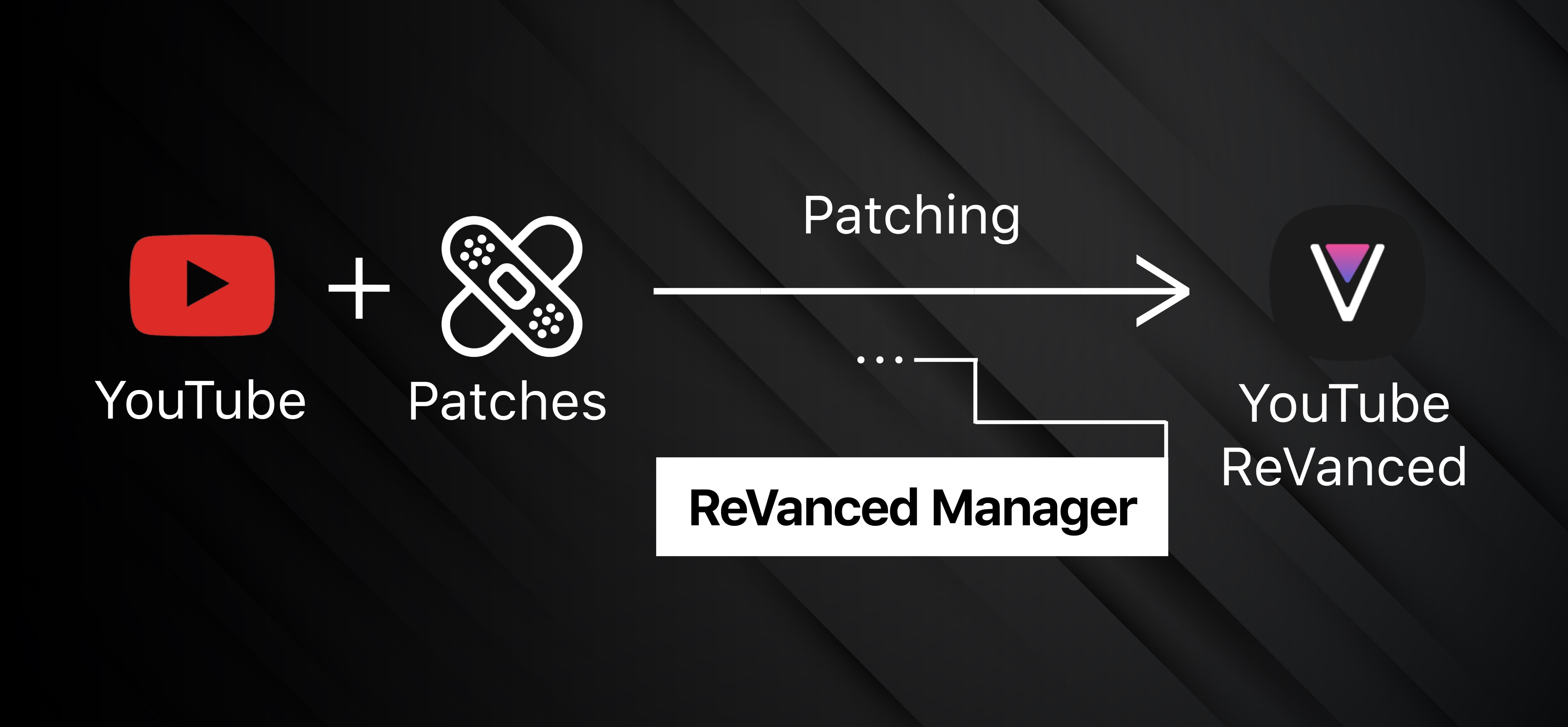
YouTube ReVanced is not just a simple mod; it’s a sophisticated open-source project that allows users to patch the official YouTube application, injecting a plethora of features typically reserved for premium subscribers or simply unavailable. Born from the legacy of the highly popular YouTube Vanced, which ceased operations, ReVanced has quickly become the go-to solution for Android users seeking a superior YouTube experience without paying a subscription. This guide will walk you through the entire process of installing YouTube ReVanced, ensuring you can enjoy your favorite content without interruption.
Understanding YouTube ReVanced: Features and Benefits
YouTube ReVanced represents a paradigm shift in how many users interact with their favorite video platform. It’s a testament to the ingenuity of the open-source community, providing features that significantly enhance usability and user comfort. Before diving into the installation, it’s crucial to understand what makes ReVanced such a compelling choice for millions of Android users worldwide.
A Deep Dive into Enhanced Viewing
At its core, YouTube ReVanced addresses the most common pain points associated with the standard YouTube application. The headline feature, without a doubt, is the advanced ad-blocking capability. This isn’t just about skipping skippable ads; ReVanced effectively blocks all forms of advertisements – pre-roll, mid-roll, and banner ads – ensuring a completely seamless viewing experience. For content creators who rely on ad revenue, this might seem counterintuitive, but for users, it translates into pure, uninterrupted content consumption, which is a significant quality-of-life improvement.
Beyond ad-blocking, ReVanced boasts an impressive array of functionalities designed to cater to diverse user needs. Background playback allows you to continue listening to audio from videos even when the app is minimized or your device’s screen is off. This is a game-changer for listening to music, podcasts, or long-form discussions, effectively turning YouTube into a powerful audio-streaming service. Coupled with this is Picture-in-Picture (PiP) mode, which enables videos to play in a small, resizable window over other apps, facilitating multitasking without missing a beat of your video content.
Beyond Basic YouTube: Why ReVanced Matters
The appeal of YouTube ReVanced extends far beyond just ad-blocking and background play. It incorporates a suite of features that offer a level of customization and control unparalleled by the official app. For instance, SponsorBlock integration automatically skips sponsored segments, intros, outros, and other non-content parts within videos, based on community contributions. This intelligent feature significantly streamlines the viewing experience, allowing you to focus purely on the main content. Similarly, the Return YouTube Dislike feature brings back the public dislike count, offering valuable insight into video quality and community sentiment, a feature removed by YouTube in 2021.
Furthermore, ReVanced provides extensive customization options. Users can choose from various themes, including true black AMOLED options, to reduce eye strain and save battery life on compatible devices. You can force specific video resolutions, tweak playback speed controls, and even block specific sections of videos. For those conscious about data usage, ReVanced offers the ability to download videos directly to your device for offline viewing, bypassing geographical restrictions or the need for a premium subscription. The fact that most of these features are available without requiring root access on your Android device makes ReVanced accessible to a broader audience, solidifying its status as an indispensable tool for maximizing your YouTube experience.
Preparing for Installation: Essential Pre-requisites
Embarking on the journey to install YouTube ReVanced requires a bit of preparation. Since ReVanced is a third-party, modified application, it doesn’t follow the conventional installation process via the Google Play Store. Instead, it involves downloading APK files and using a specialized manager tool. Understanding these prerequisites is vital for a smooth and secure installation.
Device Compatibility and Permissions
First and foremost, YouTube ReVanced is designed for Android devices. While the core concepts might apply to other platforms with similar modding communities, this guide specifically focuses on the Android ecosystem. You’ll need an Android device running a relatively recent version of the operating system, typically Android 8.0 (Oreo) or newer. Older versions might encounter compatibility issues with the latest patches or the ReVanced Manager itself.
A critical step before you begin is to enable “Install unknown apps” or “Unknown sources” on your device. Android’s security measures, by default, prevent the installation of applications from sources other than the Google Play Store. To install the ReVanced Manager, MicroG, and the patched YouTube APK, you’ll need to temporarily bypass this restriction. The exact location of this setting varies slightly depending on your Android version and device manufacturer:
- Android 8.0 and above: Go to
Settings > Apps & notifications > Special app access > Install unknown apps. Here, you’ll grant permission to specific apps (like your web browser or file manager) to install other APKs. - Android 7.0 and below: Go to
Settings > Security > Unknown sourcesand toggle it on.
Remember to disable this setting after successfully installing ReVanced for enhanced security, although it’s generally safe to leave it enabled for trusted apps like your browser if you frequently install APKs.
Security Considerations for Unofficial Apps
Installing unofficial applications like YouTube ReVanced always comes with a degree of risk, and it’s imperative to approach it with caution. The most significant risk factor is downloading malicious APKs. There are many fake or compromised versions of ReVanced (and its predecessor, Vanced) circulating on the internet, designed to inject malware, spyware, or adware onto your device.
To mitigate this risk, always download ReVanced Manager, MicroG, and the YouTube APK from official and reputable sources only. The primary official source for ReVanced Manager is its GitHub repository. For MicroG, the recommended source is also its official GitHub or the Vanced MicroG project. For the stock YouTube APK that you will patch, trustworthy platforms like APKPure or APKMirror are excellent choices. Never download from obscure forums, random websites, or direct links shared without verifiable authentication.
It’s also worth noting that because ReVanced patches the official YouTube app, it needs specific versions of the YouTube APK to work correctly. The ReVanced Manager will often recommend or even allow you to download the compatible version directly. Adhering to these recommendations is crucial to avoid patching failures or app instability. Ensure you have a stable internet connection and sufficient storage space on your device for the downloads and installation process, which typically requires a few hundred megabytes. By prioritizing secure download practices, you can enjoy the benefits of ReVanced without compromising your device’s digital security.
Step-by-Step Guide to Installing YouTube ReVanced
The installation process for YouTube ReVanced, while involving a few steps, is straightforward once you understand the role of each component. The core idea is to download a clean, unmodifed YouTube APK, and then use the ReVanced Manager to “patch” it with the desired features, effectively creating your custom ReVanced app.
Downloading Necessary Components (ReVanced Manager, MicroG)
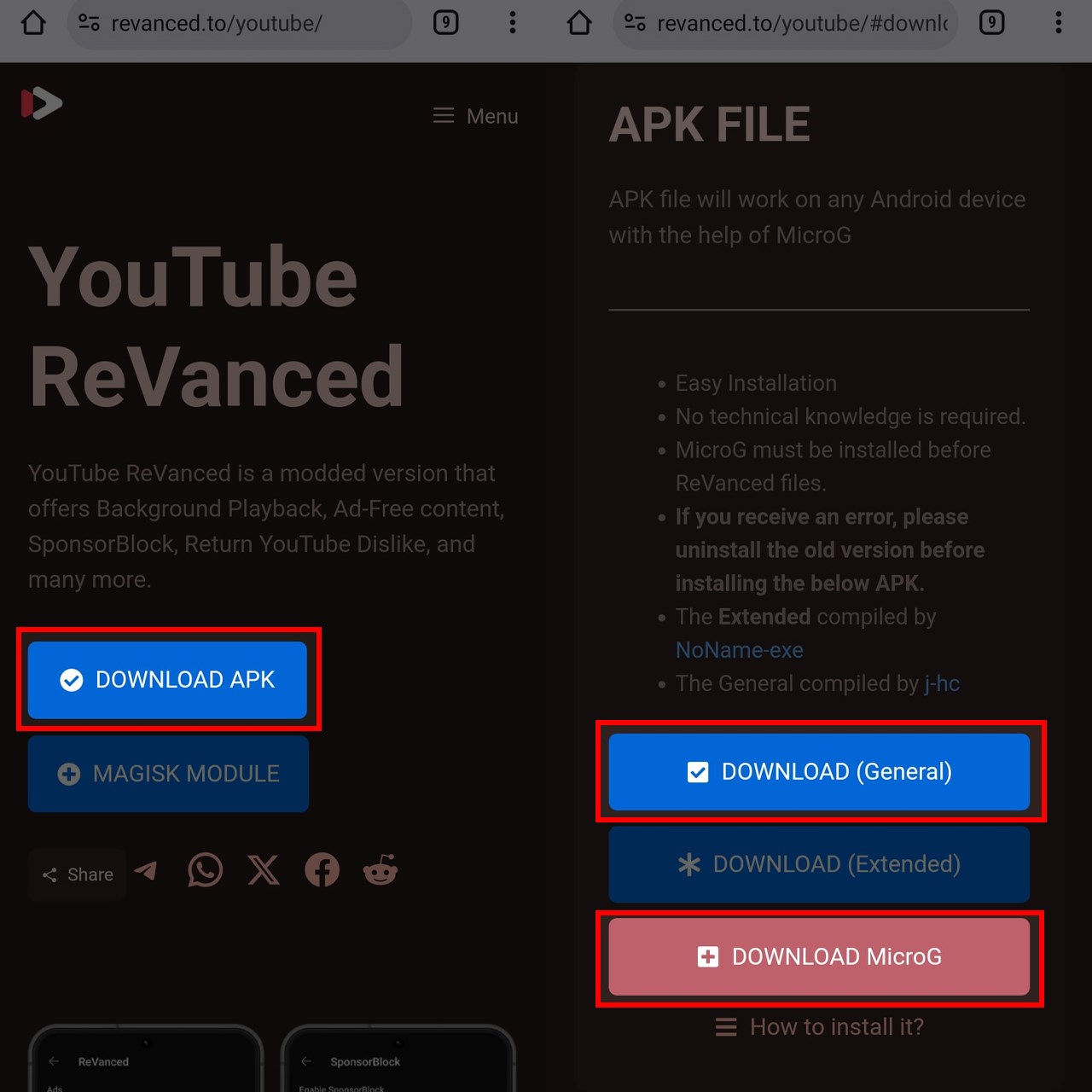
The first step involves acquiring the two foundational components: the ReVanced Manager and Vanced MicroG.
-
Download ReVanced Manager:
- Navigate to the official ReVanced GitHub repository in your web browser. You can typically find this by searching “ReVanced Manager GitHub” on Google.
- Look for the
Releasessection on the GitHub page. - Download the latest stable
.apkfile for the ReVanced Manager. Ensure you’re downloading the correct architecture for your device (usuallyarm64-v8afor most modern Android phones, butarmeabi-v7amight be needed for older or specific devices). - Once downloaded, tap the APK file and install it. If prompted, grant your browser permission to install unknown apps.
-
Download and Install Vanced MicroG (for Google Account Login):
- ReVanced, like its predecessor, requires a way to log into your Google account without relying on the official Google Play Services framework, especially if you’re installing it as a separate app alongside the original YouTube. This is where Vanced MicroG comes in.
- Go to the Vanced MicroG official GitHub repository or search “Vanced MicroG GitHub.”
- Download the latest
.apkfile for Vanced MicroG. - Install it immediately after downloading. This app runs in the background and enables Google account functionality for ReVanced. Do not skip this step if you want to log in to your YouTube account.
-
Download the Original YouTube APK:
- This is crucial: You do NOT download a pre-patched ReVanced APK. Instead, you download a clean, stock version of the YouTube app that ReVanced Manager will modify.
- Open the newly installed ReVanced Manager app.
- Go to the
Patchertab, and thenSelect an application. - ReVanced Manager will suggest the latest compatible YouTube APK version. It might even offer a direct download link.
- If not, manually navigate to a trusted source like APKPure or APKMirror in your browser.
- Search for “YouTube” and find the exact version number recommended by ReVanced Manager. It’s often referred to as a “non-root” version or a specific build number.
- Download the
.apkfile for this specific YouTube version. Do NOT install it yet. Just download it to your device’s storage.
Patching YouTube with ReVanced Manager
With all the necessary files on your device, it’s time to put the ReVanced Manager to work. This is where the magic happens, as the manager will inject the desired features into the stock YouTube APK.
- Open ReVanced Manager: Launch the ReVanced Manager app you installed earlier.
- Navigate to Patcher: Inside the manager, you’ll see several tabs. Tap on the
Patchertab. - Select Application for Patching: Tap
Select an application. - Choose YouTube: In the list of installed apps, find and select
YouTube. If it doesn’t detect your manually downloaded APK, you might need to tap the three-dot menu and select “Storage” to point it to the downloaded YouTube APK file. - Select Patches: After selecting YouTube, you’ll be presented with a list of available patches.
- The manager usually pre-selects recommended patches (e.g.,
Ad-blocking,Background Playback,SponsorBlock,Return YouTube Dislike). - Review these and select any additional patches you desire (e.g.,
Theme,HDR Brightness,Playback speed controls). - It’s generally safe to stick with the default recommended patches for your first installation.
- Once you’ve made your selections, tap
Patch.
- The manager usually pre-selects recommended patches (e.g.,
- Patching Process: The ReVanced Manager will now begin the patching process. This can take a few minutes, depending on your device’s performance and the number of patches selected. You’ll see a progress bar and various logs appearing on the screen. Do not close the app or interrupt the process.
Finalizing the Installation
Once the patching is complete, you’re just one step away from enjoying your ad-free YouTube experience.
- Install the Patched YouTube APK:
- After successful patching, ReVanced Manager will present you with an
Installbutton. Tap this button. - If prompted, grant ReVanced Manager permission to install unknown apps.
- The installation process will begin.
- Important Note: If you want to use the ReVanced app alongside your official YouTube app, ensure that ReVanced is set to install as a separate package. Most ReVanced setups default to this. If you intend for ReVanced to replace your official YouTube app (which is less common and often requires root or a different patching method), you might need to uninstall the official YouTube first. For the typical non-root user, ReVanced installs as a distinct application.
- After successful patching, ReVanced Manager will present you with an
- Launch YouTube ReVanced: Once the installation is complete, you can tap
Opendirectly from the ReVanced Manager, or find the new YouTube ReVanced icon in your app drawer. It often has a slightly modified icon or name to differentiate it from the original YouTube app. - Log In to Your Google Account:
- Open YouTube ReVanced.
- Tap on the profile icon in the top right corner.
- You should see an option to “Sign in.”
- Since Vanced MicroG is installed, you will be directed to a Google login page through MicroG. Enter your Google account credentials.
- Once logged in, your subscriptions, watch history, and personalized recommendations will sync with ReVanced.
Congratulations! You have successfully installed YouTube ReVanced. You can now browse and watch videos without ads, enjoy background playback, Picture-in-Picture mode, and all the other features you’ve patched in.
Troubleshooting Common Issues
Even with a detailed guide, encountering issues during or after the installation of a third-party application like YouTube ReVanced is not uncommon. Here are some of the most frequent problems users face and their respective solutions to help you get back on track.
Addressing Installation Errors
Several errors can prevent ReVanced from installing correctly. Understanding the cause can quickly lead to a fix.
-
“App Not Installed” Error: This is one of the most common issues and can stem from a few different causes:
- Unknown Sources Not Enabled: Double-check that you’ve enabled “Install unknown apps” for the app you’re using to install ReVanced (e.g., your browser for the Manager and MicroG, and the ReVanced Manager itself for the patched YouTube APK). Refer to the “Preparing for Installation” section.
- Conflicting Package: If you’re trying to install the patched ReVanced APK and it has the same package name as the official YouTube app, you might need to uninstall the official YouTube app first. This is less common for non-root installations, which usually install ReVanced as a separate package (e.g.,
com.youtube.revanced). If you specifically patched for a “root” installation or to replace the stock YouTube, ensure the original is gone. - Insufficient Storage: Make sure you have enough free space on your device. Android requires a significant amount of temporary space for app installations. Clear some files or cache if your storage is low.
- Corrupted APK: The downloaded YouTube APK or the patched ReVanced APK might be corrupted. Try redownloading the original YouTube APK from a trusted source (APKPure/APKMirror) and re-patching it.
- Incompatible YouTube APK Version: ReVanced Manager is often very specific about the compatible base YouTube APK version. If you downloaded a different version, patching might fail or result in an app that won’t install. Always use the version recommended by the ReVanced Manager.
- Outdated ReVanced Manager: An old version of ReVanced Manager might not be able to patch newer YouTube APKs or might have bugs. Ensure your ReVanced Manager is up-to-date by downloading the latest version from its GitHub.
-
Patching Failed/Stuck During Patching:
- Internet Connection: Ensure you have a stable internet connection during the patching process, as the manager might need to download additional resources.
- Manager Permissions: Check if ReVanced Manager has the necessary storage permissions. Go to
Settings > Apps > ReVanced Manager > Permissionsand ensure storage access is granted. - YouTube APK Version: Again, an incompatible YouTube APK version is a prime suspect. Verify that the version you downloaded matches the manager’s recommendation.
- Outdated Manager: Update ReVanced Manager.
Post-Installation Fixes and Tips
Even after a successful installation, you might encounter issues during actual usage.
-
Login Issues (Can’t Sign In to Google Account):
- Vanced MicroG Not Installed/Updated: The most common reason for login failures is that Vanced MicroG is either not installed, not updated, or improperly installed. Ensure you’ve downloaded and installed the latest Vanced MicroG APK from its official GitHub.
- MicroG Permissions: Check MicroG’s app permissions in your device settings. Ensure it has all necessary permissions, especially for running in the background.
- Clear Data: Sometimes, clearing the cache and data for both YouTube ReVanced and Vanced MicroG (from
Settings > Apps) can resolve login glitches. You will have to log in again after doing this.
-
YouTube ReVanced Crashing/Freezing:
- Incompatible Patches: If you selected many experimental or custom patches, one of them might be causing instability. Try re-patching with only the essential patches (ad-block, background play) to see if it resolves the issue.
- Clear Cache/Data: As with login issues, clearing the cache and data for YouTube ReVanced can often fix unexplained crashes.
- Outdated Components: Ensure both ReVanced Manager and Vanced MicroG are on their latest versions, and that the base YouTube APK you patched was compatible.
-
Features Not Working (e.g., Ads Still Showing, Background Play Fails):
- Patch Selection: Go back into ReVanced Manager and verify that the specific patches for ad-blocking or background play were indeed selected and successfully applied during the patching process.
- Update: An update to the official YouTube app might have changed something that breaks older ReVanced patches. The solution is usually to download the latest compatible YouTube APK, then re-patch and reinstall ReVanced.
- Device Power Saving Modes: Some aggressive battery optimization settings on certain Android devices can prevent background apps (like ReVanced’s background play) from functioning correctly. Check your device’s battery settings and exclude ReVanced and MicroG from optimization.
-
How to Update YouTube ReVanced:
- Since ReVanced is not on the Play Store, it doesn’t auto-update. To update, you essentially repeat the patching process:
- Download the latest compatible YouTube APK from APKMirror/APKPure.
- Ensure your ReVanced Manager and Vanced MicroG are also updated.
- Open ReVanced Manager, select the downloaded YouTube APK, choose your patches, and
Patchit. - Install the new patched APK. This will overwrite your existing ReVanced installation, retaining your settings and login.
- Since ReVanced is not on the Play Store, it doesn’t auto-update. To update, you essentially repeat the patching process:
By systematically going through these troubleshooting steps, you should be able to resolve most issues and enjoy a stable, feature-rich YouTube experience with ReVanced.
Conclusion: Elevating Your YouTube Experience Responsibly
The journey to installing YouTube ReVanced is an empowering one, granting users unparalleled control over their YouTube viewing experience. By leveraging the ingenuity of the open-source community, you can enjoy content without intrusive advertisements, benefit from background playback, multitask with Picture-in-Picture, and tap into a host of customization options that transform how you interact with one of the internet’s most popular platforms. ReVanced stands as a testament to the ongoing demand for user-centric digital experiences, offering a robust alternative to the official YouTube app’s limitations.
However, the power and flexibility of ReVanced come with a call for responsibility. As a third-party, modified application, its continued functionality relies on the efforts of its volunteer developers and community contributions. It’s crucial to always prioritize digital security by downloading all necessary components—the ReVanced Manager, Vanced MicroG, and the base YouTube APK—exclusively from their official GitHub repositories or other highly reputable sources like APKMirror and APKPure. Avoiding unofficial or suspicious download links is your primary defense against potential malware or corrupted versions that could compromise your device.
Furthermore, staying updated with the latest versions of ReVanced Manager and MicroG is vital for maintaining compatibility and security, ensuring that your patched YouTube app continues to function seamlessly as the official YouTube app evolves. While the installation might seem intricate at first, the long-term benefits of an ad-free, feature-rich YouTube experience far outweigh the initial effort. By following this comprehensive guide and adhering to best practices for unofficial software, you can confidently elevate your digital entertainment, transforming a standard viewing habit into a truly personalized and uninterrupted journey. Embrace YouTube ReVanced, and rediscover your favorite content on your own terms.
aViewFromTheCave is a participant in the Amazon Services LLC Associates Program, an affiliate advertising program designed to provide a means for sites to earn advertising fees by advertising and linking to Amazon.com. Amazon, the Amazon logo, AmazonSupply, and the AmazonSupply logo are trademarks of Amazon.com, Inc. or its affiliates. As an Amazon Associate we earn affiliate commissions from qualifying purchases.