
In the ever-evolving landscape of digital technology, efficiency and robust software management are paramount. For Windows users, the introduction of Winget, the official Windows Package Manager, has been a transformative development. Gone are the days of manually navigating countless websites, downloading executables, and clicking through tedious installation wizards for every piece of software. Winget brings a command-line interface (CLI) approach to software installation, updates, and uninstallation, revolutionizing how users interact with their applications.
This comprehensive guide will walk you through the process of installing Winget, ensuring you can harness its power to streamline your digital life. Whether you’re a casual user looking for a simpler way to manage your apps, an IT professional aiming for consistent deployments, or a developer seeking to automate your setup, Winget is an indispensable tool that aligns perfectly with modern tech trends focusing on productivity, security, and seamless software experiences.
Understanding Winget: The Package Manager for Windows
Before diving into the installation process, it’s crucial to grasp what Winget is and why it has become such a significant tool in the Windows ecosystem. It represents a paradigm shift in how software is distributed and managed on the world’s most popular desktop operating system.
What is Winget and Why Does it Matter?
Winget, short for Windows Package Manager, is a free and open-source command-line tool developed by Microsoft. Its primary function is to simplify the discovery, installation, upgrade, and removal of applications on Windows 10 and Windows 11. Think of it as an “app store” for your command line, allowing you to install a wide range of software, from popular browsers and productivity suites to development tools, with simple text commands.
Why does this matter? The benefits are multi-faceted:
- Productivity Boost: Imagine setting up a new PC or refreshing an existing one. Instead of spending hours manually downloading and installing dozens of applications, Winget allows you to automate this process. You can create scripts to install all your essential software with a single command, dramatically cutting down on setup time. This enhanced productivity frees up valuable time for more critical tasks, whether for personal projects or professional endeavors.
- Digital Security and Integrity: One of Winget’s most significant advantages lies in its approach to software integrity. It primarily sources applications from trusted repositories, including the Microsoft Store, GitHub, and verified publishers. This drastically reduces the risk of downloading malicious or tampered software from questionable websites, thereby bolstering your digital security. For individuals and businesses alike, this layer of assurance is invaluable in protecting against cyber threats.
- Consistency and Control: For IT administrators and professionals managing multiple machines, Winget provides an unprecedented level of consistency. It ensures that specific versions of software are deployed across an organization, standardizing environments and minimizing compatibility issues. This control over software distribution contributes positively to a company’s operational efficiency and technological brand identity.
- Ease of Use for Developers: Developers often require specific tools and environments. Winget simplifies the process of installing compilers, runtime environments, code editors, and other development utilities, making it easier to set up a development workstation or onboard new team members.
The Evolution of Software Management on Windows
Historically, Windows software management has been a somewhat fragmented experience. Users would typically:
- Search online for a specific application.
- Navigate to the developer’s website.
- Download an executable installer (
.exeor.msi). - Run the installer and follow the wizard steps.
- Repeat this process for every single application.
This manual approach was not only time-consuming but also prone to errors, often leading to “downloading the wrong file” or encountering difficulties with updates. While the Microsoft Store offered a more centralized approach for UWP (Universal Windows Platform) apps, it didn’t cover the vast majority of traditional desktop applications.
Winget fills this critical gap, drawing inspiration from package managers prevalent in Linux distributions (like apt or yum) and macOS (Homebrew). It brings a modern, centralized, and command-line-driven approach to Windows, enabling users to manage their software more like code—searchable, scriptable, and reliable. This evolution signifies Microsoft’s commitment to modernizing the user experience and catering to the growing demand for efficient command-line tools among its user base.
Preparing for Installation: Prerequisites and System Requirements
Before you embark on installing Winget, it’s essential to ensure your system meets the necessary prerequisites. While Winget is designed to be broadly compatible, a quick check can prevent potential hiccups during the installation process.
Checking Your Windows Version
Winget is officially supported on Windows 10, version 1709 (build 16299) or later, and Windows 11. Most modern Windows installations will already meet this requirement. However, if you are running an older version of Windows 10, an update might be necessary.
To check your Windows version:
- Press
Windows Key + Rto open the Run dialog. - Type
winverand press Enter. - A small window will appear, displaying your Windows edition, version number, and OS build.
If your version is older than 1709, you should update Windows through Settings > Update & Security > Windows Update to ensure full compatibility and access to the latest features and security patches. Keeping your operating system updated is also a fundamental aspect of digital security, protecting your system from vulnerabilities.
App Installer and Microsoft Store Access
The primary and most recommended method for installing Winget relies on the “App Installer” package, which is distributed through the Microsoft Store. This means you need:
- Access to the Microsoft Store: In most consumer editions of Windows, the Microsoft Store is readily available. If you’re on a corporate network or a highly restricted environment, your IT department might have disabled Store access. In such cases, you might need to use the manual installation method described later.
- A Microsoft Account (Optional but Recommended for Store Functionality): While you don’t strictly need to be logged into a Microsoft account to download free apps like the App Installer, having one ensures full functionality of the Microsoft Store and seamless updates.
No specific “Developer Mode” is required to install Winget itself, unlike some other Windows development features. Winget is a general-purpose tool intended for all users, not just developers.
Step-by-Step: Multiple Ways to Install Winget
There are primarily two reliable methods to install Winget on your Windows machine. The first, and most straightforward, is through the Microsoft Store. The second, manual installation from GitHub, serves as a robust alternative, particularly for users without Store access or those who prefer direct downloads.
The Easiest Route: Via the Microsoft Store (App Installer)
For the vast majority of users, installing Winget via the Microsoft Store is the simplest and most recommended approach. Winget is bundled within the “App Installer” package, which Windows automatically keeps updated.
1. Check for Existing Installation:
Winget might already be installed on your system, especially if you have a recent version of Windows 10 or Windows 11. To check, open Command Prompt or Windows PowerShell and type:
winget --version
If you see a version number (e.g., 1.6.2771), Winget is installed, and you’re good to go! If you receive an error like 'winget' is not recognized as an internal or external command, then you need to install it.
2. Update App Installer from the Microsoft Store:
Even if Winget isn’t directly recognized, it’s possible the “App Installer” is present but outdated.
- Open the Microsoft Store application.
- In the search bar, type
App Installerand press Enter. - Select the “App Installer” entry from the search results. It should be published by “Microsoft Corporation.”
- On the App Installer page, if you see an “Update” button, click it. If you see “Open” or “Install,” proceed with that. The Store will download and install the latest version, which includes Winget.
3. Direct Download Link (if the above doesn’t work):
Sometimes, searching the Store directly might be slow or return many results. You can use a direct link:
- Open your web browser and go to the official App Installer page on the Microsoft Store: https://www.microsoft.com/store/productId/9NVVNP1L4Z
- Click the “Get” or “Install” button. This will launch the Microsoft Store app and take you directly to the App Installer page.
- Click “Update” or “Install” from within the Store.
After the installation or update is complete, close and reopen your Command Prompt or PowerShell window, then run winget --version again to confirm. You should now see the version number.
Manual Installation from GitHub
This method is ideal for users who:
- Do not have access to the Microsoft Store (e.g., corporate environments with strict policies).
- Need a specific version of Winget that might not be immediately available through the Store.
- Prefer direct control over their installations.
1. Navigate to the Official Winget GitHub Repository:
Winget is open-source, and its releases are hosted on GitHub.
- Open your web browser and go to the official Winget releases page: https://github.com/microsoft/winget-cli/releases
2. Download the Latest Stable Release:
- On the releases page, look for the most recent stable release. This will typically be labeled “Latest release” or have a version number that doesn’t include “pre-release” or “beta.”
- Scroll down to the “Assets” section for that release.
- Look for a file named
Microsoft.DesktopAppInstaller_X.X.X.X_8wekyb3d8bbwe.msixbundle(whereX.X.X.Xis the version number). This is the bundled installer package. - Click on the
.msixbundlefile to download it.
3. Run the Installer:
- Once the download is complete, locate the
.msixbundlefile (usually in yourDownloadsfolder). - Double-click the file. This will open the “App Installer” dialog.
- Click “Update” or “Install” (depending on whether you have an older version or no version installed).
- Windows will then install or update the App Installer package, which includes Winget.
After the installation, as before, close and reopen your Command Prompt or PowerShell window and run winget --version to verify the installation.
Verifying and Getting Started with Winget
Once Winget is successfully installed, the real power begins. Verifying its presence and learning a few basic commands will quickly get you up and running, ready to enhance your productivity.
Confirming Successful Installation
The definitive way to confirm Winget’s installation is through your command line.
- Open
Command PromptorWindows PowerShell(search forcmdorpowershellin the Start Menu). - Type the following command and press Enter:
bash

winget --version
If you see a version number (e.g.,v1.6.2771or similar), congratulations! Winget is successfully installed and ready for use.
If you receive an error message like'winget' is not recognized as an internal or external command, operable program or batch file, it means the installation was not successful, or your PATH environment variable hasn’t updated. In this case, try restarting your computer, or revisit the installation steps.
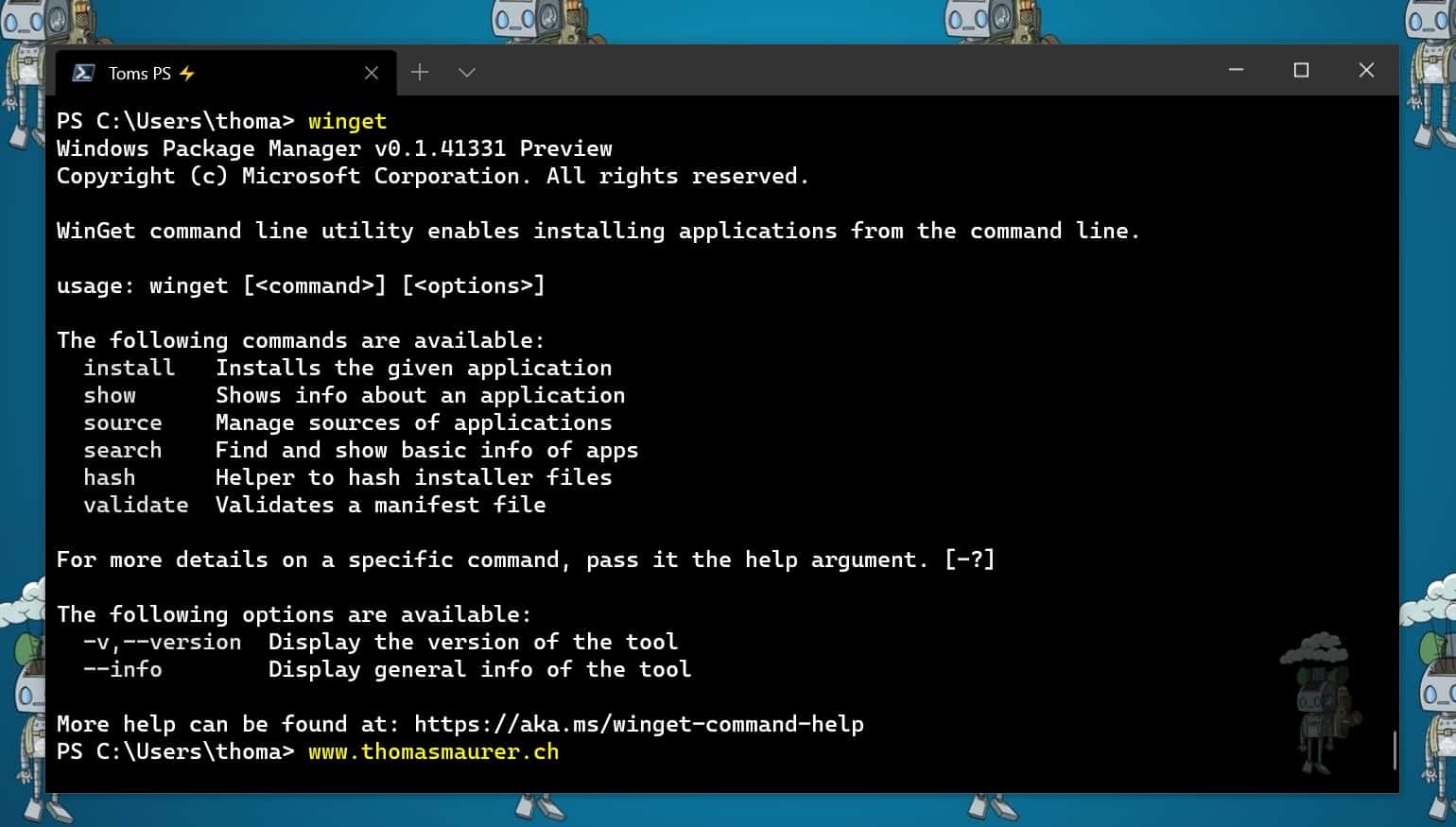
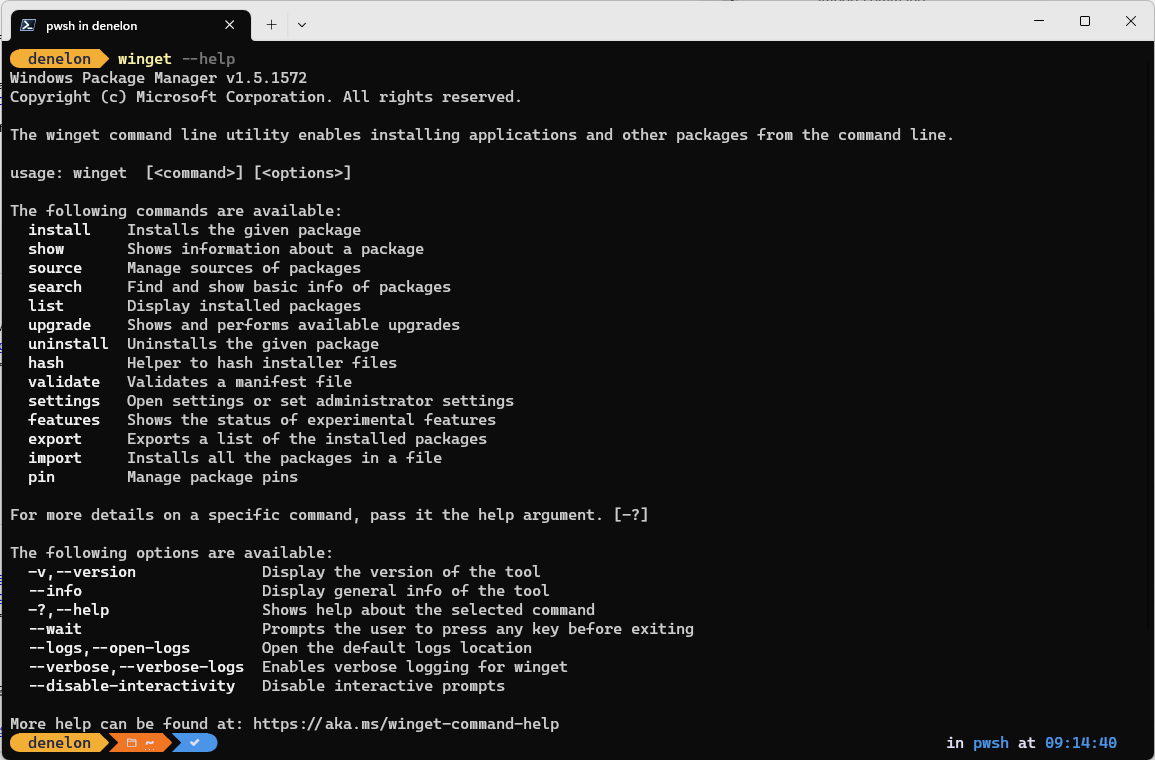
You can also get a list of all available Winget commands by simply typing winget and pressing Enter. This will display a help message with various commands and their descriptions.
Your First Commands: Searching and Installing Software
With Winget confirmed, let’s explore its core functionality: finding and installing applications.
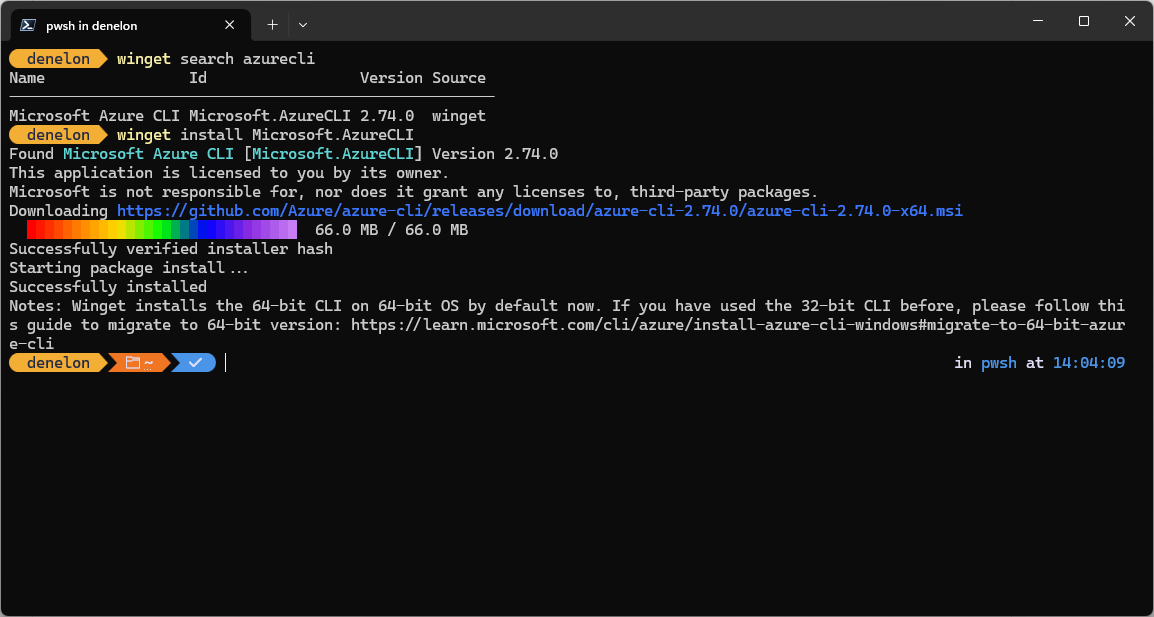
1. Searching for Software (winget search)
To find an application, use the search command followed by the application’s name or a keyword.
- Suppose you want to install Visual Studio Code. You could search for it:
bash

winget search "visual studio code"
Or even a broader term:
bash

winget search code
Winget will return a list of matching applications, showing their ID, Name, Version, and Source. The “ID” is crucial as it’s what you’ll use for installation.
2. Installing Software (winget install)
Once you’ve identified the application’s ID from the search results, you can install it using the install command.
- To install Visual Studio Code (assuming its ID is
Microsoft.VisualStudioCode):
bash

winget install Microsoft.VisualStudioCode
Winget will then download the installer, run it silently (in most cases), and install the application. You’ll typically see progress indicators in your terminal. Accept any prompts that appear.
Example Installation:
Let’s install the popular browser Mozilla Firefox:
- Search:
winget search firefox
(You’d likely see an entry likeMozilla.Firefox) - Install:
winget install Mozilla.Firefox
It’s that simple! No browser tabs, no download folders, just a quick command.
Essential Winget Commands for Productivity
Winget isn’t just for installing; it’s a complete package manager. Mastering a few more commands will significantly enhance your productivity and software management capabilities.
-
Listing Installed Applications (
winget list):
To see all applications Winget is aware of on your system (including those installed manually that it can track):winget listYou can also filter this list:
winget list firefox -
Upgrading Software (
winget upgrade):
Keeping your software updated is vital for digital security and accessing new features.- To see which of your installed applications have updates available:
bash

winget upgrade
- To upgrade a specific application (e.g., Visual Studio Code):
bash

winget upgrade Microsoft.VisualStudioCode
- To upgrade all applications that have available updates (a huge time-saver!):
bash

winget upgrade --all
This command alone makes Winget an invaluable tool for maintaining a healthy and secure system.
- To see which of your installed applications have updates available:
-
Uninstalling Software (
winget uninstall):
Just as easily as you install, you can remove applications.- To uninstall an application (e.g., Microsoft Teams, if you prefer another communication tool):
bash

winget uninstall Microsoft.Teams
Winget will trigger the uninstallation process, often silently.
- To uninstall an application (e.g., Microsoft Teams, if you prefer another communication tool):
These commands form the backbone of efficient software management on Windows, providing unparalleled control and automation right from your command line.
Maximizing Productivity and Security with Winget
Winget is more than just a convenience; it’s a strategic tool for enhancing productivity, bolstering digital security, and even contributing to a professional brand image. Integrating Winget into your daily routine or organizational workflow can yield significant benefits.
Streamlining Your Workflow: Batch Installations and Automation
The true power of Winget lies in its scriptability, enabling automation that can revolutionize how you set up and maintain your systems.
-
New PC Setup: Imagine getting a new computer. Instead of spending hours downloading and installing your essential software one by one, you can create a simple text file (e.g.,
setup.ps1for PowerShell orsetup.cmdfor Command Prompt) containing all yourwinget installcommands.# setup.ps1 example winget install --id Microsoft.VisualStudioCode --accept-package-agreements --silent winget install --id Google.Chrome --accept-package-agreements --silent winget install --id 7zip.7zip --accept-package-agreements --silent winget install --id Microsoft.PowerToys --accept-package-agreements --silent # ...add all your other appsRunning this script with a single command will install all your favorite applications automatically. This is a massive time-saver for personal use and even more so for IT professionals setting up multiple machines.
-
Configuration as Code: For developers and system administrators, Winget facilitates “configuration as code” principles. You can version control your software installation scripts alongside your other project files, ensuring consistent development environments across teams or machines. This minimizes “it works on my machine” issues and streamlines onboarding for new team members.
-
Regular Maintenance Scripts: Combine
winget upgrade --allinto a scheduled task or a simple script that you run periodically. This ensures all your applications are always up-to-date, reducing manual intervention and increasing system stability and security.
Ensuring Software Integrity and Digital Security
In an age rife with malware, phishing, and software vulnerabilities, the source of your applications is paramount. Winget significantly contributes to your digital security posture.
- Trusted Sources: Winget’s official repositories prioritize validated and trusted sources. When you install software via Winget, you’re typically downloading it directly from the publisher’s official website or the Microsoft Store, both of which are carefully vetted. This drastically lowers the risk of downloading compromised software, which is a common vector for viruses and other malicious programs.
- Reduced Risk of Adware/Bundled Software: Manual installers from third-party download sites often come bundled with unwanted adware, toolbars, or other bloatware. Winget installations are generally clean, focusing solely on the requested application, thus protecting your system from unnecessary clutter and potential security risks.
- Prompt Updates for Vulnerabilities: Keeping software updated is one of the most effective ways to patch security vulnerabilities. The
winget upgrade --allcommand makes it incredibly easy to ensure all your applications are running their latest, most secure versions, minimizing the window of opportunity for attackers to exploit known weaknesses. This proactive approach to security is crucial for both individual users and organizations.
Winget in a Professional Context: Brand and Efficiency
For businesses and professionals, Winget offers benefits that extend beyond individual productivity, touching upon operational efficiency and even brand reputation.
- Standardized Software Environments: A consistent software environment across an organization is vital. It reduces support tickets, streamlines collaboration, and ensures all employees are working with the same tools and versions. Winget allows IT departments to define and deploy standard software packages across all company devices, contributing to a professional and unified corporate identity. This standardization reflects positively on a company’s technological capabilities and brand.
- Rapid Deployment and Onboarding: For new hires, the setup of their workstation can be a time-consuming process. With Winget, IT can automate the deployment of all necessary professional software, enabling new employees to become productive almost immediately. This efficiency saves valuable company resources (money) and projects an image of a well-organized and technologically advanced company.
- Cost Savings through Automation: Time is money, especially in a business context. The hours saved by automating software installations and updates across an entire fleet of computers translate directly into significant cost savings. Instead of IT personnel spending their days on repetitive software tasks, they can focus on more strategic initiatives, adding greater value to the organization. This efficient allocation of resources directly impacts the bottom line.
- Maintaining a Modern Tech Stack: Winget makes it easier for businesses to keep their software up-to-date, ensuring they leverage the latest features and security improvements. This commitment to a modern and secure tech stack is a strong statement about a company’s brand and its dedication to providing employees with the best tools.
Conclusion: Embracing the Future of Windows Software Management
The installation of Winget marks a significant step towards a more efficient, secure, and streamlined Windows experience. By providing a powerful command-line interface for managing applications, Microsoft has empowered users, developers, and IT professionals to take unprecedented control over their software ecosystem.
From boosting individual productivity through rapid batch installations to fortifying digital security by sourcing from trusted repositories, and even contributing to a cohesive brand image and cost savings for businesses, Winget’s impact is far-reaching. It eliminates the tedious manual processes of the past, allowing you to spend less time managing software and more time on what truly matters.
Embracing Winget is about embracing the future of software management on Windows – a future that is automated, secure, and effortlessly efficient. If you haven’t already, install Winget today and unlock a new level of control and convenience for your Windows environment. Your digital life will thank you for it.
aViewFromTheCave is a participant in the Amazon Services LLC Associates Program, an affiliate advertising program designed to provide a means for sites to earn advertising fees by advertising and linking to Amazon.com. Amazon, the Amazon logo, AmazonSupply, and the AmazonSupply logo are trademarks of Amazon.com, Inc. or its affiliates. As an Amazon Associate we earn affiliate commissions from qualifying purchases.