
The Lenovo ThinkStation P500 has long been celebrated as a legendary workhorse in the world of professional computing. Built with a robust chassis and equipped with high-performance Intel Xeon processors, it was designed to handle demanding tasks ranging from 3D rendering to complex data analysis. However, as Microsoft transitioned to Windows 11, many P500 owners found themselves facing a significant roadblock: the hardware technically falls short of Microsoft’s stringent official requirements, specifically regarding the CPU generation and TPM 2.0.
Despite these hurdles, the P500 remains a powerhouse that outperforms many modern budget laptops. In this guide, we will explore how to install Windows 11 on your Lenovo P500, bridging the gap between legacy hardware and modern software. We will also examine how this upgrade serves your financial goals, bolsters your professional brand, and keeps your tech stack at the cutting edge.

Understanding the Lenovo P500 Hardware vs. Windows 11 Requirements
Before diving into the installation process, it is crucial to understand why the Lenovo P500 isn’t “officially” supported. Windows 11 requires a TPM 2.0 module, Secure Boot capability, and a processor from a specific list (generally Intel 8th Gen or newer).
The Lenovo P500 typically features Intel Xeon E5-1600 or E5-2600 v3/v4 processors. While these CPUs are incredibly capable, they are categorized as “legacy” by Microsoft. Furthermore, the P500 usually comes with TPM 1.2 rather than the required TPM 2.0.
Why the P500 Still Matters in the Tech Landscape
From a Technology Trends perspective, the P500 represents the peak of modular workstation design. It features a “Flex” system that allows for easy swaps of power supplies, drives, and specialized cards. By installing Windows 11, you aren’t just putting a new skin on an old machine; you are enabling access to the latest software optimizations, improved memory management, and modern security protocols that older operating systems lack.
The Digital Security Factor
One of the main pillars of modern tech is Digital Security. Windows 10 is approaching its end-of-life for support, meaning security patches will eventually cease. Moving your P500 to Windows 11 ensures you continue to receive critical updates, protecting your personal data and professional intellectual property.
Why Upgrading Legacy Hardware is a Smart Financial Move
In the realm of Personal Finance and Investing, the concept of ROI (Return on Investment) is king. A brand-new workstation with equivalent power to a fully spec’d P500 could cost anywhere from $1,500 to $3,000. By spending a few hours to install Windows 11 on your existing machine, you are essentially “saving” that capital for other investments or side hustles.
Extending Asset Life
From a Business Finance standpoint, hardware depreciation is a real concern. By extending the life of your Lenovo P500 through a software upgrade, you reduce electronic waste and maximize the utility of your initial purchase. This is a classic “frugal tech” move that allows entrepreneurs and freelancers to allocate their budget toward marketing or brand development rather than recurring hardware costs.
Boosting Productivity and Online Income
Windows 11 introduces features like Snap Layouts and improved multi-monitor support, which are vital for Productivity. If you use your P500 for a Side Hustle—such as video editing, stock trading, or software development—the improved workflow efficiency of Windows 11 can directly translate into higher hourly earnings and a more streamlined business operation.
Step-by-Step Guide: Bypassing Restrictions and Installing Windows 11
Since the Lenovo P500 does not meet the official requirements, we must use a “bypass” method. The most reliable way to do this is by creating a modified installation media using a tool called Rufus.
Step 1: Prepare Your Hardware
Before starting, ensure your Lenovo P500 is optimized:
- RAM: Ensure you have at least 16GB (the P500 supports much more).
- Storage: Windows 11 runs best on an SSD. If you are still using a mechanical HDD, this is the perfect time to upgrade to a SATA or NVMe SSD (via a PCIe adapter).
- Backup: Save all critical data to an external drive or cloud service.

Step 2: Create the Modified Bootable USB
- Download the official Windows 11 ISO from Microsoft’s website.
- Download Rufus (a free, open-source tool).
- Insert a USB drive (8GB or larger) into another PC.
- In Rufus, select your USB drive and the Windows 11 ISO.
- Crucial Step: A “Windows User Experience” window will pop up. Check the boxes that say:
- Remove requirement for 4GB+ RAM, Secure Boot, and TPM 2.0
- Remove requirement for an online Microsoft account
- Click “Start” to create the drive.
Step 3: Configure the Lenovo P500 BIOS
- Restart your P500 and tap F1 to enter the BIOS (Setup).
- Navigate to the Security tab and ensure TPM (or Security Chip) is enabled, even if it is version 1.2.
- Go to the Startup tab. Ensure UEFI is selected (Disable Legacy support if possible).
- Disable CSM (Compatibility Support Module) to ensure a pure UEFI environment.
- Press F10 to save and exit.
Step 4: The Installation Process
- Plug the USB into a blue USB 3.0 port on the P500.
- Tap F12 during startup to enter the Boot Menu and select your USB drive.
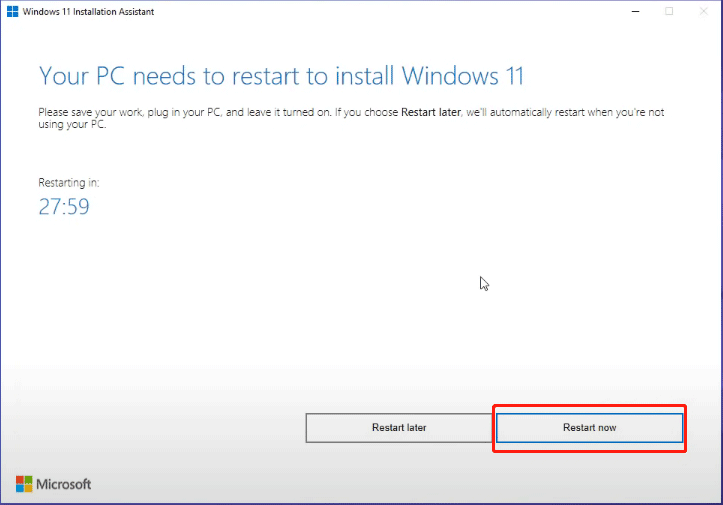
- Follow the Windows installation prompts. Since Rufus removed the hardware checks, the installer will not block you for having an older CPU or TPM 1.2.
- Choose “Custom: Install Windows only” and format your primary drive for a clean start.
The Branding Advantage: Keeping Your Tech Stack Current
In the world of Personal Branding and Corporate Identity, the tools you use say a lot about your professional standards. If you are a consultant or a creative professional, showing a client a screen share of a modern Windows 11 interface suggests that you are up-to-date with current industry standards.
Reputation and Perception
Using an outdated operating system like Windows 7 or an unpatched version of Windows 10 can inadvertently signal a lack of attention to detail or a disregard for security. By running Windows 11 on your P500, you maintain a “Cutting Edge” Reputation. It demonstrates that you have the technical savvy to maintain high-end equipment rather than simply throwing away functional tech—a trait highly valued in the modern, eco-conscious business world.
Software Compatibility for Brand Design
Modern Design and Marketing tools, such as the latest Adobe Creative Cloud updates or AI-driven apps, are increasingly optimized for Windows 11. To keep your Brand Strategy effective, you need software that doesn’t crash. Windows 11 provides a more stable kernel for these high-performance applications, ensuring your creative workflow remains uninterrupted.
Post-Installation Optimization and Troubleshooting
Once the installation is complete, there are a few final steps to ensure your Lenovo P500 runs Windows 11 smoothly.
Driver Management
While Windows 11 is excellent at finding drivers automatically, the P500 has specific hardware (like the Intel C612 chipset and Xeon-specific features) that might require manual intervention.
- Visit the Lenovo Support site and download the Windows 10 drivers for the P500. Most of these are fully compatible with Windows 11.
- Specifically, update your NVIDIA Quadro or AMD FirePro GPU drivers to the latest available version to ensure Windows 11’s visual effects (Mica and Acrylic) perform well.
Optimizing for Speed
To ensure your “Money-saving” workstation feels like a $2,000 machine:
- Disable Startup Apps: Go to Task Manager and disable unnecessary software from launching at boot.
- Adjust Visual Effects: If the UI feels sluggish, search for “Adjust the appearance and performance of Windows” and select “Adjust for best performance,” then manually re-enable “Smooth edges of screen fonts.”
- Power Plan: Set the power plan to “High Performance” to ensure the Xeon processor isn’t being throttled during heavy workloads.
Conclusion: The Longevity of the Lenovo P500
Installing Windows 11 on a Lenovo P500 is more than just a technical workaround; it is a strategic decision that touches on Technology, Money, and Brand. You are taking a piece of engineering excellence from the past and propelling it into the future.
By following this guide, you have successfully bypassed arbitrary hardware limitations, saved a significant amount of capital, and ensured that your professional workspace remains modern and secure. The Lenovo P500, with its Xeon power and Windows 11’s modern features, remains a formidable tool for anyone looking to maximize their productivity and maintain a professional edge in today’s digital economy.
Whether you are using it for Online Income, Content Creation, or simply as a reliable daily driver, your “new” Windows 11 workstation is a testament to the idea that great hardware never truly goes out of style—it just needs the right software to keep it shining.
aViewFromTheCave is a participant in the Amazon Services LLC Associates Program, an affiliate advertising program designed to provide a means for sites to earn advertising fees by advertising and linking to Amazon.com. Amazon, the Amazon logo, AmazonSupply, and the AmazonSupply logo are trademarks of Amazon.com, Inc. or its affiliates. As an Amazon Associate we earn affiliate commissions from qualifying purchases.