
Baldur’s Gate 3 (BG3) has captivated millions with its rich narrative, complex characters, and unparalleled player choice. But what if you could push the boundaries of this already expansive universe even further? Enter modding – the art of modifying a game to add new features, tweak existing ones, or simply enhance the overall experience. For enthusiasts of technology and digital customization, BG3 modding offers a fascinating deep dive into software manipulation and game enhancement. This guide will walk you through everything you need to know to safely and effectively install mods in Baldur’s Gate 3, transforming your Forgotten Realms adventure into something uniquely yours.

Understanding the World of BG3 Modding
Before we jump into the technical steps, it’s crucial to understand why modding BG3 is such a popular endeavor and what you should consider before you begin. Modding is a testament to the creativity of the player community, extending the life and replayability of a game far beyond its original release.
Why Mod Baldur’s Gate 3?
The reasons for modding are as diverse as the mods themselves. From quality-of-life improvements to entirely new gameplay mechanics, mods offer an unparalleled level of customization.
- Enhanced Gameplay and Quality of Life (QoL): Many mods address minor annoyances or introduce highly requested features not present in the base game. This could include improved inventory management, faster movement speed within the camp, or tweaks to the user interface that make navigation smoother. These QoL mods are often subtle but significantly improve the overall player experience, allowing you to focus more on the story and less on mundane tasks.
- Expanded Content and Customization: Craving more character creation options? Want new spells, classes, or races? Mods deliver. You can find mods that introduce entirely new subclasses, rebalance existing ones, add hundreds of new hair colors or styles, or even implement entirely new items and equipment. This level of content expansion keeps the game fresh and offers new ways to role-play and explore the world of Faerûn.
- Visual Overhauls and Aesthetic Changes: For those who appreciate stunning visuals, modding offers endless possibilities. From high-resolution texture packs to redesigned character models, environmental enhancements, and custom spell effects, aesthetic mods can make Baldur’s Gate 3 look even more breathtaking than it already is. They allow players to tailor the game’s appearance to their personal preferences, creating a truly unique visual experience.
- Bug Fixes and Performance Optimizations: While Larian Studios is diligent with patches, some community-made mods address specific niche bugs or offer performance improvements that might not be prioritized in official updates. These can sometimes lead to a smoother, more stable game, especially on systems that might struggle with the game’s default settings.
- Extending Replayability: Once you’ve explored all the official content, mods breathe new life into the game. With new challenges, stories, and ways to play, mods ensure that your journey through Baldur’s Gate 3 can continue for hundreds, if not thousands, of hours more.
Essential Considerations Before You Begin
While the allure of modding is strong, it’s not without its caveats. A well-prepared modder is a happy modder.
- Backup Your Saves: This is paramount. Mods, especially those that alter core game mechanics, can sometimes lead to save file corruption or unexpected crashes. Before installing any mods, locate your BG3 save files (typically in
C:Users[YourUsername]AppDataLocalLarian StudiosBaldur's Gate 3PlayerProfilesPublicSavegames) and copy them to a safe location. This way, if anything goes wrong, you can revert to your unmodded saves. - Understand Game Updates: Baldur’s Gate 3 receives regular patches and hotfixes. These updates can often break mod compatibility, causing crashes or rendering mods inoperable. It’s good practice to disable mods before an official update, wait for mod authors to update their creations, and then re-enable them. Always check mod pages for compatibility notes after a game update.
- Where to Find Mods: Nexus Mods: The vast majority of Baldur’s Gate 3 mods are hosted on Nexus Mods (nexusmods.com). This platform is the go-to resource for a reason: it’s well-organized, allows for easy downloading, and provides a community hub where you can track updates, report bugs, and communicate with mod authors. Always download mods from reputable sources like Nexus Mods to minimize security risks.
- Read Mod Descriptions Carefully: Before downloading any mod, read its description in full. Mod authors usually provide crucial information about installation methods, compatibility with other mods, required dependencies (like a Script Extender), and potential issues. This diligence can save you hours of troubleshooting later.
The Tools of the Trade: BG3 Mod Manager & Manual Installation
While some simple mods can be installed manually, the recommended and most robust method for managing BGur’s Gate 3 mods is using a dedicated mod manager. This software utility simplifies the process significantly, especially when dealing with multiple mods or those with complex dependencies.
The Recommended Approach: BG3 Mod Manager
The BG3 Mod Manager (often referred to as Larian Mod Manager by the community, though the popular one is developed by LaughingLeader) is an indispensable tool for any serious BG3 modder. It allows for easy installation, uninstallation, and crucially, managing the load order of your mods.
- What it Is and Its Benefits: The BG3 Mod Manager is a standalone application designed to detect and organize mod files (
.pakfiles) for Baldur’s Gate 3. Its primary benefits include:- Ease of Use: A drag-and-drop interface makes adding and organizing mods intuitive.
- Load Order Management: It allows you to manually adjust the order in which mods load, which is critical for preventing conflicts and ensuring mods function correctly. Some mods must load before others.
- Conflict Resolution: While not fully automated, the manager helps visualize potential load order issues and allows you to experiment with different configurations.
- Easy Activation/Deactivation: You can quickly enable or disable individual mods without having to manually move files.
- One-Click Deployment: After arranging your mods, a single click deploys the new mod order to the game.
- Step-by-Step Guide to Downloading and Setting it Up:
- Download from Nexus Mods: Navigate to the BG3 Mod Manager page on Nexus Mods (search for “BG3 Mod Manager” if you can’t find it directly). Look for the “Files” tab and download the latest stable version. Choose the “Manual Download” option.
- Extract the Files: The download will be a compressed archive (e.g., a
.zipfile). Extract its contents to a new, dedicated folder outside of your game directory. A good location would beC:GamesBG3ModManageror similar. Do not extract it into your Baldur’s Gate 3 game folder. - Launch the Manager: Open the extracted folder and run
BG3ModManager.exe. You might be prompted by Windows Defender or similar security software; allow it to run as it’s a legitimate tool. - Set Up Game Data Path: The first time you launch it, the manager might automatically detect your BG3 installation. If not, go to
Settings > Preferencesor look for a prompt asking for the “Game Data Path” or “Game Executable Path.” You’ll need to point it to yourbg3.exefile, which is typically found atC:Program Files (x86)SteamsteamappscommonBaldurs Gate 3bin. For many mods, you will also need to point to thebinfolder for the game’s launcher.
Manual Mod Installation (When Necessary)
While the Mod Manager is the preferred tool, some specific types of mods or very simple ones might require or even be better suited for manual installation. These are typically .pak files that don’t have complex dependencies or don’t modify scripts.
- When to Use Manual Installation:
- For very simple
.pakfiles that only change textures or add a simple item and don’t rely on a specific load order. - When a mod explicitly states it should be installed manually and isn’t compatible with the mod manager.
- As a learning exercise to understand how mods interact with game files, though this is not recommended for beginners.
- For very simple
- General Steps for Manual Installation:
- Locate the Game’s Data Folder: Navigate to your Baldur’s Gate 3 installation directory, usually
C:Program Files (x86)SteamsteamappscommonBaldurs Gate 3Data. - Extract Mod Files: Download your mod (usually a
.pakfile) and place it directly into theDatafolder. Some mods might require specific subfolders, so always refer to the mod author’s instructions. - Load Order (Manual Concern): When manually installing multiple
.pakfiles, their load order is determined by their filename in alphabetical order. This can become very messy and lead to conflicts, which is why the mod manager is superior. - Launch the Game: Launch BG3 as usual. If the mod is correctly installed, it should be active.
- Locate the Game’s Data Folder: Navigate to your Baldur’s Gate 3 installation directory, usually
Warning: Manual installation provides less control and is more prone to conflicts. It’s strongly advised to use the BG3 Mod Manager for the vast majority of mods.
Step-by-Step Guide to Installing Mods with BG3 Mod Manager
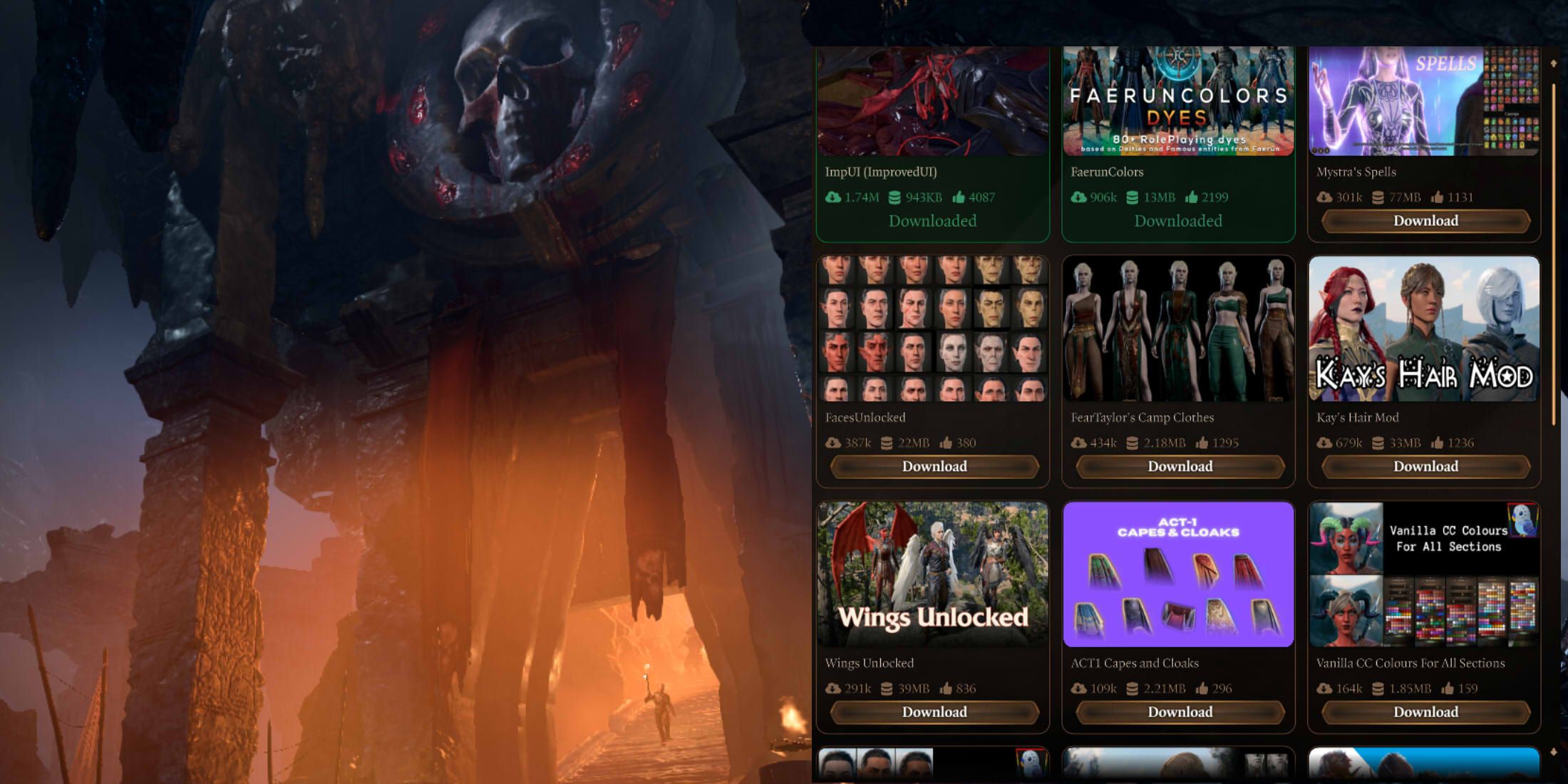
With your BG3 Mod Manager set up, you’re ready to start downloading and installing mods. This process is generally straightforward but requires attention to detail.
Acquiring Your Mods
- Navigate to Nexus Mods: Go to nexusmods.com and search for Baldur’s Gate 3.
- Browse and Select Mods: Use the search filters (e.g., “Top Files,” “New Files,” “Categories”) to find mods that pique your interest.
- Read Descriptions Thoroughly: As mentioned, this is critical. Check for compatibility, requirements (like a Script Extender), and installation instructions.
- Download the Mod File: On the mod page, go to the “Files” tab. Most mods will offer a “Mod Manager Download” option, which is ideal if you’re using a compatible mod manager. If not, choose “Manual Download.” For BG3, most mods are
.zipor.rararchives containing one or more.pakfiles. Download these to a dedicated “BG3 Mods” folder outside of your game directory. This keeps your game clean and organized.
Loading Mods into the Manager
- Open BG3 Mod Manager: Launch
BG3ModManager.exe. - Add Mods: There are several ways to get your downloaded mods into the manager:
- Drag and Drop: The easiest method. Simply drag the
.pakfile (or the.zip/.rarcontaining it, as the manager can often extract it) from your “BG3 Mods” folder directly into the “Inactive Mods” panel on the right side of the Mod Manager window. - File > Open Mod: Go to
File > Open Modand browse to your downloaded.pakfile. - Refresh from Game Directory: If you manually placed
.pakfiles into the game’sDatafolder, you might be able to useFile > RefreshorFile > Import Mods(depending on the manager version) to detect them. However, stick to the drag-and-drop method for best results.
- Drag and Drop: The easiest method. Simply drag the
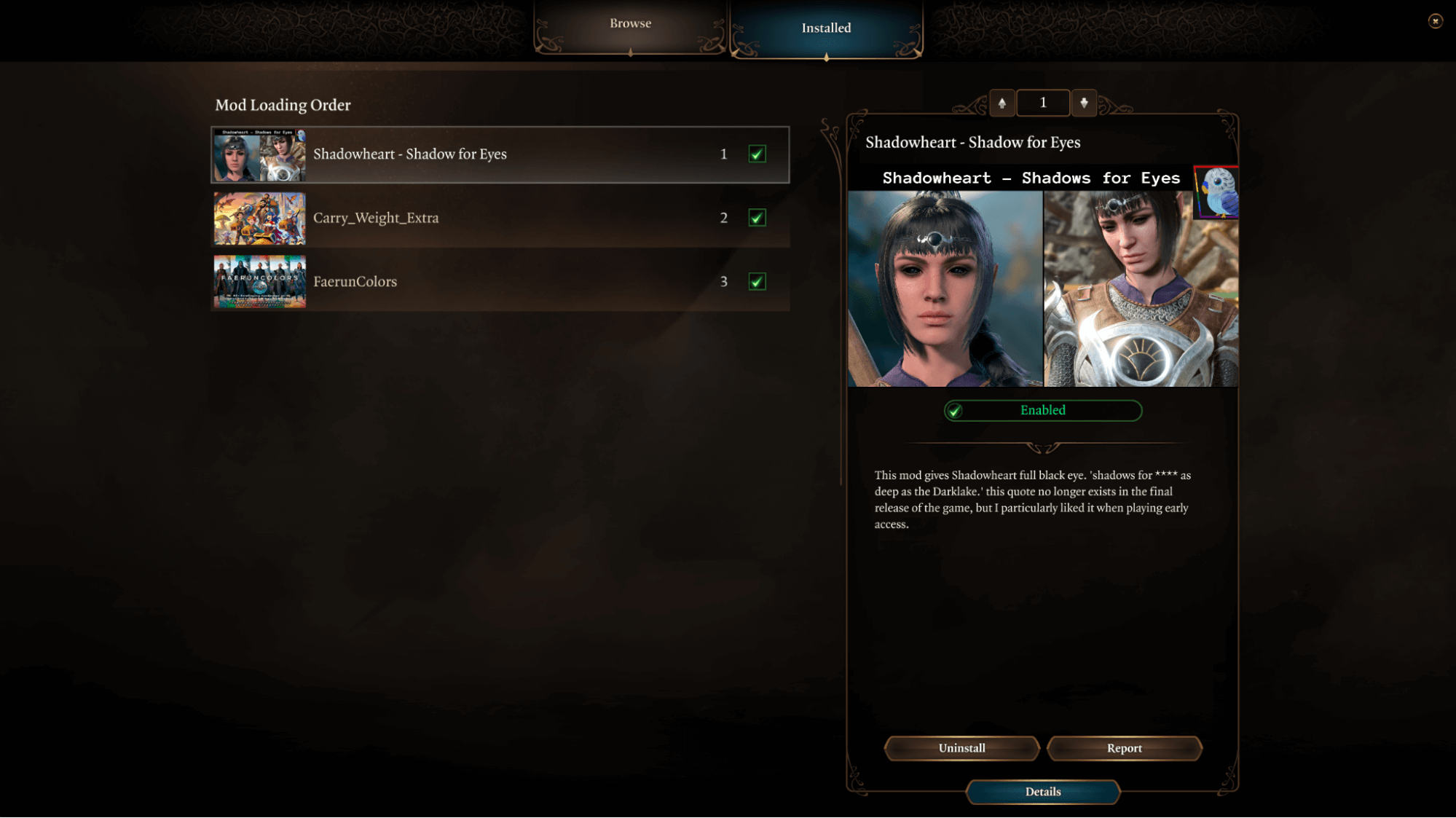
- Activate Mods: Once a mod appears in the “Inactive Mods” panel, click and drag it from the right panel to the “Active Mods” panel on the left. This doesn’t deploy the mod to the game yet, but tells the manager which mods you want active.
- Manage Load Order: This is where the manager shines. The order of mods in the “Active Mods” panel determines their load order in the game. Mods higher up in the list load before mods lower down. If two mods modify the same game asset, the mod that loads later (lower in the list) will generally override the changes made by the mod that loaded earlier.
- Automatic Sorting: The Mod Manager has a
Sortbutton (often represented by an arrow icon) which tries to arrange mods in a logical order. This is a good starting point but doesn’t guarantee perfection. - Manual Adjustment: Always check mod descriptions for specific load order requirements (e.g., “load this mod after [Mod X]”). You can drag and drop mods within the “Active Mods” panel to adjust their positions.
- Automatic Sorting: The Mod Manager has a
Deploying Your Mods
- Export Order to Game: Once you’re satisfied with your active mods and their load order, go to
File > Export Order to Game(orFile > Save Load Orderfollowed byFile > Export Order to Gamein some versions). This action writes the mod list to the game’s configuration file, telling BG3 which mods to load and in what sequence. You should see a confirmation message. - Launch the Game: Close the Mod Manager and launch Baldur’s Gate 3 via Steam, GOG, or its direct executable.
- In-Game Verification: Check if your mods are working. This might involve looking for new character creation options, checking inventory, or observing changes in gameplay based on the mods you installed. If you installed a new class or race, try starting a new game to see if it appears.
Advanced Modding & Troubleshooting
Even with the Mod Manager, modding can sometimes present challenges. Understanding common advanced components and troubleshooting steps will help you resolve most issues.
Script Extender: The Backbone for Complex Mods
Many of Baldur’s Gate 3’s most powerful and transformative mods rely on the BG3 Script Extender. This isn’t a mod itself but a tool that expands the game’s scripting capabilities, allowing modders to implement deeper changes than what standard .pak files allow.
- What it Is and Why It’s Needed: The Script Extender injects code into the game’s executable, enabling features like new spells, complex character abilities, or real-time gameplay alterations. Without it, many advanced mods simply won’t function.
- Installation Process:
- Download: The Script Extender usually has its own dedicated page on Nexus Mods. Download the latest version.
- Automatic Installer (Recommended): Most versions of the Script Extender come with an installer executable (e.g.,
DXGI.dllor similar, sometimes bundled with a separate installer.exe). Simply run the installer, and it will automatically place the necessary files into your game’sbinfolder. - Manual Placement (If Necessary): If there’s no installer, you’ll typically extract the Script Extender files directly into your game’s
binfolder (C:Program Files (x86)SteamsteamappscommonBaldurs Gate 3bin). Always refer to the Script Extender’s specific installation instructions.
- Verification: You can usually tell if the Script Extender is working by starting the game. Many Script Extender-dependent mods will fail to load or cause crashes if it’s missing or outdated. Some Script Extenders also provide a small console window or a notification within the game upon startup.
Common Issues and Solutions
Troubleshooting is an inevitable part of modding. Here are some common problems and how to approach them:
- Game Crashes on Startup/Load:
- Problem: The most common sign of a mod conflict or an outdated/corrupted mod.
- Solution:
- Check Load Order: Revisit the BG3 Mod Manager and review your load order. Look for specific instructions from mod authors.
- Disable Recent Mods: Disable the most recently installed mods one by one until the game launches. This helps isolate the problematic mod.
- Outdated Mods: If the game recently updated, check if your mods and the Script Extender have new versions.
- Verify Game Files: In Steam (or your platform’s equivalent), right-click BG3, go to
Properties > Installed Files > Verify integrity of game files. This will detect and replace any corrupted or missing official game files. This is a good first step if crashes happen after a major game update. - Remove
modsettings.lsx: Sometimes, themodsettings.lsxfile (located inC:Users[YourUsername]AppDataLocalLarian StudiosBaldur's Gate 3PlayerProfilesPublic) can get corrupted. Delete it while the game is closed, then re-export your load order from the Mod Manager.
- Mods Not Appearing/Working In-Game:
- Problem: The mod is installed but isn’t having any effect.
- Solution:
- Ensure Mod is Active: Double-check in the BG3 Mod Manager that the mod is in the “Active Mods” panel and not the “Inactive Mods” panel.
- Export Load Order: Did you remember to
Export Order to Gameafter making changes? This is a common oversight. - Required Dependencies: Does the mod require the Script Extender or another specific mod to function? Re-read the mod description.
- Correct Installation Path: For manual installs, ensure the
.pakfile is in the correctDatafolder. - New Game Required: Some mods (especially those adding new classes/races) only take effect when starting a new game.
- Save File Corruption:
- Problem: Game won’t load a save, or the save appears broken.
- Solution:
- Revert to Backup: Use the save file backups you created before modding.
- Identify Corrupting Mod: If you suspect a specific mod, disable it and try loading an earlier save from before that mod was active.
- Mod Removal Impact: Removing certain mods can make save files that relied on them unplayable. Always be cautious when uninstalling.
- Performance Issues:
- Problem: Lag, low FPS after installing mods.
- Solution:
- Resource-Intensive Mods: High-resolution texture packs or complex scripting mods can impact performance. Try disabling them individually to see the effect.
- Reduce Game Settings: Lowering in-game graphics settings can sometimes compensate for performance heavy mods.
Uninstalling Mods
Just as important as installing them, knowing how to uninstall mods cleanly is vital for maintaining a stable game.
- Using BG3 Mod Manager:
- Deactivate Mod: In the Mod Manager, drag the mod from the “Active Mods” panel back to the “Inactive Mods” panel.
- Export Order: Go to
File > Export Order to Gameto update the game’s mod list. - Delete from Manager (Optional): If you no longer want the mod in your manager, you can right-click it in the “Inactive Mods” panel and choose “Delete from Manager.” This removes it from the manager’s list but does not delete the actual
.pakfile from your storage. You’ll need to manually delete the.pakfile from your “BG3 Mods” folder if you want it gone completely.
- Manual File Removal: If you installed a mod manually, you’ll need to manually delete its
.pakfile (and any other associated files) from your game’sDatafolder or wherever you placed them. - Impact on Save Files: Be aware that uninstalling a mod, especially one that adds new items, spells, or changes core systems, can render save files that used those features unplayable. It’s often safer to finish a playthrough with the mods you started with, or to start a new game after significant mod changes.
Conclusion
Modding Baldur’s Gate 3 opens up a vast new world of possibilities, allowing you to tailor your adventure to your precise preferences. From subtle quality-of-life tweaks to grand expansions of content and breathtaking visual overhauls, the BG3 modding community continually pushes the boundaries of what’s possible. By understanding the tools, following best practices, and approaching the process with a methodical mindset, you can unlock an even richer, more personalized experience in Faerûn.
This comprehensive guide, rooted in technological best practices for software customization, equips you with the knowledge to confidently navigate the world of BG3 mods. Remember to always backup your saves, meticulously read mod descriptions, and leverage the power of the BG3 Mod Manager. Embrace the journey of discovery, and let your creativity flourish as you enhance one of the greatest RPGs of our time. Happy modding, adventurer!
aViewFromTheCave is a participant in the Amazon Services LLC Associates Program, an affiliate advertising program designed to provide a means for sites to earn advertising fees by advertising and linking to Amazon.com. Amazon, the Amazon logo, AmazonSupply, and the AmazonSupply logo are trademarks of Amazon.com, Inc. or its affiliates. As an Amazon Associate we earn affiliate commissions from qualifying purchases.