
For dedicated players of The Sims 4, the vast world of custom content and modifications (mods) offers an unparalleled opportunity to enrich their gameplay experience. Among these, “Wicked Whims” stands out as one of the most popular and comprehensive adult-oriented mods, designed to add a significant layer of realism, depth, and mature themes to character interactions. While its popularity is undeniable, Mac users often face unique challenges when navigating the intricacies of mod installation, given the differences in file systems and common online tutorials often geared towards Windows. This guide aims to demystify the process, providing a professional, insightful, and engaging step-by-step walkthrough for installing Wicked Whims on your macOS system, ensuring a smooth and successful integration into your Sims 4 universe.
Understanding Wicked Whims and The Sims 4 Modding Ecosystem
Before diving into the installation process, it’s crucial to grasp what Wicked Whims entails and how it fits into the broader Sims 4 modding landscape. This foundational understanding will prepare you for a more informed and successful installation.
What is Wicked Whims?
Wicked Whims is a large, highly detailed, and continuously updated script mod for The Sims 4, developed by TURBODRIVER. Its primary purpose is to introduce a wide array of realistic and mature animations, interactions, and systems related to romance, sexuality, and bodily functions into the game. Unlike many visual-only mods, Wicked Whims integrates deep gameplay mechanics, including attraction systems, menstrual cycles, pregnancy risks, and various animations that significantly alter the social and romantic dynamics between Sims. Due to its explicit content, it is strictly intended for adult players and fundamentally changes the tone of the game, making it far more lifelike in specific regards. Understanding its nature is paramount, as it’s not a casual addition but a transformative modification requiring careful consideration.
The Basics of Sims 4 Modding
The Sims 4 is designed with a degree of modding in mind, primarily through its “Mods” folder located within your game directory. Most mods, including Wicked Whims, consist of .package files (containing custom assets like objects, textures, or animations) and .ts4script files (containing actual code that alters game mechanics). Script mods, like Wicked Whims, are more complex as they introduce new behaviors and functionalities, making them more susceptible to game updates and compatibility issues. The game loads these files upon launch, integrating them into the existing game environment. Successful modding hinges on placing these files correctly and ensuring that the game is configured to recognize and utilize them.
Compatibility and System Requirements
While Wicked Whims is developed for The Sims 4 across all supported platforms, Mac users need to pay attention to a few specifics. The mod itself doesn’t impose significant additional system requirements beyond what The Sims 4 already demands. However, ensuring your game is fully updated to the latest patch is critical. Wicked Whims is regularly updated to maintain compatibility with the latest official game versions; an outdated game or mod can lead to crashes, glitches, or the mod simply not appearing. For Mac users, ensure your macOS version is sufficiently modern to run the latest Sims 4 client, and always double-check the Wicked Whims official download page for any specific system notes or compatibility warnings related to macOS versions. Regularly checking the mod’s official website for updates is a best practice to maintain stability and access new features.
Essential Preparations Before Installation
A successful mod installation, especially for a comprehensive one like Wicked Whims, relies heavily on thorough preparation. Skipping these crucial steps can lead to lost game progress, instability, or a failed installation.
Backing Up Your Sims 4 Saves
This is arguably the most critical step before introducing any significant mod to your game. Modifying game files always carries a slight risk, and while Wicked Whims is generally stable, unexpected conflicts or errors can occur. Backing up your The Sims 4 folder, particularly the Saves and Tray subfolders, ensures that if anything goes wrong, you can revert to a previous state of your game without losing hours of progress, meticulously built lots, or beloved Sims. On a Mac, the Sims 4 game folder is typically located at Documents/Electronic Arts/The Sims 4. Simply copy this entire folder to another secure location on your hard drive, like your Desktop or an external drive, before proceeding.
Enabling Mods and Script Mods In-Game
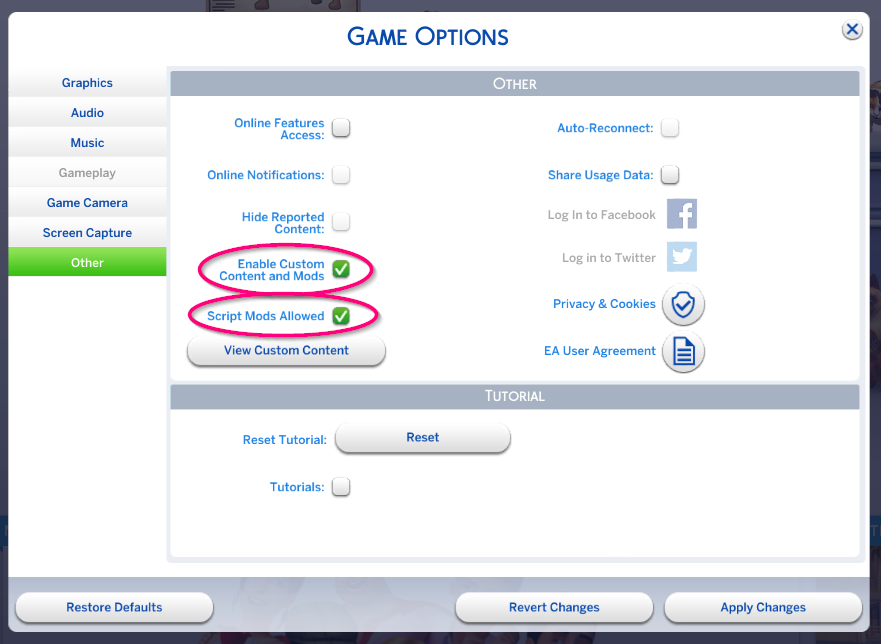
The Sims 4 has built-in toggles that allow custom content and script mods to run. By default, these might be disabled, preventing any mods from loading. Before installing Wicked Whims, you must enable them within the game settings.
-
Launch The Sims 4.
-
From the main menu, navigate to
Game Options. -
Select the
Othertab. -
Ensure both
Enable Custom Content and ModsandScript Mods Allowedare checked. -
Apply Changes and restart your game. This step is non-negotiable for Wicked Whims to function.
Acquiring Necessary Software
While macOS has a built-in unarchiver, it might not always handle .zip or .rar files from modding communities optimally. Many modders use specific compression methods. It’s highly recommended to use a dedicated, robust unarchiving tool. Free and reliable options for Mac include Keka or The Unarchiver. Download and install one of these applications before you download the mod itself; this will ensure you can extract the mod files correctly without corruption or errors.
Locating Your Sims 4 Game Folder
Knowing the exact path to your Sims 4 game folder is fundamental for proper mod installation. All custom content and script mods typically reside within the Mods subfolder inside your main Sims 4 directory. On macOS, this path is consistently:
~/Documents/Electronic Arts/The Sims 4/
Within this folder, you will find the Mods folder. If for some reason, the Mods folder is missing (which is rare if you’ve ever launched the game), simply create a new folder named Mods (case-sensitive) within The Sims 4 directory. You might also want to create a subfolder within Mods specifically for Wicked Whims to keep your mod collection organized, e.g., ~/Documents/Electronic Arts/The Sims 4/Mods/WickedWhims.
Step-by-Step Installation of Wicked Whims
With all preparations complete, you are now ready to proceed with the core installation of Wicked Whims. Precision and attention to detail are key during this stage.
Downloading the Wicked Whims Mod
Always download Wicked Whims directly from the official website: wickedwhims.com. Avoid third-party sites, as they may host outdated, corrupted, or even malicious versions of the mod.
-
Navigate to
wickedwhims.com. -
Look for the
Downloadsection, usually prominently displayed. -
Select the latest version of the mod that is compatible with your current Sims 4 game patch. The site usually clearly indicates compatibility.
-
Click the download link. The mod will likely download as a
.zipor.rararchive file. Store it in a readily accessible location, such as yourDownloadsfolder or a dedicatedSims 4 Modsfolder you’ve created.
Extracting the Mod Files
This is where your chosen unarchiving tool comes into play.
-
Locate the downloaded Wicked Whims archive file (e.g.,
WickedWhims_X_X_X.zip). -
Right-click on the archive file.
-
Select
Open Withand choose your preferred unarchiver (e.g., Keka or The Unarchiver). -
The tool will extract the contents of the archive into a new folder, usually in the same directory as the original
.zipfile. This extracted folder will contain various.packageand.ts4scriptfiles, along with potentially other subfolders or documentation. Do not extract the mod directly into your Sims 4 Mods folder, as this can sometimes create an extra layer of folders that the game cannot read.
Placing Files into the Mods Folder
Now, you need to move the extracted files into the correct game directory.
-
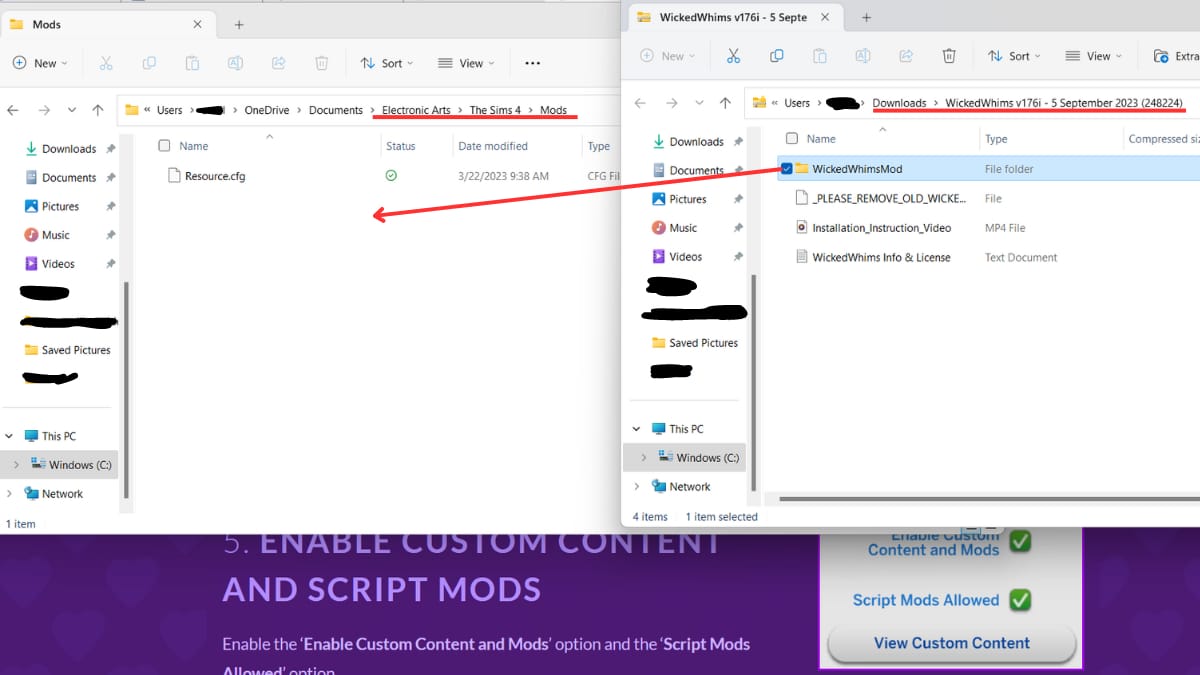
Open the folder created after extraction. You should see a collection of files, including
WickedWhimsMod.ts4script,WickedWhimsMod.package, and other.packagefiles. -
Select all of these files and any subfolders that contain
.packageor.ts4scriptfiles (some mods might include subfolders for animations or settings). -
Copy these selected files.
-
Navigate to your Sims 4 Mods folder:
~/Documents/Electronic Arts/The Sims 4/Mods/. -
Paste the copied files directly into this
Modsfolder. As recommended earlier, you might create a subfolder likeWickedWhimswithinModsand paste all the Wicked Whims files there for better organization (e.g.,~/Documents/Electronic Arts/The Sims 4/Mods/WickedWhims/). This practice is highly recommended for larger mods.
Handling Conflicting Mods
If you already have other script mods installed, especially those that alter similar aspects of gameplay (e.g., other adult-oriented mods or highly intrusive script mods), there’s a potential for conflict.
-
Remove Old/Conflicting Mods: If you’re upgrading from an older version of Wicked Whims, ensure you completely delete the old files before installing the new ones. If you’re using other mods that promise similar features, it’s often best to choose one or disable the conflicting features in one of them to avoid glitches or crashes.
-
Check Mod Documentation: Always consult the Wicked Whims documentation or community forums for known conflicts with other popular mods.
Post-Installation Verification and Troubleshooting
After placing the mod files, the next critical step is to verify that Wicked Whims is functioning correctly within your game. This involves launching The Sims 4 and performing a few checks.
Launching The Sims 4 and Verifying Installation
-
Launch The Sims 4.
-
Upon reaching the main menu, a
Mods Detectedpop-up window should appear. This window lists all the custom content and script mods that the game has successfully loaded. Crucially, you should seeWickedWhimsMod.ts4scriptlisted here. If it’s not listed, the game hasn’t recognized the mod. -
Load your game save.
-
Once in live mode, click on one of your Sims. A new interaction option, usually
Wicked Whims..., should appear in the pie menu. Clicking this will open the mod’s extensive settings menu, confirming its successful installation and functionality. -
Test a core feature: Try a basic interaction that Wicked Whims modifies, like flirtation or initiating an intimate interaction, to ensure the animations and new systems are present.
Common Installation Issues and Solutions
Even with careful execution, issues can arise. Here’s how to troubleshoot common problems:
-
Mod Not Showing in
Mods DetectedList:-
Check Path: Double-check that
WickedWhimsMod.ts4scriptand its associated.packagefiles are directly within~/Documents/Electronic Arts/The Sims 4/Mods/WickedWhims/(or directly withinModsif you didn’t create a subfolder). Ensure there isn’t an extra folder layer. -
Enable Mods: Reconfirm that
Enable Custom Content and ModsandScript Mods Allowedare checked inGame Options > Other, and you’ve restarted the game. -
Corrupt Download: Re-download the mod from the official site and re-extract using a reliable unarchiver.
-
-
Game Crashing on Startup/Loading:
-
Remove and Re-add: Temporarily remove Wicked Whims from your
Modsfolder. If the game launches normally, the issue is with the mod. Re-add it carefully, ensuring the correct files and paths. -
Conflicts: If you have many mods, try removing all mods except Wicked Whims to see if it’s a conflict with another mod.
-
Outdated Mod/Game: Ensure both your Sims 4 game and Wicked Whims are updated to their latest compatible versions.
-
-
Wicked Whims Menu Appears, but Features Don’t Work:
-
Script Mod Allowed: This usually indicates
Script Mods Allowedis not enabled in game options. -
Missing
.ts4script: Ensure theWickedWhimsMod.ts4scriptfile is present in your Mods folder, as this is the core of the mod’s functionality. -
Cache Clear: Delete the
localthumbcache.packagefile located in~/Documents/Electronic Arts/The Sims 4/(this file regenerates automatically) and restart the game. This can sometimes resolve loading issues.
-
Keeping Wicked Whims Updated
Like The Sims 4 itself, Wicked Whims receives regular updates. These updates fix bugs, add new features, and – most importantly – ensure compatibility with new official game patches. Always check the official Wicked Whims website after every major Sims 4 game update to download the latest version. The standard update procedure involves:
-
Deleting all old Wicked Whims files from your
Modsfolder. -
Downloading the new version.
-
Extracting it.
-
Placing the new files into your
Modsfolder, following the installation steps precisely.
Uninstalling Wicked Whims
If you ever decide to remove Wicked Whims, the process is straightforward:
-
Completely close The Sims 4.
-
Navigate to your
~/Documents/Electronic Arts/The Sims 4/Mods/folder. -
Delete all files and subfolders associated with Wicked Whims (e.g., the entire
WickedWhimssubfolder you created). -
Delete the
localthumbcache.packagefile from~/Documents/Electronic Arts/The Sims 4/to clear any residual mod data. -
Launch the game. The
Mods Detectedlist will no longer show Wicked Whims, and its features will be gone.
Responsible Modding Practices and Community Resources
Integrating extensive mods like Wicked Whims into your game requires a degree of responsibility and engagement with the modding community. This not only enhances your experience but also contributes to a stable and enjoyable environment.
Understanding Mod Ethics and Age Restrictions
Given the nature of Wicked Whims, it is paramount that players understand and respect its explicit content. This mod is strictly for adult players (18+). If you are not of legal age or if you are uncomfortable with mature themes, this mod is not for you. Furthermore, responsible modding also involves respecting intellectual property; always download from official sources and avoid distributing paid custom content illegally. Be mindful of who might be watching your screen or playing your game, especially if children are present.
Leveraging the Wicked Whims Community
The Wicked Whims community is incredibly active and a valuable resource for support, troubleshooting, and discovering additional content.
-
Official Website and Forums: The
wickedwhims.comwebsite typically hosts a robust forum or links to community support channels. Here, you can find FAQs, guides, and get direct assistance from experienced users or even the mod developer. -
Discord Servers: Many modding communities maintain Discord servers where you can chat in real-time, ask questions, and share experiences. Search for official Wicked Whims Discord links on their website.
-
Tutorials and YouTube: A wealth of community-created video tutorials and written guides exists. While this guide focuses on Mac, watching general Wicked Whims installation videos can provide helpful visual context.
Maintaining Game Stability
Running a heavily modded game, especially with script mods, can sometimes strain game performance.
-
Don’t Overdo It: While tempting, installing too many complex script mods can lead to conflicts and performance degradation. Be selective.
-
Regular Updates: Keep both your game and all installed mods (especially Wicked Whims) consistently updated.
-
Performance Monitoring: If you notice significant frame rate drops or increased loading times after installing new mods, consider removing some or adjusting game graphic settings.
-
Delete Cache Files: Regularly delete the
localthumbcache.packagefile from your Sims 4 folder before launching the game, especially after adding or removing mods. This helps clear outdated mod information.

Conclusion
Installing Wicked Whims on your Mac, while requiring careful attention to detail, is a perfectly achievable endeavor. By understanding the nature of the mod, performing essential preparatory steps, meticulously following the installation instructions, and engaging in responsible modding practices, Mac users can seamlessly integrate this transformative mod into their Sims 4 gameplay. Remember to always prioritize backing up your saves, downloading from official sources, and keeping both your game and mods updated. With this comprehensive guide, you’re well-equipped to unlock a new dimension of realism and mature storytelling within The Sims 4, ensuring a stable and immersive experience on your Apple machine. Happy Simming!
aViewFromTheCave is a participant in the Amazon Services LLC Associates Program, an affiliate advertising program designed to provide a means for sites to earn advertising fees by advertising and linking to Amazon.com. Amazon, the Amazon logo, AmazonSupply, and the AmazonSupply logo are trademarks of Amazon.com, Inc. or its affiliates. As an Amazon Associate we earn affiliate commissions from qualifying purchases.