
In today’s hyper-connected world, staying in touch with friends, family, and colleagues is paramount. While Apple’s built-in iMessage offers a robust platform for iPhone users, many global communication needs extend beyond the Apple ecosystem. This is where WhatsApp shines. As one of the most popular messaging applications worldwide, WhatsApp facilitates free, cross-platform communication through Wi-Fi or cellular data, offering text, voice, and video calls, as well as media sharing.
If you’re an iPhone user who’s new to WhatsApp or perhaps making the switch to a new device, this comprehensive guide will walk you through the entire process of installing and setting up WhatsApp on your iPhone. We’ll cover everything from downloading the app to configuring your initial settings, ensuring you can start chatting with your contacts in no time.
Downloading and Installing WhatsApp
The journey to WhatsApp-enabled communication begins with acquiring the application. Fortunately, Apple’s App Store makes this process straightforward and secure.
Acquiring the App from the App Store
1. Accessing the App Store:
Your iPhone comes with the App Store pre-installed. To begin, locate the blue icon with a white “A” on your home screen and tap on it. This will open the App Store, your gateway to millions of applications.
2. Searching for WhatsApp:
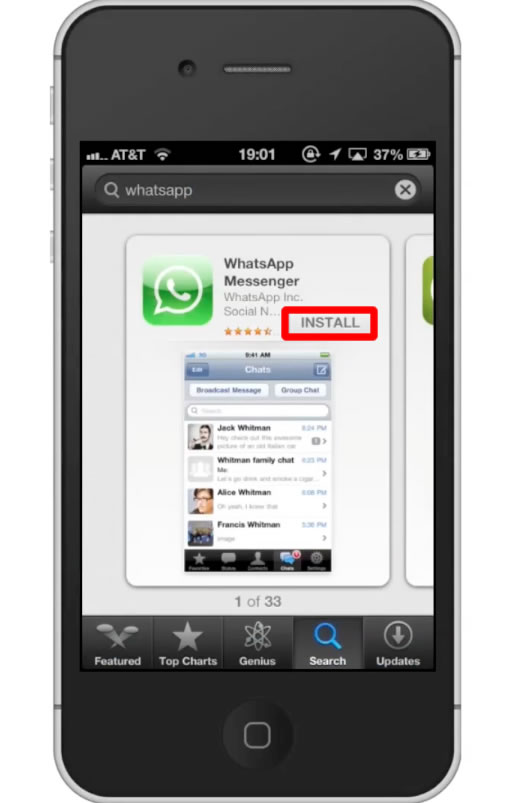
Once the App Store is open, you’ll see several tabs at the bottom: “Today,” “Games,” “Apps,” “Arcade,” and “Search.” Tap on the “Search” tab, which usually has a magnifying glass icon. In the search bar that appears at the top, type “WhatsApp” and then tap the “Search” button on your keyboard.
3. Identifying the Official App:
The search results will display various applications related to your query. Look for the official WhatsApp application. It will typically have the familiar green chat bubble icon with a white telephone inside. The developer should be listed as “WhatsApp Inc.” or “Meta Platforms, Inc.” (the parent company). Be cautious of unofficial or look-alike apps.
4. Initiating the Download and Installation:
Once you’ve identified the correct WhatsApp application, tap on the “Get” button next to it. If you’ve downloaded WhatsApp before, you might see a cloud icon with a downward arrow instead. This indicates that you can re-download the app without paying for it again, assuming it was previously purchased or acquired.
5. Authentication (if required):
For security purposes, you may be prompted to authenticate the download. This could involve:
* Face ID: If your iPhone has Face ID enabled, you’ll be asked to double-click the side button or look at your phone.
* Touch ID: If your iPhone has a Home button with Touch ID, you’ll be asked to place your finger on the sensor.
* Apple ID Password: You might be required to enter your Apple ID password.
Once authenticated, the download and installation process will begin automatically. You’ll see a progress circle on the app icon on your home screen, indicating the download status.
6. Locating WhatsApp on Your Home Screen:
After the installation is complete, the WhatsApp icon will appear on your iPhone’s home screen. You can then tap on it to launch the application.
Setting Up Your WhatsApp Account
With WhatsApp installed, the next crucial step is to set up your account. This involves verifying your phone number, which is the core of your WhatsApp identity.
Verifying Your Phone Number
1. Launching WhatsApp:
Tap the WhatsApp icon on your home screen to open the app.
2. Agreeing to Terms of Service:
Upon first launch, you’ll be presented with WhatsApp’s Terms of Service and Privacy Policy. Read through them and tap “Agree & Continue” to proceed.
3. Entering Your Phone Number:
WhatsApp will then prompt you to enter your phone number. Ensure you select the correct country code from the dropdown menu. This is vital for receiving the verification code. Enter your complete phone number and tap “Done” or the arrow button in the top right corner.
4. Verifying Your Number:
WhatsApp will send a six-digit verification code to the phone number you provided via SMS. The app may automatically detect this code from your messages and fill it in. If not, you’ll need to manually enter the six-digit code.
*   **Automatic Detection:** If WhatsApp can access your text messages (which it requires permission for), it will often detect the code automatically.
*   **Manual Entry:** If automatic detection fails, you will receive an SMS from WhatsApp with the code. Open your Messages app, find the SMS, and manually type the code into the WhatsApp verification screen.
5. Handling Verification Issues:
If you don’t receive the code, you can tap “Didn’t receive the code?” and choose to “Resend SMS” or “Call Me.” There’s usually a timer before you can request a new code, so be patient. Ensure your phone has a stable network connection.
Restoring Chat History (Optional but Recommended)
If you’re migrating from another iPhone or have a previous WhatsApp backup, you’ll have the option to restore your chat history during the setup process. This is a valuable step to ensure you don’t lose your past conversations.
1. The Restore Prompt:
After successfully verifying your phone number, WhatsApp will check for a recent backup associated with your iCloud account. If a backup is found, you’ll see a screen asking if you want to restore your chat history and media.
2. Initiating the Restore:
Tap “Restore Chat History.” This process can take some time depending on the size of your backup and your internet speed. Ensure you are connected to Wi-Fi for faster and more efficient restoration.
3. Completing the Restore:
Once the chat history is restored, tap “Next.” You will then be prompted to enter your name.

Setting Up Your Profile
Your WhatsApp profile is your digital identity within the app. It allows your contacts to identify you and helps you personalize your experience.
Configuring Your Profile Information
1. Entering Your Name:
After restoring your chats (or immediately after verification if no restore was performed), you’ll be asked to enter your name. This name will be visible to your WhatsApp contacts. You can use your real name or a nickname.
2. Adding a Profile Photo:
Below your name, you’ll see a space for a profile picture. Tap on the camera icon or the placeholder image. You’ll have the option to:
* Take Photo: Use your iPhone’s camera to take a new picture.
* Choose from Library: Select an existing photo from your iPhone’s camera roll.
* Edit: You can zoom, pan, and rotate the photo before setting it.
Your profile photo is a crucial element for recognition, so choose a clear and representative image.
3. Understanding Profile Settings:
Once your basic profile is set up, you can further customize your WhatsApp experience by navigating to the “Settings” tab (represented by a gear icon, usually at the bottom right of the app). Within Settings, you’ll find:
* Account: This section allows you to manage your privacy settings, security, and change your phone number.
* Chats: Here you can customize chat backgrounds, font sizes, and set up automatic media downloads.
* Notifications: Tailor the sounds and alerts for new messages and calls.
* Data and Storage Usage: Monitor how much data WhatsApp is using and manage media storage.
Essential WhatsApp Features to Explore
Now that WhatsApp is installed and set up, you can begin leveraging its core functionalities to connect with your world.
Connecting with Contacts and Starting Conversations
1. The Contacts Tab:
WhatsApp automatically syncs with your iPhone’s address book. If your contacts have WhatsApp associated with their phone numbers, they will appear in the “Chats” tab or a dedicated “Contacts” tab within WhatsApp.
2. Initiating a New Chat:
To start a new conversation, tap the “Chats” tab, then tap the “New Chat” icon (usually a square with a pen or pencil) in the top right corner. This will display your list of WhatsApp-enabled contacts. Tap on the contact you wish to message.
3. Sending Messages:
In the chat window, you’ll see a text input field at the bottom. Type your message, and then tap the send button (a green arrow or paper airplane icon).
4. Beyond Text:
WhatsApp is much more than just text messaging. Explore these features:
* Voice Messages: Press and hold the microphone icon to record a voice message. Release to send.
* Photos and Videos: Tap the plus (+) icon next to the text input field to share photos and videos from your library or take new ones.
* Documents: You can also send documents, like PDFs or Word files, through the same plus icon.
* Location Sharing: Share your real-time location or a static location.
* Contacts Sharing: Share contact information directly within a chat.
Making Voice and Video Calls
WhatsApp’s free calling feature is a significant draw, allowing you to communicate globally without incurring carrier charges.
1. Voice Calls:
Open a chat with the contact you wish to call. At the top of the chat screen, you’ll see a phone icon. Tap this to initiate a voice call.
2. Video Calls:
Similarly, next to the phone icon, you’ll find a video camera icon. Tap this to start a video call. Both parties need a stable internet connection for a smooth experience.
3. Group Calls:
You can also make group voice and video calls, bringing multiple people together for a conversation. This is initiated within a group chat or by adding participants to an existing one-on-one call.
Security and Privacy Considerations
In an era where digital security is paramount, understanding WhatsApp’s built-in protections is essential.
End-to-End Encryption Explained
WhatsApp utilizes end-to-end encryption for all messages, calls, photos, videos, documents, and status updates sent between WhatsApp users. This means that only you and the person you’re communicating with can read or listen to what is sent, not even WhatsApp itself. The encryption is enabled by default and cannot be turned off.
Managing Your Privacy Settings
Within the “Settings” > “Account” > “Privacy” menu, you have granular control over who sees your information:
- Last Seen & Online: Control who can see when you were last active and when you are online.
- Profile Photo: Choose who can see your profile picture (Everyone, My Contacts, or Nobody).
- About: Similar to your profile photo, control who sees your “About” status.
- Status: Decide who can view your status updates.
- Read Receipts: If enabled, recipients will see that you’ve read their message. Disabling this means you won’t see their read receipts either.
- Groups: Control who can add you to groups.
- Blocked Contacts: Manage a list of users you’ve blocked from contacting you.
By familiarizing yourself with these settings, you can ensure your WhatsApp experience is both connected and secure, aligning with both your personal and professional communication needs. Whether you’re using it for casual chats with friends or for critical business discussions, WhatsApp on your iPhone provides a versatile and reliable platform.
aViewFromTheCave is a participant in the Amazon Services LLC Associates Program, an affiliate advertising program designed to provide a means for sites to earn advertising fees by advertising and linking to Amazon.com. Amazon, the Amazon logo, AmazonSupply, and the AmazonSupply logo are trademarks of Amazon.com, Inc. or its affiliates. As an Amazon Associate we earn affiliate commissions from qualifying purchases.