
For many, the iPad is an indispensable tool, blending the portability of a smartphone with the screen real estate and processing power approaching a laptop. It’s a digital hub for entertainment, productivity, and communication. Yet, one glaring omission often puzzles users: the lack of an official, dedicated WhatsApp application for the iPad. Despite WhatsApp’s pervasive global presence as a messaging giant, its integration with Apple’s tablet ecosystem has remained stubbornly elusive, forcing users to seek creative workarounds. This guide delves deep into the available methods, offering a clear, step-by-step tutorial on how to get WhatsApp up and running on your iPad, while also highlighting the nuances, benefits, and potential pitfalls of each approach.
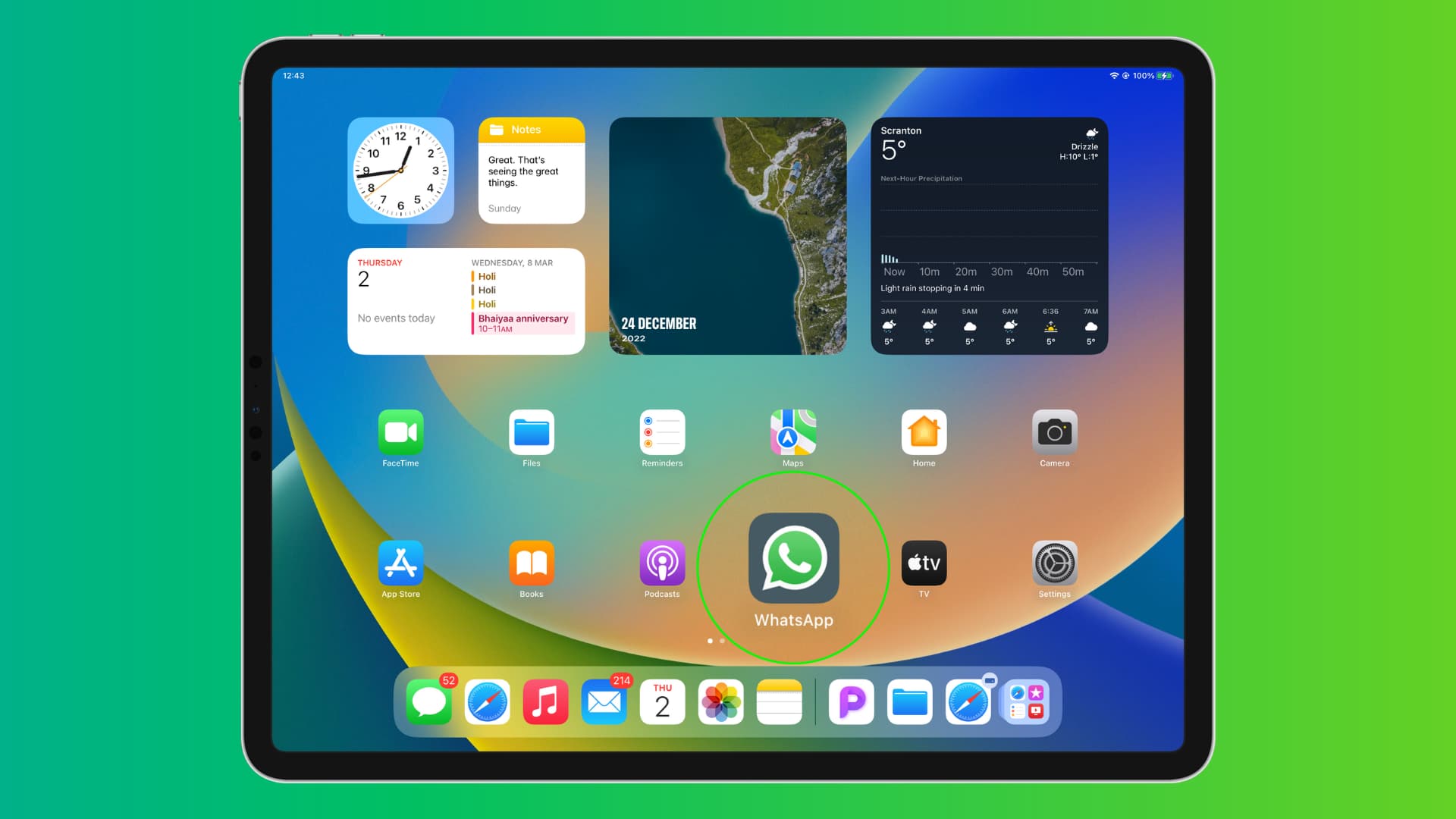
Our exploration will not only focus on the technical ‘how-to’ but also contextualize these methods within the broader landscape of technology trends, digital security, and productivity. Understanding the intricacies of app compatibility and the strategies employed by developers is crucial in today’s interconnected world. By the end of this article, you’ll be equipped with the knowledge to make an informed decision on the best way to leverage WhatsApp on your iPad, enhancing your communication capabilities and streamlining your digital life, whether for personal connections or professional engagements.
Understanding WhatsApp’s iPad Predicament
The desire for a native WhatsApp experience on the iPad is a sentiment shared by millions worldwide. Users often find themselves switching between devices – typing on their iPad for emails and documents, only to pick up their iPhone to respond to a WhatsApp message. This friction disrupts workflow and diminishes the iPad’s potential as an all-in-one device.
Why No Native iPad App?
The primary reason behind the absence of an official WhatsApp iPad app stems from the messaging platform’s foundational design. Historically, WhatsApp was built around the premise of being linked to a single phone number and a single device. Your WhatsApp account is intrinsically tied to your SIM card and the device where it’s initially registered. While the company has been slowly evolving this model, particularly with the introduction of multi-device support, the traditional architecture made it challenging to simply port the iPhone app to the iPad without significant re-engineering.
Furthermore, development priorities often play a role. Meta (formerly Facebook), WhatsApp’s parent company, has invested heavily in expanding features for its core smartphone user base and developing its business solutions. Creating a dedicated iPad app would require significant resources for development, testing, and ongoing maintenance, potentially diverting focus from other strategic objectives. This isn’t to say it won’t ever happen; indeed, persistent rumors and ongoing beta tests suggest that an official app might eventually see the light of day. However, for now, users must rely on the ingenious workarounds that leverage existing browser technologies.
The Demand for WhatsApp on Larger Screens
The appeal of WhatsApp on a larger screen is multifaceted. For personal use, it means a more comfortable viewing experience for media, easier group chat navigation, and a superior typing experience, especially when using a physical keyboard attachment. For professionals, the iPad transforms into a powerful productivity tool. Imagine managing customer inquiries, coordinating team projects, or conducting business discussions on WhatsApp, all from the comfort of your tablet. This seamless integration can significantly boost efficiency, allowing individuals and small businesses to maintain continuous engagement without constantly switching between devices. The iPad’s expansive display also lends itself well to multitasking, enabling users to keep a WhatsApp window open alongside other applications, mirroring a desktop workflow rather than a constrained mobile one. The potential for enhanced focus and reduced digital fatigue makes the demand for a proper iPad solution undeniably strong.
The Official Workaround: WhatsApp Web for iPad
In the absence of a dedicated app, the most reliable, secure, and officially supported method to use WhatsApp on your iPad is through WhatsApp Web. This browser-based solution allows you to mirror your phone’s WhatsApp account directly onto your iPad’s Safari browser. It’s an elegant solution that bypasses the need for a native app while still providing robust functionality.
Step-by-Step: Accessing WhatsApp Web via Safari
Getting WhatsApp Web up and running on your iPad is a straightforward process. Follow these steps for a seamless setup:
- Open Safari on Your iPad: Tap the Safari icon on your iPad’s home screen.
- Navigate to WhatsApp Web: In the Safari address bar, type
web.whatsapp.comand press Enter.- Crucial Step – Request Desktop Website: By default, Safari on iPad might try to load the mobile version of the WhatsApp website, which simply prompts you to download the app (which doesn’t exist for iPad). To get the WhatsApp Web interface, you must request the desktop version. To do this:
- Tap the “AA” icon in the top-left corner of the Safari address bar.
- From the dropdown menu, select “Request Desktop Website.”
- Crucial Step – Request Desktop Website: By default, Safari on iPad might try to load the mobile version of the WhatsApp website, which simply prompts you to download the app (which doesn’t exist for iPad). To get the WhatsApp Web interface, you must request the desktop version. To do this:
- Observe the QR Code: Once the desktop site loads, you will see a QR code displayed prominently on your iPad screen. This QR code is your gateway to linking your WhatsApp account.
- Keep Your iPad Awake: Ensure your iPad screen doesn’t go to sleep during this process, as it might refresh the QR code. You can adjust your iPad’s auto-lock settings temporarily in “Settings > Display & Brightness > Auto-Lock” if needed.
Linking Your WhatsApp Account: The QR Code Scan
With the QR code displayed on your iPad, the next step involves your smartphone, which hosts your primary WhatsApp account.
- Open WhatsApp on Your iPhone (or Android Phone): Launch the WhatsApp application on the phone that has your active WhatsApp account.
- Access Linked Devices:
- On iPhone: Go to “Settings” (bottom-right gear icon) > “Linked Devices.”
- On Android: Tap the three vertical dots (top-right corner) > “Linked Devices.”
- Link a Device: Tap the “Link a Device” button. You might be prompted to use your phone’s biometric authentication (Face ID, Touch ID, or PIN) to proceed, a crucial security feature that prevents unauthorized access.
- Scan the QR Code: Your phone’s camera will activate. Position your phone so that the camera can clearly scan the QR code displayed on your iPad screen. Hold it steady until the scan is successful.
- Synchronization: Once scanned, your iPad will begin synchronizing with your phone’s WhatsApp account. This process might take a few moments, depending on the volume of your chat history. You’ll see your conversations, contacts, and media appear on your iPad.
Congratulations! You are now successfully using WhatsApp Web on your iPad.
Optimizing Your WhatsApp Web Experience on iPad
While WhatsApp Web functions effectively within Safari, you can enhance the user experience to make it feel more like a native app:
- Add to Home Screen: To quickly access WhatsApp Web without typing the URL or requesting the desktop site every time:
- With WhatsApp Web open and logged in, tap the Share icon (square with an arrow pointing up) in Safari’s toolbar.
- Scroll down and tap “Add to Home Screen.”
- You can rename the shortcut (e.g., “WhatsApp”) and then tap “Add.”
This creates an icon on your iPad’s home screen that, when tapped, launches WhatsApp Web in a full-screen, app-like interface within Safari, free of browser elements.
- Enable Notifications: For real-time communication, turn on notifications for WhatsApp Web:
- When you first access WhatsApp Web, Safari might ask for permission to send notifications. Tap “Allow.”
- If you initially denied it or need to check, go to “iPad Settings > Notifications > Safari Websites.” Ensure notifications are permitted for
web.whatsapp.com.
Keep in mind that web notifications can be less reliable than native app notifications, and your phone needs to remain connected to the internet for messages to sync.
Advantages and Limitations of WhatsApp Web on iPad
Advantages:
- Official and Secure: This is the only officially sanctioned method for using WhatsApp on a non-phone device, ensuring data privacy and security. It leverages WhatsApp’s end-to-end encryption.
- Large Screen Convenience: Enjoy a superior viewing and typing experience on your iPad’s larger display.
- No Storage Hassles: As it’s browser-based, it doesn’t consume significant storage space on your iPad.
- Multi-Device Functionality (with caveats): With WhatsApp’s multi-device beta rolling out, the need for your phone to be constantly online is diminishing, making WhatsApp Web even more robust.
- Productivity Boost: Ideal for multitasking, allowing you to manage conversations alongside work apps without switching devices.
Limitations:
- Browser-Dependent: It runs within Safari, meaning it’s not a standalone app.
- Limited Notifications: Web notifications can sometimes be delayed or less persistent compared to native app notifications.
- No Direct Calls: You cannot initiate or receive WhatsApp voice or video calls directly from WhatsApp Web on your iPad. These must still be handled on your primary phone.
- Camera/Microphone Access: Direct access to the iPad’s camera or microphone for sending media or voice notes can be clunky or unavailable through the web interface.
- Phone Dependency (decreasing): Historically, your primary phone needed to be online and connected to the internet for WhatsApp Web to function. While the multi-device beta reduces this dependency, some aspects might still require it.
- No App Store Integration: You won’t find it in the App Store, which can be confusing for new users expecting a traditional app download.

Exploring Unofficial and Alternative Methods (with Caution)
While WhatsApp Web is the recommended approach, users often explore other avenues driven by the desire for a truly native-like experience. However, these unofficial methods come with significant risks that cannot be overstated, particularly concerning digital security and data privacy.
The Risks of Third-Party “Wrapper” Apps
The App Store, while generally secure, sometimes hosts third-party applications that claim to provide a WhatsApp experience on iPad. These are often “wrapper” apps – essentially custom browsers that load WhatsApp Web within their interface, sometimes adding minor UI tweaks or notification enhancements. While they might appear convenient, their use carries substantial risks:
- Security Vulnerabilities: These apps are not developed or endorsed by WhatsApp. Their code is not audited by Meta, making them potential conduits for security breaches. They could contain malware, spyware, or simply have poorly implemented security protocols that leave your data exposed.
- Privacy Concerns: Wrapper apps might request broad permissions, potentially accessing your iPad’s data beyond what’s necessary for WhatsApp Web. They could log your activity, access your contacts, or even intercept your communications. This directly contradicts WhatsApp’s commitment to end-to-end encryption and user privacy. For a brand conscious of its reputation, associating with such apps is a major risk.
- Account Banning: WhatsApp’s terms of service explicitly prohibit the use of unofficial clients. If detected, using a third-party app can lead to your WhatsApp account being temporarily or permanently banned. Reinstating a banned account can be a frustrating and lengthy process, if possible at all.
- Reliability Issues: These apps are often unstable, prone to bugs, and may stop working unexpectedly with WhatsApp’s updates, leaving you without access.
Given these severe risks, it is strongly advised to avoid all third-party wrapper apps for WhatsApp on iPad. The potential convenience does not outweigh the significant compromises to your digital security and privacy. Adhering to official channels, even if they require a workaround, is paramount for safeguarding your personal and professional communications.
WhatsApp Multi-Device Beta: A Glimmer of Hope?
For years, the “single device” limitation was WhatsApp’s Achilles’ heel. However, WhatsApp has been progressively rolling out its “multi-device beta” program to users globally. This feature fundamentally re-architects how WhatsApp handles connections, allowing users to link up to four companion devices (including web browsers, desktop apps, and potentially future native tablet apps) without requiring the primary phone to be online.
How it Works (and its implications for iPad):
- Independent Operation: Once a companion device is linked via the multi-device beta, it can send and receive messages independently, even if your phone runs out of battery or loses internet connection.
- End-to-End Encryption Maintained: Crucially, all messages remain end-to-end encrypted across all linked devices, upholding WhatsApp’s core security promise.
- No More Phone Dependency: This eliminates the biggest drawback of the traditional WhatsApp Web experience.
What this means for iPad users:
While the multi-device beta still relies on WhatsApp Web (or the desktop app), it significantly enhances the reliability and user experience. It effectively turns WhatsApp Web on your iPad into a much more robust communication tool, almost on par with a native app in terms of persistence. It’s also a strong indicator that WhatsApp is moving towards a truly multi-platform future, making a dedicated iPad app a much more plausible development in the coming years. Keep an eye on WhatsApp’s official announcements for further progress on this front. If you have the multi-device beta enabled on your phone, linking your iPad via WhatsApp Web will automatically leverage these enhanced capabilities.
Enhancing Productivity and Communication on Your iPad
Beyond just “getting it to work,” integrating WhatsApp effectively into your iPad workflow can significantly enhance your productivity and communication strategies, both personally and professionally.
Leveraging WhatsApp for Business and Personal Use
The iPad, with its larger screen and potential for external accessories, offers a unique platform for WhatsApp that goes beyond simple messaging:
- Strategic Communication Hub: For small businesses or personal brands, WhatsApp can serve as a direct line to clients, customers, or community members. On an iPad, managing multiple conversations, sending rich media (images, documents), and even providing customer support becomes a more organized and efficient process. The ability to type faster with a keyboard attachment means quicker responses and clearer communication.
- Content Creation and Sharing: Many content creators use their iPad for editing photos, videos, or writing. With WhatsApp on the iPad, sharing these creations directly with collaborators, clients, or social media teams is streamlined, reducing the need to transfer files between devices.
- Team Collaboration: For distributed teams, WhatsApp groups can be powerful for quick updates and discussions. Using it on an iPad means team members can stay connected during meetings or while away from their primary computer, leveraging the iPad’s portability and ease of access.
- Financial Discussions: While direct financial transactions through WhatsApp are limited, the platform is often used for coordinating payments, sharing invoices, or discussing financial plans with family or business partners. Doing this on an iPad provides a clearer overview and reduces the chances of errors when dealing with figures. This ties into the ‘Money’ aspect of our website, as efficient communication directly impacts financial decision-making and transaction coordination.
Troubleshooting Common WhatsApp on iPad Issues
Even with the official workaround, you might encounter a few hiccups. Here’s how to address common issues:
- QR Code Not Scanning:
- Check Lighting: Ensure sufficient lighting for your phone’s camera to read the QR code.
- Distance and Focus: Adjust the distance of your phone from the iPad screen. Make sure the QR code is clear and in focus.
- Refresh QR Code: If it still doesn’t work, refresh the WhatsApp Web page on your iPad to generate a new QR code.
- “Phone Not Connected” Error:
- Check Phone’s Internet: Ensure your primary phone (with the WhatsApp app) has an active internet connection (Wi-Fi or cellular data).
- WhatsApp App Open: Verify that WhatsApp is running in the background (or foreground) on your phone.
- Multi-Device Beta: If you’re on the multi-device beta, this error should be less frequent, but still check your phone’s overall connectivity.
- Notifications Not Working:
- Safari Settings: Go to “iPad Settings > Notifications > Safari Websites” and ensure notifications for
web.whatsapp.comare allowed. - WhatsApp Web Settings: Inside WhatsApp Web, click the three dots (menu) > “Settings” and ensure desktop notifications are enabled.
- Background App Refresh: Check your iPad’s “Background App Refresh” settings for Safari, though this usually impacts native apps more.
- Safari Settings: Go to “iPad Settings > Notifications > Safari Websites” and ensure notifications for
- Lag or Slow Performance:
- Close Other Tabs/Apps: Too many open Safari tabs or background apps can consume resources.
- Clear Safari Cache: Go to “iPad Settings > Safari > Clear History and Website Data.” This can often resolve performance issues.
- Restart iPad: A simple restart can fix many minor software glitches.
- Logged Out Unexpectedly:
- This can happen if you log out from your phone, clear Safari data, or if WhatsApp detects unusual activity. Simply re-scan the QR code to link again.
The Future of WhatsApp on iPad: What to Expect
The landscape of messaging apps is constantly evolving, driven by user demand and technological advancements. The ongoing development of WhatsApp’s multi-device capabilities strongly suggests a future where the platform is truly device-agnostic. While an official iPad app hasn’t been explicitly announced, the underlying infrastructure is clearly being laid.
Industry trends indicate a move towards universal apps that seamlessly transition across smartphones, tablets, and desktops. For a tech-savvy audience, the expectation for such integration is high. Meta’s competitors, such as Telegram, already offer robust native iPad applications, setting a benchmark for user experience. It’s likely that as Meta continues to refine its multi-device architecture, the investment in a dedicated iPad app will become a logical next step, offering a polished, full-featured experience that includes direct voice and video calls, media uploads from the iPad’s camera roll, and more reliable notifications.
Until then, embracing the “Add to Home Screen” workaround for WhatsApp Web, particularly when coupled with the stability offered by the multi-device beta, remains the most effective and secure method. This approach allows users to harness the power of their iPad for communication without compromising digital security or privacy – a core tenet we advocate. The evolution of WhatsApp on iPad is a testament to the dynamic nature of software development and user-centric design in the technology sector.

Conclusion
While the absence of an official WhatsApp app for iPad remains a peculiar gap in the modern digital ecosystem, users are not without robust and secure options. The most reliable and recommended method is undoubtedly WhatsApp Web, accessed through Safari and added to your iPad’s home screen for an app-like experience. This approach leverages official WhatsApp infrastructure, ensuring your communications remain end-to-end encrypted and your account stays secure. The ongoing rollout of the multi-device beta further enhances this experience, reducing dependence on your primary phone and bringing WhatsApp on iPad closer to a native app’s functionality.
It is crucial to reiterate the severe warnings against using unofficial third-party “wrapper” applications. These apps pose significant risks to your digital security, privacy, and could even lead to your WhatsApp account being banned. In an era where digital security is paramount, prioritizing official and verified solutions is non-negotiable.
By following the steps outlined in this guide, you can successfully integrate WhatsApp into your iPad workflow, unlocking a new level of productivity and communication convenience. Whether you’re coordinating with colleagues, staying in touch with family, or managing business inquiries, your iPad can become a powerful hub for all your WhatsApp interactions. As technology continues to evolve, we anticipate a future where a native WhatsApp iPad app will eventually emerge, but until then, the power of the web provides an excellent, secure alternative.
aViewFromTheCave is a participant in the Amazon Services LLC Associates Program, an affiliate advertising program designed to provide a means for sites to earn advertising fees by advertising and linking to Amazon.com. Amazon, the Amazon logo, AmazonSupply, and the AmazonSupply logo are trademarks of Amazon.com, Inc. or its affiliates. As an Amazon Associate we earn affiliate commissions from qualifying purchases.