
The Amazon Fire TV Stick has revolutionized home entertainment, transforming standard televisions into powerful, Android-based media hubs. However, as our reliance on streaming devices grows, so do the technical challenges regarding digital security, data privacy, and network management. To unlock the full potential of this hardware while safeguarding your digital footprint, installing a Virtual Private Network (VPN) is no longer optional—it is a technical necessity. This guide provides a comprehensive technical walkthrough on how to install and configure a VPN on a Firestick to ensure a secure, unrestricted viewing experience.
Why Digital Security is Essential for Your Firestick Experience
In the modern tech ecosystem, every device connected to the internet serves as a potential entry point for data harvesting. The Amazon Firestick, while user-friendly, operates within a framework that often involves extensive data logging by Internet Service Providers (ISPs) and third-party application developers.
Protecting Your Privacy from ISP Monitoring
When you use a Firestick without a VPN, your ISP has complete visibility into your traffic. They can see which streaming services you access, how much bandwidth you consume, and even the specific metadata associated with your viewing habits. In many jurisdictions, ISPs are legally permitted to sell this anonymized data to advertisers.
By installing a VPN, you establish an encrypted tunnel between your Firestick and the VPN server. Utilizing high-level encryption standards, such as AES-256 (Advanced Encryption Standard), the VPN masks your traffic. To your ISP, your data appears as indecipherable gibberish, effectively neutralizing their ability to monitor or monetize your activity.
Bypassing Geo-Restrictions and Network Throttling
From a technical standpoint, many streaming services employ “geo-fencing,” which restricts content based on the user’s IP address. Furthermore, many ISPs engage in “bandwidth throttling”—intentionally slowing down your connection speed when they detect high-bandwidth activities like 4K streaming.
A VPN allows you to spoof your IP address, making it appear as though your Firestick is located in a different geographical region. This bypasses regional blocks. Simultaneously, because the VPN hides the nature of your traffic from your ISP, they cannot identify that you are streaming video, which prevents the automated triggers that lead to speed throttling.
Step-by-Step Guide: Installing a VPN via the Official Amazon App Store
For most users, the most efficient way to secure their device is through the official Amazon App Store. Most reputable VPN providers have developed native applications specifically optimized for the Fire OS interface and remote control navigation.
Selecting the Right VPN Provider
Before installation, you must ensure your chosen VPN meets specific technical criteria for streaming. Look for providers that offer:
- Native Fire OS App: Ensures compatibility with the Firestick remote.
- High-Speed Protocols: Support for WireGuard or Lightway is preferred over older protocols for 4K streaming.
- Strict No-Logs Policy: Ensures that the VPN provider itself does not store your browsing history.
- Kill Switch Functionality: Automatically disconnects the internet if the VPN connection drops, preventing accidental data leaks.
Initial Configuration and Login
Once you have selected a provider, follow these steps:
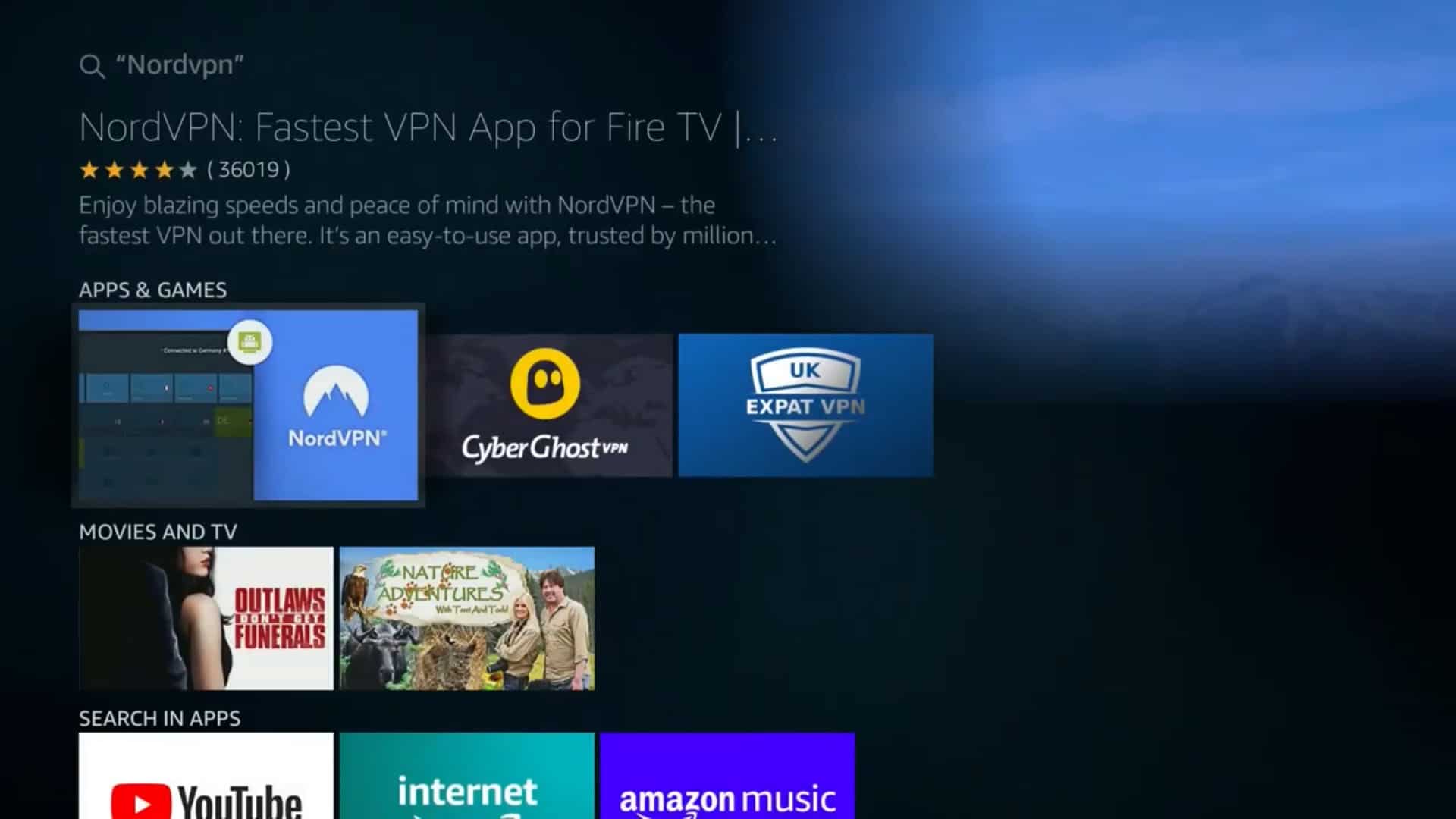
- Search: Navigate to the “Find” or “Search” icon on the Firestick home screen and type the name of your VPN (e.g., ExpressVPN, NordVPN, or Surfshark).
- Download: Select the app from the results and click “Get” or “Download.”
- Authentication: Open the app and log in using your credentials. Most modern VPNs offer a “Log in via Code” option, allowing you to authenticate using a smartphone or browser rather than typing complex passwords with the Firestick remote.
- Connection: Choose a server location. For the best speeds, select a “Smart Location” or the server closest to your physical geography. For accessing international content, select the specific country required.
Advanced Installation: Sideloading a VPN with the Downloader App
In some instances, a specific VPN provider may not be listed in the Amazon App Store, or you may prefer to use a specific version of an Android APK (Android Package Kit). In these cases, “sideloading” is the technical solution.
Enabling Developer Options on Fire OS
By default, Fire OS restricts the installation of applications from “unknown sources” to protect the system integrity. To bypass this, you must unlock Developer Options:
- Go to Settings > My Fire TV > About.
- Highlight the name of your device (e.g., Fire TV Stick 4K) and click the select button on your remote seven times until a message appears saying “No need, you are already a developer.”
- Back out to the My Fire TV menu; you will now see Developer Options.
- Inside Developer Options, enable Install Unknown Apps.
Fetching and Installing the APK
To facilitate the download of the VPN software, you will need an intermediary tool called “Downloader.”
- Search for and install the Downloader app from the Amazon App Store.
- Launch Downloader and enter the direct URL of the VPN’s APK file (usually found on the provider’s official website under “Manual Setup”).
- Once the download completes, the app will automatically prompt you to install.
- After installation, it is a technical best practice to delete the APK file to save limited onboard storage on the Firestick.
Maximizing Performance: VPN Settings and Troubleshooting
Installing the software is only the first step. To ensure the VPN does not negatively impact your streaming latency or device performance, certain technical optimizations should be performed within the app settings.
Choosing the Right Protocol for Streaming
A VPN protocol is the set of rules that determines how your data is routed.
- WireGuard: The current industry standard for speed and efficiency. It uses state-of-the-art cryptography and is significantly faster than older methods, making it ideal for Firestick users who want to avoid buffering.
- OpenVPN (UDP/TCP): While highly secure, it can be more resource-intensive. Use UDP for faster speeds or TCP if you are on a highly restrictive network that blocks standard VPN traffic.
- IKEv2: Good for stability, though it may not be available on all Firestick VPN apps.
Resolving Common Connection Issues
If you encounter a “Connection Error” or if a streaming app detects you are using a VPN (a common issue with Netflix or Prime Video), try the following technical fixes:
- Change Server: Streaming services frequently blacklist known VPN IP addresses. Switching to a different server in the same country often provides a fresh, unblocked IP.
- Clear Cache: Go to Settings > Applications > Manage Installed Applications. Find the streaming app (e.g., Netflix) and select Clear Cache. This removes location-based cookies that might conflict with your VPN location.
- Split Tunneling: This is a sophisticated feature that allows you to choose which apps use the VPN and which use the regular internet. You can set your “official” apps to bypass the VPN while routing third-party apps through the encrypted tunnel to maximize speed.
The Future of Privacy in Smart Home Entertainment
As Fire OS continues to evolve, the integration of security software will become increasingly seamless. We are moving toward an era where “Privacy by Design” is a requirement for hardware. However, until then, the manual installation of a VPN remains the most robust defense against the encroachment of digital surveillance and data throttling.
By following the technical procedures outlined above—from choosing high-performance protocols like WireGuard to mastering the sideloading process—you transform your Firestick from a simple streaming tool into a secure, private, and high-performance media powerhouse. In an age where digital security is synonymous with digital freedom, taking these steps ensures that your home entertainment remains exactly what it should be: personal and unrestricted.
aViewFromTheCave is a participant in the Amazon Services LLC Associates Program, an affiliate advertising program designed to provide a means for sites to earn advertising fees by advertising and linking to Amazon.com. Amazon, the Amazon logo, AmazonSupply, and the AmazonSupply logo are trademarks of Amazon.com, Inc. or its affiliates. As an Amazon Associate we earn affiliate commissions from qualifying purchases.