
When you venture into the world of virtualization with Oracle VM VirtualBox, you’re embracing a powerful tool that allows you to run multiple operating systems on a single physical machine. However, the initial experience of a newly installed guest operating system within VirtualBox can often feel somewhat constrained. The display might be stuck at a low resolution, the mouse pointer might get “trapped” within the virtual machine window, and file sharing can be cumbersome. This is where VirtualBox Guest Additions come into play—a collection of device drivers and system applications designed to significantly enhance the performance and usability of your guest operating systems.
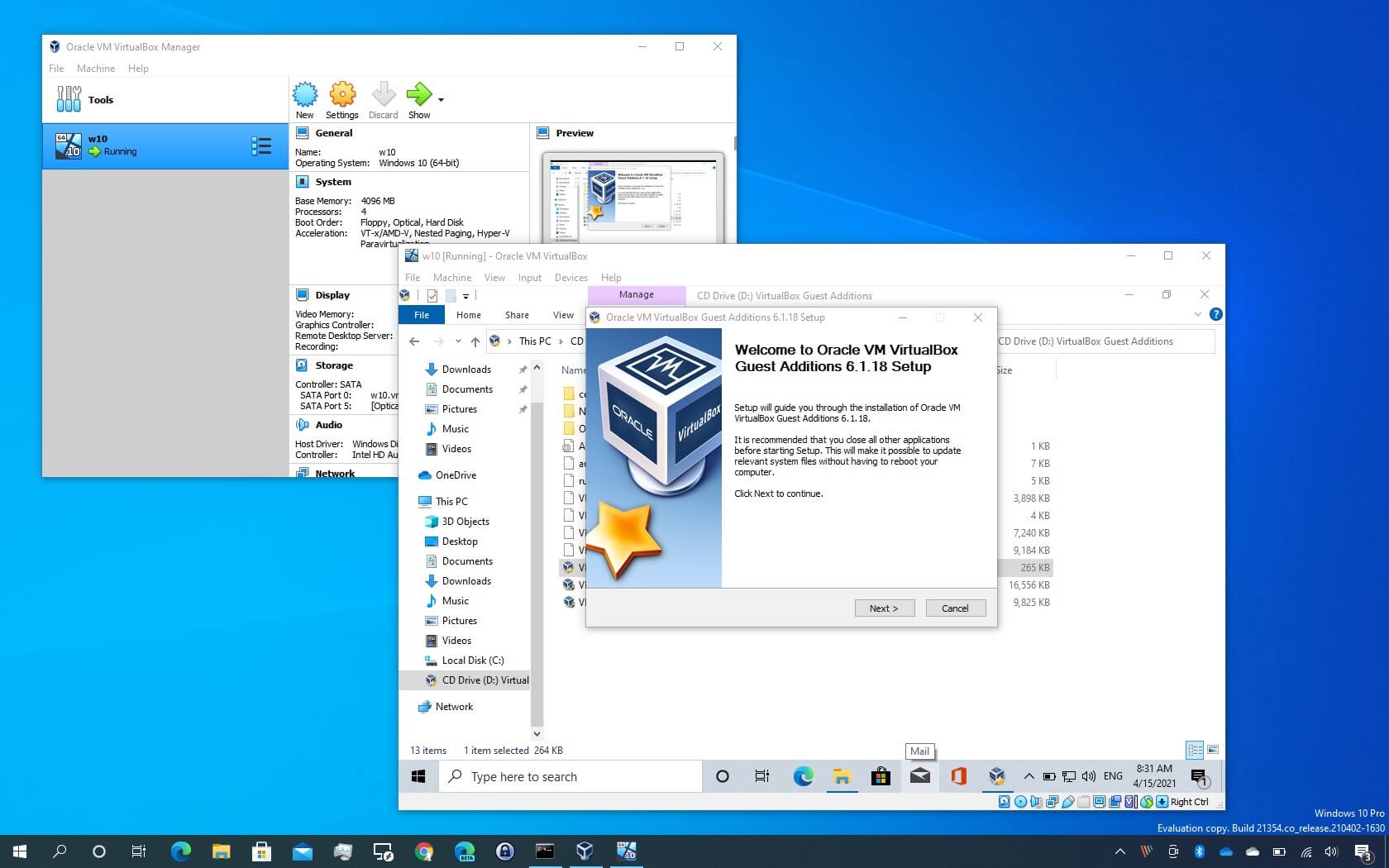
Installing Guest Additions isn’t just a minor tweak; it’s a fundamental step that transforms a basic virtual machine into a seamless, high-performing environment. From improving graphical performance and enabling dynamic screen resolutions to facilitating effortless file transfers between host and guest, Guest Additions are indispensable for anyone serious about optimizing their VirtualBox experience. This comprehensive guide will walk you through the process of installing these crucial tools, ensuring you unlock the full potential of your virtualized environments.
Understanding VirtualBox Guest Additions: The Key to Enhanced Virtualization
Before diving into the installation process, it’s vital to understand what VirtualBox Guest Additions are and why they are absolutely essential for a superior virtualization experience. They are not merely an optional extra; they are the bridge that connects the virtual machine’s environment with the host system’s capabilities, leading to a much more integrated and productive workflow.
What Are Guest Additions and Why Do You Need Them?
VirtualBox Guest Additions are a software package installed inside a guest operating system to improve its performance and integrate it more smoothly with the host system. Without them, your virtual machine often feels sluggish, isolated, and limited. Here’s a breakdown of the critical features they unlock:
-
Seamless Mouse Integration: No more pressing the Host key to release your mouse cursor from the guest window. With Guest Additions, the mouse pointer moves freely between the host and guest operating systems, as if they were one unified desktop.
-
Better Video Support and Dynamic Screen Resolutions: Guest Additions install optimized video drivers that significantly improve graphical performance. This allows for higher resolutions, deeper color depths, and, crucially, dynamic resizing of the guest display simply by resizing the VirtualBox window itself.
-
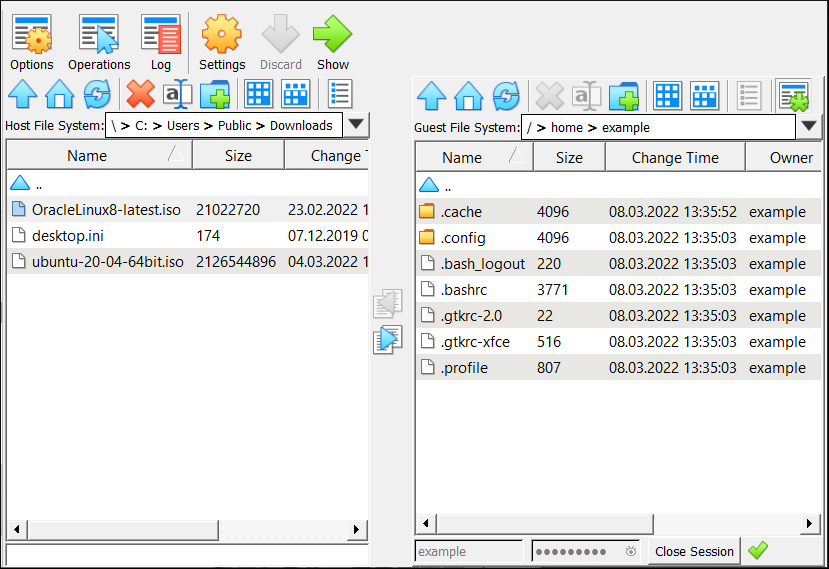
Shared Folders: This feature enables seamless file exchange between the host and guest. You can designate specific folders on your host machine to be accessible directly from within the guest OS, simplifying file management and sharing.
-
Bidirectional Clipboard: Copy text or images on your host and paste them into your guest, and vice versa. This seemingly simple feature dramatically boosts productivity.
-
Drag and Drop: Similar to the clipboard, drag and drop functionality allows you to move files between host and guest by simply dragging them across the virtual machine window.
-
Time Synchronization: Ensures the guest operating system’s clock is synchronized with the host machine’s clock, preventing discrepancies that can cause issues with applications or logs.
-
Automated Logins and Enhanced 3D Graphics: For certain guest operating systems, Guest Additions can enable automated logins. They also provide support for basic 3D acceleration, which can be useful for certain applications or desktop effects.
In essence, Guest Additions transform a basic, isolated virtual machine into a fully functional and integrated computing environment, making your virtualization experience far more efficient and enjoyable.
Prerequisites Before Installation
Before you begin the installation of VirtualBox Guest Additions, ensure you have the following in place to guarantee a smooth process:
-
Working VirtualBox Installation: You must have Oracle VM VirtualBox installed on your host machine and a guest operating system already set up and running within it.
-
Guest OS Running: The virtual machine where you intend to install Guest Additions must be powered on and running.
-
Internet Connection (for Linux Guests): While not strictly required for the Guest Additions installer itself, Linux guests often need to download kernel headers and build tools before the installation can succeed. An active internet connection on the guest OS will be necessary for this.
-
Updated Guest OS: It’s a good practice to ensure your guest operating system is fully updated before installing Guest Additions. This helps prevent conflicts and ensures compatibility.
-
Snapshot (Recommended): Before making any significant changes to a virtual machine, it’s always wise to take a snapshot. This allows you to revert to a previous working state if anything goes wrong during the installation.
-
Basic OS Familiarity: For Linux guests, some familiarity with the command line will be beneficial.
With these prerequisites met, you’re ready to proceed with the installation tailored to your specific guest operating system.
Step-by-Step Installation Guide for Windows Guest OS
Installing VirtualBox Guest Additions on a Windows guest operating system is typically a straightforward process, closely mirroring the installation of any standard Windows application.
Mounting the Guest Additions CD Image
The Guest Additions are distributed as an ISO image file that VirtualBox can “mount” as a virtual CD-ROM drive within your guest operating system.
-
Start Your Windows VM: Power on your Windows guest operating system in VirtualBox.
-
Access the Devices Menu: Once Windows has fully booted, navigate to the VirtualBox menu bar at the top of the virtual machine window. Click on
Devices. -
Insert Guest Additions CD Image: From the
Devicesdropdown menu, selectInsert Guest Additions CD image....- What Happens: VirtualBox will now virtually insert the Guest Additions ISO file into your guest OS’s CD/DVD drive. In most modern Windows versions, an auto-run prompt will appear, asking if you want to run the installer.
Running the Installer
If the auto-run prompt appears, proceed directly; otherwise, you’ll need to manually launch the installer.
-
Auto-run Prompt: If prompted, click
Run VBoxGuestAdditions.exeor a similar option to start the installation wizard. -
Manual Launch (if no auto-run):
-
Open
File Explorer(orMy Computer/This PC). -
Navigate to the
CD Drive (D:)(or whatever letter your virtual CD drive is assigned). -
Double-click on
VBoxGuestAdditions.exeto launch the installer.
-
-
Follow the Wizard:
-
The VirtualBox Guest Additions Setup wizard will appear. Click
Nextto proceed. -
Accept the default installation location unless you have a specific reason not to. Click
Next. -
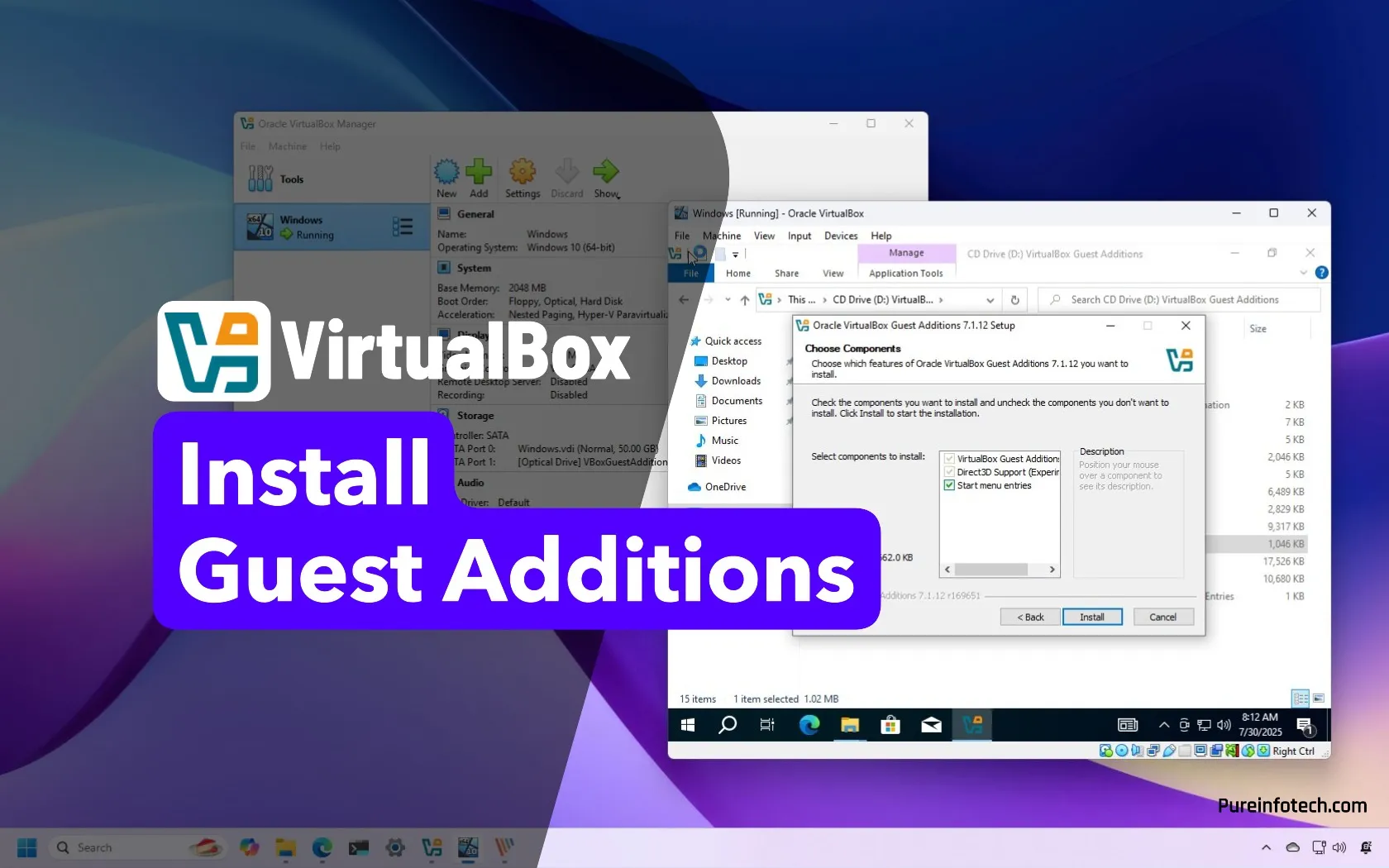
Choose which components to install. Typically, leaving all selected is recommended. Click
Install. -
During the installation, you might see prompts asking to install device software or drivers. Always select
InstallorAlways trust software from "Oracle Corporation"to allow the necessary drivers to be installed.
-
-
Reboot: Once the installation is complete, the wizard will prompt you to reboot your Windows guest operating system. Select
Reboot nowand clickFinish.
Verifying the Installation
After the reboot, your Windows guest OS should exhibit the improvements brought by Guest Additions.
-
Dynamic Resolution: Try resizing your VirtualBox window. The guest OS display should automatically adjust to the new dimensions without needing to change display settings within Windows.
-
Seamless Mouse: Your mouse pointer should move freely in and out of the virtual machine window without requiring you to press the Host key.
-
Shared Folders/Clipboard: Attempt to copy text from your host to your guest, or configure a shared folder to test the functionality (configuration details are covered in a later section).
If these features are working, your Guest Additions installation was successful!
Installing Guest Additions on Linux Guest OS
Installing Guest Additions on a Linux guest system requires a few more steps, primarily involving the installation of kernel headers and build tools, as the installer needs to compile modules specific to your Linux kernel. The commands provided here are for Debian/Ubuntu-based systems but are generally similar for other distributions.
Preparing the Linux Guest System
Before attempting to install Guest Additions, prepare your Linux guest.
-
Update Your System: Open a terminal in your Linux guest and update your package lists and installed packages. This ensures you have the latest system components and dependency information.
sudo apt update

sudo apt upgrade -y
(For Fedora/RHEL:
sudo dnf update -y) -
Install Kernel Headers and Build Essentials: Guest Additions rely on your system’s kernel headers to compile necessary modules. You’ll also need general build tools.
sudo apt install build-essential dkms linux-headers-$(uname -r)-
build-essential: Provides compilers (gcc, g++), make, and other tools. -
dkms: Dynamic Kernel Module Support, allows kernel modules to persist across kernel updates. -
linux-headers-$(uname -r): Installs headers specific to your currently running kernel version. The$(uname -r)command dynamically gets the current kernel version.
(For Fedora/RHEL:
sudo dnf install kernel-devel-$(uname -r) kernel-headers-$(uname -r) dkms elfutils-libelf-devel gcc make bzip2 perl) -
Mounting the CD Image and Running the Installer Script
Similar to Windows, you’ll mount the Guest Additions ISO and then execute an installation script.
-
Start Your Linux VM: Power on your Linux guest operating system in VirtualBox.
-
Access the Devices Menu: Once Linux has fully booted, navigate to the VirtualBox menu bar at the top of the virtual machine window. Click on
Devices. -
Insert Guest Additions CD Image: From the
Devicesdropdown menu, selectInsert Guest Additions CD image....- What Happens: The ISO will be virtually mounted. On many desktop environments, a prompt to run or open the CD will appear. You can usually just close this or dismiss it.
-
Navigate to the Mounted CD: Open a terminal in your Linux guest. The Guest Additions CD is usually mounted at
/media/cdrom,/media/user/VBox_GAs_..., or/run/media/user/VBox_GAs_.... You can typically find it using thels /mediaorls /run/mediacommands.cd /media/cdrom # Or navigate to the actual mount point, e.g. # cd /media/<your_username>/VBox_GAs_<version_number> -
Run the Installer Script: Execute the main installer script with superuser privileges.
sudo sh VBoxLinuxAdditions.run-
The script will compile and install the necessary kernel modules and drivers. This process can take a few minutes.
-
During the installation, watch the output for any error messages, especially concerning missing dependencies. If errors occur, try to install the suggested missing packages and rerun the installer.
-
-
Reboot: After the script completes successfully, you must reboot your Linux guest for the changes to take effect.
sudo reboot
Post-Installation and Verification
Once your Linux guest reboots, verify that Guest Additions are working correctly.
-
Dynamic Resolution: Try resizing your VirtualBox window. The Linux desktop environment should automatically adjust its resolution.
-
Seamless Mouse: The mouse pointer should move freely between the host and guest without being trapped.
-
Shared Folders: If you plan to use shared folders, ensure your user is part of the
vboxsfgroup.sudo adduser <your_username> vboxsfReplace
<your_username>with your actual Linux username. You will need to log out and log back in (or reboot) for this group membership change to take effect.
Troubleshooting Common Installation Issues
While VirtualBox Guest Additions installation is generally smooth, you might encounter a few common hurdles. Here’s how to address them:
“Could not mount the media/drive” Error
This error can occur if the virtual CD/DVD drive is already occupied or if VirtualBox has trouble locating the ISO.
-
Check for Existing Mounts: Ensure no other ISO is currently mounted in the virtual machine’s CD/DVD drive. In the VirtualBox menu, go to
Devices->Optical Drivesand ensure no media is selected orRemove Disk from Virtual Driveis an option. -
Manually Add ISO: If the
Insert Guest Additions CD image...option doesn’t work, you can manually add the ISO.-
Go to
Settingsfor your VM ->Storage. -
Under the
Controller: IDEsection, select theEmptyCD icon. -
On the right-hand panel, click the small CD icon and choose
Choose/Create a Virtual Optical Disk.... -
Navigate to your VirtualBox installation directory (e.g.,
C:Program FilesOracleVirtualBox) and selectVBoxGuestAdditions.iso. Then clickOK. -
Now try inserting it again via the
Devicesmenu or navigating to the drive in the guest OS.
-
Installation Fails or Features Don’t Work
If the installer completes but features like shared folders or dynamic resolution aren’t active, or if the installer throws errors:
-
Linux Specifics: For Linux guests, the most common reason for failure is missing kernel headers or
build-essentialtools. Re-verify the installation of these packages and ensure your system is fully updated. -
Reboot: Sometimes, a single reboot isn’t enough. Try rebooting the guest OS a couple more times.
-
VirtualBox Version Mismatch: Ensure your VirtualBox host software and the Guest Additions ISO (which matches the host version) are compatible. If you’ve recently updated VirtualBox, you might need to insert the new Guest Additions CD image.
-
Reinstall: If all else fails, try uninstalling any previous Guest Additions (if present) and perform a clean reinstallation.
Guest Additions Not Working After OS Update (Linux)
On Linux guests, a kernel update can often break Guest Additions functionality because the kernel modules are tied to a specific kernel version.
-
Rerun the Installer: After a significant kernel update, you will typically need to rerun
sudo sh VBoxLinuxAdditions.runfrom the mounted Guest Additions CD image. This will recompile and install the modules for the new kernel. A reboot will then be required. -
Ensure DKMS: Installing
dkms(Dynamic Kernel Module Support) helps mitigate this issue by automatically rebuilding Guest Additions modules when a new kernel is installed. Ensuredkmsis installed as part of yourbuild-essentialstep.
Advanced Configuration and Best Practices
Once Guest Additions are successfully installed, you can further optimize your virtual machine setup for enhanced productivity.
Configuring Shared Folders
Shared Folders are a cornerstone feature enabled by Guest Additions, allowing effortless file exchange.
-
Add a Shared Folder: With your VM powered off or on:
-
Go to your VM’s
Settings->Shared Folders. -
Click the
Add new shared foldericon (folder with a green plus sign). -
Folder Path: Choose a folder on your host machine you wish to share.
-
Folder Name: Assign a name that will be used inside the guest.
-
Auto-mount: Check this option to have the folder automatically available on guest boot.
-
Make Permanent: Check this to save the setting for future sessions.
-
Click
OK.
-
-
Accessing on Guest OS:
-
Windows: The shared folder usually appears as a network drive under “This PC” or “Network Locations.”
-
Linux: Shared folders are typically mounted under
/mediaor/mnt. They might appear as/media/sf_<folder_name>(e.g.,/media/sf_MySharedDocs). Remember to add your user to thevboxsfgroup for proper permissions (sudo adduser <your_username> vboxsfand then reboot or log out/in). You can also manually mount it:sudo mount -t vboxsf <folder_name> /mnt/<mount_point>.
-
Enabling 3D Acceleration
For slightly more demanding graphical tasks or desktop effects, you can enable 3D acceleration.
-
VM Settings: Power off your virtual machine. Go to
Settings->Display. -
Enable 3D Acceleration: Check the
Enable 3D Accelerationbox. -
Video Memory: Increase the video memory slider to the maximum allowed by VirtualBox (often 128 MB or 256 MB).
-
Start VM: Power on your VM.
- Note: While this improves some aspects, VirtualBox’s 3D acceleration is not designed for heavy gaming or professional graphics applications.
Snapshots and Updates
-
Take Snapshots: Always take a snapshot of your VM before installing Guest Additions or making significant system changes. This provides an easy rollback point if anything goes wrong.
-
Keep Guest Additions Updated: Whenever you update your VirtualBox host software, it’s a good practice to also update the Guest Additions in your guest operating systems to match the new version. The process is the same as the initial installation: simply insert the new Guest Additions CD image and run the installer.
Conclusion
VirtualBox Guest Additions are a game-changer for anyone using virtual machines. They transcend the basic functionality of a virtualized environment, transforming it into a powerful, responsive, and seamlessly integrated workspace. By following the detailed steps outlined in this guide, you can unlock a wealth of features—from dynamic screen resolutions and smooth mouse integration to efficient file sharing and enhanced performance—that will dramatically improve your productivity and overall experience with VirtualBox.
Don’t settle for a sluggish, isolated virtual machine. Take the essential step of installing VirtualBox Guest Additions and elevate your virtualization setup to its full potential, ensuring a professional, efficient, and enjoyable computing experience across all your guest operating systems.
aViewFromTheCave is a participant in the Amazon Services LLC Associates Program, an affiliate advertising program designed to provide a means for sites to earn advertising fees by advertising and linking to Amazon.com. Amazon, the Amazon logo, AmazonSupply, and the AmazonSupply logo are trademarks of Amazon.com, Inc. or its affiliates. As an Amazon Associate we earn affiliate commissions from qualifying purchases.