
In today’s fast-paced digital world, clear, concise, and error-free communication is not just a nicety; it’s a necessity. From professional emails and academic papers to social media posts and creative writing, the impact of well-crafted text cannot be overstated. Errors in grammar, spelling, punctuation, or style can detract from your message, undermine your credibility, and even lead to misunderstandings. This is where artificial intelligence (AI)-powered writing assistants like Grammarly become indispensable tools. Designed to meticulously review your text in real-time, Grammarly helps you refine your prose, making it more impactful and error-free. This article will guide you through the process of installing Grammarly across various platforms, ensuring you can harness its power wherever you write.
Understanding Grammarly: Your AI-Powered Writing Assistant
Before diving into the installation process, it’s crucial to understand what Grammarly is and why it has become a cornerstone for millions seeking to improve their writing. It’s more than just a spell checker; it’s a sophisticated AI engine dedicated to elevating your communication.
What is Grammarly and Why Do You Need It?
Grammarly is a comprehensive writing assistant that leverages advanced artificial intelligence and natural language processing (NLP) to analyze text for a multitude of writing issues. Beyond basic spelling and grammar checks, it offers suggestions for clarity, engagement, delivery, and even plagiarism detection. It acts as a digital editor, providing real-time feedback that helps users learn and improve their writing skills over time.
You need Grammarly because it addresses a universal challenge: the human tendency to overlook our own mistakes. Whether due to mental fatigue, familiarity with the text, or a simple lack of grammatical knowledge, even the most astute writers can benefit from an objective, intelligent review. For students, it ensures academic integrity and polished essays. For professionals, it guarantees professional correspondence and reports. For content creators, it maintains a high standard of quality and engagement. Essentially, Grammarly democratizes excellent writing, making it accessible to everyone.
Key Benefits of Using Grammarly
The advantages of integrating Grammarly into your daily writing workflow are numerous and transformative:
-
Error-Free Writing: Grammarly catches common errors like misspellings, grammatical mistakes (e.g., subject-verb agreement, misplaced modifiers), and punctuation blunders that traditional word processors often miss.
-
Improved Clarity and Conciseness: It identifies wordy sentences, passive voice, and jargon, suggesting clearer and more direct phrasing to enhance readability and impact.
-
Enhanced Engagement: The tool helps you vary sentence structure, avoid repetitive language, and choose stronger verbs, making your writing more dynamic and engaging for your audience.
-
Tone Detection and Adjustment: Grammarly can analyze the emotional tone of your writing and provide suggestions to align it with your intended message, whether it’s formal, confident, friendly, or urgent.
-
Plagiarism Detection: Premium users benefit from a plagiarism checker that compares your text against billions of web pages and academic papers, ensuring originality and proper citation.
-
Learning and Growth: By explaining the reasoning behind its suggestions, Grammarly acts as a continuous learning tool, helping users understand common errors and improve their writing proficiency over time.
-
Seamless Integration: It integrates effortlessly with most popular browsers, desktop applications, and mobile devices, providing assistance wherever you write.
Step-by-Step Installation Guides for Every Platform
Grammarly is designed for versatility, offering various ways to integrate its writing assistance into your workflow. The installation process varies slightly depending on the platform you choose.
Installing the Grammarly Browser Extension (Chrome, Firefox, Edge, Safari)
The browser extension is perhaps the most popular way to use Grammarly, offering real-time checks across almost any website where you type—emails, social media, blogging platforms, and more.
-
Open Your Preferred Browser: Launch Google Chrome, Mozilla Firefox, Microsoft Edge, or Apple Safari.
-
Navigate to the Grammarly Website: Go to
grammarly.com/extension. Alternatively, you can search for “Grammarly extension” directly in your browser’s respective web store (e.g., Chrome Web Store, Firefox Add-ons, Microsoft Edge Add-ons). -
Click “Add to [Browser Name]”: On the Grammarly extension page, you’ll see a prominent button, typically labeled “Add to Chrome,” “Add to Firefox,” etc. Click this button.
-
Confirm Installation: A pop-up window will appear, asking for confirmation to add the extension. Review the permissions requested and click “Add Extension” (or similar wording).
-
Pin the Extension (Recommended): Once installed, a small Grammarly icon (a green G) will appear in your browser’s toolbar. For easy access, it’s advisable to “pin” the icon if your browser offers this feature (e.g., in Chrome, click the puzzle piece icon, find Grammarly, and click the pin icon).
-
Sign In or Create an Account: Click the Grammarly icon. You’ll be prompted to sign in with an existing account or create a new one. Follow the on-screen instructions to complete this step.
Setting Up the Grammarly Desktop App (Windows and macOS)
For comprehensive assistance within desktop applications like word processors, email clients, and presentation software, the dedicated desktop app provides robust support.
-
Visit the Grammarly Download Page: Go to
grammarly.com/desktopor navigate to the “Products” or “Apps” section on the main Grammarly website and select “Desktop.” -
Download the Installer: Click the “Free Download” button for Windows or macOS, depending on your operating system. The installer file will begin downloading to your computer.
-
Run the Installer:
-
Windows: Locate the downloaded
.exefile (usually in your “Downloads” folder) and double-click it. Follow the on-screen prompts of the installation wizard, which typically involve agreeing to terms and selecting an installation location. -
macOS: Locate the downloaded
.dmgfile. Double-click it to open the disk image. Drag the “Grammarly” application icon into your “Applications” folder.
-
-
Launch and Sign In:
-
Windows: After installation, Grammarly will usually launch automatically. If not, find it in your Start Menu.
-
macOS: Open your “Applications” folder and double-click the Grammarly icon.
You will then be prompted to sign in to your Grammarly account or create a new one.
-
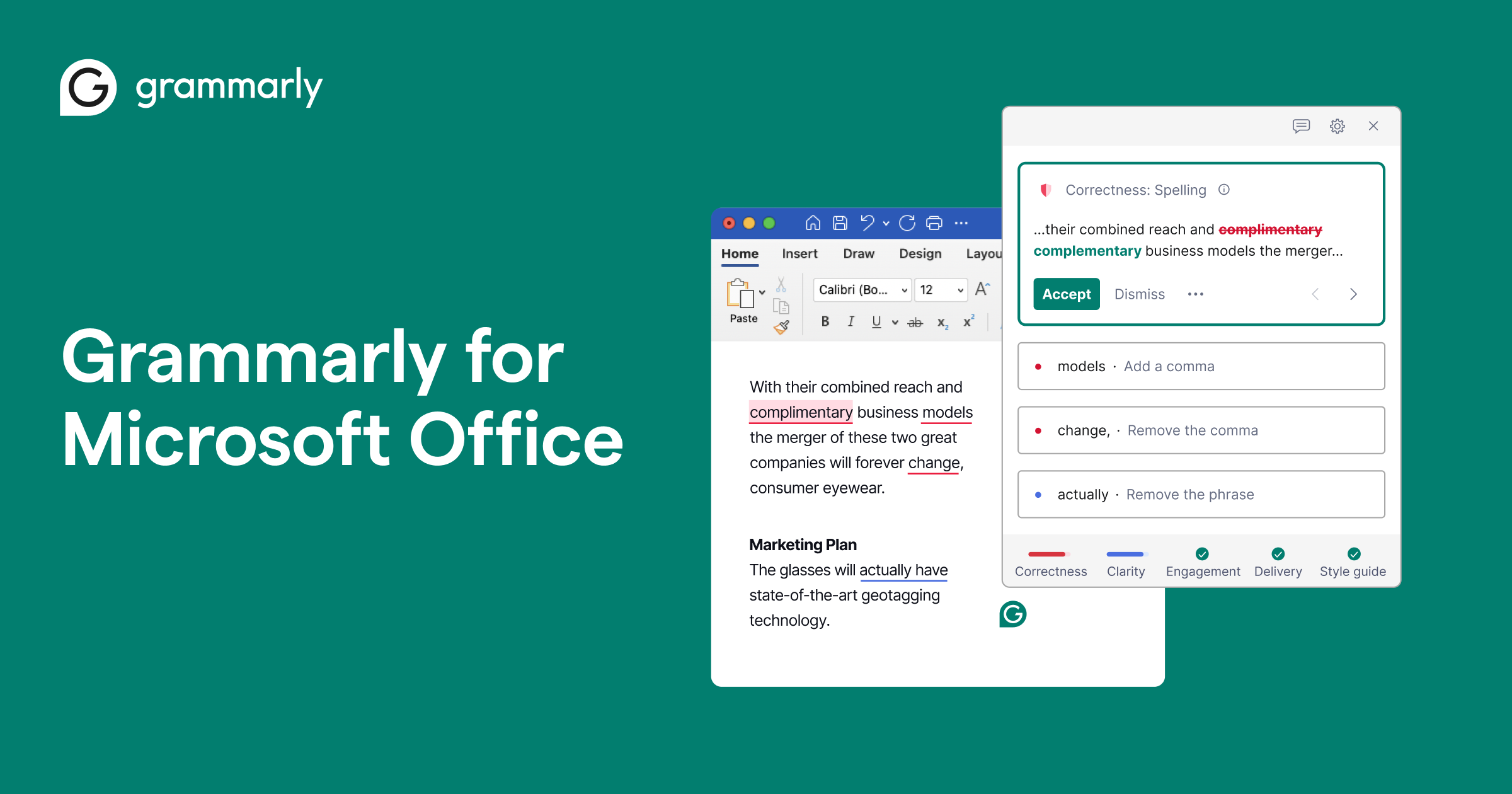
Integrating Grammarly with Microsoft Office (Word and Outlook)
Grammarly offers a specific add-in for Microsoft Word and Outlook, providing direct assistance within these widely used applications.
-
Go to the Grammarly for Microsoft Office Page: Visit
grammarly.com/office-addin. -
Download the Add-in: Click the “Get the Add-in” button. This will download a small installer file.
-
Run the Installer:
-
Locate the downloaded
.exefile and double-click it. -
Follow the installation wizard’s instructions. You might be asked to select which Office applications (Word, Outlook) you want to enable Grammarly for.
-
-
Open Word or Outlook: After installation, launch either Microsoft Word or Outlook.
-
Enable Grammarly:
-
In Word or Outlook, you should see a new “Grammarly” tab or button in the ribbon menu at the top.
-
Click on the “Grammarly” tab and then click “Enable Grammarly” or “Open Grammarly.”
-
You will be prompted to log in to your Grammarly account.
-
Once logged in, the Grammarly sidebar will appear, ready to analyze your documents and emails.
-
Installing the Grammarly Keyboard on Mobile Devices (iOS and Android)
For impeccable writing on the go, the Grammarly Keyboard is an essential tool for smartphones and tablets.
-
Download the Grammarly App:
-
iOS: Open the App Store on your iPhone or iPad, search for “Grammarly Keyboard,” and tap “Get.”
-
Android: Open the Google Play Store on your Android device, search for “Grammarly Keyboard,” and tap “Install.”
-
-
Open the App and Follow Setup Instructions:
-
After the app downloads, open it.
-
The app will guide you through the setup process, which typically involves:
-
Enabling the Keyboard: Go to your device’s settings (e.g., Settings > General > Keyboard > Keyboards > Add New Keyboard on iOS; Settings > System > Languages & input > Virtual keyboard > Manage keyboards on Android) and toggle on “Grammarly.”
-
Setting as Default (Optional but Recommended): In the keyboard settings, you can often rearrange the order of your keyboards or explicitly set Grammarly as your default.
-
Granting Full Access (iOS): On iOS, you may need to grant “Full Access” to the Grammarly keyboard in your settings for all features to work correctly. Be assured that Grammarly is designed with strong privacy safeguards.
-
-
-
Sign In: Once enabled, return to the Grammarly app and sign in to your account.
-
Start Typing: Now, whenever you open an app that requires typing, you can switch to the Grammarly Keyboard (often by tapping a globe icon or holding the spacebar) and benefit from its real-time suggestions.
Getting Started and Optimizing Your Grammarly Experience
With Grammarly successfully installed, the next step is to configure it to your preferences and understand how to best utilize its features.
Creating Your Grammarly Account and Personalizing Settings
Upon first launching any Grammarly application, you’ll be prompted to sign in or create an account. A free account offers robust grammar and spelling checks, while a Premium subscription unlocks advanced features.
-
Account Creation: You can sign up using your email address, Google, Apple, or Facebook account. Choose a strong password if creating a new account.
-
Personalization: Once logged in, visit your “Account” or “Settings” section (accessible via the Grammarly icon in your browser, desktop app, or mobile app). Here, you can:
-
Set Your Language Preference: Choose between American, British, Canadian, or Australian English.
-
Define Your Writing Goals: Specify your audience, formality, domain, and intent for different types of writing. This helps Grammarly provide more tailored suggestions.
-
Add Words to Your Personal Dictionary: Teach Grammarly proper nouns, industry-specific jargon, or unique spellings you frequently use, preventing it from flagging them as errors.
-
Manage Integrations: Decide where Grammarly should appear and check your writing.
-
Navigating the Grammarly Interface and Understanding Suggestions
Grammarly’s interface is designed to be intuitive across all platforms.
-
Browser Extension: A small green ‘G’ icon indicates Grammarly is active. When you type in a text field, a number on the icon will show how many suggestions are available. Clicking underlined words or phrases in your text reveals a pop-up with the suggestion and an explanation. You can accept the suggestion, dismiss it, or learn more.
-
Desktop App: The desktop app provides a dedicated window where you can paste text or open documents. It presents a comprehensive sidebar with all detected issues categorized (Correctness, Clarity, Engagement, Delivery).
-
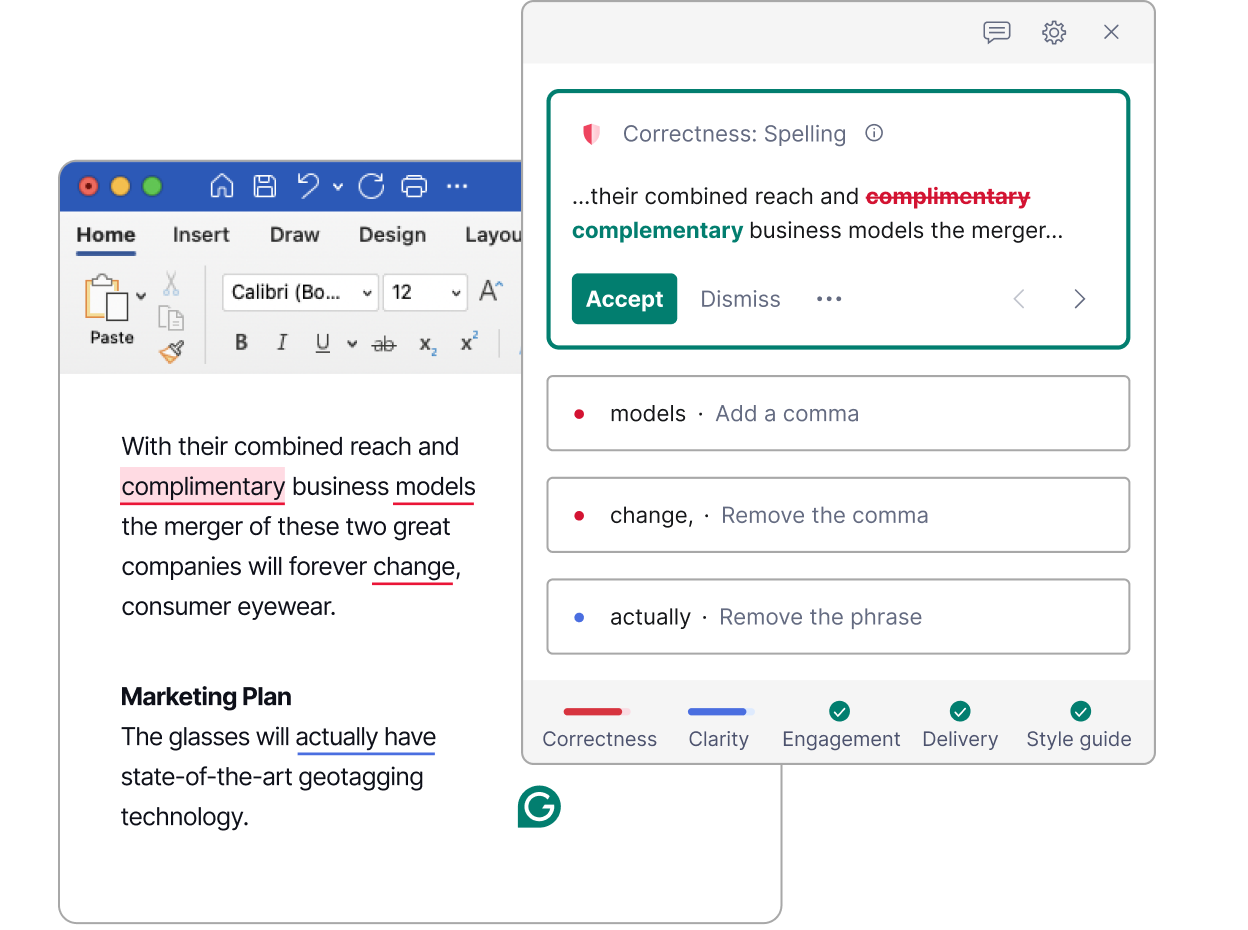
Microsoft Office Add-in: Similar to the desktop app, a sidebar opens within Word or Outlook, displaying suggestions alongside your document or email.
-
Mobile Keyboard: Suggestions appear directly above the keyboard as you type, allowing for quick acceptance or dismissal.
Understanding suggestions involves more than just blindly accepting them. Take a moment to read the explanation Grammarly provides. This iterative process is key to improving your writing skills over time, transforming you from a passive recipient of corrections to an active learner.
Leveraging Advanced Features: Goals, Plagiarism Checker, and Premium Benefits
For users seeking to unlock Grammarly’s full potential, a Premium subscription offers significant advantages:
-
Writing Goals: This feature allows you to define specific parameters for your writing, such as audience, formality, domain (e.g., academic, business, creative), and intent (e.g., inform, describe, convince). Grammarly then tailors its suggestions to help you meet these goals, ensuring your tone and style are appropriate.
-
Clarity-Focused Sentence Rewrites: Premium provides more sophisticated suggestions for making sentences clearer and more concise, often offering full sentence rewrites.
-
Engagement Suggestions: It helps you make your writing more captivating by identifying repetitive words, weak vocabulary, and suggesting more evocative alternatives.
-
Tone Adjustments: Beyond basic tone detection, Premium offers specific advice to refine your tone, ensuring your message is perceived exactly as intended.
-
Plagiarism Checker: A crucial tool for students and content creators, this feature scans your text against billions of web pages and academic papers to identify potential plagiarism and ensure originality.
-
Consistency Checks: Grammarly Premium helps maintain consistency in spelling, punctuation, and formatting across your entire document.
-
Advanced Readability Metrics: Gain deeper insights into your text’s readability, word count, and other key statistics.
To make the most of Grammarly, actively engage with these features. Regularly review the “Performance” reports for your documents to track your improvement and identify areas needing more attention.
Troubleshooting Common Issues and Maximizing Performance
While Grammarly is generally robust, occasional issues can arise. Knowing how to troubleshoot them ensures a smooth and continuous writing experience.
Resolving Installation Problems
-
Browser Extension Not Appearing/Working:
-
Check Browser Compatibility: Ensure your browser is up to date and compatible with Grammarly.
-
Restart Browser: Close and reopen your browser.
-
Reinstall Extension: Remove the extension and reinstall it from the official Grammarly website or browser store.
-
Clear Cache/Cookies: Sometimes browser data can interfere. Clear your browser’s cache and cookies.
-
Check for Conflicts: Temporarily disable other browser extensions to see if there’s a conflict.
-
-
Desktop App/Office Add-in Fails to Install:
-
Administrator Privileges: Ensure you are running the installer with administrator rights (right-click and “Run as administrator” on Windows).
-
Antivirus/Firewall: Temporarily disable your antivirus or firewall, as they can sometimes block installations. Remember to re-enable them afterward.
-
Restart Computer: A simple restart can often resolve underlying system issues.
-
Check System Requirements: Verify your operating system meets Grammarly’s minimum requirements.
-
-
Mobile Keyboard Not Enabling/Working:
-
Reboot Device: Restart your phone or tablet.
-
Reinstall App: Delete the Grammarly Keyboard app and reinstall it from the app store.
-
Verify Permissions: Double-check that all necessary permissions (especially “Full Access” on iOS) are granted in your device’s keyboard settings.
-
Ensuring Optimal Integration and Functionality
-
Grammarly Not Appearing on Certain Sites/Apps:
-
Check Whitelist/Blacklist: In the Grammarly browser extension settings, ensure the website isn’t accidentally blacklisted.
-
Manual Activation: Some niche websites might require you to click the Grammarly icon and “Activate Grammarly” manually.
-
Compatibility: Be aware that Grammarly may not fully integrate with all text editors, especially those with custom input fields.
-
-
Slow Performance:
-
Internet Connection: A stable internet connection is vital for Grammarly’s AI features.
-
Large Documents: Very large documents can take longer to process, especially with Premium features like plagiarism checking.
-
Resource Usage: Close unnecessary applications on your computer or mobile device to free up resources.
-
-
Suggestions Aren’t Relevant:
-
Check Language Settings: Ensure your language preference (e.g., American English) is correctly set.
-
Update Writing Goals: If you’re using Premium, make sure your writing goals (audience, formality, etc.) are accurately configured for the specific document.
-
When to Seek Further Support
If you encounter persistent issues that cannot be resolved with basic troubleshooting, Grammarly offers a comprehensive support portal and customer service team.
-
Grammarly Support Page: Visit
support.grammarly.comfor FAQs, troubleshooting guides, and a knowledge base. -
Contact Support: Through the support portal, you can submit a request directly to Grammarly’s customer service for personalized assistance. Provide as much detail as possible about your issue, including screenshots or specific error messages.
Conclusion: Elevating Your Communication with Grammarly
Installing Grammarly is a straightforward process that unlocks a powerful suite of tools designed to transform your writing. Whether you opt for the ubiquitous browser extension, the dedicated desktop app, the integrated Office add-in, or the convenient mobile keyboard, you are investing in clarity, precision, and impact.
In a world where written communication often forms the first impression, Grammarly stands as an indispensable ally, ensuring your message is not only understood but also resonates with professionalism and finesse. By following these installation guides and understanding how to optimize your experience, you’re well on your way to writing with confidence, efficiency, and eloquence across all your digital platforms. Embrace the power of AI to refine your words and elevate your voice.
aViewFromTheCave is a participant in the Amazon Services LLC Associates Program, an affiliate advertising program designed to provide a means for sites to earn advertising fees by advertising and linking to Amazon.com. Amazon, the Amazon logo, AmazonSupply, and the AmazonSupply logo are trademarks of Amazon.com, Inc. or its affiliates. As an Amazon Associate we earn affiliate commissions from qualifying purchases.