
The beauty of the Linux ecosystem, specifically Ubuntu, lies in its infinite flexibility. While most users are accustomed to installing an operating system on bare metal, the modern tech landscape often requires us to layer environments. Whether you are a developer testing a new deployment, a brand strategist looking for a clean environment to record tutorials, or a security enthusiast wanting to sandbox a suspicious application, the need to “install Ubuntu on Ubuntu” is more common than you might think.
Installing an instance of Ubuntu within an existing Ubuntu setup can be achieved through various methods, ranging from full hardware virtualization to lightweight containerization. This guide explores the most effective ways to accomplish this, ensuring you choose the method that best aligns with your productivity and technical goals.

Why Run Ubuntu on Top of Ubuntu?
Before diving into the technical “how-to,” it is essential to understand the “why.” In the professional world, maintaining a clean primary operating system is vital for productivity.
- Software Development and Testing: Developers often need to test applications on different versions of Ubuntu (e.g., testing on the latest Non-LTS version while working on an LTS machine).
- Brand Strategy and Content Creation: If you are building a personal brand or a corporate identity centered around tech tutorials, using a “fresh” virtual Ubuntu allows you to record videos or take screenshots without showing your personal files or custom configurations.
- Security and Sandboxing: Running potentially unstable software inside a nested Ubuntu environment protects your main system from crashes or security vulnerabilities.
- Cost Efficiency (Money): Instead of purchasing multiple physical machines, you can simulate a multi-server network on a single laptop, saving significant capital on hardware.
Method 1: Using Virtualization for a Full Desktop Experience
If you need a complete graphical user interface (GUI) and the feeling of a totally separate computer, virtualization is your best bet. This involves using a hypervisor to allocate a portion of your hardware resources (CPU, RAM, Disk) to a “Guest” Ubuntu OS.
1. GNOME Boxes: The Easiest Approach
For users who want the quickest, most integrated experience on Ubuntu, GNOME Boxes is the gold standard. It is designed to be simple and works out of the box with minimal configuration.
- Installation: Open your terminal and run
sudo apt update && sudo apt install gnome-boxes. - Setup: Launch GNOME Boxes. Click the “+” button and select “Download an OS” or “Install from File” (if you have an Ubuntu ISO downloaded).
- Execution: Boxes will automatically configure the recommended resources. Within minutes, you will have a windowed version of Ubuntu running inside your host Ubuntu.
2. Oracle VM VirtualBox: The Professional Choice
VirtualBox offers more granular control than GNOME Boxes. It is ideal for users who need to configure specific network adapters, shared folders, or USB passthroughs.
- Installation: Download the latest .deb package from the official VirtualBox website or use
sudo apt install virtualbox. - Configuration: Create a new Virtual Machine, select “Linux” and “Ubuntu (64-bit).” Allocate at least 4GB of RAM and 25GB of disk space for a smooth experience.
- The “Ubuntu on Ubuntu” Benefit: VirtualBox allows you to take “Snapshots.” If you break the guest OS while experimenting, you can revert to a previous state in seconds, saving hours of re-installation time.
Method 2: Multipass – The Cloud Developer’s Secret Tool
Multipass is a lightweight VM manager developed by Canonical (the makers of Ubuntu). It is designed for users who need a fresh Ubuntu instance quickly via the command line. This is particularly popular among DevOps professionals and those looking to simulate cloud environments locally.
How to Launch Ubuntu with Multipass
Multipass uses KVM (Kernel-based Virtual Machine) under the hood on Linux, making it incredibly fast and efficient.
- Install Multipass: Use the snap store for the most stable version:
sudo snap install multipass. - Launch an Instance: Simply type
multipass launch --name my-new-ubuntu. - Access the Environment: You can enter the shell of your new Ubuntu instance by typing
multipass shell my-new-ubuntu.
Multipass is perfect for “Money” and “Productivity” sectors. If you are learning server administration or cloud architecture, Multipass allows you to spin up and tear down Ubuntu nodes faster than any GUI tool. It bridges the gap between local development and the “Brand” of a professional sysadmin.

Method 3: Distrobox and Podman for Seamless Integration
Sometimes, you don’t need a whole virtual machine; you just need to run a specific Ubuntu application or a different version of the Ubuntu shell without the overhead of a hypervisor. This is where Distrobox shines.
Distrobox uses containers (Docker or Podman) to create a nested Linux environment that shares the host’s home directory. This means you can run an Ubuntu 23.10 container on an Ubuntu 22.04 host, and the applications inside will have access to your files, your sound system, and your GPU.
Setting Up Distrobox
- Install Podman:
sudo apt install podman. - Install Distrobox:
curl -s https://raw.githubusercontent.com/89luca89/distrobox/main/install | sudo sh. - Create an Ubuntu Container:
distrobox create -i ubuntu:latest -n ubuntu-sandbox. - Enter the Box:
distrobox enter ubuntu-sandbox.
This method is highly recommended for tech enthusiasts who want to test “bleeding edge” software without risking the stability of their primary workstation. It is the ultimate productivity hack, allowing you to run incompatible software versions side-by-side.
Method 4: Dual Booting Ubuntu with Ubuntu
While the methods above focus on running two instances simultaneously, some users need “Ubuntu on Ubuntu” in the form of a dual-boot setup on the same drive. This is common when you want one instance for personal use and a separate, encrypted instance for high-security corporate work.
Preparing the Partition
To install a second Ubuntu alongside the first:
- Shrink the Current Partition: Use the
GPartedtool to create “Unallocated Space” on your drive. - Boot from USB: Insert your Ubuntu installation media and boot from it.
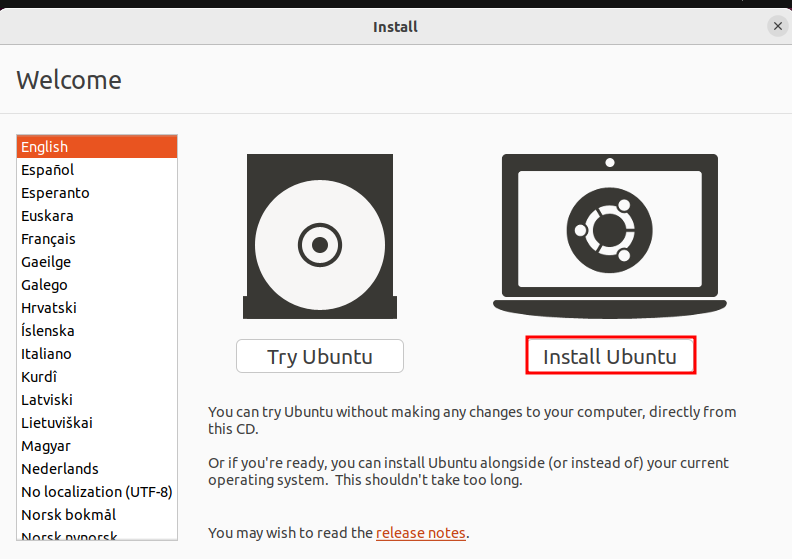
- Installation Type: When the installer asks, do not select “Erase disk.” Instead, choose “Something else.”
- Assign Space: Select the unallocated space you created, format it as
ext4, and set the mount point to/.
Managing the Bootloader
Ubuntu uses GRUB as its bootloader. After the second installation, GRUB will automatically detect both Ubuntu versions. When you start your computer, you will be presented with a menu asking which Ubuntu instance you wish to boot into. This provides the best performance since both instances have direct access to your hardware, though you cannot run them at the same time.
Maximizing Productivity: Best Practices for Nested Ubuntu Environments
Regardless of the method you choose, running Ubuntu on Ubuntu requires some management to ensure your system remains fast and organized.
Resource Allocation
If you are using virtualization (Boxes or VirtualBox), remember that your host OS needs resources too. A good rule of thumb is the “50% Rule”: never allocate more than half of your total CPU cores or RAM to the guest OS. If your laptop has 16GB of RAM, give the guest Ubuntu 8GB. This prevents the host from lagging, which is crucial for maintaining a professional workflow.
Shared Folders and Data Security
One of the biggest advantages of running Ubuntu on Ubuntu is the ability to move data between environments.
- In VirtualBox, install “Guest Additions” to enable a shared clipboard and drag-and-drop.
- In Multipass, use the
multipass mountcommand to map a folder from your home directory to the VM. - In Distrobox, your home folder is shared by default, making it the most seamless option for file management.
Enhancing Your Personal Brand through Isolation
If you are a freelancer or a consultant, your “Brand” is built on reliability. By using separate Ubuntu environments for different clients, you ensure that client-specific configurations or sensitive data never leak into other projects. It’s a digital version of “don’t put all your eggs in one basket.”
Conclusion: Choosing Your Ubuntu-on-Ubuntu Path
The decision of how to install Ubuntu on Ubuntu depends entirely on your specific needs:
- For simplicity and UI testing, use GNOME Boxes.
- For complex networking and snapshots, use VirtualBox.
- For fast, headless development, use Multipass.
- For running specific apps without overhead, use Distrobox.
- For maximum hardware performance, use Dual Booting.
By mastering these techniques, you transform your Ubuntu machine from a simple workstation into a powerful laboratory. You save money by maximizing your existing hardware, you boost your tech credentials by managing complex environments, and you protect your professional brand by maintaining a clean, efficient primary system. Ubuntu is more than an OS; it is a platform for infinite possibilities, even when that possibility is more Ubuntu.
aViewFromTheCave is a participant in the Amazon Services LLC Associates Program, an affiliate advertising program designed to provide a means for sites to earn advertising fees by advertising and linking to Amazon.com. Amazon, the Amazon logo, AmazonSupply, and the AmazonSupply logo are trademarks of Amazon.com, Inc. or its affiliates. As an Amazon Associate we earn affiliate commissions from qualifying purchases.