
In the ecosystem of modern mobile computing, the touchpad—or trackpad—serves as the primary bridge between the user and the operating system. While external mice are popular for static workstations, the portability of a laptop relies heavily on a responsive, gesture-capable touchpad. However, users often encounter frustrating issues: a jumpy cursor, the disappearance of multi-finger gestures, or a touchpad that stops responding entirely after an operating system update. Most of these issues stem not from hardware failure, but from driver discrepancies. Learning how to properly install and maintain touchpad drivers is a fundamental skill for any tech-savvy user looking to ensure their hardware operates at peak efficiency.
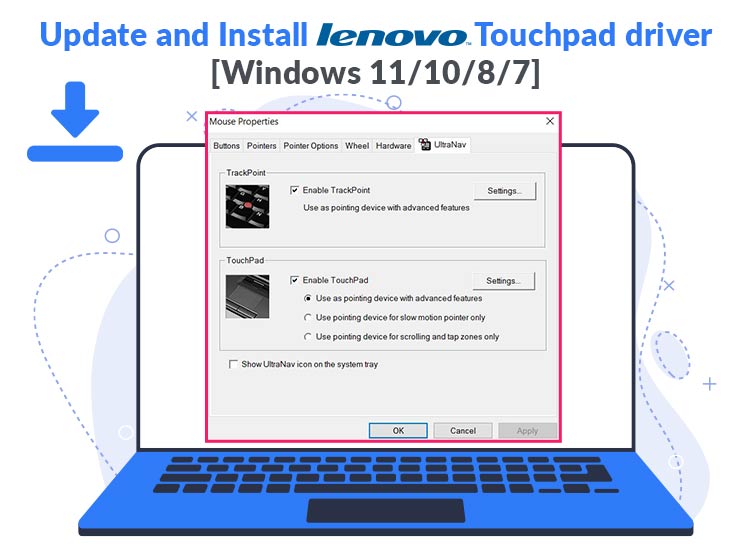
Understanding the Role of Touchpad Drivers in Modern Computing
Before diving into the installation steps, it is essential to understand what a driver actually does. In technical terms, a driver is a specialized piece of software that allows the operating system (Windows, Linux, or macOS) to communicate with a specific piece of hardware. Without the correct driver, the operating system might recognize that a device is plugged in but won’t know how to interpret the signals it sends.
What is a Touchpad Driver?
A touchpad driver translates your physical finger movements and taps into digital commands that the cursor follows. Modern drivers do much more than just move a pointer; they handle complex “Precision Touchpad” gestures. These include pinch-to-zoom, three-finger swipes to switch desktops, and palm rejection technology, which prevents the cursor from jumping while you are typing. Major manufacturers like Synaptics, ELAN, and Alps Electric provide the underlying hardware for most laptops, and each requires specific software stacks to function correctly.
Signs Your Touchpad Driver Needs an Update
Identifying a driver issue is the first step toward a fix. You likely need to reinstall or update your drivers if you notice any of the following:
- Erratic Movement: The cursor moves on its own or stutters across the screen.
- Missing Features: You can move the mouse, but two-finger scrolling or right-click tapping has stopped working.
- Total Unresponsiveness: The touchpad does not react at all, though an external USB mouse works perfectly.
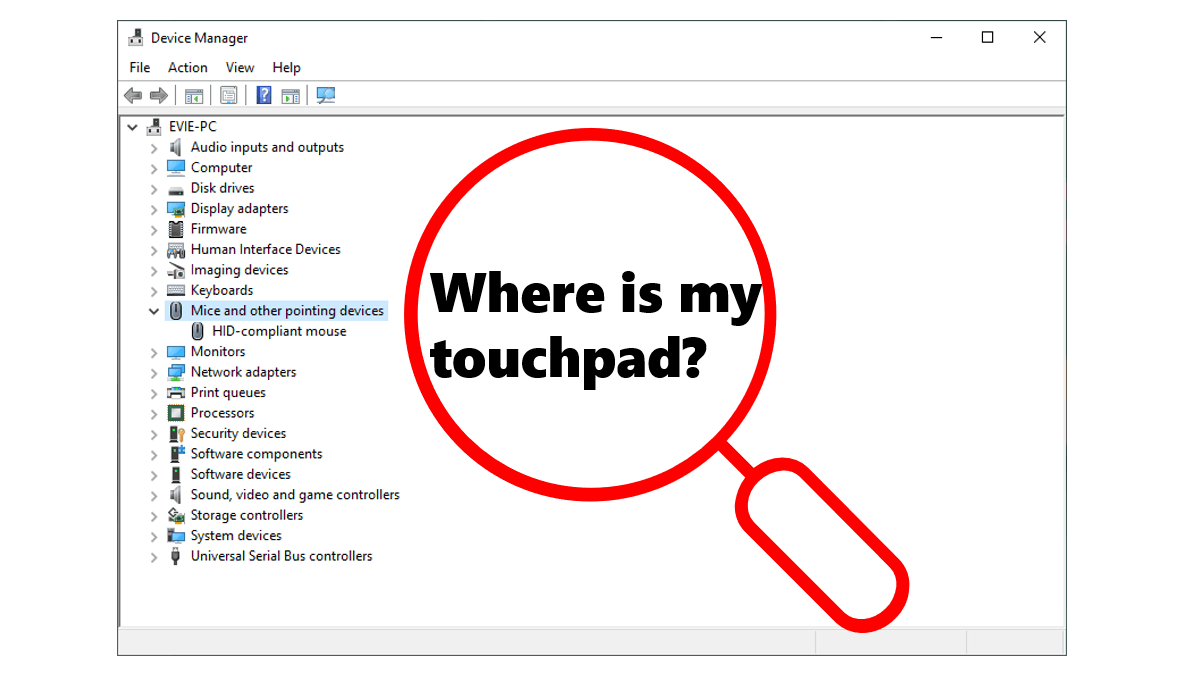
- Yellow Warning Icon: In the Windows Device Manager, a yellow exclamation mark appears next to “Mice and other pointing devices” or “Human Interface Devices (HID).”
Primary Methods for Installing Touchpad Drivers
There are several ways to approach driver installation, ranging from automated system tools to manual configurations. For most users, starting with the least intrusive method is recommended.
Using Windows Update for Automatic Installation
Microsoft has integrated a vast library of generic and manufacturer-certified drivers into the Windows Update service. This is the safest method for casual users because Microsoft verifies these drivers for stability.
- Connect your laptop to the internet and open Settings.
- Navigate to Update & Security (or Windows Update on Windows 11).
- Click Check for updates. Windows will scan your hardware IDs and compare them against its cloud database.
- If a driver is found, it will download and install automatically. In some cases, you may need to look under View optional updates > Driver updates to find specific touchpad firmware.
Utilizing Device Manager for Manual Updates
If Windows Update fails to find a specific driver, the Device Manager is your next line of defense. This tool provides a direct interface with every piece of hardware connected to your motherboard.
- Right-click the Start button and select Device Manager.
- Expand the section labeled Mice and other pointing devices. If you see “HID-compliant mouse” or a brand name like “Synaptics Pointing Device,” that is your touchpad.
- Right-click the device and select Update driver.
- Choose Search automatically for drivers. If Windows finds a newer version on your local drive or the web, it will apply it.
- If this fails, you can select Uninstall device, then restart your computer. Upon reboot, Windows will attempt to reinstall the driver from scratch, which often clears up corrupted configurations.
Downloading Drivers Directly from Manufacturer Websites
When automated tools fail—which often happens with brand-new laptop models or older “legacy” devices—you must go directly to the source. Original Equipment Manufacturer (OEM) drivers are usually more feature-rich than the generic ones provided by Microsoft.

Identifying Your Laptop Model and Hardware ID
To download the correct file, you must know exactly what hardware you are using. You can find your laptop’s model number on a sticker on the bottom of the chassis or by typing msinfo32 into the Windows search bar to open System Information.
For more granular detail, go back to Device Manager, right-click your touchpad, select Properties, go to the Details tab, and choose Hardware Ids from the dropdown. This string of characters (e.g., VEN10EC&DEV8168) acts as a digital fingerprint, ensuring you don’t install the wrong brand’s driver, which could cause a Blue Screen of Death (BSOD).
Navigating OEM Support Pages
Every major manufacturer has a dedicated support portal where you can enter your Serial Number or Service Tag to get a curated list of drivers:
- Dell: Uses the “Service Tag” system. Their “SupportAssist” tool can also automate this.
- HP: Requires the “Product Number.” HP often provides a “SoftPaq” executable that handles the installation.
- Lenovo: Uses the “Vantage” app or their support site where drivers are categorized by “Mouse and Keyboard.”
- ASUS/Acer: Generally list drivers under “Support” and then “Driver & Tools” after searching for your specific model.
Once downloaded, these are usually .exe files. Simply double-click, follow the installation wizard, and restart your system to finalize the changes.
Advanced Installation Techniques and Troubleshooting
Sometimes, a simple installation isn’t enough. If you are dealing with a persistent error or a driver that refuses to install, you may need to utilize advanced techniques.
Reinstalling Drivers in Compatibility Mode
If you are running a newer version of Windows (like Windows 11) on an older laptop, the manufacturer might not have released a compatible driver. In this scenario, you can attempt to run a Windows 10 or Windows 7 driver in Compatibility Mode.
- Right-click the downloaded driver installer and select Properties.
- Go to the Compatibility tab.
- Check the box for Run this program in compatibility mode for and select the previous OS version.
- Run the installer as an Administrator. This trick often bypasses version-check blocks and restores functionality to older Synaptics or ELAN hardware.
Rolling Back Drivers After a Failed Update
Occasionally, a new update introduces bugs. If your touchpad was working fine yesterday but stopped today, you should “Roll Back” the driver.
- In Device Manager, right-click your touchpad and select Properties.
- Navigate to the Driver tab.
- Click Roll Back Driver. Windows will uninstall the current version and revert to the previously installed, stable version. This is a crucial step for professionals who cannot afford downtime due to unstable software updates.
Best Practices for Long-Term Device Maintenance
Installing the driver is only half the battle; maintaining it ensures your workflow remains uninterrupted. Modern laptops frequently use “Precision Touchpad” drivers, which are managed directly through Windows settings rather than a separate manufacturer control panel.
Enabling Precision Touchpad Features
Once your driver is installed, you should optimize it. Go to Settings > Bluetooth & devices > Touchpad. If your driver is installed correctly, you will see a toggle to turn the touchpad on or off, along with a suite of gesture controls. Here, you can adjust the pointer speed, change the “Taps” sensitivity (to prevent accidental clicks while typing), and configure what three-finger and four-finger gestures do. If you do not see these options, you likely have a generic driver installed and should revisit the OEM website for the specific “Precision” driver package.
Preventing Driver Conflicts with Third-Party Software
Sometimes, third-party “driver booster” or “registry cleaner” apps can interfere with touchpad stability. These apps often suggest “newer” drivers that aren’t actually optimized for your specific laptop’s wiring. To maintain a healthy system, it is best to avoid these tools and stick to official manufacturer sources. Additionally, ensure that your BIOS/UEFI is kept up to date, as the motherboard firmware often dictates how the touchpad’s physical interface (usually via the I2C or PS/2 bus) communicates with the operating system.
In conclusion, while a malfunctioning touchpad can feel like a major hardware failure, it is almost always a software hurdle. By methodically using Windows Update, leveraging the Device Manager, and sourcing official drivers from manufacturer portals, you can restore and even enhance your laptop’s navigation capabilities. Regular maintenance and an understanding of your specific hardware IDs will ensure that your digital interface remains fluid, responsive, and tailored to your professional needs.
aViewFromTheCave is a participant in the Amazon Services LLC Associates Program, an affiliate advertising program designed to provide a means for sites to earn advertising fees by advertising and linking to Amazon.com. Amazon, the Amazon logo, AmazonSupply, and the AmazonSupply logo are trademarks of Amazon.com, Inc. or its affiliates. As an Amazon Associate we earn affiliate commissions from qualifying purchases.