
In today’s increasingly digital world, the humble printer might seem like a relic to some, but for countless individuals and businesses, it remains an indispensable tool. Whether you’re a student needing to print essays, a small business owner preparing invoices, a creative professional showcasing a portfolio, or simply someone who prefers a physical copy of important documents, a functional printer is crucial. Windows 10, with its robust operating system, aims to make the process of setting up and managing peripherals as straightforward as possible.
This comprehensive guide will walk you through every step of installing a printer on Windows 10, covering various connection types and troubleshooting common issues. Beyond the technical ‘how-to,’ we’ll explore how a properly integrated printer system can significantly boost your productivity (Tech), enhance your professional image (Brand), and even contribute to smarter financial management (Money). Understanding these underlying benefits transforms a simple installation task into a strategic move for optimizing your digital ecosystem.
The Foundation: Preparing for a Seamless Printer Installation
Before you even plug in a cable or connect to Wi-Fi, a little preparation can save you a lot of headaches. Think of this as laying the groundwork for a robust and reliable printing setup, ensuring your investment in technology pays off.
Essential Pre-Installation Checks
Navigating printer setup can sometimes feel like a puzzle, but with these initial checks, you’ll ensure all pieces are in place:
- Unboxing and Physical Setup: Most new printers come with clear instructions for unboxing, removing protective tapes and packaging, installing ink cartridges or toner, and loading paper. Follow these carefully. Incorrect setup here is a common cause of initial frustration.
- Power Connection: Ensure your printer is plugged into a working power outlet and switched on. A blinking power light usually indicates it’s ready or in a standby state.
- Locate Drivers and Software: While Windows 10 is often adept at finding generic drivers, the manufacturer’s specific drivers and utility software usually offer the best performance, full feature sets (like scanning utilities, ink level monitoring, and advanced print settings), and the most reliable experience.
- Installation CD: If your printer came with a CD, it likely contains the necessary drivers and software.
- Manufacturer’s Website: This is the most recommended source, especially for newer printers or if you lack a CD drive. Navigate to the support section of your printer manufacturer’s website (e.g., HP, Canon, Epson, Brother, Lexmark). Search for your specific printer model and download the latest drivers compatible with Windows 10 (64-bit or 32-bit, depending on your system). This ensures you have the most up-to-date software, often including security patches and performance improvements, aligning with best practices in Digital Security and Software management (Tech).
- Internet Connection: For network printers and for Windows to automatically search for drivers, an active internet connection on your Windows 10 PC is essential.
- Available Ports: For USB connections, ensure you have a free USB port on your computer. For network connections, ensure your printer is on the same network as your PC (either via Wi-Fi or Ethernet cable).
Why the Right Drivers Matter: A Tech Perspective
Drivers are the vital communication link between your operating system and your hardware. Think of them as translators. Without the correct drivers, your Windows 10 PC won’t understand how to “talk” to your printer, leading to either non-functionality or limited features. Using the manufacturer’s latest drivers ensures:
- Optimal Performance: Your printer will operate at its designed speed and quality.
- Full Feature Access: You’ll be able to use all the advanced functions like duplex printing, specific paper trays, specialized color profiles, and integrated scanning capabilities.
- Stability and Reliability: Proper drivers minimize glitches, print job errors, and system crashes related to printing.
- Security: Outdated drivers can sometimes present security vulnerabilities. Keeping them updated is a crucial aspect of your overall Digital Security strategy.
Seamless Setup: Installing a Printer on Windows 10
Windows 10 offers several intuitive methods to add a printer, catering to different connection types. The primary approach involves using the built-in “Settings” app, designed to streamline the process for most modern devices.
Method 1: Connecting a USB Printer (Plug-and-Play)
This is often the simplest and most common method for home users, embodying the convenience of modern Gadgets.
- Power On Your Printer: Ensure your printer is powered on and ready.
- Connect the USB Cable: Plug one end of the USB cable into your printer and the other end into an available USB port on your Windows 10 computer.
- Automatic Detection (Usually): Windows 10 is designed for “Plug and Play.” In many cases, it will automatically detect the new hardware, install the necessary drivers (either from its internal database or by downloading them from Windows Update), and notify you that the printer is ready for use. You might see a small notification pop up in the bottom right corner of your screen.
- Install Manufacturer Software (Optional but Recommended): Even if Windows installs a basic driver, consider running the installer from the manufacturer’s CD or downloaded file. This often installs additional utilities for managing print jobs, checking ink levels, scanning (if it’s an all-in-one), and accessing advanced settings, thereby enhancing your Productivity.
Method 2: Adding a Wireless or Network Printer
Network printers offer unparalleled flexibility, allowing multiple devices (and users) to access a single printer without direct physical connection. This is particularly beneficial for maximizing Productivity in multi-device households or office environments.
Option A: Adding a Wi-Fi Printer
Many modern printers come with built-in Wi-Fi connectivity.
- Connect Printer to Your Wi-Fi Network:
- Using Printer’s Control Panel: Most Wi-Fi printers have a small LCD screen and buttons. Navigate through the menu to “Wireless Setup,” “Network Setup,” or “Wi-Fi Setup Wizard.”
- Select your home or office Wi-Fi network (SSID) from the list and enter the Wi-Fi password (WPA2 key). The printer will then connect to your network.
- WPS (Wi-Fi Protected Setup): If both your printer and router support WPS, this can be even easier. On your printer, initiate WPS mode (often a button or menu option). Within a couple of minutes, press the WPS button on your Wi-Fi router. The devices will automatically connect.
- Add Printer on Windows 10:
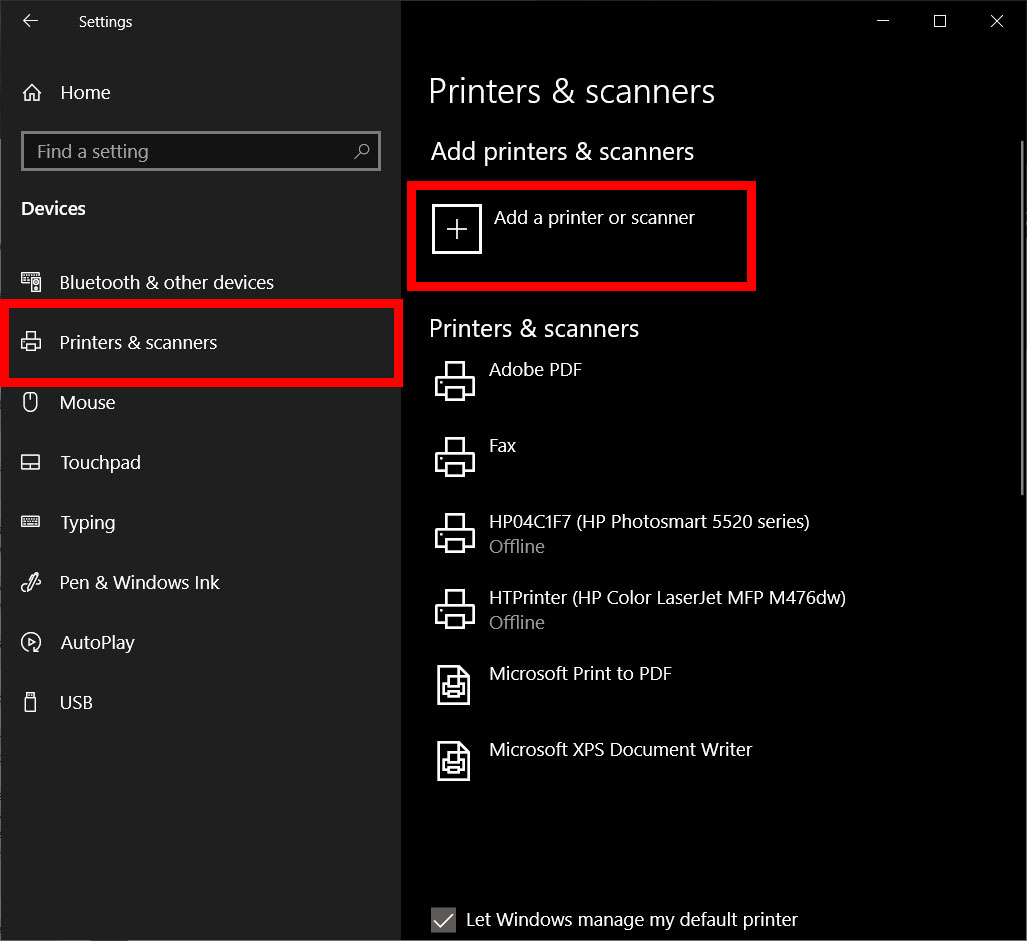
- Go to Settings (Windows Key + I).
- Click on Devices, then Printers & scanners.
- Click Add a printer or scanner.
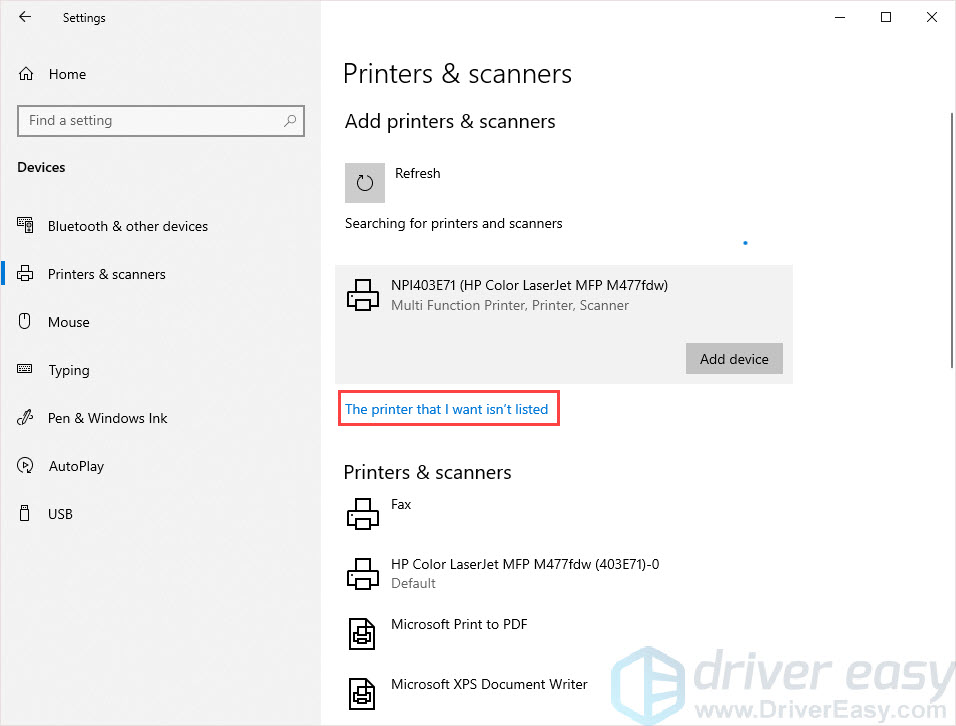
- Windows will search for available printers on your network. Your Wi-Fi printer should appear in the list.
- Select your printer and click Add device.
- Windows will then download and install the necessary drivers.
Option B: Adding an Ethernet (Wired Network) Printer
If your printer has an Ethernet port, it can be connected directly to your router or network switch for a stable, high-speed connection.
- Connect Ethernet Cable: Plug one end of an Ethernet cable into your printer’s Ethernet port and the other end into an available LAN port on your router or network switch.
- Add Printer on Windows 10:
- Follow the same steps as for Wi-Fi printers: Settings > Devices > Printers & scanners > Add a printer or scanner.
- Windows will search and usually find the Ethernet-connected printer on your network. Select it and click Add device.
What if Windows Doesn’t Find It? (Manual Network Addition)
Sometimes, Windows 10 might not automatically detect a network printer, especially in more complex network setups or with older models. In this case, you’ll need to add it manually using its IP address or hostname.
- Find Your Printer’s IP Address:
- Most network printers can print a “Network Configuration Page” or “Status Page” from their control panel, which will list the IP address.
- You can also often find it through your router’s administration interface (check devices connected).
- Add Printer Manually on Windows 10:
- Go to Settings > Devices > Printers & scanners > Add a printer or scanner.
- Wait for Windows to search. If your printer isn’t found, click “The printer that I want isn’t listed.”
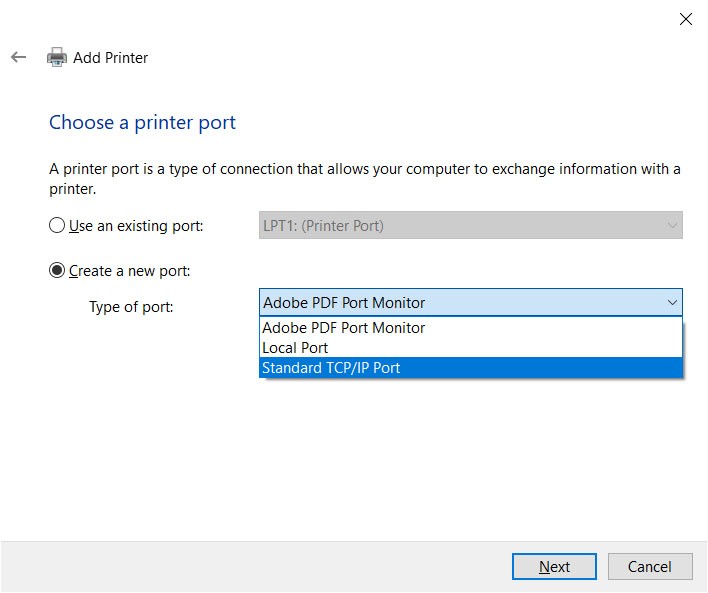
- In the “Add Printer” dialog box, select “Add a printer using a TCP/IP address or hostname” and click Next.
- For “Device type,” select “TCP/IP device.”
- Enter the printer’s IP address (e.g., 192.168.1.100) or hostname. Leave “Port name” as default or match it to the IP.
- Uncheck “Query the printer and automatically select the driver to use” for more control. Click Next.
- Choose the correct manufacturer and model from the list. If your specific model isn’t listed, click “Have Disk…” and browse to the location where you downloaded the manufacturer’s drivers.
- Follow the remaining prompts to name the printer and decide if you want to share it.
Advanced Scenarios & Troubleshooting: Optimizing Your Print Environment
Beyond standard installations, you might encounter older printers, need to install specific drivers, or face common issues. Addressing these head-on ensures your printing setup remains robust and reliable, contributing to consistent Productivity.
Adding an Older or Specialized Printer
Sometimes, you might have a legacy printer or a specialized model that doesn’t instantly play nice with Windows 10.
- Using “The printer that I want isn’t listed”: This option (accessible via Settings > Devices > Printers & scanners > Add a printer or scanner > “The printer that I want isn’t listed”) is a versatile pathway for various scenarios:
- “Add a local printer or network printer with manual settings”: This is useful if you have the driver files but Windows can’t detect the printer automatically (e.g., for very old USB printers or if you prefer manual control). You can select an existing port (like
LPT1for parallel ports, orUSB001for USB) or create a new TCP/IP port. - “Add a Bluetooth printer”: If your printer supports Bluetooth (less common than Wi-Fi), you’ll first need to pair it via Settings > Devices > Bluetooth & other devices before adding it through this manual option.
- “Add a printer using an IP address or hostname”: (As detailed above for manual network setup).
- “Add a local printer or network printer with manual settings”: This is useful if you have the driver files but Windows can’t detect the printer automatically (e.g., for very old USB printers or if you prefer manual control). You can select an existing port (like
- Manufacturer Drivers are Key: For older or specialized printers, downloading the exact Windows 10 compatible drivers from the manufacturer’s website is almost always mandatory. Generic drivers might not support all features or even recognize the device.
Setting a Default Printer
Once you have multiple printers installed, Windows 10 needs to know which one to use by default. This saves time and prevents accidental print jobs to the wrong device, a small but significant boost to your daily Productivity.
- Go to Settings > Devices > Printers & scanners.
- Under “Printers & scanners,” you’ll see a list of your installed printers.
- Ensure the option “Let Windows manage my default printer” is turned off. If it’s on, Windows will automatically set the last used printer as the default. While convenient for some, it can be frustrating if you frequently switch between printers for different tasks.
- Click on the printer you wish to set as default.
- Click the “Manage” button, then click “Set as default.”
Troubleshooting Common Printer Installation Issues
Even with the best preparation, things can go wrong. Here’s how to tackle frequent issues:
- Printer Not Detected:
- Check all cables (power, USB, Ethernet) are securely connected.
- Ensure the printer is powered on.
- Restart both your printer and your PC.
- Try a different USB port or Ethernet cable.
- If wireless, ensure both PC and printer are on the same Wi-Fi network.
- Temporarily disable any VPN or firewall software that might be blocking network discovery.
- “Driver is Unavailable” or Printing Errors:
- Download and install the latest drivers directly from the manufacturer’s website. Uninstall any existing printer software first via Settings > Apps > Apps & features.
- Run the Windows “Printer Troubleshooter”: Go to Settings > Update & Security > Troubleshoot > Additional troubleshooters, then select “Printer” and run it.
- Printer Status “Offline”:
- Ensure the printer is powered on and connected.
- In Settings > Devices > Printers & scanners, click your printer, then Manage.
- Open “Printer properties,” then go to the “Ports” tab. Ensure the correct port is selected (e.g., a USB port, or the correct IP address for network printers).
- If it’s a network printer, ensure its IP address hasn’t changed (you might need to assign a static IP address to your printer via your router settings to prevent this).
- Print Jobs Stuck in Queue:
- Go to Settings > Devices > Printers & scanners, click your printer, then Open queue.
- Go to Printer > Cancel All Documents.
- Restart the “Print Spooler” service: Search for “Services” in the Windows search bar, find “Print Spooler,” right-click it, and select “Restart.”
Beyond Installation: Maximizing Your Printer’s Value
A properly installed printer is more than just a piece of hardware; it’s an integral part of your digital toolkit, impacting everything from your daily workflow to your professional image and financial prudence.
Leveraging Printer Features for Productivity (Tech)
Modern printers, especially multifunction devices (MFDs), are packed with features that can significantly boost your Productivity:
- Scanning and OCR: Digitize documents, photos, and receipts. Optical Character Recognition (OCR) software (often included with manufacturer software) can convert scanned text into editable digital files, enabling seamless integration with AI Tools for data extraction or document management systems.
- Cloud Printing: Many printers now integrate with cloud services like Google Cloud Print (though being phased out, similar services are emerging), HP Smart, or manufacturer-specific apps. This allows you to print from anywhere, even your smartphone or tablet, enhancing your mobility and Productivity on the go.
- Duplex Printing: Save paper and reduce environmental impact by printing on both sides. This is not just eco-friendly but also cost-effective (Money).
- Wireless Direct Printing: Some printers create their own Wi-Fi hotspot, allowing direct connection from your devices without needing a router, ideal for quick prints when visiting clients or in temporary setups.
- Printer Management Apps: Apps from manufacturers (e.g., HP Smart, Canon PRINT Inkjet/SELPHY) let you monitor ink levels, order supplies, run diagnostics, and manage print jobs directly from your phone or PC, simplifying printer Software management.
The Printer’s Role in Your Brand Identity (Brand)
For businesses and individuals focused on Personal Branding or Corporate Identity, the quality and reliability of your printed materials are paramount:
- Professional Documents: High-quality prints for reports, proposals, résumés, and presentations reinforce a professional image. Faded ink, misaligned text, or paper jams reflect poorly on your attention to detail.
- Marketing Materials: Brochures, flyers, business cards, and custom labels often serve as tangible extensions of your Brand Strategy. A high-resolution color printer capable of handling various paper types (e.g., cardstock, glossy photo paper) can be invaluable for creating impactful, visually appealing materials. Design consistency across digital and print is crucial here.
- Consistency and Reputation: A reliable printer contributes to operational efficiency and consistency, which, in turn, bolsters your Reputation. Imagine the frustration of clients receiving poor-quality documents or missing deadlines due to printer issues. Investing in a dependable printer and understanding its optimal setup is a commitment to quality.
- Personal Branding for Creatives: For artists, photographers, or designers, a high-fidelity photo printer can be essential for producing prints that accurately represent their work, a critical aspect of their personal brand and portfolio.
Financial Savvy: The Money Aspect of Printer Ownership (Money)
Beyond the initial purchase, printers have ongoing costs. Smart management can lead to significant savings and better financial planning, especially for those running Side Hustles or managing Business Finance.
- Ink/Toner Costs: This is often the most significant ongoing expense.
- Page Yields: Understand your printer’s page yield for cartridges. High-yield cartridges, while more expensive upfront, often offer a lower cost per page.
- Subscription Services: Services like HP Instant Ink or Epson ReadyPrint monitor your ink levels and automatically ship replacements, potentially saving money and preventing last-minute rushes.
- Third-Party vs. OEM: While third-party cartridges can be cheaper, they sometimes come with compatibility issues, lower print quality, or even void warranties. Weigh the risks and benefits carefully.
- Paper Costs: Buying paper in bulk can reduce costs. Also, consider the paper type needed for different tasks (e.g., standard copy paper for drafts, heavier stock for presentations).
- Energy Consumption: Newer printers often have energy-saving modes. Turning off your printer when not in use or utilizing sleep modes can reduce electricity bills, a small but consistent saving in your Personal Finance.
- Maintenance and Longevity: Proper installation, driver updates, and routine cleaning (as per manufacturer instructions) can extend your printer’s lifespan, delaying the need for costly replacements. This ties into smart Financial Tools management – making your assets last.
- Online Income & Side Hustles: For anyone generating Online Income or running a Side Hustle, a reliable printer is a business asset. Printing shipping labels, invoices, marketing materials, or product prototypes directly impacts efficiency and professional presentation, indirectly affecting sales and profitability. The time saved by not having to visit a print shop adds up.
Conclusion
Installing a printer on Windows 10 is a foundational step in building a productive and efficient digital workspace. By following the detailed steps for USB, wireless, or network connections, and by being prepared to troubleshoot common issues, you can ensure a smooth setup experience.
But the journey doesn’t end with installation. By consciously integrating your printer into your broader tech strategy, considering its impact on your brand identity, and managing its costs effectively, you transform a simple peripheral into a powerful tool. Whether you’re aiming for higher personal productivity, projecting a polished corporate image, or simply making smarter financial decisions, your printer, properly installed and leveraged, plays a more significant role than you might initially imagine. So go ahead, connect your printer, and unlock a new level of efficiency in your Windows 10 environment.
aViewFromTheCave is a participant in the Amazon Services LLC Associates Program, an affiliate advertising program designed to provide a means for sites to earn advertising fees by advertising and linking to Amazon.com. Amazon, the Amazon logo, AmazonSupply, and the AmazonSupply logo are trademarks of Amazon.com, Inc. or its affiliates. As an Amazon Associate we earn affiliate commissions from qualifying purchases.