
In the modern digital landscape, hardware maintenance remains a cornerstone of office productivity and individual workflow efficiency. While we often focus on software updates and cloud synchronization, the physical peripherals that bridge the digital and tangible worlds—namely, our printers—require precise technical attention. Brother printers have long been lauded in the tech community for their robust engineering and reliable performance. However, to maintain peak operational standards, one must understand the specific nuances of their consumable components.
Replacing a toner cartridge is more than a simple clerical task; it is a fundamental hardware procedure that ensures the longevity of the laser assembly and the clarity of the output. This guide provides a deep dive into the technical architecture of Brother laser printers and a comprehensive walkthrough for installing toner, optimizing hardware performance, and troubleshooting common post-installation hurdles.
Understanding Brother Laser Technology and Toner Architecture
Before engaging with the hardware, it is essential to understand the underlying technology that distinguishes Brother printers from their competitors. Brother utilizes a unique two-piece consumable system: the toner cartridge and the drum unit. Understanding this distinction is the first step toward successful hardware management.
Toner Cartridges vs. Drum Units: The Crucial Distinction
Most laser printer manufacturers integrate the toner and the drum into a single, disposable unit. Brother, however, separates these components. The toner cartridge contains the fine plastic powder (toner) used to create text and images, while the drum unit is the electrically charged cylinder that transfers that powder onto the paper via static electricity and heat.
From a technical perspective, this separation is highly efficient. A drum unit typically lasts significantly longer—often through three to four toner replacement cycles. By replacing only the toner when it runs dry, users reduce electronic waste and lower the total cost of ownership. When you receive a “Toner Low” or “Replace Toner” message, you are usually only replacing the TN-series cartridge, not the DR-series drum.
Recognizing the Signs for Replacement
Modern Brother firmware is designed to monitor toner levels through either optical sensors or page-count algorithms. While the printer will provide an on-screen alert, there are physical indicators of toner depletion that a tech-savvy user should recognize:
- Fading Print Density: If the blacks appear grey or washed out across the entire page, the toner supply is likely insufficient to maintain full saturation.
- Horizontal Streaking: While often a drum issue, inconsistent toner flow can cause intermittent white lines.
- The “Shake” Method: As a diagnostic step, removing the cartridge and gently rocking it can redistribute the remaining powder, often granting a few dozen more pages and confirming that the supply is indeed low.
Step-by-Step Hardware Integration: Installing Your New Toner Cartridge
Installing a new toner cartridge requires a blend of physical precision and software awareness. Following a standardized protocol ensures that you do not damage the sensitive electrophotographic components or the internal gears of the printer.
Preparation and Safety Protocols
Before opening the chassis, ensure the printer is powered on. Many users believe turning the power off is safer, but Brother printers often need the power to be active to recognize the change in the sensor state and reset the internal page counter.
- Clear the Workspace: Ensure you have a flat surface. Toner powder is extremely fine; place a piece of disposable paper or cloth under the unit during the swap to catch any accidental spills.
- Temperature Awareness: If the printer has been in heavy use, the fuser unit (located near the exit path) will be extremely hot. Allow the machine to idle for 10 minutes before reaching inside.
The Physical Installation Process
The following steps apply to the vast majority of Brother monochrome and color laser series (such as the HL, MFC, and DCP lines):

- Access the Internal Bay: Open the front cover of the printer. On most models, this involves a recessed handle or button on the side.
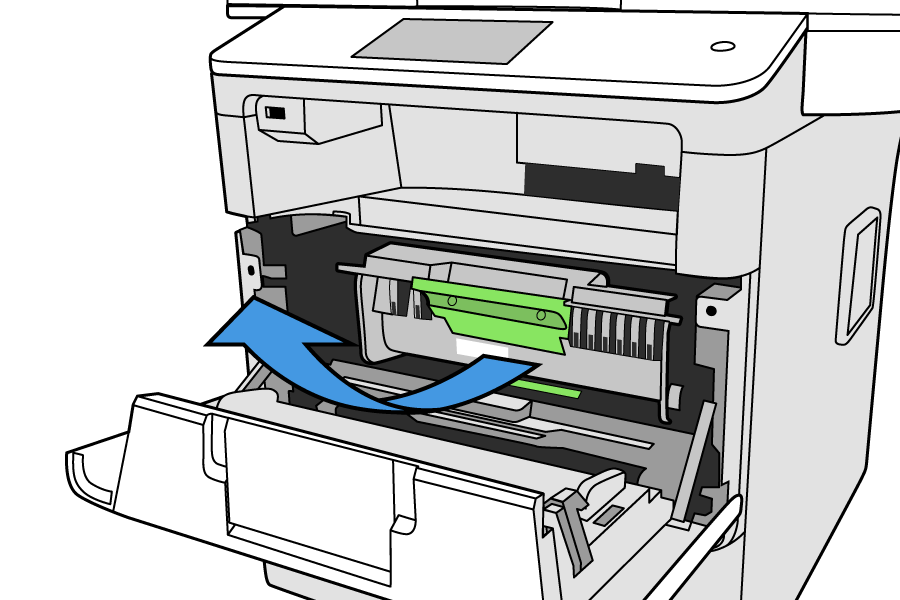
- Remove the Assembly: Grasp the handle of the drum unit and toner cartridge assembly. Pull it toward you and lift it slightly to clear the internal tracks.
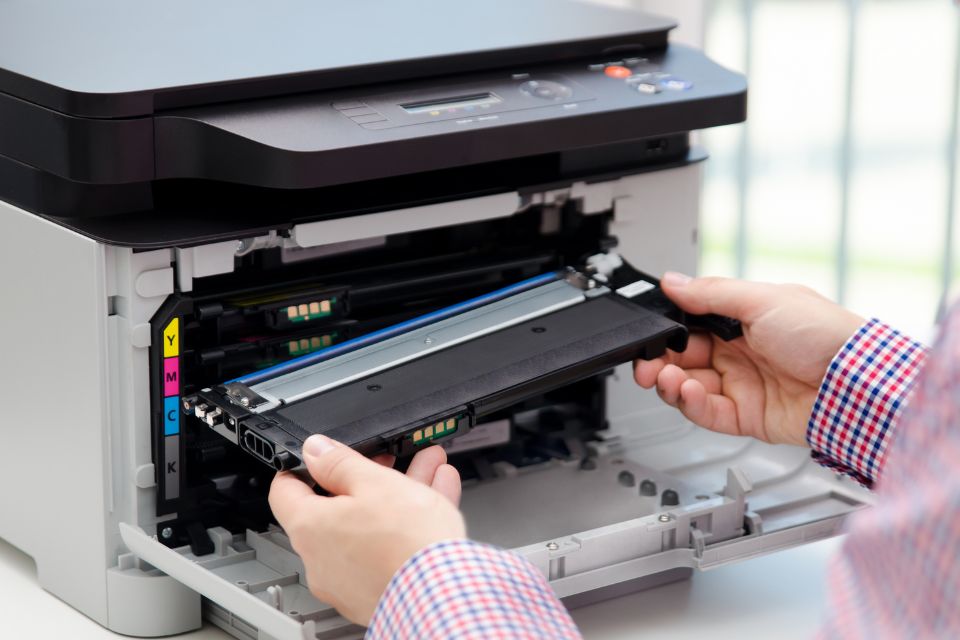
- Disengage the Toner: Look for a colored lever (usually green or teal) on the drum unit. Press this lever down to unlock the toner cartridge. Lift the old cartridge out of the drum cradle.
- Prepare the New Component: Remove the new Brother toner from its vacuum-sealed packaging. Critical Step: Hold the cartridge level and gently rock it side-to-side 5–6 times. This loosens the powder, which can compact during shipping, ensuring even distribution and preventing “clumping” errors.
- Remove Protective Shields: Take off the plastic protective cover (usually orange) from the new cartridge. Avoid touching the developer roller (the black cylinder) to prevent skin oils from contaminating the print surface.
- Seating the Cartridge: Slide the new toner into the drum unit until you hear a distinct click. The locking lever should automatically snap back into place.
- Clean the Corona Wire: Before reinserting the assembly, locate the green tab on top of the drum unit. Slide it back and forth several times. This cleans the primary corona wire, which is essential for clear electrostatic transfer. Ensure the tab is returned to its “home” position (marked by a small triangle) to avoid black vertical stripes on your prints.
- Final Reinsertion: Slide the entire assembly back into the printer and close the front cover firmly.
Resetting the Internal Counter
In some instances, the printer may not automatically detect the new toner, continuing to display a “Toner Low” error. This is often a software-hardware handshake issue. For many Brother models, you can manually trigger a reset by accessing the hidden “Reset Menu” via the control panel (often by opening the front door and holding the ‘Secure’ or ‘Cancel’ buttons, depending on the specific model series).
Optimizing Print Performance and Hardware Longevity
Once the toner is installed, the focus shifts to maintaining the system for peak performance. In the tech world, hardware is only as good as the maintenance it receives.
Genuine vs. Third-Party Consumables: A Technical Comparison
A common debate in tech circles is the use of OEM (Original Equipment Manufacturer) toner versus third-party “compatible” cartridges. From a technical standpoint, Brother’s genuine toner is formulated with specific melting points and particle sizes tailored to their fuser’s temperature range.
While third-party toners offer significant cost savings, they can occasionally lead to:
- Toner Leakage: Inferior seals can lead to powder accumulation inside the printer, potentially damaging the laser scanner glass.
- Fuser Build-up: If the plastic resin in the toner doesn’t melt at the exact specified temperature, it can coat the fuser rollers, leading to paper jams.
- Color Accuracy: In color laser models, third-party chemical compositions often fail to match the color profiles programmed into the Brother drivers.
Firmware Updates and Driver Management
To ensure your printer interprets toner levels correctly and optimizes the electrophotographic process, keep your firmware updated. Brother frequently releases updates that improve the “out of toner” sensing logic and enhance the efficiency of the “Toner Save Mode.” Use the Brother Status Monitor tool on your PC or Mac to check for these updates regularly.
Advanced Troubleshooting for Post-Installation Issues
Even with a perfect installation, technical anomalies can occur. Addressing these requires a systematic approach to hardware diagnostics.
Resolving Error Messages and “Toner Low” Persistence
If the “Replace Toner” message persists after a fresh install:
- Check the Sensor: Ensure there is no packing tape or debris blocking the optical sensor windows on the sides of the cartridge.
- Verify Compatibility: Double-check that the cartridge model (e.g., TN-760 vs. TN-730) matches the requirements of your specific printer model. High-yield and standard-yield cartridges are often interchangeable, but the wrong series will not seat properly.
- The Gear Reset: Some cartridges use a physical “reset gear.” If this gear was tripped during shipping, the printer will think the cartridge is used. Manually rotating the gear back to the starting position can often resolve this.
Addressing Print Quality Degradation
If you notice spots or streaks immediately after installation:
- Drum Cleaning: The drum may have picked up dust during the swap. Use a lint-free cloth and isopropyl alcohol (99%) to gently clean the surface of the drum if you see repeating marks.
- Calibration: Navigate to the printer’s ‘Tools’ or ‘Maintenance’ menu and run the ‘Calibration’ or ‘Auto-Regist.’ cycle. This aligns the laser and the drum to ensure the new toner is being applied with precision.
Conclusion
Mastering the installation and maintenance of Brother toner cartridges is an essential skill for anyone looking to optimize their technical environment. By understanding the interplay between the toner and drum, adhering to precise installation protocols, and maintaining the software-hardware link through firmware updates, you ensure that your hardware remains a reliable asset rather than a source of frustration. In the realm of technology, attention to detail in physical maintenance is what separates a seamless workflow from a disrupted one. Keep your corona wires clean, your firmware updated, and your hardware will continue to deliver the professional results that the Brother brand is known for.
aViewFromTheCave is a participant in the Amazon Services LLC Associates Program, an affiliate advertising program designed to provide a means for sites to earn advertising fees by advertising and linking to Amazon.com. Amazon, the Amazon logo, AmazonSupply, and the AmazonSupply logo are trademarks of Amazon.com, Inc. or its affiliates. As an Amazon Associate we earn affiliate commissions from qualifying purchases.