
In the vast ecosystem of Linux and Unix-like operating systems, the sudo command stands as a cornerstone of secure and efficient system administration. Often misunderstood but universally essential, sudo – short for “superuser do” or “substitute user do” – allows authorized users to execute commands with the privileges of another user, typically the superuser (root). Its proper installation and configuration are not just a matter of convenience but a critical component of adhering to the principle of least privilege, enhancing security, and streamlining administrative tasks. This comprehensive guide will walk you through the nuances of sudo, from understanding its fundamental role to detailed installation and configuration across various Linux distributions, ensuring you can harness its power responsibly.

Understanding Sudo: Why It’s Essential for System Administration
At its core, sudo is a gateway to elevated privileges, but it’s a gateway with strict controls. It represents a mature solution to a perennial challenge in multi-user operating systems: how to grant necessary administrative power without compromising system integrity.
The Principle of Least Privilege
The principle of least privilege (PoLP) is a foundational concept in information security, dictating that a user, program, or process should have only the minimum necessary privileges to perform its function. Running every task as the root user, which possesses unrestricted access to the entire system, is a grave security risk. A single error or compromised application running as root could lead to catastrophic data loss, system instability, or full system compromise. sudo addresses this by allowing regular users to temporarily elevate their privileges only for specific commands or tasks, rather than operating continuously as root. This significantly reduces the attack surface and potential damage from mistakes or malicious actors.
Differentiating Sudo from Root Access
While sudo allows commands to be executed as the root user, it’s crucial to understand that it is fundamentally different from directly logging in as root. When you log in as root, you have an open, persistent session with maximum privileges. Any process initiated, any file modified, or any command run during that session carries the full weight of the superuser.
In contrast, sudo requires a user to explicitly invoke it for each privileged command. By default, it also prompts for the user’s own password (not the root password), ensuring that only authenticated individuals can leverage its power. This distinction is vital: sudo provides granular, on-demand privilege escalation, whereas logging in as root grants pervasive, continuous power. This makes sudo a far more secure and auditable method for performing administrative functions.
Key Benefits of Using Sudo
Beyond security, sudo offers several practical advantages:
-
Enhanced Security: Limits the impact of security breaches by preventing continuous root access.
-
Accountability:
sudologs every command executed by users, along with their timestamps and the user who ran them. This creates a clear audit trail, invaluable for security monitoring and troubleshooting. -
Delegation: Allows system administrators to delegate specific administrative tasks to different users without giving them full root access. For example, a user might be allowed to restart a web server but not modify network configurations.
-
Convenience: Eliminates the need to switch to the root user, remember the root password (which might not even be set on some systems, like Ubuntu), or logout and login frequently.
Pre-installation Checks and Considerations
Before diving into the installation process, a few preliminary steps and considerations can ensure a smooth setup and prevent potential issues.
Identifying Your Operating System (Distro)
Linux distributions vary in their package managers and default configurations. Knowing whether you’re running Debian, Ubuntu, Fedora, CentOS, Arch Linux, or another distribution is paramount as the installation commands will differ. You can typically identify your distribution and its version using commands like lsb_release -a, cat /etc/os-release, or hostnamectl.
Verifying Network Connectivity
Installation of sudo (if it’s not pre-installed) will typically involve downloading packages from your distribution’s repositories. Ensure your system has active internet connectivity. You can test this by pinging a reliable external host, e.g., ping google.com.
Initial Access Requirements
If sudo is not present, you will need an initial method to gain root privileges to install it. This usually means:
-
Direct Root Login: If you know the
rootpassword, you can log in asrootvia the console or SSH. -
suCommand: If you are a regular user but know therootpassword, you can usesu -to switch to the root user. -
Live CD/Recovery Mode: In cases where direct root access or
suisn’t available (e.g., forgotten root password or a fresh installation), you might need to boot into a live environment or recovery mode to chroot into your system and install/configuresudo.
Backup Best Practices
While installing sudo is generally straightforward, making significant system changes always carries a minor risk. For critical systems, consider backing up important configuration files or even the entire system state before proceeding.
Step-by-Step Installation Guides for Popular Distributions
Most modern Linux distributions, especially desktop-oriented ones like Ubuntu, come with sudo pre-installed and configured for the initial user. However, if you’re setting up a minimal server installation or working with a custom environment, you might need to install it manually.
Installing Sudo on Debian/Ubuntu (APT-based systems)
Debian and its derivatives, most notably Ubuntu, use the Advanced Package Tool (APT) for package management.
-
Gain Root Access:
su - # If you have the root password # OR, if you're on a system where another user has sudo and you're adding it to a new user: # sudo -i -
Update Package Lists:
apt update -
Install Sudo:
apt install sudo -
Add User to the
sudoGroup:Once installed, you need to add the user(s) who should be allowed to use
sudoto thesudogroup (oradmgroup on some older Debian systems). Replaceusernamewith the actual username.usermod -aG sudo username -
Verify: Log out and log back in as
usernamefor group changes to take effect, then testsudo:sudo whoamiIt should prompt for your password and then output
root.
Installing Sudo on Fedora/CentOS/RHEL (YUM/DNF-based systems)
Red Hat Enterprise Linux (RHEL), CentOS, Fedora, and other RHEL-based distributions use DNF (or YUM on older versions) as their package manager.
-
Gain Root Access:
su - -
Install Sudo:
dnf install sudo # For Fedora/CentOS 8+/RHEL 8+ # OR yum install sudo # For CentOS 7/RHEL 7 -
Add User to the
wheelGroup:On RHEL-based systems, users in the
wheelgroup are typically grantedsudoprivileges by default.usermod -aG wheel username -
Verify: Log out and log back in, then test
sudo:sudo whoami
Installing Sudo on Arch Linux (Pacman-based systems)
Arch Linux uses Pacman as its package manager and is known for its minimalist approach.
-
Gain Root Access:
su - -
Install Sudo:
pacman -S sudo -
Configure Sudoers File (Crucial for Arch):
Unlike other distributions, Arch often requires manual configuration of the
/etc/sudoersfile to enablesudofor groups. Usevisudoto edit this file (see next section for details). Uncomment the line that allows users in thewheelgroup to usesudo.visudo # Find and uncomment the line: # %wheel ALL=(ALL:ALL) ALL -
Add User to the
wheelGroup:usermod -aG wheel username -
Verify: Log out and log back in, then test
sudo:sudo whoami
General Installation Steps (for less common distros)
If your distribution isn’t covered, the general approach is:
-
Gain Root Access.
-
Use your distribution’s package manager to install
sudo. (e.g.,zypper install sudofor openSUSE,apk add sudofor Alpine Linux). -
Refer to your distribution’s documentation for the correct group to add users to or how to configure the
sudoersfile. Thesudoersfile configuration is often the most varied part.
Configuring Sudo: Granting and Managing User Privileges
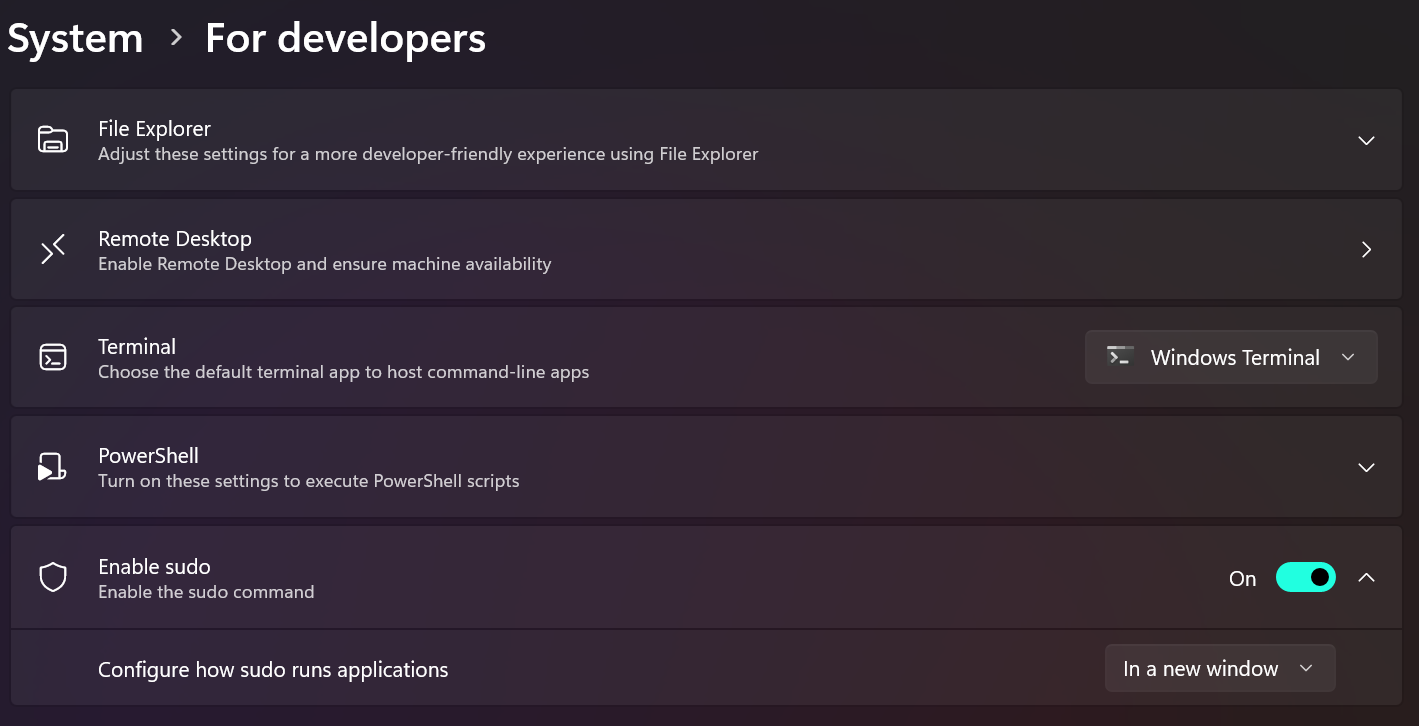
Installing sudo is only half the battle; the real power and security lie in its configuration through the /etc/sudoers file. This file dictates who can run what, where, and how.
The visudo Command: Safely Editing the Sudoers File
Never edit /etc/sudoers directly with a text editor like vi or nano! Always use the visudo command.
visudo does several critical things:
-
It locks the
sudoersfile to prevent simultaneous edits. -
It performs syntax checking on your changes before saving. If you introduce an error, it will prompt you to fix it rather than saving a broken file, which could lock you out of
sudoprivileges. -
It typically uses
vias its default editor, but you can change this by setting theEDITORenvironment variable (e.g.,export EDITOR=nano; visudo).
To use visudo, simply type sudo visudo (if you already have sudo access) or visudo as root.
Understanding Sudoers Syntax: User, Host, Command Aliases
The sudoers file consists of rules that follow a specific syntax:
who where=(as_whom:as_group) what
-
who: The user or group (prefixed with%) being granted privileges. -
where: The hostnames on which the rule applies (usuallyALLfor local systems). -
as_whom: The user(s) whose privileges the command will run as (typicallyALLfor root). -
as_group: The group(s) whose privileges the command will run as. -
what: The command(s) that can be executed (specified with full path, orALL).
Common entries you’ll see:
-
root ALL=(ALL:ALL) ALL- The
rootuser can runALLcommands onALLhosts asALLusers andALLgroups.
- The
-
%sudo ALL=(ALL:ALL) ALL- Users in the
sudogroup can runALLcommands onALLhosts asALLusers andALLgroups. (Common on Debian/Ubuntu).
- Users in the
-
%wheel ALL=(ALL:ALL) ALL- Users in the
wheelgroup can runALLcommands onALLhosts asALLusers andALLgroups. (Common on RHEL/Fedora/Arch).
- Users in the
Granting Specific Commands or All Privileges
While giving a user or group ALL privileges is common for administrators, sudo shines in its ability to grant highly specific permissions.
Example: Allowing a user to restart a specific service:
john ALL=/usr/bin/systemctl restart apache2.service
This allows user john to restart the apache2 service, but nothing else. Note the full path to systemctl.
Example: Allowing a user to run certain networking commands without password:
%netops ALL=(ALL) NOPASSWD: /sbin/iptables, /usr/sbin/tcpdump
Users in the netops group can run iptables and tcpdump without entering a password.
NOPASSWD Option: Use Cases and Security Implications
The NOPASSWD tag allows a user to execute specific commands via sudo without being prompted for a password.
Use Cases:
-
Automation: For scripts or automated tasks that require elevated privileges but cannot interactively provide a password.
-
Specific, Low-Risk Commands: For commands that need to be run frequently but pose minimal security risk if executed without a password (e.g., monitoring scripts).
Security Implications:
-
Increased Risk: If a user account or an application running on their behalf is compromised, an attacker could execute
NOPASSWDcommands without needing the user’s password. -
Careful Consideration: Use
NOPASSWDsparingly and only for very specific, tightly controlled commands. Never useNOPASSWDwithALLcommands for any user.
Managing Groups with Sudo
Managing privileges through groups is more scalable and easier to maintain than assigning permissions to individual users. When a new user needs sudo access, you simply add them to the appropriate group (e.g., sudo or wheel). When a user no longer needs access, remove them from the group.
To add a user to a group:
usermod -aG groupname username
To remove a user from a group:
gpasswd -d username groupname
Remember that users typically need to log out and back in for group changes to take effect.
Best Practices and Troubleshooting Sudo
Effective sudo management goes beyond initial setup; it involves continuous vigilance and adherence to best practices.
Security Considerations for Sudo Usage
-
Principle of Least Privilege: Continuously evaluate if users have the minimum necessary
sudoprivileges. GrantingALLto every administrator might be convenient but is less secure than granting specific commands. -
Strong Passwords:
sudostill relies on the user’s password for authentication (by default). Enforce strong password policies for all system users. -
Timeouts:
sudosessions typically have a timeout (default 5 minutes). After this period, users are prompted for their password again. Do not extend this timeout excessively. -
No Root Login: On systems like Ubuntu, the
rootaccount is disabled by default, forcing the use ofsudo. This is a good security practice. If you enablerootlogin, ensure it’s heavily secured (e.g., only via console, strong password, SSH key authentication only). -
Avoid
sudo suorsudo -ifor Daily Tasks: While useful for extended administrative sessions, constantly elevating to a full root shell bypasses some ofsudo‘s granular control. Prefersudo commandfor specific tasks.
Common Sudo Errors and How to Resolve Them
-
user is not in the sudoers file. This incident will be reported.:-
Cause: The user is not configured in
/etc/sudoersor is not part of a group that hassudoprivileges. -
Solution: As
rootor another user withsudoaccess, useusermod -aG sudo username(orwheel) and ensure the corresponding group entry is uncommented insudoersviavisudo.
-
-
sudo: command not found:-
Cause: The
sudopackage is not installed. -
Solution: Install
sudousing your package manager while logged in asroot.
-
-
Syntax Errors in
sudoers:-
Cause: Attempting to edit
/etc/sudoersdirectly or making a mistake withinvisudo. -
Solution:
visudoprevents saving invalid syntax. If you somehow managed to save a bad file, you’ll need to boot into a rescue mode or usesu -(if still possible) to fix it.visudo -f /etc/sudoersis the only safe way to edit it.
-
-
Password Prompt Loop:
-
Cause: Incorrect password, or sometimes issues with PAM (Pluggable Authentication Modules).
-
Solution: Double-check your password. If it persists, investigate PAM configuration or potential system corruption.
-
Auditing Sudo Logs
All sudo activity is logged. On most systems, these logs can be found in /var/log/auth.log (Debian/Ubuntu) or /var/log/secure (RHEL/Fedora). Regularly reviewing these logs is crucial for:
-
Security Monitoring: Detecting unauthorized access attempts or suspicious activity.
-
Troubleshooting: Understanding which commands were run by whom and when, which can help debug system issues.
-
Compliance: Meeting auditing requirements for various security standards.
You can filter sudo entries using tools like grep:
grep sudo /var/log/auth.log
Regularly Updating Sudo Package
Like all software, the sudo package can have vulnerabilities. Regularly updating your system ensures that you have the latest security patches for sudo and all other installed software.
-
Debian/Ubuntu:
sudo apt update && sudo apt upgrade -
RHEL/Fedora:
sudo dnf update -
Arch Linux:
sudo pacman -Syu

Conclusion: Empowering Secure System Management
The sudo command is more than just a convenience; it’s a cornerstone of secure and accountable system administration in the Linux world. By understanding its principles, carefully installing it, and meticulously configuring its permissions, you empower yourself and your team to manage systems effectively while upholding the critical principle of least privilege. From protecting against accidental damage to mitigating sophisticated cyber threats, mastering sudo is an indispensable skill for anyone responsible for maintaining a robust and secure Linux environment. Adopt its best practices, stay vigilant with your configurations, and harness sudo to build a safer, more resilient digital infrastructure.