
The world of PC gaming is undeniably dominated by Windows, but for a growing segment of users, Linux offers a powerful, flexible, and often more secure alternative. Whether you’re a seasoned Linux veteran looking to expand your gaming library or a curious newcomer drawn to the open-source ecosystem, installing Steam on your Linux distribution is a gateway to a vast universe of games. This guide will walk you through the process, covering everything from the basic installation steps to essential considerations for optimizing your gaming experience.

Steam, Valve Corporation’s ubiquitous digital distribution platform, has made significant strides in its Linux support over the years. While it might not offer the same seamless “just works” experience as on Windows for every single title, the compatibility and performance have improved dramatically, thanks to Valve’s ongoing efforts and the power of technologies like Proton. So, let’s dive in and get your Linux gaming rig ready to go.
Understanding the Basics: Why Install Steam on Linux?
Before we get our hands dirty with commands and package managers, it’s worth understanding why you might choose to install Steam on Linux. The reasons are multifaceted and appeal to both gamers and those interested in the broader tech landscape.
Gaming on Linux: A Growing Reality
For years, Linux gaming was largely a niche pursuit, requiring complex workarounds and compromises. However, this perception is rapidly changing. Valve’s commitment to Linux, particularly through the development of Proton (a compatibility layer based on Wine that allows Windows games to run on Linux), has been a game-changer. Proton has enabled thousands of Windows games to run on Linux with varying degrees of success, often achieving performance comparable to or even exceeding their Windows counterparts.
Beyond Proton, many game developers are now releasing native Linux versions of their titles, further solidifying Linux as a viable gaming platform. The open-source nature of Linux also allows for a more customizable and often more performant gaming environment, especially for those who enjoy tinkering and optimizing their systems.
The Tech Appeal: Embracing an Open Ecosystem
For many Linux users, the decision to game on Linux is intertwined with their broader adoption of the operating system. Linux offers unparalleled control, transparency, and a freedom from proprietary software that is highly attractive to tech enthusiasts. Installing Steam on Linux aligns perfectly with this philosophy. You’re not just installing a game launcher; you’re integrating a powerful entertainment platform into an operating system that empowers you.
Furthermore, understanding how to install and manage software on Linux, including complex applications like Steam, is an excellent way to deepen your understanding of your operating system. It’s a practical application of command-line skills, package management, and system configuration – all core tenets of the Linux experience.
Brand and Reputation: The Rise of Linux Gaming
The growing popularity of Linux gaming also has implications for the “Brand” aspect of the tech world. Valve, by investing heavily in Linux and Steam Deck, is building a strong reputation as a company that cares about open platforms and gamer choice. This can translate into increased brand loyalty and a positive association with innovation and inclusivity within the gaming community. As more users flock to Linux for gaming, the perception of the platform itself shifts from a “developer’s OS” to a mainstream gaming powerhouse.
Installing Steam on Your Linux Distribution
The installation process for Steam on Linux can vary slightly depending on your specific distribution (e.g., Ubuntu, Fedora, Debian, Arch Linux). However, the general principles remain the same, and most distributions offer user-friendly methods to get Steam up and running. We’ll cover the most common approaches.
Method 1: Using Your Distribution’s Package Manager (Recommended)
This is the most straightforward and generally recommended method for installing Steam. Package managers are designed to handle dependencies and updates automatically, making the process seamless and ensuring your Steam installation is well-integrated with your system.
For Debian-based distributions (Ubuntu, Linux Mint, Pop!_OS, etc.):
-
Open a Terminal: You can usually find the Terminal application by searching in your application menu or by pressing
Ctrl + Alt + T. -
Update Package Lists: Before installing any new software, it’s good practice to update your system’s package lists to ensure you’re fetching the latest available versions.
sudo apt updateYou’ll be prompted to enter your user password. Type it in (you won’t see any characters appear) and press Enter.
-
Install Steam: Now, install the Steam package.
bash

sudo apt install steam
The system will ask for confirmation to download and install Steam and its dependencies. TypeYand press Enter.
For Fedora:
-
Open a Terminal.
-
Enable the RPM Fusion Repository (if not already enabled): Steam is often available through the RPM Fusion repository. If you haven’t enabled it, you’ll need to do so first.
- For the free repository:
bash

sudo dnf install https://mirrors.rpmfusion.org/free/fedora/rpmfusion-free-release-$(rpm -E %fedora).noarch.rpm
- For the nonfree repository (which often includes Steam):
bash

sudo dnf install https://mirrors.rpmfusion.org/nonfree/fedora/rpmfusion-nonfree-release-$(rpm -E %fedora).noarch.rpm
- For the free repository:
-
Update Package Lists:
sudo dnf update -
Install Steam:
bash

sudo dnf install steam
Confirm the installation when prompted by typingyand pressing Enter.
For Arch Linux and Manjaro:
-
Open a Terminal.
-
Update System and Package Lists:
sudo pacman -Syu -
Install Steam: Steam is available in the official repositories.
bash

sudo pacman -S steam
Confirm the installation.
Method 2: Downloading the .deb Package (for Debian-based systems)
If for some reason the package manager method doesn’t work or you prefer to download the package directly, you can get the .deb file from the official Steam website.
- Visit the Official Steam Website: Go to store.steampowered.com/about/.
- Download the Linux Installer: Look for a “Install Steam” button or link, and when prompted, choose to download the Linux version. This will typically download a
.debfile (e.g.,steam_latest.deb). - Install the Package:
- Using the graphical package installer: Most file managers will allow you to double-click the
.debfile and open it with your default package installer (e.g., GDebi or Software Install), which will guide you through the installation. - Using the terminal: Navigate to the directory where you downloaded the file (usually
~/Downloads).
bash

cd ~/Downloads
Then, install it usingdpkg:
bash

sudo dpkg -i steam_latest.deb
If you encounter dependency errors, you can often resolve them with:
bash

sudo apt --fix-broken install
- Using the graphical package installer: Most file managers will allow you to double-click the
Method 3: Using Flatpak (Universal Package)
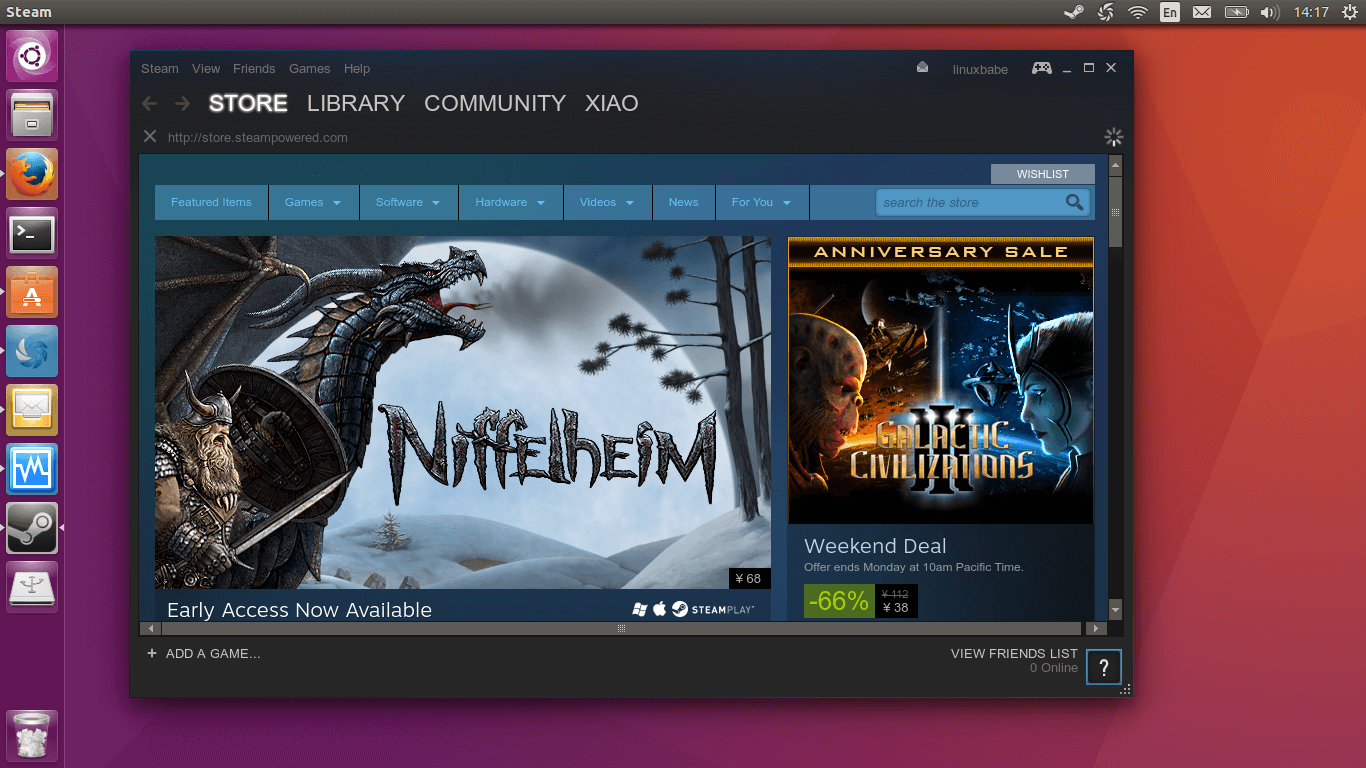
Flatpak is a universal packaging system that allows you to run applications in an isolated sandbox. This can be beneficial for compatibility and keeping your base system clean.
-
Install Flatpak: If you don’t have Flatpak installed, follow the instructions for your distribution on the official Flatpak website: flatpak.org/setup/
-
Add the Flathub Repository: Flathub is the primary repository for Flatpak applications.
flatpak remote-add --if-not-exists flathub https://flathub.org/repo/flathub.flatpakrepo -
Install Steam from Flathub:
bash

flatpak install flathub com.valvesoftware.Steam
Confirm the installation.
Post-Installation: The First Launch and Updates
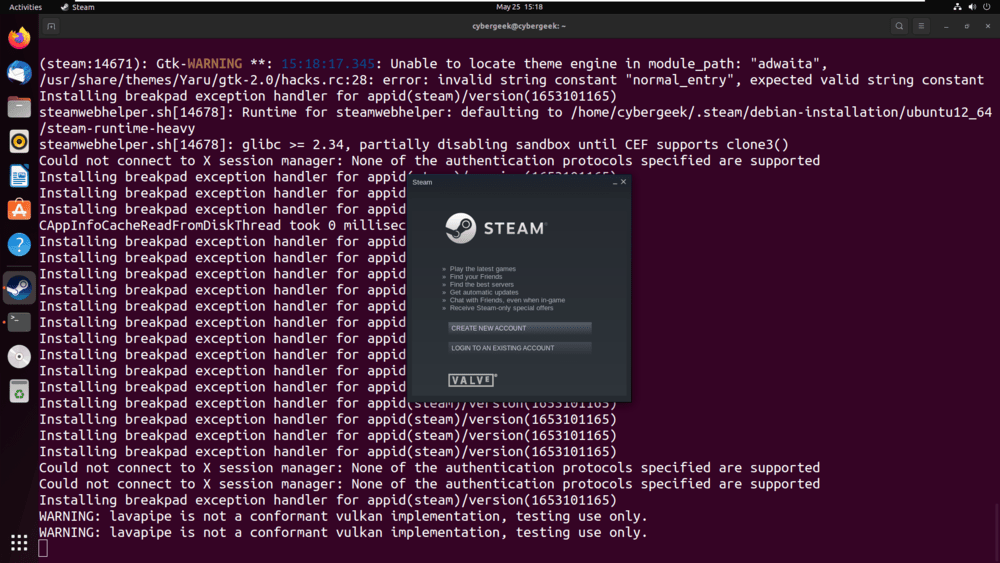
Regardless of the installation method you chose, the first time you launch Steam, it will likely download and install a significant update. This is normal and necessary to ensure you have the latest version of the client and all its features.
- Launch Steam: You can find Steam in your application menu or by typing
steamin the terminal. - Login or Create an Account: Once Steam has finished its initial update, you will be presented with the familiar login screen. Enter your Steam account credentials. If you don’t have an account, you’ll need to create one.
- Automatic Updates: For users who installed via their distribution’s package manager or Flatpak, Steam will generally be updated automatically along with your system’s other software updates. If you installed manually or are concerned about updates, you can usually find an “Update” option within Steam’s settings.
Optimizing Your Linux Gaming Experience
Installing Steam is just the first step. To truly unlock the potential of gaming on Linux, there are a few additional steps and considerations that can significantly enhance your experience.
Understanding Proton and Compatibility
Proton, developed by Valve, is a compatibility layer that allows Windows games to run on Linux. It’s a modified version of Wine, further enhanced with various libraries and tools that improve gaming performance and compatibility.
-
Enabling Proton: By default, Steam on Linux might only run games with native Linux support. To access Windows games via Proton, you need to enable it within Steam’s settings.
- Open Steam.
- Go to Steam (top-left corner) > Settings.
- In the Settings window, navigate to the Steam Play tab.
- Check the box that says “Enable Steam Play for supported titles.”
- For broader compatibility, it’s highly recommended to also check “Enable Steam Play for all other titles.”
- You can also select a specific version of Proton to use from the dropdown menu. “Proton Experimental” is usually the latest and might offer better compatibility for newer games, while a stable release like “Proton 8.0” is generally reliable.
- Click OK and restart Steam for the changes to take effect.
-
ProtonDB: When you enable Steam Play for all titles, Steam will download Proton. You can then try to launch almost any Windows game. However, not all games will work perfectly. A fantastic resource for checking game compatibility is ProtonDB.com. This community-driven website collects reports on how well specific Windows games run on Linux using various Proton versions, along with tips and workarounds for any issues. Before purchasing a game or if you encounter problems, check ProtonDB!
Graphics Drivers: Crucial for Performance
Your graphics card drivers are paramount for gaming performance on any operating system, and Linux is no exception. Ensuring you have the correct and up-to-date drivers installed is critical.
-
NVIDIA: For NVIDIA cards, you’ll typically want to install the proprietary NVIDIA drivers. These are usually available through your distribution’s repositories or can be downloaded directly from NVIDIA’s website. Using the proprietary drivers often yields significantly better performance than open-source alternatives for gaming.
-
AMD: For AMD cards, the open-source
amdgpudrivers are generally excellent and often perform very well for gaming. They are typically included by default in most modern Linux distributions. -
Intel: Integrated Intel graphics can also run games, but performance will be limited. Again, ensure you have the latest drivers, which are usually part of the kernel and Mesa graphics stack.
Check your distribution’s documentation for the recommended way to install or update graphics drivers.
System Tweaks and Performance Enhancements
While Steam and Proton handle much of the heavy lifting, a few system-level tweaks can further boost your Linux gaming performance:
-
GameMode: GameMode is a daemon that optimizes your system for gaming on demand. It can adjust CPU governors, I/O priorities, and other system parameters to maximize performance when a game is running. Many distributions include it in their repositories, or you can install it via Flatpak.
-
Swapiness: Adjusting your system’s swapiness can sometimes help, especially on systems with ample RAM. Lowering swapiness tells your system to use RAM more aggressively before resorting to swapping to disk.
-
Kernel Tuning: For advanced users, specific kernel parameters can be tuned for better gaming performance, though this is an advanced topic and often unnecessary for most users.
Storage and Performance: SSDs are Your Friend
Just like on Windows, installing games on a Solid State Drive (SSD) will dramatically reduce loading times and can improve overall game performance by allowing faster asset streaming. Ensure your Steam library is located on an SSD if possible.
Troubleshooting Common Issues
While the Linux gaming ecosystem has matured significantly, you might still encounter hiccups. Here are a few common issues and their potential solutions.
Game Won’t Launch or Crashes Immediately
- Check ProtonDB: As mentioned, ProtonDB is your first stop. Look up the game and see if others are reporting similar issues and if there are any recommended workarounds (e.g., specific Proton versions, launch options, or pre-installed libraries).
- Launch Options: In Steam, right-click on the game, go to Properties, and under “General,” you can add launch options. For example, some games might benefit from specific
WINEcommands. - Verify Game Files: In Steam, right-click the game, go to Properties > Local Files, and click “Verify integrity of game files.” This will check for corrupted or missing files.
- Graphics Drivers: Ensure your graphics drivers are up-to-date and correctly installed.
Poor Performance or Stuttering
- Graphics Drivers: Again, this is the most likely culprit. Make sure you’re using the latest recommended drivers.
- Proton Version: Experiment with different Proton versions. Sometimes, an older or newer version can perform better.
- Game Settings: Reduce in-game graphical settings.
- System Load: Ensure no other resource-intensive applications are running in the background.
- GameMode: Make sure GameMode is installed and active.
Controller Issues
- Steam Input: Steam’s built-in controller configuration tool (Steam Input) is very powerful and can often map controllers correctly. You might need to enable specific controller support settings within Steam’s General controller settings.
- Driver Support: Ensure your controller has good Linux driver support. Most modern USB and Bluetooth controllers work well.
Conclusion: Embrace the Linux Gaming Frontier
Installing Steam on Linux has transitioned from a hobbyist endeavor to a mainstream option for gamers. With the robust support from Valve through Proton, the increasing native Linux game releases, and the inherent flexibility of the Linux operating system, you have a compelling reason to explore PC gaming on this powerful platform.
By following the steps outlined in this guide, you’ll be well on your way to enjoying your favorite titles on Linux. Remember to leverage community resources like ProtonDB, keep your system updated, and don’t be afraid to experiment. The Linux gaming frontier is vast and exciting, and with Steam as your gateway, a world of entertainment awaits.
aViewFromTheCave is a participant in the Amazon Services LLC Associates Program, an affiliate advertising program designed to provide a means for sites to earn advertising fees by advertising and linking to Amazon.com. Amazon, the Amazon logo, AmazonSupply, and the AmazonSupply logo are trademarks of Amazon.com, Inc. or its affiliates. As an Amazon Associate we earn affiliate commissions from qualifying purchases.