
In today’s increasingly digital world, cloud storage solutions have become indispensable for both individuals and businesses. Google Drive, with its seamless integration into the Google ecosystem and generous free storage, stands out as a popular choice. However, as we entrust our valuable documents, personal photos, and sensitive business data to the cloud, the question of security becomes paramount. While Google provides robust infrastructure security, ensuring the privacy and protection of your data on Google Drive ultimately rests on your shoulders. This comprehensive guide will walk you through the essential steps and best practices for installing and maintaining robust security on your Google Drive, covering everything from basic account protection to advanced threat mitigation.

Understanding the Security Landscape of Google Drive
Before diving into the “how-to,” it’s crucial to understand what “security” means in the context of Google Drive. It’s not about installing a separate antivirus program directly onto Google Drive itself, as it’s a cloud-based service managed by Google’s infrastructure. Instead, it involves a multi-layered approach:
- Account Security: Protecting your Google account, which is the gateway to your Drive.
- Data Encryption: Ensuring your data is unreadable to unauthorized parties, both in transit and at rest.
- Access Control: Managing who can view, edit, or comment on your files.
- Threat Detection and Prevention: Being aware of and actively mitigating potential risks like phishing, malware, and unauthorized access.
- Backup and Recovery: Having strategies in place in case of accidental deletion or data loss.
Google Drive operates on a foundation of Google’s global infrastructure security, which includes physical security for data centers, network security, and advanced threat detection systems. However, this doesn’t mean your data is automatically impenetrable. Misconfigurations, weak passwords, or falling victim to social engineering attacks can still compromise your files. Therefore, understanding these nuances is the first step towards building a secure Google Drive environment.
Securing Your Google Account: The First Line of Defense
Your Google account is the master key to all your Google services, including Google Drive. If your account is compromised, so is everything within it. Therefore, prioritizing the security of your Google account is non-negotiable.
Strong Passwords: The Bedrock of Account Security
The most fundamental yet often overlooked security measure is the use of strong, unique passwords.
- Complexity is Key: Avoid easily guessable passwords like “123456,” your birthdate, or common words. A strong password should be a mix of uppercase and lowercase letters, numbers, and symbols. Aim for a minimum of 12 characters.
- Uniqueness Matters: Never reuse passwords across different accounts. If one account is breached, others will remain safe.
- Password Managers: Manually creating and remembering strong, unique passwords for every online service can be a daunting task. This is where password managers come in. Tools like LastPass, 1Password, or Bitwarden can generate complex passwords, store them securely, and automatically fill them in when you log in. This eliminates the need to remember dozens of intricate codes and significantly enhances your security posture.
Two-Factor Authentication (2FA): An Indispensable Security Layer
Once you have a strong password, the next crucial step is enabling Two-Factor Authentication (2FA), also known as Multi-Factor Authentication (MFA). This adds an extra layer of security by requiring not just your password but also a second form of verification to access your account.
- How it Works: When you log in, after entering your password, you’ll be prompted for a second factor. This could be:
- A code from your phone: Via SMS or an authenticator app like Google Authenticator or Authy. Authenticator apps are generally more secure than SMS codes as they are not susceptible to SIM-swapping attacks.
- A physical security key: A USB device like a YubiKey that you plug into your computer or tap on your phone. These are considered the most secure form of 2FA.
- A prompt on your phone: Google often sends a “Yes/No” prompt to your trusted devices for quick approval.
- Enabling 2FA on Google:
- Go to your Google Account page.
- Navigate to “Security.”
- Under “Signing in to Google,” click on “2-Step Verification.”
- Follow the on-screen prompts to set up your preferred 2FA methods. Make sure to have backup codes handy in case you lose access to your primary 2FA device.
Securing Your Data within Google Drive: Encryption and Access Management
Beyond account security, you need to actively manage how your files are protected within Google Drive itself.
Understanding Google Drive Encryption
Google Drive encrypts your data in two primary ways:
- Encryption in Transit: When you upload or download files from Google Drive, the data is encrypted as it travels between your device and Google’s servers using TLS (Transport Layer Security). This protects it from being intercepted by malicious actors on public Wi-Fi networks or other less secure connections.
- Encryption at Rest: Once your files reach Google’s servers, they are encrypted again using AES (Advanced Encryption Standard) encryption. This means that even if someone managed to physically access Google’s storage infrastructure, the data would be unreadable without the decryption keys.
While Google handles the core encryption, there are steps you can take to enhance this protection, particularly for highly sensitive data.
Best Practices for File Encryption and Data Sensitivity
For most users, Google’s built-in encryption is sufficient. However, for exceptionally sensitive documents, you might consider client-side encryption before uploading.
- Client-Side Encryption Tools: Tools like Cryptomator or Boxcryptor allow you to encrypt your files on your local device before they are uploaded to Google Drive. This means only you, with your passphrase, can decrypt the files. Google will see encrypted blobs of data, making it impossible for them or anyone who compromises their servers to read your content. This adds a significant layer of privacy.
- File Naming Conventions: While not a direct security feature, clear and descriptive file naming conventions can help you quickly identify and manage your files, reducing the risk of accidentally sharing or misplacing sensitive information.
Granular Access Control: Sharing Wisely
The power of Google Drive lies in its sharing capabilities, but this is also where security vulnerabilities can arise. Misconfigured sharing settings are a common cause of data breaches.
- Understanding Sharing Options:
- Restricted: Only explicitly added users can access the file.
- Specific people: You can share with specific Google accounts.
- Anyone with the link: Anyone who has the link can access the file. Be extremely cautious with this option, especially for sensitive documents.
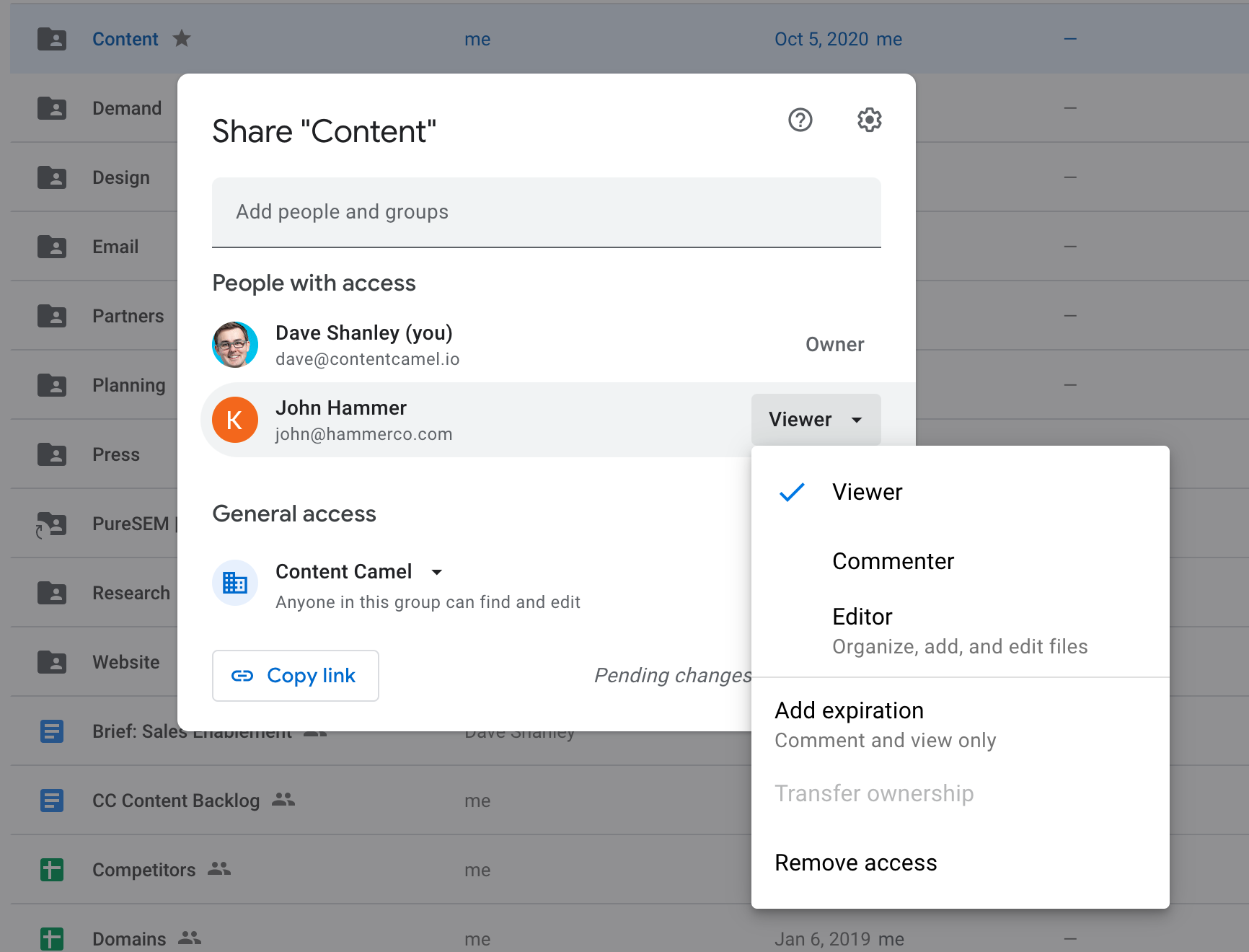
- Viewer, Commenter, Editor: Define the level of access each shared user has.
- Regularly Reviewing Sharing Permissions: Make it a habit to periodically check who has access to your files and folders.
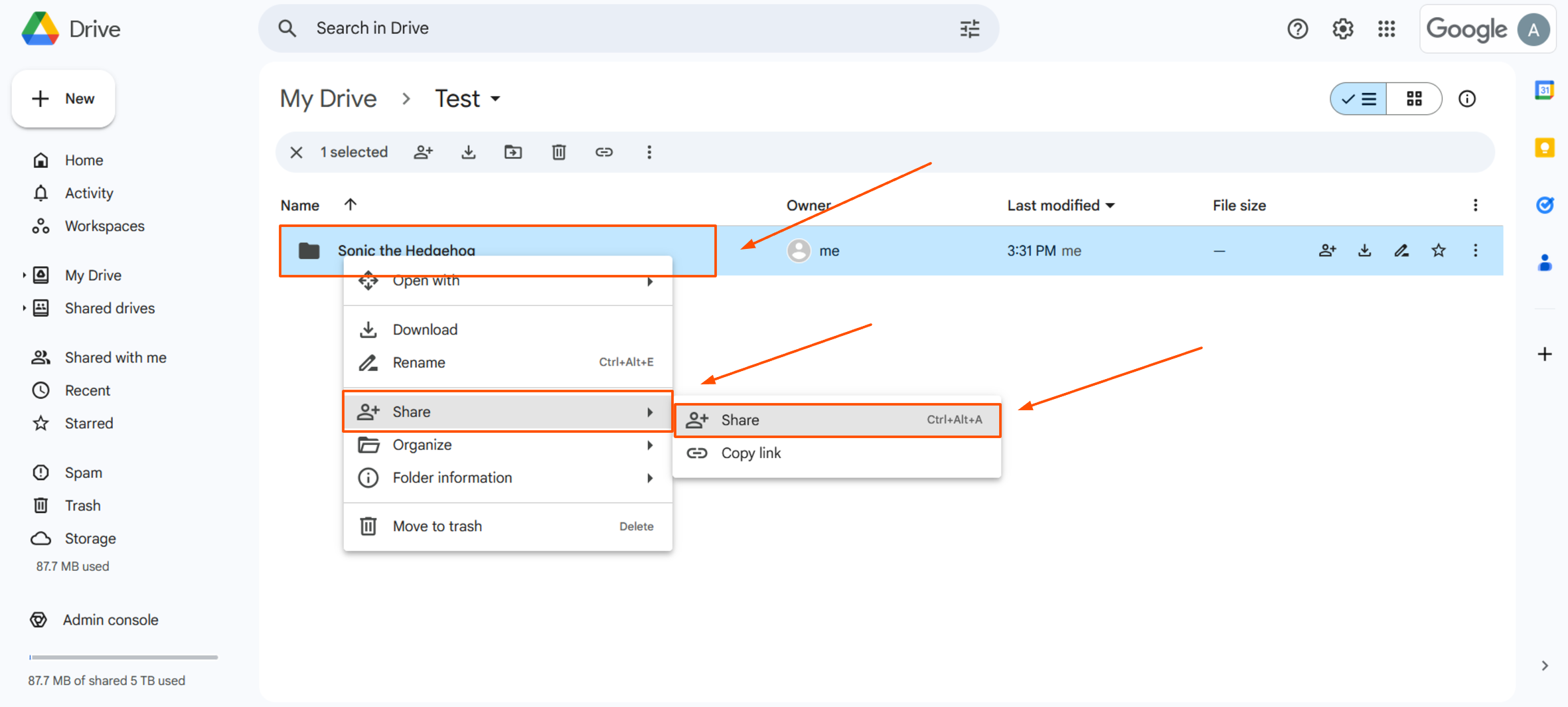
- Right-click on a file or folder in Google Drive.
- Select “Share.”
- Review the list of people with access and their permission levels.
- Remove access for anyone who no longer needs it.
- For “Anyone with the link” shares, consider changing them to “Restricted” or sharing with specific individuals if the information is no longer public.
- Using Link Sharing with Caution: When sharing with “Anyone with the link,” be aware that the link can be forwarded, posted on public forums, or indexed by search engines. If you need to share something broadly but temporarily, set an expiration date for the link if possible (though Google Drive’s native link expiration is limited). For broader distribution, consider services designed for public file sharing with more granular control.
- Folder Structure for Security: Organize your Google Drive into logical folders, with different permission settings applied at the folder level. For instance, a “Confidential Business Data” folder should have much stricter access controls than a “Vacation Photos” folder.
Proactive Measures: Staying Ahead of Threats
Security is not a one-time setup; it’s an ongoing process. Being proactive and aware of potential threats is vital for maintaining a secure Google Drive.
Phishing and Social Engineering Awareness
Phishing attacks are a prevalent threat where attackers try to trick you into revealing sensitive information, such as your login credentials.
- Recognize Phishing Attempts: Be wary of unsolicited emails or messages that ask for your login details, personal information, or financial details. These often impersonate legitimate organizations (like Google) and may contain urgent requests or alarming messages.
- Verify the Sender: Always check the sender’s email address carefully. Look for unusual domain names or slight misspellings.
- Inspect Links: Hover your mouse over links in emails before clicking them. If the URL doesn’t match the expected destination or looks suspicious, do not click it.
- Be Skeptical of Attachments: Avoid opening attachments from unknown or untrusted senders, as they could contain malware.
- Google’s Built-in Protections: Google Drive and Gmail have built-in phishing and malware detection. However, they are not foolproof, and user vigilance is essential.
Managing Connected Apps and Devices
Many third-party applications and services can connect to your Google Drive to integrate functionality. While convenient, these connections can also be security risks if not managed properly.
- Review Connected Apps:
- Go to your Google Account page.
- Navigate to “Security.”
- Under “Your devices,” look for “Third-party apps with account access.”
- Carefully review the list of apps that have permission to access your Google Drive.
- Remove access for any apps you no longer use, trust, or recognize.
- Granting Minimal Permissions: When connecting a new app, pay attention to the permissions it requests. Only grant the minimum necessary permissions for the app to function.
Backups and Recovery: The Ultimate Safety Net
While Google Drive offers data redundancy within its infrastructure, it’s not a substitute for your own backup strategy. Accidental deletions, account compromises, or even Google service outages (though rare) can lead to data loss.
- Google Takeout: Google Takeout allows you to download an archive of your data from various Google services, including Google Drive. Schedule regular exports to have a local copy of your important files.
- Third-Party Backup Solutions: For businesses or individuals with critical data, consider using third-party backup solutions that specifically integrate with Google Drive. These tools can automate the backup process, store your data in a separate location, and offer more advanced recovery options.
- Local Backups: Maintain regular backups of your most critical files on external hard drives or other local storage solutions. This provides an extra layer of protection against cloud-specific issues.
Conclusion: Embracing a Secure Google Drive Workflow
Securing your Google Drive is an ongoing commitment, not a one-time setup. By implementing strong account security measures like robust passwords and 2FA, understanding and utilizing encryption, practicing meticulous access control, and staying vigilant against online threats, you can significantly enhance the protection of your digital assets. Remember that Google provides a secure foundation, but your proactive engagement is what truly fortifies your Google Drive against the ever-evolving landscape of cyber threats. By integrating these practices into your daily digital workflow, you can confidently leverage the convenience and power of Google Drive while safeguarding your valuable information.
aViewFromTheCave is a participant in the Amazon Services LLC Associates Program, an affiliate advertising program designed to provide a means for sites to earn advertising fees by advertising and linking to Amazon.com. Amazon, the Amazon logo, AmazonSupply, and the AmazonSupply logo are trademarks of Amazon.com, Inc. or its affiliates. As an Amazon Associate we earn affiliate commissions from qualifying purchases.