
In the ever-evolving landscape of technology, efficient software management is paramount for maintaining robust and secure systems. For users and administrators working within the Linux ecosystem, particularly those leveraging distributions like Red Hat Enterprise Linux (RHEL), CentOS, Fedora, AlmaLinux, or Rocky Linux, understanding the Red Hat Package Manager (RPM) is not just beneficial—it’s essential. RPM serves as the foundational packaging system, providing a standardized and powerful way to install, update, query, and remove software packages.
This comprehensive guide will demystify the process of installing RPM packages, equipping you with the knowledge and tools to manage software effectively on your RPM-based Linux system. We’ll delve into what RPM is, explore different installation methodologies, address common challenges like dependency resolution, and touch upon crucial security considerations to ensure your software deployment is both smooth and safe. Whether you’re a seasoned system administrator or a curious Linux enthusiast, mastering RPM installation is a critical step towards maximizing your system’s productivity and security.
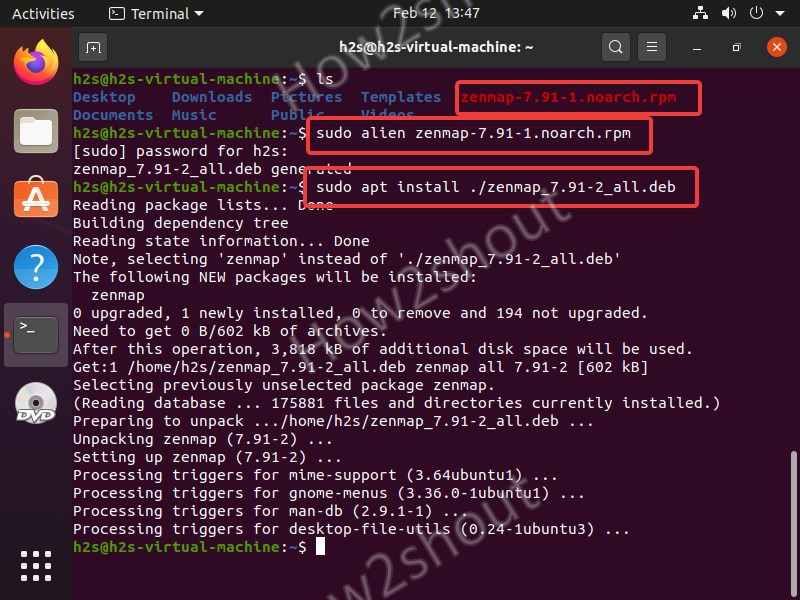
Understanding RPM Packages: The Foundation of Software Management
Before diving into the practical steps of installation, it’s crucial to grasp what RPM packages are and why they play such a vital role in the Linux world. This understanding will provide context for the commands and best practices we’ll discuss later.
What is RPM? A Brief Overview
RPM, which originally stood for Red Hat Package Manager, is an open-source packaging system primarily used by Red Hat and its derivatives. It’s a command-line driven tool that allows system administrators and users to install, update, uninstall, query, and verify software packages. An RPM package is essentially an archive file containing the software, its metadata (such as version, description, and dependencies), and installation scripts. Think of it as a .exe file for Windows or a .dmg file for macOS, but for Linux, with a much more sophisticated system for managing interactions between different software components.
The .rpm file extension signifies a compiled software package ready for installation. This compilation typically includes all necessary binary files, configuration files, and documentation, structured in a way that RPM can easily unpack and place into the correct locations on your filesystem.
Why Use RPM? Advantages and Use Cases
The adoption of RPM across a wide range of popular server and desktop distributions isn’t arbitrary; it stems from several key advantages it offers:
- Standardization: RPM provides a consistent format for packaging software, making it easier for developers to distribute their applications across different RPM-based systems. This standardization simplifies the user’s experience by offering a uniform installation method.
- Dependency Resolution: One of RPM’s most powerful features is its ability to track dependencies. Software packages rarely exist in isolation; they often rely on other libraries or utilities to function correctly. RPM (and its front-ends like YUM and DNF) can automatically identify these dependencies and ensure they are met before an installation proceeds, preventing broken software.
- Ease of Management: With RPM, installing, updating, and removing software becomes a streamlined process. Instead of manually copying files or running complex
makecommands, a single RPM command can handle the entire lifecycle of a software package. This significantly boosts productivity for administrators. - Verification and Security: RPM packages include checksums and often GPG signatures, allowing users to verify the integrity and authenticity of a package. This helps ensure that the software hasn’t been tampered with and comes from a trusted source, a critical aspect of digital security.
- Querying Capabilities: RPM allows users to query information about installed packages, such as their version, installation date, and the files they contain. This is invaluable for auditing and troubleshooting.
RPM is the backbone for managing virtually all system-level software on its supported distributions, from kernels and system utilities to desktop applications and server software.
Common RPM-Based Distributions
Understanding which distributions rely on RPM is crucial. The primary families include:
- Red Hat Enterprise Linux (RHEL): The commercial enterprise-grade Linux distribution.
- CentOS Stream: A rolling-release distribution that serves as the upstream for future RHEL releases.
- Fedora: Red Hat’s community-driven, cutting-edge distribution, often a proving ground for new technologies that eventually make their way into RHEL.
- AlmaLinux: A free, open-source, community-governed alternative to CentOS, binary-compatible with RHEL.
- Rocky Linux: Another free, open-source, community-enterprise operating system designed to be 100% bug-for-bug compatible with RHEL.
- openSUSE: While openSUSE primarily uses its own package manager (Zypper), it also utilizes RPM as its packaging format.
If you’re operating on any of these systems, the knowledge gained from this guide will be directly applicable.
Preparing Your System for RPM Installation
A successful RPM installation often begins with adequate preparation. This involves ensuring your system’s existing package management tools are up-to-date and that you acquire RPM packages securely.
Basic System Updates and Package Management Tools
Before installing any new software, it’s a good practice to ensure your system itself is up-to-date. This updates existing packages, fixes security vulnerabilities, and often resolves potential conflicts that could arise with new installations.
On modern RPM-based systems (Fedora 22+, RHEL 8+, CentOS 8+, AlmaLinux 8+, Rocky Linux 8+), the primary package manager front-end is DNF (Dandified YUM). For older systems (RHEL 7, CentOS 7), YUM (Yellowdog Updater, Modified) is still prevalent. Both DNF and YUM act as intelligent wrappers around RPM, handling repository management, dependency resolution, and transaction processing.
To update your system, use the following commands:
- For DNF-based systems:
bash

sudo dnf update
- For YUM-based systems:
bash

sudo yum update
Running this command fetches the latest package information from configured repositories and prompts you to upgrade any outdated packages. This step minimizes potential conflicts and ensures you’re working with the latest stable versions of core system components.
Locating and Downloading RPM Packages Safely
The source of your RPM package is critically important for security and stability. Always prioritize downloading RPM packages from:
- Official Distribution Repositories: These are the most trusted sources. When you use
dnf installoryum install, your system automatically pulls packages from these configured repositories. This is the preferred method for virtually all software. - Software Vendor’s Official Website: For proprietary software or applications not available in official repositories, download directly from the software vendor’s official download page. Look for a dedicated Linux or RPM download section.
- Well-known Third-Party Repositories: Repositories like EPEL (Extra Packages for Enterprise Linux) provide high-quality, additional packages that integrate well with RHEL and its derivatives. Ensure the repository is widely recognized and trusted within the Linux community.
Avoid downloading RPM packages from unknown or unofficial websites, as these could contain malicious code, outdated versions, or incorrectly built packages that could compromise your system’s security or stability.
When downloading an RPM file directly (e.g., from a vendor’s website), you’ll typically use a web browser or a command-line tool like wget or curl. For example:
wget https://example.com/downloads/my_software-1.0-1.x86_64.rpm
Always check the filename for correct architecture (e.g., x86_64 for 64-bit systems, i686 for 32-bit, though 32-bit is becoming rare). An architecture mismatch will prevent installation.
Step-by-Step RPM Installation Methods
With your system prepared and your RPM package acquired, it’s time to install the software. There are two primary methods: using a high-level package manager (YUM/DNF) for convenience and dependency handling, or using the rpm command directly for more granular control.
Method 1: Installing RPMs with YUM or DNF (Recommended for Dependency Resolution)
For most users and scenarios, employing dnf or yum is the recommended approach. These tools simplify the installation process by automatically resolving and installing any required dependencies, pulling them from configured repositories. This dramatically reduces the chances of a broken installation.
When to use this method:
- When the package is available in an enabled repository (either official or a trusted third-party one like EPEL).
- When you’ve downloaded an RPM file directly and want
dnf/yumto handle its dependencies from repositories.
Installation Steps:
-
If the package is in a repository:
Simply search for the package name and install it. You don’t need the.rpmfile downloaded explicitly.# For DNF sudo dnf install package_name # For YUM (older systems) sudo yum install package_nameReplace
package_namewith the actual name of the software (e.g.,firefox,nginx). DNF/YUM will find the latest version in your repositories, calculate dependencies, and ask for confirmation before proceeding. -
If you have a local
.rpmfile:
Even if you’ve downloaded an.rpmfile directly,dnfandyumcan still be used to install it. They will attempt to resolve any dependencies from your configured repositories. This is often the best of both worlds.
Navigate to the directory where you saved the.rpmfile.cd /path/to/your/downloaded/rpm # For DNF sudo dnf install my_software-1.0-1.x86_64.rpm # For YUM (older systems) sudo yum localinstall my_software-1.0-1.x86_64.rpm # Note: 'yum localinstall' is deprecated in favor of 'yum install local_package.rpm' in newer YUM versions. # If 'yum localinstall' doesn't work, try 'yum install ./my_software-1.0-1.x86_64.rpm'DNF/YUM will read the package’s metadata, check for dependencies, download any missing ones from repositories, and then install your specified RPM file. You’ll likely be prompted to confirm the installation.
Method 2: Installing RPMs Directly with the ‘rpm’ Command (Manual Control)
The rpm command is the low-level tool that dnf and yum interact with. While dnf/yum are generally preferred for their convenience, directly using rpm gives you fine-grained control and is sometimes necessary for specific scenarios (e.g., installing a package without its dependencies, though this is generally not recommended).

When to use this method:
- When you need to install an RPM package without dependency checking (use with extreme caution, only if you’re certain dependencies are met or you plan to resolve them manually).
- When
dnf/yumare encountering issues and you need to perform a very basic, direct installation. - For advanced troubleshooting or development tasks.
Installation Steps:
-
Navigate to the directory containing your
.rpmfile.cd /path/to/your/downloaded/rpm -
Use the
rpmcommand with the appropriate flags:sudo rpm -ivh my_software-1.0-1.x86_64.rpmLet’s break down the flags:
-i: Installs the package.-v: Verbose output, showing details during the installation.-h: Displays hash marks (#) as the package unpacks, providing a visual progress indicator.
Upon execution,
rpmwill attempt to install the package. If there are any missing dependencies,rpmwill fail and inform you about them, unlikednf/yumwhich would attempt to resolve them automatically.
Understanding Package Dependencies and How to Resolve Them
Dependencies are a common hurdle in RPM management. A dependency occurs when a software package requires another specific library or program to function correctly.
-
How YUM/DNF Handle Them: This is where
dnfandyumshine. They maintain a database of available packages and their dependencies across all configured repositories. When you request an installation, they perform a “dependency tree” analysis, identifying all required packages and their versions, then downloading and installing them in the correct order. This process is largely transparent to the user. -
Manual Resolution with
rpm: If you use the directrpm -ivhcommand and it fails due to unmet dependencies, you’ll see an error message listing the missing packages. For example:error: Failed dependencies: libfoo.so.1()(64bit) is needed by my_software-1.0-1.x86_64 bar-package is needed by my_software-1.0-1.x86_64To resolve this manually, you would then need to:
- Find the
.rpmfiles forlibfoo.so.1andbar-package. - Install those dependencies first, either using
dnf installif they are in repositories, orrpm -ivhif you have their.rpmfiles. - Once the dependencies are met, retry installing
my_software.rpm.
This manual process is tedious and error-prone, reinforcing why
dnf/yumare the preferred tools. In rare, advanced scenarios, you might use--nodepswithrpm(sudo rpm -ivh --nodeps my_software.rpm) to force an installation without checking dependencies. This is highly discouraged as it almost guarantees a broken application, only useful if you absolutely know what you’re doing, such as rebuilding a system with manually confirmed dependencies or in a very controlled development environment. - Find the
Advanced RPM Management and Best Practices
Installing is just one part of software lifecycle management. RPM offers robust capabilities for verifying, updating, upgrading, and removing packages, alongside best practices for troubleshooting common issues.
Verifying RPM Packages for Integrity and Authenticity
Verifying RPM packages is a crucial security step. It ensures that the package file you have is not corrupted and has not been tampered with since it was signed by its creator.
-
Verifying a downloaded
.rpmfile:rpm -K my_software-1.0-1.x86_64.rpmThis command checks the package’s MD5 checksum and its GPG signature. You want to see output similar to
my_software-1.0-1.x86_64.rpm: digests signatures OK. If the GPG key is not known to your system, it might say “Key ID not found,” in which case you might need to import the GPG key (discussed below). -
Verifying installed packages:
To check the integrity of files from an already installed package against its original manifest, use:
bash

rpm -V installed_package_name
For example,rpm -V httpd. This command checks file sizes, MD5 sums, permissions, ownership, and other attributes. If no output is displayed, the package’s files match their original state. Any discrepancies will be listed, which can indicate corruption or unauthorized changes.
Updating, Upgrading, and Removing RPM Packages
Managing the entire lifecycle of software is straightforward with DNF/YUM and RPM.
-
Updating/Upgrading Packages:
For individual packages, DNF/YUM handle updates gracefully:# Update a specific package sudo dnf update package_name sudo yum update package_name # Update all packages on the system sudo dnf update sudo yum updateWhen using the
rpmcommand directly for upgrades, you use the-U(upgrade) or-F(freshen) flags.-Uupgrades an existing package or installs it if not present.-Fonly upgrades if the package is already installed.sudo rpm -Uvh my_software-1.1-1.x86_64.rpmIt’s almost always better to use
dnf updateoryum updatefor upgrades, as they handle dependencies and version conflicts much more reliably. -
Removing Packages:
To remove software and its dependencies (if no other installed packages require them):# For DNF sudo dnf remove package_name # For YUM sudo yum remove package_nameTo remove a package using
rpmdirectly (which will not remove dependencies, potentially leaving orphaned libraries):sudo rpm -e package_nameAgain, DNF/YUM are the preferred tools for safe and clean removal.
Troubleshooting Common RPM Installation Issues
Even with the best preparation, you might encounter issues. Here are common problems and their solutions:
-
Dependency Errors: This is the most frequent issue when using
rpm -ivh.- Solution: Switch to
sudo dnf install my_software.rpmorsudo yum install my_software.rpm. They will usually resolve dependencies automatically. If not, the error message will guide you on what specific dependency is missing, which you can then install.
- Solution: Switch to
-
Package Already Installed / Conflicts:
error: package my_software-1.0-1.x86_64 is already installed error: my_software-1.0-1.x86_64 conflicts with file from package other_package-1.0-1.x86_64- Solution: If already installed, you might want to upgrade (
dnf update,rpm -Uvh) or remove the existing version first. If it conflicts with another package, you may need to remove the conflicting package or find a version that doesn’t conflict.
- Solution: If already installed, you might want to upgrade (
-
Architecture Mismatch:
error: Failed dependencies: my_software is an i386 package- Solution: You’re trying to install a 32-bit package on a 64-bit system (or vice-versa), or the wrong architecture entirely. Ensure you download the correct
.rpmfile for your system’s architecture (e.g.,x86_64for 64-bit).
- Solution: You’re trying to install a 32-bit package on a 64-bit system (or vice-versa), or the wrong architecture entirely. Ensure you download the correct
-
Permission Denied:
error: cannot open Packages database in /var/lib/rpm- Solution: You need root privileges to install packages. Prefix your command with
sudo.
- Solution: You need root privileges to install packages. Prefix your command with
-
Corrupted Package:
error: my_software-1.0-1.x86_64.rpm: header problem: BAD
- Solution: The
.rpmfile is likely corrupted during download. Delete it and download a fresh copy from the official source.
- Solution: The
Security Considerations and Future Trends in Package Management
Digital security is non-negotiable. When managing software, especially on servers or critical workstations, understanding and implementing security best practices related to RPMs is paramount.
The Importance of GPG Key Verification
GPG (GNU Privacy Guard) keys are cryptographic signatures used to verify the authenticity of software packages. When a developer or distribution signs an RPM package with their GPG key, it creates a digital fingerprint. When your system verifies this signature, it confirms two things:
- Authenticity: The package truly originated from the claimed source.
- Integrity: The package has not been altered or corrupted since it was signed.
Most modern dnf/yum installations automatically verify GPG signatures of packages from enabled repositories. If a package’s signature doesn’t match a known and trusted GPG key, dnf/yum will warn you or refuse to install it.
Importing GPG Keys:
For third-party repositories or directly downloaded RPMs that aren’t signed by a key already trusted by your system, you might need to import the key. This is usually done once per key:
sudo rpm --import /path/to/RPM-GPG-KEY-VENDOR
The GPG key file is typically found on the repository’s or vendor’s website. Always obtain GPG keys from trusted, official sources.
Best Practices for Secure RPM Management
Adhering to these best practices will significantly enhance your system’s security posture:
- Prioritize Official Repositories: Always install software from your distribution’s official repositories first. These packages are rigorously tested, maintained, and security-patched.
- Use DNF/YUM: Leverage DNF or YUM for all installations, updates, and removals. Their automatic dependency resolution, repository management, and GPG verification capabilities are essential for system stability and security.
- Keep Your System Updated: Regularly run
sudo dnf updateorsudo yum updateto apply security patches and bug fixes. An outdated system is a vulnerable system. - Verify Downloaded RPMs: If you download an RPM directly, always verify its GPG signature and checksum using
rpm -Kbefore installation. - Understand Dependencies: While
dnf/yumhandle them, be aware of what dependencies are being installed, especially from third-party sources. Excessive or unexpected dependencies could indicate a problem. - Avoid
--nodeps: Never use the--nodepsflag with therpmcommand unless you have a very specific, well-understood reason and are prepared for potential system instability.
Evolving Landscape of Linux Software Distribution
While RPM remains a cornerstone for enterprise Linux environments, the broader Linux software distribution landscape is evolving. Technologies like containerization (Docker, Podman), and universal packaging formats such as Snap and Flatpak, offer alternative ways to package and distribute applications. These newer technologies often aim to isolate applications from the host system, provide cross-distribution compatibility, and simplify dependency management further.
However, RPM’s role is far from diminished. It continues to be fundamental for the base operating system, system libraries, server software, and command-line tools that form the core of any RPM-based Linux installation. Understanding RPM is not just about installing specific packages; it’s about comprehending the underlying structure and management principles of the systems that power a significant portion of the world’s servers and developer workstations.
By mastering the techniques outlined in this guide, you gain a powerful skill set for maintaining efficient, secure, and stable Linux environments, ensuring your technology infrastructure is robust and ready for future challenges.
aViewFromTheCave is a participant in the Amazon Services LLC Associates Program, an affiliate advertising program designed to provide a means for sites to earn advertising fees by advertising and linking to Amazon.com. Amazon, the Amazon logo, AmazonSupply, and the AmazonSupply logo are trademarks of Amazon.com, Inc. or its affiliates. As an Amazon Associate we earn affiliate commissions from qualifying purchases.