
The technological landscape is in a constant state of flux, driven by relentless innovation. For Apple users, few shifts have been as transformative as the transition from Intel processors to Apple Silicon. This monumental move, heralded by the M1 chip and continuing with the M2, M3, and beyond, promised unprecedented performance and power efficiency. However, such a significant architectural change brought a critical question to the forefront for millions of users: what happens to the vast library of applications built for Intel-based Macs? The answer, a testament to Apple’s foresight and commitment to user experience, lies in a remarkable piece of software known as Rosetta 2.
This comprehensive guide delves into the essence of Rosetta 2, explaining its vital role in bridging the gap between old and new architectures. We’ll walk through the straightforward process of installing it on your Apple Silicon Mac, demystify its operation, and offer insights into optimizing your workflow to leverage the best of both worlds. Whether you’re a long-time Mac enthusiast, a creative professional, or someone new to the Apple ecosystem, understanding Rosetta 2 is crucial for navigating the evolving world of macOS and ensuring your digital productivity remains uninterrupted.
Understanding Rosetta 2: The Bridge to Universal Compatibility
The journey of technology is often marked by disruptive changes that, while beneficial in the long run, can create temporary compatibility hurdles. Apple’s pivot from Intel to its custom-designed Apple Silicon chips (M1, M2, M3, etc.) is a prime example. This transition promised a new era of performance, battery life, and efficiency, but it also meant that applications compiled specifically for Intel’s x86 architecture would no longer run natively on the ARM-based Apple Silicon Macs. Enter Rosetta 2, a sophisticated translation layer designed to ensure a seamless migration for users.
What is Rosetta 2 and Why Do You Need It?
At its core, Rosetta 2 is an emulation technology that allows applications built for Intel-based Macs to run on Apple Silicon Macs. When you launch an Intel-based application on an M-series Mac, Rosetta 2 transparently translates the application’s x86 instructions into ARM instructions that the Apple Silicon chip can understand and execute. This process happens in the background, without any direct intervention from the user, making the experience remarkably fluid.
The “2” in Rosetta 2 signifies its successor status to the original Rosetta, which Apple developed in 2006 to facilitate the transition from PowerPC to Intel processors. History, in a way, repeats itself, but with significant advancements. Rosetta 2 is far more performant and efficient than its predecessor, a testament to Apple’s engineering prowess.
You need Rosetta 2 primarily if you rely on applications that have not yet been updated by their developers to run natively on Apple Silicon. While many major software developers have already released “Universal” binaries (applications that contain code for both Intel and Apple Silicon architectures), a considerable number of legacy applications, specialized tools, or older versions of software might still be Intel-only. Without Rosetta 2, these applications simply wouldn’t launch on your new Mac, potentially halting workflows or forcing expensive software upgrades.
The Era of Apple Silicon: A Performance Revolution
Apple Silicon represents a monumental leap forward in computing. These chips integrate the CPU, GPU, Neural Engine, and other components onto a single system on a chip (SoC), offering unparalleled performance per watt. This integrated design, coupled with Apple’s deep control over both hardware and software, results in Macs that are not only incredibly fast but also remarkably power-efficient, leading to significantly longer battery life in portables and silent operation in desktops.
The benefits extend beyond raw speed. Apple Silicon enables features like instant-on from sleep, dramatically faster machine learning tasks thanks to the Neural Engine, and a more unified experience across Apple’s device ecosystem. For developers, it offers a powerful platform to build next-generation applications that take full advantage of these capabilities. However, this architectural shift necessitated a mechanism like Rosetta 2 to ensure that the transition didn’t alienate users dependent on existing software. It’s a pragmatic solution that allows users to enjoy the immediate benefits of Apple Silicon while developers catch up by optimizing their applications for the new architecture.
Identifying When Rosetta 2 is Required
Knowing when an application needs Rosetta 2 is crucial for understanding its performance characteristics and planning your software strategy. Fortunately, macOS makes it relatively easy to identify Intel-only applications:
- Launch the Application: The most common way to discover if Rosetta 2 is needed is simply by launching an Intel-only application for the first time on an Apple Silicon Mac. macOS will automatically detect the need and prompt you to install Rosetta 2.
- Get Info (Finder):
- Locate the application in your Applications folder (or wherever it resides).
- Right-click (or Control-click) on the application icon and select “Get Info.”
- In the “General” section of the Info window, look for “Kind.”
- If it says “Application (Intel),” the app requires Rosetta 2.
- If it says “Application (Universal),” it contains code for both Intel and Apple Silicon and will run natively without Rosetta 2.
- If it says “Application (Apple Silicon),” it’s a native app optimized exclusively for Apple Silicon.
- Activity Monitor: For running applications, you can check Activity Monitor.
- Open Activity Monitor (you can find it in
Applications/Utilities). - Go to the “CPU” tab.
- Look at the “Kind” column.
- “Intel” indicates the app is running via Rosetta 2.
- “Apple” indicates the app is running natively on Apple Silicon.
- Open Activity Monitor (you can find it in
Understanding these indicators helps you manage your software ecosystem, allowing you to prioritize updating critical applications to their native Apple Silicon versions for optimal performance and efficiency.
Step-by-Step Guide to Installing Rosetta 2 on Your Mac
Installing Rosetta 2 is remarkably straightforward, designed by Apple to be as seamless as possible for the end-user. In most cases, you won’t even need to actively “install” it in the traditional sense; macOS handles the process automatically. However, there are scenarios where you might want to understand the manual installation or verification steps. This section will guide you through all the necessary procedures.
Method 1: Automatic Installation (The Easiest Way)
For the vast majority of users, Rosetta 2 will install itself without any conscious effort. This is Apple’s preferred and most common method.
How it works:
- Launch an Intel-based Application: The first time you attempt to open an application that was built exclusively for Intel processors on your Apple Silicon Mac (e.g., an M1, M2, or M3 Mac), macOS detects that Rosetta 2 is required.
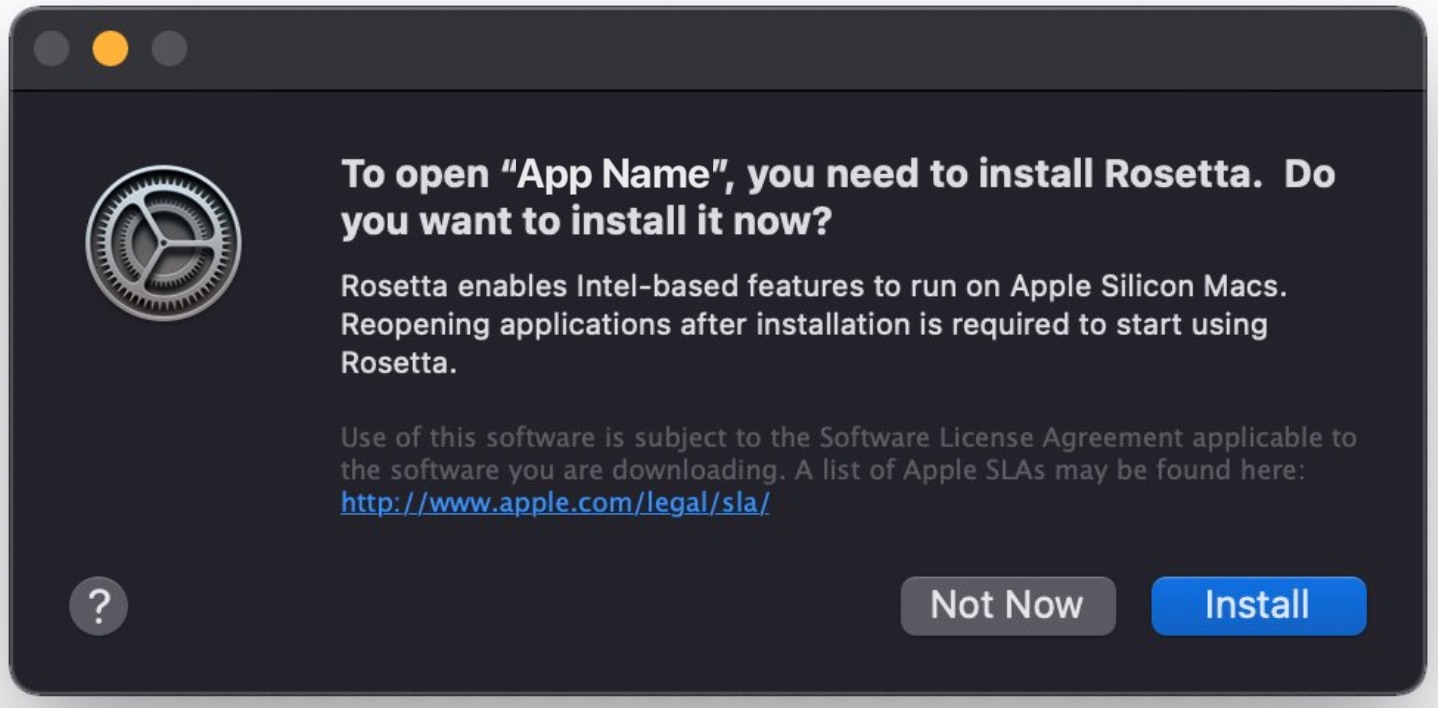
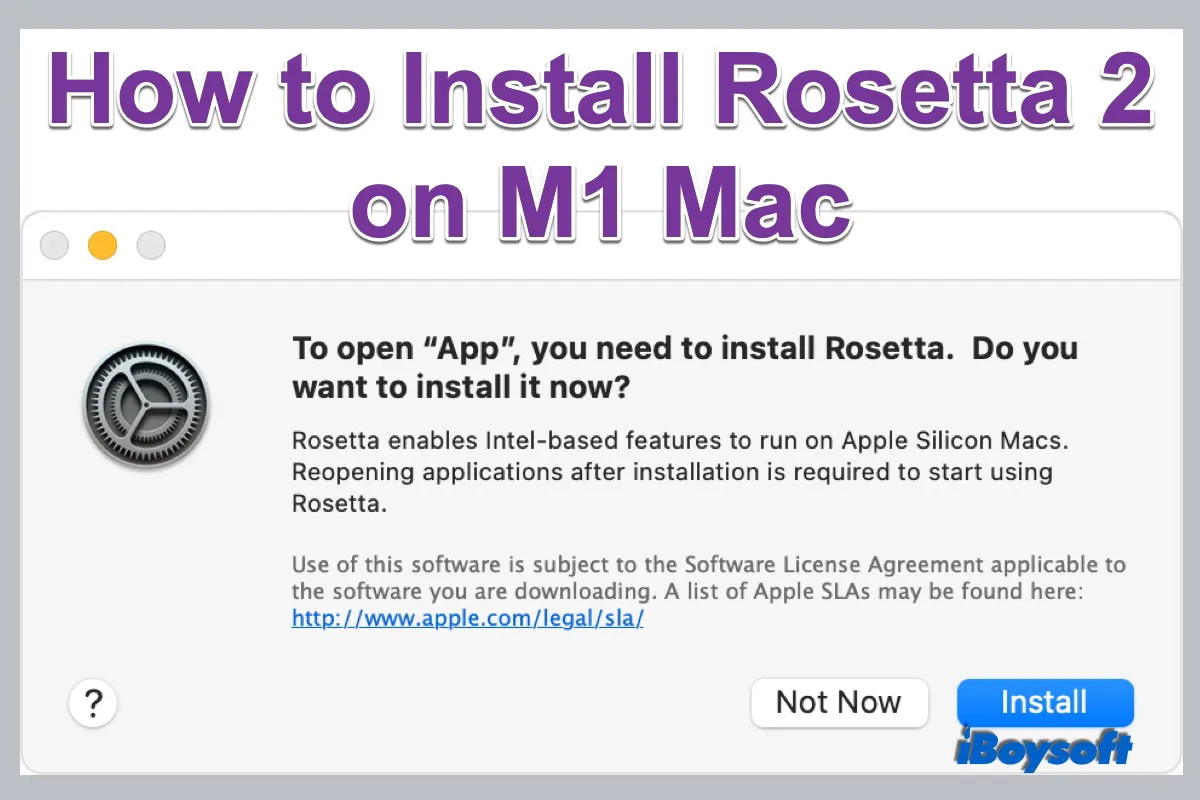
- Installation Prompt Appears: A dialog box will pop up, typically stating something like: “To open this application, you need to install Rosetta. Would you like to install it now?”
- Click “Install”: Simply click the “Install” button within the dialog box.
- Agree to Terms and Conditions (if prompted): You might be asked to agree to the software license agreement. Read through it if you wish, then click “Agree.”
- Enter Your Password: For security reasons, macOS will usually prompt you to enter your administrator password or use Touch ID/Face ID (if available) to authorize the installation.
- Installation Completes: Rosetta 2 will download and install in the background. This process is usually quick, taking only a minute or two, depending on your internet connection.
- Application Launches: Once Rosetta 2 is installed, the Intel-based application you initially tried to open will launch as normal.
After this initial installation, Rosetta 2 will be available system-wide. You won’t be prompted again when launching other Intel-only applications; they will simply run through Rosetta 2 automatically. This seamless approach minimizes disruption and allows users to continue using their familiar software without major hiccups.
Method 2: Manual Installation via Terminal (For Troubleshooting or Specific Needs)
While the automatic method works almost flawlessly, there might be rare occasions where it doesn’t trigger, or you might prefer to install Rosetta 2 proactively or for troubleshooting purposes. For these situations, you can use the Terminal application.
Steps for Manual Installation:
- Open Terminal:
- Go to
Applications/Utilities. - Find and open the “Terminal” application. You can also use Spotlight Search (Command + Space) and type “Terminal.”
- Go to
- Execute the Installation Command: In the Terminal window, type (or copy and paste) the following command and press Enter:
bash

/usr/sbin/softwareupdate --install-rosetta --agree-to-license
softwareupdate: This is a command-line tool used to manage macOS software updates and installations.--install-rosetta: This specific flag tells thesoftwareupdatetool to install Rosetta.--agree-to-license: This flag automatically agrees to the software license agreement, preventing an additional prompt. If you prefer to review the license, you can omit this flag, and the Terminal will display the license for you to accept.
- Enter Your Password (if prompted): The system may ask for your administrator password to proceed with the installation. Type it in and press Enter. Note that your input won’t be visible as you type (a standard security measure in Terminal).
- Monitor Installation Progress: The Terminal will display progress messages, indicating the download and installation steps.
- Confirmation: Once completed, you’ll see a message similar to “Install of Rosetta 2 finished successfully.”
Rosetta 2 is now installed and ready to translate Intel applications on your Mac. This method is particularly useful for IT administrators deploying Macs or for users who encounter issues with the automatic prompt.
Verifying Rosetta 2 Installation
After installing Rosetta 2, whether automatically or manually, you might want to confirm that it’s indeed present and ready to go. While there isn’t a direct “Rosetta 2 app” to launch, you can easily verify its presence.

How to Verify:
- Check for an Intel-only Application: The simplest way is to follow the steps outlined in “Identifying When Rosetta 2 is Required.” Launch an Intel-only application, and if it opens without any prompts, Rosetta 2 is working. If you check its “Kind” in Get Info, it should still say “Application (Intel),” but it will be running seamlessly.
- Verify via Activity Monitor:
- Open Activity Monitor (
Applications/Utilities). - Launch any Intel-only application.
- In Activity Monitor, find the application in the “CPU” tab.
- Look at the “Kind” column. If the application is running via Rosetta 2, its kind will be listed as “Intel.” This confirms that Rosetta 2 is active and performing its translation role. If it were an Apple Silicon native app, it would show “Apple.”
- Open Activity Monitor (
By following these installation and verification steps, you can ensure that your Apple Silicon Mac is fully equipped to run a wide range of applications, bridging the gap between architectures and maintaining your productivity.
Optimizing Your Mac Experience with Rosetta 2
While Rosetta 2 is an incredible technological feat that enables broad application compatibility, it’s essential to understand how to best manage it and your applications for an optimal Mac experience. Running applications through a translation layer, no matter how efficient, always introduces a degree of overhead. Therefore, proactive management and a strategic approach can significantly enhance your productivity and the longevity of your software investment.
Performance Considerations and Expectations
When an Intel-based application runs through Rosetta 2, it incurs a performance overhead. This is because Rosetta 2 must translate the application’s instructions on the fly. However, thanks to the immense power and efficiency of Apple Silicon chips, this overhead is often surprisingly minimal for many applications.
What to expect:
- Generally Good Performance: For most day-to-day applications (browsers, office suites, basic creative tools), the performance through Rosetta 2 is often comparable to, or even better than, running natively on older Intel Macs. The sheer processing power of Apple Silicon compensates for much of the translation overhead.
- Potential Lags in Demanding Applications: Performance-intensive applications like professional video editing suites, 3D rendering software, or complex scientific simulations might experience noticeable slowdowns when running through Rosetta 2. This is particularly true if they rely heavily on specialized Intel instruction sets or graphics APIs that are less efficiently translated.
- Increased Power Consumption (Slightly): While Apple Silicon is incredibly power-efficient, running applications through Rosetta 2 can lead to slightly higher power consumption compared to native Apple Silicon apps, as the chip is working harder to translate instructions. This might manifest as marginally reduced battery life on MacBooks.
- Startup Time: The very first time an application runs through Rosetta 2, it might take a little longer to launch as Rosetta 2 performs some initial optimizations and caching for that specific application. Subsequent launches are usually faster.
It’s crucial to set realistic expectations. Rosetta 2 is a compatibility layer, not a magic bullet that makes Intel apps run faster than native ones. Its primary role is to enable functionality, allowing you to use critical software while awaiting native updates.
Managing Rosetta-Dependent Applications
Effective management of your software library can help you maximize performance and plan for the future.
- Prioritize Native Versions: Your primary goal should always be to use native Apple Silicon versions of your applications whenever possible. Developers are continuously updating their software, and native apps will always offer the best performance, efficiency, and access to the latest macOS features. Regularly check for updates for all your critical software.
- Keep an Inventory: Make a mental or actual list of your most frequently used applications that are currently running through Rosetta 2. This helps you monitor their update status and understand where potential performance bottlenecks might lie.
- Utilize “Open using Rosetta” Option: For Universal applications (which contain both Intel and Apple Silicon code), macOS defaults to running the native Apple Silicon version. However, sometimes you might need to force a Universal app to run using its Intel code via Rosetta 2 (e.g., if a particular plugin or feature only works with the Intel version). To do this:
- Right-click on the Universal application in Finder and select “Get Info.”
- In the Info window, check the box next to “Open using Rosetta.”
- Remember to uncheck this once the specific need is gone, to revert to native performance.
- Regularly Check Developer Websites: Stay informed about your key software developers’ roadmaps. Many provide public updates on their progress toward native Apple Silicon compatibility.
When to Transition Away from Rosetta
Rosetta 2 is a temporary solution, albeit a very robust one. Apple has indicated it will not be around forever, just like the original Rosetta was eventually retired. Therefore, planning your transition away from Rosetta-dependent applications is a wise long-term strategy.
- As Soon as Native Versions are Available: The moment an update becomes available that offers native Apple Silicon compatibility for an application you use, install it. This is the single most effective step to optimize your Mac’s performance and efficiency.
- Consider Alternatives: If a crucial application you rely on seems unlikely to receive an Apple Silicon update, or if its performance through Rosetta 2 is unsatisfactory, start researching alternative software that already offers native support. This might involve exploring new tools or even changing your workflow slightly.
- Future-Proofing Your Workflow: By actively migrating to native applications, you are future-proofing your workflow. You’re ensuring that your productivity isn’t tied to an emulation layer that might eventually be phased out, giving you peace of mind and access to the full power of your Apple Silicon Mac.
By proactively managing your applications, understanding performance nuances, and prioritizing native software, you can ensure that your Mac experience remains smooth, efficient, and ready for whatever technological advancements come next.
Troubleshooting Common Rosetta 2 Issues
While Rosetta 2 is designed to operate seamlessly in the background, like any complex software, occasional issues can arise. Whether it’s a hiccup during installation, unexpected application performance, or concerns about security, knowing how to troubleshoot these common problems can save you time and frustration.
What to Do if Rosetta Doesn’t Install
The automatic installation of Rosetta 2 usually works flawlessly, but in rare cases, you might encounter a situation where the prompt doesn’t appear, or the installation fails.
- Try Manual Installation via Terminal: If the automatic prompt doesn’t appear when launching an Intel app, or if it fails, the first and most reliable troubleshooting step is to attempt a manual installation using the Terminal command:
bash

/usr/sbin/softwareupdate --install-rosetta --agree-to-license
Ensure you enter your administrator password correctly when prompted. - Check Internet Connection: Rosetta 2 needs to download installation files. Ensure your Mac has a stable and active internet connection. Try restarting your router or switching Wi-Fi networks if you suspect connectivity issues.
- Restart Your Mac: A simple restart can often resolve minor software glitches that might be preventing the installation process from initiating or completing correctly.
- Check for macOS Updates: Ensure your macOS is up to date. Apple frequently releases updates that include bug fixes and stability improvements, which might address underlying issues preventing Rosetta 2 installation. Go to
System Settings > General > Software Update. - Check Disk Space: Although Rosetta 2 is relatively small, ensure you have sufficient free disk space on your Mac. Extremely low disk space can interfere with any installation process.
- Safe Mode: If all else fails, try installing Rosetta 2 while your Mac is booted into Safe Mode. Safe Mode starts your Mac with only essential software loaded, which can help diagnose whether third-party software is interfering with the installation.
- For Apple Silicon Macs: Shut down your Mac. Press and hold the power button until “Loading startup options” appears. Select your startup disk, then press and hold the Shift key while clicking “Continue in Safe Mode.”
- Once in Safe Mode, try the Terminal installation command.
- Apple Support: If none of these steps resolve the issue, contact Apple Support for further assistance.
Addressing Performance Lags
Even with Rosetta 2, some Intel applications might run slower than expected or exhibit occasional lags. This is particularly true for resource-intensive software.
- Check for Native Apple Silicon Versions: The most effective solution for performance issues is to switch to a native Apple Silicon version of the application. Regularly check the developer’s website for updates.
- Close Unnecessary Applications: Running too many applications simultaneously, especially demanding ones, can strain your system. Close any apps you’re not actively using, both native and Rosetta-translated ones.
- Monitor Activity Monitor: Use Activity Monitor (
Applications/Utilities) to identify resource hogs. Sort by “CPU” or “Memory” usage to see which applications are consuming the most resources. If an Intel app (Kind: Intel) is consistently at the top, it’s a good candidate for a native update or replacement. - Allocate More RAM (if applicable to the app): Some professional applications allow you to allocate more RAM to them within their preferences. While this doesn’t directly affect Rosetta’s translation, it can improve the app’s overall performance.
- Reduce Graphic Settings: For graphically intensive applications or games running through Rosetta 2, try reducing in-app graphics settings (resolution, texture quality, effects) to improve frame rates and responsiveness.
- Clear Caches and Preferences: Corrupted preferences or cache files can sometimes cause performance issues. Try deleting an app’s preference files (usually found in
~/Library/Preferences/) or cache files (~/Library/Caches/). Be cautious when doing this and back up files if unsure. - Update macOS: As mentioned before, macOS updates often include performance optimizations for Rosetta 2 and overall system stability.
- External GPU (eGPU): While Apple Silicon Macs are incredibly powerful, they currently do not support external GPUs. If your workflow heavily relied on an eGPU with an Intel Mac, you might find certain graphically intensive tasks less performant on Apple Silicon, especially with Rosetta 2. This is a limitation to be aware of.
Staying Secure and Up-to-Date
Digital security and software updates are paramount, especially when dealing with compatibility layers and third-party applications.
- Keep Rosetta 2 Updated (via macOS): Rosetta 2 is an integral part of macOS. There are no separate updates for Rosetta 2; it receives updates and improvements as part of regular macOS software updates. Always keep your macOS updated to ensure you have the latest, most secure, and most performant version of Rosetta 2.
- Update All Your Applications: Ensure all your applications, whether native Apple Silicon or Intel-based, are kept up-to-date. Developers often release security patches and bug fixes in their updates. Running outdated software increases your vulnerability to security threats.
- Download Software from Trusted Sources: Only download applications from the Mac App Store or directly from reputable developers’ official websites. Avoid third-party download sites that might bundle malware or offer tampered versions of software. This is especially critical when dealing with Intel-only applications, where a lack of developer updates might make them more susceptible to vulnerabilities.
- Antivirus/Anti-malware Software: While macOS has robust built-in security features, using a reputable antivirus or anti-malware solution can add an extra layer of protection, especially if you frequently download and test new software or deal with older, less maintained applications.
- Be Wary of “Rosetta Optimizers”: There’s no such thing as a third-party “Rosetta optimizer.” Any software claiming to optimize Rosetta 2 performance should be treated with extreme skepticism, as it could be unnecessary, harmful, or even malicious. Rosetta 2 is managed by macOS and is already highly optimized by Apple.
By diligently following these troubleshooting tips and maintaining good software hygiene, you can ensure a smooth, secure, and productive experience with Rosetta 2 on your Apple Silicon Mac. It remains an indispensable tool for backward compatibility, empowering users to leverage the power of new hardware without abandoning their essential software.
In conclusion, Rosetta 2 stands as a remarkable testament to Apple’s commitment to user experience and technological innovation. It effectively bridges the architectural chasm between Intel and Apple Silicon, allowing millions of users to seamlessly transition to the next generation of Mac computing without sacrificing their existing software investments. While primarily a temporary solution, its efficiency and transparency have made the shift remarkably smooth. By understanding what Rosetta 2 is, how to install and manage it, and how to troubleshoot common issues, Mac users can fully harness the incredible power of their Apple Silicon machines, ensuring their productivity and creative workflows remain uninterrupted well into the future. The ultimate goal remains a native software ecosystem, but until then, Rosetta 2 ensures that no app is left behind.
aViewFromTheCave is a participant in the Amazon Services LLC Associates Program, an affiliate advertising program designed to provide a means for sites to earn advertising fees by advertising and linking to Amazon.com. Amazon, the Amazon logo, AmazonSupply, and the AmazonSupply logo are trademarks of Amazon.com, Inc. or its affiliates. As an Amazon Associate we earn affiliate commissions from qualifying purchases.