
Roblox isn’t just a game; it’s a universe. It’s a platform where millions of creators and players converge to build, share, and explore an ever-expanding array of immersive experiences. Whether you’re looking to jump into the latest trending adventure, design your own virtual world, or simply connect with friends in a digital space, understanding how to install Roblox is your first crucial step. This guide, tailored for anyone navigating the vibrant landscape of technology, brands, and even the financial implications of digital engagement, will walk you through the installation process, ensuring you’re ready to dive into this phenomenon.

The beauty of Roblox lies in its accessibility. It’s designed to run on a wide variety of devices, from powerful gaming PCs and modern consoles to everyday smartphones and tablets. This ubiquity means that, no matter your current setup, you’re likely just a few clicks or taps away from joining the millions already exploring its boundless potential. We’ll break down the installation for the most common platforms, ensuring a smooth and straightforward experience.
Getting Started: Choosing Your Platform and Downloading Roblox
The first decision you’ll need to make is where you want to play Roblox. While the core experience remains consistent across devices, each platform offers subtle differences in terms of controls and visual fidelity. Once you’ve chosen your preferred platform, the download process is generally quite simple.
Installing Roblox on PC (Windows and macOS)
For PC users, Roblox offers a dedicated application that provides the most robust and feature-rich experience. This is often the preferred method for those who want the best performance and the ability to fully utilize their computer’s capabilities, whether for playing or for aspiring developers looking to create.
For Windows Users:
- Visit the Official Roblox Website: Open your preferred web browser and navigate to www.roblox.com.
- Sign Up or Log In: If you’re new to Roblox, you’ll need to create an account. Click on the “Sign Up” button and follow the prompts to choose a username, create a password, and enter your date of birth. If you already have an account, simply click “Log In.”
- Download the Roblox Player: Once logged in, browse the homepage or search for any game you wish to play. When you click the “Play” button on any game for the first time, a prompt will appear asking you to download and install Roblox. Click on the “Download and Install Roblox” button.
- Run the Installer: A small file, typically named
RobloxPlayerLauncher.exe, will be downloaded to your computer. Locate this file (usually in your Downloads folder) and double-click it to run the installer. - Follow On-Screen Instructions: The installation process is largely automated. Simply follow any prompts that appear. The Roblox Player will be installed automatically, and the Roblox Studio (if you plan to develop) will also be made available.
- Launch and Play: Once the installation is complete, the Roblox Player should launch automatically, and you’ll be able to join any game directly from the website. You can also find the Roblox application in your Start Menu.
For macOS Users:
The process for macOS users is remarkably similar to Windows, with the official Roblox website guiding you through each step.
- Visit the Official Roblox Website: Open Safari or your preferred web browser and go to www.roblox.com.
- Sign Up or Log In: Create a new account or log in to your existing one.
- Download the Roblox Player: Click on the “Play” button for any game. A pop-up will appear. Click “Download and Install Roblox.”
- Run the Installer: A
.dmgfile will be downloaded. Open this file. - Install Roblox: Drag the Roblox icon into your Applications folder.
- Launch and Play: You can now launch Roblox from your Applications folder. The first time you launch a game, it will automatically connect to the Roblox Player.
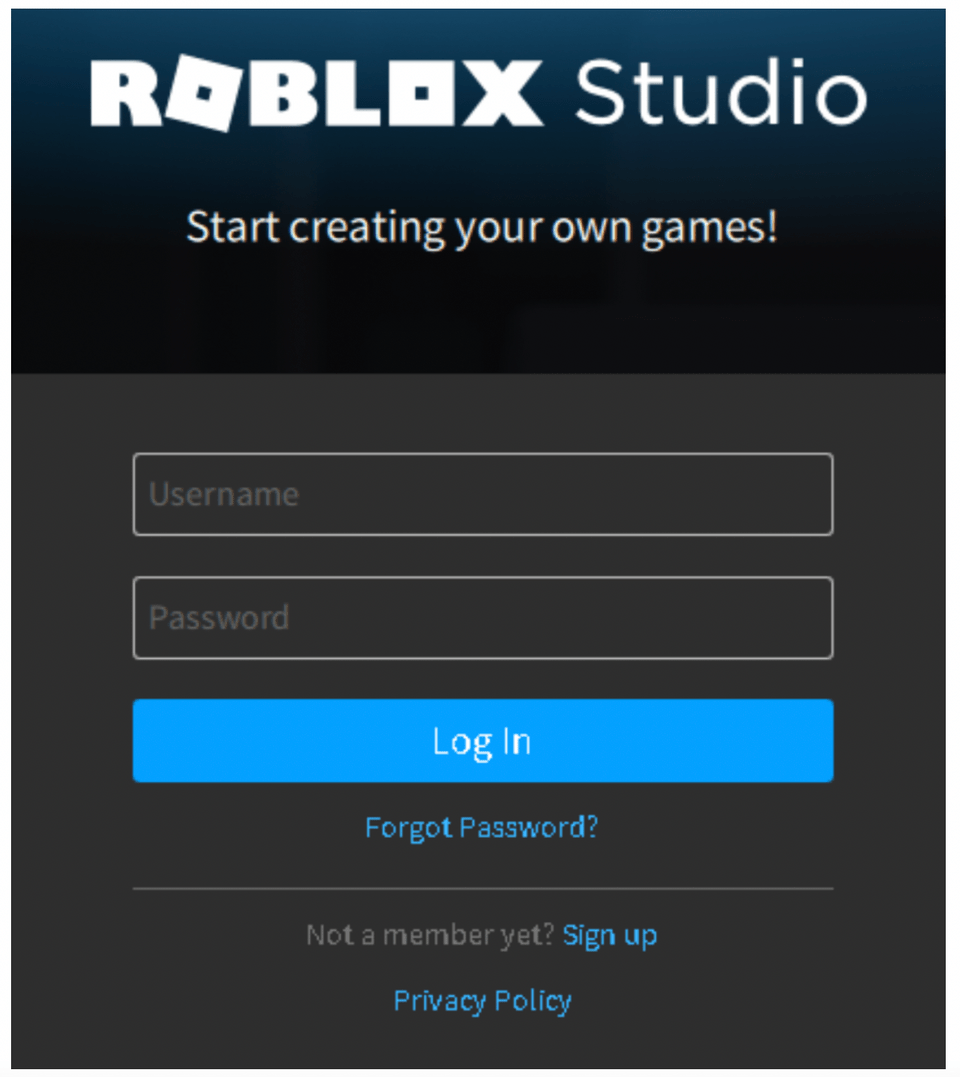
A Note on Roblox Studio: For those interested in the “Brand” aspect of Roblox – building and shaping virtual experiences – Roblox Studio is an essential tool. It’s typically installed alongside the Roblox Player when you go through the initial download and install process from the website. It’s where the magic of creation happens, allowing you to design games, assets, and entire worlds.
Installing Roblox on Mobile Devices (iOS and Android)
Roblox is incredibly popular on mobile devices, offering a convenient way to play on the go. The installation process is straightforward and integrated directly into the respective app stores.
For iOS Users (iPhone and iPad):
- Open the App Store: Locate and tap on the App Store icon on your device.
- Search for Roblox: Tap the “Search” tab at the bottom of the screen and type “Roblox” into the search bar.
- Download and Install: Find the official Roblox app (it should be the first result with the distinct Roblox logo). Tap the “Get” button, and then “Install.” You may need to authenticate with your Apple ID password, Face ID, or Touch ID.
- Launch and Play: Once the download and installation are complete, the Roblox app icon will appear on your home screen. Tap it to open. You can then sign up or log in to your account and start playing immediately.
For Android Users:

- Open the Google Play Store: Find and tap on the Google Play Store icon.
- Search for Roblox: Tap the search bar at the top and type “Roblox.”
- Download and Install: Locate the official Roblox app in the search results. Tap the “Install” button.
- Launch and Play: After installation, the Roblox app will be available in your app drawer or on your home screen. Tap it to launch. Log in or create an account to begin your adventures.
The mobile experience is optimized for touch controls, making it intuitive to navigate menus and play many of the popular Roblox games. While some complex creations might be better suited for PC, the mobile version is fully capable of delivering countless hours of entertainment.
Installing Roblox on Gaming Consoles (Xbox)
Roblox has also made its way to major gaming consoles, most notably the Xbox. This allows console gamers to enjoy the platform’s vast library of experiences on their big screens with familiar controller inputs.
For Xbox Users:
- Launch the Microsoft Store: On your Xbox console, navigate to the “Store” section.
- Search for Roblox: Use the search function within the Store and type “Roblox.”
- Download and Install: Select the Roblox app from the search results. Click “Install.” The app will download and install automatically.
- Launch and Play: Once installed, you can find Roblox in your “Games & Apps” library. Launch it and sign in or create a Roblox account. You can then browse and play games directly from your Xbox.
Playing Roblox on a console like the Xbox offers a different dynamic. The larger screen and controller input can enhance the immersion for many game types, and it’s a fantastic way to share the Roblox experience with friends and family in a living room setting.
Navigating the Roblox Ecosystem: Beyond Installation
Once you’ve successfully installed Roblox, you’re not just done with the technical steps; you’ve opened the door to a dynamic ecosystem that touches upon technology, brand building, and even financial opportunities.
Understanding the “Tech” Aspect: What You’re Installing
When you install Roblox, you’re not just getting a game client. You’re installing a platform designed for interaction, creation, and continuous updates. The Roblox Player is the executable that allows you to join and interact within the virtual worlds. For those inclined towards the “Tech” side of the website’s main topics, here’s a bit more about what’s under the hood:
- The Engine: Roblox runs on its own proprietary game engine, which is constantly being refined. This engine handles everything from rendering graphics and physics to networking and scripting.
- Cross-Platform Compatibility: The team behind Roblox has invested heavily in ensuring that the experience is as seamless as possible across different operating systems and devices. This involves a significant amount of underlying technological effort to optimize performance and controls for each platform.
- Updates and Evolution: Roblox is a live service. This means the client you install will receive frequent updates. These updates introduce new features, security patches, performance improvements, and sometimes even entirely new ways to interact with the platform. Staying updated is key to a smooth experience.
- Digital Security: As with any online platform, digital security is paramount. Roblox has robust systems in place for account security, content moderation, and protecting younger users. It’s always good practice to use strong, unique passwords and be mindful of the information you share within the platform. Understanding these technological underpinnings can enhance your appreciation for the complexity and innovation involved.
Exploring the “Brand” Landscape: From User to Creator
Roblox is a powerful example of a digital brand, not just in its own right, but as a platform for others to build their brands. Installing Roblox is the first step for anyone wanting to engage with this vibrant brand ecosystem.
- Personal Branding: For players, their username and avatar are their initial digital identity. The choices made in customizing their avatar can reflect personal style and preferences, contributing to their “personal branding” within the Roblox community.
- Creator Branding: For those who venture into creating games and experiences using Roblox Studio, the platform offers a unique avenue for brand building. Developers can create distinctive game worlds, characters, and in-game items that become associated with their creator identity. Successful creators often build dedicated fan bases, turning their virtual creations into recognizable brands within the Roblox universe.
- Corporate Identity: Many established brands, from toy companies to entertainment franchises, have established a presence on Roblox. They create branded experiences and virtual merchandise to engage with younger audiences, showcasing their corporate identity in an interactive and immersive digital space. Installing Roblox allows you to directly interact with these branded worlds.
- Marketing and Engagement: Roblox is increasingly recognized as a marketing channel. Brands can leverage the platform for product launches, promotions, and to foster community engagement, all within a safe and controlled environment.
Considering the “Money” Aspect: Earning and Spending within Roblox
While the act of installing Roblox is free, the platform has a well-developed economy that touches upon financial concepts, making it relevant to the “Money” pillar of the website’s focus.
- Robux: The Virtual Currency: The primary in-game currency is Robux. Players can purchase Robux with real money to acquire virtual items, accessories for their avatars, and in-game perks. This is the most direct way users engage with the financial aspect.
- User-Generated Content and Monetization: For creators, Roblox offers a pathway to earn real money through their creations. By developing popular games, creators can sell in-game items, game passes, or even receive donations from players. This has given rise to numerous “side hustles” and even full-time careers for talented developers.
- Investments in Virtual Goods: While not traditional stock market investing, players can be seen as “investing” in virtual items. Some rare or exclusive avatar items can appreciate in value over time within the Roblox economy, though this is speculative and driven by player demand.
- Financial Tools and Management: For creators and those who engage heavily in the economy, managing Robux earnings and understanding exchange rates becomes a form of personal finance. Roblox provides tools for creators to track their earnings and manage their virtual income.
In conclusion, installing Roblox is far more than a simple software download. It’s your initiation into a multifaceted digital world that brilliantly intersects with technology, offers fertile ground for brand development and expression, and presents intriguing economic opportunities. By following these installation guides, you are not just setting up an app; you are opening a portal to endless creativity, social interaction, and potentially even a new avenue for digital enterprise. Welcome to Roblox!
aViewFromTheCave is a participant in the Amazon Services LLC Associates Program, an affiliate advertising program designed to provide a means for sites to earn advertising fees by advertising and linking to Amazon.com. Amazon, the Amazon logo, AmazonSupply, and the AmazonSupply logo are trademarks of Amazon.com, Inc. or its affiliates. As an Amazon Associate we earn affiliate commissions from qualifying purchases.