
Amazon’s Fire tablets are undeniably appealing due to their competitive pricing and seamless integration with the Amazon ecosystem, offering a curated experience for consuming Amazon content like Kindle books, Prime Video, and Audible. However, this tailored experience comes with a significant trade-off for many users: the absence of the Google Play Store. Instead, Fire tablets run Fire OS, a heavily customized version of Android, which relies exclusively on the Amazon Appstore. While the Amazon Appstore provides a decent selection of applications, it pales in comparison to the vast and diverse library available on the Google Play Store. For users seeking access to popular Google apps like YouTube, Gmail, Google Maps, or a wider array of third-party applications not available on Amazon’s platform, sideloading the Google Play Store becomes an essential and highly sought-after solution.
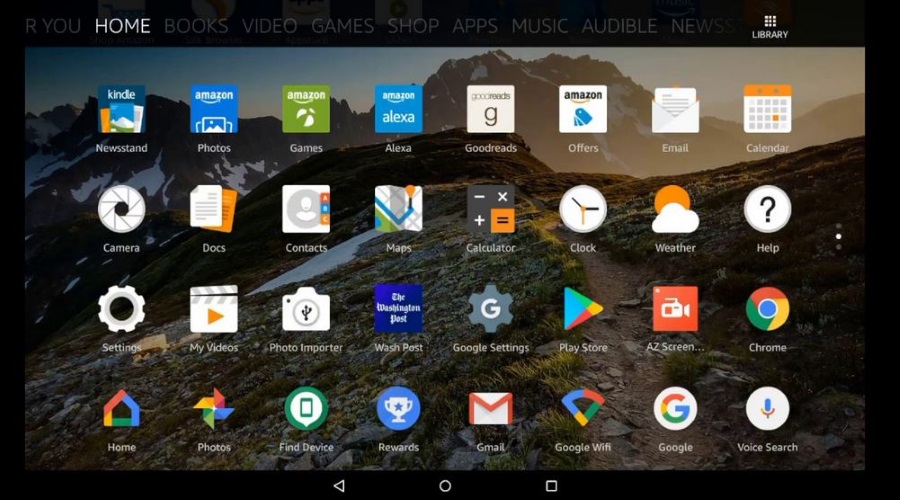
This comprehensive guide will walk you through the process of installing the Google Play Store on your Amazon Fire tablet, transforming it from a content consumption device into a versatile Android tablet capable of running nearly any app. While the process involves a few technical steps outside of Amazon’s intended use, it is generally safe and straightforward when followed carefully. By unlocking the Google Play Store, you empower your Fire tablet, broadening its utility and significantly enhancing your digital experience, aligning it more closely with the flexibility and choice offered by conventional Android devices.
Understanding the Fire Tablet Ecosystem and Why Google Play Matters
To fully appreciate the need for sideloading Google Play, it’s crucial to understand the distinct ecosystems at play: Amazon’s Fire OS and Google’s Android. Each offers a unique philosophy and set of services, influencing user experience and app availability.
Amazon’s Android Fork: A Closed Garden
Amazon’s Fire tablets operate on Fire OS, an Android fork that diverges significantly from the standard Android experience. While it’s built upon the Android open-source project (AOSP), Amazon has stripped out Google’s proprietary services and replaced them with its own. This includes ditching the Google Play Store for the Amazon Appstore, Google Maps for Here Maps, and Google Assistant for Alexa. This strategic move allows Amazon to exert greater control over the user experience, promote its own services, and offer devices at highly competitive prices without paying licensing fees to Google for its mobile services.
The Fire OS interface is designed for simplicity and content discovery, prioritizing Amazon’s media offerings. It’s an excellent ecosystem for users deeply invested in Amazon’s services, providing a streamlined pathway to their digital purchases. However, this “closed garden” approach means that a vast number of Android applications, especially those reliant on Google Play Services (like many social media apps, banking apps, or even certain games), are either unavailable or functionally limited on Fire tablets. This limitation often drives users to seek alternatives to unlock their device’s true potential.
The Appeal of Google Play: Unlocking a Universe of Apps
The Google Play Store is the quintessential hub for Android applications, boasting millions of apps across virtually every category imaginable. From productivity suites and social media platforms to intricate games and specialized utilities, Google Play offers unparalleled choice and access. Beyond the sheer volume of apps, Google Play also provides critical services like automatic app updates, robust security scanning (Google Play Protect), and seamless integration with your Google account for app purchases, syncing, and cloud backups.
For many users, a tablet without Google Play feels incomplete. It means missing out on apps like YouTube, Gmail, Google Drive, Chrome, Google Maps, and a plethora of third-party applications that are optimized for Google’s ecosystem. By successfully installing the Google Play Store on your Fire tablet, you essentially bridge the gap between Amazon’s hardware and Google’s software ecosystem, opening up your device to a much wider world of functionality and content. This transformation allows your Fire tablet to function much like any other Android tablet, offering a full, uncompromised app experience.
Preparing Your Fire Tablet for Google Play Installation
Before embarking on the installation process, it’s crucial to prepare your Fire tablet. These preliminary steps ensure that your device is ready to accept external applications and help prevent common issues that might arise during the sideloading procedure.
Checking Compatibility and Current OS Version
While this method generally works across various Fire tablet generations, it’s always a good practice to ensure your device is running a reasonably up-to-date version of Fire OS. Newer tablets and OS versions often have better compatibility. You can check your device’s OS version by navigating to:
- Settings > Device Options > System Updates.
Ensure your tablet is fully updated to the latest available Fire OS version to minimize potential compatibility conflicts with the Google Play Services APKs you’re about to install. If an update is available, download and install it before proceeding.
Enabling “Apps from Unknown Sources”
Fire OS, by default, restricts installations to apps from the Amazon Appstore for security reasons. To sideload applications (installing apps from sources other than the official Appstore), you must enable a specific setting.
- Go to Settings > Security & Privacy.
- Find and tap on “Apps from Unknown Sources.”
- You will see a list of browsers or file managers. Toggle the switch next to the browser you plan to use for downloading the APKs (e.g., Silk Browser) to “Allow from this source.” If you use a different file manager app, you might need to enable it there too.
This step is critical as it grants your chosen browser or file manager permission to install applications directly. Remember to exercise caution when installing apps from unknown sources, only downloading from trusted websites.
Ensuring Sufficient Storage and Battery
The Google Play Store and its accompanying services require a certain amount of storage space. While not excessively large, it’s wise to ensure you have at least a few gigabytes of free space to accommodate the APK files and the subsequent app installations.
- Check your storage by going to Settings > Storage.
- If storage is low, consider deleting unused apps, old downloads, or moving media files to the cloud.
Additionally, ensure your Fire tablet has at least a 50% battery charge, or preferably, keep it plugged into a charger throughout the installation process. This prevents the device from shutting down mid-installation, which could corrupt files or lead to an incomplete setup, requiring you to start over. A stable power supply guarantees an uninterrupted and smooth installation.
The Step-by-Step Guide to Installing Google Play Services
This section outlines the core of the installation process. It involves downloading and installing four specific Google APK (Android Package Kit) files in a precise order. This order is crucial for the Google Play Store to function correctly, as each component builds upon the previous one.
Identifying the Correct APK Versions for Your Device
The most critical aspect of a successful installation is downloading the correct versions of the Google Play Services APKs. These files must match your Fire tablet’s specific architecture and Fire OS version. The primary source for safe and verified APKs is APKMirror.com.
When searching for the APKs, pay attention to the following:
- Architecture (Arch): Most modern Fire tablets use
arm64-v8a. Older ones might usearmeabi-v7a. You can usually find this information by looking up your tablet’s specifications or through an app like “Droid Hardware Info” (if you can install it, otherwise, assume arm64-v8a for newer Fire tablets). - Android Version: This corresponds to your Fire OS version. While Fire OS is customized, it’s based on a specific Android version. For instance, Fire OS 7 is based on Android 9 Pie, Fire OS 8 on Android 11.
- DPI (Dots Per Inch): This relates to screen density. Most devices are
nodpi, meaning they work with any screen density. If a specific DPI is listed, try to match it, butnodpiis usually the safest bet.
You will need to download four specific APKs:
- Google Account Manager: Manages Google accounts on your device.
- Google Services Framework: Provides core functionalities for Google services.
- Google Play Services: The backend service that enables Google apps to function.
- Google Play Store: The app store itself.
Downloading the Essential Google APKs
It’s crucial to download these files in the exact order listed below and store them in an easily accessible folder, such as “Downloads.” Use the Silk Browser on your Fire tablet to navigate to APKMirror.com.
Step 1: Download Google Account Manager
- Go to APKMirror.com and search for “Google Account Manager.”
- Locate a version that matches your device’s architecture and a relatively recent date. Prioritize
nodpiversions. - Select the correct version, scroll down, and tap “Download APK.” Confirm the download.
Step 2: Download Google Services Framework
- Return to APKMirror.com and search for “Google Services Framework.”
- Again, look for a version compatible with your device’s architecture and a recent date, preferably
nodpi. - Download the APK.
Step 3: Download Google Play Services
- This is arguably the most critical and potentially tricky APK. Return to APKMirror.com and search for “Google Play Services.”
- There will be many versions. Pay close attention to:
- Architecture (
arm64-v8aorarmeabi-v7a): Crucial match. - Android Version (e.g., 9+ for Fire OS 7, 11+ for Fire OS 8): Match your Fire OS’s underlying Android version.
- DPI (
nodpior specific DPI):nodpiis usually safe.
- Architecture (
- Select the most recent stable version that matches all three criteria. If unsure, err on the side of slightly older but well-supported versions. Download it.
Step 4: Download Google Play Store
- Finally, go to APKMirror.com and search for “Google Play Store.”
- Download the latest stable version available. The Play Store app itself is less sensitive to architecture and Android version specifics than the underlying services. Usually, the latest
nodpiuniversalversion will work.
Once all four APKs are downloaded, they should be in your tablet’s “Downloads” folder.
Installing Each APK Sequentially
Now, you will install the APKs in the same order you downloaded them. This sequence is vital for proper functionality.
- Open the Files app (or any file manager you have installed, if applicable) on your Fire tablet.
- Navigate to the “Downloads” folder.
- Install Google Account Manager:
- Tap on the
com.google.android.gsf.loginAPK file (Google Account Manager). - You may see a prompt asking for permission to install apps. Confirm by tapping “Install.”
- After installation, tap “Done” (do not open it).
- Tap on the
- Install Google Services Framework:
- Tap on the
com.google.android.gsfAPK file (Google Services Framework). - Tap “Install.”
- Tap “Done” after installation.
- Tap on the
- Install Google Play Services:
- Tap on the
com.google.android.gmsAPK file (Google Play Services). - Tap “Install.”
- Tap “Done” after installation. This particular installation might take slightly longer than the others.
- Tap on the
- Install Google Play Store:
- Tap on the
com.android.vendingAPK file (Google Play Store). - Tap “Install.”
- After installation, you can tap “Open” to launch the Play Store, or “Done.”
- Tap on the
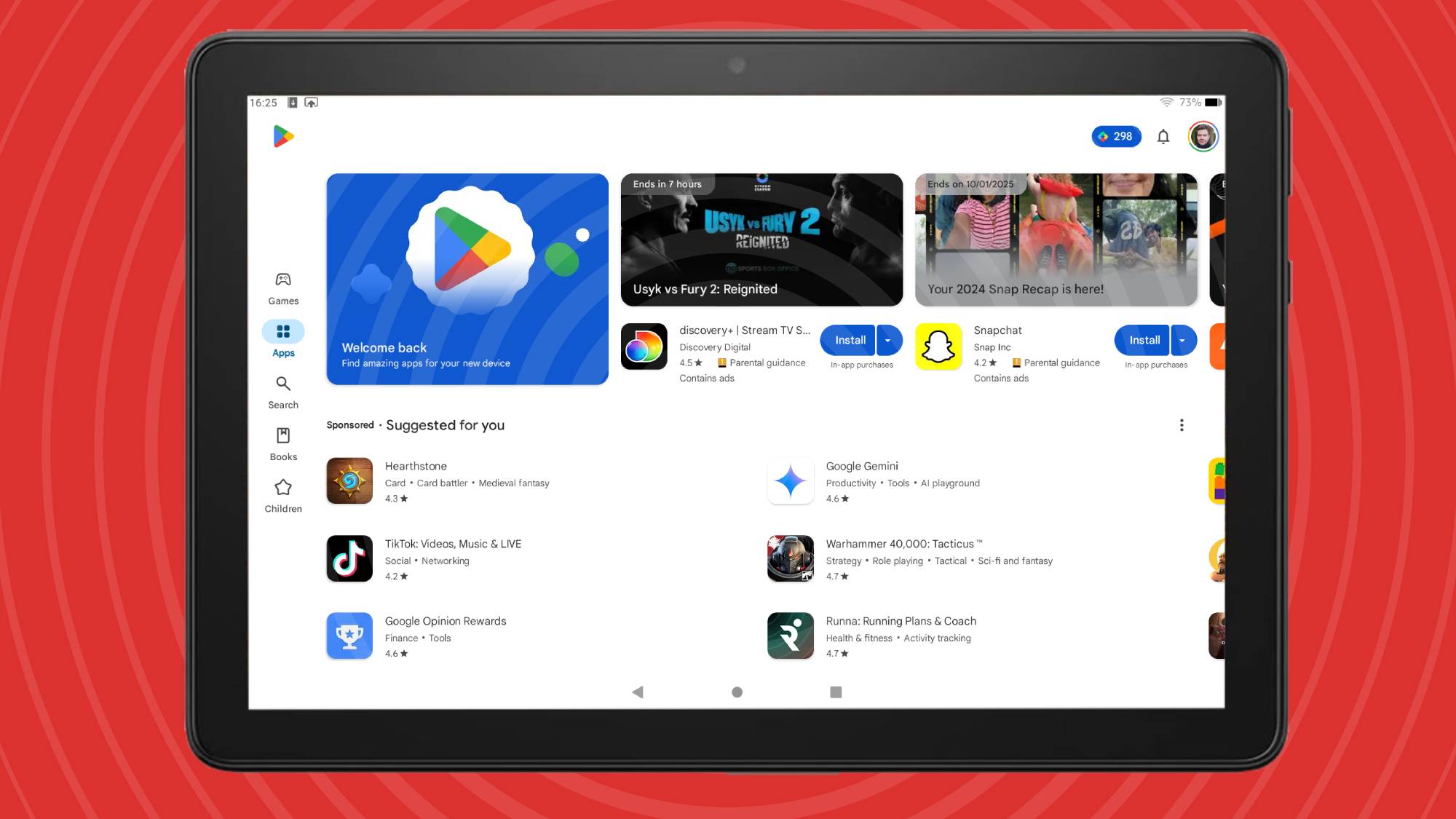
Congratulations! If all steps were followed correctly, you should now have the Google Play Store icon on your Fire tablet’s home screen.
Post-Installation: Setup, Troubleshooting, and Maximizing Your Fire Tablet’s Potential
Installing the Google Play Store is a major step, but there are a few more things to do to ensure a smooth experience. This includes initial setup, addressing common issues, and understanding ongoing maintenance.
Initial Setup and Google Account Integration
Upon opening the Google Play Store for the first time, you will be prompted to sign in with your Google account.
- Launch the Google Play Store app.
- Tap “Sign In” and enter your Google email address and password.
- Accept the terms of service.
- Once signed in, the Play Store will load, and you can begin downloading apps.
It’s common for the Play Store to update itself in the background shortly after installation. Give it some time to synchronize and download any necessary updates to its components. You might also notice Google Play Services updating. If the Play Store seems slow or crashes initially, a simple restart of your Fire tablet often resolves these issues.
Addressing Common Installation Issues
While the process is generally reliable, some users may encounter hiccups. Here are solutions to common problems:
- “App Not Installed” Error: This typically means you downloaded the wrong APK version for your device’s architecture or Android version. Double-check the
arm64-v8avs.armeabi-v7aand the Android version compatibility on APKMirror. Uninstall any partially installed Google apps (from Settings > Apps & Notifications > See all apps > Google Play Store/Services/etc.) and re-download the correct APKs, starting from scratch. - Play Store Crashes or Doesn’t Open:
- Restart your Fire tablet. This can often clear temporary glitches.
- Clear Play Store data: Go to Settings > Apps & Notifications > See all apps > Google Play Store > Storage & Cache > Clear Cache and Clear Storage. Do the same for Google Play Services and Google Services Framework. Then, restart your tablet and try again.
- Verify APK installation order: Ensure you installed the APKs in the correct sequence (Account Manager -> Services Framework -> Play Services -> Play Store). If not, you might need to uninstall all Google-related apps and re-install them in order.
- “Authentication is required. You need to sign in to your Google Account” (even after signing in):
- Go to Settings > Apps & Notifications > See all apps.
- Find Google Play Services and tap it.
- Tap Storage & Cache > Clear Cache and then Clear Storage.
- Restart your tablet, then try opening the Play Store and signing in again.
- Downloads are pending or stuck:
- Check your Wi-Fi connection.
- Go to Play Store settings (tap your profile icon, then Settings > Network preferences > App download preference) and ensure it’s set to “Over Wi-Fi only” or “Over any network.”
- Clear cache and data for the Play Store, as described above.
Updating Google Play Services and Apps
Once the Google Play Store is installed, app updates will largely function as they do on any other Android device.
- App Updates: The Play Store will automatically manage updates for apps downloaded through it. You can also manually check for updates within the Play Store app.
- Google Play Services Updates: Google Play Services often updates in the background without user intervention. However, occasionally, it might require a manual update or a specific APK to fix issues. If you notice problems with Google apps, check APKMirror for a newer version of Google Play Services compatible with your device and install it over the existing one (you don’t need to uninstall first, it will update).
Optimizing Performance and Security Post-Installation
With Google Play installed, your Fire tablet now has significantly more apps running and potentially more background processes.
- Performance: Monitor your tablet’s performance. If it slows down, consider disabling background app refresh for less critical apps or uninstalling apps you don’t use.
- Security: Continue to be cautious about the apps you download. While Google Play Protect offers a layer of security, always scrutinize app permissions and download from reputable developers. Keep your Fire OS updated, as Amazon periodically releases security patches.
- Removing Unknown Sources Permission: Once you’ve successfully installed all Google components, you may choose to disable “Apps from Unknown Sources” again (Settings > Security & Privacy > Apps from Unknown Sources > toggle off for your browser) as a security best practice, preventing accidental sideloading of potentially malicious apps in the future. You can always re-enable it if you need to sideload another app.
The Advantages and Considerations of Sideloading Google Play
Installing the Google Play Store on your Fire tablet is a significant modification that comes with both considerable benefits and a few important considerations. Understanding these will help you make the most of your newly empowered device while being aware of any potential drawbacks.
Benefits of a Full Android Experience
The primary advantage of sideloading Google Play is the unlimited access to the vast universe of Android applications. This opens up your Fire tablet to:
- Google’s Core Apps: Easily install and use Gmail, Google Maps, YouTube, Google Drive, Google Chrome, Google Photos, and Google Assistant, integrating seamlessly with your existing Google ecosystem.
- Third-Party Apps: Download popular social media apps (Facebook, Instagram, Twitter, TikTok), streaming services (Netflix, Disney+, Hulu, HBO Max) that might be missing or outdated on the Amazon Appstore, productivity tools (Microsoft Office suite, Slack, Zoom), and a broader selection of games.
- Enhanced Functionality: Many apps rely on Google Play Services for features like push notifications, location services, in-app purchases, and cloud synchronization. With Google Play installed, these features work as intended, providing a richer and more complete user experience.
- Greater Choice and Flexibility: Your Fire tablet is no longer limited by Amazon’s curated selection, giving you the freedom to customize your device with the apps and services that best suit your needs and preferences. This freedom truly transforms a budget tablet into a powerful, versatile Android device.
Potential Risks and Disclaimers
While the process is generally safe, it’s essential to be aware of the potential risks and implications:
- Voiding Warranty (Unofficial Stance): Sideloading apps, especially core system components, technically goes against Amazon’s intended use of the device. While it’s rare for Amazon to deny service based solely on Play Store installation, it’s a possibility if hardware issues arise and they can attribute it to the modification.
- Security Updates and Stability: Amazon pushes Fire OS updates that might sometimes interfere with the sideloaded Google Play components, potentially breaking functionality. While this is less common now than it once was, it’s a risk. You might need to re-install or update the Google APKs after a major Fire OS update. Relying on APKMirror for updates also means you’re trusting a third-party source, albeit a reputable one, for your core system components.
- Performance Impact: Running Google Play Services and a multitude of additional apps can consume more system resources (RAM, CPU, battery) than Fire OS originally intended. This might lead to slightly reduced battery life or slower performance on older or less powerful Fire tablet models.
- Amazon’s Interference: While unlikely for most apps, Amazon could technically implement future software changes that actively block or degrade the performance of sideloaded Google services. However, this has not been a common occurrence, and the community usually finds workarounds.
Maintaining Your Sideloaded Google Play Environment
To ensure a smooth and continuous experience:
- Regular Updates: Keep your Fire OS updated through Amazon’s official channels. After an OS update, if you notice issues with Google Play, check for newer versions of the Google Play Services APK on APKMirror and update them.
- App Updates via Play Store: Utilize the Play Store for keeping your Google-downloaded apps updated.
- Monitor Performance: Regularly clear app caches and monitor battery usage to maintain optimal performance.
- Backup: For critical data, always ensure you have backups, especially before attempting major OS updates or re-installations.
In conclusion, installing the Google Play Store on your Amazon Fire tablet is a transformative process that significantly enhances its utility and value. By carefully following the steps outlined in this guide, you can unlock a world of applications and services previously inaccessible, turning your affordable Amazon device into a truly versatile and capable Android tablet. While there are minor considerations regarding unofficial modifications, the benefits of a full Android experience often far outweigh the minimal risks for most users, empowering them with unparalleled digital freedom.
aViewFromTheCave is a participant in the Amazon Services LLC Associates Program, an affiliate advertising program designed to provide a means for sites to earn advertising fees by advertising and linking to Amazon.com. Amazon, the Amazon logo, AmazonSupply, and the AmazonSupply logo are trademarks of Amazon.com, Inc. or its affiliates. As an Amazon Associate we earn affiliate commissions from qualifying purchases.