
Final Fantasy XIV (FFXIV) stands as a monumental achievement in the realm of massively multiplayer online role-playing games, renowned for its captivating story, engaging gameplay, and vibrant community. While the game offers an incredible amount of content and customization options, many players seek to personalize their experience even further. This is where the world of FFXIV modding comes into play, offering a gateway to aesthetic enhancements, quality-of-life improvements, and an even more unique journey through Eorzea. Among the various tools available, Penumbra has emerged as a powerhouse, providing an intuitive and robust platform for managing and applying a vast array of visual modifications without altering core game files.
This comprehensive guide is designed for both seasoned adventurers and fresh-faced sprouts looking to dive into the exciting world of FFXIV modding with Penumbra. We’ll demystify the installation process, walk you through the essential prerequisites, and equip you with the knowledge to safely and effectively enhance your game. From understanding what Penumbra is to mastering its initial setup and beyond, prepare to unlock a new dimension of customization that allows you to truly make FFXIV your own. Leveraging cutting-edge software solutions and adhering to best practices in digital security, we aim to provide a tutorial that is not only easy to follow but also empowers you to explore the creative possibilities responsibly.
Understanding Penumbra and the FFXIV Modding Ecosystem
Before we delve into the nitty-gritty of installation, it’s crucial to grasp what Penumbra is, why it’s so popular, and how it fits into the broader FFXIV modding landscape. This foundational understanding will streamline your installation process and help you navigate the world of mods with greater confidence.
What is Penumbra? Unveiling Its Power
At its core, Penumbra is a dynamic asset replacement tool specifically designed for Final Fantasy XIV. Unlike older modding methods that often involved directly altering game files (which could be risky and cumbersome to revert), Penumbra operates by intercepting asset calls the game makes and redirecting them to custom files you provide. This means it replaces textures, models, animations, and other visual assets on the fly without touching the original game files.
The advantages of this approach are significant:
- Safety: Your game files remain pristine, reducing the risk of corruption and making uninstallation or troubleshooting much simpler.
- Flexibility: You can easily enable, disable, and swap out mods with a few clicks, experimenting with different looks without committing to permanent changes.
- Granular Control: Penumbra allows for highly specific mod application, enabling you to apply certain mods only to your character, to specific NPCs, or even to particular pieces of gear. This level of control is unparalleled.
- Performance: Designed to be efficient, Penumbra often has a minimal impact on game performance, ensuring your enhanced experience remains smooth.
In essence, Penumbra acts as a sophisticated virtual wardrobe and aesthetic editor for FFXIV, allowing players to transform their game’s appearance in myriad ways.
Why Mod FFXIV? The Appeal of Personalization
The appeal of modding FFXIV extends beyond mere novelty; it’s about personal expression and tailoring the game to individual preferences. Players choose to mod for several compelling reasons:
- Cosmetic Enhancement: The most common reason is to change character appearances, gear textures, UI elements, or even environmental visuals. This could range from subtle color adjustments to entirely new armor designs or character models. For players invested in the game’s robust glamour system, Penumbra opens up endless possibilities for unique looks that stand out.
- Quality-of-Life Improvements: While Penumbra primarily focuses on visual assets, it integrates into an ecosystem that also supports plugins that enhance gameplay, such as improved UI elements, combat trackers, or notification systems. While Penumbra itself doesn’t offer these, its role as a stable platform for visual mods complements the overall modding experience.
- Immersion and Role-Playing: For role-players, custom textures or models can deepen immersion by allowing them to more accurately portray their characters’ aesthetics or create unique environments for their storytelling.
- Artistic Expression: Many modders are talented artists and developers who contribute their creations to the community, enriching the game for everyone. Using mods is also a way to appreciate and engage with this vibrant creative scene.
The Ecosystem: XIVLauncher and Dalamud
Penumbra doesn’t operate in a vacuum. It’s an integral part of a larger modding ecosystem, with XIVLauncher and Dalamud serving as its foundational pillars.
- XIVLauncher: This is a custom game launcher that bypasses the official Square Enix launcher. It’s celebrated for its convenience features, such as faster login times, automatic game updates, and crucially, its built-in support for Dalamud. XIVLauncher is widely regarded as an essential tool for any FFXIV modder due to its stability and robust feature set.
- Dalamud: A plugin framework embedded within XIVLauncher, Dalamud is the actual engine that allows third-party plugins (like Penumbra) to inject themselves into the game client and modify its behavior or appearance. Dalamud provides a safe and managed environment for these plugins, ensuring they don’t directly interfere with critical game files and making them easy to install and update.
Therefore, to install Penumbra, you must first have XIVLauncher installed, and then use Dalamud’s integrated plugin installer to add Penumbra. Understanding this hierarchy is key to a smooth installation process.
Prerequisites for a Smooth Installation
Before you embark on the Penumbra installation journey, ensuring your system meets the necessary requirements and preparing your environment will save you from potential headaches. This section covers the essential software, basic system considerations, and crucial best practices.
Essential Software: The Building Blocks
To successfully install and run Penumbra, you’ll need a few key pieces of software already in place:
- Final Fantasy XIV (FFXIV) Installed and Updated: This might seem obvious, but it’s the absolute foundation. Ensure your FFXIV game client is fully installed and updated to the latest patch. Penumbra, like all FFXIV mods, is built to interact with specific versions of the game client.
- XIVLauncher: As discussed, XIVLauncher is indispensable. If you don’t already have it, you’ll need to download and install it first. It acts as the gateway for Dalamud and, subsequently, Penumbra.
- Where to get XIVLauncher: The official source is typically the XIVLauncher GitHub repository or its dedicated website. Always download from trusted sources to ensure you receive a legitimate, malware-free version.
- Installation: XIVLauncher usually involves downloading an executable and running it. It will then guide you through setting up your FFXIV account credentials.
- .NET Runtime: Penumbra, and many other Dalamud plugins, are built on the .NET framework. You’ll need to have the correct version of the .NET Desktop Runtime installed on your system.
- Which version? Most Dalamud plugins currently require .NET 6.0 Desktop Runtime. It’s always a good idea to check the latest requirements on the XIVLauncher or Dalamud project pages, as these can evolve.
- Where to get .NET Runtime: Download it directly from Microsoft’s official website. Search for “.NET Desktop Runtime 6.0” (or the specified version) and choose the appropriate installer for your operating system (e.g., Windows x64). Follow the installation prompts.
System Requirements and Best Practices
While FFXIV itself has certain system requirements, Penumbra doesn’t add a significant burden. However, a few general best practices will ensure a stable and secure modding experience:
- Stable Internet Connection: Crucial for downloading XIVLauncher, Penumbra, and any subsequent mods.
- Sufficient Disk Space: While Penumbra itself is small, the mods you download can accumulate, especially high-resolution texture packs. Ensure you have ample free space on your drive.
- Antivirus Software: Always have up-to-date antivirus software running. While trusted modding communities strive for safety, downloading files from the internet always carries an inherent risk. A good antivirus can help detect and prevent malicious software.
- Administrator Privileges: You may need administrator rights to install XIVLauncher and .NET Runtime, as they modify system-level components.
- Back Up Important Files (Optional but Recommended): While Penumbra is designed to be safe, it’s a good practice to back up your FFXIV character settings (UI layout, hotbars, macros) before significant changes. These are usually located in
DocumentsMy GamesFINAL FANTASY XIV - A Realm Reborn. Copying this folder to a safe location provides peace of mind.
By taking the time to prepare your system and install these prerequisites, you lay a solid groundwork for a hassle-free Penumbra installation and a robust modding environment.
Step-by-Step Installation Guide for Penumbra
With your system prepared and the necessary prerequisites in place, we can now proceed with the core installation process. This section will guide you through each step, ensuring you correctly integrate Penumbra into your FFXIV experience via XIVLauncher and Dalamud.
Step 1: Install XIVLauncher (if not already done)
If you’re new to FFXIV modding, XIVLauncher is your first essential stop. If you already have it installed, you can skip this step and proceed to Step 2.
- Download XIVLauncher: Navigate to the official XIVLauncher GitHub page or its dedicated website. Look for the latest stable release.
- Run the Installer: Download the
Setup.exeor equivalent installer file. Run it, granting administrator privileges if prompted. - Follow On-Screen Prompts: The installer will guide you through setting up XIVLauncher. This typically involves choosing an installation directory and possibly linking your FFXIV account credentials. Ensure it correctly detects your FFXIV installation path.
- Launch FFXIV via XIVLauncher: Once installed, launch FFXIV using the new XIVLauncher icon. This initial launch will ensure Dalamud (the plugin framework) initializes correctly. You might see a small command window pop up briefly – this is normal.
After this, you should see the standard FFXIV title screen, but launched through XIVLauncher. This confirms Dalamud is active and ready to host plugins.
Step 2: Accessing the Dalamud Plugin Installer
With XIVLauncher running and Dalamud active, accessing the plugin installer is straightforward.
- Launch FFXIV via XIVLauncher: If not already running, open XIVLauncher and click “Play.”
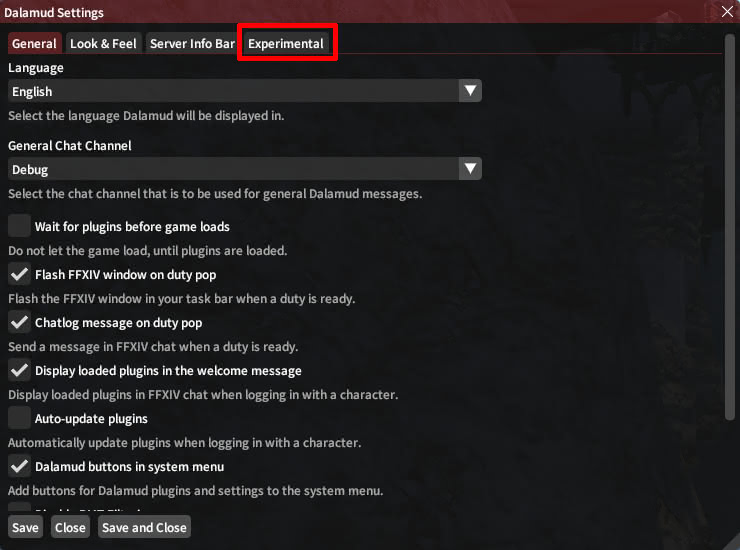
- Open the Dalamud Menu: Once you’re in the game, either on the character selection screen or in-game, you can open the Dalamud menu. The default keybind for this is
/xlpluginstyped into the in-game chat window, followed by pressing Enter. Alternatively, if your UI is active, you might see a small gear icon or a similar indicator associated with Dalamud, often near your system tray or on a visible UI element. Clicking this will open the Dalamud menu. - Navigate to “Plugin Installer”: Within the Dalamud settings window, you should see various tabs or options. Look for “Plugin Installer” or a similar option and click on it. This will open the official Dalamud plugin repository.
Step 3: Locating and Installing Penumbra
Now that you’re in the Plugin Installer, finding and installing Penumbra is quick and easy.
- Search for Penumbra: In the Plugin Installer window, you’ll typically find a search bar. Type “Penumbra” into this bar.
- Select Penumbra: Penumbra should appear in the search results. Click on its entry to highlight it.
- Install Penumbra: On the right-hand side of the window (or sometimes at the bottom), you’ll see an “Install” button. Click this button to initiate the installation.
- Confirm Installation: Dalamud will download and install Penumbra. You might see a progress bar. Once complete, it will usually indicate success.
- Restart Game (if prompted): Some plugins, including Penumbra, may require a game restart for full activation. If prompted, close FFXIV and relaunch it via XIVLauncher.
After restarting, Penumbra is now installed and active. You should see a new entry for “Penumbra” in your Dalamud plugin list, and potentially a new icon or menu option within your FFXIV UI.
Step 4: Initial Configuration and Setup
With Penumbra installed, a few initial steps will get you ready to apply your first mods.
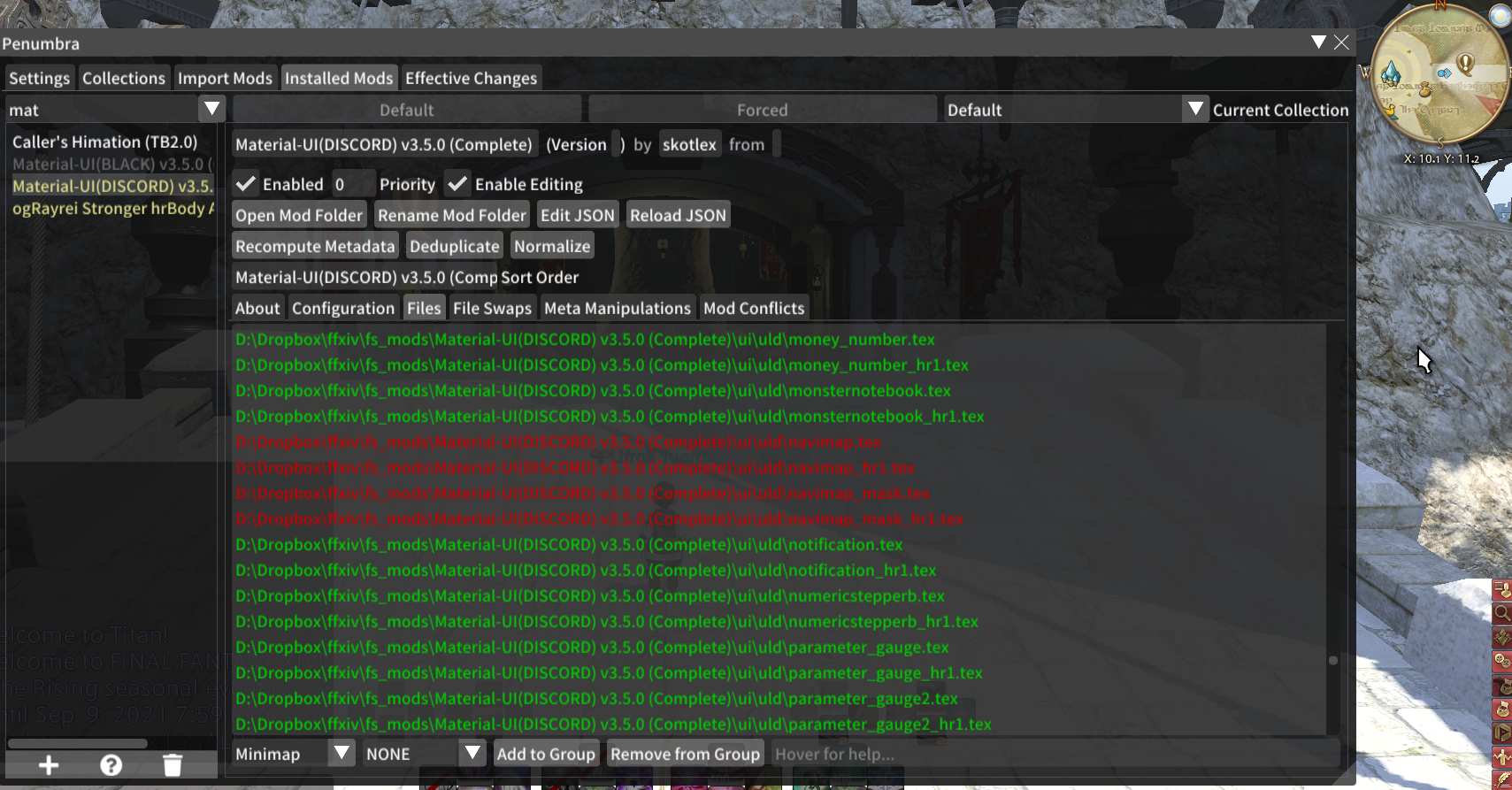
- Open Penumbra Settings: Similar to how you accessed the Dalamud Plugin Installer, you can open Penumbra’s dedicated settings. The default command is often
/penumbratyped into chat, or you might find a dedicated button for it in your Dalamud menu or even a new icon added to your game UI by Penumbra itself. - Enable Penumbra: Ensure Penumbra is enabled. There’s usually a toggle switch or checkbox, often labeled “Enable Penumbra” or “Penumbra Active.”
- Understand Collections: Penumbra’s core organizational feature is “Collections.” These allow you to group mods and apply them to specific characters, NPCs, or even different glamour plates. By default, you’ll likely have a “Default” collection.
- Create Your First Collection (Recommended): It’s a good practice to create a new collection for your main character’s mods rather than dumping everything into the “Default” one. Click “New Collection,” give it a meaningful name (e.g., “MyCharacterName Mods”), and confirm.
- Assign Collection to Character: In Penumbra’s settings, you’ll find options to assign collections. Assign your newly created collection to your character. This ensures any mods you add to this collection will only affect your character when that collection is active.
- Explore Interface: Take a moment to familiarize yourself with Penumbra’s interface. You’ll see sections for “Mods,” “Collections,” “Settings,” and possibly “Advanced.” Understanding these will be crucial as you add and manage more mods.
You have now successfully installed Penumbra and performed the essential initial setup. The stage is set for you to begin importing and applying your desired FFXIV modifications.
Beyond Installation: Using and Managing Penumbra
Installing Penumbra is just the beginning. The real magic happens when you start populating it with mods and tailoring your FFXIV experience. This section guides you through the process of acquiring, applying, and managing your modifications, alongside crucial advice on staying updated and troubleshooting.
Understanding Collections and Mod Organization
Penumbra’s strength lies in its powerful collection system, which is vital for organized modding, especially if you have multiple characters or want different mod sets for different situations.
- What are Collections? Collections are essentially profiles or groups of mods. Instead of applying every mod globally, you assign collections to specific entities.
- Applying Collections: You can apply collections to:
- Players: Your character, specific party members, or all players.
- NPCs: Individual NPCs, or categories of NPCs (e.g., all Miqo’te NPCs).
- Monsters: Specific monster models.
- Objects: Environmental objects or items.
- The Power of Prioritization: When multiple collections apply to the same entity (e.g., a global mod and a character-specific mod that affects the same asset), Penumbra uses a priority system. Mods in higher-priority collections will override those in lower-priority ones. This allows for incredibly detailed customization without conflicts.
- Best Practice: Start with a “Global” collection for mods you want to apply to everyone (e.g., UI mods, general environment tweaks). Then, create specific collections for your main character(s), assigning them higher priority. This keeps your mod list clean and manageable.
Importing and Applying Mods
Once you’ve set up your collections, it’s time to add mods! Most FFXIV mods are distributed as .pmp files (Penumbra Mod Pack) or sometimes as .ttmp (Textools Mod Pack) which Penumbra can also import.
- Finding Mods:
- Textools Discord Server: Many mod creators share their work on the official Textools Discord server (which is also the hub for Penumbra). Look for mod showcase channels.
- Nexus Mods: A vast repository for game mods, Nexus Mods has a growing FFXIV section. Filter by Penumbra-compatible mods.
- Other Modding Communities: Various community websites and forums host FFXIV mods.
- Always Download from Trusted Sources: This is critical for digital security. Stick to reputable websites and communities to minimize the risk of malware.
- Adding Mods to Penumbra:
- Drag-and-Drop: The easiest method is to simply drag the downloaded
.pmp(or.ttmp) file directly into an open Penumbra window in-game. Penumbra will automatically detect and import it. - “Import Mod” Button: Within Penumbra’s “Mods” tab, there’s usually an “Import Mod” or “Add Mod” button. Click this, navigate to your downloaded
.pmpfile, and select it.
- Drag-and-Drop: The easiest method is to simply drag the downloaded
- Configuring and Enabling Mods:
- Assign to Collection: After importing, each mod will appear in your “Mods” list. Select it. On the right, you’ll see options to assign it to one or more of your collections. Choose the appropriate collection (e.g., your character’s collection).
- Enable/Disable: Each mod has a toggle to enable or disable it within its assigned collection.
- Mod Options: Many mods come with configurable options (e.g., different color variations, texture resolutions). Explore these settings within Penumbra to customize the mod to your liking.
- Prioritization within a Collection: Even within a single collection, mods have a load order/priority. If two mods conflict (try to replace the same asset), the one with higher priority will take precedence. Penumbra usually allows you to adjust this order by dragging and dropping or using up/down arrows.
Updating and Troubleshooting Common Issues
Maintaining your mod setup is an ongoing process. Here’s how to keep things running smoothly and resolve common problems.
Updating Penumbra and Mods:
- Penumbra Updates: Penumbra, being a Dalamud plugin, updates through the Dalamud Plugin Installer. Periodically open the
/xlpluginsmenu and check for updates. If Penumbra has an update, an “Update” button will appear. - Mod Updates: Mod creators frequently release updated versions of their mods. You’ll need to manually check the source where you downloaded the mod (e.g., Nexus Mods, Discord) for updates. When an update is available, download the new
.pmpfile and import it into Penumbra. It will usually ask if you want to replace the existing version.
Troubleshooting Common Issues:
- Mod Not Appearing/Working:
- Is Penumbra enabled?
- Is the mod enabled within Penumbra?
- Is the mod assigned to the correct collection, and is that collection assigned to the correct character/NPC/object?
- Is there a conflict with another mod? Check mod priorities in the relevant collection.
- Is the mod compatible with your current game patch? Outdated mods can cause issues.
- Game Crashing/Freezing:
- Immediately disable recently added mods. If the crash stops, that mod is the culprit.
- Try disabling all mods in a collection to isolate the issue.
- Ensure your .NET Runtime is up to date and correct.
- Check Penumbra’s “Debug” or “Log” tabs for error messages that might point to the problem.
- Invisible Textures/Models: This often indicates a missing or corrupted mod file, or a mod conflict where an asset is being replaced with something that doesn’t exist or isn’t loading correctly.
- Re-import the mod.
- Check for conflicting mods and adjust priorities.
- Ensure the mod is compatible with your current character race/gender if it’s a gear mod.
- General Stability: If you experience ongoing issues, consider resetting Penumbra (there’s usually an option in settings to clear all mods/collections, but back up first!) or reinstalling XIVLauncher and Penumbra from scratch.
Remember, the FFXIV modding community is generally very helpful. If you encounter persistent issues, don’t hesitate to seek assistance on the Textools Discord server or relevant modding forums.
Digital Security and Responsible Modding
While Penumbra offers a fantastic way to customize FFXIV, engaging with external software and user-generated content always requires a mindful approach to digital security and responsible conduct. As part of a tech-focused website, we emphasize safeguarding your system and account.
Sourcing Mods Safely: Your First Line of Defense
The single most important step in digital security for modding is to be extremely selective about where you download your mods.
- Official and Reputable Communities: Stick to well-established platforms like Nexus Mods (with careful filtering for FFXIV-specific content) and highly recommended Discord servers (such as the Textools/Penumbra official server or established modding communities). These platforms usually have moderation teams that vet uploads and an active user base that reports suspicious content.
- Beware of Unknown Sources: Avoid downloading mods from random websites, obscure forums, or direct links shared without context on social media. These are common vectors for distributing malware, keyloggers, or other malicious software disguised as game enhancements.
- Check Comments and Reviews: Before downloading a mod, always read the comments section and reviews. Look for feedback on installation issues, bugs, or, most importantly, any reports of suspicious behavior or security concerns. A mod with no comments or only generic positive feedback should raise a red flag.
- Scan Downloaded Files: Even from reputable sources, it’s a good practice to run a quick scan of any downloaded
.pmpor.ttmpfiles with your antivirus software before importing them into Penumbra. While these files are generally data-only archives, an extra layer of caution never hurts.
Backup Your Game and Settings
While Penumbra prevents direct modification of game files, accidents can still happen, or a rogue mod could theoretically cause unexpected behavior.
- FFXIV Configuration Backup: Regularly back up your FFXIV character configuration files, usually found at
DocumentsMy GamesFINAL FANTASY XIV - A Realm Reborn. This folder contains your UI layout, hotbars, macros, gear sets, and more. If your profile ever gets corrupted, you can easily restore these essential settings. - Penumbra Backups: Penumbra itself usually offers a way to export or back up your collections and mod settings. Utilize this feature periodically, especially after building a large and complex mod setup.
Understanding Square Enix’s Stance and Potential Risks
It’s important to acknowledge Square Enix’s official stance on third-party tools and modifications.
- Terms of Service (ToS): Square Enix’s Terms of Service generally prohibit the use of third-party tools that interact with the game client, which includes XIVLauncher and Dalamud plugins like Penumbra.
- Enforcement: While the official stance is clear, enforcement primarily targets tools that provide an unfair gameplay advantage (e.g., bots, automation, combat assist tools) or those that directly harm the game’s economy or other players. Cosmetic mods, like those Penumbra handles, are generally tolerated as long as they remain client-side and don’t affect other players’ experiences or give an unfair advantage.
- Risks: The primary risk associated with cosmetic mods is extremely low if you stick to reputable sources and don’t engage in malicious behavior. There have been very few, if any, documented cases of players being banned specifically for using Penumbra for purely cosmetic alterations. However, the theoretical risk always exists, and players engage in modding at their own discretion.
By adhering to safe downloading practices, regularly backing up your data, and understanding the nuances of FFXIV’s modding environment, you can enjoy the vast customization possibilities offered by Penumbra while minimizing any associated digital security concerns.
Conclusion
Installing Penumbra for Final Fantasy XIV unlocks an incredible realm of personalization, allowing you to sculpt your Eorzean experience to your exact vision. From subtle texture enhancements to dramatic character overhauls, the power of dynamic asset replacement offered by Penumbra, integrated seamlessly through XIVLauncher and Dalamud, empowers players to truly make their mark on the game’s aesthetics.
We’ve covered everything from the foundational understanding of what Penumbra is and why players flock to it, to the crucial prerequisites that ensure a smooth setup. The step-by-step installation guide demystified the process, leading you from installing XIVLauncher to activating Penumbra and performing its initial configuration. Finally, we delved into the practicalities of managing your mods, understanding the collection system, and equipped you with essential troubleshooting tips and, critically, robust digital security practices.
As technology continues to evolve, so too does the landscape of game modding, offering increasingly sophisticated tools for player creativity. Penumbra stands as a testament to this, providing a user-friendly yet powerful platform that prioritizes both flexibility and safety. By following the guidelines in this comprehensive tutorial, you’re now well-equipped to dive into the vibrant world of FFXIV mods, transforming your adventures in Eorzea into a truly unique and personalized saga. Embrace the creativity, explore the possibilities, and enjoy a Final Fantasy XIV experience unlike any other.
aViewFromTheCave is a participant in the Amazon Services LLC Associates Program, an affiliate advertising program designed to provide a means for sites to earn advertising fees by advertising and linking to Amazon.com. Amazon, the Amazon logo, AmazonSupply, and the AmazonSupply logo are trademarks of Amazon.com, Inc. or its affiliates. As an Amazon Associate we earn affiliate commissions from qualifying purchases.