
In an age defined by instant access and personalized content, the ability to seamlessly stream your favorite shows and movies is no longer a luxury, but a core expectation. For millions around the globe, Netflix stands as the undisputed king of on-demand entertainment, offering an expansive library that caters to every taste. Complementing this, Apple TV provides a sophisticated, user-friendly gateway to a world of digital content, transforming your living room into a cutting-edge media center. Marrying these two titans of technology creates an unparalleled viewing experience.
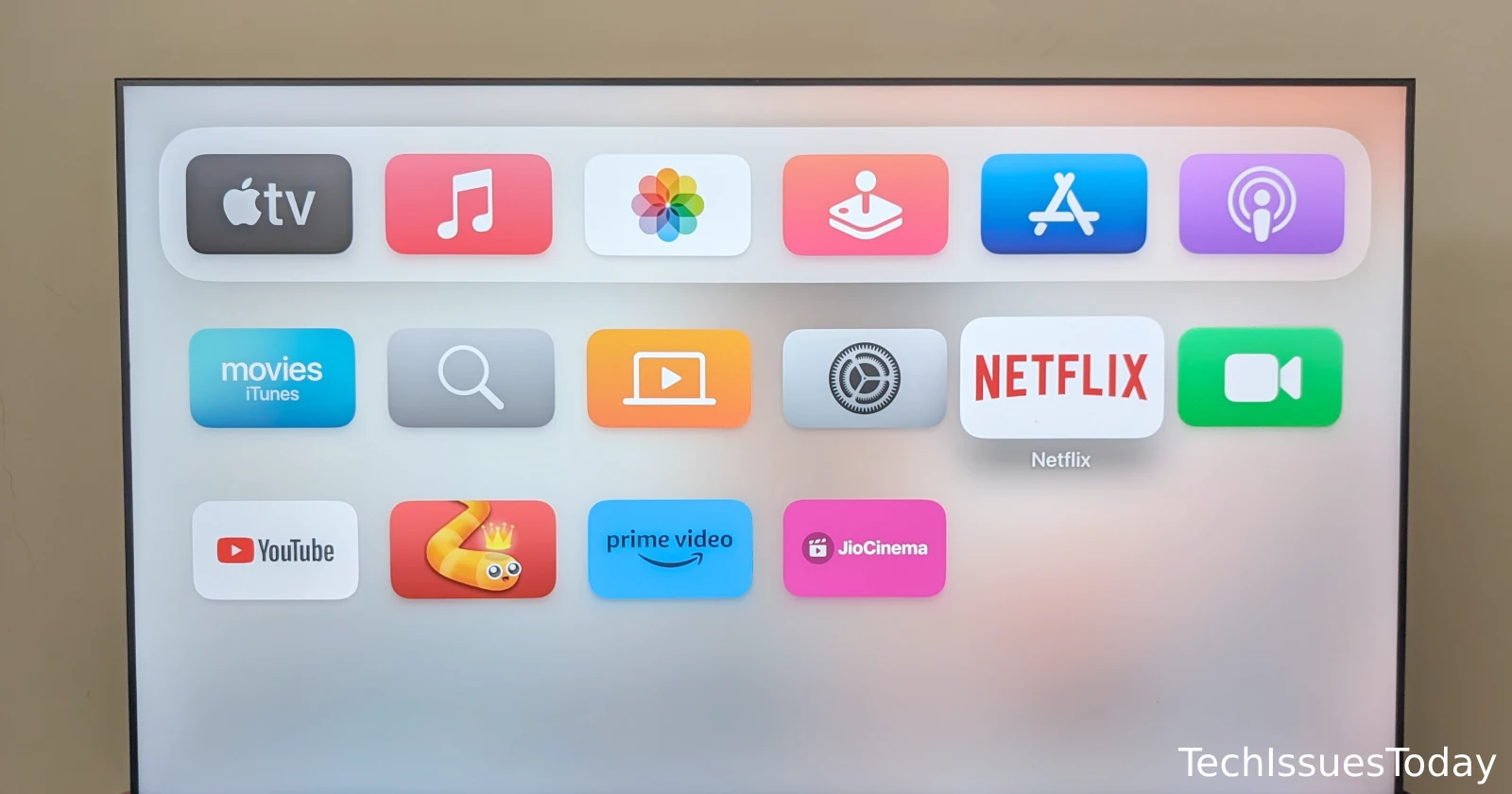
This comprehensive guide will walk you through every step of installing Netflix on your Apple TV, ensuring you can dive into a universe of captivating stories with ease. Beyond just the installation, we’ll delve into optimizing your setup, troubleshooting common hurdles, and understanding why this powerful combination is an essential component of modern home entertainment. Whether you’re a seasoned tech enthusiast or a newcomer to the Apple ecosystem, prepare to unlock the full potential of your streaming journey.
The Synergistic Duo: Why Netflix on Apple TV Matters
Before we dive into the mechanics, it’s crucial to understand the individual strengths of both Netflix and Apple TV, and why their integration creates such a compelling proposition for consumers. This synergy is at the heart of an enriched digital lifestyle, aligning perfectly with contemporary technology trends and user expectations.
Understanding Apple TV: More Than Just a Box
Apple TV isn’t merely a streaming device; it’s a portal to a vast ecosystem of apps, games, and services, all powered by Apple’s intuitive tvOS. From its sleek design to its powerful A-series chips, each iteration of Apple TV is engineered for performance and user experience. It integrates deeply with other Apple devices, offering features like AirPlay, HomeKit control, and shared iCloud Photo Libraries directly on your biggest screen. It stands as Apple’s commitment to placing curated, high-quality content at the forefront of your home entertainment, emphasizing ease of use, robust security, and a premium interface. For users invested in the Apple ecosystem, it’s the natural choice for a centralized media hub.
The Allure of Netflix: A Global Entertainment Powerhouse
Netflix has fundamentally reshaped how we consume media. What began as a DVD rental service evolved into the world’s leading subscription streaming platform, boasting an unimaginable breadth of original programming, blockbuster movies, critically acclaimed series, and captivating documentaries. Its algorithm-driven recommendation engine, user-friendly interface, and commitment to high-quality streaming (including 4K HDR and Dolby Atmos support) make it an indispensable service for millions. Netflix’s brand identity is synonymous with innovation, diverse content, and a seamless viewer experience, continuously pushing the boundaries of storytelling and global accessibility.
The Perfect Pairing: Enhancing Your Streaming Experience
Bringing Netflix to Apple TV isn’t just about accessing another app; it’s about elevating your entire entertainment experience. The powerful processing of Apple TV ensures smooth navigation, quick loading times, and crystal-clear picture quality, making the most of Netflix’s high-resolution offerings. The seamless integration means you can use Siri to search for Netflix content, manage playback with your Apple TV remote, and switch between apps effortlessly. This combination offers a stable, reliable, and premium platform for your streaming needs, minimizing buffering and maximizing enjoyment. For brand-conscious consumers, it represents a commitment to quality and a harmonious digital environment.
Preparing for Seamless Streaming: What You’ll Need
Before you embark on the installation process, a few prerequisites will ensure a smooth and successful setup. Think of this as laying the groundwork for an optimal streaming environment, much like a meticulous project manager prepares for a crucial launch.
Essential Hardware: Your Apple TV Model
To install the Netflix app, you’ll need an Apple TV HD (4th generation) or any Apple TV 4K model. Older generations (2nd or 3rd generation Apple TV) do not support the App Store and thus cannot natively install the Netflix application. While older models may have had Netflix pre-installed or accessible via a pre-programmed channel, the modern, feature-rich app experience requires a current tvOS device. Verify your model by checking the device’s physical appearance or going to Settings > General > About on your Apple TV.
Account & Connectivity: Netflix Subscription and Internet Access
This might seem obvious, but it’s crucial:
- An Active Netflix Subscription: You’ll need an active Netflix account with a valid subscription. If you don’t have one, you can sign up on the Netflix website (www.netflix.com). Various plans are available, catering to different budgets and streaming quality preferences, offering flexibility in personal finance for entertainment.
- Reliable Internet Connection: A stable and sufficiently fast internet connection is paramount. Netflix recommends specific speeds for different streaming qualities:
- 0.5 Mbps for minimum quality
- 1.5 Mbps for recommended broadband quality
- 3.0 Mbps for SD quality
- 5.0 Mbps for HD quality
- 15 Mbps for 4K Ultra HD quality
A wired Ethernet connection is always preferred for consistency, but a strong Wi-Fi signal will also suffice.
Software Updates: Ensuring Optimal Performance
Ensure your Apple TV is running the latest version of tvOS. Software updates often include performance enhancements, bug fixes, and crucial security updates that contribute to a more stable and secure streaming experience.
To check for updates:
- Go to Settings on your Apple TV.
- Select System.
- Choose Software Updates.
- Select Update Software (if an update is available).
Keeping your device updated isn’t just about new features; it’s a fundamental aspect of digital security and ensures compatibility with the latest app versions, including Netflix.
Step-by-Step Installation: Getting Netflix on Your Apple TV
With your preparations complete, you’re ready to download and install the Netflix app. The process is straightforward and mirrors how you’d install any other application from the Apple TV App Store.

Navigating the Apple TV App Store
The App Store is your gateway to thousands of apps, games, and services on your Apple TV.
- Wake Up Your Apple TV: Turn on your TV and Apple TV.
- Locate the App Store: From the tvOS home screen, find and select the App Store icon. It typically looks like a blue icon with a white ‘A’ in the middle. Use your Siri Remote’s touch surface to navigate and click to select.
Finding and Downloading the Netflix App
Once in the App Store, you’ll need to search for Netflix.
- Use the Search Function: In the App Store, you’ll see a search icon (magnifying glass) or a search bar. Select it.
- Type “Netflix”: Using the on-screen keyboard, type “Netflix.” The search results should populate as you type.
- Select the Netflix App: Once the Netflix app appears in the search results, select it. It will typically be the first and most prominent result, featuring the distinctive red Netflix logo.
- Initiate Download: On the Netflix app page, you’ll see a Get button (if it’s your first time downloading) or a cloud icon with a down arrow (if you’ve previously downloaded it). Select this button.
- Authenticate (if prompted): Depending on your Apple TV settings, you might be asked to enter your Apple ID password or use Touch ID/Face ID via an associated iOS device to authorize the download. This is a standard security measure for all App Store downloads.
- Wait for Download and Installation: The app will begin downloading and installing automatically. A progress circle will appear over the app icon on your home screen during this process. The speed will depend on your internet connection.
Logging In and Personalizing Your Experience
Once installed, the Netflix app icon will appear on your Apple TV home screen.
- Launch Netflix: Select the Netflix app icon to open it.
- Sign In: You’ll be greeted with a “Sign In” or “Get Started” option. Select “Sign In.”
- Enter Your Netflix Credentials: You’ll need to enter the email address and password associated with your Netflix account. Use the on-screen keyboard.
- Tip: If you find typing difficult with the Siri Remote, you might be able to use your iPhone or iPad as a remote (via the Remote app or Control Center) which allows for easier text input. Some versions of Netflix also offer a login by visiting a URL on another device and entering a code.
- Select Your Profile: After successfully signing in, you’ll be prompted to select a user profile (if you have multiple profiles set up). This personalizes your recommendations and watch history.
- Start Streaming! You’re now ready to explore Netflix’s vast library and begin watching your favorite content on your Apple TV.
Troubleshooting Common Issues and Optimizing Your Viewership
Even with the most straightforward installation, occasional hiccups can occur. Furthermore, maximizing your streaming experience involves a few optimization tips to ensure the best possible picture and sound. This section provides practical solutions and enhancements, drawing on best practices for digital product usage.
Resolving Installation and Login Problems
- App Won’t Download/Install:
- Check Internet Connection: Ensure your Apple TV is connected to the internet. Try restarting your router and modem.
- Apple TV Storage: Verify you have enough storage space (Settings > General > Manage Storage). Delete unused apps if necessary.
- Restart Apple TV: A simple restart can often resolve minor software glitches (Settings > System > Restart).
- Apple ID Issue: Sign out and back into your Apple ID on Apple TV (Settings > Users and Accounts > [Your Account] > Sign Out).
- Netflix Login Errors:
- Verify Credentials: Double-check your Netflix email and password. It’s easy to make a typo.
- Reset Netflix Password: If you’ve forgotten your password, reset it via the Netflix website on another device.
- Check Netflix Account Status: Ensure your subscription is active and there are no payment issues on your Netflix account page.
- Netflix Server Status: Occasionally, Netflix servers might experience issues. Check reputable tech news sites or social media for widespread outages.
Enhancing Streaming Quality and Performance
- Internet Speed: Ensure your internet speed meets Netflix’s recommendations for your desired quality (HD, 4K). Consider upgrading your plan if consistently experiencing buffering.
- Wired vs. Wireless: For the most stable connection, especially for 4K streaming, use an Ethernet cable to connect your Apple TV directly to your router.
- Router Placement: If using Wi-Fi, place your router in a central location, away from obstructions and other electronics that might cause interference.
- Netflix Playback Settings:
- Go to netflix.com on a web browser.
- Sign in to your account.
- Select a profile.
- Go to Account > Profile & Parental Controls > Select your profile > Change for “Playback settings.”
- Set “Data usage per screen” to High or Auto for the best quality, keeping in mind it will use more data.
- Apple TV Display Settings: Ensure your Apple TV’s video output settings are correctly configured for your television. For 4K TVs, go to Settings > Video and Audio > Format and select the appropriate 4K HDR setting.
Advanced Features: Profiles, Parental Controls, and Accessibility
Netflix on Apple TV offers a robust set of features to customize your viewing:
- Profiles: Create separate profiles for each family member to maintain personalized recommendations, watch histories, and queue lists. This also helps in managing household viewing habits.
- Parental Controls: Set up PINs for profiles and specific maturity ratings to restrict content for younger viewers. This is a crucial digital security feature for families.
- Subtitles and Audio: Easily access and customize subtitles, closed captions, and audio languages directly within the Netflix playback interface. Apple TV’s accessibility features also extend to Netflix, including options for larger text or reduced motion.
- My List: Add shows and movies you want to watch later to “My List” for easy access.
Beyond Installation: Maximizing Your Netflix & Apple TV Experience
Installing Netflix is just the beginning. To truly leverage this powerful combination, understanding its integration with tvOS and looking ahead at future trends can enrich your entertainment strategy. This approach reflects a forward-thinking perspective on technology adoption and brand engagement.
Exploring tvOS Integration and Siri Commands
Apple TV’s tvOS is designed for seamless integration across apps. Netflix is no exception.
- Universal Search: Use Siri on your Apple TV remote (or paired iOS device) to search across multiple streaming services, including Netflix. Say “Hey Siri, find [movie/show name] on Netflix” or “Show me action movies on Netflix.” This saves time and makes content discovery intuitive.
- Up Next Queue: Content you start watching on Netflix can sometimes appear in the “Up Next” row on your Apple TV home screen, allowing you to quickly resume playback from where you left off, even if you switch to another app.
- Control Center: Access basic playback controls for Netflix from the Apple TV Control Center, offering quick pause, play, and skip options.
- Remote App: Utilize the Apple TV Remote app on your iPhone or iPad for enhanced control, including a keyboard for easier text entry when logging in or searching.
Future-Proofing Your Entertainment Setup
The tech landscape is constantly evolving. Staying ahead means understanding how updates and new features will impact your setup:
- tvOS Updates: Apple regularly releases tvOS updates that can bring new features, performance improvements, and enhanced security to your Apple TV, benefiting all installed apps, including Netflix.
- Netflix App Updates: Netflix frequently updates its app to introduce new features, improve stability, and support the latest streaming technologies (e.g., new HDR formats, spatial audio). Ensure automatic app updates are enabled on your Apple TV (Settings > Apps > Automatically Install Apps).
- Hardware Considerations: While your current Apple TV likely provides an excellent Netflix experience, future generations of Apple TV might offer even faster processors, more advanced video capabilities, or new connectivity standards. Investing in current-generation hardware helps ensure longevity and access to the latest features.

The Value Proposition: Why This Integration is Key to Modern Home Entertainment
The seamless integration of Netflix on Apple TV represents more than just convenience; it’s a testament to the evolving expectations of home entertainment. It provides a premium, reliable, and user-friendly platform for accessing a vast array of content. For individuals and families, it simplifies content discovery, personalizes viewing, and ensures a high-quality experience that maximizes the investment in both a Netflix subscription and an Apple TV device. This combination offers unparalleled value by bringing together two industry leaders to deliver a truly global, personalized, and high-definition entertainment hub, solidifying its place as a cornerstone of the connected digital home. By mastering this setup, you’re not just installing an app; you’re orchestrating a superior entertainment experience for years to come.
aViewFromTheCave is a participant in the Amazon Services LLC Associates Program, an affiliate advertising program designed to provide a means for sites to earn advertising fees by advertising and linking to Amazon.com. Amazon, the Amazon logo, AmazonSupply, and the AmazonSupply logo are trademarks of Amazon.com, Inc. or its affiliates. As an Amazon Associate we earn affiliate commissions from qualifying purchases.