
In the vast and ever-evolving landscape of technology, compatibility often acts as a bridge between the past and the present. While software development relentlessly pushes the boundaries with new frameworks and languages, there remains a persistent need for legacy support. This is precisely where the .NET Framework 3.5 steps into the spotlight. Despite its age, countless essential applications and system components, especially within enterprise environments or older software ecosystems, still rely on this specific version of Microsoft’s foundational development platform. If you’ve ever encountered an error message like “This application requires one of the following versions of the .NET Framework: .NETFramework,Version=v3.5,” you know the frustration.

This comprehensive guide will walk you through everything you need to know about installing .NET Framework 3.5, ensuring your system can run those indispensable applications without a hitch. We’ll delve into its importance, cover the various installation methods – both online and offline – troubleshoot common issues, and even touch upon best practices for maintaining a healthy and secure tech environment. Whether you’re a seasoned IT professional or a casual user trying to get a specific program running, understanding this process is a crucial step in managing your digital toolkit effectively.
Understanding .NET Framework 3.5: A Foundation for Legacy Applications
Before diving into the nitty-gritty of installation, it’s beneficial to grasp what the .NET Framework is and why version 3.5 continues to hold relevance in an era dominated by its modern successors.
What is .NET Framework?
The .NET Framework is a software framework developed by Microsoft that runs primarily on Microsoft Windows. It provides a comprehensive and consistent programming model for building applications that have visually stunning user experiences, seamless and secure communication, and the ability to model a range of business processes. Essentially, it’s a runtime environment and a vast library of code that applications can use to perform common tasks, simplifying development and ensuring consistency across different programs. When an application is built on the .NET Framework, it requires a compatible version of the framework to be installed on the user’s machine to run correctly.
Why .NET Framework 3.5 Remains Relevant Today
While newer iterations like .NET Framework 4.8 and the cross-platform .NET (formerly .NET Core) are the preferred choices for contemporary development, .NET Framework 3.5 carved out a significant niche upon its release in 2007. It introduced pivotal features like Language Integrated Query (LINQ), ASP.NET AJAX, and Windows Workflow Foundation, which became cornerstones for a generation of applications. Today, its relevance stems primarily from backward compatibility. Many older, yet still critical, applications – from business-specific software to certain games or utilities – were built targeting .NET Framework 3.5. Without it, these applications simply won’t launch, presenting a significant hurdle for users and businesses who rely on them.
Furthermore, certain Windows features and roles, particularly in server environments, can sometimes have dependencies on .NET Framework 3.5. This means that even if you’re not intentionally running an “old” application, your operating system might quietly require it for optimal functionality or for specific components to be enabled. Its continued presence ensures a smooth transition and operational continuity for systems that predate the widespread adoption of later .NET versions.
Key Features and Components of Version 3.5
At its core, .NET Framework 3.5 brought together several powerful technologies that reshaped application development. It built upon and included the functionalities of .NET Framework 2.0 and 3.0, making it a comprehensive package. Some of its notable features include:
- Language Integrated Query (LINQ): A revolutionary set of extensions to the C# and VB.NET languages that allowed developers to write queries against various data sources (like databases, XML documents, arrays, and collections) using a unified syntax, directly within their programming language. This drastically simplified data manipulation.
- ADO.NET Data Services (now WCF Data Services): Enabled the creation of services that expose data as OData feeds, allowing clients to interact with data using standard HTTP protocols and URIs.
- ASP.NET AJAX: Provided a rich client-side framework for building interactive and dynamic web applications that could update parts of a web page without a full post-back, enhancing user experience.
- Windows Workflow Foundation (WF): A technology for defining, executing, and managing workflows both within and across applications.
- Windows Communication Foundation (WCF): A unified programming model for building service-oriented applications, offering a robust and secure way for applications to communicate across different platforms and technologies.
Understanding these components helps illustrate why so many applications became dependent on 3.5, solidifying its place as a crucial piece of software infrastructure even today.
Preparing for Installation: Essential Checks and Considerations
Installing any software, especially a foundational framework, requires a bit of preparation. Taking a few moments to ensure your system meets the requirements and to safeguard your data can prevent potential headaches down the line.
System Requirements and Compatibility
While .NET Framework 3.5 is relatively lightweight by modern standards, it still has specific operating system requirements. It is officially supported on:
- Windows 11, Windows 10, Windows 8.1, Windows 8, Windows 7, Windows Vista, Windows XP SP2/SP3 (though XP support is deprecated and not recommended due to security risks).
- Windows Server 2022, 2019, 2016, 2012 R2, 2012, 2008 R2, 2008.
For most modern Windows versions (Windows 8 and newer), .NET Framework 3.5 is considered an “on-demand” feature, meaning the core files are usually present on the installation media but need to be explicitly enabled or downloaded.
You’ll need a stable internet connection for the online installation method, and adequate disk space (typically a few hundred MBs) for the framework and any associated updates. Ensure your Windows installation is up to date, as many updates include prerequisites or fixes that can streamline the installation process.
Identifying Existing .NET Framework Versions
Before proceeding, it’s a good practice to know which versions of the .NET Framework are already installed on your system. This helps avoid redundant installations and can sometimes offer clues if you’re troubleshooting an application that isn’t working.
To check installed versions:
- Via Control Panel (for older versions): Go to
Control Panel > Programs > Programs and Features. Look for “Microsoft .NET Framework” entries. This primarily lists standalone installations of older versions. - Via Windows Features (for versions 3.5 and above on newer OS): On Windows 8 and newer, go to
Control Panel > Programs > Programs and Features, then click “Turn Windows features on or off” in the left pane. Here you’ll see a checkbox for “.NET Framework 3.5 (includes .NET 2.0 and 3.0).” If it’s checked, it’s enabled; if unchecked, it’s not. - Via PowerShell (for all versions, including 4.x): Open PowerShell as an administrator and type:
Get-ChildItem 'HKLM:SOFTWAREMicrosoftNET Framework SetupNDP' -Recurse | Get-ItemProperty -Name version -EA 0 | Where { $_.PSChildName -ne 'Client' -and $_.PSChildName -ne 'Full'}
This command will list all installed .NET Framework versions, including 4.x and above, which are registered in the registry.
Knowing what’s already present helps you confirm if 3.5 is missing or if you already have it enabled but perhaps a different component is at fault.
Backup Best Practices (Pre-Installation Safety)
While installing .NET Framework 3.5 is generally a safe process, it involves modifying core system components. As a rule of thumb for any significant system change, backing up your data and creating a system restore point is highly recommended. This practice ties directly into digital security and productivity, ensuring that in the unlikely event of an unforeseen issue, you can quickly revert your system to a stable state without data loss.
- Create a System Restore Point: In Windows, search for “Create a restore point.” In the System Properties window, click “Create…” under the “System Protection” tab. Give it a descriptive name like “Before .NET 3.5 Install.” This allows you to undo system changes if something goes wrong.
- Back up Important Files: Always ensure your critical documents, photos, and other personal files are backed up to an external drive or cloud storage. While framework installations rarely affect user files directly, it’s a good habit for overall digital hygiene.
Step-by-Step Installation Guides for .NET Framework 3.5
There are several ways to install .NET Framework 3.5, depending on your operating system, internet connectivity, and specific needs. We’ll cover the most common and reliable methods.
Method 1: Online Installation via Windows Features (Recommended for Connected Systems)
This is the most straightforward method for Windows 8, 8.1, 10, and 11 users with an active internet connection.
-
Access “Turn Windows features on or off”:
- Open the
Control Panel(you can search for it in the Start Menu). - Navigate to
Programsand then click onPrograms and Features. - In the left-hand pane, click on
Turn Windows features on or off. - Alternatively, you can type
optionalfeatures.exein the Run dialog (Win + R) and press Enter.
- Open the
-
Enable .NET Framework 3.5:
- In the “Windows Features” dialog box, locate and check the box next to
.NET Framework 3.5 (includes .NET 2.0 and 3.0). - You might see a plus sign (+) next to it; clicking it will expand the option to show sub-features, but checking the main box is usually sufficient.
- In the “Windows Features” dialog box, locate and check the box next to

-
Initiate Download and Installation:
- Click
OK. - Windows will then prompt you with a message: “Do you want Windows Update to download the files for you?” Select
Download files from Windows Update. - The system will connect to Microsoft servers, download the necessary files, and install the framework. This process can take several minutes depending on your internet speed.
- Click
-
Complete the Installation:
- Once the installation is complete, you might be prompted to restart your computer. It’s highly recommended to do so to ensure all changes are fully applied.
Troubleshooting Online Installation Issues:
- “Error 0x800F0906” or “0x800F081F”: These errors often indicate that Windows couldn’t download the necessary files from Windows Update. This could be due to network issues, blocked connections by a firewall or antivirus, or a corrupt Windows Update component. Temporarily disabling your firewall/antivirus (if safe to do so) or trying the offline method might resolve it.
- “0x800F0922”: This typically points to an issue with connecting to the Windows Update server or insufficient space in the System Reserved partition.
- Internet Connectivity: Ensure your internet connection is stable and not being throttled.
Method 2: Offline Installation Using Installation Media (Recommended for Disconnected Systems or Persistent Online Errors)
This method is ideal if your computer doesn’t have an internet connection, or if the online installation consistently fails. It requires access to your Windows installation media (an ISO file or a bootable USB drive).
-
Obtain Windows Installation Media:
- If you don’t have one, you can download the official Windows ISO file for your version (e.g., Windows 10/11) from Microsoft’s website using the Media Creation Tool.
- Once downloaded, you can either burn it to a DVD, create a bootable USB, or simply mount the ISO file as a virtual drive. To mount an ISO, right-click the file and select
Mount. Note the drive letter assigned (e.g.,D:,E:).
-
Locate the
sxsFolder:- Browse to the mounted ISO or installation media.
- Navigate to the
sourcesfolder, then open thesxsfolder (e.g.,D:sourcessxs). This folder contains the necessary .NET Framework 3.5 binaries.
-
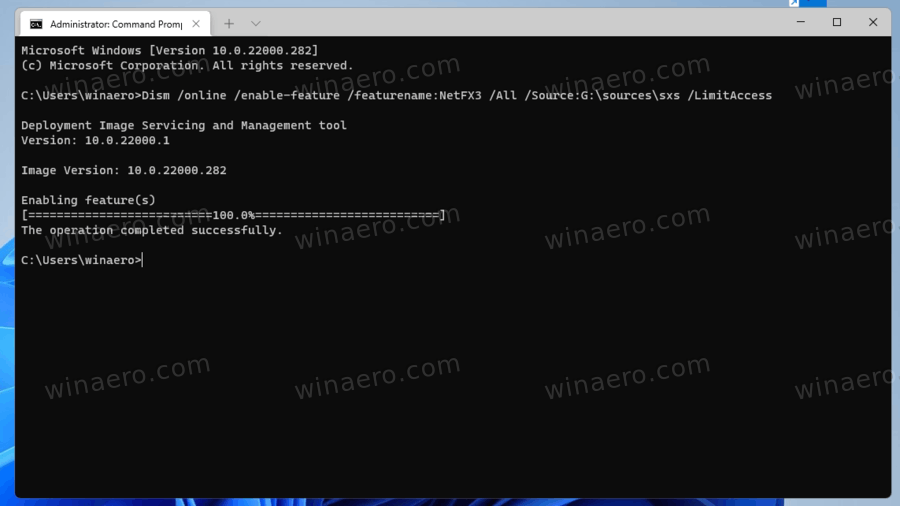
Use DISM Command:
- Open
Command PromptorPowerShellas an administrator. (Search for “cmd” or “PowerShell” in the Start Menu, right-click, and select “Run as administrator”). - Type the following command, replacing
D:sourcessxswith the actual path to yoursxsfolder:
DISM /Online /Enable-Feature /FeatureName:NetFx3 /All /LimitAccess /Source:D:sourcessxsDISM: Deployment Image Servicing and Management, a powerful command-line tool./Online: Specifies that the operation is performed on the running operating system./Enable-Feature /FeatureName:NetFx3: Tells DISM to enable the .NET Framework 3.5 feature./All: Enables all parent features of .NET Framework 3.5 (i.e., .NET Framework 2.0 and 3.0)./LimitAccess: Prevents DISM from contacting Windows Update./Source:D:sourcessxs: Specifies the location of the source files. This is crucial for offline installation.
- Open
-
Execute and Complete:
- Press
Enter. DISM will proceed with the installation. This usually takes a few minutes. - Once it completes, you should see a message indicating “The operation completed successfully.”
- Again, a system restart might be requested or beneficial.
- Press
Troubleshooting DISM Command Issues:
- Incorrect
SourcePath: Double-check that theD:sourcessxspart of the command accurately reflects the drive letter and path of your mounted ISO’ssxsfolder. This is the most common error. - Corrupted ISO: If the installation media itself is corrupted, DISM will fail. Try re-downloading the ISO.
- Permissions: Ensure you are running Command Prompt/PowerShell as an administrator.
Method 3: Using the .NET Framework 3.5 Standalone Installer (For Older OS or Specific Scenarios)
While less common for modern Windows versions (which prefer the Windows Features method), Microsoft does provide a standalone installer for .NET Framework 3.5 SP1. This is typically used for older operating systems like Windows XP or Vista, or in situations where the other methods fail for complex reasons.
-
Download the Installer:
- Go to the official Microsoft Download Center website. Search for “Microsoft .NET Framework 3.5 Service Pack 1 (Full Package).”
- Ensure you download the correct version for your system architecture (x86, x64, or ia64, though x86 and x64 are most common).
-
Run the Installer:
- Execute the downloaded
.exefile. - Follow the on-screen prompts, accepting the license agreement and clicking through the installation wizard.
- The installer will extract files and install the framework.
- Execute the downloaded
-
Restart:
- A restart is typically required after this installation method as well.
This method is generally straightforward but may require more direct interaction compared to simply enabling a Windows feature.
Post-Installation Verification and Troubleshooting Common Issues
After going through the installation steps, it’s wise to verify that .NET Framework 3.5 has been successfully installed and is functioning as expected. Should problems arise, understanding common errors can help you quickly find a solution.
Verifying Successful Installation
- Check Windows Features (Windows 8/10/11): Revisit
Control Panel > Programs > Programs and Features > Turn Windows features on or off. Ensure the.NET Framework 3.5 (includes .NET 2.0 and 3.0)box is checked and shaded or fully filled. - Test the Application: The most direct way to confirm success is to try running the application that initially prompted you to install .NET Framework 3.5. If it launches without the error, you’re good to go.
- Check Event Viewer: For more technical verification, open the
Event Viewer(search for it in the Start Menu) and navigate toWindows Logs > Setup. Look for events related to.NET Framework 3.5installation, which should indicate success or point to any specific failures.
Common Installation Errors and Solutions
Beyond the specific errors mentioned in the installation methods, here are some general troubleshooting tips:
- Network Issues (for Online Install):
- Ensure a stable internet connection.
- Temporarily disable VPNs, proxies, firewalls, or antivirus software that might be blocking access to Microsoft’s update servers. Remember to re-enable them afterward.
- Reset Windows Update components: Open Command Prompt as administrator and run
net stop wuauserv,net stop cryptSvc,net stop bits,net stop msiserver, then delete the contents ofC:WindowsSoftwareDistributionandC:WindowsSystem32catroot2, then restart the services withnet start wuauserv, etc.
- Corrupt System Files:
- Run the System File Checker (SFC) to repair corrupted system files: Open Command Prompt as administrator and type
sfc /scannow. - Use DISM to repair the Windows image: Open Command Prompt as administrator and type
DISM /Online /Cleanup-Image /RestoreHealth. This attempts to repair the system image using Windows Update (if online) or local sources.
- Run the System File Checker (SFC) to repair corrupted system files: Open Command Prompt as administrator and type
- Group Policy Restrictions: In corporate environments, Group Policies might restrict the installation of Windows features. Consult with your IT administrator if you suspect this is the case.
- Insufficient Disk Space: While the framework itself isn’t huge, ensure you have sufficient free space on your system drive.
- Pending Updates or Restarts: Sometimes, a pending Windows update or a required restart can block the installation. Ensure your system is fully up-to-date and all pending restarts are completed.
Ensuring Digital Security and System Stability
Successfully installing .NET Framework 3.5 is just one aspect of maintaining a robust and secure computing environment. After installation, consider these broader best practices:
- Keep Windows Updated: Regular Windows updates not only bring new features but also crucial security patches and bug fixes that can prevent vulnerabilities.
- Antivirus and Anti-malware: Always run reputable antivirus and anti-malware software. Ensure it’s updated and performs regular scans. This is vital for digital security.
- Driver Updates: Keep your device drivers updated. Outdated drivers can lead to performance issues and compatibility conflicts.
- Regular Backups: Continue the habit of regular data backups. This is your safety net against data loss from hardware failure, malware, or accidental deletion.
- Software Inventory: Periodically review your installed applications and remove any software you no longer use. This frees up disk space and reduces potential attack surfaces.
Beyond Installation: Optimizing Your Tech Environment
The need for .NET Framework 3.5 highlights the challenge of supporting legacy software. However, technology continuously moves forward. Understanding the context of .NET’s evolution can help in long-term tech planning.
The Future of .NET: From Framework to .NET Core/5/6/7/8
Microsoft’s development platform has undergone a significant transformation since .NET Framework 3.5. The .NET Framework line culminated with version 4.8 and is now in maintenance mode, primarily for existing Windows desktop applications. The future lies with the open-source, cross-platform .NET (starting with .NET 5, following .NET Core 3.1, and continuing with .NET 6, 7, and 8). This modern iteration offers superior performance, cross-platform compatibility (Linux, macOS, Windows), and a more agile development model.
For new application development, especially those intended for modern cloud environments or requiring cross-platform support, developers are strongly encouraged to use the latest .NET versions. However, for existing applications that specifically target .NET Framework 3.5, upgrading can be a complex and costly endeavor, making the continued support and installation of 3.5 a necessary part of many IT strategies.
Best Practices for Software Management
Managing software effectively is a cornerstone of productivity and digital security. Beyond specific installations, a holistic approach ensures your systems run smoothly:
- Adopt a “Need-to-Have” Mindset: Install only the software you truly need. Each piece of software represents a potential resource drain and security vulnerability.
- Monitor System Performance: Tools like Task Manager or Resource Monitor can help identify applications consuming excessive resources, allowing you to troubleshoot or optimize.
- Regular Audits: Periodically audit your software landscape. Are there duplicate tools? Outdated utilities? Unused subscriptions? Streamlining your software helps you focus and saves resources.
- Source Software Safely: Always download software and framework installers from official vendor websites (like Microsoft.com for .NET Framework) to avoid malware or tampered installations.
By following these guidelines, you not only ensure that essential applications running on .NET Framework 3.5 function correctly, but you also contribute to a more secure, efficient, and well-managed technology environment. The digital world is always evolving, but with a solid foundation and smart practices, you can navigate its complexities with confidence.
aViewFromTheCave is a participant in the Amazon Services LLC Associates Program, an affiliate advertising program designed to provide a means for sites to earn advertising fees by advertising and linking to Amazon.com. Amazon, the Amazon logo, AmazonSupply, and the AmazonSupply logo are trademarks of Amazon.com, Inc. or its affiliates. As an Amazon Associate we earn affiliate commissions from qualifying purchases.