
In the vast and ever-evolving landscape of PC gaming, Steam stands as a colossal digital storefront and platform, hosting an unimaginable array of titles. Yet, even the most polished games often possess untapped potential, waiting to be unleashed by the creative ingenuity of their player communities. This is where “mods” – modifications – enter the picture, transforming, enhancing, or completely reimagining beloved games. For many PC gamers, delving into the world of modding is not just a hobby but an essential part of the gaming experience, offering unparalleled customization and longevity to their favorite titles. This guide will navigate the intricacies of installing mods on Steam games, demystifying the process and empowering you to tailor your gaming universe.
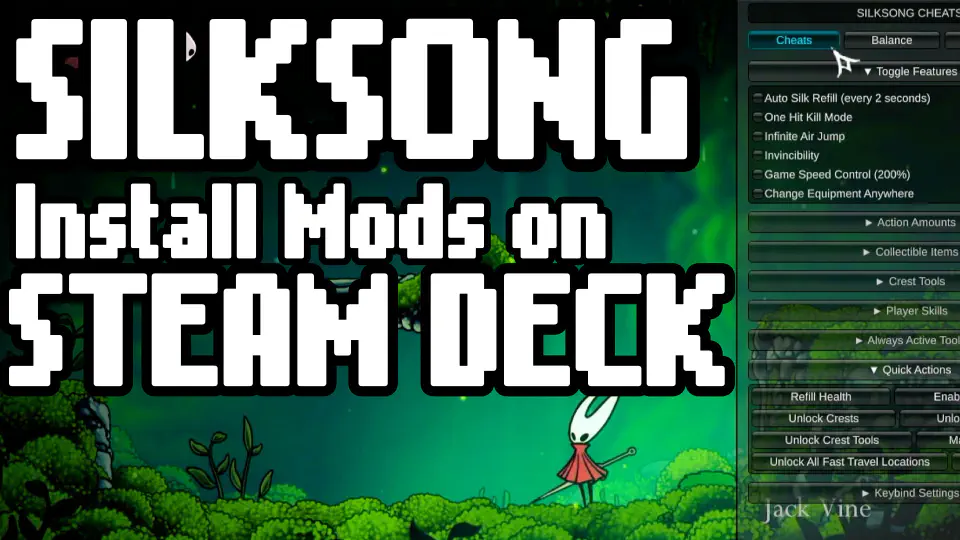
The Transformative Power of Game Mods: Understanding Their Appeal and Impact
Game modifications, or “mods,” are user-created alterations to a game’s content, structure, or functionality. These can range from minor tweaks to extensive overhauls, developed by individual enthusiasts or collaborative communities. For Steam users, the accessibility of a vast modding ecosystem adds incredible depth and replayability to their game libraries.
What are Game Mods?
At their core, mods are unofficial patches, additions, or modifications that change a game from its original state. They can introduce new characters, weapons, levels, storylines, graphical enhancements, user interface improvements, or even fix bugs that the original developers left unaddressed. The beauty of mods lies in their diversity; they cater to every imaginable desire, from subtle quality-of-life adjustments to complete gameplay conversions. Think of a mod as an expansion pack created by the community, often free of charge, driven purely by passion and a desire to enhance the gaming experience for everyone.
Why Mod Your Steam Games? Enhancing the Player Experience
The motivations behind modding are as varied as the mods themselves. Primarily, mods inject new life into games, extending their playable lifespan long after the official content has been exhausted. For instance, an RPG might gain hundreds of new quests, an old strategy game could receive modern UI elements, or a sandbox title could be populated with entirely new mechanics. Graphical mods can breathe new visual fidelity into older titles, making them look stunning by today’s standards. Beyond content, mods often introduce innovative gameplay elements that developers might not have envisioned, fostering unique playstyles and challenges. Furthermore, mods can be incredibly practical, resolving performance issues, improving accessibility for players with disabilities, or simply making a game more convenient to play. It’s about personalizing your experience, making a game truly yours, and discovering new facets of titles you thought you knew inside and out.
Navigating the Modding Ecosystem: Benefits and Potential Pitfalls
The modding ecosystem is a vibrant, community-driven space, primarily thriving on dedicated websites like Nexus Mods, ModDB, and the integrated Steam Workshop. The benefits are immense: endless content, community support, and a richer, more personalized gaming experience. However, there are potential pitfalls. Mods are unofficial; they can introduce instability, game crashes, or even corrupt save files if not installed correctly or if incompatible with other mods or game versions. There’s also the rare but present risk of downloading malicious software from unverified sources. Therefore, a cautious and informed approach is crucial for a positive modding journey. Understanding these dynamics is the first step towards safely and effectively enhancing your Steam game library.
Essential Preparations Before Diving into Modding
Before you start downloading and dropping files into your game directory, a few preparatory steps are absolutely critical. These precautions will save you from potential headaches, data loss, and the frustration of a broken game. Modding, while rewarding, requires a systematic approach to ensure stability and compatibility.
Safeguarding Your Game: Backups and System Requirements
The golden rule of modding is: always back up your game files and save data. This cannot be stressed enough. Should a mod cause unforeseen issues, a comprehensive backup is your lifeline, allowing you to revert to a pristine, unmodded state without having to reinstall the entire game or lose hours of progress.
-
Game Files: Navigate to your game’s installation directory (typically
Steamsteamappscommon[Game Name]) and copy the entire game folder to a safe location on your hard drive. Alternatively, Steam’s built-in backup feature can be utilized, though it’s less flexible for restoring specific files. -
Save Data: Game save files are often located in different directories, frequently within your “Documents” folder or
AppData(which is usually hidden by default). Research the specific location for the game you intend to mod and back up these files. -
System Requirements: While most mods are designed to run on typical gaming setups, complex graphical overhauls or mods adding significant content can be resource-intensive. Ensure your PC meets or exceeds the recommended specifications, especially if you plan to install multiple performance-heavy mods. Overloading your system can lead to frame rate drops, stuttering, and instability.
Identifying Your Game’s Modding Potential
Not all Steam games are created equal in the eyes of modding. Some games, like The Elder Scrolls V: Skyrim, Fallout 4, or Grand Theft Auto V, boast incredibly active and well-supported modding communities with thousands of available mods and robust tools. Others might have minimal or no modding support at all.
-
Check the Steam Workshop: The easiest way to gauge a game’s modding potential is to visit its Steam store page and look for the “Workshop” tab. If present, it indicates official support for user-created content, simplifying the mod installation process significantly.
-
External Modding Sites: For games without a Workshop, or for more complex mods, check reputable external sites like Nexus Mods, ModDB, or dedicated fan wikis/forums. Search for your game and observe the number of available mods, the activity of the community, and the recency of uploads. A vibrant community usually means good support and troubleshooting resources.
-
Modding Tools: Some games require specific tools (e.g., script extenders like SKSE for Skyrim, or specific unpackers) to enable modding. Identify if your game needs such tools and download them from official sources.
The Toolkit: Basic Utilities for Successful Modding
To efficiently manage and install mods, you’ll need a few standard software utilities:
-
Archive Extractor: Most manually downloaded mods come in compressed archives (ZIP, RAR, 7Z). You’ll need an archive extractor like 7-Zip or WinRAR to unpack these files. 7-Zip is a popular, free, and open-source choice.
-
Text Editor: For advanced troubleshooting or configuration file edits, a plain text editor like Notepad++ (far superior to Windows Notepad) can be invaluable.
-
Mod Managers (Optional, but Recommended): For games with extensive modding scenes, a dedicated mod manager is almost essential. Tools like Vortex (Nexus Mods’ official manager), Mod Organizer 2, or specific game managers (e.g., Frosty Mod Manager for EA games) automate much of the installation, conflict resolution, and load order management, drastically simplifying the process and reducing potential errors. We’ll delve deeper into these later.
Having these preparations in place ensures a smoother, safer, and ultimately more enjoyable modding experience, minimizing the frustration of technical hitches.
Step-by-Step Mod Installation Methods for Steam Games
Installing mods can range from a single click to a multi-step process involving specific tools. Understanding the different methods is key to successfully customizing your Steam games. We’ll cover the three primary approaches: Steam Workshop, manual installation, and using mod managers.
The Steam Workshop: Simplest Path to Customization
The Steam Workshop is Valve’s integrated platform for user-created content, offering the most straightforward method for installing mods. If a game supports the Workshop, it’s generally the recommended starting point for new modders.
-
Navigate to the Workshop: From your Steam Library, select the game you wish to mod. On its game page, look for the “Workshop” tab and click it.
-
Browse and Subscribe: Browse the available mods. You can filter by categories, popularity, or search for specific types of modifications. When you find a mod you like, click on its page.
-
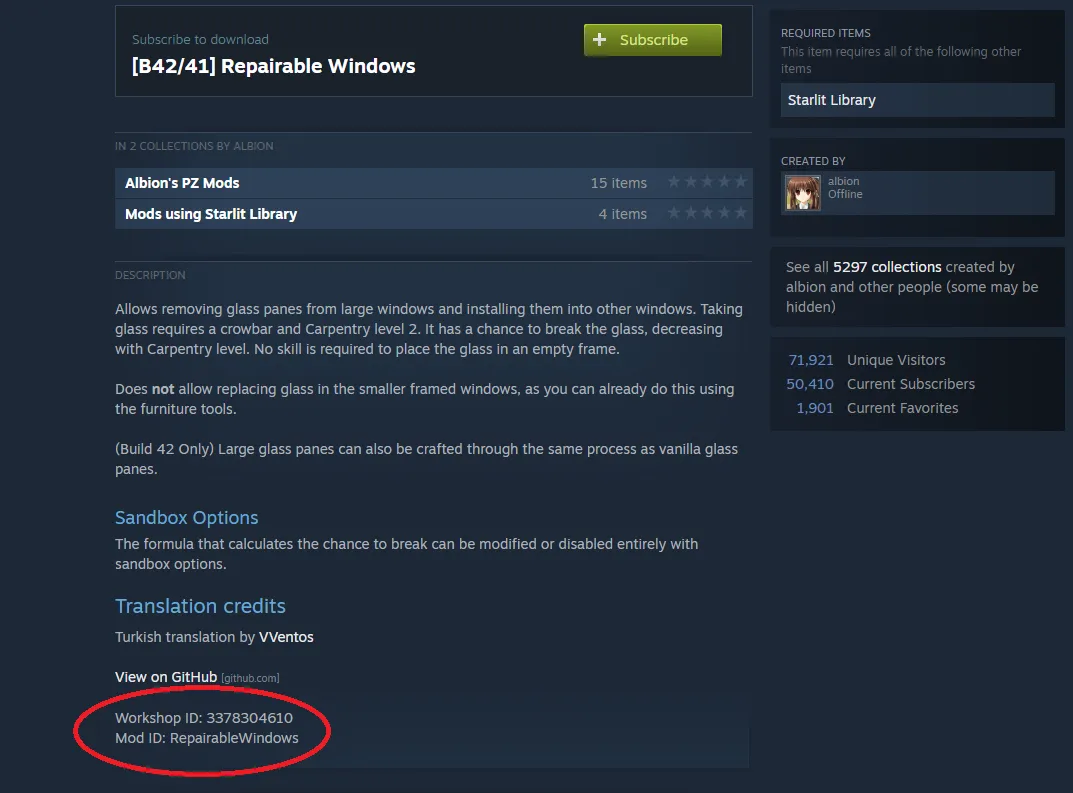
Subscribe: On the mod’s page, click the “Subscribe” button. Steam will automatically download and integrate the mod into your game.
-
Launch the Game: Launch your game. In many cases, the mod will be active immediately. Some games might require you to enable subscribed mods through an in-game mod manager or launcher menu. Always read the mod description for specific instructions.
Pros: Extremely easy, automatic updates, minimal risk of conflicts (though still possible), centralized platform.
Cons: Limited to games with Workshop support, less control over installation order, some larger or more complex mods might not be available here due to Workshop limitations.
Manual Mod Installation: Precision and Control
Manual installation gives you complete control over where files go, but it also demands more attention to detail. This method is common for games without Workshop support or for mods that are too complex for the Workshop.
-
Locate Game Directory: Find your game’s installation folder. The default path is usually
C:Program Files (x86)Steamsteamappscommon[Game Name]. You can quickly access it by right-clicking the game in Steam Library, selectingProperties > Local Files > Browse Local Files.... -
Download the Mod: Obtain your mod from a reputable external site (e.g., Nexus Mods, ModDB). Always download from the official mod page.
-
Read Installation Instructions: Crucially, read the mod’s installation instructions thoroughly. Every mod is different. Instructions will tell you exactly which files to extract and where to place them within your game directory. Ignoring this step is the leading cause of failed manual mod installations.
-
Extract Mod Files: Use your archive extractor (e.g., 7-Zip) to open the downloaded mod archive.
-
Place Files: Following the mod’s instructions, copy the extracted files into the specified folders within your game directory. This often involves placing files into subfolders like
Data,Mods, or overwriting existing files. Be cautious when overwriting, as this is where backups become invaluable. -
Activate (if necessary): Some games require manual activation of mods through an in-game launcher, a separate configuration tool, or by editing configuration files. Again, the mod’s description is your primary source of information.
Pros: Maximum control, access to a wider range of mods, essential for complex setups.
Cons: Prone to user error, no automatic updates, requires careful file management, potential for conflicts.
Leveraging Mod Managers: Streamlining Complex Setups
For games with vast modding communities and numerous mods (like Skyrim or Fallout), mod managers are indispensable. They automate manual processes, handle file conflicts, and manage load orders, significantly simplifying complex mod setups.
-
Choose a Manager: Popular choices include Vortex (from Nexus Mods, general-purpose) and Mod Organizer 2 (MO2, highly recommended for Bethesda games). Download and install the manager.
-
Initial Setup: Launch the mod manager and follow its initial setup wizard. This typically involves scanning your system for supported games and linking your Nexus Mods account (if applicable).
-
Add Your Game: If the manager didn’t detect your game, manually add it by pointing the manager to its installation directory.
-
Download Mods (via Manager or Manually):
-
Direct Download: Many managers integrate with Nexus Mods, allowing you to click “Mod Manager Download” on a mod’s page, which then automatically imports the mod into your manager.
-
Manual Import: If you download a mod manually, you can usually drag and drop the archive into your mod manager’s interface or use an “Add Mod” function.
-
-
Install and Enable: Once imported, select the mod within the manager and click “Install” or “Deploy.” The manager will then integrate the mod virtually or physically into your game directory.
-
Resolve Conflicts & Manage Load Order: This is where mod managers shine. They will often alert you to file conflicts between mods and provide tools to decide which mod’s files should take precedence. They also help organize your “load order” – the sequence in which mods are loaded by the game – which is crucial for stability and compatibility.
-
Launch via Manager: Always launch your game through the mod manager (it usually provides a “Run” button) to ensure all enabled mods are active.
Pros: Automates complex tasks, excellent conflict resolution, robust load order management, easy to enable/disable/uninstall mods, reduces manual errors.
Cons: Steeper learning curve initially, specific managers for specific games or platforms, adds another layer of software.
Troubleshooting Common Modding Challenges and Best Practices
Even with the best preparation, modding can sometimes lead to issues. Understanding common problems and adopting best practices will help you diagnose and resolve them, ensuring a stable and enjoyable modded experience.
Diagnosing and Resolving Mod Conflicts
Mod conflicts are the most frequent cause of game instability, crashes, or unexpected behavior. They occur when two or more mods try to modify the same game file or piece of data in incompatible ways.
-
Symptoms: Frequent crashes to desktop (CTDs), graphical glitches, missing textures, strange in-game behavior, or a game that simply won’t launch.
-
Resolution Strategies:
-
Isolate the Culprit: If your game crashes after installing new mods, disable them one by one until the game becomes stable. This helps pinpoint the problematic mod.
-
Read Mod Descriptions: Mod authors often list known incompatibilities with other popular mods. Always check this before installing.
-
Load Order: Many conflicts are resolved by correctly setting the load order. The general rule is to load “foundational” mods (e.g., script extenders, unofficial patches) first, followed by larger content mods, and finally smaller texture or gameplay tweaks. Mod managers excel at assisting with load order.
-
Patching: Some mod authors provide “compatibility patches” to resolve conflicts between their mod and another. Look for these.
-
Clean Installation: As a last resort, if you can’t identify the conflict, perform a clean installation of the game and add mods back incrementally.
-
Maintaining Mod Stability and Compatibility
Keeping your modded game stable requires ongoing attention, especially after game updates or when adding new mods.
-
Game Updates: Official game updates from Steam can often break mod compatibility, especially for mods that rely on specific game engine versions (like script extenders). Wait for mod authors to update their mods or for script extenders to release compatible versions before launching your updated game. Some mod managers can help prevent Steam from automatically updating your game if you desire.
-
Version Control: Be mindful of mod versions. Using an outdated mod with a newer game version (or vice-versa) is a common source of instability.
-
Don’t Overdo It: While tempting, installing hundreds of mods at once significantly increases the likelihood of conflicts and performance issues. Start with a few well-regarded mods, ensure stability, and then gradually add more.
-
Regular Testing: After installing a new batch of mods, play your game for a while to ensure stability. Don’t assume everything is working perfectly just because it launched.
Adopting Safe Modding Habits
Security and data integrity should always be paramount when modding.
-
Source Verification: Always download mods from reputable sites like Steam Workshop, Nexus Mods, ModDB, or official developer forums. Avoid obscure or untrustworthy sites.
-
Read Comments and Endorsements: Before downloading, check a mod’s comments section for feedback on stability, performance, and any reported malware. High endorsement counts are usually a good indicator of quality and safety.
-
Scan Downloaded Files: Run an antivirus scan on any manually downloaded mod files before extracting and installing them, especially if you have any doubts about the source.
-
Patience and Research: Modding takes patience. Rushing the process, skipping instructions, or neglecting research will almost certainly lead to frustration. Take your time, read extensively, and leverage community resources.
-
Community Engagement: Engage with the modding community. Forums, Discord servers, and mod pages are excellent places to ask questions, find solutions, and learn from experienced modders.
By adhering to these troubleshooting tips and best practices, you can navigate the exciting world of Steam game modding with confidence, transforming your gaming experiences into something truly unique and personal, while minimizing the risks associated with altering core game files. The journey of modding is an iterative one, demanding a bit of technical savvy and a lot of patience, but the rewards—a bespoke gaming universe—are immeasurably fulfilling.
aViewFromTheCave is a participant in the Amazon Services LLC Associates Program, an affiliate advertising program designed to provide a means for sites to earn advertising fees by advertising and linking to Amazon.com. Amazon, the Amazon logo, AmazonSupply, and the AmazonSupply logo are trademarks of Amazon.com, Inc. or its affiliates. As an Amazon Associate we earn affiliate commissions from qualifying purchases.