
Grand Theft Auto V, even years after its initial release, continues to captivate millions of players worldwide. While Rockstar Games provides an expansive and evolving experience through GTA Online and robust single-player content, a significant portion of the PC community finds an entirely new dimension of enjoyment through modding. Modding GTA 5 on PC unlocks unprecedented customization, new gameplay mechanics, enhanced visuals, and a fresh lease of life for the game. This comprehensive guide will walk you through the process of installing mods, ensuring you can transform your Los Santos experience safely and effectively.
The Allure of Grand Theft Auto V Modding
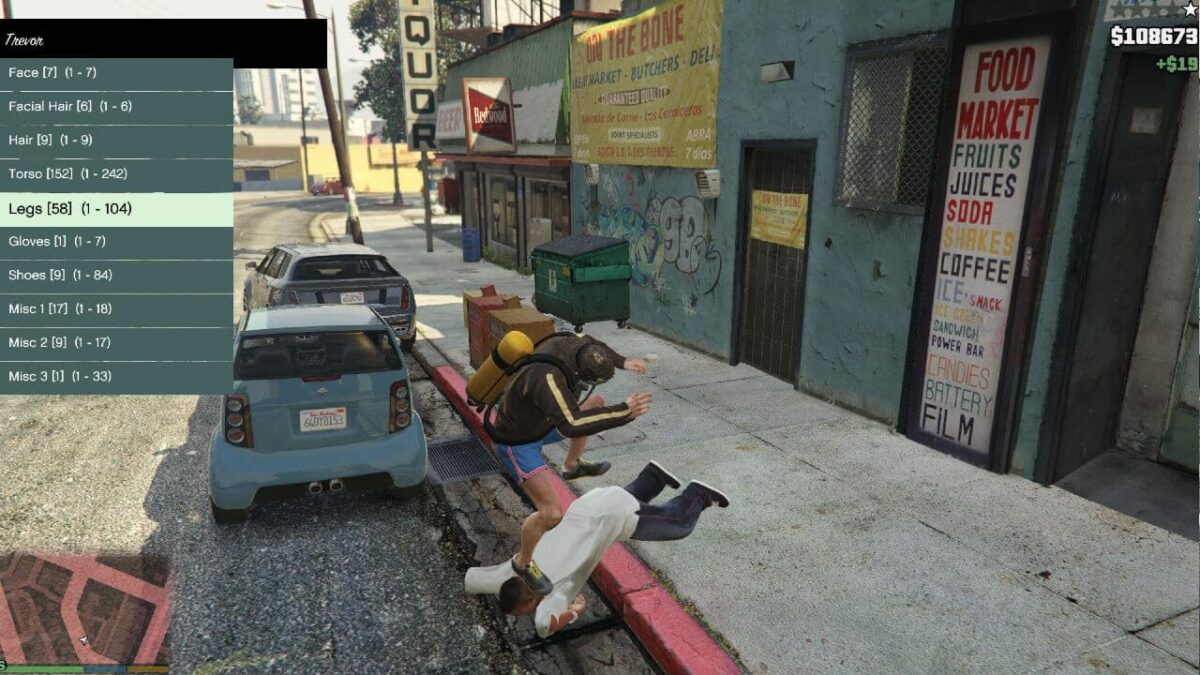
The appeal of modding GTA 5 extends far beyond simple cosmetic changes. It’s about reimagining the game, pushing its boundaries, and tailoring it precisely to individual preferences. For many, the vanilla experience, however excellent, eventually runs its course. Mods offer a nearly infinite wellspring of new content and possibilities.
Expanding Gameplay Horizons
From superhero abilities and gravity guns to custom vehicles, entirely new missions, and even realistic traffic overhauls, script mods fundamentally alter the way GTA 5 plays. Players can introduce elements that Rockstar never envisioned, creating personalized narratives or simply chaotic fun. Imagine flying a jetpack through the city, summoning an army of bodyguards, or experiencing a completely rebalanced in-game economy. These aren’t just minor tweaks; they’re transformative additions that can make the game feel brand new. This expansion keeps the game fresh, providing reasons to return long after completing the main story or tiring of GTA Online’s grind.
A Thriving Modding Community
The longevity of GTA 5’s modding scene is a testament to its vibrant and dedicated community. Websites like GTA5-Mods.com serve as central hubs where modders share their creations, collaborate, and provide support. This ecosystem of creativity means that new and exciting mods are constantly being developed, ranging from simple quality-of-life improvements to ambitious total conversions. The community also plays a crucial role in providing guides, troubleshooting advice, and keeping the modding tools updated. Engaging with this community can unlock even more potential, as players discover niche mods or learn advanced techniques for personalizing their game.
Essential Preparations Before Modding
Before diving headfirst into the exciting world of GTA 5 mods, a few crucial preparatory steps are necessary. Neglecting these can lead to game instability, corrupted files, or even bans from GTA Online. Prudence and preparation are key to a smooth modding experience.
Understanding the Risks and Backups
Modding inherently carries risks. Incorrect installations, incompatible mods, or outdated tools can cause your game to crash, freeze, or fail to launch. The most critical step before any modding attempt is to back up your original GTA 5 game files. This includes the main game directory and, importantly, your save files. While many mods are designed for single-player use and shouldn’t affect GTA Online, using any mod while connected to GTA Online is strictly against Rockstar’s terms of service and can result in a permanent ban. It is highly recommended to have a separate, “clean” installation of GTA 5 or to use a mod manager that facilitates switching between modded and unmodded states for GTA Online access. Always assume mods are for single-player only unless explicitly stated otherwise by a trusted source.
Required Tools: Script Hook V, OpenIV, and an ASI Loader
To install most mods, you’ll need a few foundational tools. These serve as the backbone for integrating third-party content into the game.
-
Script Hook V: Developed by Alexander Blade, Script Hook V is arguably the most vital tool for script-based mods. It allows custom scripts (often written in C++ or .NET) to interact with the game engine. Without Script Hook V, many popular mods, including trainers and advanced gameplay alterations, simply won’t function.
-
OpenIV: This powerful archive editor and modding tool is essential for installing visual, texture, vehicle, and weapon mods. GTA 5’s game files are stored in proprietary archive formats (
.rpffiles), and OpenIV provides the interface to view, extract, and replace these files safely. It also features an “ASI Manager” crucial for activating other modding components. -
ASI Loader: Usually bundled with Script Hook V, the ASI Loader is a small component that allows the game to load custom
.asiplugins (similar to DLLs). Many essential modding components, including Script Hook V itself and certain advanced mods, rely on the ASI Loader to inject their code into the game.
Game Version Compatibility
Grand Theft Auto V receives regular updates from Rockstar Games, especially for GTA Online. These updates often break compatibility with existing mods and modding tools. Script Hook V, OpenIV, and various mods need to be updated by their respective developers to match the latest game version. Always check the official pages for Script Hook V and OpenIV to ensure you download versions compatible with your current GTA 5 installation. Running outdated tools with an updated game will almost certainly lead to crashes.
Step-by-Step Installation of Core Modding Tools
Once you understand the prerequisites and have prepared your game environment (most importantly, backing up), you can proceed with installing the essential modding tools. These steps lay the groundwork for nearly all subsequent mod installations.
Installing Script Hook V
-
Download Script Hook V: Visit the official Alexander Blade website (dev-c.com/gtav/scripthookv/) and download the latest compatible version.
-
Extract the Archive: The download will be a ZIP file. Extract its contents.
-
Copy Files to Game Directory: Inside the extracted folder, you’ll find
ScriptHookV.dllanddinput8.dll(the ASI Loader). Copy both of these files directly into your main GTA 5 installation directory (the folder whereGTA5.exeis located). Do not copy theNativeTrainer.asifile if you don’t intend to use the included basic trainer right away, though it’s harmless to include. -
Verify Installation: Launch GTA 5. If Script Hook V is installed correctly, you might see a small message pop up at the top left of the screen during loading, indicating its version.
Setting Up OpenIV
-
Download OpenIV: Go to the official OpenIV website (openiv.com) and download the latest installer.
-
Run the Installer: Execute the downloaded
.exefile and follow the on-screen instructions. Choose your preferred language and accept the license agreement. -
Specify GTA 5 Location: During installation, OpenIV will ask you to locate your Grand Theft Auto V installation directory. Navigate to it and select the folder containing
GTA5.exe. -
Launch OpenIV: Once installed, launch OpenIV. It will prompt you to run setup for Grand Theft Auto V (Windows). Click “Run.”
Deploying the ASI Loader and OpenIV.asi
OpenIV isn’t fully functional until its core components are activated within the game’s file system.
-
Access ASI Manager: In OpenIV, navigate to “Tools” in the menu bar, then select “ASI Manager.”
-
Install Components: The ASI Manager window will display three components: “ASI Loader,” “OpenIV.asi,” and “OpenCamera.” For most modding, you absolutely need to install “ASI Loader” and “OpenIV.asi.” Click the “Install” button next to each. OpenIV will automatically place these files in the correct location (usually within your game directory’s
modsfolder or directly in the main directory). -
Create ‘mods’ Folder (Crucial for Safe Modding): OpenIV will often prompt you to create a
modsfolder in your main GTA 5 directory if it doesn’t exist. This is CRUCIAL. Always perform edits to original game files within thismodsfolder. OpenIV will create copies of the original.rpffiles in this folder, allowing you to modify them without altering the originals. This makes it easy to revert changes or remove mods simply by deleting themodsfolder or its contents.
Installing Different Types of Mods
With the core tools in place, you can now begin installing various types of mods. Mods typically fall into a few categories, each requiring a slightly different installation approach.
Script Mods (LUA, .NET, Native Trainer)
Script mods add new functionalities, trainers, or gameplay elements. They usually come as .asi, .dll, or .lua files.
-
Locate Mod Files: After downloading a script mod, extract its contents. You’ll typically find
.asior.dllfiles, often accompanied by.inior.xmlconfiguration files. Some mods may require an additional framework like Community Script Hook V .NET, which itself needs to be installed similarly to Script Hook V. -
Copy to Game Root or ‘scripts’ Folder: Most
.asiand.dllscript mods go directly into your main GTA 5 directory. For better organization and to manage multiple scripts, it’s highly recommended to create a folder namedscriptswithin your main GTA 5 directory and place all script files there. This keeps your main game folder cleaner. -
Configuration: Many script mods include
.inior.xmlfiles that allow you to customize their settings (e.g., hotkeys, spawn rates, specific abilities). Open these files with a text editor (like Notepad) and adjust them as desired. -
Launch and Test: Start GTA 5 and test the mod according to its instructions (e.g., pressing a specific key to activate a menu).
Visual/Texture Mods (using OpenIV)
These mods alter the game’s appearance, from character textures to environmental details. They are installed using OpenIV.
-
Open OpenIV: Launch OpenIV and select “Grand Theft Auto V (Windows).”
-
Enable Edit Mode: In OpenIV, click the “Edit Mode” button (or press F6) in the toolbar. Confirm the warning about modifying original game files.
-
Navigate to Mod Location: The mod’s instructions will tell you which
.rpfarchive and folder path to navigate to (e.g.,update/update.rpf/x64/data/). It’s crucial to follow these paths precisely. -
Copy to ‘mods’ Folder: Once you’ve navigated to the specified location, OpenIV will likely prompt you that you are about to edit files that are not in your
modsfolder. It will ask if you want to copy the archive to themodsfolder. Always click “Yes” and “Copy to ‘mods’ folder”. This ensures your original game files remain untouched. -
Replace Files: With the archive copied to your
modsfolder and Edit Mode enabled, simply drag and drop the mod’s files (e.g.,.ytdfor textures,.yftfor models) into the corresponding location in OpenIV. OpenIV will replace the existing files with the modded ones. -
Verify: Close OpenIV and launch GTA 5 to see the visual changes.
Vehicle Mods and Custom Peds
Installing custom vehicles and pedestrian models follows a similar process to visual mods, primarily using OpenIV.
-
Download Vehicle/Ped Mod: These typically come with multiple files: a
.yft(model),.ytd(texture), and sometimes.ytdfor custom liveries. The mod’s readme will also specify entries you need to add todlclist.xmlandextratitleupdatedata.metafor the game to recognize the new content. -
OpenIV Process:
-
Enable “Edit Mode” in OpenIV.
-
Navigate to the
modsfolder (e.g.,mods/update/x64/dlcpacks/). -
Often, vehicle mods come as a new “DLC pack.” You’ll need to drag the mod’s
dlc.rpffolder intodlcpacks. -
Crucially, edit
dlclist.xmlandextratitleupdatedata.meta: Navigate tomods/update/update.rpf/common/data. Right-click ondlclist.xmland select “Edit.” Add the line specified by the mod author (e.g.,<Item>dlcpacks:newcar</Item>) to the list. Do the same forextratitleupdatedata.metaif required.
-
-
Spawn and Test: In-game, use a trainer (like Native Trainer or Script Hook V .NET’s menu) to spawn the new vehicle or ped using its specified name.
Mod Managers and Their Benefits
For serious modders, a mod manager like “GTA V Mod Manager” or “OpenIV.asi Folder Selector” can be invaluable. These tools:
-
Simplify Installation: They can automate the placement of certain mod types.
-
Facilitate Switching: Crucially, they allow you to easily enable or disable your entire modded environment. This is perfect for switching between modded single-player and unmodded GTA Online, significantly reducing the risk of bans.
-
Manage Profiles: Some managers allow you to create different mod profiles, enabling you to experiment with various mod combinations without interference.
Troubleshooting Common Modding Issues and Best Practices
Even with careful installation, modding can sometimes lead to unexpected issues. Knowing how to diagnose and resolve these problems is an important part of the modding journey.
Game Crashes and Freezes
-
Outdated Tools: The most common culprit. Ensure Script Hook V, OpenIV, and any other fundamental modding tools are updated to match your current GTA 5 game version.
-
Mod Conflicts: Two or more mods trying to alter the same game files or scripts can cause instability. Try installing mods one by one and testing the game after each to identify the problematic one.
-
Corrupted Files: If a mod installation failed or you accidentally deleted vital game files, your game might crash. This is where your initial backup becomes invaluable. Restore your
modsfolder or even the entire game directory from your backup. -
Resource Limits: Very heavily modded games, especially with high-resolution texture packs or numerous custom vehicles, can push your system’s memory (RAM and VRAM) to its limits, leading to crashes.
Mod Conflicts and Load Order
Some mods, particularly script mods or those that drastically alter game mechanics, can conflict.
-
Read Mod Descriptions: Always thoroughly read the mod description and any accompanying
readmefiles. Mod authors often warn about known conflicts or specific installation orders. -
Trial and Error: If you suspect a conflict, try disabling recently installed mods one by one until the issue resolves.
-
Mod Manager Benefits: Using a mod manager can help isolate conflicts by allowing you to enable/disable mods in groups or individually.

Staying Updated and Safe Modding Habits
-
Regular Backups: Make a fresh backup of your unmodded
modsfolder (or entire game) before major game updates or installing large mod packs. -
Stay Informed: Follow reputable modding communities and forums. They often provide alerts about game updates, tool compatibility, and emerging issues.
-
Download from Reputable Sources: Stick to trusted modding websites (like GTA5-Mods.com) to minimize the risk of downloading malicious files.
-
Separate GTA Online: Never, ever, use mods while playing GTA Online. Use a mod manager to disable all mods or have a completely separate, clean installation for online play. This is the single most important rule to avoid bans.
-
Patience and Persistence: Modding can be a learning curve. Don’t get discouraged by initial difficulties. The rewards of a personalized GTA 5 experience are well worth the effort.
By following these guidelines and understanding the underlying mechanisms, you can transform your Grand Theft Auto V experience on PC into something truly unique and endlessly entertaining. Happy modding!
aViewFromTheCave is a participant in the Amazon Services LLC Associates Program, an affiliate advertising program designed to provide a means for sites to earn advertising fees by advertising and linking to Amazon.com. Amazon, the Amazon logo, AmazonSupply, and the AmazonSupply logo are trademarks of Amazon.com, Inc. or its affiliates. As an Amazon Associate we earn affiliate commissions from qualifying purchases.