
Minecraft, a global phenomenon that has captivated millions with its boundless creativity and open-world exploration, offers an intrinsically rich experience. Yet, for many seasoned players, the desire to push beyond the vanilla game’s boundaries becomes an irresistible call. This is where Minecraft mod packs enter the scene – curated collections of modifications (mods) that transform the game, introducing new biomes, creatures, mechanics, quests, and even entirely new game modes. Installing these mod packs, while seemingly daunting to newcomers, is a straightforward process that, once mastered, opens up an unparalleled universe of digital exploration. This guide will walk you through the intricacies of setting up Minecraft mod packs, ensuring a smooth and enjoyable journey into the infinitely customizable world of modded Minecraft.
Understanding Minecraft Mod Packs: The Gateway to Enhanced Experiences
Before diving into the mechanics of installation, it’s crucial to grasp what mod packs are, why they are so popular, and what foundational considerations one should keep in mind. Mod packs are not just random assortments of individual mods; they are thoughtfully assembled collections designed to create a cohesive, themed, and often dramatically different gameplay experience.
What Are Mod Packs?
At their core, mod packs are compilations of multiple individual mods, pre-configured and optimized to work together seamlessly. Instead of manually downloading, installing, and troubleshooting dozens or even hundreds of individual mods and their dependencies, mod packs offer a “plug-and-play” solution. They often come with custom configurations, resource packs, and even server files, providing a complete package for a specific playstyle or adventure. Think of them as thematic expansions, transforming Minecraft from a simple survival game into an intricate engineering simulation, a magical quest-driven RPG, a futuristic space exploration saga, or anything in between.
Why Use Mod Packs? The Allure of Curated Content
The primary appeal of mod packs lies in their convenience and the depth of experience they offer. Manually installing mods can be a tedious process involving dependency management, configuration tweaks, and compatibility checks – a task often prone to errors. Mod packs eliminate much of this hassle, providing a stable and tested environment. Beyond mere convenience, mod packs provide:
-
Curated Experiences: Developers of mod packs spend countless hours selecting mods that complement each other, creating a consistent theme or progression. This could be a pack focused on technological advancement, deep magic, exploration, or hardcore survival.
-
Seamless Integration: The mods within a pack are pre-configured to minimize conflicts and maximize synergy, ensuring a smoother gameplay experience than what might be achieved with a haphazard collection of individual mods.
-
Community and Support: Popular mod packs often boast large communities, comprehensive wikis, and dedicated support channels, making it easier to find help or share experiences.
-
Ease of Updates: Mod pack launchers simplify the process of updating packs, keeping your game current with the latest bug fixes and new content.
Key Considerations Before Installation
While the world of modded Minecraft is enticing, a few considerations are paramount before you embark on your installation journey:
-
System Performance: Mod packs, especially those with many large mods, can be resource-intensive. Ensure your computer meets or ideally exceeds the recommended specifications for the chosen pack. Sufficient RAM is particularly crucial.
-
Minecraft Version Compatibility: Mods are highly version-specific. A mod pack designed for Minecraft 1.12.2 will not work with Minecraft 1.16.5 or 1.20.1. Always double-check the required Minecraft version.
-
Game Backups: Before making any significant changes to your Minecraft installation, always back up your existing worlds and saves. This safeguards your progress against any unforeseen issues during the mod pack setup.
Essential Tools and Preparations for Mod Pack Installation
The process of installing Minecraft mod packs has been significantly streamlined over the years thanks to dedicated launchers that automate much of the work. Understanding these tools and preparing your system will lay a solid foundation for a successful installation.
The Role of Mod Launchers: Your Command Center
Mod launchers are applications specifically designed to manage, install, and launch mod packs. They handle the complex interplay of Minecraft versions, mod loaders (like Forge or Fabric), and the mods themselves. The most popular and highly recommended launcher is CurseForge, owned by Overwolf. Other notable launchers include ATLauncher, Technic Launcher, and GDLauncher, each offering a slightly different interface and feature set. For most users, CurseForge is the go-to solution due to its vast library, user-friendliness, and robust community support.
Java Version Requirements: The Engine Under the Hood
Minecraft, and by extension most of its mods, runs on Java. Different versions of Minecraft and mod loaders require specific Java versions. Modern Minecraft (1.17 and above) typically requires Java 17 or newer, while older versions (like 1.12.2 or 1.16.5) often use Java 8 or Java 16. Most mod launchers will automatically manage the correct Java version for the mod pack you choose, but it’s good to be aware of this dependency, especially if you encounter launch issues. Ensuring you have an up-to-date Java Runtime Environment (JRE) or OpenJDK distribution is a good general practice for PC gaming.
Allocating RAM for Optimal Performance: Feeding the Beast
This is arguably the most critical step for a smooth modded Minecraft experience. Vanilla Minecraft runs fine on a few gigabytes of RAM, but mod packs can demand significantly more. An average mod pack usually requires at least 4-6 GB of RAM, with larger or more complex packs needing 8 GB or more. Insufficient RAM allocation is the leading cause of crashes, lag, and poor performance in modded Minecraft. Most mod launchers allow you to easily adjust the RAM allocated to your mod pack profile. As a general rule, never allocate more than half of your system’s total RAM, and always leave at least 2 GB for your operating system and other applications.
Backing Up Your Worlds: A Safety Net
Before installing any mod pack, navigate to your .minecraft folder (usually located at C:Users[YourUsername]AppDataRoaming.minecraft on Windows) and copy the saves folder to a safe location. This simple step can prevent the heartache of losing hours of progress should something go wrong with your new modded setup. While mod packs typically create separate game directories, it’s always better to be safe than sorry.
Step-by-Step Installation Guides for Popular Launchers
With your preparations complete, let’s delve into the practical steps of installing mod packs using the most popular methods.
Installing Mod Packs via CurseForge Launcher: The Easiest Path
CurseForge is the industry standard for mod pack management. Here’s how to use it:
-
Download and Install CurseForge: Visit the official CurseForge website (curseforge.com) and download the desktop application for your operating system (Windows or macOS). Follow the on-screen instructions to install it.
-
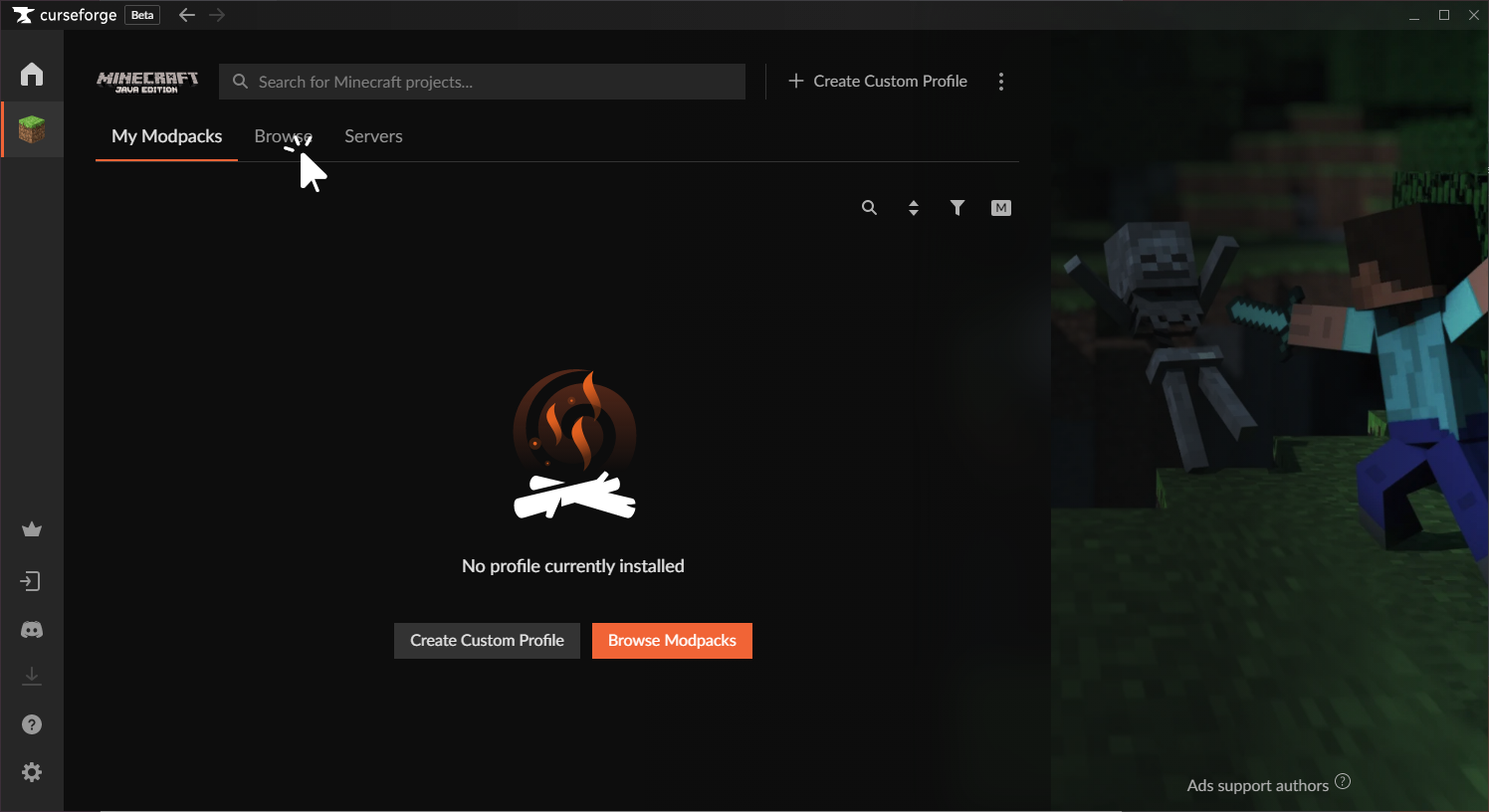
Select Minecraft: Upon opening CurseForge, it will prompt you to select the games you wish to manage. Choose Minecraft.
-
Browse Mod Packs: Once Minecraft is selected, you’ll be taken to the “Browse Modpacks” section. Here, you can explore thousands of mod packs using filters for popularity, game version, categories (e.g., “Technology,” “Magic,” “Adventure”), and keywords.
-
Install Your Chosen Pack: Click on a mod pack that piques your interest. On its dedicated page, you’ll find details, screenshots, and an “Install” button. Click “Install.” CurseForge will then download the mod pack, its required Minecraft version, and the appropriate mod loader (Forge or Fabric). This process can take some time depending on the pack’s size and your internet speed.
-
Adjust RAM Allocation (Optional but Recommended): Once installed, the mod pack will appear under “My Modpacks.” Before playing, it’s highly recommended to adjust the RAM. Click the three dots next to the pack, select “Profile Options,” uncheck “Use System Default,” and drag the slider to allocate the desired amount of RAM (e.g., 6-8 GB).
-
Launch and Play: Click the “Play” button next to your installed mod pack. CurseForge will launch the Minecraft launcher configured for that specific mod pack. Click “Play” again in the Minecraft launcher, and after an initial loading period (which can be long for large packs), you’ll be in the modded game!
Using Alternative Launchers: Exploring Other Ecosystems
While CurseForge is dominant, other launchers offer similar functionalities and might be preferred by some for specific reasons:
-
ATLauncher: Known for its custom pack support and ability to easily create server instances, ATLauncher provides a streamlined experience for many popular packs. The process is similar: download, select Minecraft, browse/install packs, and launch.
-
Technic Launcher: Popular for older, classic mod packs and its strong community around specific packs like Tekkit and Hexxit, Technic Launcher also offers a simple interface to find and play packs.
-
GDLauncher: A modern, open-source launcher focusing on performance and a clean UI. It supports both CurseForge and Modrinth (another mod repository) packs and offers excellent customization for individual profiles.
The general workflow across these launchers remains consistent: download the launcher, select or import a pack, adjust settings (especially RAM), and launch.
Manual Installation (For Advanced Users): Building from the Ground Up
While launchers are recommended, advanced users or those dealing with obscure mods or private server setups might need to perform a manual installation. This typically involves:
-
Installing a Mod Loader: Download and run the installer for the correct version of Forge or Fabric for your chosen Minecraft version. This will create a new profile in your official Minecraft launcher.
-
Creating a Dedicated Game Directory: It’s best practice to create a separate folder for your modded instance (e.g.,
minecraft_modded_1.16.5) to keep it isolated from your vanilla game. -
Transferring Mods: Download individual
.jarmod files (ensuring version compatibility) and place them into themodsfolder within your dedicated game directory. -
Configuring Launcher Profile: In the official Minecraft launcher, edit the profile created by Forge/Fabric, pointing it to your dedicated game directory and allocating sufficient RAM.
-
Launch: Select your modded profile and launch the game. This method requires careful attention to detail and a good understanding of mod dependencies.
Troubleshooting Common Issues and Optimizing Your Modded Experience
Even with the best tools, modded Minecraft can sometimes present challenges. Knowing how to troubleshoot and optimize your setup will ensure a more stable and enjoyable experience.
Common Installation Errors and Solutions
-
“Out of Memory” Crashes: This is the most frequent issue. Solution: Increase the RAM allocated to your mod pack profile in your launcher. Ensure you have enough physical RAM available on your system.
-
Game Crashes on Launch (Exit Code 1): Often indicates a mod conflict, incorrect mod loader version, or an incompatible Java version. Solution: Check the crash log (usually found in your mod pack’s directory under
logsorcrash-reports) for specific error messages. Re-verify mod and loader compatibility with your Minecraft version. For individual mods, try removing them one by one to identify the culprit. -
Mods Not Loading: Ensure
.jarfiles are placed directly in themodsfolder, not in subfolders. Verify the mod loader (Forge/Fabric) is correctly installed and active in your profile. -
Low FPS/Lag: This points to performance bottlenecks. Solution: See optimization tips below.
Performance Optimization Tips
Beyond RAM allocation, several strategies can improve your modded Minecraft’s performance:
-
Install Performance Mods: Mods like OptiFine (for Forge) or Sodium, Lithium, Phosphor (for Fabric) can dramatically boost FPS. Follow the mod pack’s recommendations or check for compatibility before adding them.
-
Adjust In-Game Settings: Reduce render distance, turn off fancy graphics (fast instead of fancy), lower particle effects, and disable VSync if you have a high refresh rate monitor.
-
Close Background Applications: Free up system resources by closing unnecessary programs, web browsers, and background processes while playing.
-
Update Graphics Drivers: Ensure your GPU drivers are always up to date for optimal game performance.
Staying Updated and Safe: The Prudent Modder
-
Regular Updates: Mod packs are frequently updated. Your launcher will typically notify you of new versions. Apply updates to benefit from bug fixes, performance improvements, and new content. Always back up your world saves before updating a pack, as updates can sometimes cause world generation changes or item loss.
-
Trusted Sources: Always download mod packs and individual mods from reputable sources like CurseForge, Modrinth, or official developer websites. Avoid unofficial download sites, as they may bundle malware or outdated versions.
-
Antivirus Software: Maintain up-to-date antivirus software on your system as an additional layer of security, especially when downloading new software or files.
Embracing the Endless Possibilities of Modded Minecraft
Installing Minecraft mod packs is merely the first step into a world of endless customization and adventure. Once you’ve successfully set up your first mod pack, a vast universe of new experiences awaits.
Discovering New Mod Packs: The Joy of Exploration
The journey doesn’t end with one mod pack. The beauty of the modding community lies in its diversity. Regularly check popular mod pack repositories for new releases, themed collections, or updates to your favorites. Explore packs focused on specific genres – industrial automation, deep-sea exploration, space travel, magic and sorcery, or even realistic survival simulations. Each pack is a new adventure waiting to unfold.
The Community Aspect: Sharing the Experience
Modded Minecraft is a deeply communal experience. Many mod packs have dedicated communities on Discord, Reddit, and forums. Joining these communities allows you to:
-
Get Help: Troubleshoot issues with experienced players and pack developers.
-
Share Discoveries: Show off your creations, builds, and achievements.
-
Collaborate: Find other players for multiplayer servers and shared adventures.
-
Contribute: Offer feedback, report bugs, or even contribute to the development of new packs.

Ethical Modding Practices: Supporting the Creators
Remember that mod pack developers and individual mod authors pour countless hours into creating these experiences for free. Always:
-
Give Credit: If you showcase modded gameplay, mention the mods or mod pack used.
-
Support Developers: Many mod authors have Patreon accounts or donation links. Consider supporting them if you frequently enjoy their creations.
-
Report Bugs Respectfully: When encountering issues, report them clearly and constructively to the relevant support channels.
By following this comprehensive guide, you are now equipped to navigate the exciting world of Minecraft mod packs. From understanding their appeal to mastering the installation process and optimizing your experience, you’re ready to transcend the vanilla game and forge your own legendary tales in worlds reimagined and redefined. The blocky canvas of Minecraft awaits your enhanced creativity!
aViewFromTheCave is a participant in the Amazon Services LLC Associates Program, an affiliate advertising program designed to provide a means for sites to earn advertising fees by advertising and linking to Amazon.com. Amazon, the Amazon logo, AmazonSupply, and the AmazonSupply logo are trademarks of Amazon.com, Inc. or its affiliates. As an Amazon Associate we earn affiliate commissions from qualifying purchases.