
Minecraft Pocket Edition (MCPE), now officially known as Minecraft Bedrock Edition on mobile devices, has captivated millions worldwide with its boundless creativity and open-world exploration. While the base game offers an incredible sandbox, the true magic often unfolds when players delve into the vibrant world of modifications, or “mods.” These user-created additions can transform your gameplay, introducing new creatures, items, textures, mechanics, and even entirely new dimensions. Installing MCPE mods, however, can sometimes feel like navigating a complex digital maze for newcomers.
This comprehensive guide, tailored for both budding adventurers and seasoned crafters, will demystify the process, ensuring you can seamlessly integrate exciting new content into your Minecraft world. Drawing insights from the broader technology landscape, we’ll explore not just the “how,” but also the “why” and “where” of MCPE modding, touching upon aspects of digital security, productivity in managing your game, and even the evolving digital economy surrounding user-generated content. Get ready to unlock an unparalleled level of customization and fun in your portable blocky universe.

Understanding MCPE Mods: What They Are and Why You Need Them
Before diving into the installation process, it’s crucial to grasp what MCPE mods are and the different forms they take. In essence, a mod is any modification to the original game code or assets that alters its behavior or appearance. For MCPE, the term “mod” often broadly refers to various types of community-created content that enhance your gameplay experience.
Types of MCPE Mods and Their Impact
Unlike the Java Edition, Bedrock Edition (MCPE) handles modifications somewhat differently, primarily through official and semi-official systems designed by Mojang/Microsoft. Understanding these distinctions is key to a smooth modding experience:
-
Addons (.mcaddon, .mcpack files): These are the most common and officially supported form of modification in Bedrock Edition. Addons combine both behavior packs and resource packs into a single, easy-to-install file.
- Behavior Packs: These modify game logic, introducing new entities (mobs), altering existing mob behaviors, adding custom items with unique functionalities, or changing crafting recipes. They are essentially the “code” side of the mod.
- Resource Packs: These primarily change the visual and auditory aspects of the game. This includes custom textures for blocks, items, mobs, user interfaces, sounds, and even music. They are the “art” side of the mod.
- Impact: Addons allow for significant gameplay changes, from new playable characters and elaborate mini-games to entirely new biomes and complex machinery. They offer a robust framework for creators to expand the game’s possibilities.
-
Maps (.mcworld files): While not technically “mods” in the sense of altering game mechanics, custom maps are a huge part of the MCPE content ecosystem. These are pre-built worlds designed with specific adventures, puzzles, role-playing scenarios, or creative builds in mind. They often come bundled with their own resource and behavior packs.
- Impact: Maps offer curated experiences, allowing players to jump into ready-made challenges, explore stunning architectural feats, or follow intricate storylines without having to build them themselves.
-
Shaders: These are a specialized type of resource pack that dramatically enhances the game’s visual fidelity, often through advanced lighting, shadows, water effects, and sky rendering.
- Impact: Shaders transform the aesthetic appeal of Minecraft, making it look incredibly realistic or stylized, depending on the shader pack. They can significantly elevate the immersion, though they often require more powerful devices.
Why Mod? Enhancing Your Digital Playground
The reasons for installing mods are as diverse as the mods themselves:
- Unleashed Creativity and Exploration: Mods introduce an endless stream of new content, effectively making Minecraft a new game every time. You can explore new dimensions, battle unique bosses, or build with blocks never before seen. This constant novelty ensures the game remains fresh and engaging for years.
- Personalization and Aesthetics: Resource packs and shaders allow you to tailor the game’s look and feel to your exact preferences, from ultra-realistic graphics to charming pixel art, making your personal digital space truly yours.
- Expanded Gameplay Mechanics: Behavior packs can introduce complex machinery, magic systems, or entirely new survival challenges, offering depths of gameplay that go beyond the vanilla experience. For those interested in “productivity” within their game, certain mods can automate tasks or provide quality-of-life improvements.
- Community Engagement: Modding is a thriving ecosystem driven by passionate creators. By installing mods, you’re tapping into a global community of innovators, supporting their work, and contributing to the collaborative spirit of the gaming world. This also highlights the “brand” power of popular mod creators and platforms within the community.
- Replayability and Value: Mods significantly extend the lifespan and value of your Minecraft purchase. Instead of eventually growing bored, new mods continually offer fresh incentives to return, maximizing your entertainment “investment” over time.
Essential Preparations: Setting Up for Modding Success
Before you embark on your modding journey, a few preparatory steps are essential. These tools and settings will ensure a smooth installation process and help prevent common issues. Think of this as laying a solid foundation for your tech-savvy adventure.
Required Tools and Apps
While MCPE’s Bedrock nature simplifies some modding aspects, having the right companion apps can streamline the process significantly:
- Minecraft Pocket Edition (Bedrock Edition): This is obvious, but ensure your game is up-to-date. Newer versions of Minecraft often include bug fixes, performance improvements, and support for newer modding features. Outdated games can lead to compatibility issues with the latest mods.
- A Reliable File Manager App:
- For Android: Apps like “Files by Google,” “FX File Explorer,” or “Solid Explorer” are excellent choices. They allow you to navigate your device’s storage, locate downloaded mod files, and perform actions like moving, copying, or unzipping.
- For iOS: iOS has its built-in “Files” app, which is generally sufficient. For more advanced features, third-party file managers might be available, though iOS’s sandboxed environment limits their power compared to Android.
- Why it’s crucial: Many mods are downloaded as
.zipfiles (which need to be unzipped) or require manual placement into specific folders. A good file manager makes this process straightforward, ensuring digital security by allowing you to inspect file types before opening them.
- Dedicated Addon/Mod Installer Apps (Optional but Recommended):
- For Android and iOS: Apps like “Addons for Minecraft PE” (various developers, look for highly rated ones), “Mods for Minecraft PE,” or “Toolbox for Minecraft: PE” (though Toolbox is more for in-game cheats/enhancements than mod installation) can automate much of the installation process. These apps often feature a curated library of mods, maps, textures, and seeds, allowing you to browse, download, and install directly with a few taps. They often handle the file placement and activation steps for you.
- Why they’re beneficial: These apps simplify the user experience, making modding more accessible. They often act as a ‘storefront’ for user-generated content, enhancing discovery and ease of use, much like app stores for mainstream software.
Important Settings and Considerations
- Enable External Storage Access (Android): Depending on your Android version and file manager, you might need to grant explicit permissions for the app to access all files and folders on your device, particularly the
Android/datafolder where Minecraft stores its files. - “Experimental Gameplay” Features: Many advanced addons and features require “Experimental Gameplay” options to be enabled in your Minecraft world settings. Before creating a new world or editing an existing one for modding, ensure you toggle these options on. You can find them under the “Game” settings when creating or editing a world. Without these, some mods simply won’t function.
- Backup Your Worlds: Modding can occasionally be unpredictable. Before installing any new mod, especially one from an unknown source, it’s highly recommended to back up your existing Minecraft worlds. This is a critical digital security measure. You can usually do this by going to your world settings, scrolling down, and selecting “Copy World.”
Step-by-Step Installation Guides for Different Mod Types
The method for installing MCPE mods largely depends on the file type. The most common and easiest methods involve .mcaddon and .mcpack files, but we’ll also cover other scenarios.
1. Installing .mcpack and .mcaddon Files (The Easiest Method)
This is the most straightforward way to install content and is the official method for distributing addons, resource packs, and behavior packs.
Step 1: Download the Mod File
- Find your desired mod from a reputable source (e.g., MCPE DL, CurseForge, or a well-regarded addon app).
- Download the file. It will typically have a
.mcpack(for resource or behavior packs) or.mcaddon(for combined addons) extension. Sometimes, they might be in a.zipfile that contains the.mcpackor.mcaddoninside. If it’s a.zip, you’ll need to use your file manager to extract it first.
Step 2: Initiate the Import
- Method A (Direct Open): After downloading, locate the file using your file manager. Tap on the
.mcpackor.mcaddonfile. Your device should automatically recognize it as a Minecraft file and prompt you to open it with Minecraft. Select “Minecraft” from the list of apps. - Method B (Using a Dedicated App): If you’re using an “Addons for Minecraft PE” app, simply find the mod within the app and tap “Install.” The app will handle the import automatically.
Step 3: Minecraft Import and Activation
- Minecraft will launch and display “Import Started…” followed by “Successfully Imported [Mod Name]” or “Failed to Import [Mod Name]” if there was an issue.
- Once successfully imported, the mod is now available in your game’s resources. To use it, you need to activate it within a world:
- Start Minecraft and tap “Play.”
- Either “Create New World” or edit an existing one (tap the pencil icon next to a world).
- Scroll down to the “Add-Ons” section on the left sidebar.
- Tap on “Resource Packs” and then “My Packs.” Locate the imported resource pack and tap “Activate.” It will move to the “Active” section.
- Repeat this process for “Behavior Packs” if your mod also includes one. Make sure both parts are activated.
- Crucially: Ensure “Experimental Gameplay” toggles are ON if the mod requires them.
- Tap “Play” or “Create” to launch your world with the mod enabled.
2. Installing Mods Manually (for Zipped Files or Specific Structures)
Sometimes, mods might come as a .zip file containing separate resource and behavior folders, or require manual placement. This method is slightly more involved but provides greater control.
Step 1: Download and Extract the Mod
- Download the mod, which will likely be a
.zipfile. - Use your file manager to locate the
.zipfile and extract its contents. You should typically find two folders inside: one for the resource pack (often named something like[ModName]_RPor containingmanifest.jsonandtexturesfolders) and one for the behavior pack (e.g.,[ModName]_BPor containingmanifest.jsonandfunctionsorentitiesfolders).
Step 2: Manually Place the Folders
- For Resource Packs: Move the extracted resource pack folder into:
Internal Storage/Android/data/com.mojang.minecraftpe/files/games/com.mojang/resource_packs - For Behavior Packs: Move the extracted behavior pack folder into:
Internal Storage/Android/data/com.mojang.minecraftpe/files/games/com.mojang/behavior_packs- Note: If you cannot find
Android/data/com.mojang.minecraftpeon Android 11+ due to scoped storage restrictions, you might need to use a specialized file manager that can access it (like “Files” by Google or specific tools that grant root access, though root is not recommended for beginners). Alternatively, rely on the.mcpackand.mcaddonauto-import methods or dedicated addon apps.
- Note: If you cannot find
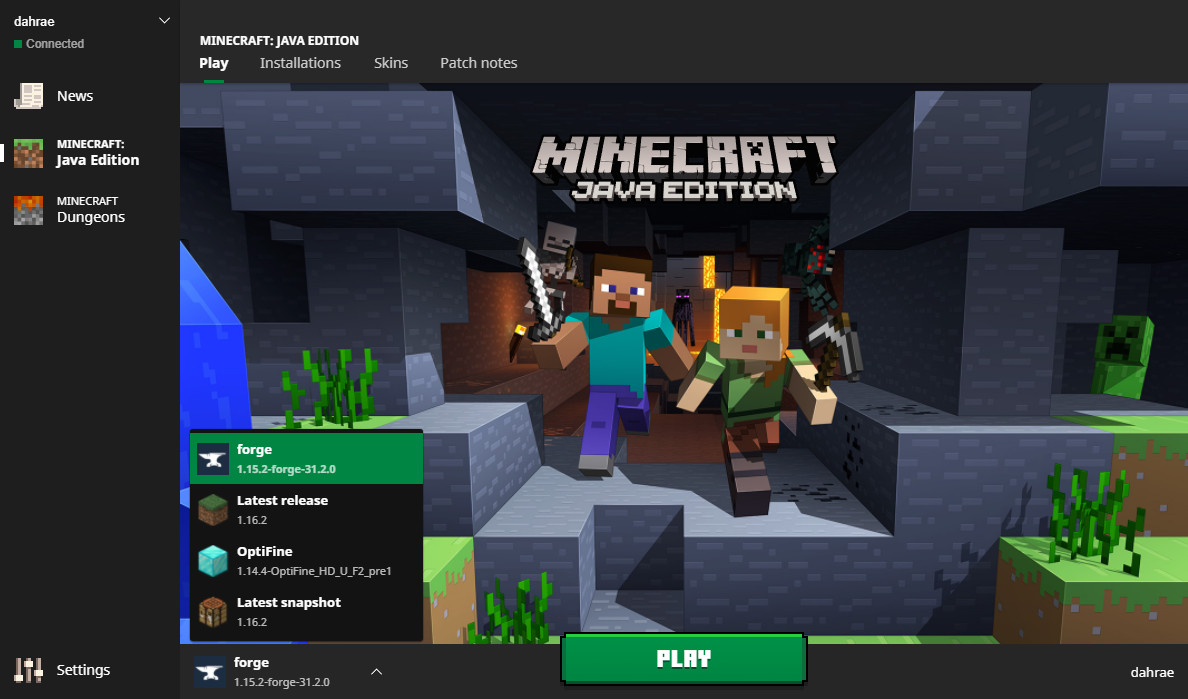
Step 3: Activate in Minecraft
- Once the folders are correctly placed, launch Minecraft.
- Follow Step 3 from the
.mcpack/.mcaddoninstallation guide (go to world settings, activate in Resource and Behavior Packs, enable Experimental Gameplay).
3. Installing Maps (.mcworld Files)
Maps are essentially pre-built worlds you can explore. They often come with their own resource and behavior packs embedded.
Step 1: Download the Map File
- Download the
.mcworldfile from your chosen source.
Step 2: Initiate the Import
- Similar to
.mcpackfiles, locate the.mcworldfile with your file manager and tap it. - Select “Minecraft” to open it.
Step 3: Map Import
- Minecraft will launch and automatically import the world. You’ll see a message “World Import Started…” and then “World Import Finished.”
- The new map will appear at the top of your “Play” screen list of worlds. Just tap on it to start playing!
Finding and Downloading MCPE Mods Safely
The vastness of the internet means that while a wealth of mods is available, so too are potential risks. Digital security should always be a priority. Choosing reputable sources is paramount for ensuring you download clean, functional files and avoid malware.
Recommended Mod Sources and Platforms
When looking for mods, stick to well-known and trusted communities. These platforms often have moderation teams that vet submissions, reducing the risk of malicious content.
- MCPE DL (mcpedl.com): This is arguably the most popular and comprehensive resource for Bedrock Edition content. It hosts a massive collection of addons, maps, textures, shaders, and skins. The community is active, and content is generally reviewed. They also provide clear installation instructions for each download.
- CurseForge (curseforge.com): While historically more Java-focused, CurseForge has expanded to include Bedrock Edition content. It’s a professional platform managed by Overwolf, known for its robust moderation and direct integration with various launchers.
- Dedicated Addon/Mod Apps: As mentioned earlier, apps like “Addons for Minecraft PE” (various developers on app stores) can be a convenient way to browse and install mods. Look for apps with high ratings and a large number of positive reviews, indicating a reliable “brand” in the app marketplace.
- Official Creator Websites/Patreon: Many talented mod creators maintain their own websites or Patreon pages where they release their work. If you find a mod on a less reputable site, try to trace it back to the original creator’s official channels for a safer download. This also supports the creators directly, fostering a healthy ecosystem for content generation and even future “online income” opportunities for the creators.
- YouTube Channels/Discord Servers: Many mod showcases on YouTube will link directly to download pages. Ensure these links point to one of the reputable sources listed above, or to a creator’s official site. Discord servers dedicated to modding can also be great for finding new content and getting support, but exercise caution with direct file shares from unknown users.
Avoiding Malicious Downloads and Ensuring Digital Security
- Scrutinize Download Links: Be wary of websites that bombard you with pop-up ads, redirect you multiple times, or use obscure download managers. Legitimate mod sites usually provide clear, direct download links, often through services like MediaFire, Google Drive, or their own servers.
- Check File Extensions: Always verify the downloaded file’s extension. It should be
.mcpack,.mcaddon,.mcworld, or a.zipfile containing these. Never download.apkfiles (unless you are intentionally downloading a mod installer app from a trusted app store),.exe, or other executable files from mod sites, as these are almost certainly malicious. - Read Comments and Reviews: Before downloading, check the comments section on the mod’s page. Other users often report issues with installation, bugs, or even security concerns if they arise. This community feedback is invaluable for risk assessment.
- Keep Antivirus/Antimalware Software Updated: While mobile devices have built-in protections, having a reputable antivirus app (especially on Android) can provide an extra layer of defense against potentially harmful downloads.
- Permissions Check: When installing new apps (especially third-party mod launchers), review the permissions they request. An app that wants access to your contacts, camera, or excessive device data for a Minecraft mod is a red flag.
- Trust Your Gut: If something feels off, it probably is. It’s better to miss out on a mod than to compromise your device’s security.
Troubleshooting Common Mod Installation Issues
Even with the best preparation, modding can sometimes present challenges. Knowing how to diagnose and fix common problems can save you a lot of frustration and keep your gaming experience enjoyable.
Common Errors and Solutions
-
Mod Not Appearing in Game/Not Working:
- Solution:
- Check Activation: Did you activate both the resource pack AND the behavior pack in your world settings? Both must be active.
- Experimental Gameplay: Is “Experimental Gameplay” enabled for your world? Many newer mods absolutely require this.
- Order of Packs: Sometimes, specific mods need to be at the top or bottom of the active pack list. Check the mod’s instructions.
- Compatibility: Is the mod compatible with your current version of Minecraft? An outdated mod or an outdated game can cause issues.
- World Type: Ensure you’re applying the mod to the correct world, and that the world is not corrupted.
- Solution:
-
Game Crashing Upon World Load or Activation:
- Solution:
- Remove the Mod: This is usually a sign of an incompatible or broken mod. Remove the mod from your resource/behavior pack folders or deactivate it in the world settings.
- Device Resources: Large, complex mods or multiple active mods can be demanding. Ensure your device has enough RAM and processing power. Try activating fewer mods at once.
- Conflict with Other Mods: If you have multiple mods active, they might be conflicting. Try activating them one by one to identify the culprit.
- Clear Cache: Sometimes clearing Minecraft’s cache (via app settings on your device) can resolve stability issues.
- Solution:
-
“Failed to Import” Message:
- Solution:
- File Corruption: The downloaded file might be corrupted. Try downloading it again from a different, reputable source.
- Incorrect File Type: Ensure it’s a
.mcpack,.mcaddon, or.mcworldfile. - File Manager Permissions: On Android, ensure your file manager has permission to read and write to the necessary directories.
- Storage Space: Your device might be low on storage, preventing the import.
- Minecraft Version: The mod might be for a much older or newer version of Minecraft that isn’t compatible with your current game.
- Solution:
-
Graphics Glitches/Missing Textures:
- Solution:
- Resource Pack Issues: This usually points to a problem with the resource pack. Re-download it.
- Shader Compatibility: Shaders can be particularly sensitive to device hardware and Minecraft versions. If you’re using shaders, try removing them to see if the issue persists.
- Resource Pack Order: If you have multiple resource packs, ensure they are in the correct order, as higher packs override lower ones.
- Solution:
Best Practices for Mod Management
- Start Small: If you’re new to modding, begin with one or two simple mods to get comfortable with the process before adding dozens.
- Read Mod Descriptions Thoroughly: Always read the mod’s description, compatibility notes, and installation instructions provided by the creator. This is your most reliable source of information.
- Keep Mods Organized: If you’re manually managing files, create a dedicated folder for your downloaded mods, perhaps sorted by type or creator. This “productivity” hack saves time later.
- Regular Backups: Regularly back up your important Minecraft worlds, especially before installing major new mods or updating your game.
- Stay Updated (Selectively): While it’s good to keep Minecraft updated for new features and bug fixes, sometimes a specific mod might not be immediately compatible with the very latest version. Check the mod’s compatibility before updating your game, especially if you have a favorite mod.
Maximizing Your Modded MCPE Experience
Once you’ve successfully navigated the installation process and populated your Minecraft world with exciting new content, the next step is to fully embrace and optimize your modded experience. This goes beyond simple installation and delves into best practices for ongoing engagement and digital longevity.
Leveraging the Power of Mods for Deeper Engagement
Mods aren’t just about adding new things; they’re about transforming your entire relationship with the game.
- Curated Playthroughs: Instead of randomly adding mods, consider building a “modpack” for yourself, even informally. Select a set of mods that complement each other to create a specific themed experience – perhaps a magic-focused adventure, a hardcore survival challenge, or a futuristic tech world. This kind of “brand strategy” for your personal gameplay can greatly enhance immersion.
- Creative Exploration and Design: For those who enjoy building, resource packs and behavior packs can unlock new design possibilities. Imagine creating an ancient temple with custom block textures or designing automated farms with sophisticated redstone-like behaviors enabled by addons. Mods become tools for digital craftsmanship.
- Community Building: Many mods thrive on community. Share your modded experiences, showcase your builds, or even collaborate with others on modded servers. This fosters a sense of belonging and can introduce you to new players and content creators. The interaction itself contributes to the “personal branding” of engaged players within the broader Minecraft community.
- Learning Opportunities: For the more tech-inclined, delving into how mods work can be a gateway to understanding basic programming logic, game design principles, and even digital asset creation. Many mod creators share their insights, offering tutorials that can be invaluable for aspiring developers.
The Evolving Landscape of MCPE Modding
The world of MCPE modding is dynamic, continually evolving with new game updates and technological advancements.
- Official Support (Addons): Mojang’s continued development of the official Addon API signifies a commitment to user-generated content. As the API expands, we can expect even more sophisticated and integrated mods directly supported by the game, reducing the reliance on third-party launchers. This also presents an avenue for creators to potentially “monetize” their content more directly and officially, contributing to a digital “economy” of sorts around custom assets.
- Performance Improvements: As mobile hardware advances and Minecraft Bedrock Edition is optimized, larger and more graphically intensive mods, especially shaders, will become more accessible to a wider audience, enhancing the overall visual “value” proposition.
- Cross-Platform Compatibility: Bedrock Edition’s cross-platform nature means that mods developed for one device (e.g., Android) are often compatible with others (e.g., iOS, Windows 10, Xbox), fostering a wider sharing and user base.
- AI Tools and Content Generation: While nascent, the future might see AI tools assist modders in content creation, from generating textures to suggesting new gameplay mechanics, further accelerating the pace of mod development and variety. This aligns directly with current “Tech” trends in generative AI.
In conclusion, installing MCPE mods is more than just a technical process; it’s an entry point into a vibrant ecosystem of creativity, innovation, and community. By following this guide, prioritizing digital security, and embracing best practices, you can unlock an almost infinite realm of possibilities within Minecraft. From simple texture changes to complex new game mechanics, mods offer an unparalleled opportunity to personalize, enhance, and extend your digital adventures. So go forth, intrepid crafter, and transform your Minecraft experience into something truly extraordinary!
aViewFromTheCave is a participant in the Amazon Services LLC Associates Program, an affiliate advertising program designed to provide a means for sites to earn advertising fees by advertising and linking to Amazon.com. Amazon, the Amazon logo, AmazonSupply, and the AmazonSupply logo are trademarks of Amazon.com, Inc. or its affiliates. As an Amazon Associate we earn affiliate commissions from qualifying purchases.